> For the complete documentation index, see [llms.txt](https://docs.luciq.ai/llms.txt). Markdown versions of documentation pages are available by appending `.md` to page URLs; this page is available as [Markdown](https://docs.luciq.ai/product-guides-and-integrations/product-guides/bug-reporting/bug-grouping.md).
# Bug Grouping
Bug Grouping detects duplicate reports automatically, giving you cleaner bug lists, truer issue impact, and one master report to act on.
## Overview
Bug Grouping helps teams stay focused by:
* **Detecting duplicate reports automatically** -> Reduces manual triage and repetitive review
* **Reflecting the true magnitude of an issue** -> See how many duplicates belong to the same underlying problem
* **Letting you act once on the master report** -> Key actions propagate across duplicates
This feature works **side-by-side** with manual duplication. Manual grouping continues to work as-is.
***
### How it works
When a new report is received, Luciq evaluates it against recent reports and determines whether it belongs to an existing group or should remain ungrouped.
* **Semantic matching**: Reports are compared by the meaning of their descriptions, not just exact wording, to find likely duplicates.
* **Group assignment**: If a match is found, the report joins that group as a duplicate. If not, it stays ungrouped/single.
* **Fast fallback**: The grouping logic is done on our backend, so if an automatic grouping can’t complete quickly (with in 30-secs), the report is shown normally (ungrouped) so your workflow is never blocked.
{% hint style="info" %}
**Grouping Logic**
The grouping logic focuses primarily on:
* **Report description semantic similarity**, plus
* **Report category/type match** (e.g., Bug vs Question)
Notably:
* **Subcategory is not used** in grouping.
* Additional attributes (screen name, app version, etc.) **are not** part of the current grouping logic as well.
{% endhint %}
:new:**Additional Parameters: Grouping with logs and user steps**
In addition to the matching described above, Luciq can use two extra signals to make grouping decisions sharper: **network logs** and/or **user steps**.
* **Network logs**: the failing endpoints and HTTP errors hit during the user's session.
* **User steps**: the screens the user moved through, the screen they were on when the report was triggered, and the last action they took.
With these signals, two reports that hit the same failing endpoint or end on the same error screen can be grouped together even when their titles or descriptions don't match. Reports that read similarly but exercise different parts of the app are kept apart.
{% hint style="info" %}
**Enabling log-based grouping**
* This is an opt-in setting on top of Bug Grouping. You can turn **Network logs**, **User Steps**, or both on directly from your app settings page. See [Enabling Bug Grouping](#enabling-bug-grouping) below.
* When enabled, a new report may be held for up to **10 minutes** while its logs become available. If logs are delayed beyond that window, the report falls back to standard (text-only) grouping; if grouping still can't be applied, the report lands on the dashboard ungrouped so your workflow is never blocked.
{% endhint %}
***
### What you’ll see in the dashboard
#### Group types
Bug reports are presented as one of the following:
* **Ungrouped report**: not part of any group AKA Single report.
* **Manual grouping**: created by your team.
* **Automatic grouping**: detected and grouped automatically.
Automatic group masters are visually distinguished so you can tell what was auto-grouped vs manually grouped.
{% hint style="info" %}
**Key concepts**
* **Master report**: the parent report representing the group’s “canonical” issue.
* **Duplicate report**: a report automatically or manually marked as duplicate of a master.
* **Ungrouped/Single report**: not part of any group.
{% endhint %}
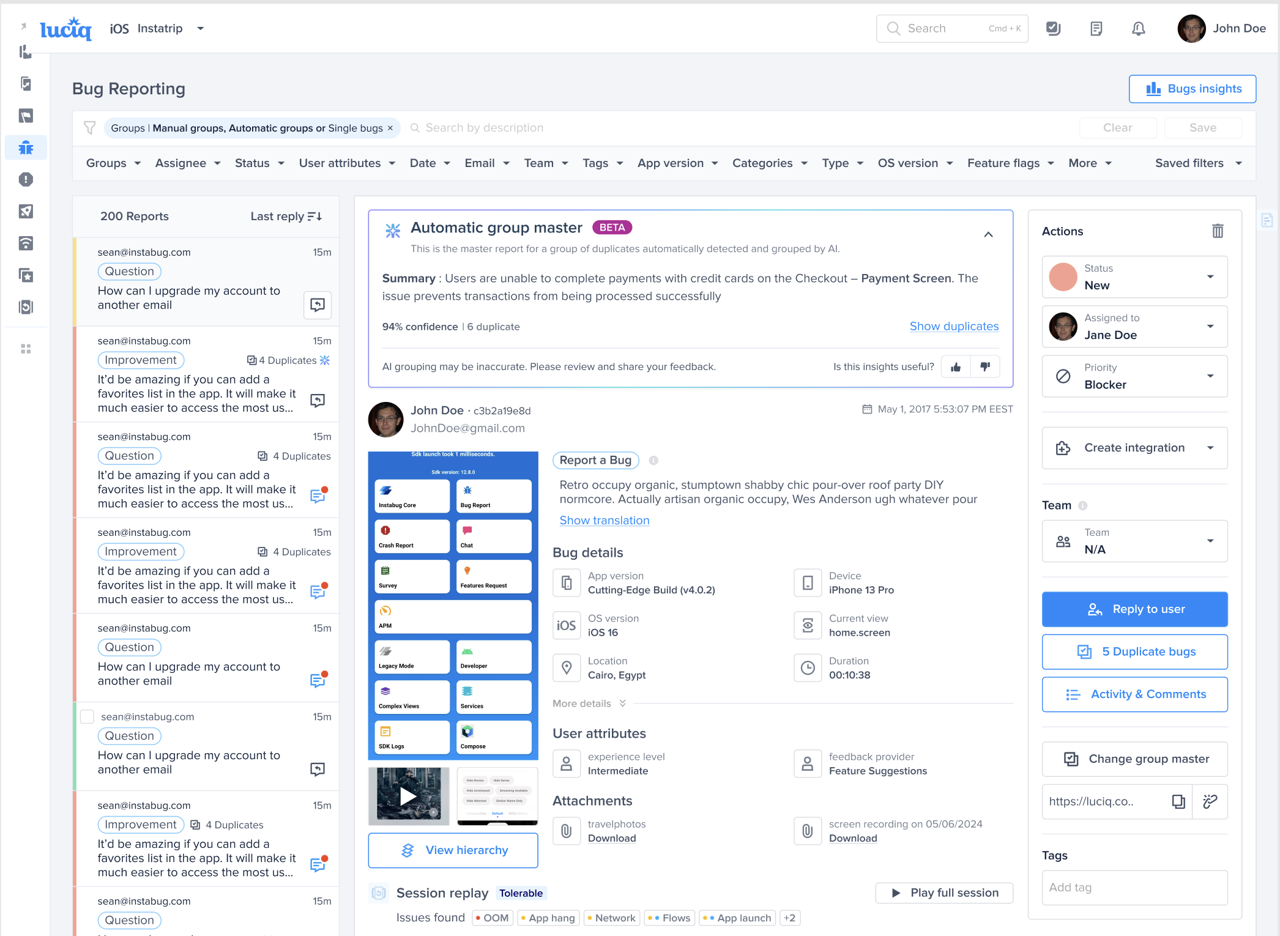
#### Automatic group master details
Automatic group masters include an “Automatic group master” section that provides:
* **Group summary**: A short description of the shared issue across duplicates
* **Grouping confidence**: A confidence indicator for the grouping decision
* **Number of grouped reports**: Total duplicates in the group
* **Show duplicates**: View all duplicates in a dedicated list/drawer
{% hint style="info" %}
**What to expect**
* **Group summary**: A concise description of the shared issue across the group. It may take a short time to appear after grouping.
* **Confidence**: A confidence indicator for automatic grouping decisions. Group-level confidence is derived from the duplicates within the group. Manual duplicates do not contribute to the confidence calculation.
{% endhint %}
{% hint style="info" %}
**How the group summary stays fresh**
* When your grouping logic includes **Network logs** or **User Steps**, those signals are factored into the summary alongside the report titles, so it reflects real technical detail rather than titles alone.
* The summary regenerates automatically as the group grows: it is refreshed when the group reaches **3 duplicates**, and again at **7 duplicates**. Each refresh considers every duplicate in the group, including manually-marked ones.
* Only automatic grouping triggers a re-summarization. The group **title** is set once, on the first summary, and stays fixed while the summary itself regenerates.
{% endhint %}
#### Group Patterns
Group masters include a **Group Patterns** section that shows the common metadata patterns across the duplicates in the group. Similar to Crash Reporting, you can see patterns across:
* **App version**
* **Devices**
* **OS version**
* **Current view**
* **Feature requests**
This helps you spot the potential root causes of a grouped bug without opening every duplicate in the group. Group Patterns is enabled by default on top of Bug Grouping.
#### Automatic duplicate details
Automatic duplicates show a banner indicating they were automatically marked as duplicates, and provide a shortcut to view the master report.
#### Actions & workflows
Automatic groups follow the same core workflow as manual duplicates:
* **Master-first actions**: Update status/assignee/priority on the master report and duplicates follow.
* **Duplicates are restricted**: You can’t apply master-level actions directly from duplicate reports.
* **Change group master / mark as duplicate**:
* For ungrouped/single reports, you can mark them as duplicates of an existing master.
* For master reports, you can change with another ungrouped or master reports. **Note:** When changing a master with another master, you’ll simply merge the two groups together.
* For duplicate reports, you can unmark them as duplicates (removing them from the group).
#### Filtering & bulk actions
When Bug Grouping is enabled, the dashboard exposes a **Report Groups** filter that lets you view:
* **Ungrouped reports**
* **Automatic** -> Masters / Duplicates
* **Manual** -> Masters / Duplicate
Bulk actions are intentionally limited to prevent accidental changes across duplicates. If your current filter selection includes duplicates or doesn’t target masters appropriately, bulk actions will be disabled with an explanatory tooltip.
***
## Tags (master vs duplicate)
Luciq tags reports when they are created so you can distinguish master vs duplicate reports consistently.
* **Master reports**: Master\_report
* **Duplicate reports**: Duplicate\_report
**Note:** If Tags Sync is disabled in your 3rd party integration, master reports tag may not appear in certain tracking views when forwarding automatically.
***
## What to expect (and what not to expect)
**What to expect**
* Faster triage through automatic duplicate detection
* Clear distinction between manual and automatic groups
* Master-first workflow: one action on master updates the group
**What not to expect**
* New reports will not be automatically grouped into existing manual groups
* Perfect grouping in every case, yet. (you can always adjust groups manually)
* Duplicate grouping into closed/resolved issues (closed groups won’t continue collecting new duplicates)
***
## Enabling Bug Grouping
You control Bug Grouping from the [**AI Features Control Center**](/product-guides-and-integrations/product-guides/ai-features/ai-features-control-center.md) under **Settings → Workspace**, with no need to reach out to us. From that page you can:
* **Enable or disable Bug Grouping**, and give your consent to the feature directly on the dashboard.
* **Enable or disable Network logs** in the grouping logic.
* **Enable or disable User Steps** in the grouping logic.
Only **Owners** and **Admins** on the workspace can change these toggles. **Members** and **Viewers** see them as read-only.
**Note:** After enabling the feature, **grouping will be applied only to reports that are received after the feature is enabled**; it won’t be applied retroactively to old bug reports.
---
# Agent Instructions
This documentation is published with GitBook. GitBook is the documentation platform designed so that both humans and AI agents can read, navigate, and reason over technical content effectively. Learn more at gitbook.com.
## Querying This Documentation
If you need additional information that is not directly available in this page, you can query the documentation by asking a question.
Perform an HTTP GET request on the following URL with the `ask` and `goal` query parameters:
```
GET https://docs.luciq.ai/product-guides-and-integrations/product-guides/bug-reporting/bug-grouping.md?ask=&goal=
```
`ask` is the immediate question: it should be specific, self-contained, and written in natural language.
`goal` is what the user is ultimately trying to achieve, the reason they need the answer. Sharing it helps GitBook give you a better, more relevant answer. A goal is most helpful when it describes the outcome the user wants rather than restating the question. For example, with `ask=how do I create an API token`, a goal like `automate deployments from our CI pipeline` lets GitBook tailor the answer to that use case.
The response will contain a direct answer to the question and relevant excerpts and sources from the documentation.
Use this mechanism when the answer is not explicitly present in the current page, you need clarification or additional context, or you want to retrieve related documentation sections.
.png?alt=media)
.png?alt=media)
.png?alt=media)
.png?alt=media)