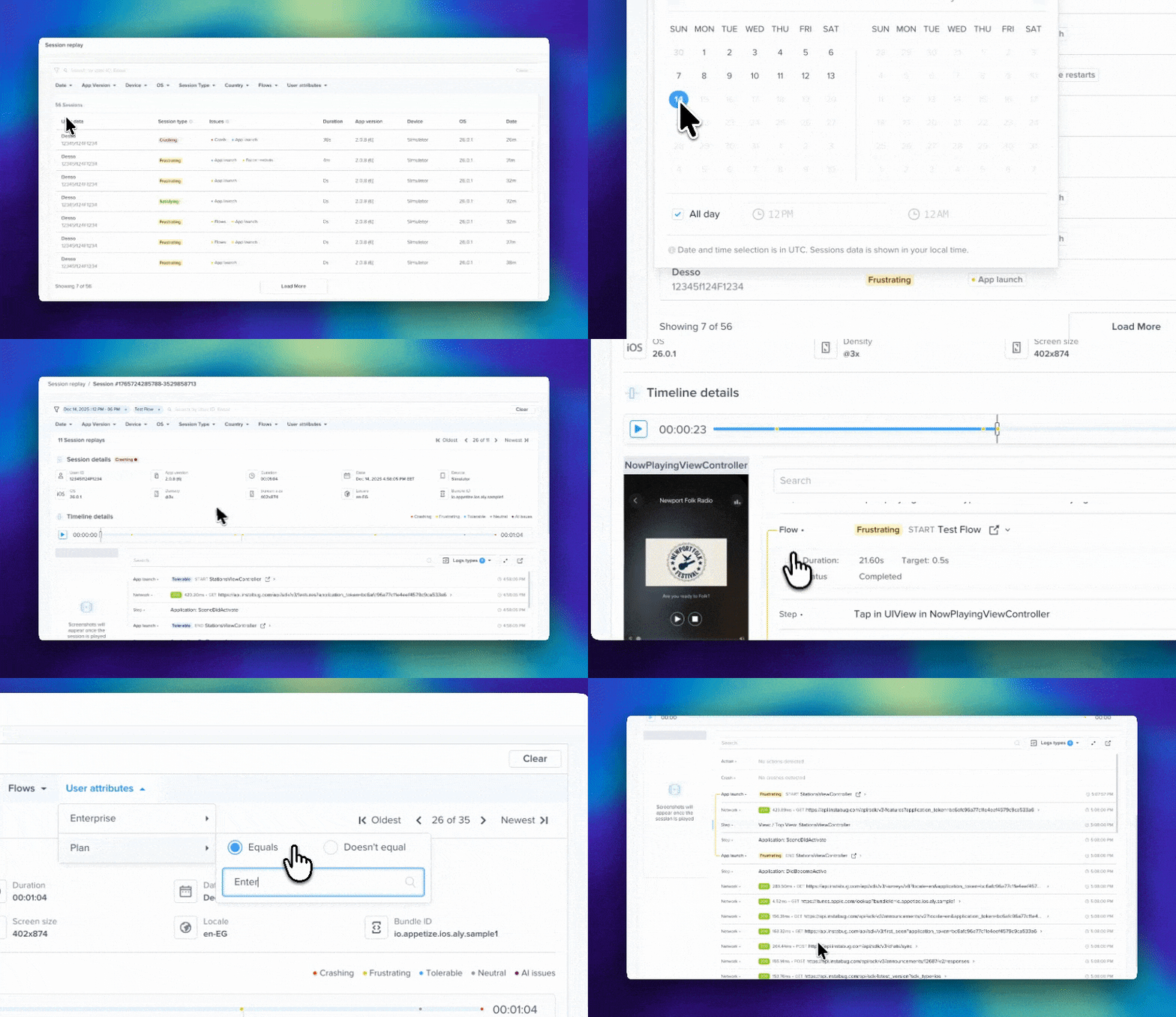
> For the complete documentation index, see [llms.txt](https://docs.luciq.ai/llms.txt). Markdown versions of documentation pages are available by appending `.md` to page URLs; this page is available as [Markdown](https://docs.luciq.ai/product-guides-and-integrations/product-guides/session-replay.md).
# Session Replay
Session Replay records and visualizes user sessions, capturing screen changes, interactions, and logs to show exactly what users experienced.
### **Session Replay**
Allows you see your app through your users' eyes by recording and visualizing user sessions, capturing screen changes, interactions, logs, and stability and performance issues.
It provides full context of the user experience, enabling teams to debug issues faster, reduce support back-and-forth, and proactively identify user frustration. Whether you're reproducing bugs, investigating negative feedback, or responding to support tickets, Session Replay shows you exactly what users experienced with complete visual context.
### Features
### Sessions List
Sessions are sorted chronologically by default. You’ll see the following information for each session:
1. **User Data:** The end-user's email/name and ID. By default, it shows Luciq's UUID, but you can override it with your internal IDs using the [User Identification API](/ios/setup-luciq-for-ios/custom-settings/user-identification.md).
2. **Session Type**: Any session that ends with a fatal crash or OOM is flagged as a crashing session. Any session that is affected by an App hang or a Force Restart is flagged as a frustrating session. Otherwise, a bucket is defined based on all the other metrics and occurrences (app launch, app traces, network, and UI hangs) that happened within the session. More examples can be found [here](/product-guides-and-integrations/product-guides/application-performance-monitoring/metrics-and-dimensions.md#apdex).
3. **Session Issues**: The issues that happened during the session. These include crashes, app hangs, slow app launches, screen loadings, or execution traces as well as Force Restarts. This can help you identify sessions that require your attention.
4. **Duration**: The length of the replay.
5. **App Version**: The app version the user was on during the session.
6. **OS**: The OS version the device was on during the session.
7. **Date**: of when the session has occurred.
### Session Details
With each session, Luciq captures detailed information about the session itself. Below is the list of session related details that Luciq captures:
1. User ID
2. Date
3. Session duration
4. App version
5. Device
6. OS version
7. User ID (if provided)
8. Username (if provided)
9. Locale
10. Bundle ID
11. Device location
12. User attributes
13. Feature flags
#### Timeline
A timeline from the beginning to the end of the session which visually highlights performance and stability issues that happen over the course of the replay. Users can easily move to the point on the timeline where they want to start debugging. It also visually shows the duration of the session.
#### Screenshots
Screenshots taken throughout the session whenever there is a change in the UI (The SDK captures a screenshot with every screen transition).
#### Logs
A whole host of logs are sent with every session. These logs include:
1. **Luciq Logs**: Logs with various verbosity levels that you can add manually.
2. **User Steps**: Log entries detailing each step the user has taken.
3. **Network Logs**: Records of all network requests.
4. **Crashes**: If Luciq’s Crash Reporting is enabled, you'll see all crash metrics within the session, including fatal crashes, app hangs, ANRs, and non-fatal errors.
5. **Performance**: If Luciq's APM is enabled, you'll see all APM metrics for the session, including app launches, screen loading, flows, and networks.
## Session Definition
A session starts when the app is brought into the foreground and ends when it moves to the background or when it's terminated either by the OS or the user.
{% hint style="info" %}
**Foreground Only**
We currently support session replay for foreground sessions only.
{% endhint %}
## User Identification
In order to find sessions by searching for specific users, make sure you use our user identification API. More details about the user identification API can be found [here](/ios/setup-luciq-for-ios/custom-settings/user-identification.md).
## Constrained Devices
On Android, the SDK automatically classifies devices into performance tiers and reduces data collection on lower-tier devices — on low-end devices Session Replay is limited to Navigation mode. This is SDK-wide behavior affecting all Luciq products; see [Device Performance Classification](/product-guides-and-integrations/product-guides/device-performance-classification.md) for the classification criteria, emulator behavior, and what gets reduced per tier.
---
# Agent Instructions
This documentation is published with GitBook. GitBook is the documentation platform designed so that both humans and AI agents can read, navigate, and reason over technical content effectively. Learn more at gitbook.com.
## Querying This Documentation
If you need additional information that is not directly available in this page, you can query the documentation dynamically by asking a question.
Perform an HTTP GET request on the current page URL with the `ask` query parameter, and the optional `goal` query parameter:
```
GET https://docs.luciq.ai/product-guides-and-integrations/product-guides/session-replay.md?ask=&goal=
```
`ask` is the immediate question: it should be specific, self-contained, and written in natural language.
`goal` is optional and describes the broader end goal you are ultimately trying to accomplish on behalf of the user. GitBook uses it to tailor the answer towards what is most useful for that goal.
The response will contain a direct answer to the question and relevant excerpts and sources from the documentation.
Use this mechanism when the answer is not explicitly present in the current page, you need clarification or additional context, or you want to retrieve related documentation sections.