> For the complete documentation index, see [llms.txt](https://docs.luciq.ai/llms.txt). Markdown versions of documentation pages are available by appending `.md` to page URLs; this page is available as [Markdown](https://docs.luciq.ai/product-guides-and-integrations/product-guides/bug-reporting/reply-to-reporters.md).
# Reply to Reporters
Send an in-app chat to the user who filed a bug, crash, or survey response, and read the icons Luciq shows in your list of reports.
{% hint style="info" %}
**Separate Conversations**
Each open conversation can only be viewed from its related issue. If you reply to a user who reported a specific bug, you can only access that conversation from that specific bug report. The same is true for crash report and survey response.
{% endhint %}
### Reply to User
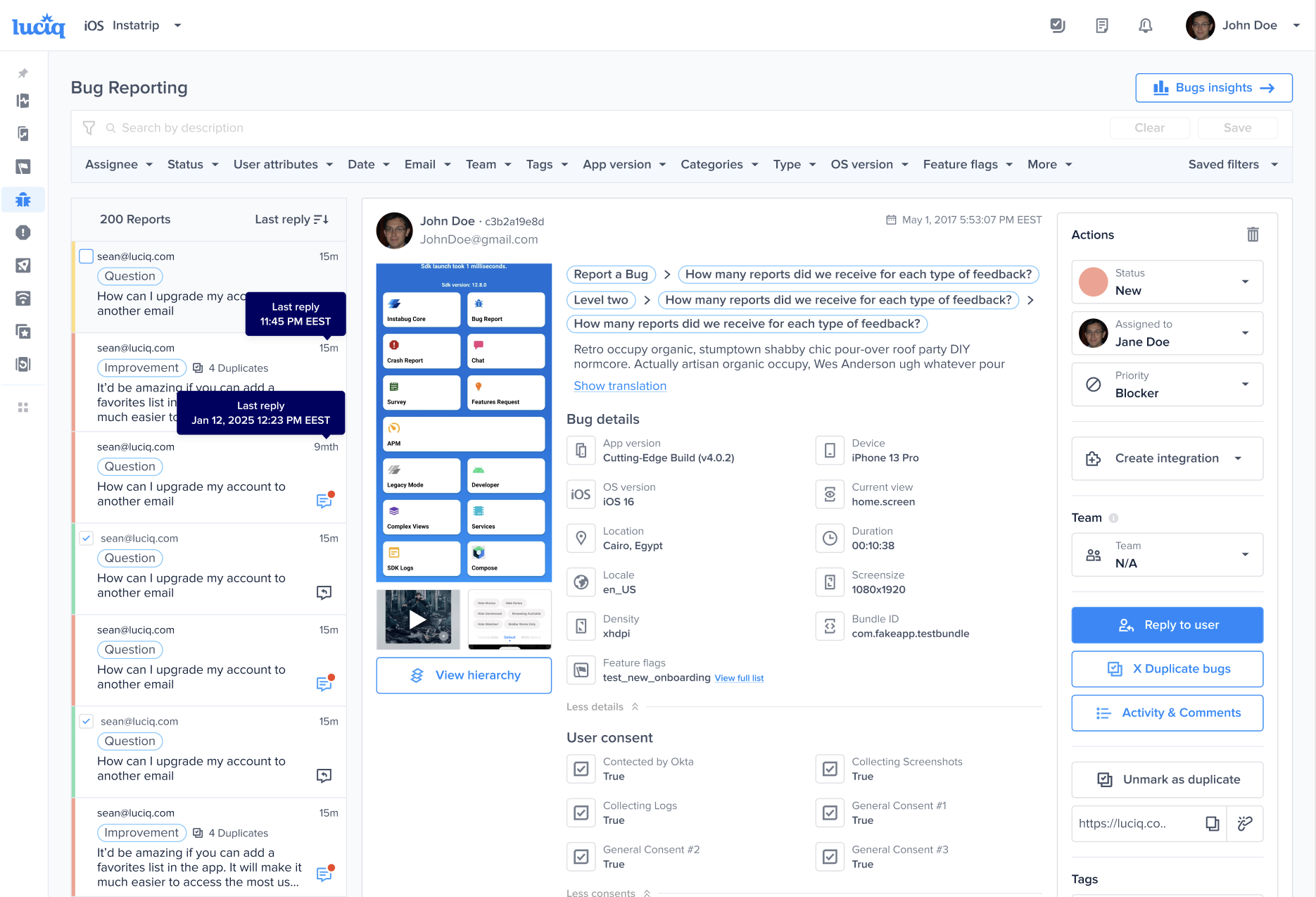
Let's say you receive a bug report from a user and you want to let them know that a fix is on the way or ask for more details. You can do this by reaching out to them directly from the bug report in your dashboard using the **Reply to User** button (or **View Conversation** if one already exists) as shown below.
By default, your users will receive an in-app notification, then an email if they miss the notification.
You can have conversations with your app users without ever having to leave the bugs page.
{% hint style="info" %}
**Note**
To ensure chat privacy and prevent conversations from being mixed between different users, it is critical to use a unique ID for each user. For more details, please see our guide on [User Identification](/ios/setup-luciq-for-ios/custom-settings/user-identification.md).
{% endhint %}
#### Chat Icons
You can easily see if you have are any unread messages from users by checking the icons in your list of reports.
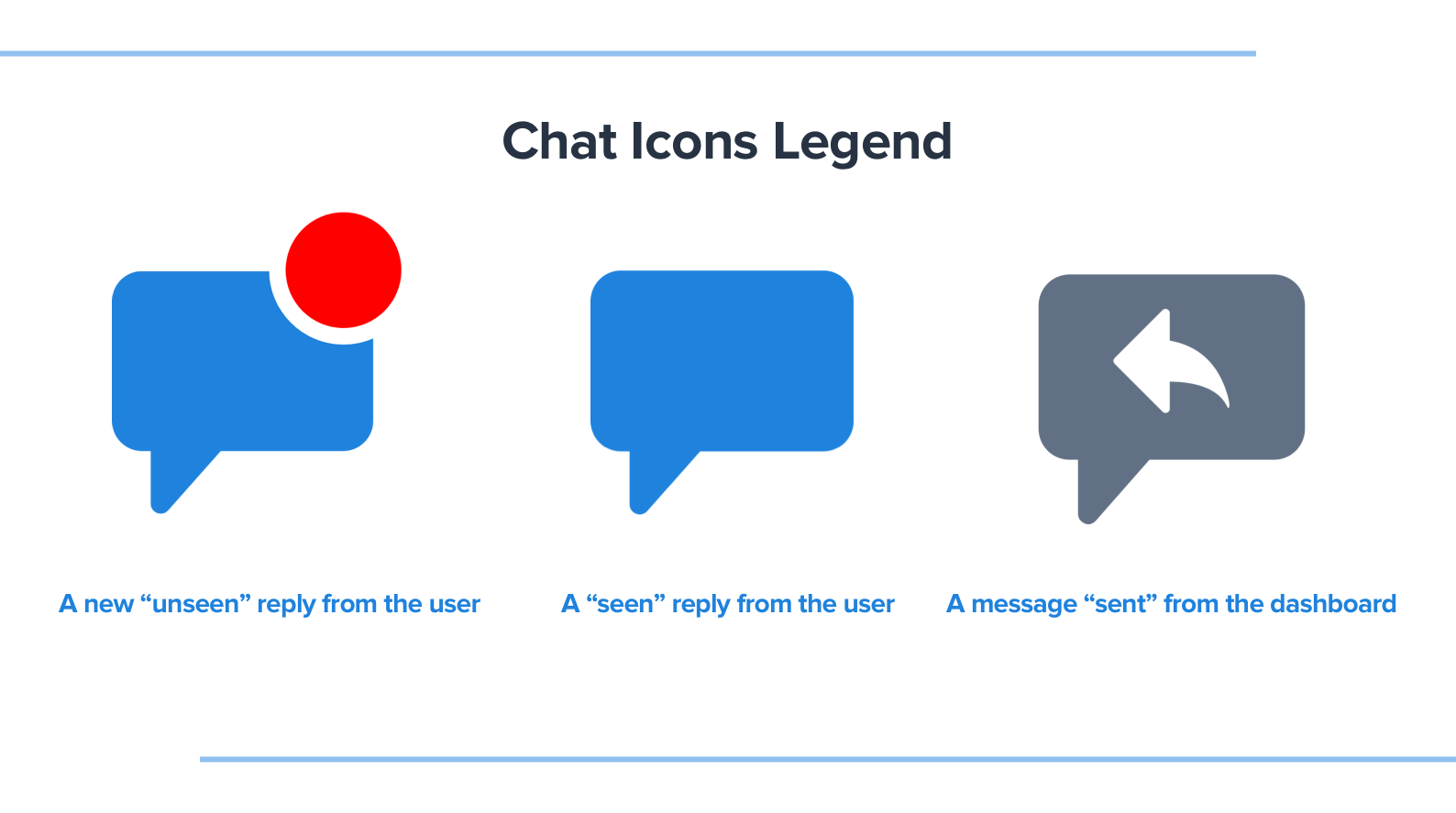
There are three different chat icons that indicate which reports contain conversations.
* **Blue chat icon with red dot:** You have a new unread message from the user.
* **Blue chat icon only:** You read the message but didn't reply (the user sent the last message in the conversation).
* **Grey chat icon with arrow:** You have replied to this user (you sent the last message in the conversation).
* **No icon:** There is no conversation in this report.
Your reports are also sorted so that the reports with the newest messages appear first instead of when the bug was first reported. This resurfaces the reports that require your attention instead of staying buried in your list.
"Closed" reports that receive new messages are automatically changed back to "In Progress" and will appear in your list.
The chat icons are visible in your list of reports on the lefthand side of the bugs page in your dashboard
---
# Agent Instructions
This documentation is published with GitBook. GitBook is the documentation platform designed so that both humans and AI agents can read, navigate, and reason over technical content effectively. Learn more at gitbook.com.
## Querying This Documentation
If you need additional information that is not directly available in this page, you can query the documentation dynamically by asking a question.
Perform an HTTP GET request on the current page URL with the `ask` query parameter, and the optional `goal` query parameter:
```
GET https://docs.luciq.ai/product-guides-and-integrations/product-guides/bug-reporting/reply-to-reporters.md?ask=&goal=
```
`ask` is the immediate question: it should be specific, self-contained, and written in natural language.
`goal` is optional and describes the broader end goal you are ultimately trying to accomplish on behalf of the user. GitBook uses it to tailor the answer towards what is most useful for that goal.
The response will contain a direct answer to the question and relevant excerpts and sources from the documentation.
Use this mechanism when the answer is not explicitly present in the current page, you need clarification or additional context, or you want to retrieve related documentation sections.