> For the complete documentation index, see [llms.txt](https://docs.luciq.ai/llms.txt). Markdown versions of documentation pages are available by appending `.md` to page URLs; this page is available as [Markdown](https://docs.luciq.ai/android/set-up-luciq-for-android/set-up-bug-reporting/showing-luciq.md).
# Showing Luciq
Choose how the Luciq SDK is shown in your Android app, from shake and screenshot to a floating button or a manual call, and which mode opens first.
By default, Luciq is shown when the device is shaken. This can be customized to several other modes that show the SDK. You can also show the SDK manually from a custom gesture or a button you add to your app.
## Invocation Events
You can set the SDK to be shown when your users do one or more of the following actions:
* Shake device
* Take a normal screenshot
* Tap on a floating button shown above your app's UI
* Do a two-finger swipe from right to left
* None (manual showing)
You have the option to set one or multiple invocation events. To customize the invocation event, pass one of the values of the `LuciqInvocationEvent` enum when starting the SDK.
{% tabs %}
{% tab title="Kotlin" %}
{% code overflow="wrap" %}
```kotlin
Luciq.Builder(this, "APP_TOKEN")
.setInvocationEvents(LuciqInvocationEvent.SHAKE, LuciqInvocationEvent.FLOATING_BUTTON)
.build()
```
{% endcode %}
{% endtab %}
{% tab title="Java" %}
{% code overflow="wrap" %}
```java
new Luciq.Builder(this, "APP_TOKEN")
.setInvocationEvents(LuciqInvocationEvent.SHAKE, LuciqInvocationEvent.SCREENSHOT)
.build();
```
{% endcode %}
{% endtab %}
{% endtabs %}
You can find the possible invocation events below.
{% tabs %}
{% tab title="Android" %}
{% code overflow="wrap" %}
```kotlin
NONE
SHAKE
FLOATING_BUTTON
SCREENSHOT
TWO_FINGER_SWIPE_LEFT
```
{% endcode %}
{% endtab %}
{% endtabs %}
### None
Use the "none" event if you want to show the SDK manually in order to prevent the SDK from being invoked through the other events.
{% hint style="success" %}
### Recommendation
If you set the event to "NONE" and you're showing Luciq manually from your app's UI, we recommend that you set up [custom categories](broken://pages/fQ7Wklg9ms4mtX2JnhmX). Typically, while using the other gestures, the user can invoke Luciq from any screen in the app once they spot an issue which allows the SDK to capture the current screen and attach it to the report. However, when you limit invoking Luciq to a specific screen (help or settings for example), the current screen that the SDK captures won't necessarily be relevant to the issue. The recommended alternative is that you set up a list of custom categories that match the main features or views in your app and let the user choose one of them.
{% endhint %}
### Floating Button
If you are using the floating button, you can set its default position as explained here.
### Shaking Threshold
If you are using the shaking gesture as your invocation event, you can set how sensitive the device should be to the shaking. The default value is 650. The higher the value, the less sensitive the device will be to shaking.
{% tabs %}
{% tab title="Kotlin" %}
{% code overflow="wrap" %}
```kotlin
BugReporting.setShakingThreshold(800)
```
{% endcode %}
{% endtab %}
{% tab title="Java" %}
{% code overflow="wrap" %}
```java
BugReporting.setShakingThreshold(800);
```
{% endcode %}
{% endtab %}
{% endtabs %}
## Changing the Invocation Event
If you want to change the invocation event to any of the other supported events, you can do so at runtime as shown below.
{% tabs %}
{% tab title="Kotlin" %}
{% code overflow="wrap" %}
```kotlin
BugReporting.setInvocationEvents(LuciqInvocationEvent.SHAKE, LuciqInvocationEvent.SCREENSHOT)
```
{% endcode %}
{% endtab %}
{% tab title="Java" %}
{% code overflow="wrap" %}
```java
BugReporting.setInvocationEvents(LuciqInvocationEvent.SHAKE, LuciqInvocationEvent.SCREENSHOT);
```
{% endcode %}
{% endtab %}
{% endtabs %}
## Manual Showing
If you want to show the SDK manually, use the `show` method.
{% tabs %}
{% tab title="Kotlin" %}
{% code overflow="wrap" %}
```kotlin
Luciq.show()
```
{% endcode %}
{% endtab %}
{% tab title="Java" %}
{% code overflow="wrap" %}
```java
Luciq.show();
```
{% endcode %}
{% endtab %}
{% endtabs %}
{% hint style="success" %}
### Recommendation
When you limit invoking Luciq to a specific screen (help or settings for example), the current screen that the SDK captures won't necessarily be relevant to the issue. To help you gain more context, it is recommended that you set up a list of custom categories that match the main features or views in your app and let the user choose one of them. You can find more details [here](broken://pages/fQ7Wklg9ms4mtX2JnhmX).
{% endhint %}
## Showing Specific Modes
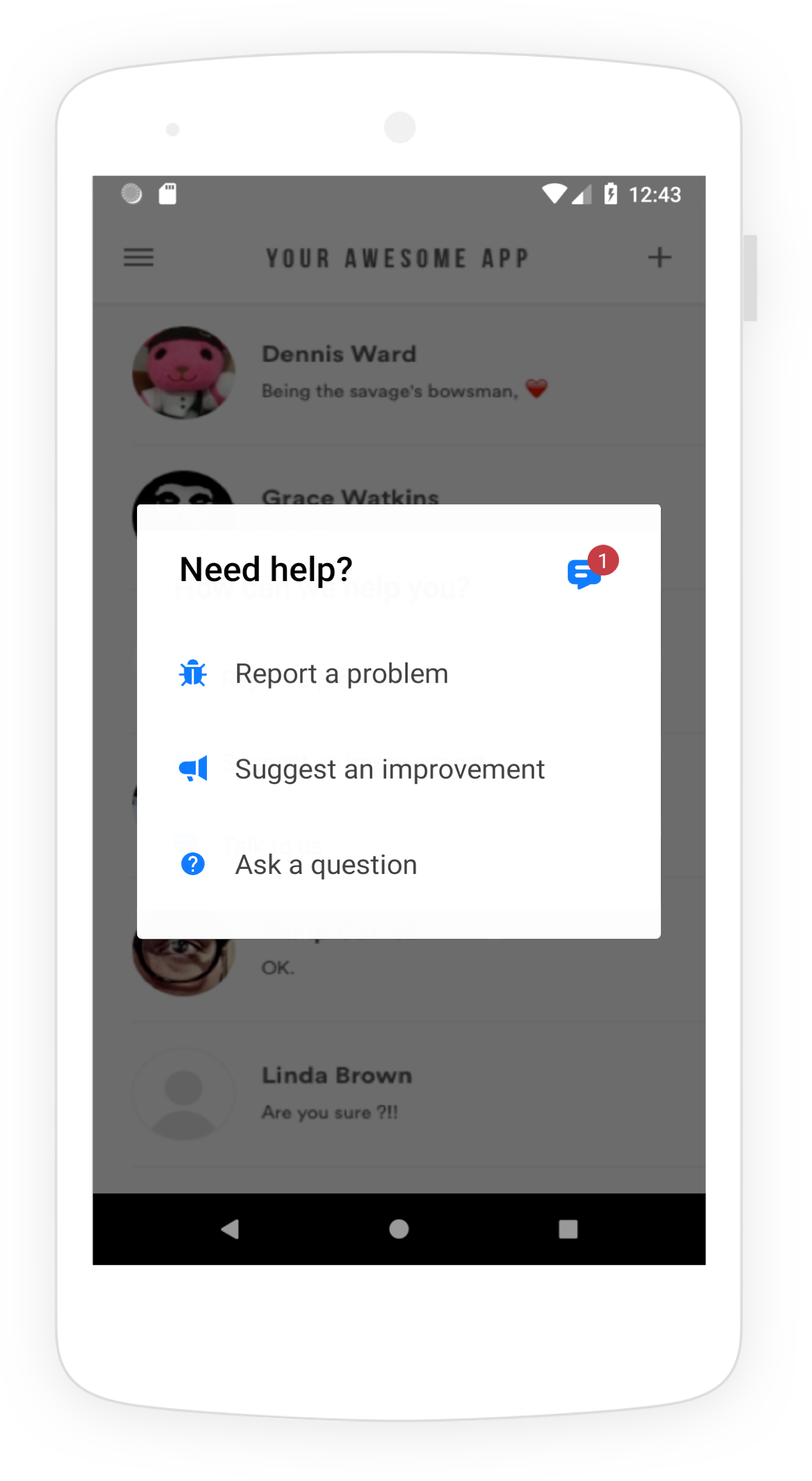
By default, when the Luciq SDK is shown, a popup appears to your app users with options for them to report a bug ("Report a bug"), share feedback ("Suggest an improvement"), or ask you a question ("Ask a question").
The Prompt Options menu appears when Luciq is shown in your app.
Instead of showing this [Prompt Options](/android/set-up-luciq-for-android/sdk-customizations/prompt-options.md) menu that lets your users choose what they want to do, you can skip this step and take users directly to the bug, feedback, or question reporting flow.
### Show Bug Form
This API will show users a form they can use to submit new bug reports.
{% tabs %}
{% tab title="Kotlin" %}
{% code overflow="wrap" %}
```kotlin
BugReporting.show(BugReporting.ReportType.BUG)
```
{% endcode %}
{% endtab %}
{% tab title="Java" %}
{% code overflow="wrap" %}
```java
BugReporting.show(BugReporting.ReportType.BUG);
```
{% endcode %}
{% endtab %}
{% endtabs %}
### Show Feedback Form
This API will show users a form they can use to submit new feedback and suggestions.
{% tabs %}
{% tab title="Kotlin" %}
{% code overflow="wrap" %}
```kotlin
BugReporting.show(BugReporting.ReportType.FEEDBACK)
```
{% endcode %}
{% endtab %}
{% tab title="Java" %}
{% code overflow="wrap" %}
```java
BugReporting.show(BugReporting.ReportType.FEEDBACK);
```
{% endcode %}
{% endtab %}
{% endtabs %}
### Show Question Form
This API will show users a form they can use to submit a new question.
{% tabs %}
{% tab title="Kotlin" %}
{% code overflow="wrap" %}
```kotlin
BugReporting.show(BugReporting.ReportType.QUESTION)
```
{% endcode %}
{% endtab %}
{% tab title="Java" %}
{% code overflow="wrap" %}
```java
BugReporting.show(BugReporting.ReportType.QUESTION);
```
{% endcode %}
{% endtab %}
{% endtabs %}
### Show Replies Page
This API will show users a page where they can see all their ongoing chats. If the user has no ongoing chats, this API won't have an effect.
{% tabs %}
{% tab title="Kotlin" %}
{% code overflow="wrap" %}
```kotlin
Replies.show()
```
{% endcode %}
{% endtab %}
{% tab title="Java" %}
{% code overflow="wrap" %}
```java
Replies.show();
```
{% endcode %}
{% endtab %}
{% endtabs %}
## Enable/Disable Luciq
Sometimes, you might need to disable or enable Luciq if, for example, the user would like to opt out of collecting any sort of logs, bugs, crashes, or survey responses. This can be done using the API below:
{% tabs %}
{% tab title="Kotlin" %}
{% code overflow="wrap" %}
```kotlin
//Enable
Luciq.enable()
//Disable
Luciq.disable()
```
{% endcode %}
{% endtab %}
{% tab title="Java" %}
{% code overflow="wrap" %}
```java
//Enable
Luciq.enable();
//Disable
Luciq.disable();
```
{% endcode %}
{% endtab %}
{% endtabs %}
Alternatively, Luciq can be disabled during Initialization, if required, through the builder method:
{% tabs %}
{% tab title="Kotlin" %}
{% code overflow="wrap" %}
```kotlin
Luciq.Builder(this, "APP_TOKEN")
.setInvocationEvents(LuciqInvocationEvent.SHAKE, LuciqInvocationEvent.FLOATING_BUTTON)
.build(Feature.State.DISABLED)
```
{% endcode %}
{% endtab %}
{% tab title="Java" %}
{% code overflow="wrap" %}
```java
new Luciq.Builder(this, "APP_TOKEN")
.setInvocationEvents(LuciqInvocationEvent.SHAKE, LuciqInvocationEvent.SCREENSHOT)
.build(Feature.State.DISABLED);
```
{% endcode %}
{% endtab %}
{% endtabs %}
{% hint style="warning" %}
### Disabling Luciq
If Luciq is disabled, all user data and attributes are deleted from the device. Answered surveys will be stored in case Luciq is enabled again in order to not show the survey once more. Storing user attributes will not be available while Luciq is disabled.
{% endhint %}
---
# Agent Instructions
This documentation is published with GitBook. GitBook is the documentation platform designed so that both humans and AI agents can read, navigate, and reason over technical content effectively. Learn more at gitbook.com.
## Querying This Documentation
If you need additional information that is not directly available in this page, you can query the documentation dynamically by asking a question.
Perform an HTTP GET request on the current page URL with the `ask` query parameter, and the optional `goal` query parameter:
```
GET https://docs.luciq.ai/android/set-up-luciq-for-android/set-up-bug-reporting/showing-luciq.md?ask=&goal=
```
`ask` is the immediate question: it should be specific, self-contained, and written in natural language.
`goal` is optional and describes the broader end goal you are ultimately trying to accomplish on behalf of the user. GitBook uses it to tailor the answer towards what is most useful for that goal.
The response will contain a direct answer to the question and relevant excerpts and sources from the documentation.
Use this mechanism when the answer is not explicitly present in the current page, you need clarification or additional context, or you want to retrieve related documentation sections.