> For the complete documentation index, see [llms.txt](https://docs.luciq.ai/llms.txt). Markdown versions of documentation pages are available by appending `.md` to page URLs; this page is available as [Markdown](https://docs.luciq.ai/android/set-up-luciq-for-android/set-up-bug-reporting/customize-report-fields.md).
# Customize Report Fields
Customize bug report fields in your Android app with Luciq. Add custom fields and modify options to tailor the bug reporting experience for your team.
### Bug Report Fields
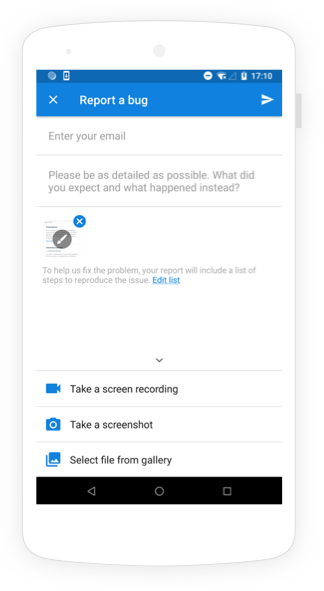
The image below shows the first view that your users see when reporting a bug after showing the SDK.
The first step of the bug reporting flow that your app users experience.
#### Email Address
By default, your users are required to enter a valid email address to submit a bug or feedback. To allow users to submit bugs and feedback without an email, use the following method.
{% tabs %}
{% tab title="Kotlin" %}
{% code overflow="wrap" %}
```kotlin
BugReporting.setOptions(Option.EMAIL_FIELD_OPTIONAL)
```
{% endcode %}
{% endtab %}
{% tab title="Java" %}
{% code overflow="wrap" %}
```java
BugReporting.setOptions(Option.EMAIL_FIELD_OPTIONAL);
```
{% endcode %}
{% endtab %}
{% endtabs %}
You can also remove the email field from the UI completely using the following API.
{% tabs %}
{% tab title="Kotlin" %}
{% code overflow="wrap" %}
```kotlin
BugReporting.setOptions(Option.EMAIL_FIELD_HIDDEN)
```
{% endcode %}
{% endtab %}
{% tab title="Java" %}
{% code overflow="wrap" %}
```java
BugReporting.setOptions(Option.EMAIL_FIELD_HIDDEN);
```
{% endcode %}
{% endtab %}
{% endtabs %}
#### Comment
By default, your app users can submit bugs and feedback without entering a description. To require users to leave a comment before they are able to send bugs or feedback, use the following method.
{% tabs %}
{% tab title="Kotlin" %}
{% code overflow="wrap" %}
```kotlin
BugReporting.setOptions(Option.COMMENT_FIELD_REQUIRED)
```
{% endcode %}
{% endtab %}
{% tab title="Java" %}
{% code overflow="wrap" %}
```java
BugReporting.setOptions(Option.COMMENT_FIELD_REQUIRED);
```
{% endcode %}
{% endtab %}
{% endtabs %}
You can also set a minimum number of characters as a requirement for the comments field using the API below:
{% tabs %}
{% tab title="Kotlin" %}
{% code overflow="wrap" %}
```kotlin
BugReporting.setCommentMinimumCharacterCountForBugReportType(
20,
BugReporting.ReportType.BUG,
BugReporting.ReportType.FEEDBACK,
BugReporting.ReportType.QUESTION,
)
```
{% endcode %}
{% endtab %}
{% tab title="Java" %}
{% code overflow="wrap" %}
```java
BugReporting.setCommentMinimumCharacterCountForBugReportType(
20,
BugReporting.ReportType.BUG,
BugReporting.ReportType.FEEDBACK,
BugReporting.ReportType.QUESTION
);
```
{% endcode %}
{% endtab %}
{% endtabs %}
### Attachments
Your users can submit two types of attachments with any report: default Luciq attachments (files that they can select from their device) and custom extra attachments (additional files that you can attach using code).
#### Luciq Attachments
When your app users show Luciq, the SDK automatically captures a screenshot of their current view. This is the default attachment that is sent with any report. Your users can annotate this screenshot by drawing on, magnifying, or blurring specific parts.
In addition, there are other attachment types that your users can choose to send with each report. All attachment types can be enabled or disabled.
The attachment options are:
* Extra screenshots
* Images from photo library
* Screen recording
All attachment options are enabled by default if they are available in your current **plan**.
You can customize the attachment options that are available for your users to send by passing its corresponding boolean value as an argument in the following API call.
{% tabs %}
{% tab title="Kotlin" %}
{% code overflow="wrap" %}
```kotlin
// Arguments:initialScreenshot, extraScreenshot, galleryImage & ScreenRecording
BugReporting.setAttachmentTypesEnabled(true, true, true, true);
```
{% endcode %}
{% endtab %}
{% tab title="Java" %}
{% code overflow="wrap" %}
```java
// Arguments:initialScreenshot, extraScreenshot, galleryImage & ScreenRecording
BugReporting.setAttachmentTypesEnabled(true, true, true, true);
```
{% endcode %}
{% endtab %}
{% endtabs %}
Each of the parameters is a boolean used to indicate if a certain type is enabled or not.
{% hint style="warning" %}
**Required SDK and Android version**
If you are on Android SDK version v13.0.0 or above and Android API level 33 or above and want to allow your users to attach screen recordings to the reports, make sure to manually add the below permission to the manifest file:
```
```
{% endhint %}
{% hint style="info" %}
#### **Need to make views hidden in screenshots?**
Some views can be set as private in order to have them hidden from screenshots and repro steps. You can do so by following the steps [here](/android/set-up-luciq-for-android/logs-and-profiling/repro-steps-for-android.md#private-views).
{% endhint %}
#### Extra Attachments
You can also attach up to three custom files to reports, each up to 5MB.
Use the following method to add a new file attachment.
{% tabs %}
{% tab title="Kotlin" %}
{% code overflow="wrap" %}
```kotlin
Luciq.addFileAttachment(Uri.fromFile(file), "file_name.txt")
```
{% endcode %}
{% endtab %}
{% tab title="Java" %}
{% code overflow="wrap" %}
```java
Luciq.addFileAttachment(Uri.fromFile(file), "file_name.txt");
```
{% endcode %}
{% endtab %}
{% endtabs %}
A new copy of the file at `fileURI` will be attached with each bug and feedback submitted. Extra files are only copied when reports are sent, so you can safely call this API whenever files are available on disk, and the copies attached to your reports will always contain the latest changes at the time of sending.
Alternatively, you can pass data directly as bytes using the API below:
{% tabs %}
{% tab title="Kotlin" %}
{% code overflow="wrap" %}
```kotlin
Luciq.addFileAttachment(@NonNull final byte[] data, @NonNull final String fileNameWithExtension)
//Name field is optional
```
{% endcode %}
{% endtab %}
{% tab title="Java" %}
{% code overflow="wrap" %}
```java
Luciq.addFileAttachment(@NonNull final byte[] data, @NonNull final String fileNameWithExtension);
//Name field is optional
```
{% endcode %}
{% endtab %}
{% endtabs %}
If more than three files are attached, the API overrides the first file. The file also has to be available locally at the provided path when the report is being sent.
To clear the list of files to be attached, use the method below. This method doesn't delete any files from the local file system. It just removes them from the list of attachments for each report.
{% tabs %}
{% tab title="Kotlin" %}
{% code overflow="wrap" %}
```kotlin
Luciq.clearFileAttachment()
```
{% endcode %}
{% endtab %}
{% tab title="Java" %}
{% code overflow="wrap" %}
```java
Luciq.clearFileAttachment();
```
{% endcode %}
{% endtab %}
{% endtabs %}
#### Media Projection
If your application uses any hardware accelerated views, chances are that the captured screenshots will be blank for these views. In these cases, you can use the API below to enable screenshots via media projection. **Please note that enabling this will request permission from the users to record the screen at the beginning of the session.**
{% tabs %}
{% tab title="Kotlin" %}
{% code overflow="wrap" %}
```kotlin
BugReporting.setScreenshotByMediaProjectionEnabled(true)
```
{% endcode %}
{% endtab %}
{% tab title="Java" %}
{% code overflow="wrap" %}
```java
BugReporting.setScreenshotByMediaProjectionEnabled(true);
```
{% endcode %}
{% endtab %}
{% endtabs %}
{% hint style="warning" %}
#### **Requires API 21**
In order to enable media projection, the minimum support Android SDK version is 21.
Make sure to add `FOREGROUND_SERVICE_MEDIA_PROJECTION` to your manifest file.
{% endhint %}
### Auto Screen Recording \[Beta]
{% hint style="info" %}
#### **Used for Internal Testing**
The main purpose behind this feature is to specifically use it for internal testing rather than on production.
{% endhint %}
You can also automatically capture a screen recording of your app up to the last 30 seconds before a report is sent. **By default, this is disabled**. **Your users will also be prompted once the recording starts at the beginning of the session and will have the ability to remove the video from the attachments when sending the report.** The auto screen recording attachment counts towards the limit of 4 attachments in total.
#### Disabling/Enabling Auto Screen Recording
If you'd like to enable or disable the auto screen recording feature, you can use the API below.
{% tabs %}
{% tab title="Kotlin" %}
{% code overflow="wrap" %}
```kotlin
BugReporting.setAutoScreenRecordingEnabled(true)
```
{% endcode %}
{% endtab %}
{% tab title="Java" %}
{% code overflow="wrap" %}
```java
BugReporting.setAutoScreenRecordingEnabled(true);
```
{% endcode %}
{% endtab %}
{% endtabs %}
{% hint style="info" %}
In order to enable Auto Screen Recording, make sure to add `FOREGROUND_SERVICE_MEDIA_PROJECTION` to your manifest file.
{% endhint %}
### User Consent
{% hint style="info" %}
To use checkboxes, you need a minimum Luciq Android SDK version of v12.3.0.
{% endhint %}
{% hint style="info" %}
To use actionable user consents, you need a minimum of Luciq Android SDK version of v13.2.0.
{% endhint %}
You can use the below API to add a checkbox to your bug reporting form. These checkboxes could be used to:
* Ask for the user's consent without the SDK reacting to the user's answer.
* Ask for the user's consent and have the SDK drop specific data based on the user's answer.
This will help you define:
* **Description**: Text that appears on the end-user's device.
* **Key**: Title that appears on the dashboard.
* **State**: Whether the user input is mandatory or not.
* **Default Value**: Whether the checkbox is checked by default or unchecked by default.
* **Action Type \[Optional]**: If you want the SDK to drop specific data based on the user’s answer to the checkbox, add one value from the below options.
* **Options**:
* **DROP\_AUTO\_CAPTURED\_MEDIA**: Drops all auto-captured media, without dropping the attachments that the user attached manually
* **DROP\_LOGS**: Drops all captured logs, whether they were captured automatically or added by the company itself
* **NO\_CHAT**: Doesn't open a new chat for this specific report and disables the chat functionality on your dashboard for this report.
* **NO\_AUTOMATIC\_BUG\_GROUPING**: Excludes the report from Automatic Duplicate Grouping (ADG). When the end-user does not give consent, the report is treated as ungrouped and its description is not sent to the LLM used for grouping.
{% tabs %}
{% tab title="Kotlin" %}
{% code overflow="wrap" %}
```kotlin
BugReporting.addUserConsent(key, description, isMandatory, isChecked, ActionType.DROP_LOGS)
```
{% endcode %}
{% endtab %}
{% tab title="Java" %}
{% code overflow="wrap" %}
```java
BugReporting.addUserConsent(key, description, isMandatory, isChecked, ActionType.DROP_LOGS);
```
{% endcode %}
{% endtab %}
{% endtabs %}
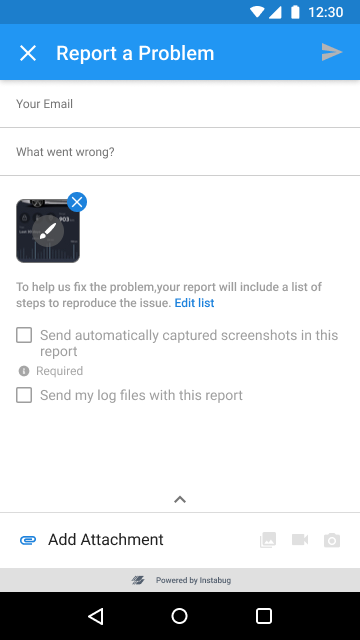
This is how it will appear on the SDK.
---
# Agent Instructions
This documentation is published with GitBook. GitBook is the documentation platform designed so that both humans and AI agents can read, navigate, and reason over technical content effectively. Learn more at gitbook.com.
## Querying This Documentation
If you need additional information that is not directly available in this page, you can query the documentation dynamically by asking a question.
Perform an HTTP GET request on the current page URL with the `ask` query parameter, and the optional `goal` query parameter:
```
GET https://docs.luciq.ai/android/set-up-luciq-for-android/set-up-bug-reporting/customize-report-fields.md?ask=&goal=
```
`ask` is the immediate question: it should be specific, self-contained, and written in natural language.
`goal` is optional and describes the broader end goal you are ultimately trying to accomplish on behalf of the user. GitBook uses it to tailor the answer towards what is most useful for that goal.
The response will contain a direct answer to the question and relevant excerpts and sources from the documentation.
Use this mechanism when the answer is not explicitly present in the current page, you need clarification or additional context, or you want to retrieve related documentation sections.