Repro Steps for Android

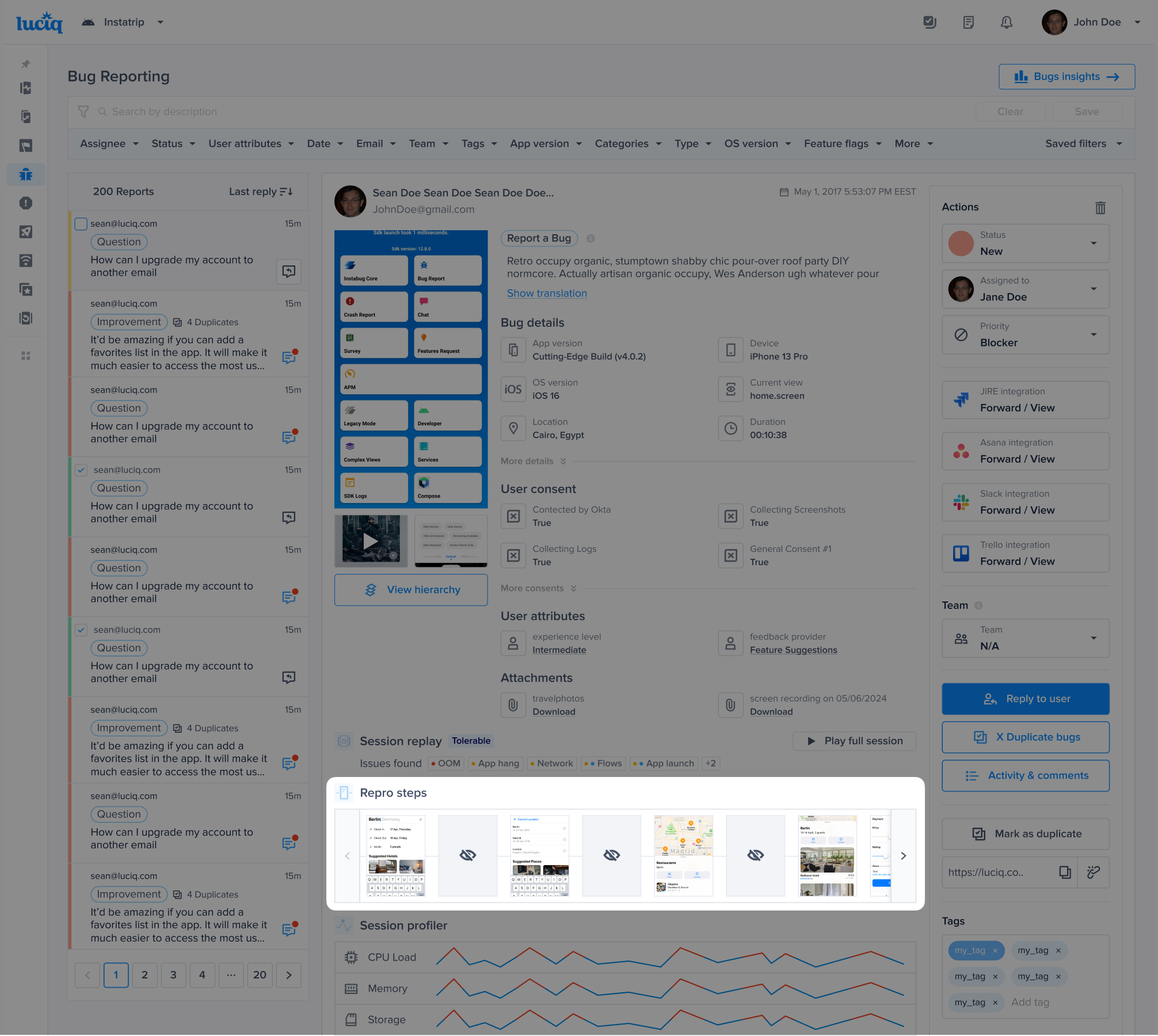
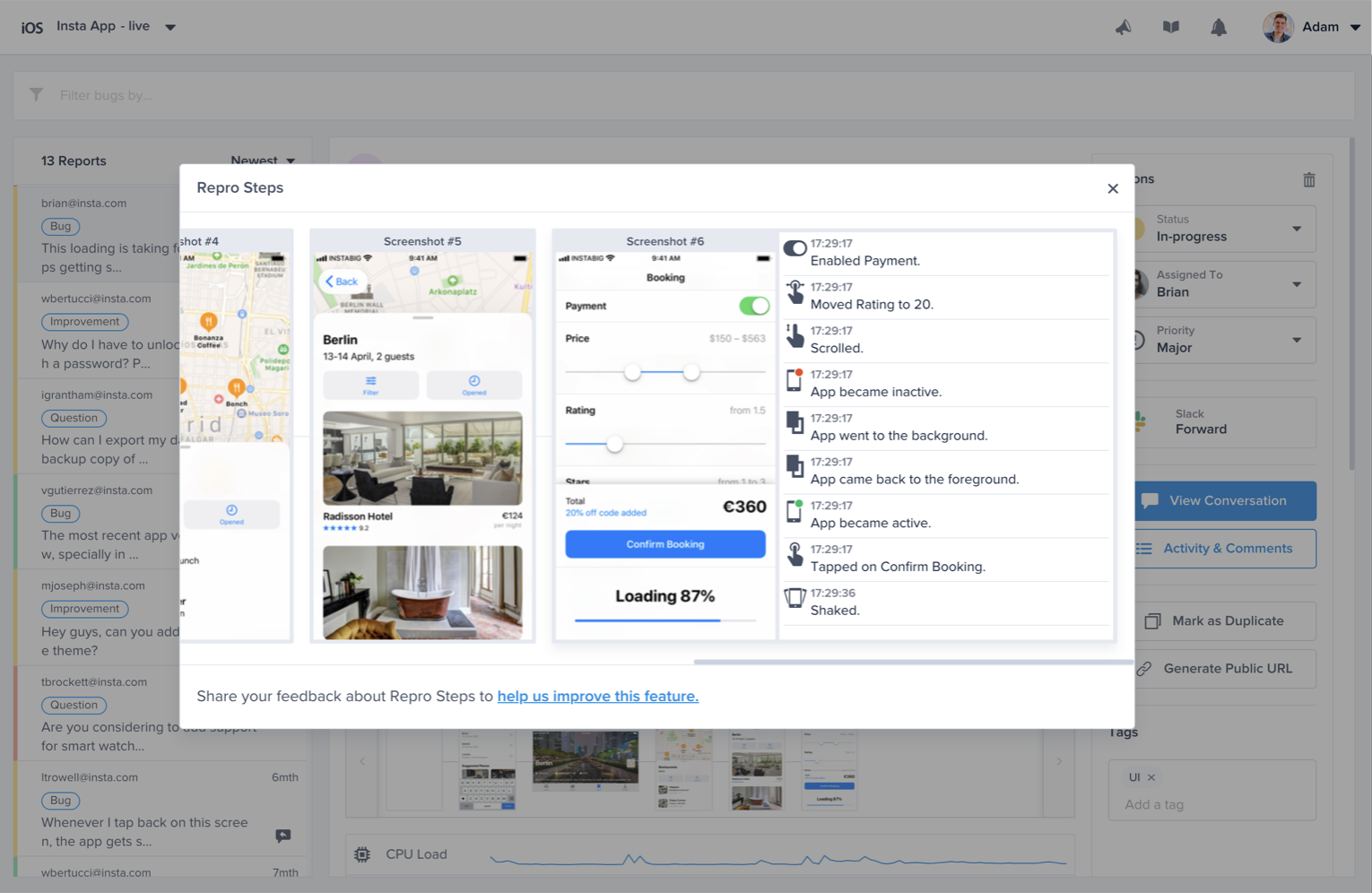
Repro Steps show you all of the interactions a user makes with your app up until a bug or crash is reported, grouped by the app view. For each view that a user visits, all of the steps that they commit are captured and displayed as logs next to the relevant screenshot. Repro steps can be found below the bug details.

Logged Data

Captured Events

UI Interactions

For the following gestures, only the gesture is logged and displayed:

  • Swipe

  • Scroll

  • Pinch

  • Tap

  • Double tap

  • Enabling/disabling a switch

  • Changing the value of a slider

  • Editing a text field.

Lifecycle Events

Whenever one of the following lifecycle events occurs, it will be captured and shown on the timeline:

  • Application is moved to the background

  • Application is moved to the foreground

  • Application becomes active

  • Application becomes inactive

Extra Details

Depending on the event, you'll find further details displayed as part of the log statement.

  • Tap and double tap: the SDK always tries to first capture the text rendered inside the UI that the user is interacting with, then we fall back to capturing the icon only with the buttons and navigation items, then, we fall back to the accessibility labels.

  • Switch: both the accessibility label as well as whether the user enabled or disabled the switch are logged.

  • Slider: both the accessibility label as well as the value that the user moves the slider to it are captured.

  • Text fields: first, the SDK tries to capture the placeholder, then we fall back to the accessibility label.

Examples

Here are some examples of how steps look like:

  • Tapped on the button "Send"

  • Double tapped on UI that contains "Instructions"

  • Started editing “Password“

  • Enabled the switch “Push Notifications“

  • Moved the slider “Text Size“ to 10%

  • App went to the background

  • App became active

User Privacy

Disclaimer

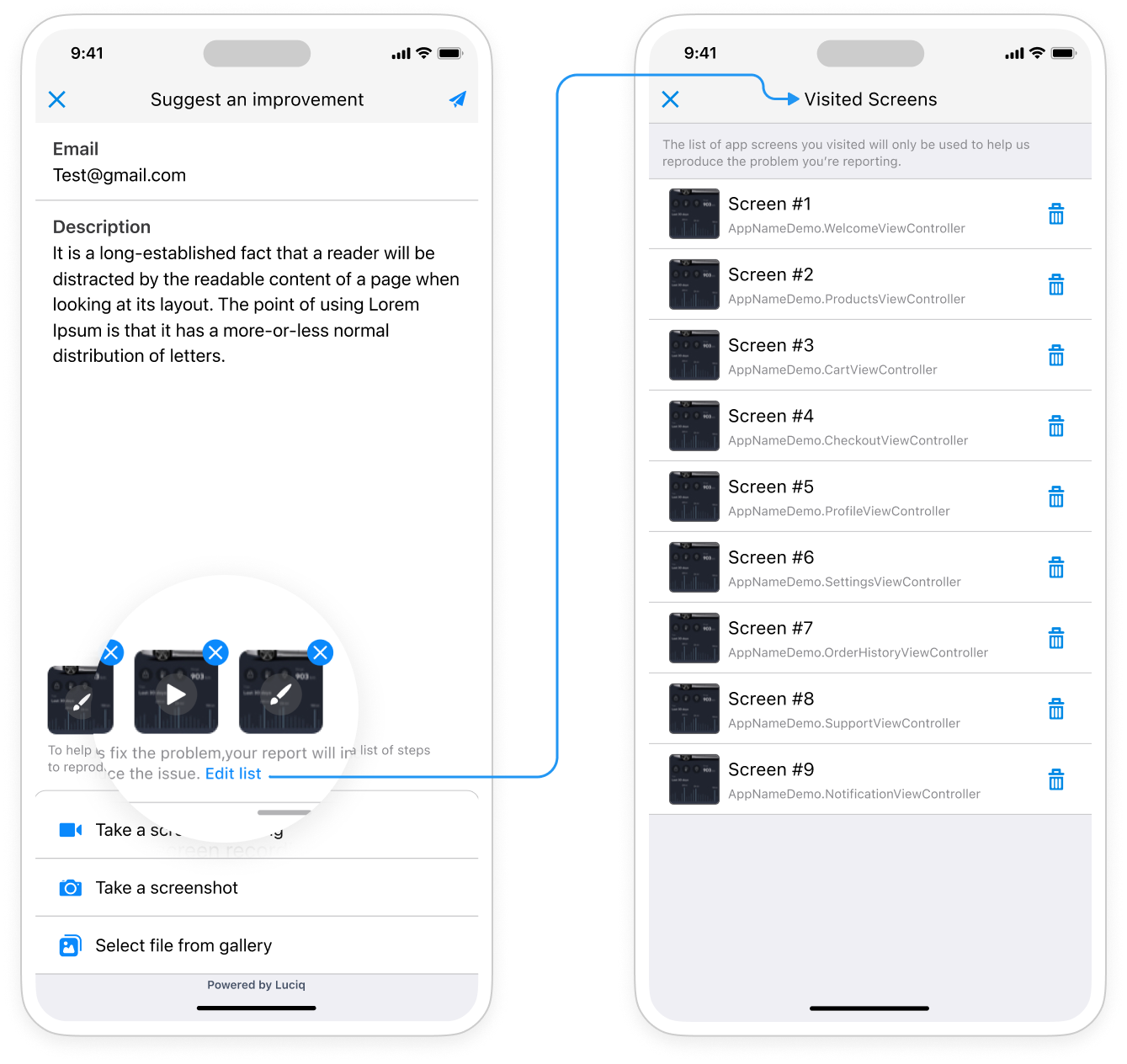
A disclaimer will be shown at the bottom of the report. It helps your users view all the screenshots taken for the Repro Steps before sending a report and can delete them as well.

Private Views

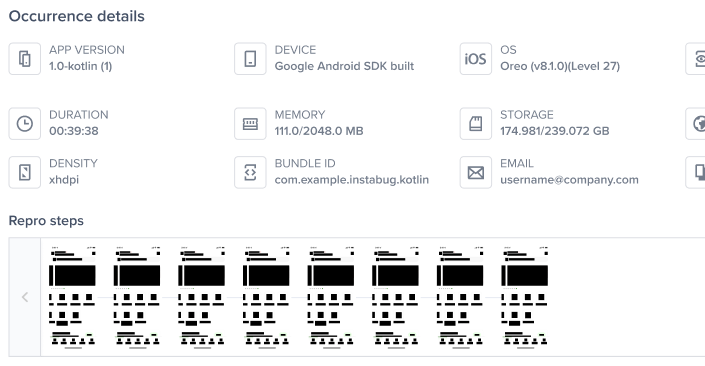
On your side, you can easily mark any view that might contain sensitive info like payment details as private. Any private view will automatically appear with a black overlay covering it in any screenshot.

Effect of Private Views

When adding a view to the list of private views, here are the list of things it will affect:

  • Views will be blacked out in screenshots

  • Views will be blacked out in repro steps

  • Views will be blacked out in the View Hierarchy. Text views will be replaced with ****

  • Videos will not be blacked out due to limitations regarding media projection

  • To black out screens in videos/screen recording, you can use Android’s FLAG SECURE

Adding Private Views

To make a view private, you use the following method:

Removing Private Views

If you'd like to remove a view from the list of private views, use the following method:

Auto Masking

Good To Know

  • This feature requires a minimum Android SDK version of 11.13.0

  • Auto Masking is supported only in screenshots (Repro Steps), not screen recordings.

Jetpack Compose

This feature automatically masks sensitive data when screenshots are captured while protecting the user's privacy by default. This affects Bugs Reporting, Crash Reporting and Session Replay.

Example of Masked Text Inputs, Labels, and Media.
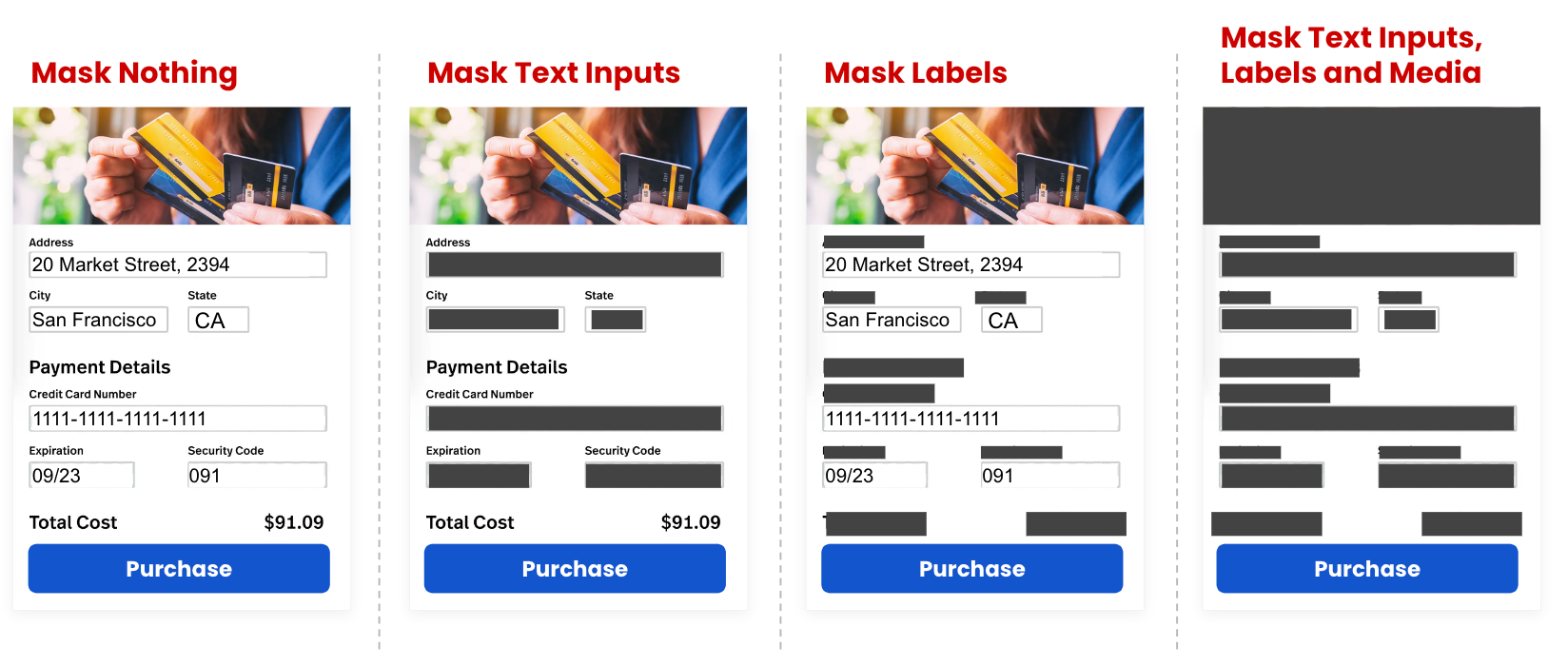
Here are all the possible parameters.

Preview of different masking levels.

Examples

API
Meaning

Java: Luciq.setAutoMaskScreenshotsTypes(MaskingType.TEXT_INPUTS) Kotlin: Luciq.setAutoMaskScreenshotsTypes(MaskingType.TEXT_INPUTS)

Mask Text Inputs only.

Java: Luciq.setAutoMaskScreenshotsTypes(MaskingType.TEXT_INPUTS, MaskingType.LABELS) Kotlin: Luciq.setAutoMaskScreenshotsTypes(MaskingType.TEXT_INPUTS, MaskingType.LABELS)

Mask Text Inputs and Labels.

Java: Luciq.setAutoMaskScreenshotsTypes(MaskingType.MASK_NOTHING) Kotlin: Luciq.setAutoMaskScreenshotsTypes(MaskingType.MASK_NOTHING)

Disable auto masking.

The Private Views API takes precedence over Auto Masking.

Disabling and Enabling

Repro Steps is by default enabled with screenshots for both bug reporting and session replay and enabled without screenshots for crash reporting.

You can change the value of the Issue Type.

You can change the value of ReproMode.

Then configure the SDK

Examples

API
Meaning

Java: ReproConfigurations configurations = new ReproConfigurations.Builder() .setIssueMode(IssueType.All, ReproMode.EnableWithScreenshots) .build(); Luciq.setReproConfigurations(configurations); Kotlin: val configurations = ReproConfigurations.Builder() .setIssueMode(IssueType.All, ReproMode.EnableWithScreenshots) .build() Luciq.setReproConfigurations(configurations)

Enable with Screenshots for both Bug Reporting and Crash Reporting.

Java: ReproConfigurations configurations = new ReproConfigurations.Builder() .setIssueMode(IssueType.Crash, ReproMode.EnableWithNoScreenshots) .build(); Luciq.setReproConfigurations(configurations); Kotlin: val configurations = ReproConfigurations.Builder() .setIssueMode(IssueType.Crash, ReproMode.EnableWithNoScreenshots) .build() Luciq.setReproConfigurations(configurations)

Enable with No Screenshots for Crash Reporting.

Java: ReproConfigurations configurations = new ReproConfigurations.Builder() .setIssueMode(IssueType.Bug, ReproMode.EnableWithScreenshots) .build(); Luciq.setReproConfigurations(configurations); Kotlin: val configurations = ReproConfigurations.Builder() .setIssueMode(IssueType.Bug, ReproMode.EnableWithScreenshots) .build() Luciq.setReproConfigurations(configurations)

Enable with Screenshots for Bug Reporting.

Java: ReproConfigurations configurations = new ReproConfigurations.Builder() .setIssueMode(IssueType.All, ReproMode.Disable) .build(); Luciq.setReproConfigurations(configurations); Kotlin: val configurations = ReproConfigurations.Builder() .setIssueMode(IssueType.All, ReproMode.Disable) .build() Luciq.setReproConfigurations(configurations)

Completely disable for both Bug Reporting and Crash Reporting.

Screenshots are by default disabled for Crash Reporting.

Handling Screenshots and Mitigating Overhead

If screenshots are enabled, we capture a screenshot whenever a screen is changed, then attach this info to Crash Reporting and Session Replay. However, we have mitigation methods to avoid causing performance overhead on the device. If this happens, we pause the screenshot-capturing process when we detect that the device has any of the following states, and continue capturing screenshots after the device returns to normal:

  1. High CPU throughput

  2. High RAM utilization

  3. Low-disk storage

Last updated