Jira Cloud

Allow your users and beta testers to report bugs and send feedback directly from your app and have them automatically logged into your Jira project. Luciq offers a two-way integration when the integration is done through Jira, meaning that the status and comments on the Jira ticket will also be reflected on the bug report on your Luciq dashboard.

Through Jira Add-On
1

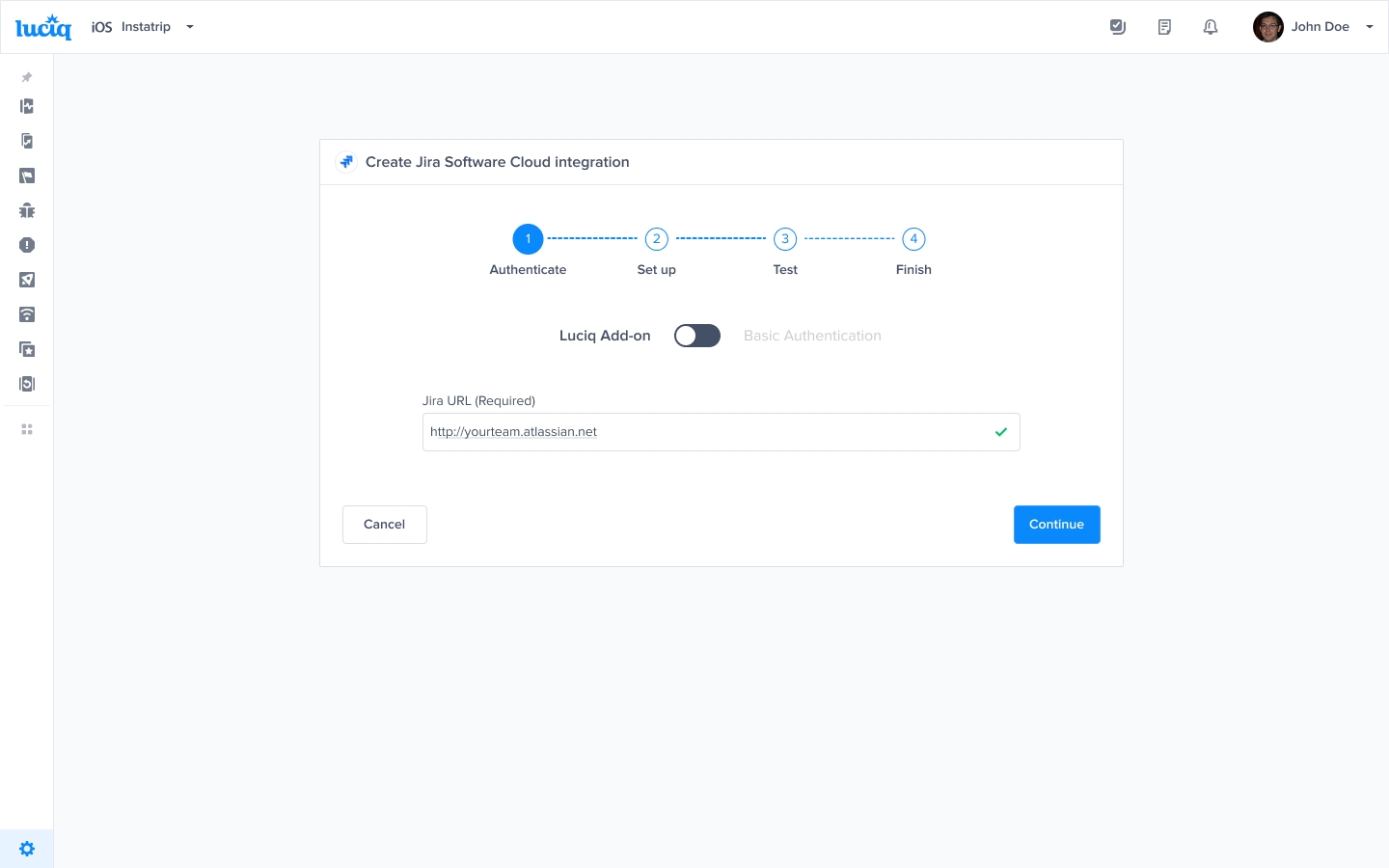
To set up your Jira Cloud integration, simply add the link to your Jira board, where you will see your incoming reports.

2

Explore apps on your Jira board

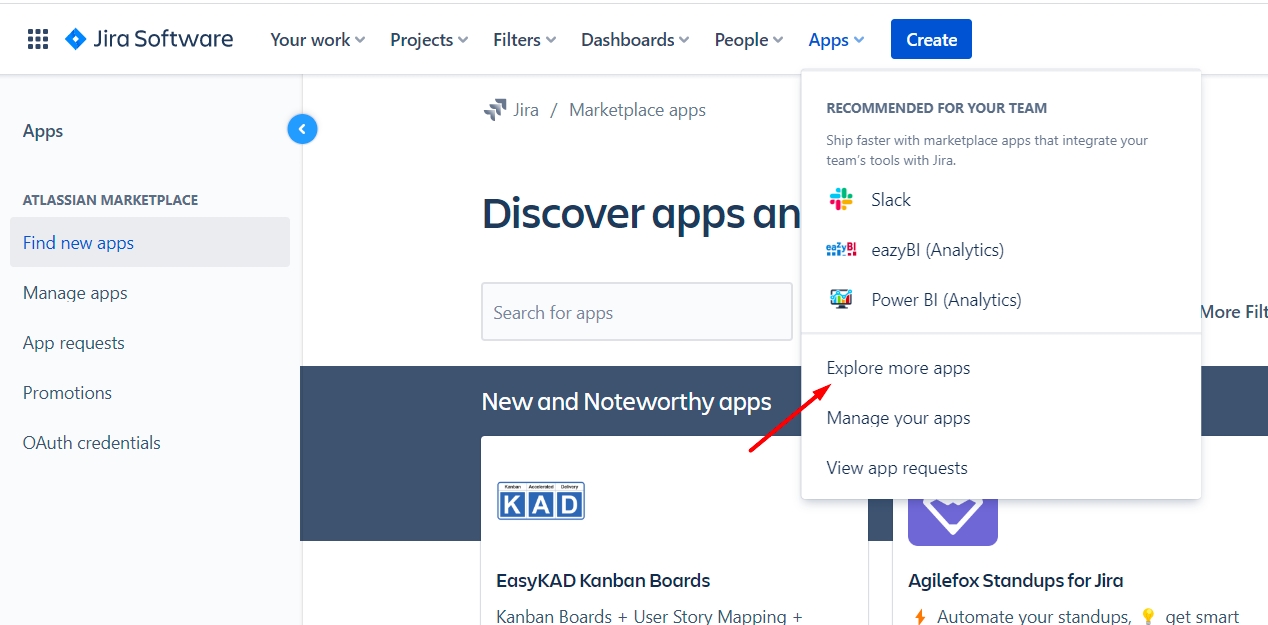
On your Jira board, from the Apps section, click on "Explore more apps".

3

Search for Luciq

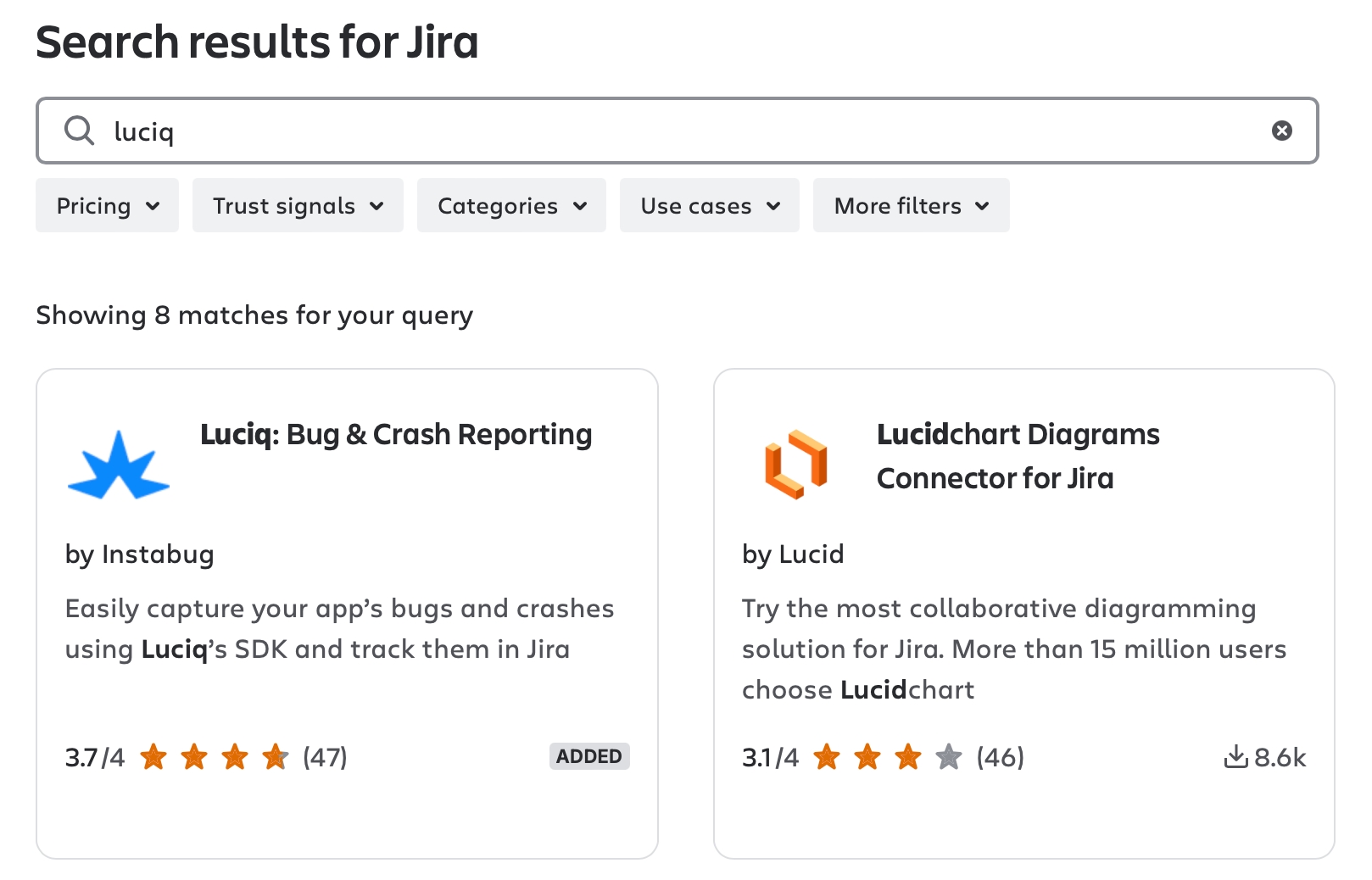
Search "Luciq" from the search window and click on the add-on.

4

Install the Add-On

After selecting our Add-On app, click on the Get App button.

5

Configure the Add-On

Click on "Configure" which is found within the prompt after installing the add-on from Jira's side.

6

Login to Luciq

Login using your Luciq dashboard credentials in order to have it synced with your dashboard.

7

Select project settings

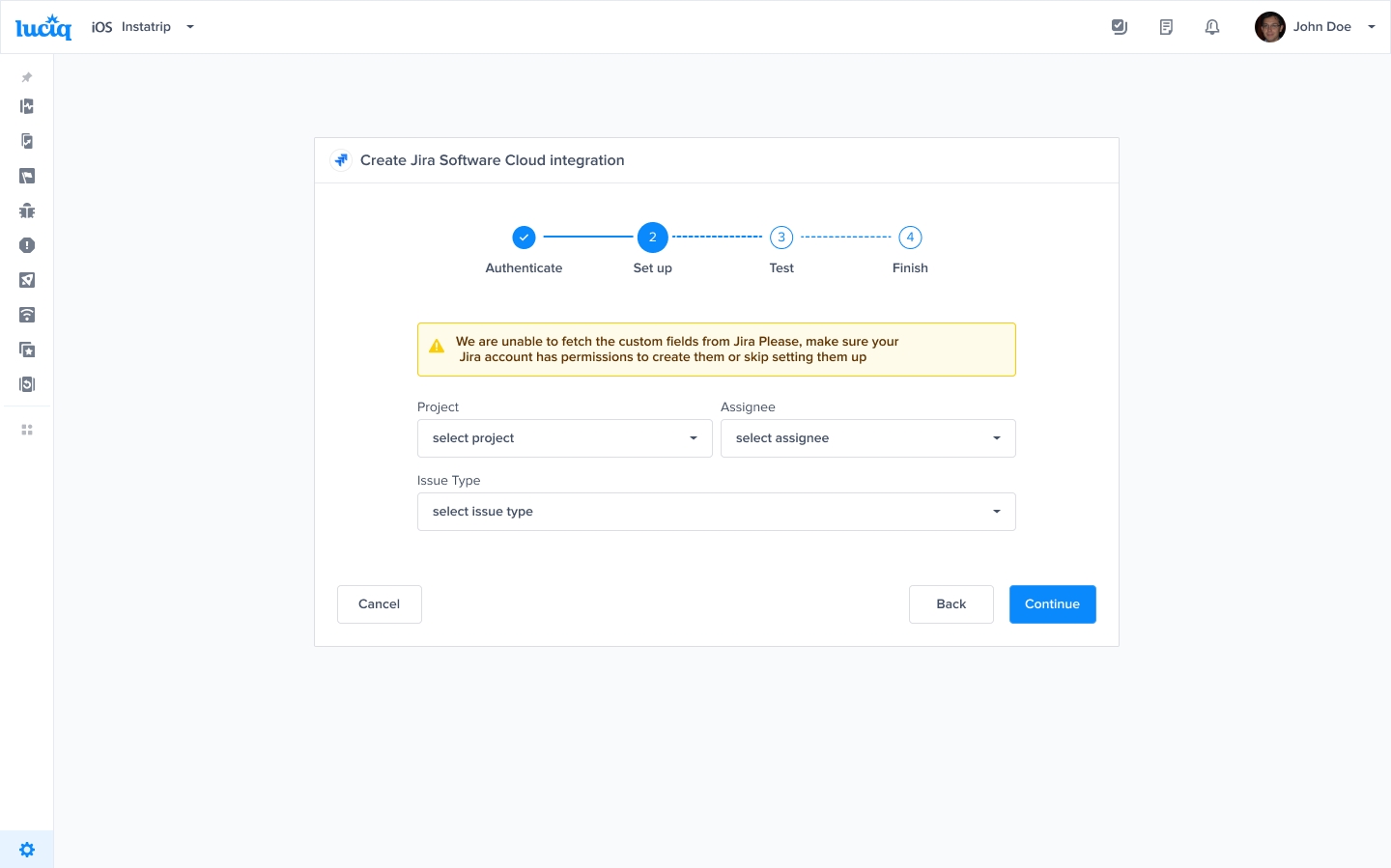
Select the project, issue type, assignee, and any custom fields you have setup.

8

Test the integration

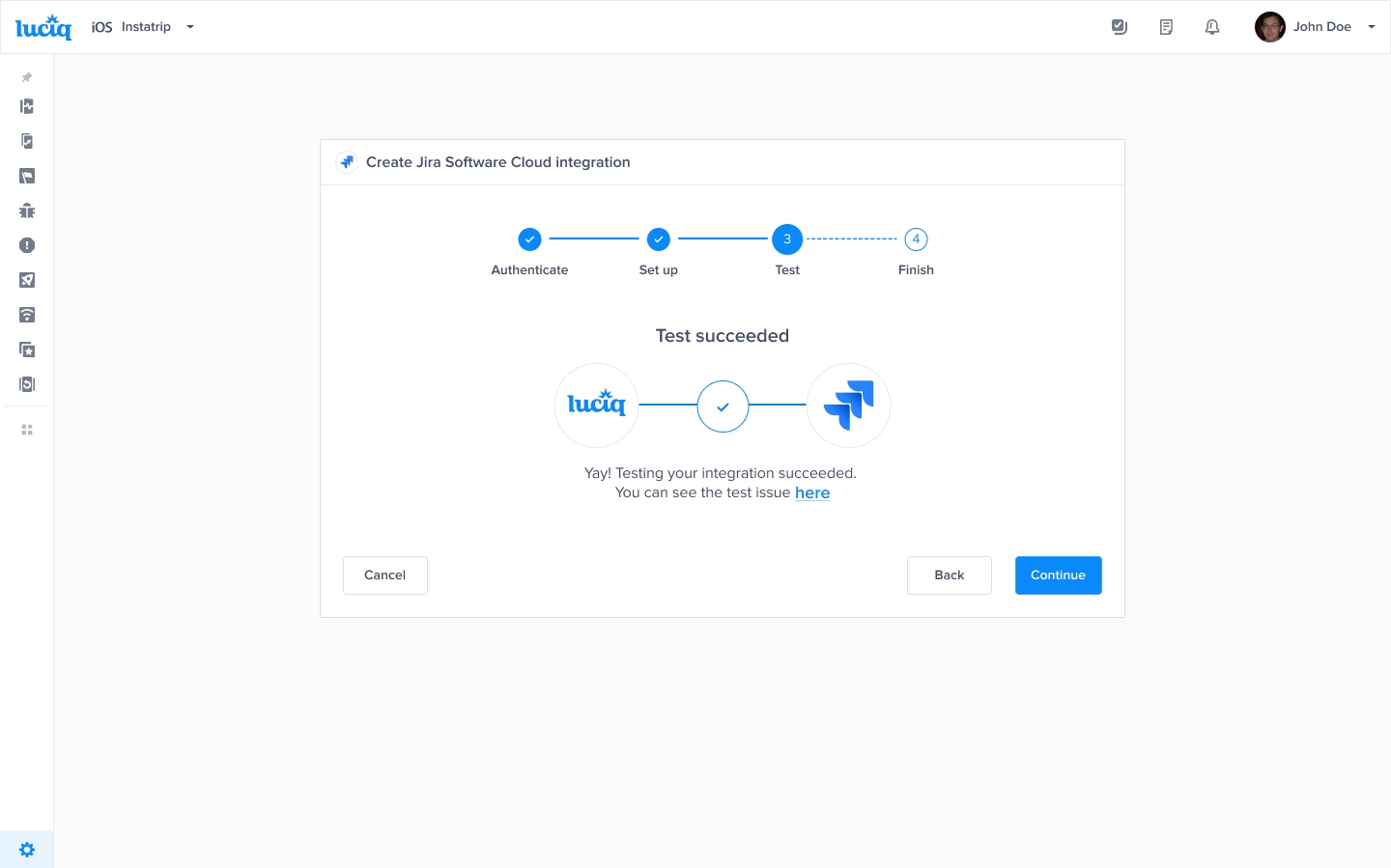
At this point, we just need to test your integration so that we're sure everything is working smoothly.

9

Finish setup

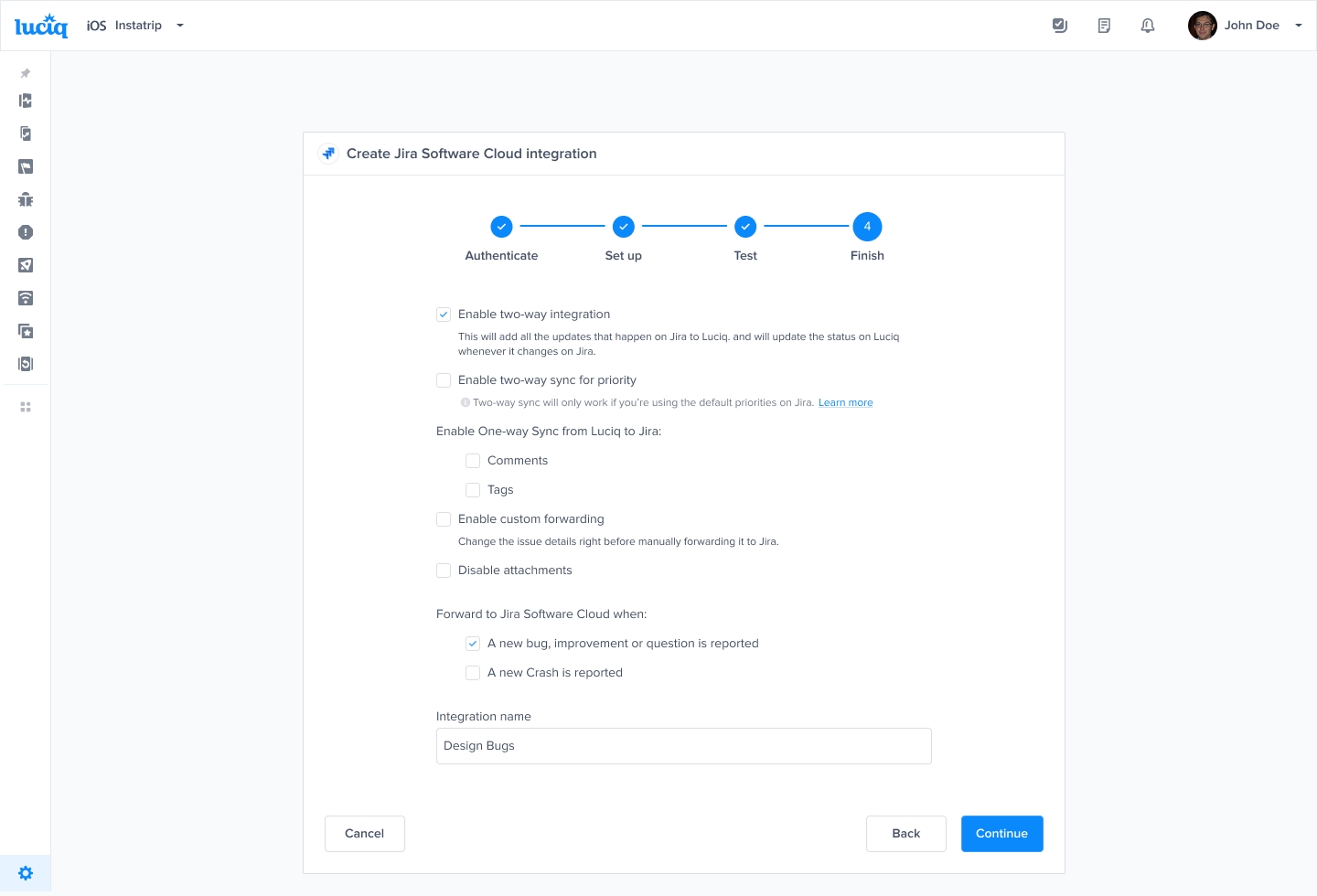
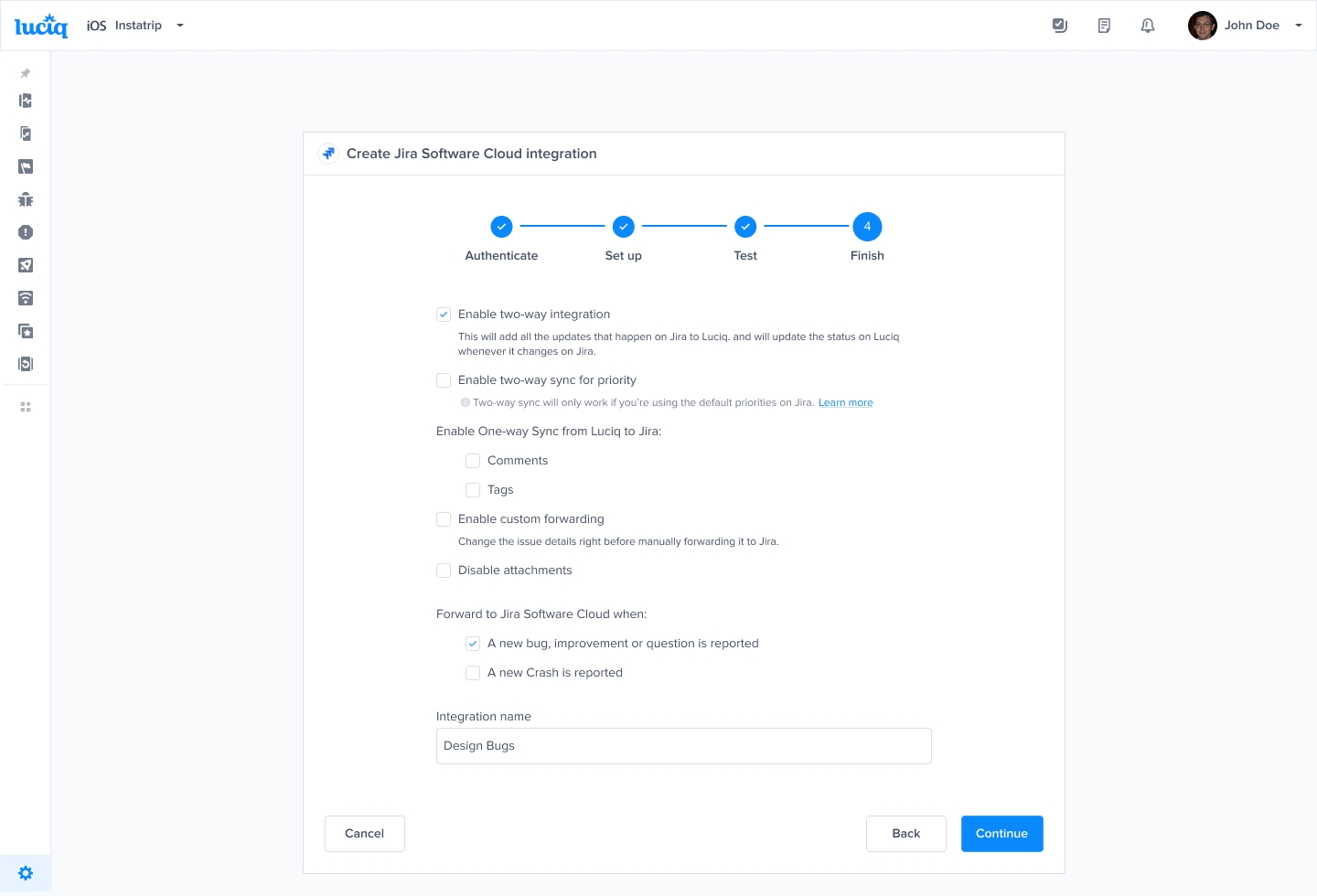
All done! Your integration is now set up and ready to go. From this final page, you can allow automatic forwarding (this can be reconfigured at any time) as well as synced status.


Through Luciq

1

Enter Jira credentials

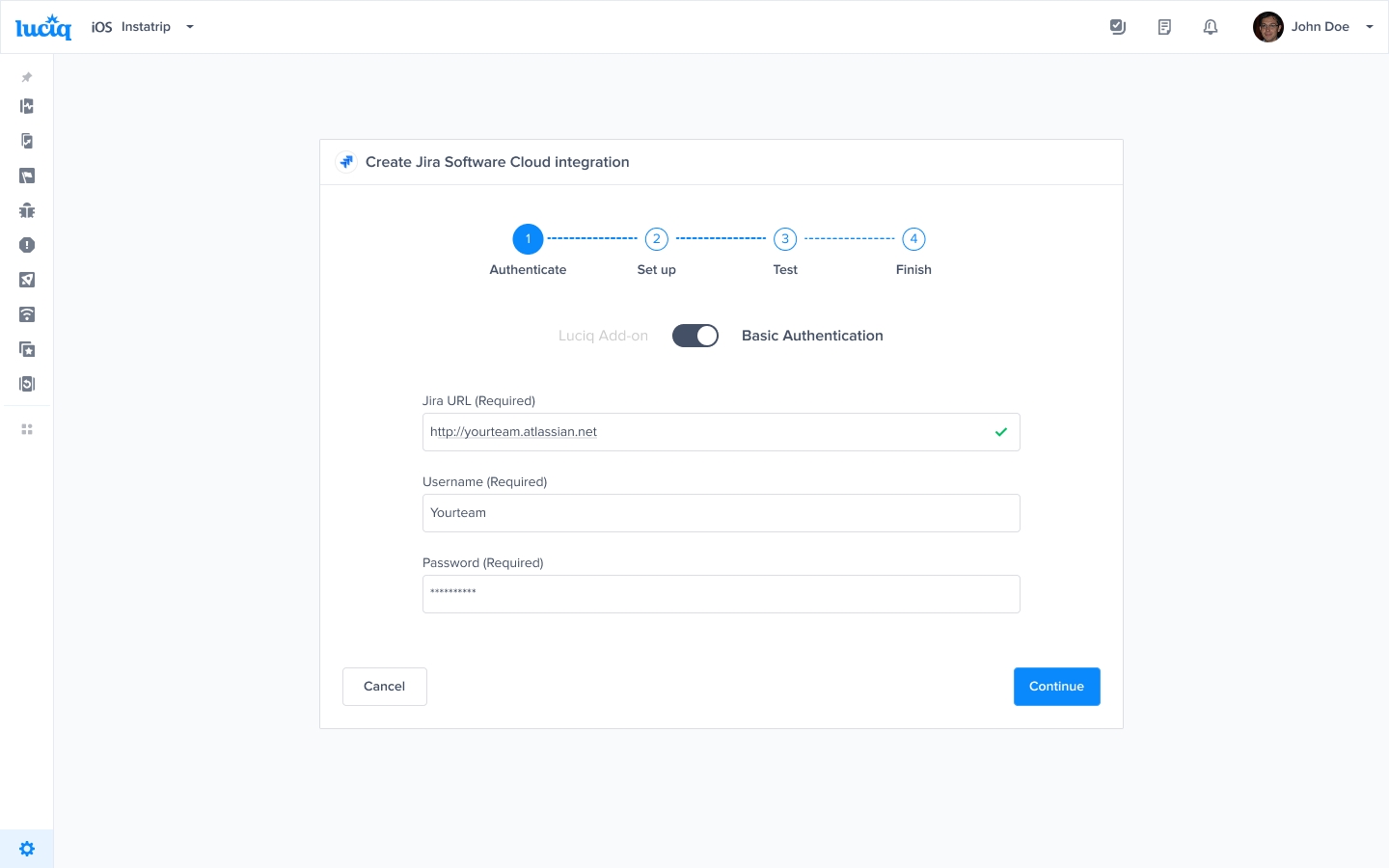
Insert your Jira Email, API Token (which can be retrieved from here), and URL.
2

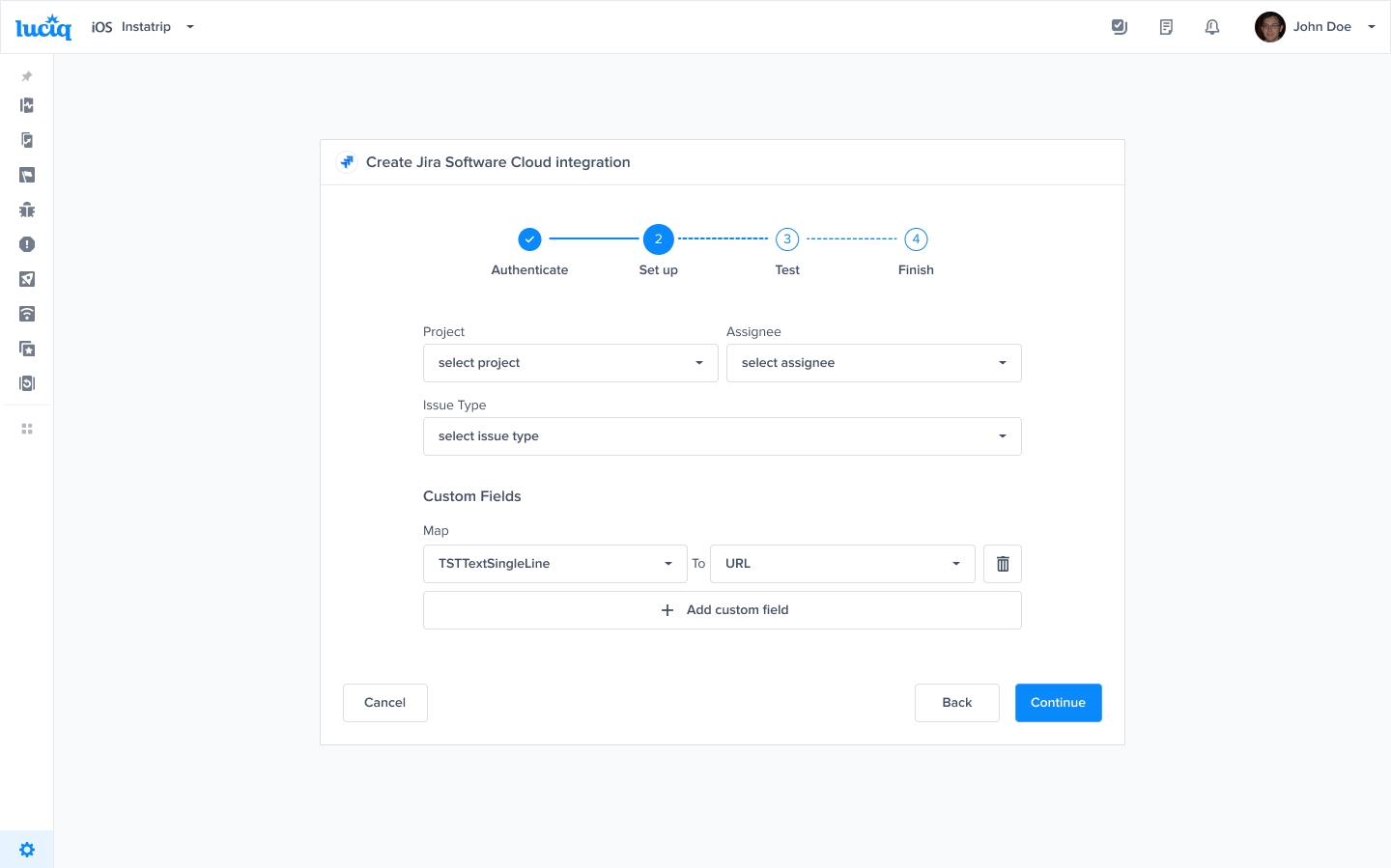
Pick project and map fields

Pick the project you want to forward to as well as the assignee. Fields can be mapped from Luciq to Jira fields. You can also choose which information is forwarded from your Luciq dashboard to Jira.

3

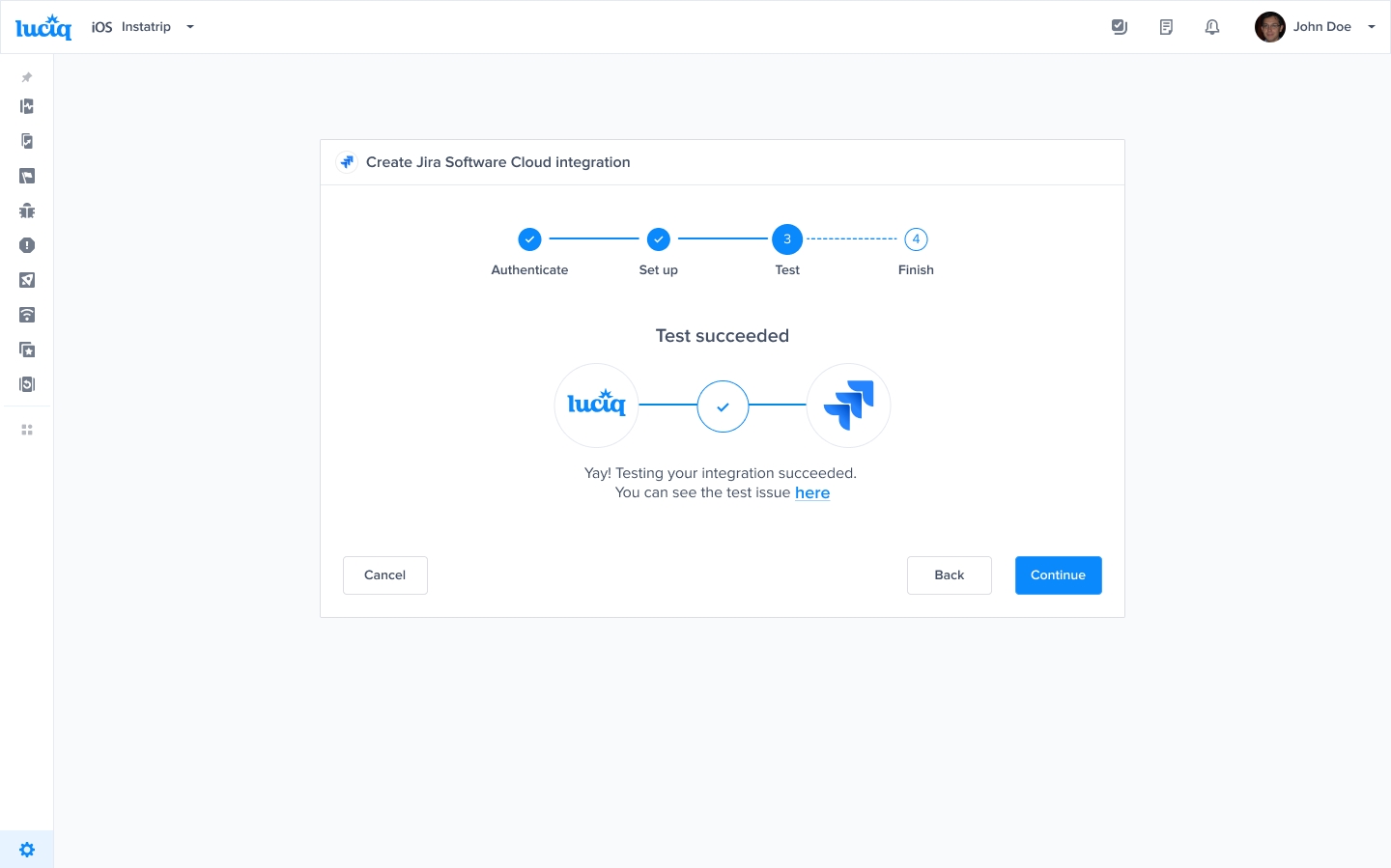
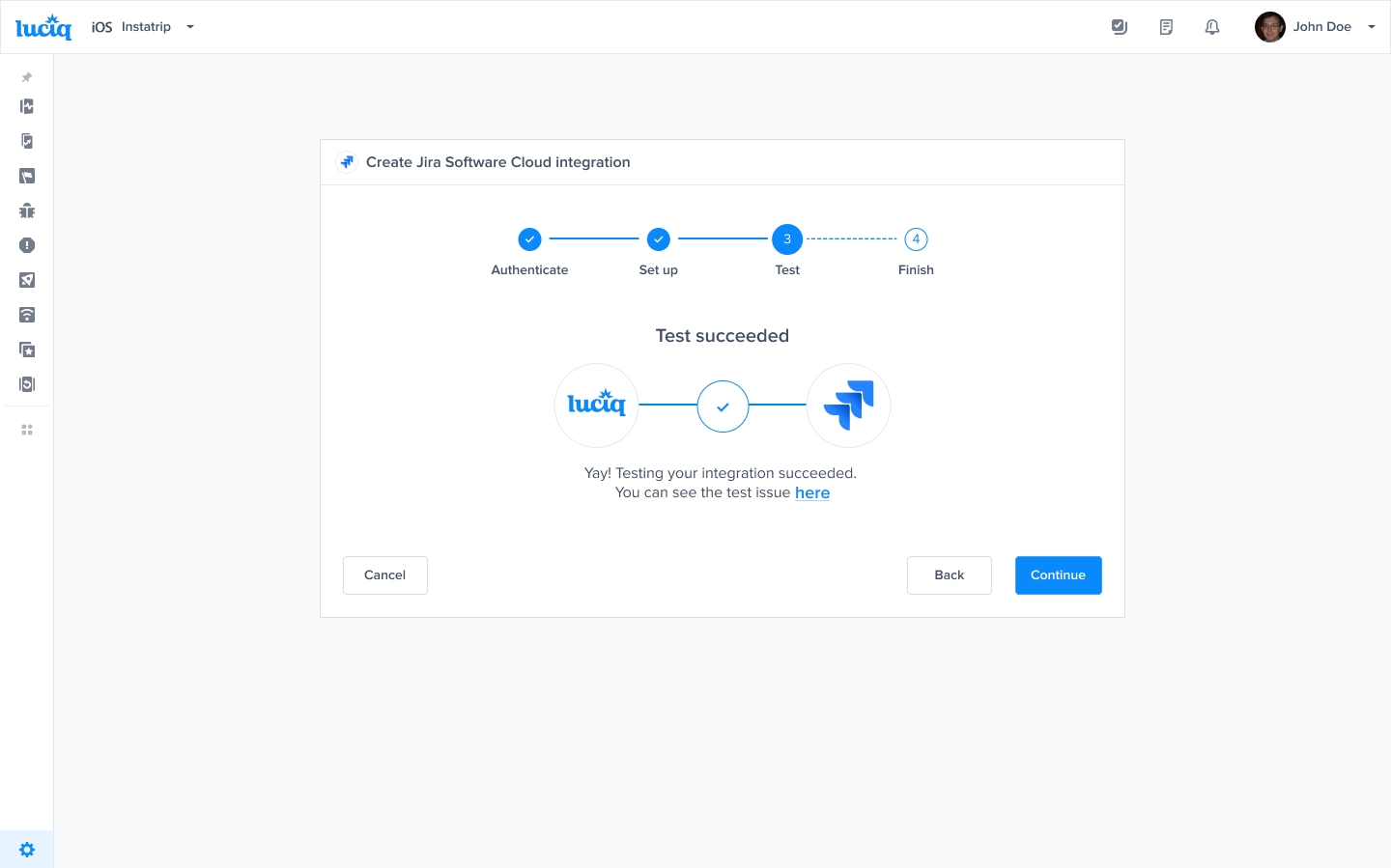
Test the integration

At this point, we just need to test your integration so that we're sure everything is working smoothly.

4

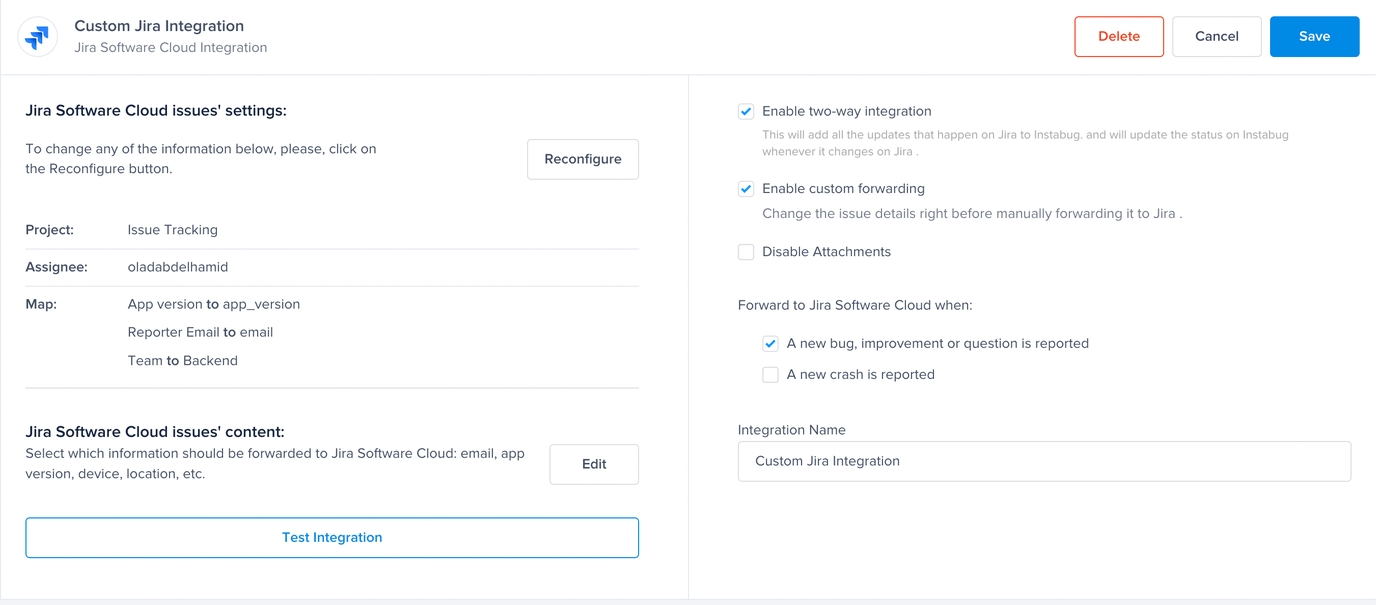
Finish setup and enable two-way sync

All done! Your integration is now set up and ready to go. From this final page, you can allow two-way integration (if Luciq is already installed on your Jira dashboard) and allow for automatic forwarding (these can be reconfigured at any time).

5

Start receiving issues

Start receiving issues on the spot on your Jira dashboard.

With this integration, bugs and feedback can be converted manually into issues on Jira with just a click.


Mapping Custom Fields

This section covers how to map Jira custom fields to fields from the Luciq dashboard.
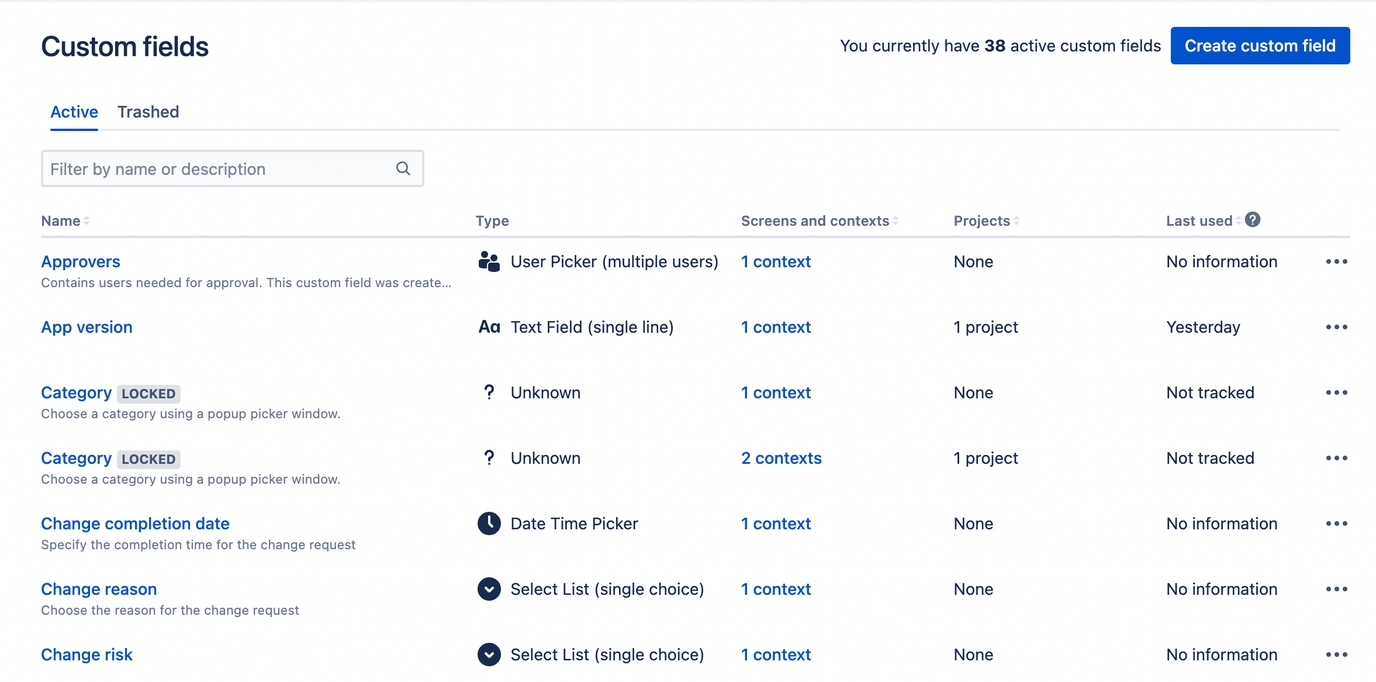
1

Create the custom field in Jira

2

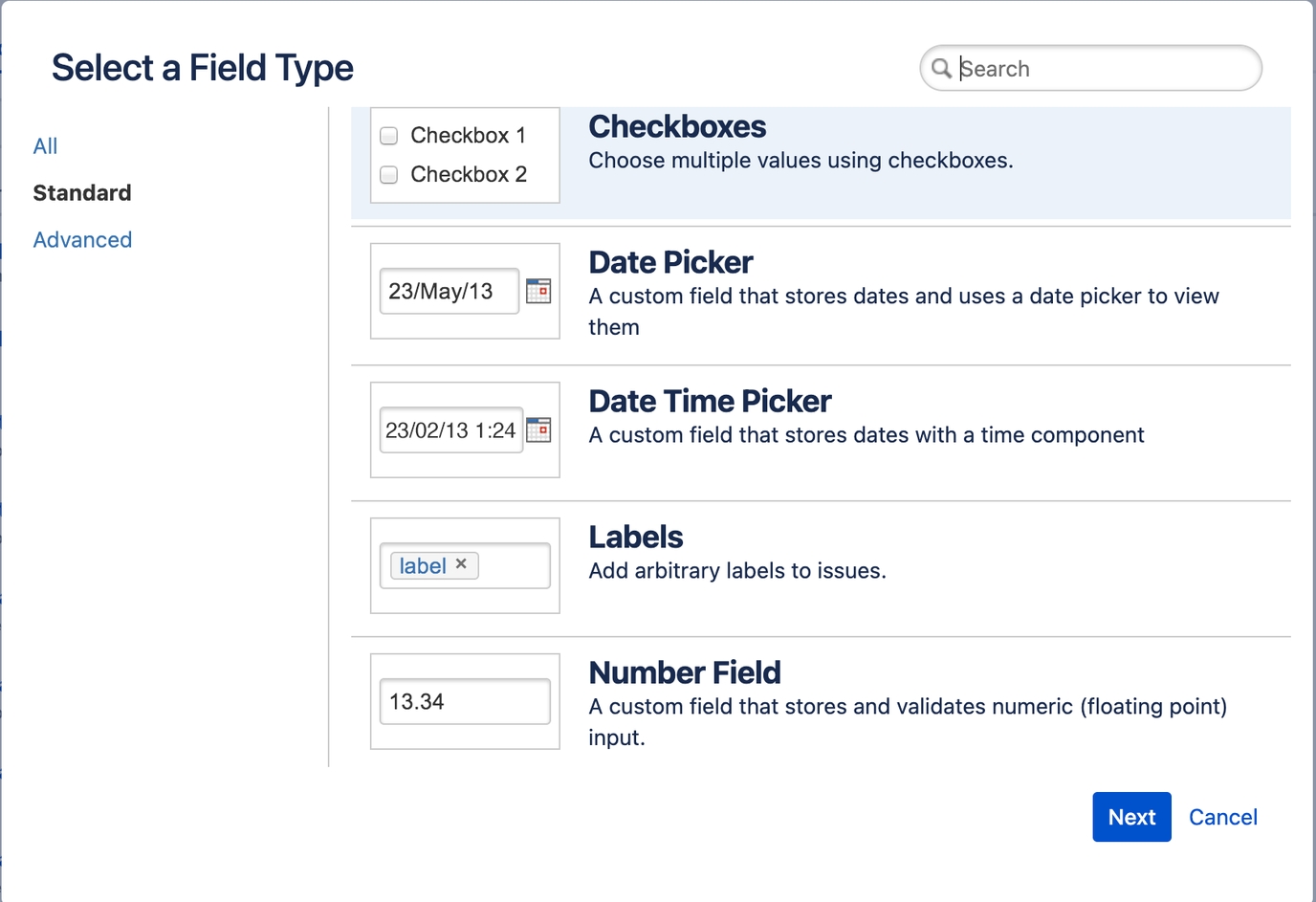
Choose a type

Choose a type for the field you've created in the previous step.

3

Reconfigure the Jira integration

Reconfigure your Jira integration.

4

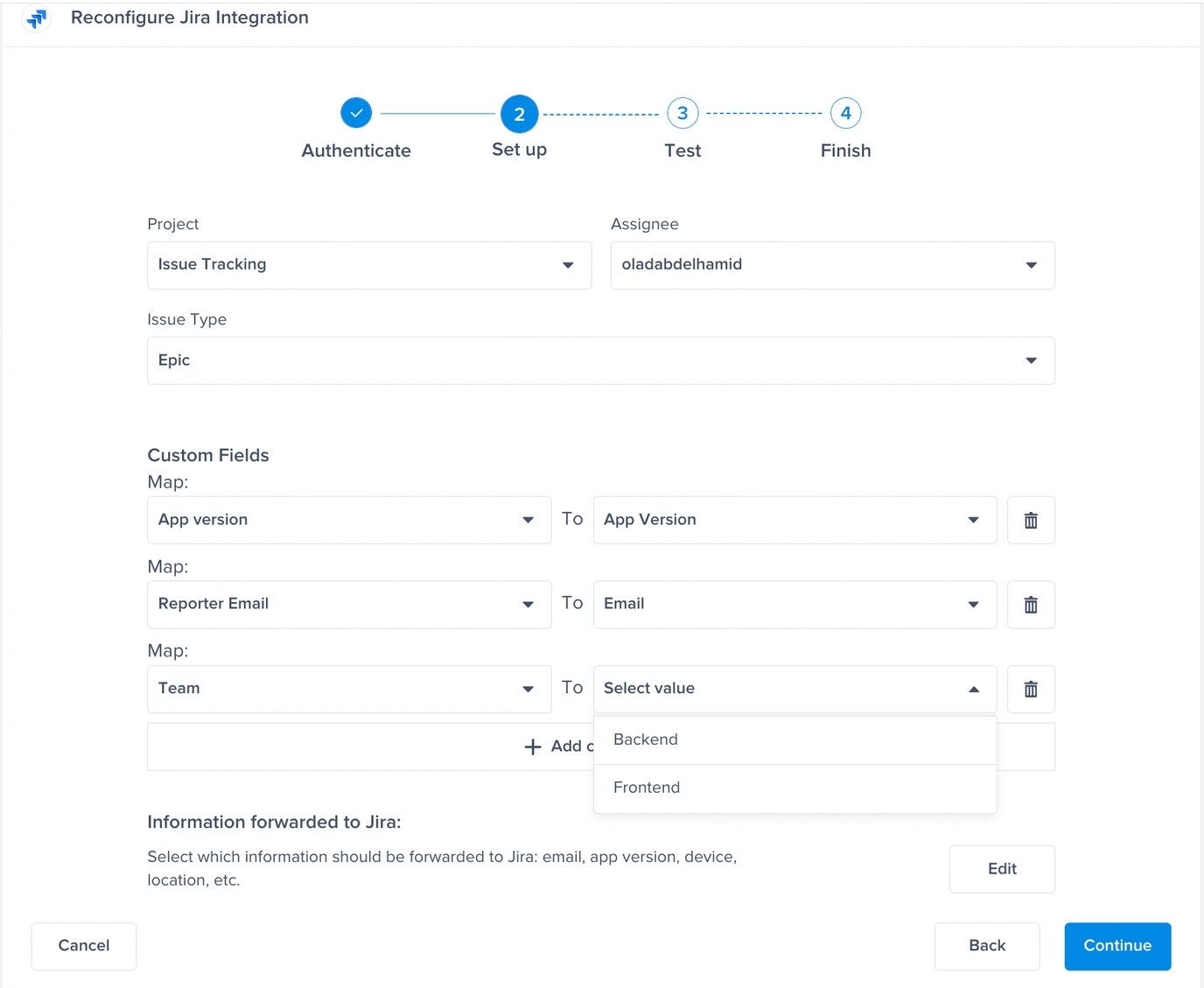
Map fields

Map the Jira custom fields to the corresponding Luciq fields (make sure they have the same type).

5

Test your integration

Test your integration.

6

Finish

All done!

7

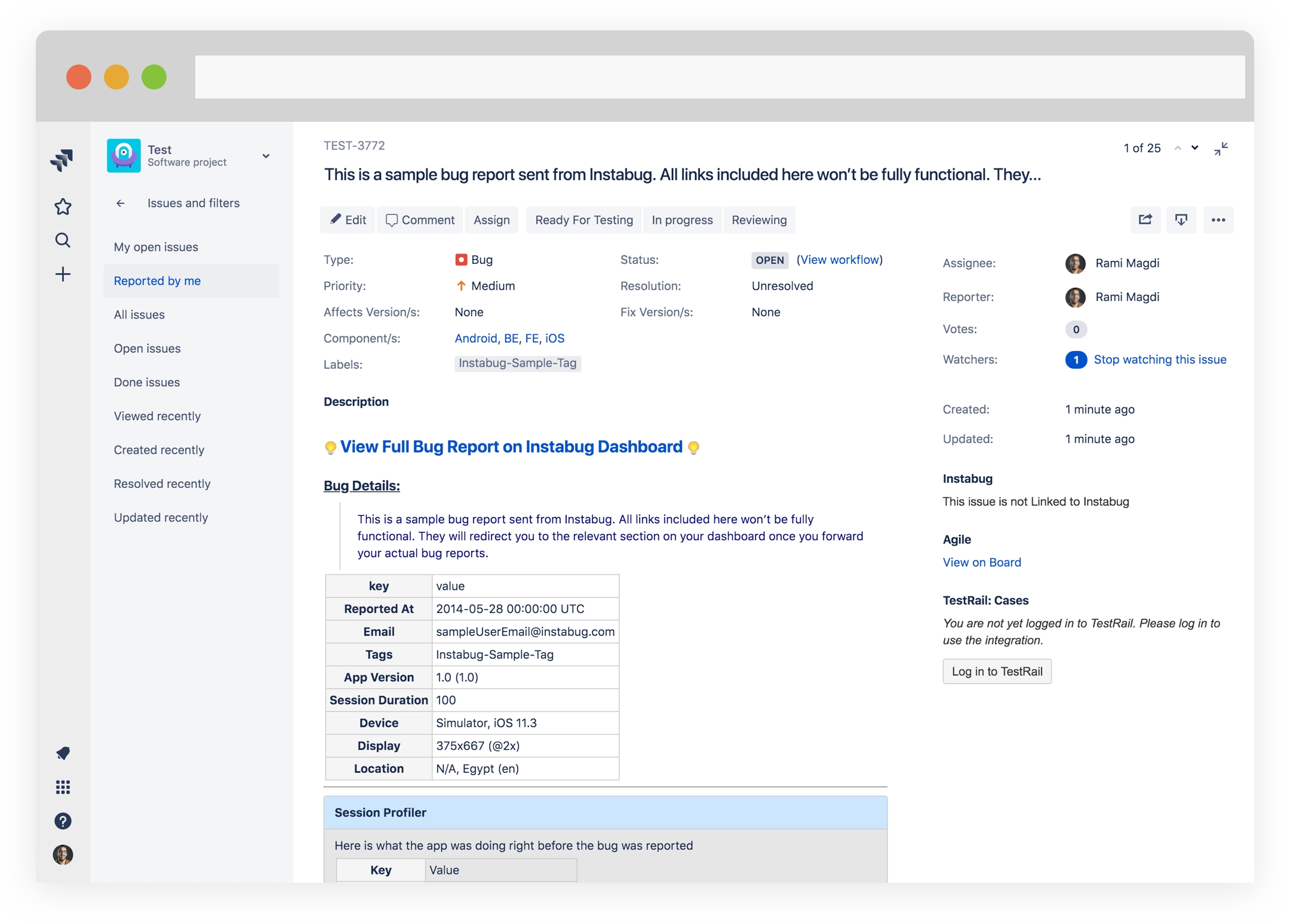
Forwarded bug appearance

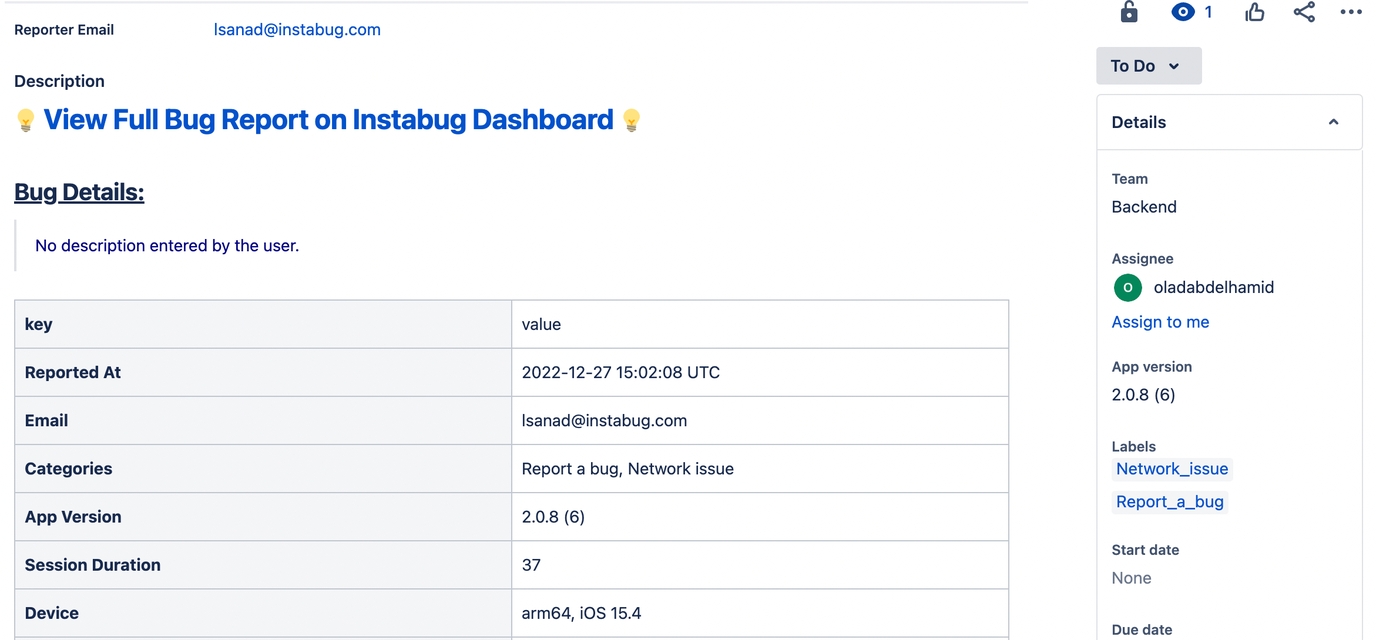
This is how the forwarded bug report should look on Jira.


Priority Sync

Once you enable two-way sync for the priority, any change done to the priority field in our dashboard will be reflected in Jira and vice versa.

Two-way sync for the priority will only work if you are using the default priorities in Jira. If you are using custom priorities, the bug will be forwarded to Jira successfully, but the priority will not be synced.

Priority Mapping

Luciq Priorities
Jira Priorities

NA

Medium

Trivial

Lowest

Minor

Low

Major

High

Blocker

Highest

Last updated