# Repro Steps

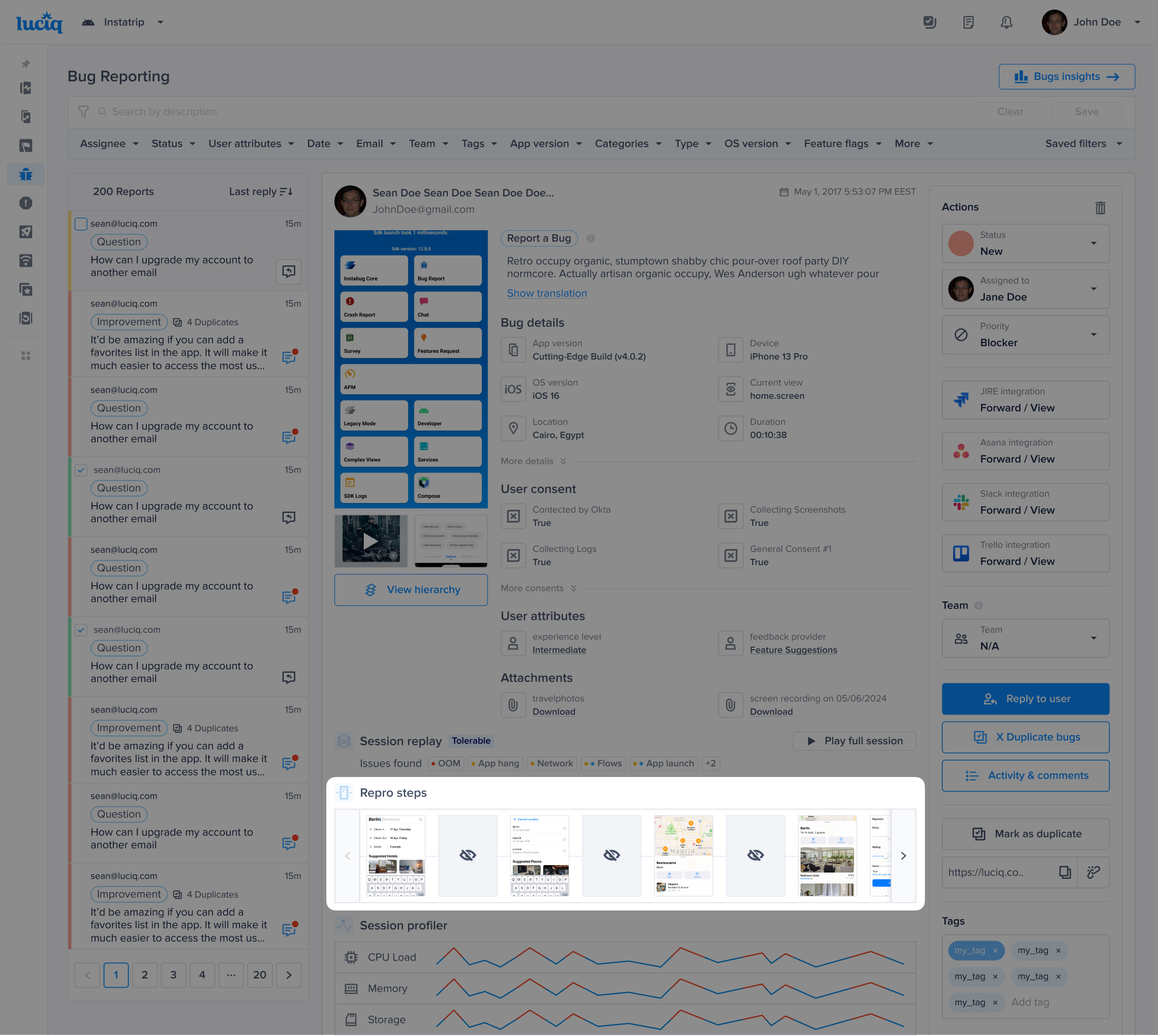
Repro Steps show you all of the interactions a user makes with your app up until a bug or crash is reported, grouped by the app view. For each view that a user visits, all of the steps that they commit are captured and displayed as logs next to the relevant screenshot. Repro steps can be found below the bug details.

<figure><img src="/files/YM1cMHIVonjhLRWczlro" alt=""><figcaption></figcaption></figure>

### Disabling and Enabling Repro steps

Repro Steps is by default enabled with screenshots for both bug reporting and session replay and enabled without screenshots for crash reporting.

{% tabs %}
{% tab title="Swift" %}
{% code overflow="wrap" %}

```swift
Luciq.setReproStepsFor(.all, with: .enable)
```

{% endcode %}
{% endtab %}

{% tab title="Objective-C" %}
{% code overflow="wrap" %}

```objectivec
[Luciq setReproStepsFor:LCQIssueTypeAll withMode:LCQUserStepsModeEnable];
```

{% endcode %}
{% endtab %}
{% endtabs %}

You can change the value of the Issue Type.

{% tabs %}
{% tab title="Swift" %}
{% code overflow="wrap" %}

```swift
//Bug Reporting and Crash Reporting
.all
//Bug Reporting Only
.bug
//Crash Reporting Only
.crash
//Session Replay Only
.sessionReplay
```

{% endcode %}
{% endtab %}

{% tab title="Objective-C" %}
{% code overflow="wrap" %}

```objectivec
//Bug Reporting and Crash Reporting
LCQIssueTypeAll
//Bug Reporting Only
LCQIssueTypeBug
//Crash Reporting Only
LCQIssueTypeCrash
//Session Replay Only
LCQIssueTypeSessionReplay
```

{% endcode %}
{% endtab %}
{% endtabs %}

You can change the value of the User Steps Mode.

{% tabs %}
{% tab title="Swift" %}
{% code overflow="wrap" %}

```swift
//Enable with Screenshots
.enable
//Enable with NO Screenshots
.enabledWithNoScreenshots
//Disable
.disable
```

{% endcode %}
{% endtab %}

{% tab title="Objective-C" %}
{% code overflow="wrap" %}

```objectivec
//Enable with Screenshots
LCQUserStepsModeEnable
//Enable with NO Screenshots
LCQUserStepsModeEnabledWithNoScreenshots
//Disable
LCQUserStepsModeDisable
```

{% endcode %}
{% endtab %}
{% endtabs %}

#### Examples

<table><thead><tr><th width="453.125">API</th><th>Meaning</th></tr></thead><tbody><tr><td>Swift: <code>Luciq.setReproStepsFor(.all, with: .enable)</code><br><br>ObjC:<code>[Lucuq setReproStepsFor:LCQIssueTypeAll withMode:LCQUserStepsModeEnable];</code></td><td>Enable with Screenshots for both Bug Reporting and Crash Reporting.</td></tr><tr><td>Swift: <code>Luciq.setReproStepsFor(.crash, with: .enabledWithNoScreenshots)</code><br><br>ObjC: <code>[Luciq setReproStepsFor:LCQIssueTypeAllCrashes withMode:LCQUserStepsModeEnabledWithNoScreenshots];</code></td><td>Enable with No Screenshots for Crash Reporting.</td></tr><tr><td>Swift: <code>Luciq.setReproStepsFor(.bug, with: .enable)</code><br><br>ObjC: <code>[Luciq setReproStepsFor:LCQIssueTypeBug withMode:LCQUserStepsModeEnable];</code></td><td>Enable with Screenshots for Bug Reporting.</td></tr><tr><td>Swift: <code>Luciq.setReproStepsFor(.all, with: .disable)</code><br><br>ObjC: <code>[Luciq setReproStepsFor:LCQIssueTypeAll withMode:LCQUserStepsModeDisable];</code></td><td>Completely disable for both Bug Reporting and Crash Reporting.</td></tr></tbody></table>

To be able to capture Repro Steps, we need to do method swizzling. We take an approach to swizzling that is absolutely safe and does not impact your app negatively in any way.

{% hint style="info" %}

#### Screenshots are by default disabled for Crash Reporting.

For Crash Reporting, screenshots are by default disabled; however, if you are looking to enable screenshots in Crash Reporting, make sure to use the [Auto Masking API](/ios/setup-luciq-for-ios/custom-settings/privacy-settings.md). This API will automatically help you mask sensitive data in screenshots to protect the [end-users' privacy](/ios/setup-luciq-for-ios/custom-settings/privacy-settings.md).
{% endhint %}

### Redacting View Content in User Steps and Repro Steps

Starting from SDK version **19.7.0**, you can use `Luciq.viewsContentCaptureEnabled` as a master privacy flag that controls whether User Steps and Repro Steps capture view content (titles, labels, text). When disabled, captured events still fire with the gesture, view class, and screen name. User Steps omit captured view labels, while Repro Steps replace view text and labels with non-identifying descriptors such as `"a button"`, `"a text"`, or `"an image"`.

By default, `viewsContentCaptureEnabled` is `true`. Set it to `false` to redact view content from User Steps and Repro Steps.

{% tabs %}
{% tab title="Swift" %}
{% code overflow="wrap" %}

```swift
Luciq.viewsContentCaptureEnabled = false
```

{% endcode %}
{% endtab %}

{% tab title="Objective-C" %}
{% code overflow="wrap" %}

```objectivec
[Luciq setViewsContentCaptureEnabled:NO];
```

{% endcode %}
{% endtab %}
{% endtabs %}

{% hint style="info" %}
**Scope and behavior**

* Affects only User Steps and Repro Steps view content: User Steps labels are omitted, and Repro Steps labels use non-identifying descriptors. It does not affect Session Replay screenshots, bug-report screenshots, or crash-report screenshots — use the [auto-masking APIs](/ios/setup-luciq-for-ios/custom-settings/privacy-settings/user-privacy.md) for those.
* Stored in memory for the current process and does not survive app restarts.
* Can be set before `Luciq.start(withToken:invocationEvents:)` so the value is applied as soon as automatic capture starts.
* Applies to events captured after the call. Previously-recorded steps are not retroactively redacted.
  {% endhint %}


---

# Agent Instructions: Querying This Documentation

If you need additional information that is not directly available in this page, you can query the documentation dynamically by asking a question.

Perform an HTTP GET request on the current page URL with the `ask` query parameter:

```
GET https://docs.luciq.ai/ios/setup-luciq-for-ios/custom-settings/logs-and-profiling/repro-steps.md?ask=<question>
```

The question should be specific, self-contained, and written in natural language.
The response will contain a direct answer to the question and relevant excerpts and sources from the documentation.

Use this mechanism when the answer is not explicitly present in the current page, you need clarification or additional context, or you want to retrieve related documentation sections.
