> For the complete documentation index, see [llms.txt](https://docs.luciq.ai/llms.txt). Markdown versions of documentation pages are available by appending `.md` to page URLs; this page is available as [Markdown](https://docs.luciq.ai/ios/setup-luciq-for-ios/custom-settings/logs-and-profiling/report-logs.md).
# Report Logs
This section covers how Luciq automatically attaches console logs, verbose logs, and all steps made by your users before a bug report is sent for iOS apps.
{% hint style="warning" %}
#### Privacy Policy
It is highly recommended to mention in your privacy policy that you may be collecting logging data in order to assist with troubleshooting bugs.
{% endhint %}
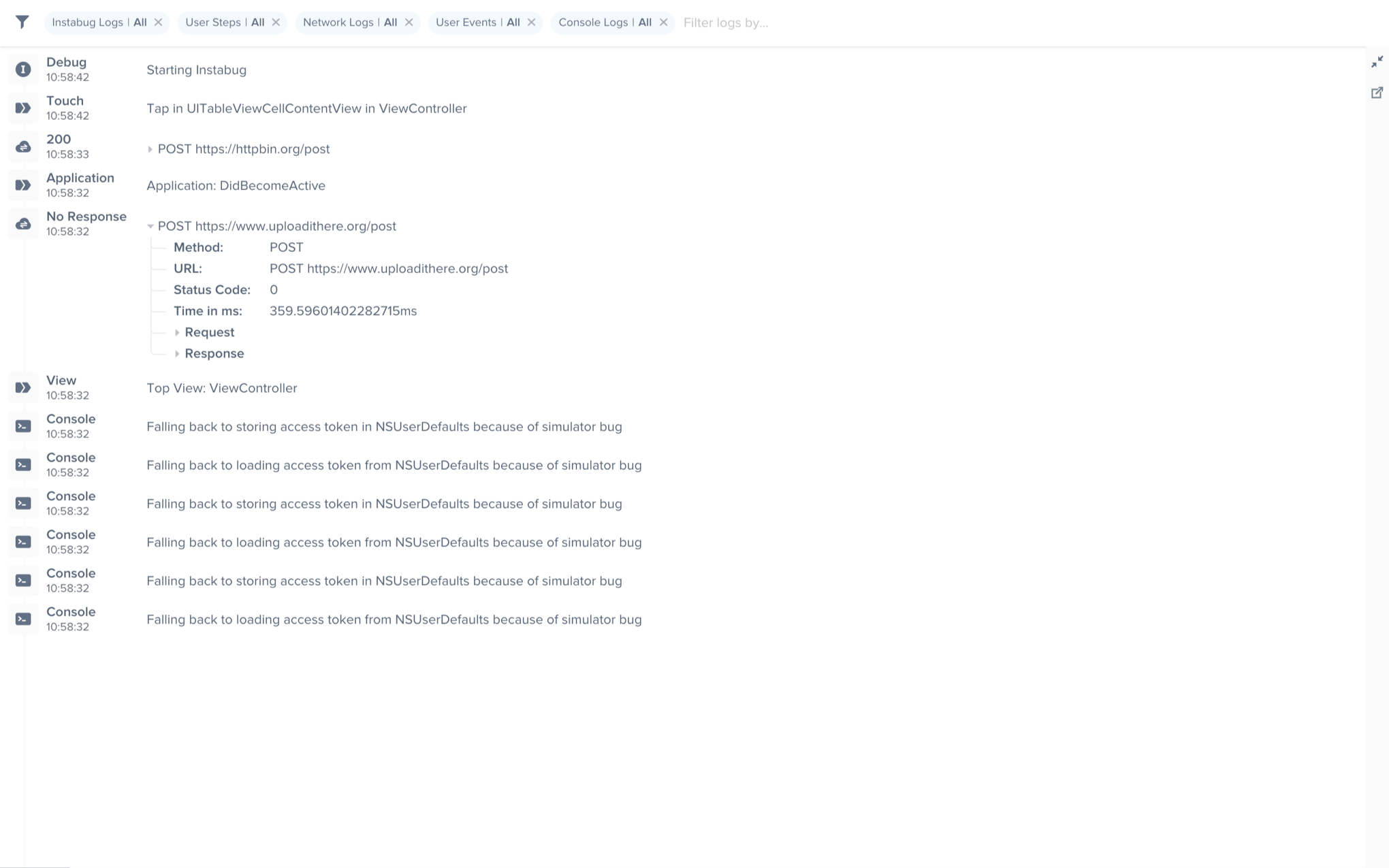
A variety of log types are sent with each crash or bug report. They appear within each report in your Luciq dashboard, as shown below, Log collection stops when Luciq is shown.
We support the following types of logs:
* [User Steps](#user-steps)
* [Network Logs](#network-logs)
* [Luciq Logs](#instabug-logs)
* [Console Logs](#console-logs)
* [User Events](#user-events)
An example of the expanded logs view from your dashboard.
### User Steps
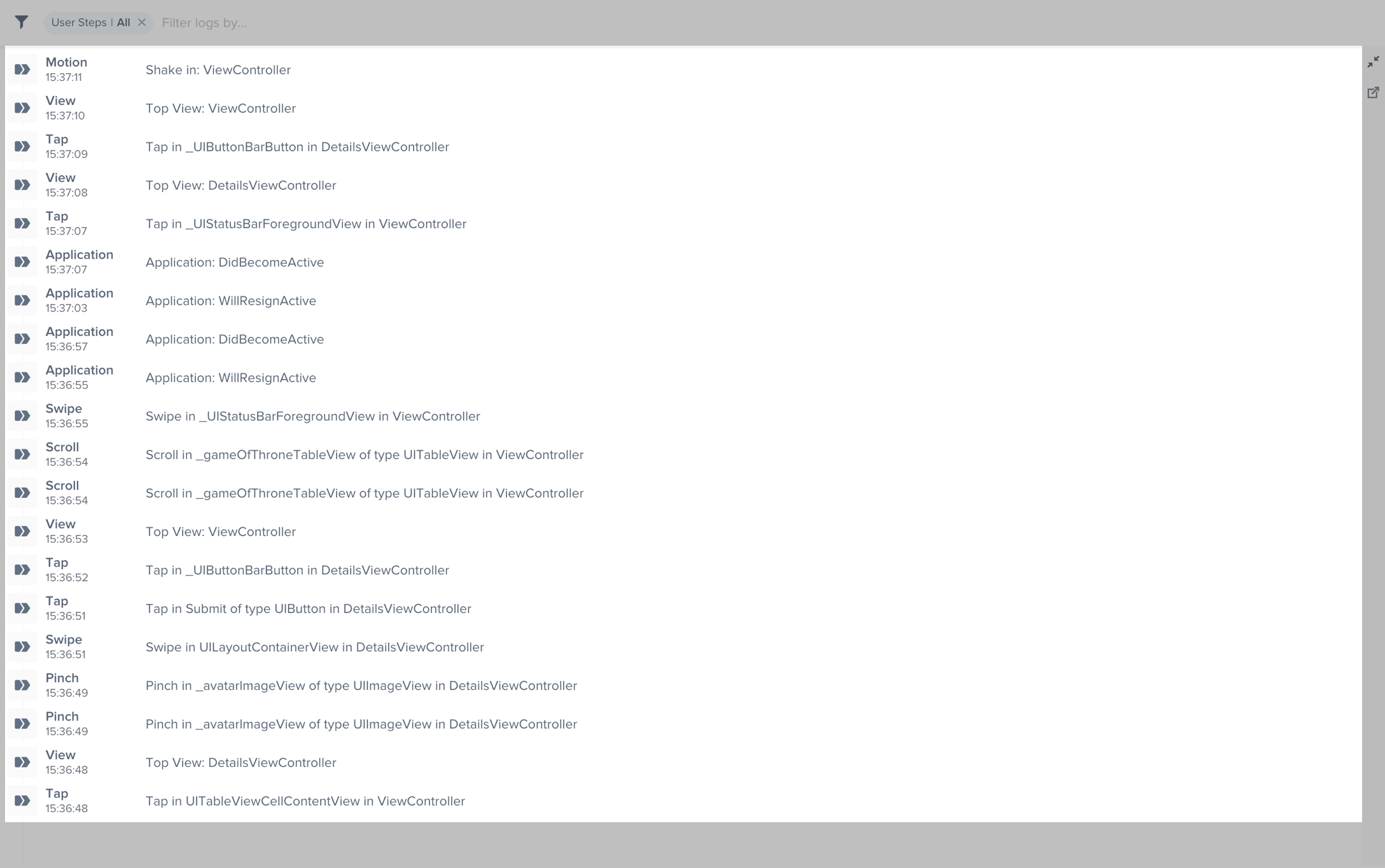
Luciq can help you reproduce issues by tracking each step a user has taken until a report is sent. Note that the maximum number of user steps sent with each report is 100.
User Steps are formatted as follows: **Event** in `label` of type `class` in `controller`\
For example: **Tap** in `UITableViewCellContentView` in `ViewController`
* The type of events captured are **tap, long press, force touch, swipe, scroll** and **pinch**.
* We also capture life cycle events such as **entering background, entering foreground, became active, resign active**, and **memory warning**.
* `Label` refers to the label of the object that contains the event.
* `Class` refers to the class of the object that contains the event.
* `Controller` refers to the view that contained the event.
An example of the expanded logs view filtered by User Steps.
You can disable User Steps with the following method.
{% tabs %}
{% tab title="Swift" %}
{% code overflow="wrap" %}
```swift
Luciq.trackUserSteps = false
```
{% endcode %}
{% endtab %}
{% tab title="Objective-C" %}
{% code overflow="wrap" %}
```objectivec
Luciq.trackUserSteps = NO;
```
{% endcode %}
{% endtab %}
{% endtabs %}
To be able to capture User Steps, we need to do method swizzling. We take an approach to swizzling that is absolutely safe and does not impact your app negatively in any way. This swizzling can be disabled if you would prefer to log the user interactions manually.
***
### Network Logs
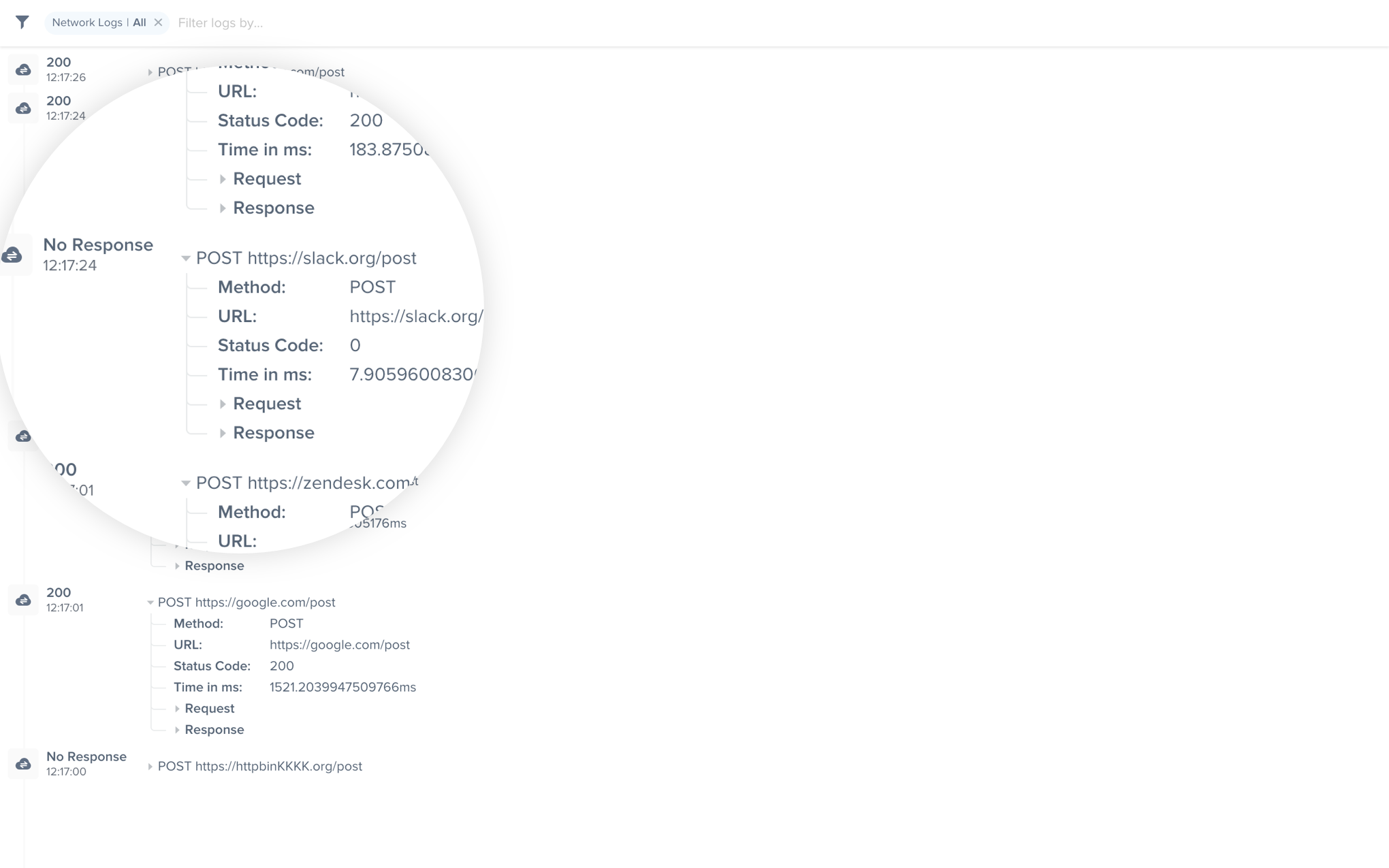
Luciq automatically logs all network requests performed by your app from the start of the session. Requests details, along with their responses, are sent with each report. Luciq will also show you an alert at the top of the bug report in your dashboard when network requests have timed-out or taken too long to complete. Note that the maximum number of network logs sent with each report is 100.
An example of network request logs in the Luciq dashboard.
#### Omitting Requests
You can omit requests from being logged based on either their request or response details.
`+ [Luciq setNetworkLoggingRequestFilterPredicate:responseFilterPredicate:]` allows you to specify two predicates to be evaluated against every request and response to determine if the request should be included in logs or not.
{% tabs %}
{% tab title="Swift" %}
{% code overflow="wrap" %}
```swift
let path = "/products"
let requestPredicate = NSPredicate(format: "URL.path MATCHES %@", path)
let responsePredicate = NSPredicate(format: "statusCode >= %d AND statusCode <= %d", 200, 399)
NetworkLogger.setNetworkLoggingRequestFilterPredicate(requestPredicate, responseFilterPredicate: responsePredicate)
```
{% endcode %}
{% endtab %}
{% tab title="Objective-C" %}
{% code overflow="wrap" %}
```objectivec
NSString *path = @"/products";
NSPredicate *requestPredicate = [NSPredicate predicateWithFormat:@"URL.path MATCHES %@", path];
NSPredicate *responsePredicate = [NSPredicate predicateWithFormat:@"statusCode >= %d AND statusCode <= %d", 200, 399];
[LCQNetworkLogger setNetworkLoggingRequestFilterPredicate:requestPredicate responseFilterPredicate:responsePredicate];
```
{% endcode %}
{% endtab %}
{% endtabs %}
The code above excludes all requests made to URLs that have `/products` path. It also excludes all responses that have a success and redirection status code, thus only including requests with 4xx and 5xx responses.
`requestFilterPredicate` is evaluated against an `NSURLRequest`, while `responseFilterPredicate` is evaluated against an `NSHTTPURLResponse`.
#### Obfuscating Data
***Requests***
You can obfuscate sensitive user data in requests, like authentication tokens for example, without filtering out the whole request.
{% tabs %}
{% tab title="Swift" %}
{% code overflow="wrap" %}
```swift
NetworkLogger.setRequestObfuscationHandler { (request) -> URLRequest in
var myRequest:NSMutableURLRequest = request as! NSMutableURLRequest
let urlString = request.url?.absoluteString
urlString = obfuscateAuthenticationTokenInString()
let obfuscatedURL = URL(string: urlString)
myRequest.url = obfuscatedURL
return myRequest.copy() as! URLRequest
}
```
{% endcode %}
{% endtab %}
{% tab title="Objective-C" %}
{% code overflow="wrap" %}
```objectivec
LCQNetworkLogger.requestObfuscationHandler = ^NSURLRequest * _Nonnull(NSURLRequest * _Nonnull request) {
NSMutableURLRequest *myRequest = [request mutableCopy];
NSString *urlString = request.URL.absoluteString;
urlString = [self obfuscateAuthenticationTokenInString:urlString];
NSURL *obfuscatedURL = [NSURL URLWithString:urlString];
myRequest.URL = obfuscatedURL;
return myRequest;
};
```
{% endcode %}
{% endtab %}
{% endtabs %}
***Responses***
As with requests, the response object, as well as the response data, can be modified for obfuscation purposes before they are logged.
#### Requests Not Appearing
If your network requests aren't being logged automatically, that probably means you're using a custom `NSURLSession` or `NSURLSessionConfiguration`.
To enable logging for your `NSURLSession`, add the following code.
{% tabs %}
{% tab title="Swift" %}
{% code overflow="wrap" %}
```swift
let configuration = URLSessionConfiguration.ephemeral
NetworkLogger.enableLogging(for: configuration)
let session = URLSession(configuration: configuration)
```
{% endcode %}
{% endtab %}
{% tab title="Objective-C" %}
{% code overflow="wrap" %}
```objectivec
NSURLSessionConfiguration *configuration = NSURLSessionConfiguration.ephemeralSessionConfiguration;
[LCQNetworkLogger enableLoggingForURLSessionConfiguration:configuration];
NSURLSession *session = [NSURLSession sessionWithConfiguration:configuration];
```
{% endcode %}
{% endtab %}
{% endtabs %}
{% hint style="info" %}
#### If the requests still aren't appearing
You'll need to make sure that `enableLoggingForURLSessionConfiguration:` was called just before using the configuration to create the session.
{% endhint %}
**AFNetworking**
To enable logging for AFNetworking, create the following class.
{% tabs %}
{% tab title="Objective-C" %}
{% code overflow="wrap" %}
```objectivec
// IBGAFURLSessionManager.h
#import
@interface LCQAFURLSessionManager : AFURLSessionManager
@end
// IBGAFURLSessionManager.m
#import "LCQAFURLSessionManager.h"
#import
@implementation LCQAFURLSessionManager
- (instancetype)initWithSessionConfiguration:(nullable NSURLSessionConfiguration *)configuration {
[LCQNetworkLogger enableLoggingForURLSessionConfiguration:configuration];
return [super initWithSessionConfiguration:configuration];
}
@end
```
{% endcode %}
{% endtab %}
{% endtabs %}
Then use `IBGAFURLSessionManager` to create your requests.
**Alamofire**
To enable logging for Alamofire, create the following class.
{% tabs %}
{% tab title="Swift" %}
{% code overflow="wrap" %}
```swift
import Alamofire
import LuciqSDK
class LCQSessionManager: Alamofire.Session {
static let sharedManager: LCQSessionManager = {
let configuration = URLSessionConfiguration.default
NetworkLogger.enableLogging(for: configuration)
let manager = LCQSessionManager(configuration: configuration)
return manager
}()
}
```
{% endcode %}
{% endtab %}
{% endtabs %}
Then use `IBGSessionManager` to create your requests.
#### Disabling Requests
Network request logging is enabled by default if it's included in your plan. To disable it, use the following method.
{% tabs %}
{% tab title="Swift" %}
{% code overflow="wrap" %}
```swift
NetworkLogger.enabled = false
```
{% endcode %}
{% endtab %}
{% tab title="Objective-C" %}
{% code overflow="wrap" %}
```objectivec
LCQNetworkLogger.enabled = NO;
```
{% endcode %}
{% endtab %}
{% endtabs %}
***
### Luciq Logs
Luciq Logs are similar to `NSLog()` and `print()`, but they have the added benefit of having different verbosity levels. This lets you filter logs based on their verbosity level when viewing a report on your Luciq dashboard. Note that the maximum number of Luciq logs sent with each report is 1,000.
Use Luciq Logs through the following methods.
{% tabs %}
{% tab title="Swift" %}
{% code overflow="wrap" %}
```swift
LCQLog.log("Log statement")
LCQLog.logVerbose("Verbose statement")
LCQLog.logInfo("Info statement")
LCQLog.logWarn("Warning statement")
LCQLog.logDebug("Debug statement")
LCQLog.logError("Error statement")
```
{% endcode %}
{% endtab %}
{% tab title="Objective-C" %}
{% code overflow="wrap" %}
```objectivec
LCQLog(@"Log message");
LCQLogVerbose(@"Verbose log message");
LCQLogDebug(@"Debug log message");
LCQLogInfo(@"Info log message");
LCQLogWarn(@"Warn log message");
LCQLogError(@"Error log message");
```
{% endcode %}
{% endtab %}
{% endtabs %}
#### Luciq Logs with 3rd Party Loggers
If you use [CocoaLumberjack](https://github.com/CocoaLumberjack/CocoaLumberjack) or [XCGLogger](https://github.com/DaveWoodCom/XCGLogger), you can easily route all your logs to Luciq using our log destinations. Check the instructions on GitHub for [CocoaLumberjack](https://github.com/Instabug/Instabug-CocoaLumberjack) and [XCGLogger](https://github.com/Instabug/Instabug-XCGLogger).
***
### Console Logs
Luciq captures all console logs and displays them on your dashboard with each report. Note that the maximum number of console logs sent with each report is 500 statements with an unlimited number of characters for each statement.
#### Console Logs on iOS 10
Due to the changes that Apple has made to how logging works, we can only capture console logs on iOS versions prior to 10.
To work around this issue, you can add the following snippet to your `AppDelegate` file but **outside the scope of the class** to allow Luciq to capture logs automatically on iOS 10 and above.
{% tabs %}
{% tab title="Objective-C" %}
{% code overflow="wrap" %}
```objectivec
inline void NSLog(NSString *format, ...) {
va_list arg_list;
va_start(arg_list, format);
LCQNSLogWithLevel(format, arg_list, LCQLogLevelDebug);
va_end(arg_list);
}
```
{% endcode %}
{% endtab %}
{% endtabs %}
Alternatively, you can replace all your `NSLog()` and `print()` statements with `IBGLog`.
Another workaround in case you are using Swift 3.0 or above is to send console logs through the following `print` method. Make sure to define this method outside the `AppDelegate` class scope in the correct place such that it becomes accessible in all your classes.
{% tabs %}
{% tab title="Swift" %}
{% code overflow="wrap" %}
```swift
public func print(_ items: Any..., separator: String = " ", terminator: String = "\n") {
let output = items.map { "\($0)" }.joined(separator: separator)
Swift.print(output, terminator: terminator);
IBGLog.log(output)
}
```
{% endcode %}
{% endtab %}
{% endtabs %}
***
### User Events
{% hint style="warning" %}
#### Best Practices
Currently the limit of the number of user events sent with each report is 1,000. If you're planning on logging a large amount of unique data, the best practice here would be to use [Luciq Logging](#luciq-logs) instead. The reason for this is that having a very large amount of user events will negatively impact the performance of the dashboard.
Having a large amount of user events will not affect dashboard performance if the user events are not unique.
{% endhint %}
You can log custom user events throughout your application and they will automatically be included with each report. Note that the maximum number of user events sent with each report is 1,000.
{% tabs %}
{% tab title="Swift" %}
{% code overflow="wrap" %}
```swift
Luciq.logUserEvent(withName: "Skipped Walkthrough")
```
{% endcode %}
{% endtab %}
{% tab title="Objective-C" %}
{% code overflow="wrap" %}
```objectivec
[Luciq logUserEventWithName:@"Skipped Walkthrough"];
```
{% endcode %}
{% endtab %}
{% endtabs %}
---
# Agent Instructions
This documentation is published with GitBook. GitBook is the documentation platform designed so that both humans and AI agents can read, navigate, and reason over technical content effectively. Learn more at gitbook.com.
## Querying This Documentation
If you need additional information that is not directly available in this page, you can query the documentation dynamically by asking a question.
Perform an HTTP GET request on the current page URL with the `ask` query parameter, and the optional `goal` query parameter:
```
GET https://docs.luciq.ai/ios/setup-luciq-for-ios/custom-settings/logs-and-profiling/report-logs.md?ask=&goal=
```
`ask` is the immediate question: it should be specific, self-contained, and written in natural language.
`goal` is optional and describes the broader end goal you are ultimately trying to accomplish on behalf of the user. GitBook uses it to tailor the answer towards what is most useful for that goal.
The response will contain a direct answer to the question and relevant excerpts and sources from the documentation.
Use this mechanism when the answer is not explicitly present in the current page, you need clarification or additional context, or you want to retrieve related documentation sections.