

Copying Alerts & Rules
Luciq enables you to seamlessly reuse existing alerts and rules across your applications and environments on Luciq. This feature helps you:
Reduce setup time for new apps or environments
Preserve consistent alerts & rules across your applications
Instead of manually recreating conditions, triggers, and actions, you can import and adapt rules with just a few clicks.
When to Use This Feature
Use import when:
Launching a new app or environment (e.g., staging → production)
Scaling your mobile stack across multiple platforms (iOS ↔ Android)
Standardizing alerting across development squads
How to Import Alerts & Rules
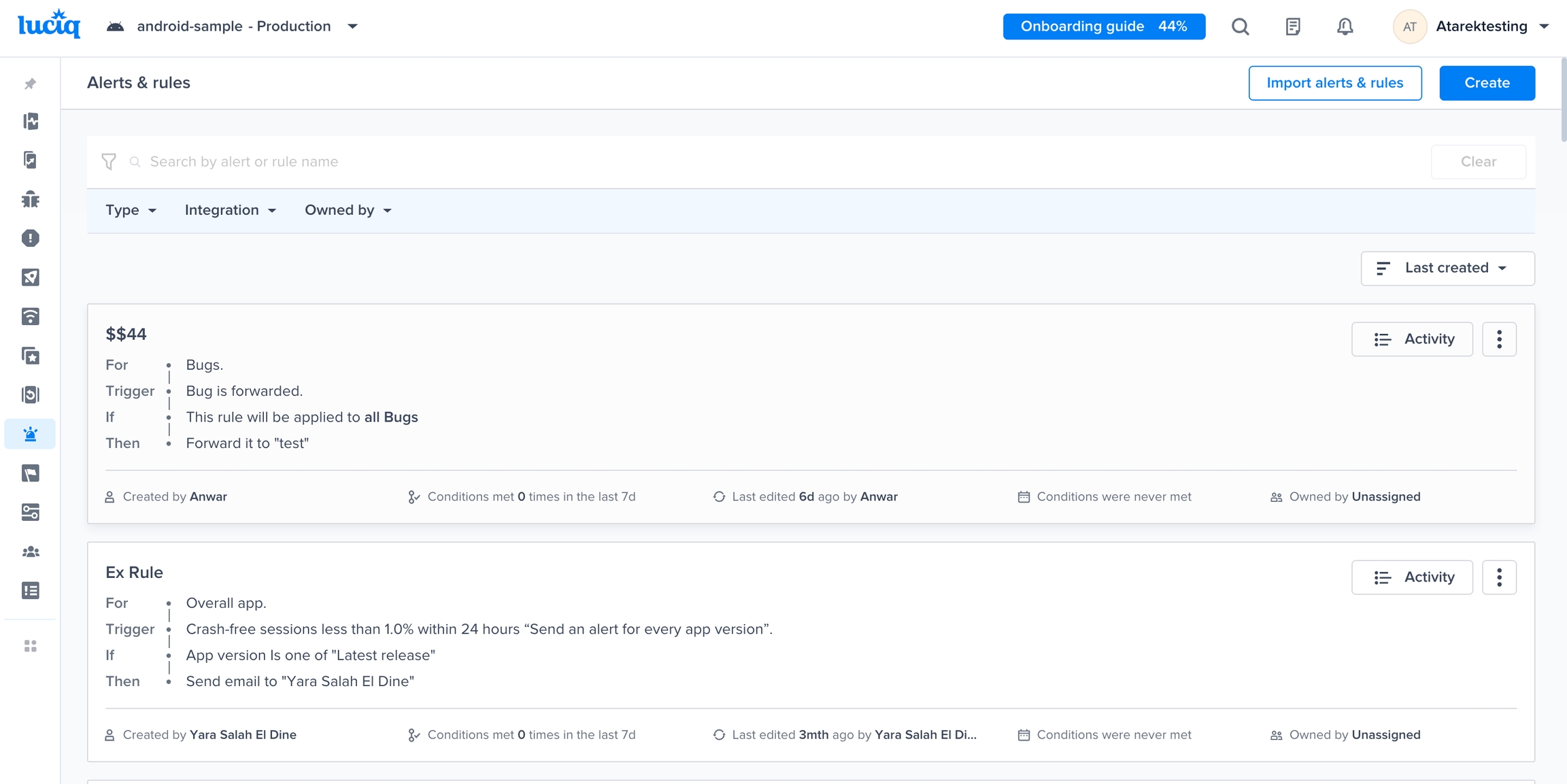
1) Open Alerts & Rules
Navigate to your app → Alerts & rules page
Select Import alerts & rules
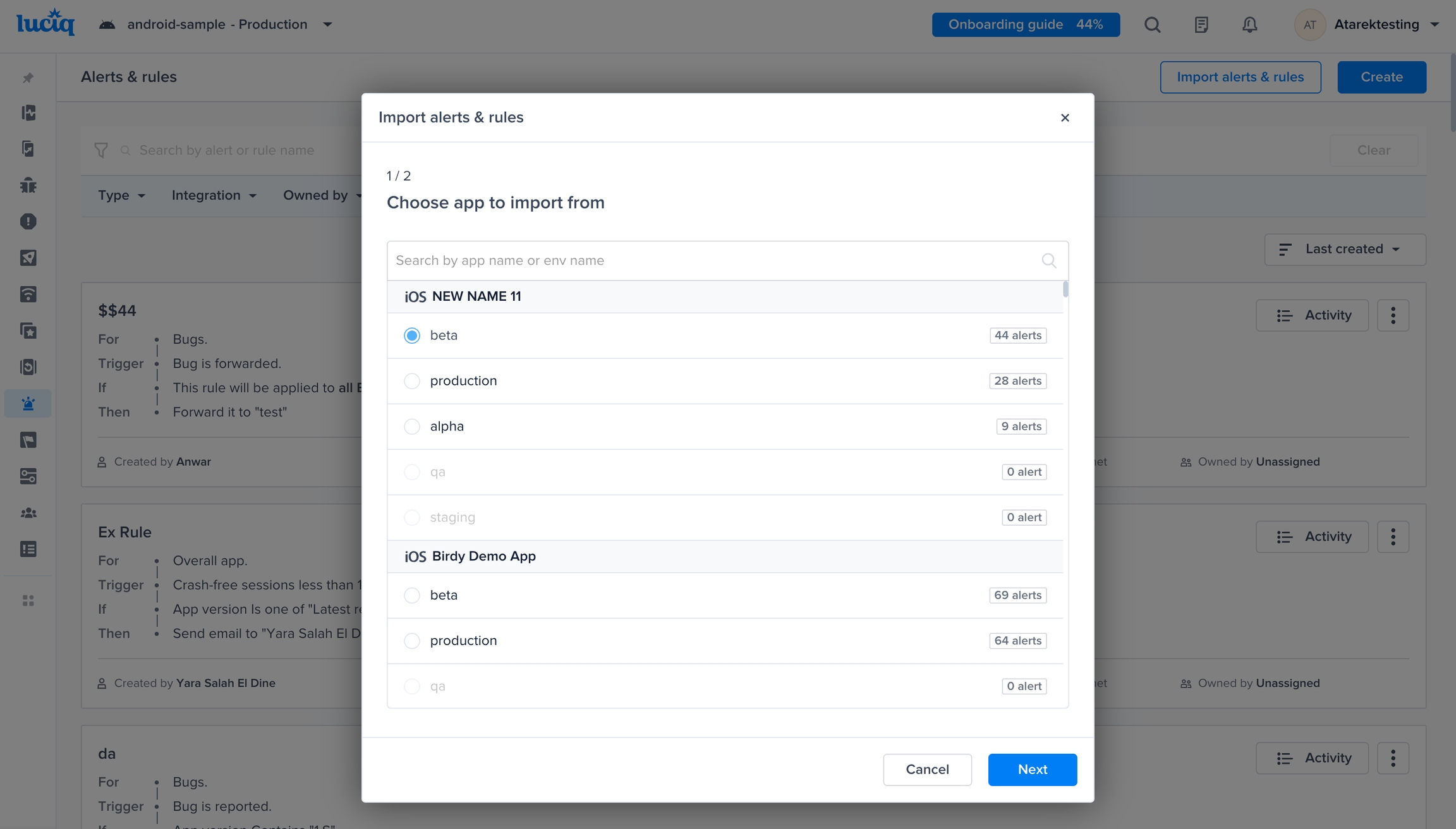
2) Select Source App and Environment
You will see your available apps and environments, each showing the number of alerts available to import.
Search by app or environment name
Select the application environment you want to import alerts from
Environments with 0 user-defined alerts appear disabled
3) Choose Alerts & Rules to Import
On the selection screen:
Select specific alerts, or choose All alerts & rules
Alerts with missing or app-specific fields display a Needs update label
Click Import alerts & rules to complete the import.
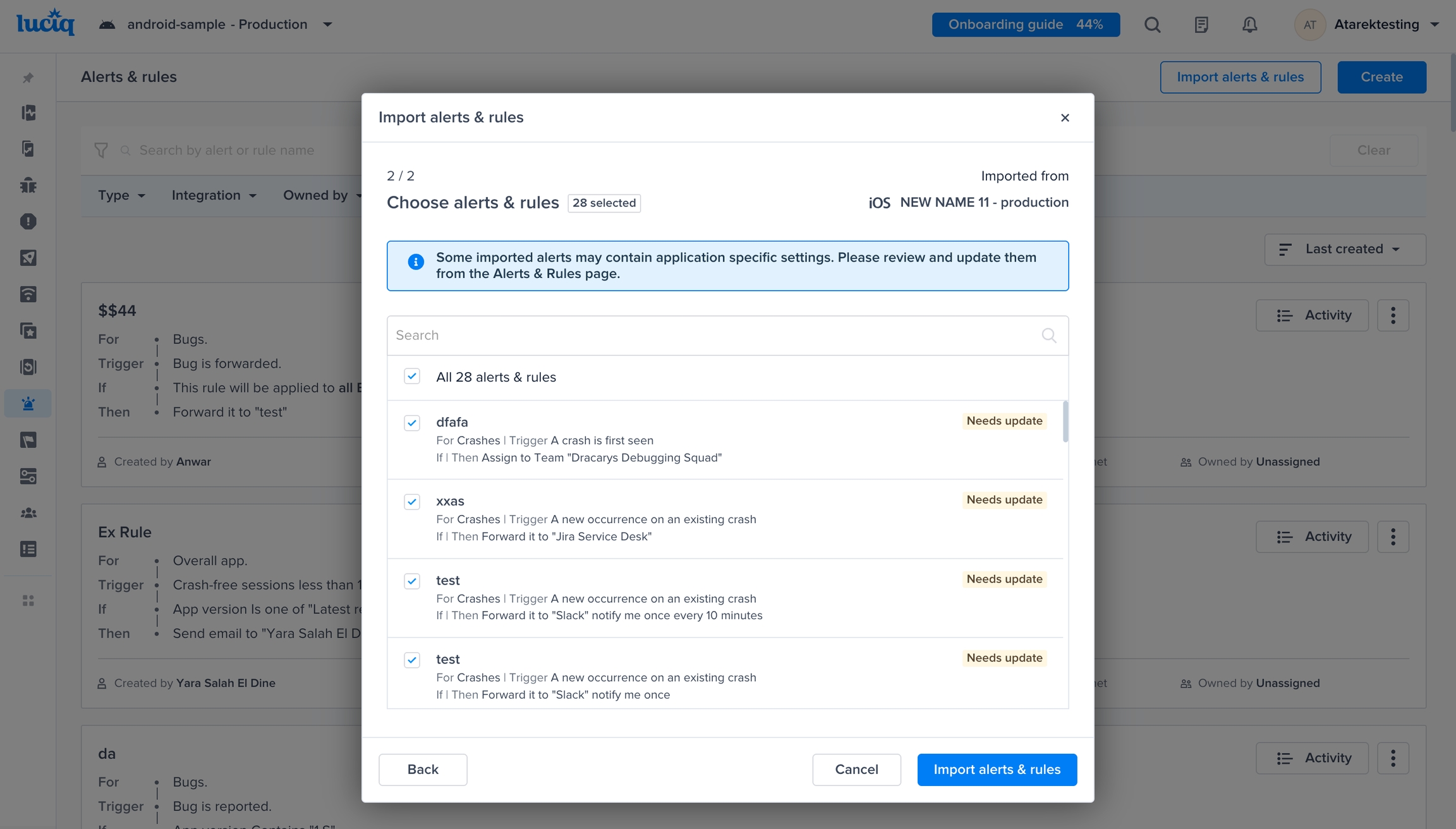
Some rules may include app-specific logic. These are still imported but require updates to activate.
Unsupported Import Cases
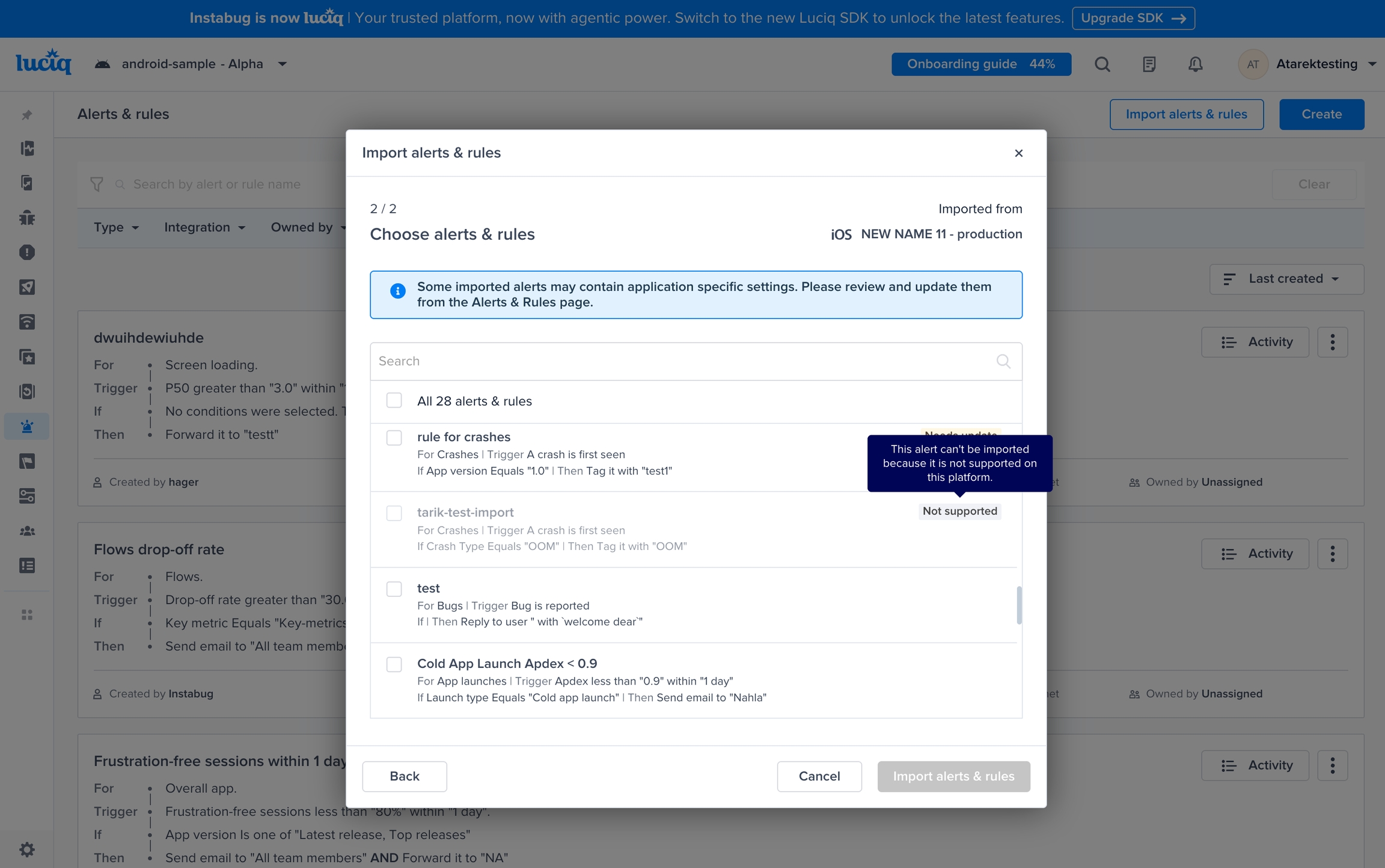
Rules marked Not supported cannot be imported due to incompatible configuration types. These remain visible during import with an explanation tooltip.
Example: You cannot import an OOM Alert to an Android app because OOMs are not supported on Android.
After Import: Activation & Updating Settings
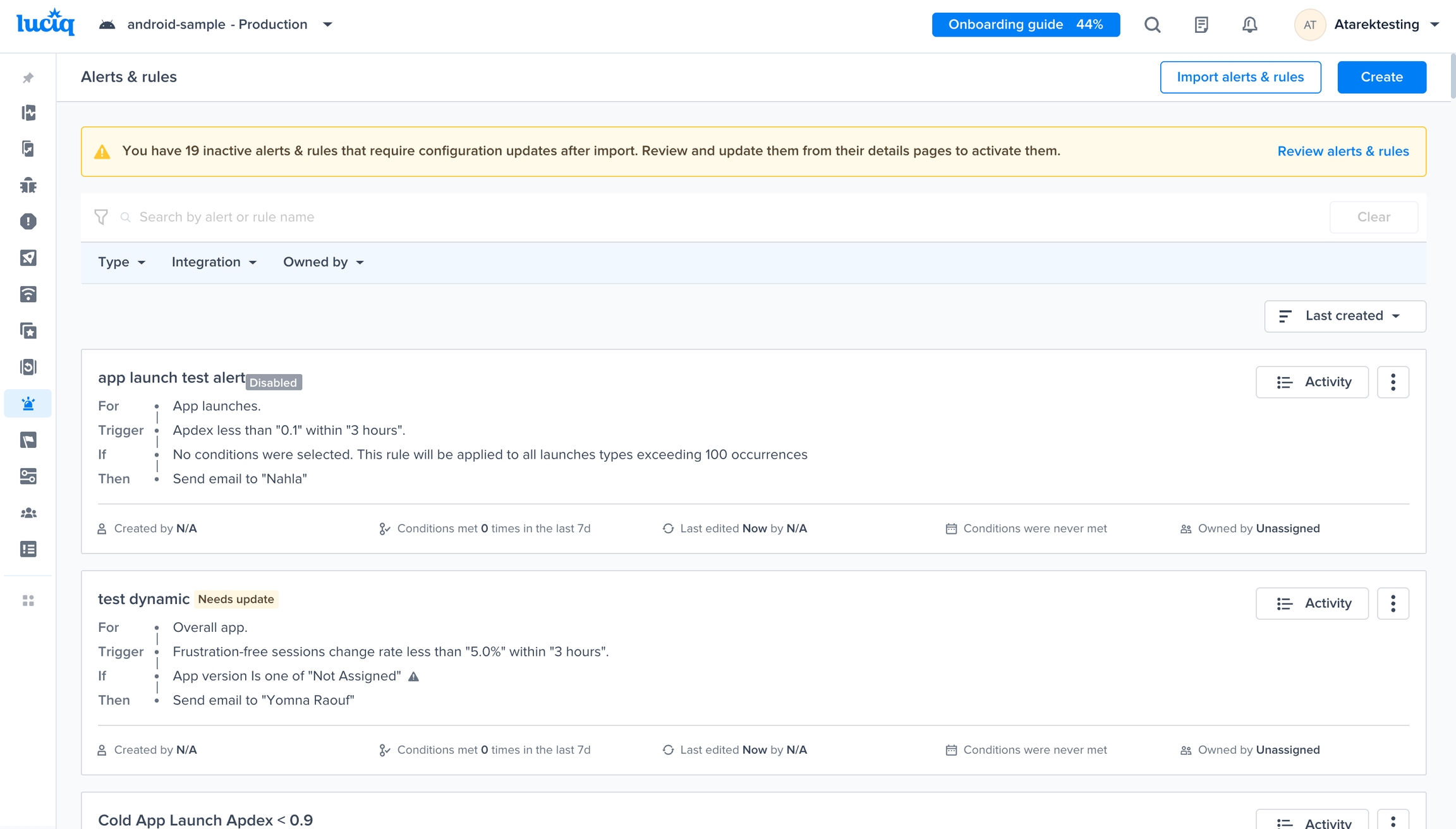
Imported alerts that need updates will remain inactive until configured.
You'll see:
A banner: “You have inactive alerts & rules that require configuration updates…”
A Review alerts & rules button
Each alert marked as
Needs update
Application specific configurations
If any of the following conditions exist in the alert you are importing, the alert would always require an update of these fields after import to activate the alert.
Integrations
Teams
Members
App version
Path/Package
Filename
Trace name
Current view
Assignee
User attributes
Feature flags
Flow name
Updating Alerts
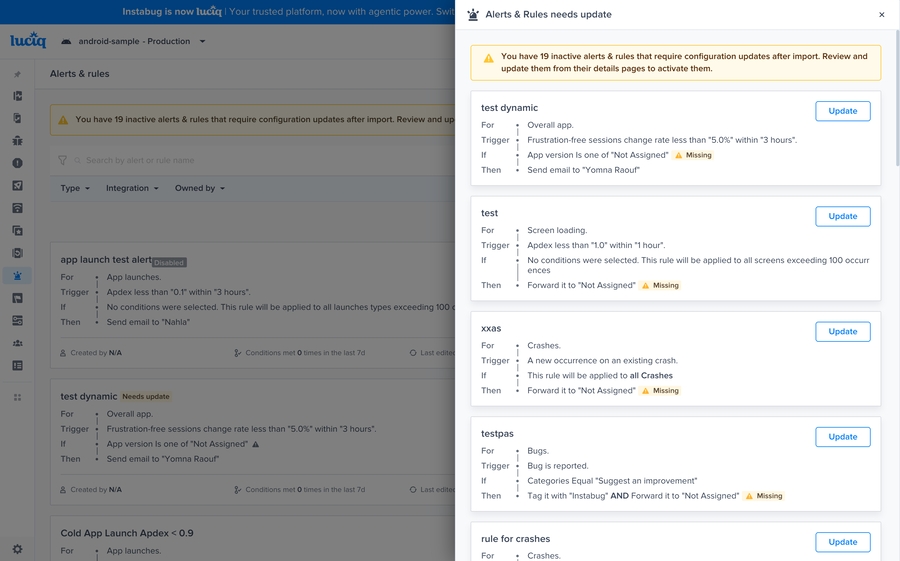
Click Review alerts & rules → a right-side drawer opens showing each alert needing attention.
For each alert, select Update to open the editing screen. Fix highlighted fields, then click Save. Once the configuration is valid, the alert becomes active.
Common updates include:
Adding an integration or selecting one that exists in the new environment
Selecting an app version or adjusting version logic
Selecting recipients or teams
Replacing invalid fields or actions that no longer apply

Last updated