

Team Dashboard
The Team Dashboard page helps track and improve your team’s ownership of screens by monitoring performance and stability metrics like app launch time, loading speed, UI hangs, and crashes. It allows leaders to identify and address issues affecting their team's areas, ensuring alignment with overall app performance goals.
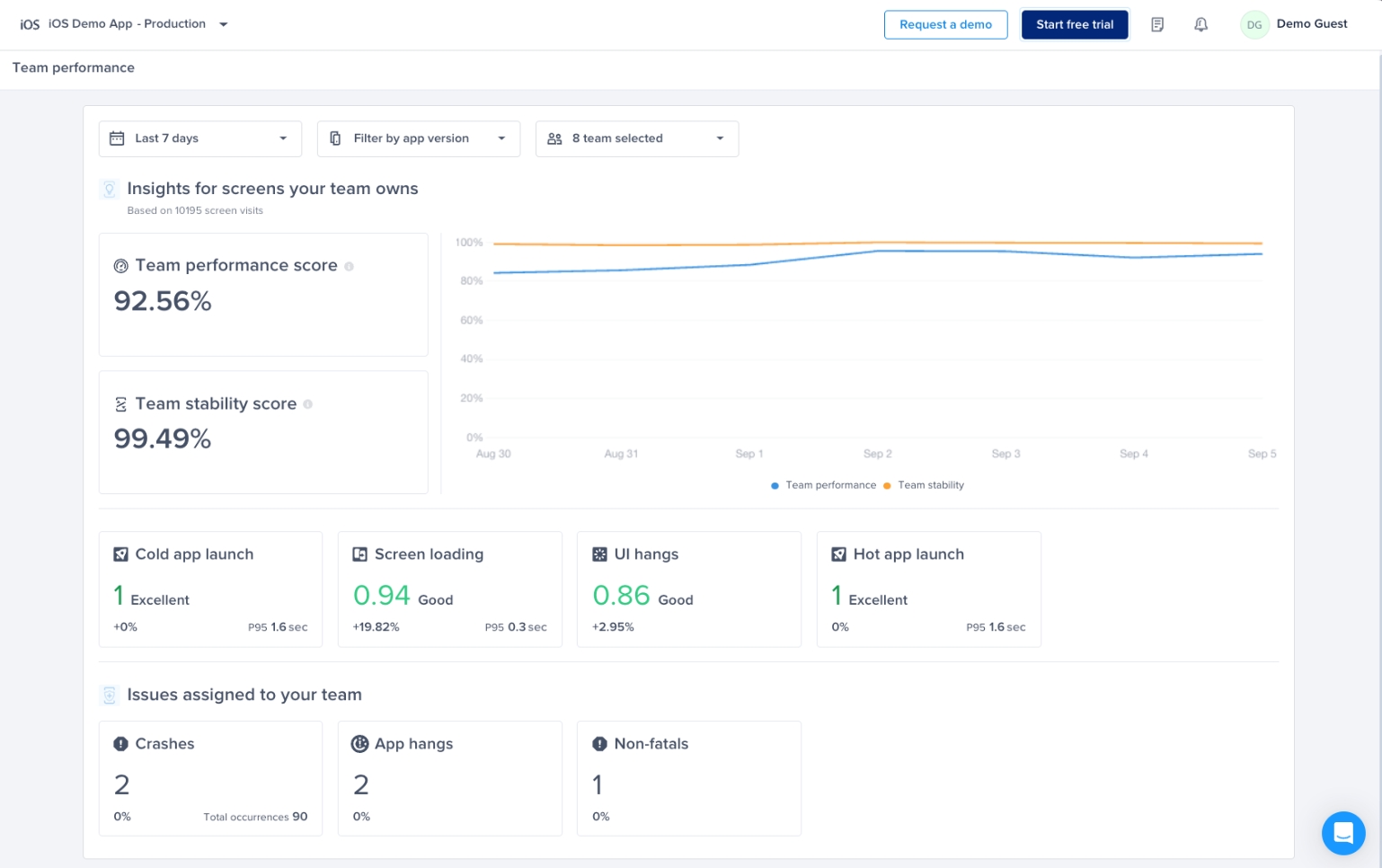
You can find the page under the “App Overview” section in the Navbar
Metrics Supported
Performance Metrics Supported:
Cold app launch
Hot app launch
Screen loading
UI hangs
Issues you can assign to your team:
Fatal crashes
App hangs
Non-fatal crashes
Team Dashboard Score Calculation
Here’s the breakdown of the weighted average we use across the performance metrics supported to come up with your team’s dashboard score:
Cold app launches weight: 24%
Screen loading weight: 36%
UI hangs weight: 40%
Team Stability Score Calculation
Here’s how we calculate your team's overall stability:
Team stability = Number of screen visits of the screens assigned to your team that didn't end in a crash / Total number of screen visits of the screens assigned to your team.
Setup Guide
To start using the Team Dashboard page, you need to follow these simple steps:
Step 1: Create A Team
If you don’t already have teams defined on your Luciq dashboard, you can do so by:
Click on your name at the top right corner
Choose Account Management
Choose teams
Click on Create your first team
Name your team and assign team members to it
Step 2: Define Performance Metrics Ownership
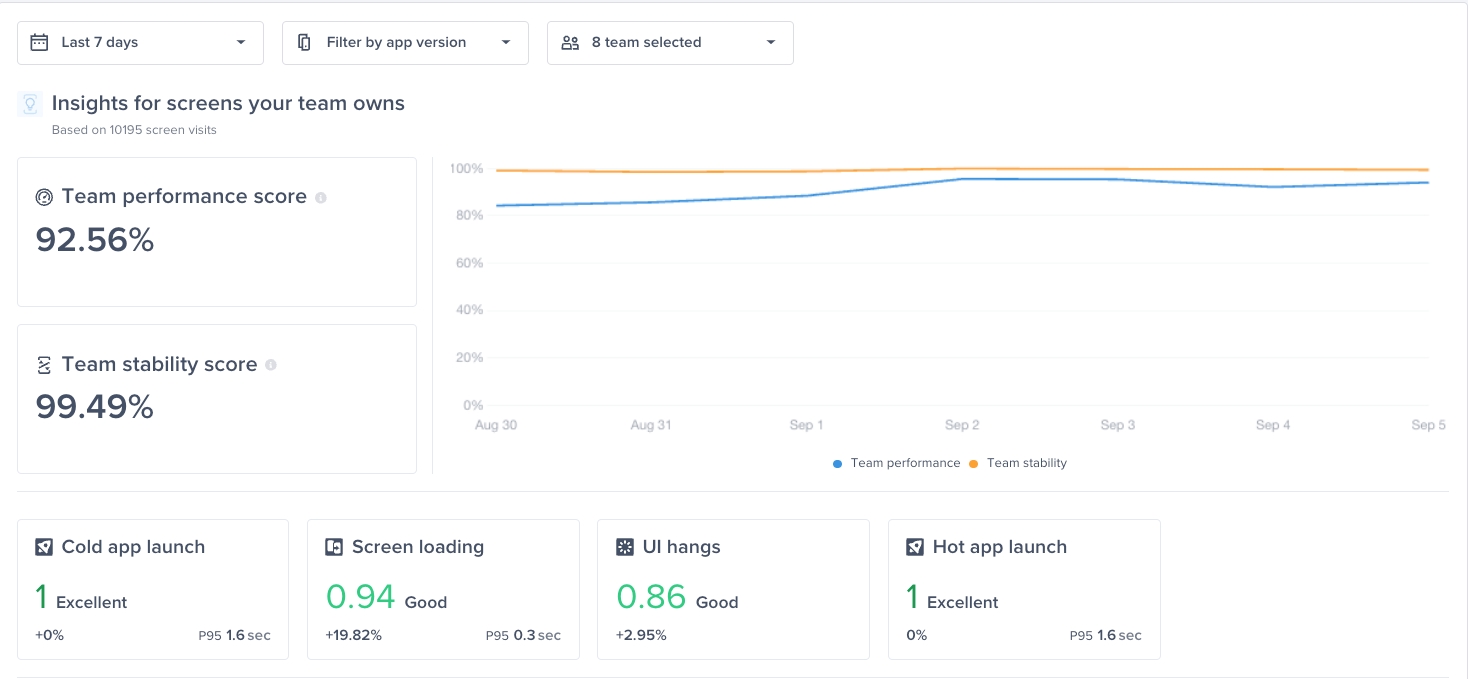
In order to see your team’s dashboard score, stability score, cold app launch apdex, screen loading apdex and UI hangs apdex, you need to define ownership for performance metrics.
Go to the settings page at the bottom left of the navbar
Choose Team Ownership
Click Define ownership
Choose Type “Performance metrics”
Choose the team you’d like to assign screens to
Choose condition Screens
For Screen name, you can search and select all screens you’d like to assign to that team
Step 3: Define Crash Ownership
In order to automatically assign fatal crashes, app hangs and non fatal crashes to your team, you need to define the ownership of crashes

Go to the settings page at the bottom left of the navbar
Choose Team Ownership
Click Define ownership
Choose Type “Crashes”
Define the path, package, or file you’d like to assign crashes happening on to your team
You can also assign a specific crash to a team from the specific crash’s page
Last updated