# UI Color & Theme

### SDK Themes

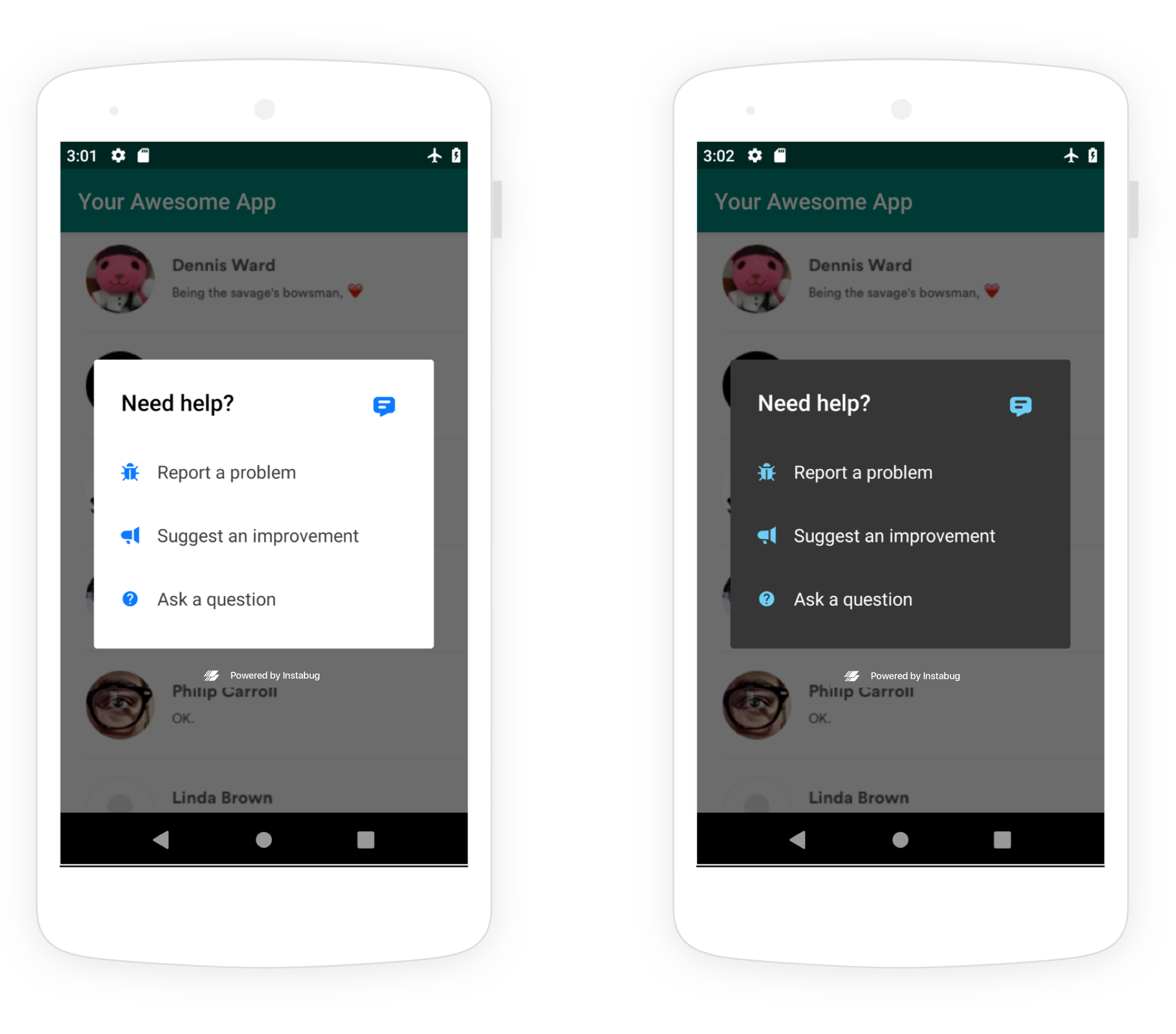
The SDK UI has two color themes: light and dark.

<figure><img src="/files/64AOT6E8pDDL8fgsXInl" alt=""><figcaption><p><em>Examples of Luciq in light mode (left) and dark mode (right).</em></p></figcaption></figure>

You can set which theme to use by adding the following method to Luciq builder.

{% tabs %}
{% tab title="Kotlin" %}
{% code overflow="wrap" %}

```kotlin
Luciq.setColorTheme(LuciqColorTheme.LuciqColorThemeLight)
```

{% endcode %}
{% endtab %}

{% tab title="Java" %}
{% code overflow="wrap" %}

```java
Luciq.setColorTheme(LuciqColorTheme.LuciqColorThemeLight);
```

{% endcode %}
{% endtab %}
{% endtabs %}

## Primary Color, Fonts, and Backgrounds

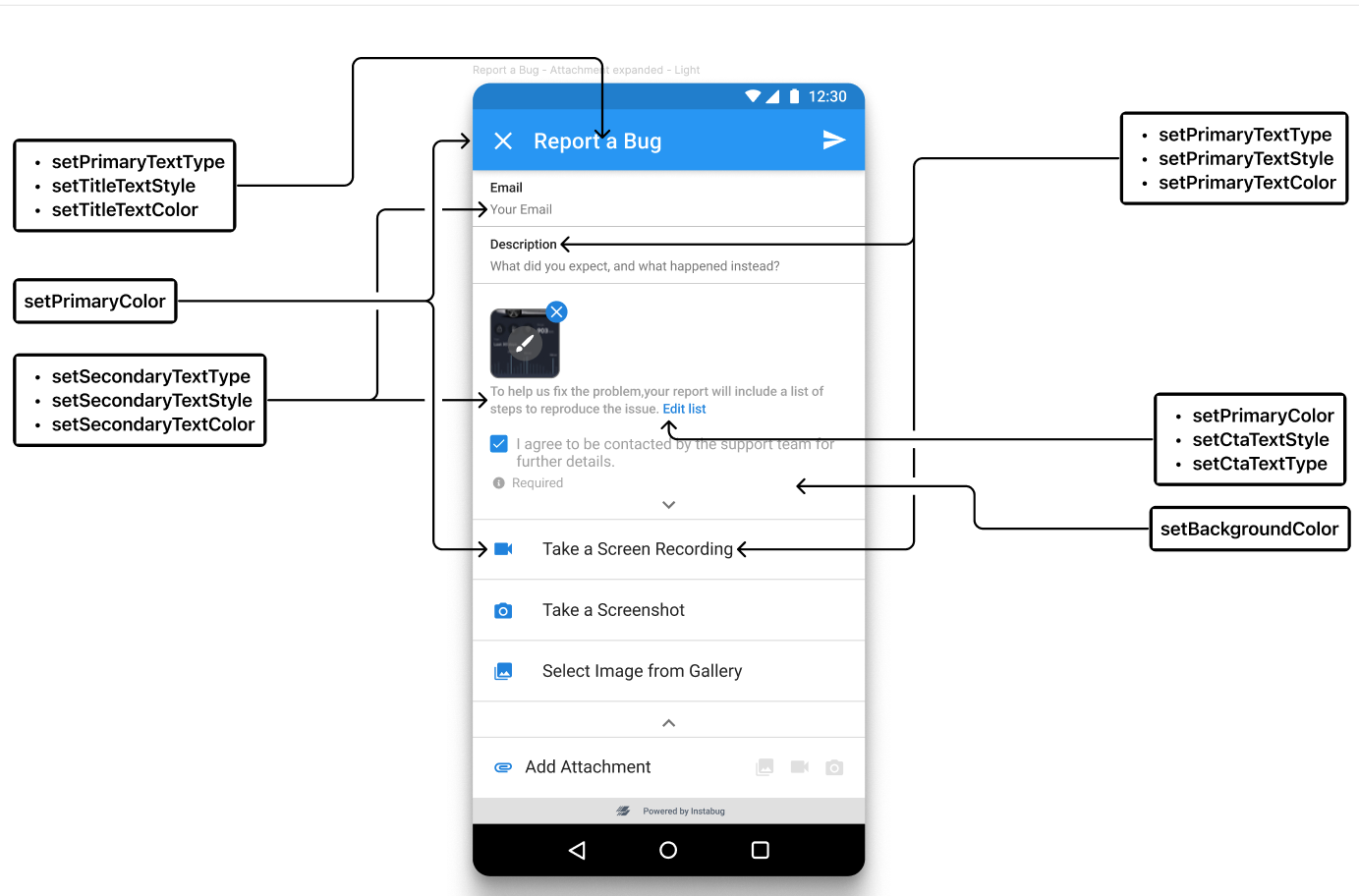
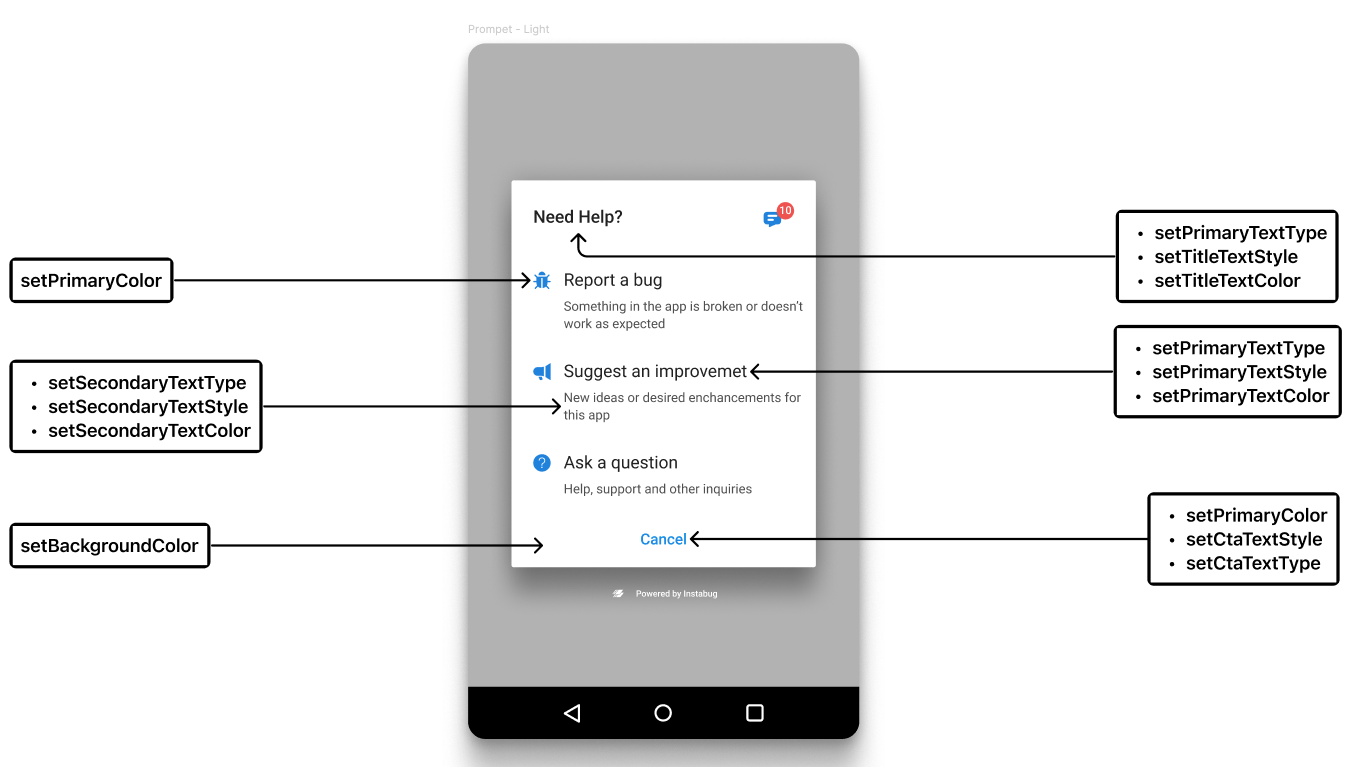
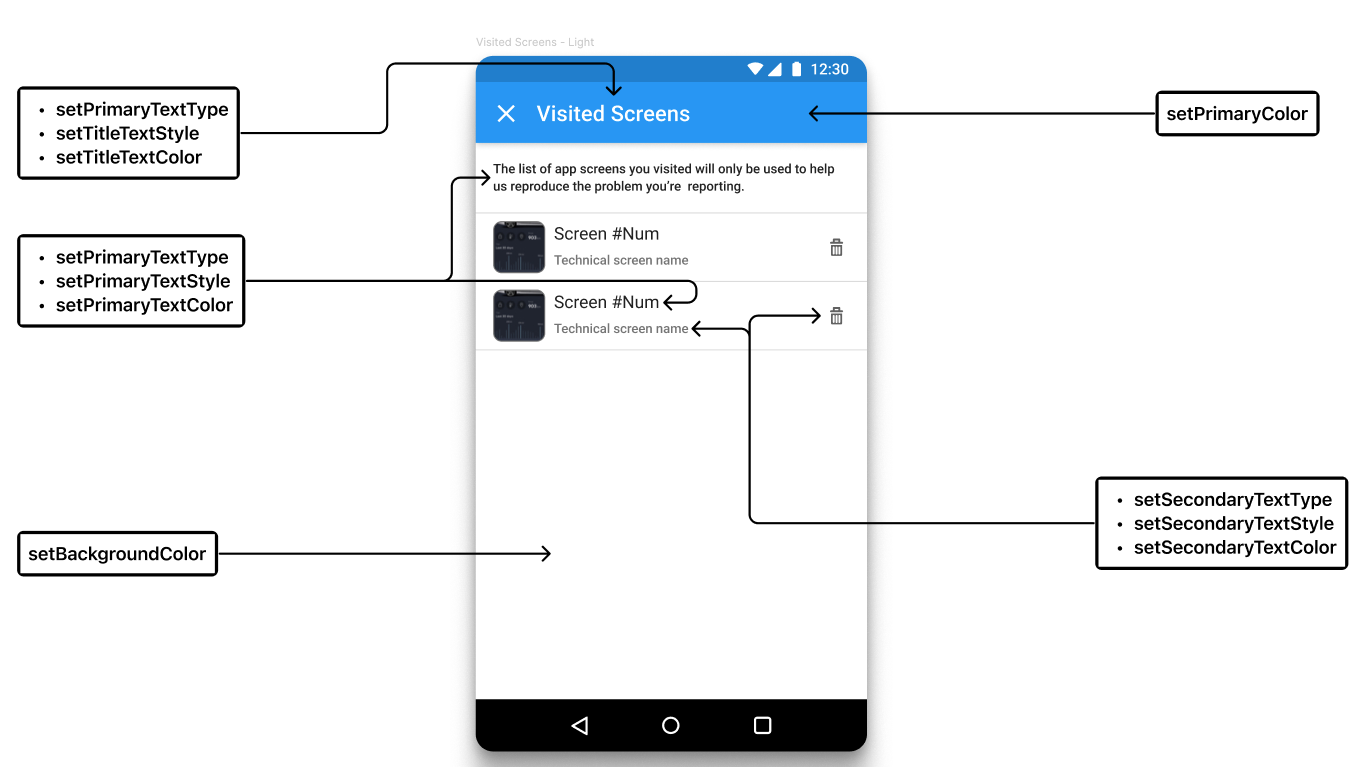
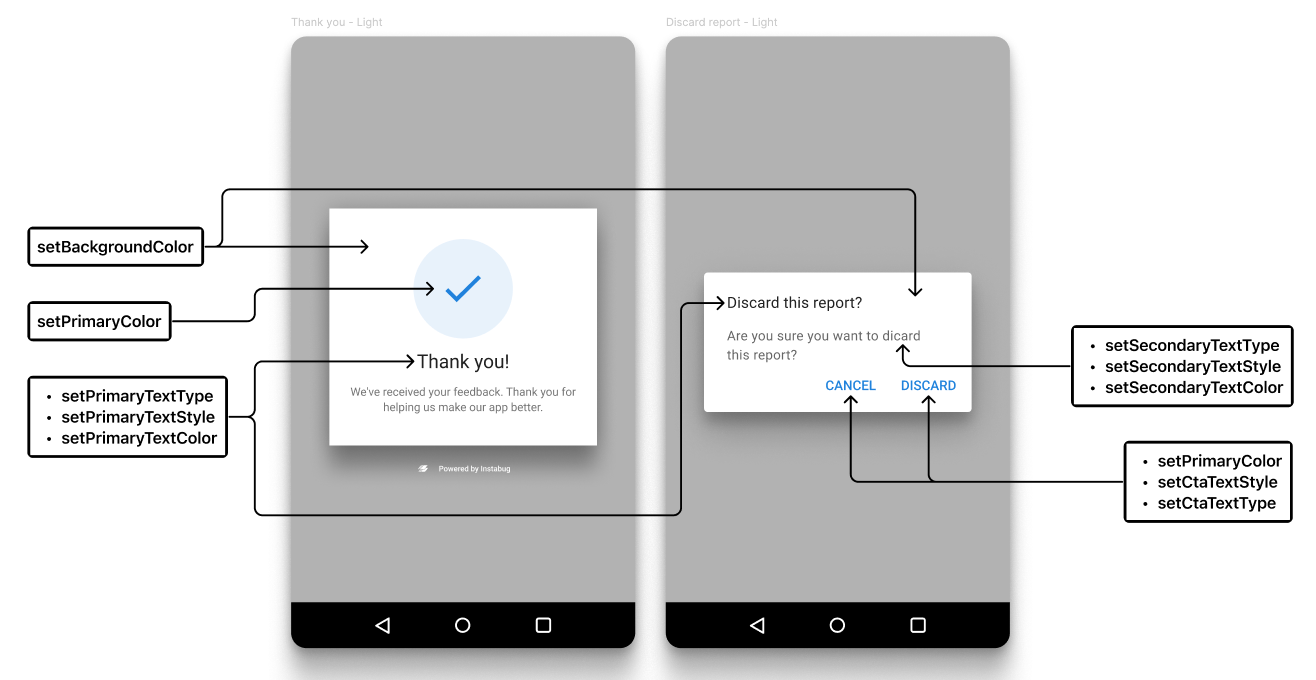
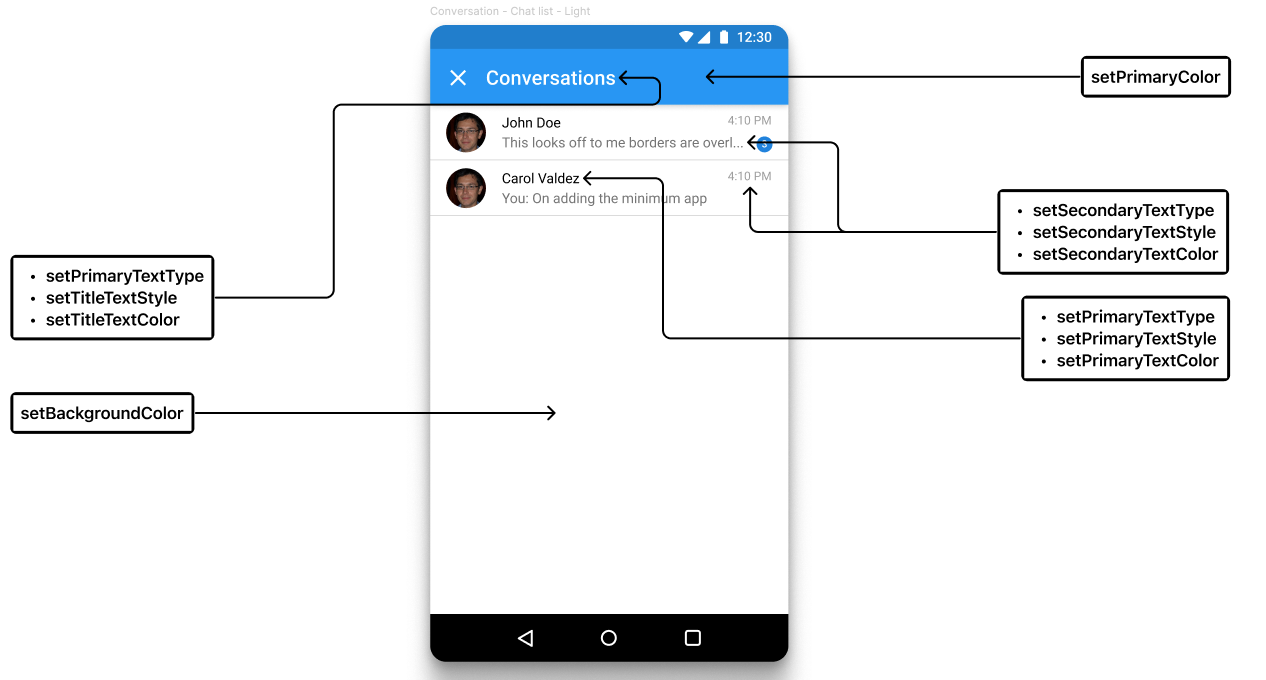
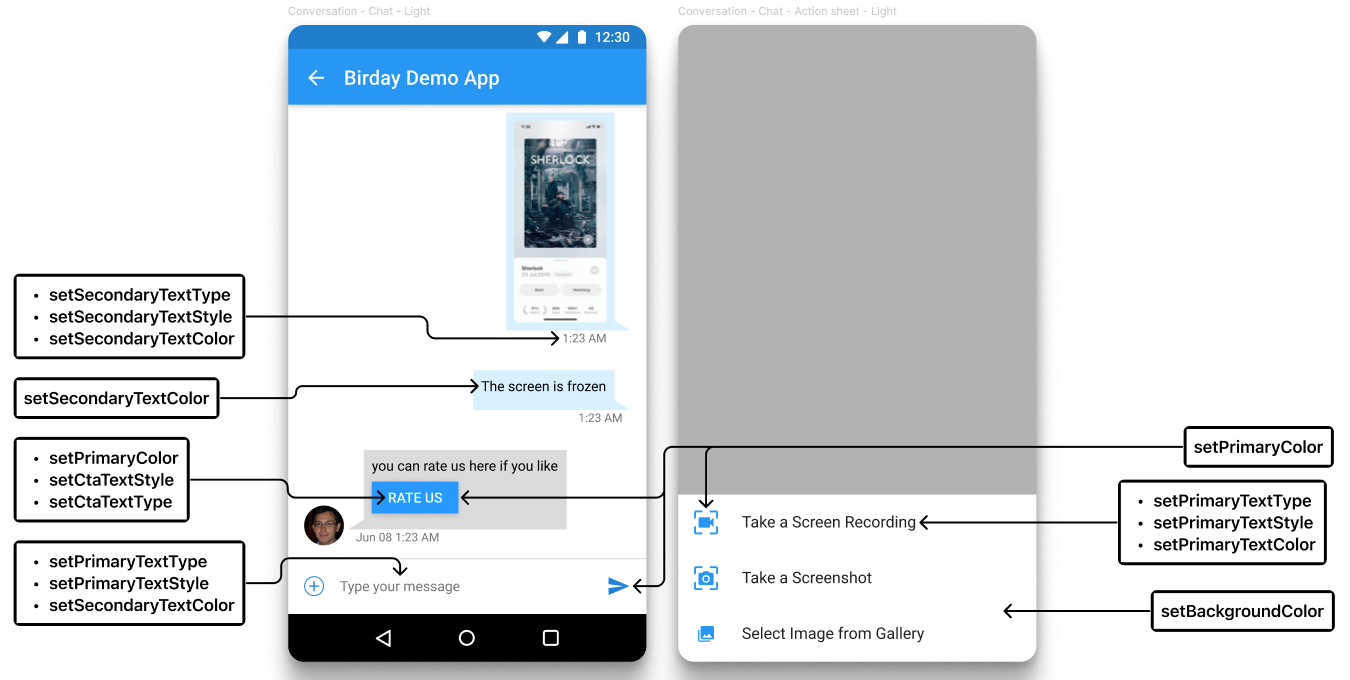
You can also further customize the SDK to match your brand’s design and identity by utilizing the API below. This API offers to set the color of UI elements that indicate interactivity, Font color, types and styles, background color, and call-to-action colors.

{% tabs %}
{% tab title="Kotlin" %}
{% code overflow="wrap" %}

```kotlin
Luciq.setTheme(
                LuciqTheme.Builder()
                    .setPrimaryColor(Color.parseColor("#887e64")) //  Color of UI elements that indicate interactivity (Links, or Call To Action)
                    .setPrimaryTextFont(primaryTypeFace!!)
                    .setSecondaryTextFont(secondaryTypeFace!!)
                    .setCtaTextFont(primaryTypeFace!!)
                    .setSecondaryTextColor(Color.parseColor("#69655a"))
                    .setPrimaryTextColor(Color.parseColor("#2d2a21"))
                    .setPrimaryTextStyle(Typeface.BOLD)
                    .setSecondaryTextStyle(Typeface.ITALIC)
                    .setTitleTextColor(Color.parseColor("#b6a886"))
                    .setBackgroundColor(Color.parseColor("#f1e8d3"))
                    .setTitleTextColor(Color.parseColor("#f1e8d3"))
                    .setCtaTextStyle(Typeface.ITALIC)
                    .build()
            );
```

{% endcode %}
{% endtab %}

{% tab title="Java" %}
{% code overflow="wrap" %}

```java
Luciq.setTheme(
                new LuciqTheme.Builder()
                        .setPrimaryColor(Color.parseColor("#887e64")) //  Color of UI elements that indicate interactivity (Links, or Call To Action)
                        .setPrimaryTextFont(primaryTypeFace)
                        .setSecondaryTextFont(secondaryTypeFace)
                        .setCtaTextFont(primaryTypeFace)
                        .setSecondaryTextColor(Color.parseColor("#69655a"))
                        .setPrimaryTextColor(Color.parseColor("#2d2a21"))
                        .setPrimaryTextStyle(Typeface.BOLD)
                        .setSecondaryTextStyle(Typeface.ITALIC)
                        .setTitleTextColor(Color.parseColor("#b6a886"))
                        .setBackgroundColor(Color.parseColor("#f1e8d3"))
                        .setTitleTextColor(Color.parseColor("#f1e8d3"))
                        .setCtaTextStyle(Typeface.ITALIC)
                        .build()
        );
```

{% endcode %}
{% endtab %}
{% endtabs %}

#### Parameters Mapping

<table data-full-width="true"><thead><tr><th align="center">Report Description</th><th align="center">Prompt Menu</th><th align="center">Visited Screens</th><th align="center">Thank You Message &#x26; Alerts</th><th align="center">Chats List</th><th align="center">Chats Messages &#x26; Attachments</th></tr></thead><tbody><tr><td align="center"><img src="https://files.readme.io/70df4ad811d43ce5eca4ef10b2f801af3515b86956a1d61d2a7b42bc6db2b2e4-image.png" alt=""></td><td align="center"><img src="https://files.readme.io/027bbcd507297c87535464623f17a2b85986cbd9808127235355e86905165e12-image.png" alt=""></td><td align="center"><img src="https://files.readme.io/8c6f2ebf91ba8dc199ea8a4b232d7e198681b92dcb7bdea720e24d0212e85285-image.png" alt=""></td><td align="center"><img src="https://files.readme.io/83996f3d133a1ccea14a7a5435a2101184feef91bf8cffc9d03724b87a0c7144-image.png" alt=""></td><td align="center"><img src="https://files.readme.io/287bbd86b9068ff7aacb55560e004c968c59d50b1b24793abbe168b01fb4130d-image.png" alt=""></td><td align="center"><img src="https://files.readme.io/58a365efc7dda54b343cc811031b284fa050e94e6dee35b478e91cd81ee44558-image.png" alt=""></td></tr></tbody></table>

#### Setting Full-Screen Mode

You can use this API to set Luciq to be displayed in full-screen mode, hiding the status and navigation bars.

{% tabs %}
{% tab title="Kotlin" %}
{% code overflow="wrap" %}

```kotlin
Luciq.setFullscreen(true) //Enabled
Luciq.setFullscreen(false) //Disabled
```

{% endcode %}
{% endtab %}

{% tab title="Java" %}
{% code overflow="wrap" %}

```java
Luciq.setFullscreen(true); //Enabled
Luciq.setFullscreen(false); //Disabled
```

{% endcode %}
{% endtab %}
{% endtabs %}

#### Floating Button

If your invocation event is a floating button, you can set its position in your app. The `setFloatingButtonEdge` specifies if the button should appear on the left or right side of the screen. The `setFloatingButtonOffsetFromTop` specifies its position on the y-axis.

{% tabs %}
{% tab title="Kotlin" %}
{% code overflow="wrap" %}

```kotlin
BugReporting.setFloatingButtonEdge(LuciqFloatingButtonEdge.RIGHT)
BugReporting.setFloatingButtonOffset(50)
```

{% endcode %}
{% endtab %}

{% tab title="Java" %}
{% code overflow="wrap" %}

```java
BugReporting.setFloatingButtonEdge(LuciqFloatingButtonEdge.RIGHT);
BugReporting.setFloatingButtonOffset(50);
```

{% endcode %}
{% endtab %}
{% endtabs %}

## Video Recording Button

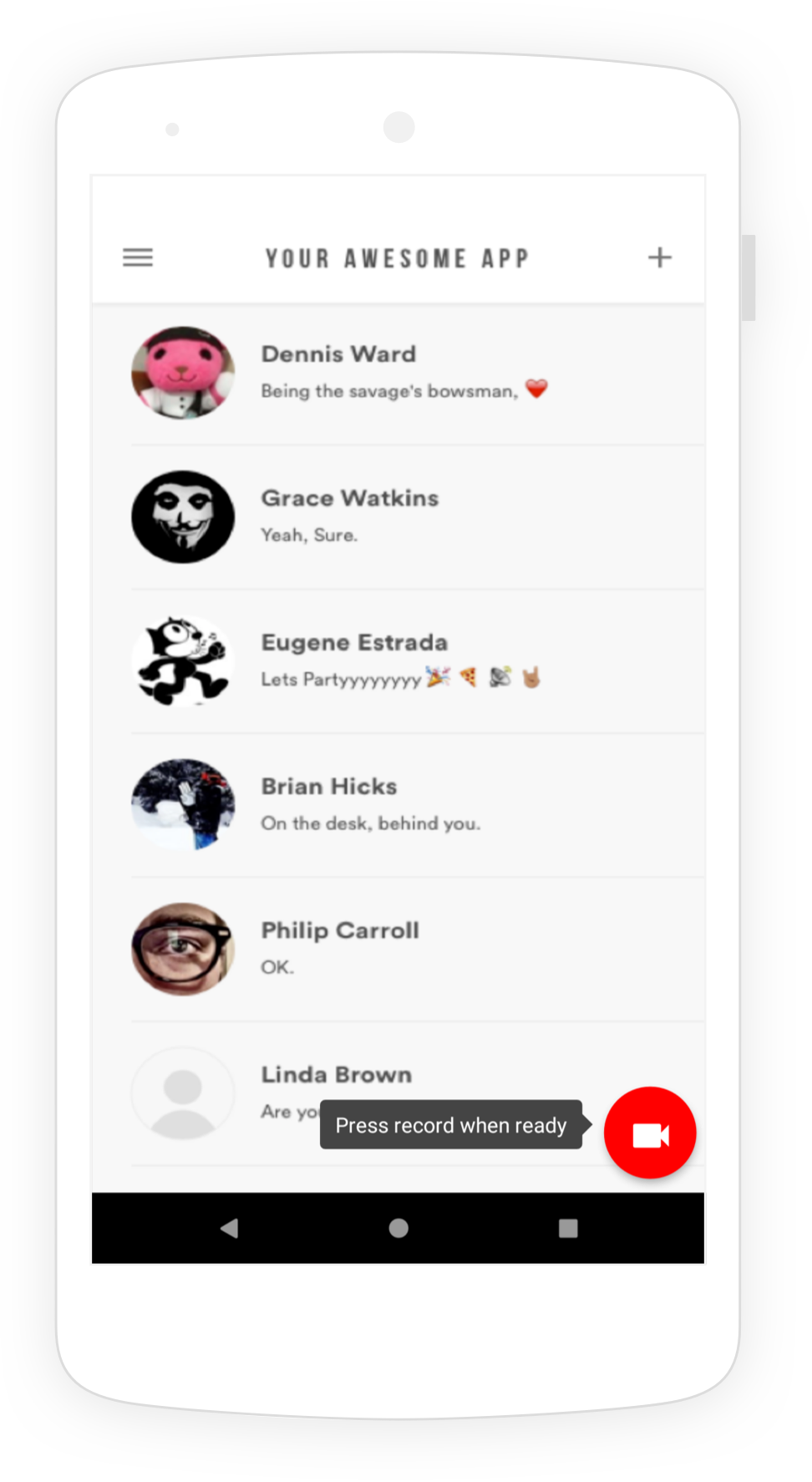
If you've enabled video recordings as attachments, you can change the position of the red recording button displayed in the screenshot below. The default position of the button is **bottom right**.

<figure><img src="/files/MtGg1prnC2c8dg1aH1co" alt=""><figcaption><p><em>An example of the video recording button placed in the bottom right of an app.</em></p></figcaption></figure>

Use this method below to set the position of the video recording button.

{% tabs %}
{% tab title="Kotlin" %}
{% code overflow="wrap" %}

```kotlin
BugReporting.setVideoRecordingFloatingButtonPosition(LuciqVideoRecordingButtonPosition.BOTTOM_LEFT)

/*
The possible positions are:
BOTTOM_LEFT
BOTTOM_RIGHT
TOP_LEFT
TOP_RIGHT
*/
```

{% endcode %}
{% endtab %}

{% tab title="Java" %}
{% code overflow="wrap" %}

```java
BugReporting.setVideoRecordingFloatingButtonPosition(LuciqVideoRecordingButtonPosition.BOTTOM_LEFT);

/*
The possible positions are:
BOTTOM_LEFT
BOTTOM_RIGHT
TOP_LEFT
TOP_RIGHT
*/
```

{% endcode %}
{% endtab %}
{% endtabs %}


---

# Agent Instructions: Querying This Documentation

If you need additional information that is not directly available in this page, you can query the documentation dynamically by asking a question.

Perform an HTTP GET request on the current page URL with the `ask` query parameter:

```
GET https://docs.luciq.ai/android/set-up-luciq-for-android/sdk-customizations/ui-color-and-theme.md?ask=<question>
```

The question should be specific, self-contained, and written in natural language.
The response will contain a direct answer to the question and relevant excerpts and sources from the documentation.

Use this mechanism when the answer is not explicitly present in the current page, you need clarification or additional context, or you want to retrieve related documentation sections.