> For the complete documentation index, see [llms.txt](https://docs.luciq.ai/llms.txt). Markdown versions of documentation pages are available by appending `.md` to page URLs; this page is available as [Markdown](https://docs.luciq.ai/android/set-up-luciq-for-android/logs-and-profiling/report-logs-for-android.md).
# Report Logs for Android
This section covers how Luciq automatically attaches console logs, verbose logs, and all steps made by your users before a bug report is sent for Android apps.
{% hint style="warning" %}
#### Privacy Policy
It is highly recommended to mention in your privacy policy that you may be collecting logging data in order to assist troubleshooting bugs.
{% endhint %}
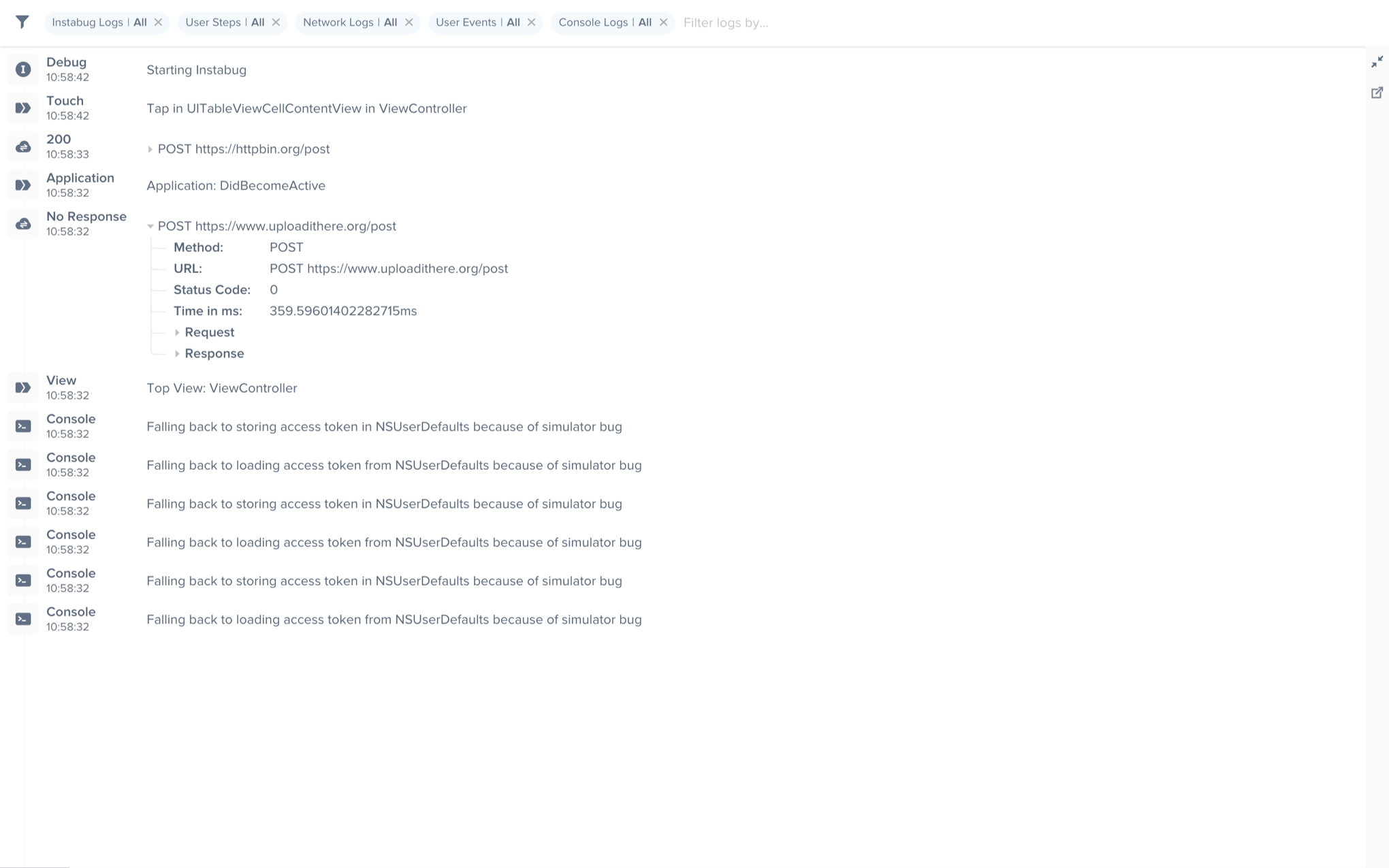
A variety of log types are sent with each crash or bug report. They appear within each report in your Luciq dashboard, as shown below. Log collection stops when Luciq is shown.
We support the following types of logs:
* User Steps
* Network Logs
* Luciq Logs
* Console Logs
* User Events
An example of the expanded logs view from your dashboard.
## User Steps
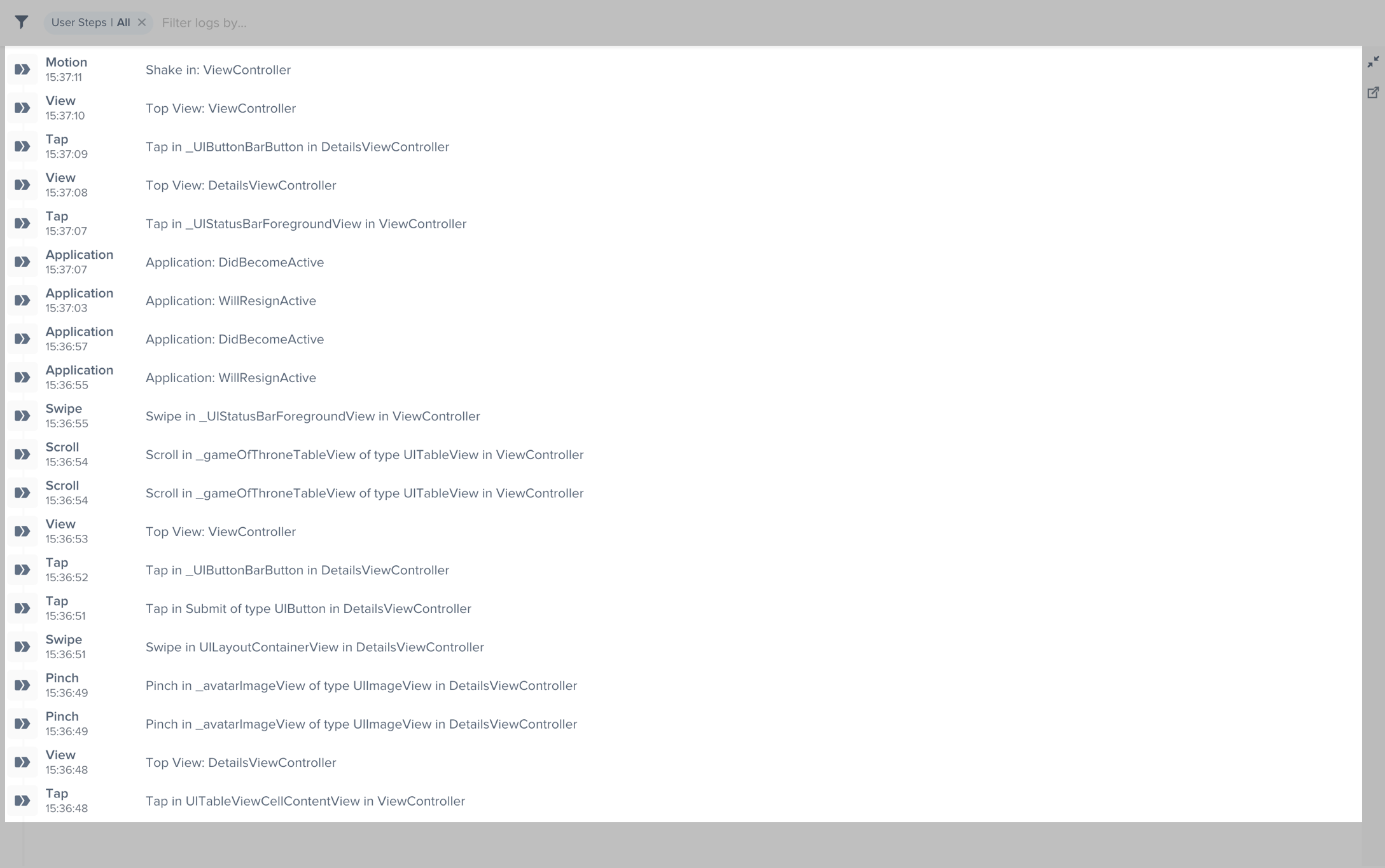
Luciq can help you reproduce issues by tracking each step a user has taken until a report is sent. Note that the maximum number of user steps sent with each report is 100.
User Steps are formatted as follows: **Event** in `text/viewID` of type `class` in `parentView`.
* The type of events captured are **tap, double tap, long press, swipe, scroll** and **pinch**.
* `text/viewID` refers to the text or the ID of the object that contains the event.
* `Class` refers to the class of the object that contains the event.
* `ParentView` refers to the view that contained the event.
An example of the expanded logs view filtered by User Steps.
User steps collection can be disabled by using the following API:
{% tabs %}
{% tab title="Kotlin" %}
{% code overflow="wrap" %}
```kotlin
Luciq.setTrackingUserStepsState(Feature.State.DISABLED)
```
{% endcode %}
{% endtab %}
{% tab title="Java" %}
{% code overflow="wrap" %}
```java
Luciq.setTrackingUserStepsState(Feature.State.DISABLED);
```
{% endcode %}
{% endtab %}
{% endtabs %}
## Network Logs
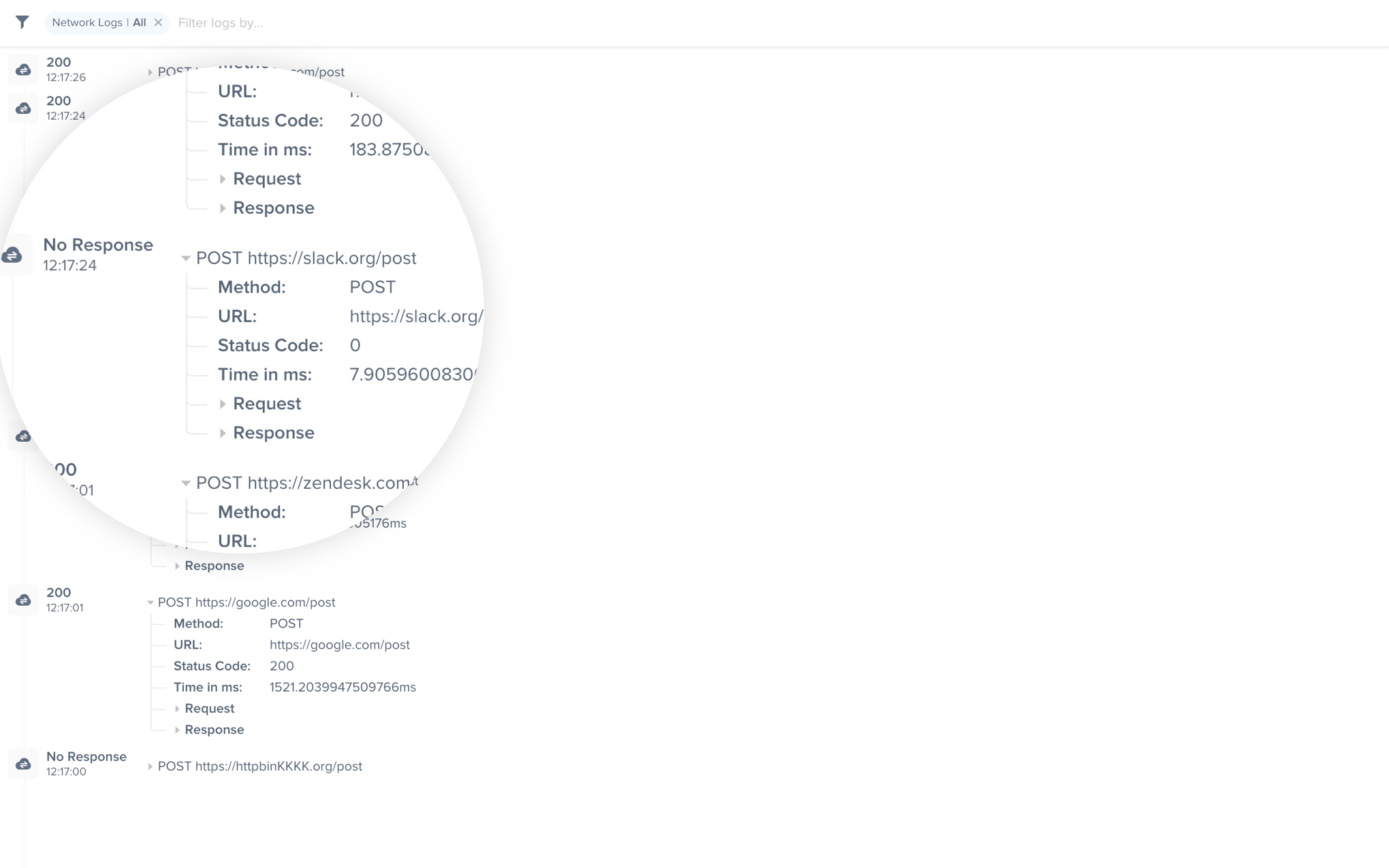
Luciq automatically logs all network requests performed by your app from the start of the session. Requests details, along with their responses, are sent with each report. Luciq will also show you an alert at the top of the bug report in your dashboard when network requests have timed-out or taken too long to complete. Note that the maximum number of network logs sent with each report is 100.
An example of network request logs in the Luciq dashboard.
### Logging `HttpUrlConnection` requests
To log network requests, use `LuciqNetworkLog` then use the following method at the `HttpUrlConnection`, `requestBody` and `responseBody`.
{% tabs %}
{% tab title="Kotlin" %}
{% code overflow="wrap" %}
```kotlin
val networkLog = LuciqNetworkLog()
networkLog.log(urlConnection, requestBody, responseBody)
```
{% endcode %}
{% endtab %}
{% tab title="Java" %}
{% code overflow="wrap" %}
```java
LuciqNetworkLog networkLog = new LuciqNetworkLog();
networkLog.log(urlConnection, requestBody, responseBody);
```
{% endcode %}
{% endtab %}
{% endtabs %}
For a more detailed example, see the following network request.
{% tabs %}
{% tab title="Java" %}
{% code overflow="wrap" %}
```java
@Override
protected String doInBackground(Void... params) {
HttpURLConnection urlConnection = null;
BufferedReader reader = null;
String moviesJsonStr = null;
try {
URL url = new URL("");
urlConnection = (HttpURLConnection) url.openConnection();
urlConnection.setDoOutput(true);
urlConnection.setRequestMethod("POST");
urlConnection.setUseCaches(false);
urlConnection.setConnectTimeout(10000);
urlConnection.setReadTimeout(10000);
urlConnection.setRequestProperty("Content-Type", "application/json");
urlConnection.connect();
JSONObject jsonParam = new JSONObject();
try {
jsonParam.put("PARAM_1", "one");
jsonParam.put("PARAM_2", "two");
} catch (JSONException e) {
e.printStackTrace();
}
OutputStreamWriter out = new OutputStreamWriter(urlConnection.getOutputStream());
out.write(jsonParam.toString());
out.close();
InputStream inputStream = urlConnection.getInputStream();
StringBuffer buffer = new StringBuffer();
if (inputStream == null) {
return null;
}
reader = new BufferedReader(new InputStreamReader(inputStream));
String line;
while ((line = reader.readLine()) != null) {
buffer.append(line + "\n");
}
if (buffer.length() == 0) {
// Stream was empty. No point in parsing.
return null;
}
moviesJsonStr = buffer.toString();
//logging network request to luciq
LuciqNetworkLog networkLog = new LuciqNetworkLog();
networkLog.Log(urlConnection, jsonParam.toString(), moviesJsonStr);
} catch(Exception e) {
e.printStackTrace();
}
return moviesJsonStr;
}
```
{% endcode %}
{% endtab %}
{% endtabs %}
### Logging Okhttp requests
First, you will need to compile Luciq with a network interceptor.
{% tabs %}
{% tab title="Gradle" %}
{% code overflow="wrap" %}
```gradle
implementation 'ai.luciq.library:luciq-with-okhttp-interceptor:18.0.0'
```
{% endcode %}
{% endtab %}
{% endtabs %}
To log Oktthp requests, use the `LuciqOkhttpInterceptor` as shown in the following example.
{% tabs %}
{% tab title="Kotlin" %}
{% code overflow="wrap" %}
```kotlin
val luciqOkhttpInterceptor = LuciqOkhttpInterceptor()
val client = OkHttpClient.Builder()
.addInterceptor(interceptor)
.addInterceptor(luciqOkhttpInterceptor)
.build()
```
{% endcode %}
{% endtab %}
{% tab title="Java" %}
{% code overflow="wrap" %}
```java
LuciqOkhttpInterceptor LuciqOkhttpInterceptor = new LuciqOkhttpInterceptor();
OkHttpClient client = new OkHttpClient.Builder()
.addInterceptor(interceptor)
.addInterceptor(luciqOkhttpInterceptor)
.build();
```
{% endcode %}
{% endtab %}
{% endtabs %}
### Modifying Requests
In the event that you need to modify a network request prior to sending it to the dashboard, you can follow the below steps:
1- Create a `NetworkLogListener` object and modify the captured network log as shown below.
{% tabs %}
{% tab title="Kotlin" %}
{% code overflow="wrap" %}
```kotlin
val networkLogListener = NetworkLogListener { networkLog: NetworkLogSnapshot ->
//Modify the received networkLog parameter
return@NetworkLogListener networkLog
}
```
{% endcode %}
{% endtab %}
{% tab title="Java" %}
{% code overflow="wrap" %}
```java
NetworkLogListener networkLogListener = new NetworkLogListener() {
@Override
public NetworkLogSnapshot onNetworkLogCaptured(NetworkLogSnapshot networkLog) {
//Modify the received networkLog parameter
return networkLog;
// To exclude the network trace from being captured return null
// return null;
}
};
```
{% endcode %}
{% endtab %}
{% endtabs %}
2- Register the created `NetworkLogListener` to your `LuciqOkHttpInterceptor` object. This can be done through two different methods:
a. Pass it in the constructor.
```
val LuciqOkhttpInterceptor = LuciqOkhttpInterceptor(networkLogListener)
```
b. Call `registerNetworkLogsListener` method on `LuciqOkhttpInterceptor` object.
```
val luciqOkhttpInterceptor = LuciqOkhttpInterceptor()
luciqOkhttpInterceptor.registerNetworkLogsListener(networkLogListener)
// For the modifications to reflect in APM as well, you can use the below network logs listener
APM.registerNetworkLogsListener(networkLogListener);
```
In case you need to remove the network listener, you can use the below method:
{% tabs %}
{% tab title="Kotlin" %}
{% code overflow="wrap" %}
```kotlin
luciqOkhttpInterceptor.removeNetworkLogsListener()
// Use the below API to remove APM's network logs listener
APM.registerNetworkLogsListener(null)
```
{% endcode %}
{% endtab %}
{% tab title="Java" %}
{% code overflow="wrap" %}
```java
luciqOkhttpInterceptor.removeNetworkLogsListener();
// Use the below API to remove APM's network logs listener
APM.registerNetworkLogsListener(null)
```
{% endcode %}
{% endtab %}
{% endtabs %}
## Luciq Logs
You can log messages throughout your application's lifecycle to be sent with each report. `LuciqLog` works just like the regular `Log` class you use to show colorful logs in your logcat. Note that the maximum number of Luciq logs sent with each report is 1,000.
{% tabs %}
{% tab title="Kotlin" %}
{% code overflow="wrap" %}
```kotlin
LuciqLog.d("Message to log")
LuciqLog.v("Message to log")
LuciqLog.i("Message to log")
LuciqLog.e("Message to log")
LuciqLog.w("Message to log")
LuciqLog.wtf("Message to log")
```
{% endcode %}
{% endtab %}
{% tab title="Java" %}
{% code overflow="wrap" %}
```java
LuciqLog.d("Message to log");
LuciqLog.v("Message to log");
LuciqLog.i("Message to log");
LuciqLog.e("Message to log");
LuciqLog.w("Message to log");
LuciqLog.wtf("Message to log");
```
{% endcode %}
{% endtab %}
{% endtabs %}
## Console Logs
Luciq captures all console logs and displays them on your dashboard with each report. Note that the maximum number of console logs sent with each report is 1,000 statements with a limit of 5,000 characters for each statement.
To disable console logs.
{% tabs %}
{% tab title="Kotlin" %}
{% code overflow="wrap" %}
```kotlin
Luciq.Builder(this, "token")
.setConsoleLogState(Feature.State.DISABLED)
.build()
```
{% endcode %}
{% endtab %}
{% tab title="Java" %}
{% code overflow="wrap" %}
```java
new Luciq.Builder(this, "token")
.setConsoleLogState(Feature.State.DISABLED)
.build();
```
{% endcode %}
{% endtab %}
{% endtabs %}
## User Events
{% hint style="success" %}
#### Best Practices
Currently the limit of the number of user events sent with each report is 1,000. If you're planning on logging a large amount of unique data, the best practice here would be to use [Luciq Logging](#luciq-logs) instead. The reason for this is that having a very large amount of user events will negatively impact the performance of the dashboard.
Having a large amount of user events will not affect dashboard performance if the user events are not unique.
{% endhint %}
You can log custom user events throughout your application and they will automatically be included with each report. Note that the maximum number of user events sent with each report is 1,000.
{% tabs %}
{% tab title="Kotlin" %}
{% code overflow="wrap" %}
```kotlin
Luciq.logUserEvent("Logged in")
```
{% endcode %}
{% endtab %}
{% tab title="Java" %}
{% code overflow="wrap" %}
```java
Luciq.logUserEvent("Logged in");
```
{% endcode %}
{% endtab %}
{% endtabs %}
---
# Agent Instructions
This documentation is published with GitBook. GitBook is the documentation platform designed so that both humans and AI agents can read, navigate, and reason over technical content effectively. Learn more at gitbook.com.
## Querying This Documentation
If you need additional information that is not directly available in this page, you can query the documentation dynamically by asking a question.
Perform an HTTP GET request on the current page URL with the `ask` query parameter, and the optional `goal` query parameter:
```
GET https://docs.luciq.ai/android/set-up-luciq-for-android/logs-and-profiling/report-logs-for-android.md?ask=&goal=
```
`ask` is the immediate question: it should be specific, self-contained, and written in natural language.
`goal` is optional and describes the broader end goal you are ultimately trying to accomplish on behalf of the user. GitBook uses it to tailor the answer towards what is most useful for that goal.
The response will contain a direct answer to the question and relevant excerpts and sources from the documentation.
Use this mechanism when the answer is not explicitly present in the current page, you need clarification or additional context, or you want to retrieve related documentation sections.