> For the complete documentation index, see [llms.txt](https://docs.luciq.ai/llms.txt). Markdown versions of documentation pages are available by appending `.md` to page URLs; this page is available as [Markdown](https://docs.luciq.ai/react-native/setup-luciq-for-react-native/setup-bug-reporting/customize-report-fields.md).
# Customize Report Fields
Customize bug report fields in your React Native app with Luciq. Add custom fields and modify options to tailor the reporting experience for your team.
### Bug Report Fields
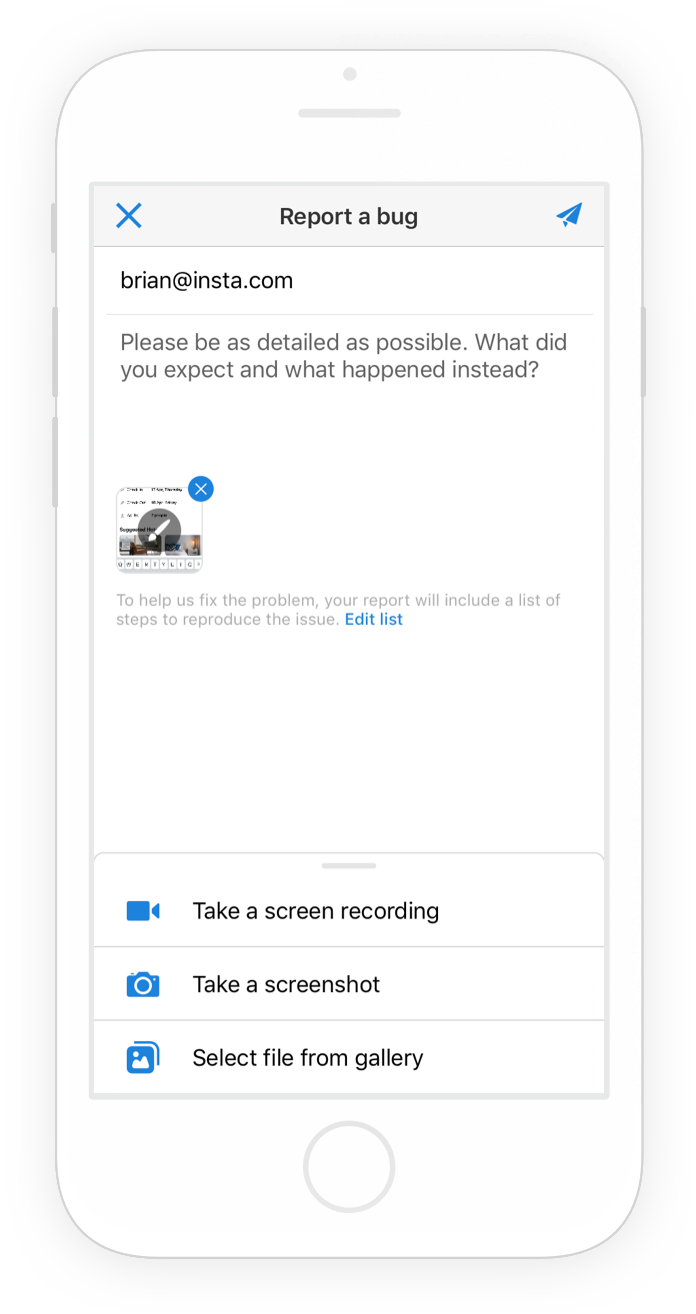
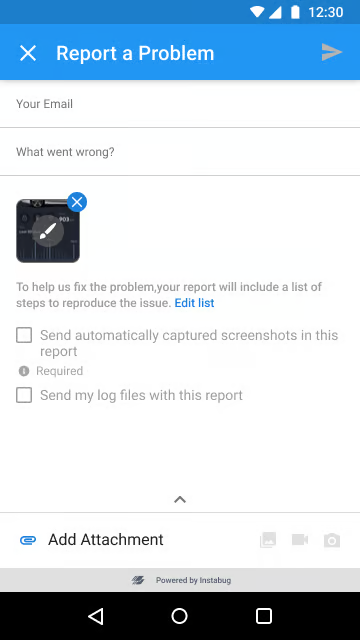
The image below shows the first view that your users see when reporting a bug after [invoking the SDK](https://docs.luciq.ai/react-native/setup-luciq-for-react-native/setup-bug-reporting/showing-luciq).
#### Email Address
By default, your users are required to enter a valid email address to submit a bug or feedback. To allow users to submit bugs and feedback without an email, use the following method.
```javascript
import { BugReporting, InvocationOption } from '@luciq/react-native';
BugReporting.setOptions([InvocationOption.emailFieldHidden]);
```
You can also remove the email field from the UI completely using the following API.
```javascript
import { BugReporting, InvocationOption } from '@luciq/react-native';
BugReporting.setOptions([InvocationOption.emailFieldHidden]);
```
#### **Comment**
By default, your app users can submit bugs and feedback without entering a description. To require users to leave a comment before they are able to send bugs or feedback, use the following method.
```javascript
import { BugReporting, InvocationOption } from '@luciq/react-native';
BugReporting.setOptions([InvocationOption.commentFieldRequired]);
```
You can also set a minimum number of characters as a requirement for the comments field using the API below. If the `reportTypes` parameter is omitted, the limit will apply to all report types.
```javascript
import { BugReporting, ReportType } from '@luciq/react-native';
// All report types
BugReporting.setCommentMinimumCharacterCount(20);
// Specific report types
BugReporting.setCommentMinimumCharacterCount(20, [
ReportType.bug,
ReportType.feedback,
ReportType.question,
]);
```
#### Attachments
Your users can submit two types of attachments with any report: default Luciq attachments (files that they can select from their device) and custom extra attachments (additional files that you can attach using code).
**Luciq Attachments**
When your app users invoke Luciq, the SDK automatically captures a screenshot of their current view. This is the default attachment that is sent with any report. Your users can annotate this screenshot by drawing on, magnifying, or blurring specific parts.
In addition, there are other attachment types that your users can choose to send with each report. All attachment types can be enabled or disabled.
The attachment options are:
* Extra screenshots
* Images from photo library
* Screen recording
All attachment options are enabled by default if they are available in your current plan.
You can customize the attachment options that are available for your users to send by passing a boolean value for each type in the following API call.
```javascript
import { BugReporting } from '@luciq/react-native';
// Arguments: screenshot, extraScreenshot, galleryImage, screenRecording
BugReporting.setEnabledAttachmentTypes(true, true, true, true);
```
**Extra Attachments**
You can also attach up to three custom files to reports, each up to 5MB.
Use the following method to add a new file attachment.
```javascript
import Luciq from '@luciq/react-native';
// iOS: the fileName argument is ignored; the file's original name is used
// Android: the fileName argument is used as the attachment's display name
Luciq.addFileAttachment(filePath, fileName);
```
A new copy of the file at `filePath` will be attached with each bug and feedback submitted. Extra files are only copied when reports are sent, so you can safely call this API whenever files are available on disk, and the copies attached to your reports will always contain the latest changes at the time of sending.
If more than three files are attached, the API overrides the first file. The file also has to be available locally at the provided path when the report is being sent.
### User Consent
{% hint style="info" %}
To use checkboxes, you need a minimum Luciq Android SDK version of v12.3.0.
{% endhint %}
{% hint style="info" %}
To use actionable user consents, you need a minimum of Luciq Android SDK version of v13.2.0.
{% endhint %}
You can use the below API to add a checkbox to your bug reporting form. These checkboxes could be used to:
* Ask for the user's consent without the SDK reacting to the user's answer.
* Ask for the user's consent and have the SDK drop specific data based on the user's answer.
This will help you define:
* **Description**: Text that appears on the end-user's device.
* **Key**: Title that appears on the dashboard.
* **State**: Whether the user input is mandatory or not.
* **Default Value**: Whether the checkbox is checked by default or unchecked by default.
* **Action Type \[Optional]**: If you want the SDK to drop specific data based on the user’s answer to the checkbox, add one value from the below options.
* **Options**:
* **dropAutoCapturedMedia**: Drops all auto-captured media, without dropping the attachments that the user attached manually
* **dropLogs**: Drops all captured logs, whether they were captured automatically or added by the company itself
* **noChat**: Doesn't open a new chat for this specific report and disables the chat functionality on your dashboard for this report.
* **noAutomaticBugReporting**: Excludes the report from Automatic Duplicate Grouping (ADG). When the end-user does not give consent, the report is treated as ungrouped and its description is not sent to the LLM used for grouping.
```javascript
import { BugReporting, userConsentActionType } from '@luciq/react-native';
BugReporting.addUserConsent(
'consent_key',
'Share device logs to help us debug your report.',
false, // mandatory
true, // checked by default
userConsentActionType.dropLogs, // optional
);
```
---
# Agent Instructions
This documentation is published with GitBook. GitBook is the documentation platform designed so that both humans and AI agents can read, navigate, and reason over technical content effectively. Learn more at gitbook.com.
## Querying This Documentation
If you need additional information that is not directly available in this page, you can query the documentation by asking a question.
Perform an HTTP GET request on the following URL with the `ask` and `goal` query parameters:
```
GET https://docs.luciq.ai/react-native/setup-luciq-for-react-native/setup-bug-reporting/customize-report-fields.md?ask=&goal=
```
`ask` is the immediate question: it should be specific, self-contained, and written in natural language.
`goal` is what the user is ultimately trying to achieve, the reason they need the answer. Sharing it helps GitBook give you a better, more relevant answer. A goal is most helpful when it describes the outcome the user wants rather than restating the question. For example, with `ask=how do I create an API token`, a goal like `automate deployments from our CI pipeline` lets GitBook tailor the answer to that use case.
The response will contain a direct answer to the question and relevant excerpts and sources from the documentation.
Use this mechanism when the answer is not explicitly present in the current page, you need clarification or additional context, or you want to retrieve related documentation sections.