> For the complete documentation index, see [llms.txt](https://docs.luciq.ai/llms.txt). Markdown versions of documentation pages are available by appending `.md` to page URLs; this page is available as [Markdown](https://docs.luciq.ai/product-guides-and-integrations/product-guides/inbox/issues-list/saved-views.md).
# Saved Views
Save the filters and sort order you use most on the Inbox Issues List as a named view, then come back to that slice of the list in one click.
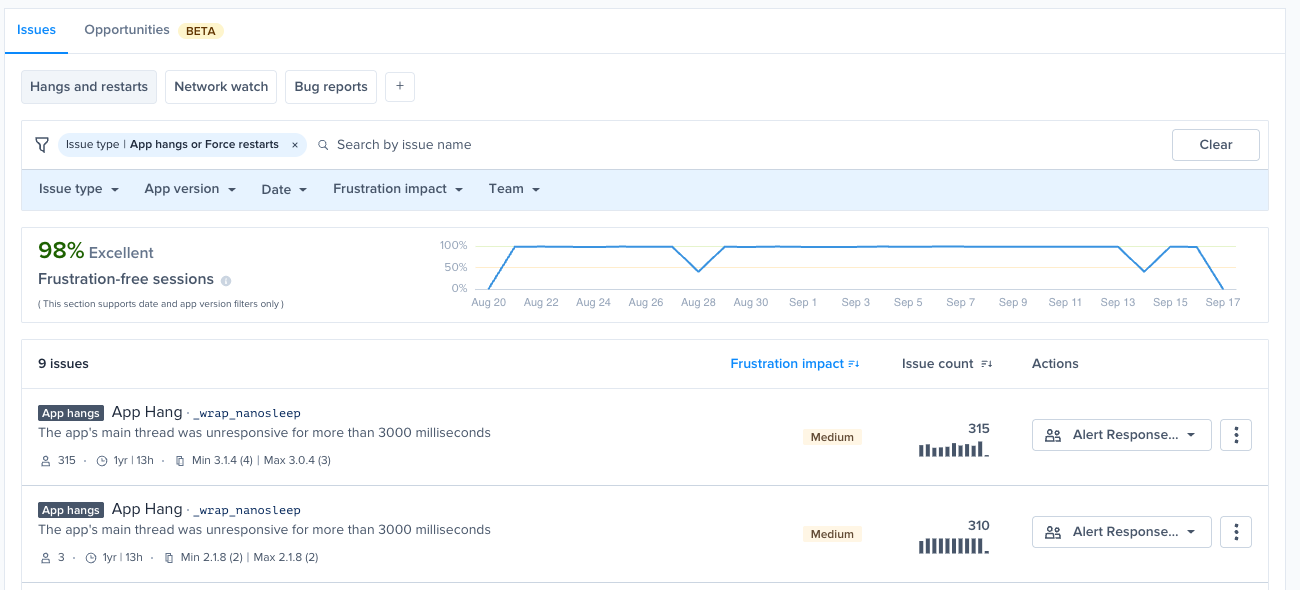
Most teams look at the same slice of the Issues List every day. One person watches hangs and force restarts, another only cares about network failures, a third works the bug reports. Rebuilding that filter set every morning is wasted effort.
A **saved view** stores a filter set and a sort order under a name you choose. Views appear as tabs above the filter bar, so getting back to your slice of the Inbox is a single click.
***
### What a View Stores
Each view holds two things:
* **The filters you applied**, including the search text, issue types, app versions, date range, frustration impact, and team.
* **The sort order**, both the column and the direction.
Views are **personal and per app**. Yours are yours alone, your teammates don't see them, and the views you save on one app don't appear on another. They're stored on your account rather than in your browser, so they follow you to a different browser or a different machine.
***
### Creating a View
1. Go to **Inbox** → **Issues**.
2. Apply the filters you want in the filter bar, and sort the list by clicking a column header.
3. Click the **+** button in the view tab row. If you haven't saved a view yet, click **Create your first view** instead.
4. Give the view a name, up to 25 characters.
5. Check the filters and sorting shown in the dialog, then click **Save**.
The dialog is also the place to adjust the view before you commit to it. Remove a filter by clicking the **×** on its pill, add one with **+ Add filter**, or change the sort with the two dropdowns.
{% hint style="info" %}
Short names work best. A tab shows roughly the first 15 characters before it truncates, so `Network` reads better on the tab row than `Network failures this week`.
{% endhint %}
***
### Switching Between Views
Click a view's tab. The Issues List re-filters and re-sorts, and the tab you picked stays highlighted so you can see which view you're in.
To get back to the complete ranked queue, click **Clear** at the right of the filter bar.
{% hint style="info" %}
Views come back, ad-hoc filtering doesn't. If you filter the Inbox without saving a view, then leave and return later, you land on the full ranked queue rather than on your last filter set. Save the filters you want to keep.
{% endhint %}
***
### Editing and Deleting a View
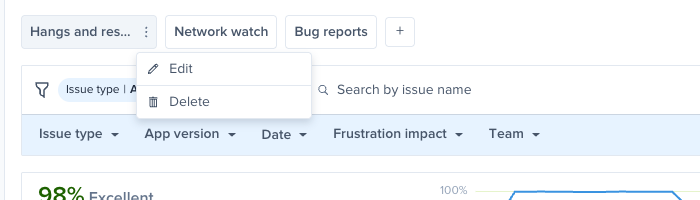
Hover over a view's tab and click the **⋮** menu.
* **Edit** opens the same dialog you used to create the view. You can rename it, add or remove filters, and change the sort order. Edits apply to the view itself, so you don't need to apply a view before changing it.
* **Delete** removes the view. This only removes the view, never the issues in it.
***
### Related
* [Issues List](https://docs.luciq.ai/product-guides-and-integrations/product-guides/inbox/issues-list/) for how the Inbox ranks issues in the first place.
* [Frustration Impact](https://docs.luciq.ai/product-guides-and-integrations/product-guides/inbox/issues-list/frustration-impact) for what the default sort is measuring.
---
# Agent Instructions
This documentation is published with GitBook. GitBook is the documentation platform designed so that both humans and AI agents can read, navigate, and reason over technical content effectively. Learn more at gitbook.com.
## Querying This Documentation
If you need additional information that is not directly available in this page, you can query the documentation by asking a question.
Perform an HTTP GET request on the following URL with the `ask` and `goal` query parameters:
```
GET https://docs.luciq.ai/product-guides-and-integrations/product-guides/inbox/issues-list/saved-views.md?ask=&goal=
```
`ask` is the immediate question: it should be specific, self-contained, and written in natural language.
`goal` is what the user is ultimately trying to achieve, the reason they need the answer. Sharing it helps GitBook give you a better, more relevant answer. A goal is most helpful when it describes the outcome the user wants rather than restating the question. For example, with `ask=how do I create an API token`, a goal like `automate deployments from our CI pipeline` lets GitBook tailor the answer to that use case.
The response will contain a direct answer to the question and relevant excerpts and sources from the documentation.
Use this mechanism when the answer is not explicitly present in the current page, you need clarification or additional context, or you want to retrieve related documentation sections.