> For the complete documentation index, see [llms.txt](https://docs.luciq.ai/llms.txt). Markdown versions of documentation pages are available by appending `.md` to page URLs; this page is available as [Markdown](https://docs.luciq.ai/product-guides-and-integrations/product-guides/automation-and-workflows/team-ownership.md).
# Team ownership
Configure team ownership in Luciq to automatically assign bug reports and crashes to the right team. Define rules based on app area, version, or tags.
To set up team ownership in the Luciq dashboard, you will need to go through a couple of steps. Team ownership will help ensure every crash and bug gets assigned to the corresponding team. Assignment can be done either manually or automatically. These steps will ensure you create the best possible team definitions. It will enable you to then prioritize issues related to your team and get alerted about them. These are the quick few steps needed to complete team ownership on the dashboard
1. Team Creation
2. Team Assignment
* Automatic Approach which is done through Team Definition
* Manual Approach
3. Prioritization
4. Alerting
5. Team Performance Dashboard
### Team Creation
The first step of team ownership is creating the team using the following steps.
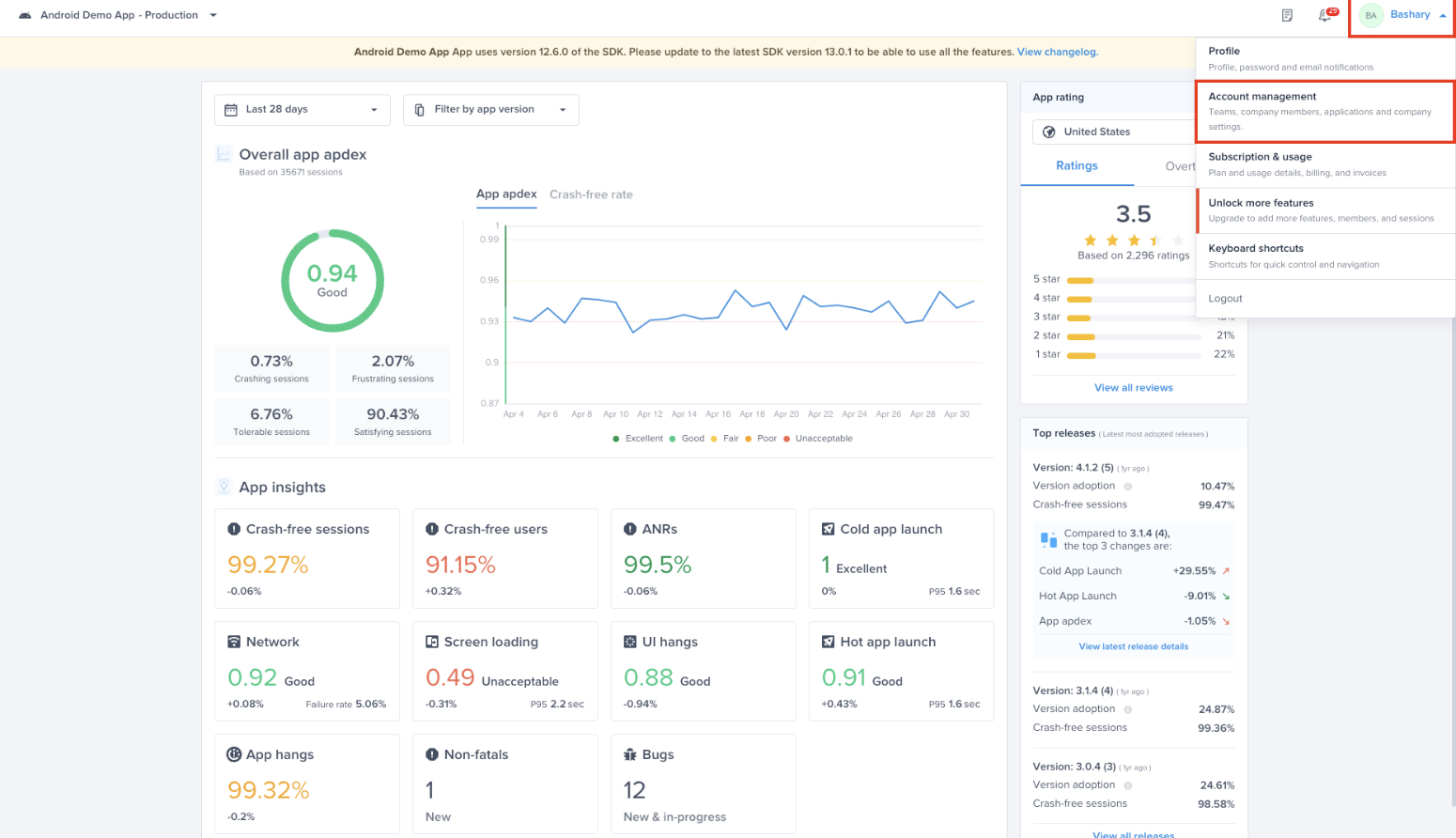
To create a team, you will go through “Account management” (on the organizational level) at the top right corner of the dashboard
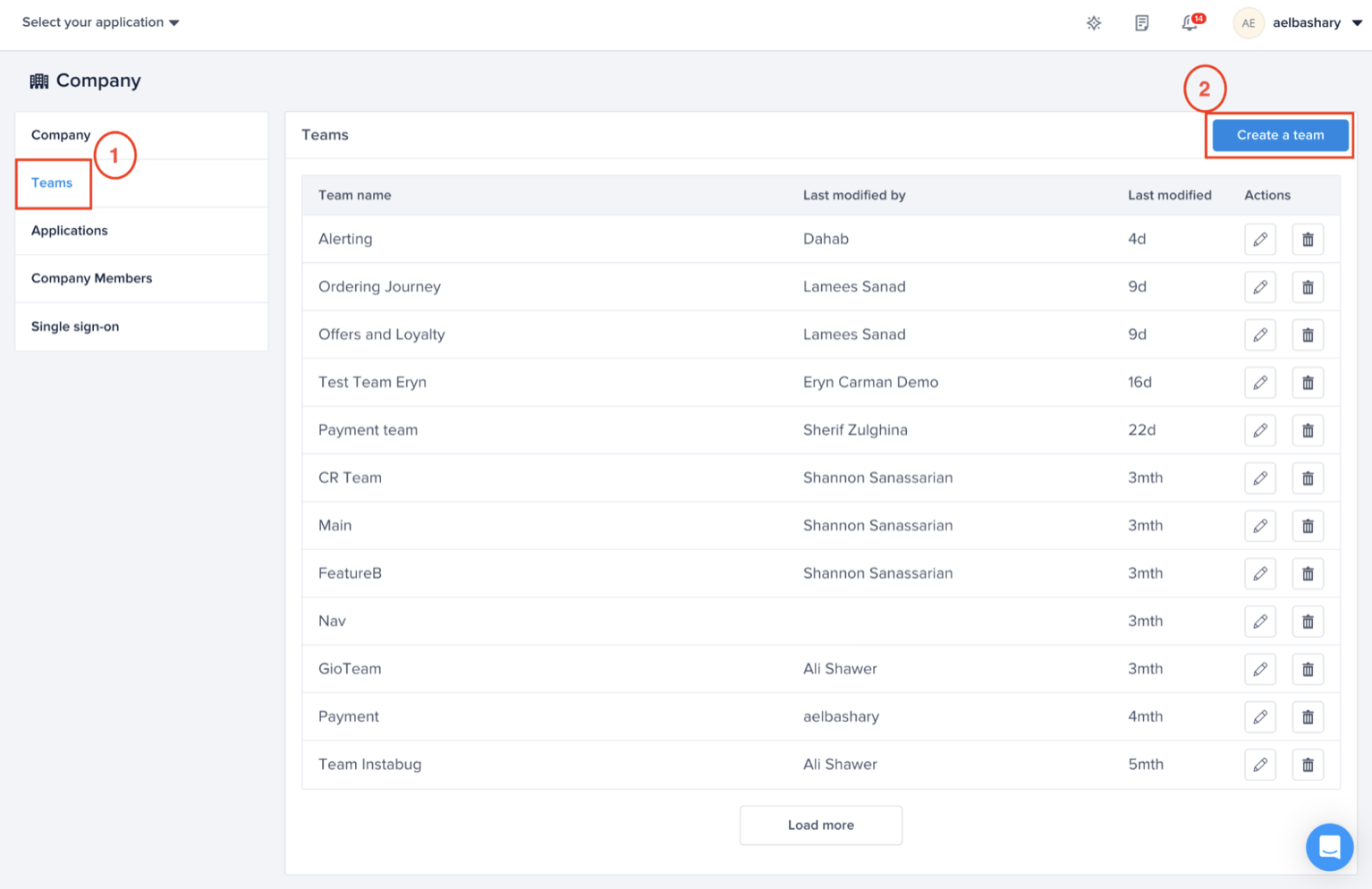
Then, from the left list choose “Teams”, then “Create a team”
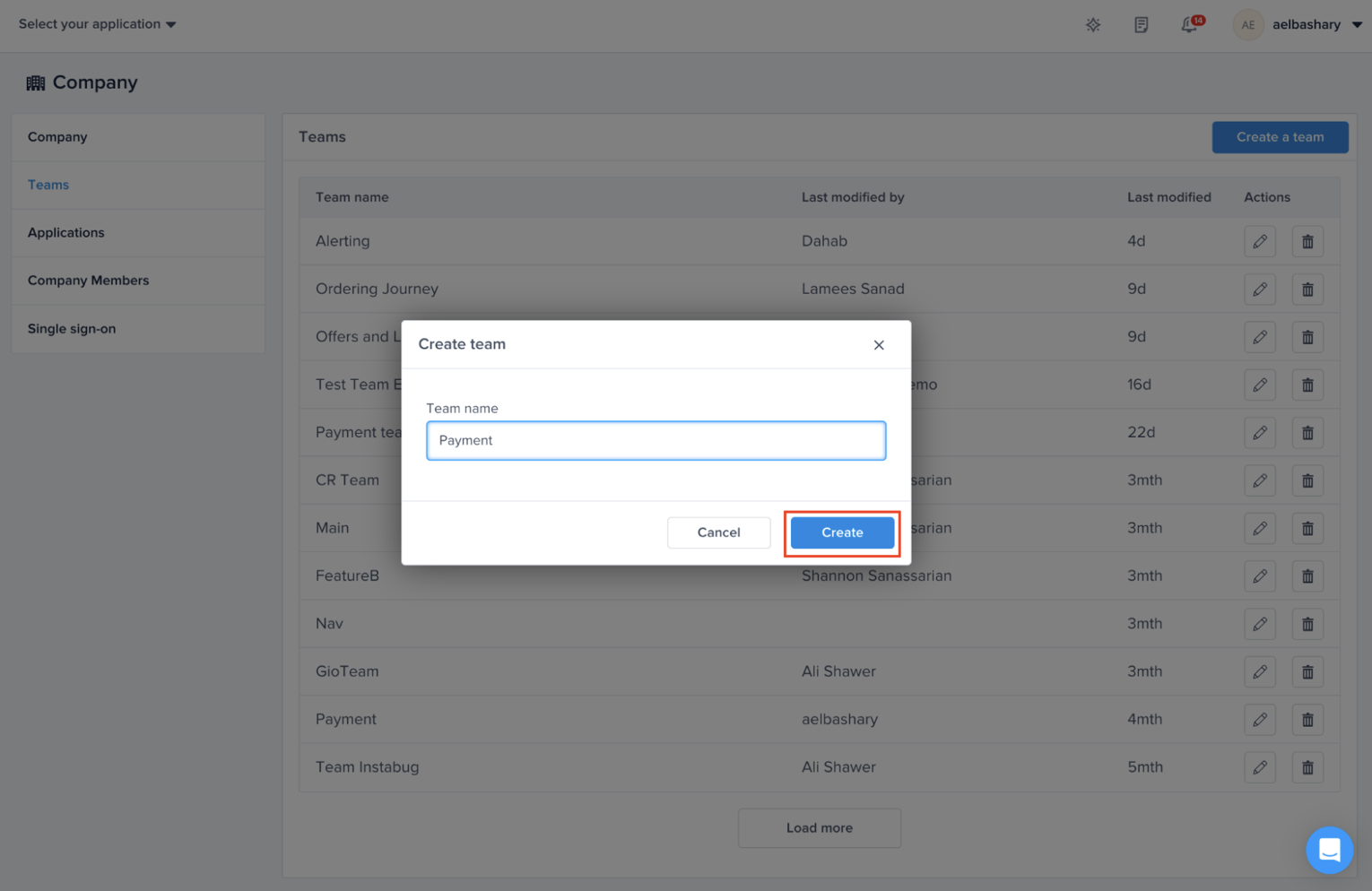
Choose the most suitable Team name, example "Payment"
### Team Assignment
#### Automatic Assignment to Corresponding Teams
* **Assign Ownership Type:**
* **Bugs**: Define teams based on categories, user attributes, and current view (screen name).
* **Crashes**: Use path/package or filename to assign ownership.
* **Screen loading, UI hangs, App Launch**: Assign teams based on screen names.
* **Networks**: Assign teams based on the URL.
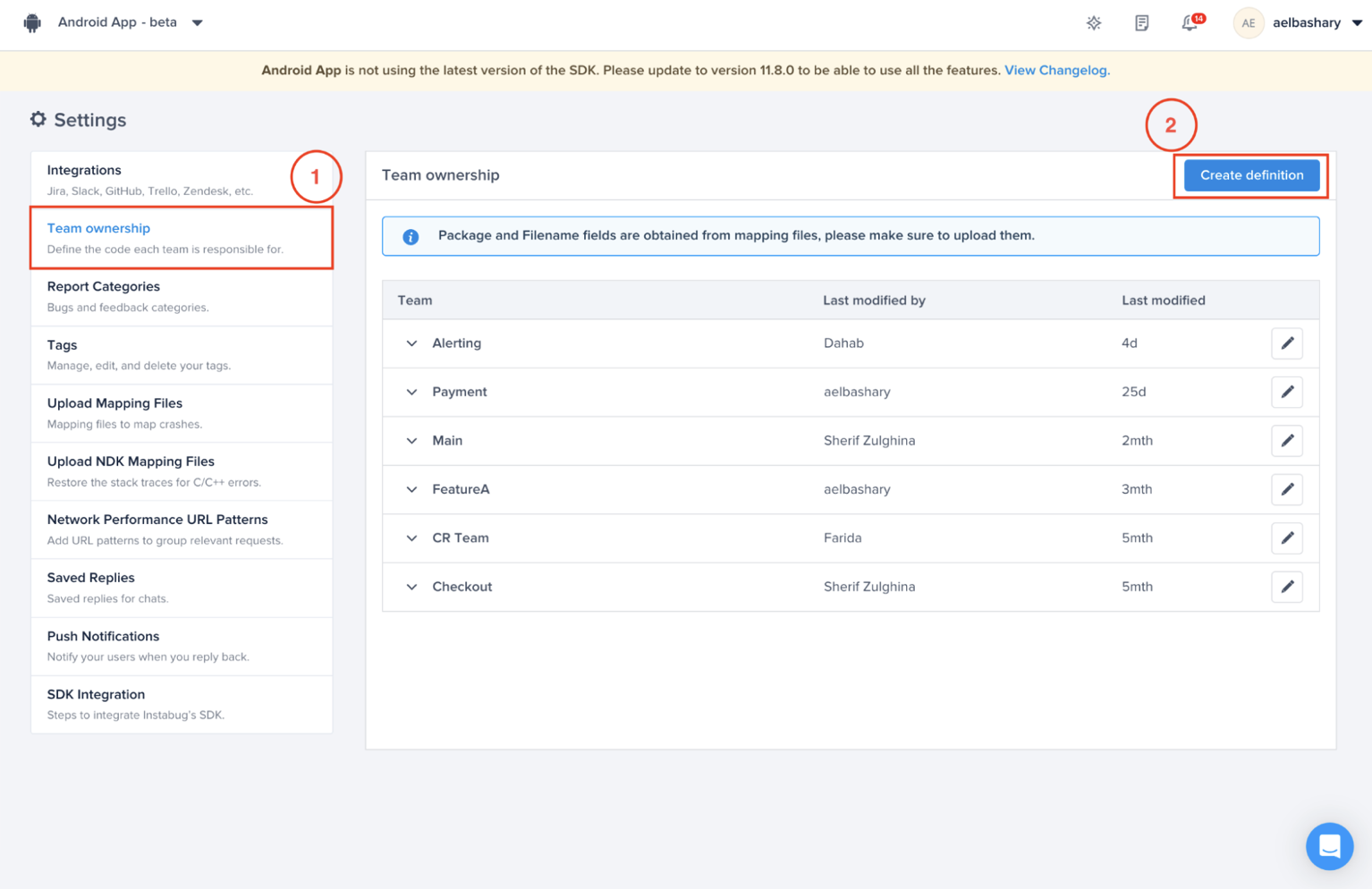
To define the team, you will need to go to “Settings” (on the app level) from the bottom of the sidebar (on the left)
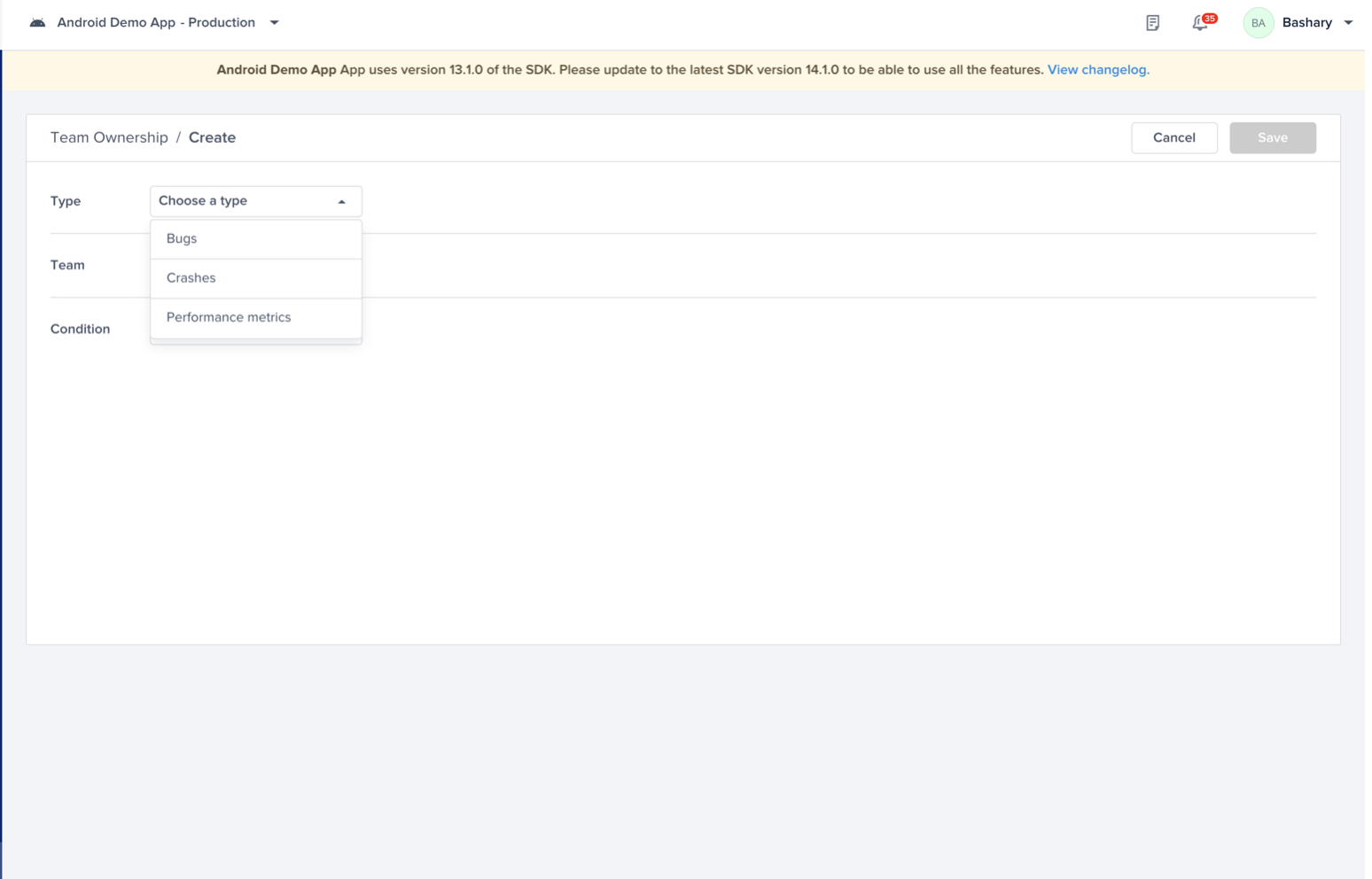
Then, choose “Team ownership”, then "Create Definition"
Choose the **Type** that you want to define team ownership for.
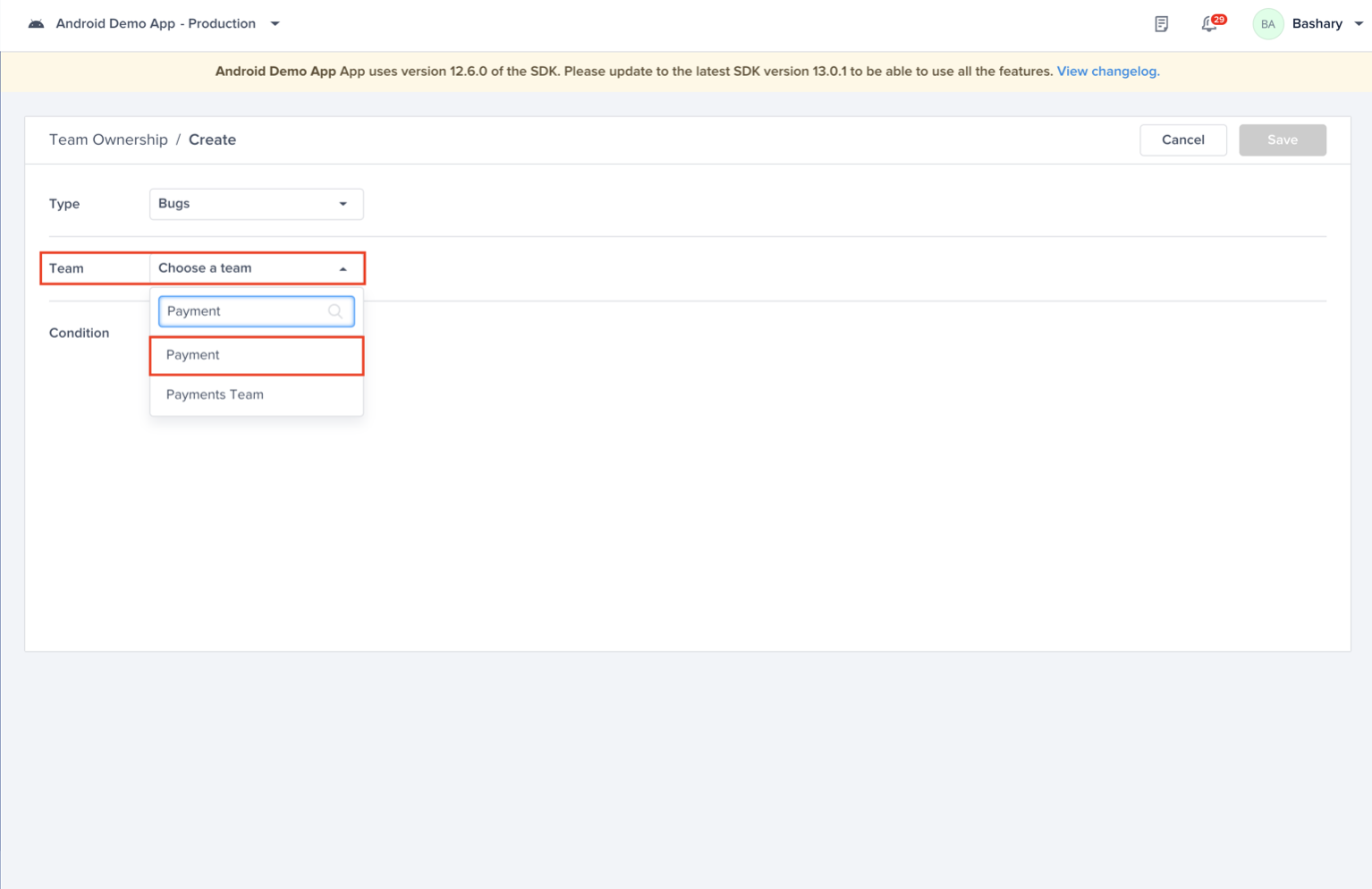
#### Automatically Assigning Bugs to the Corresponding Team
Choose the team that you created. For example, “Payment” Team
Start adding conditions to define the team by choosing from the following:
* Categories
* User Attributes
* Current View
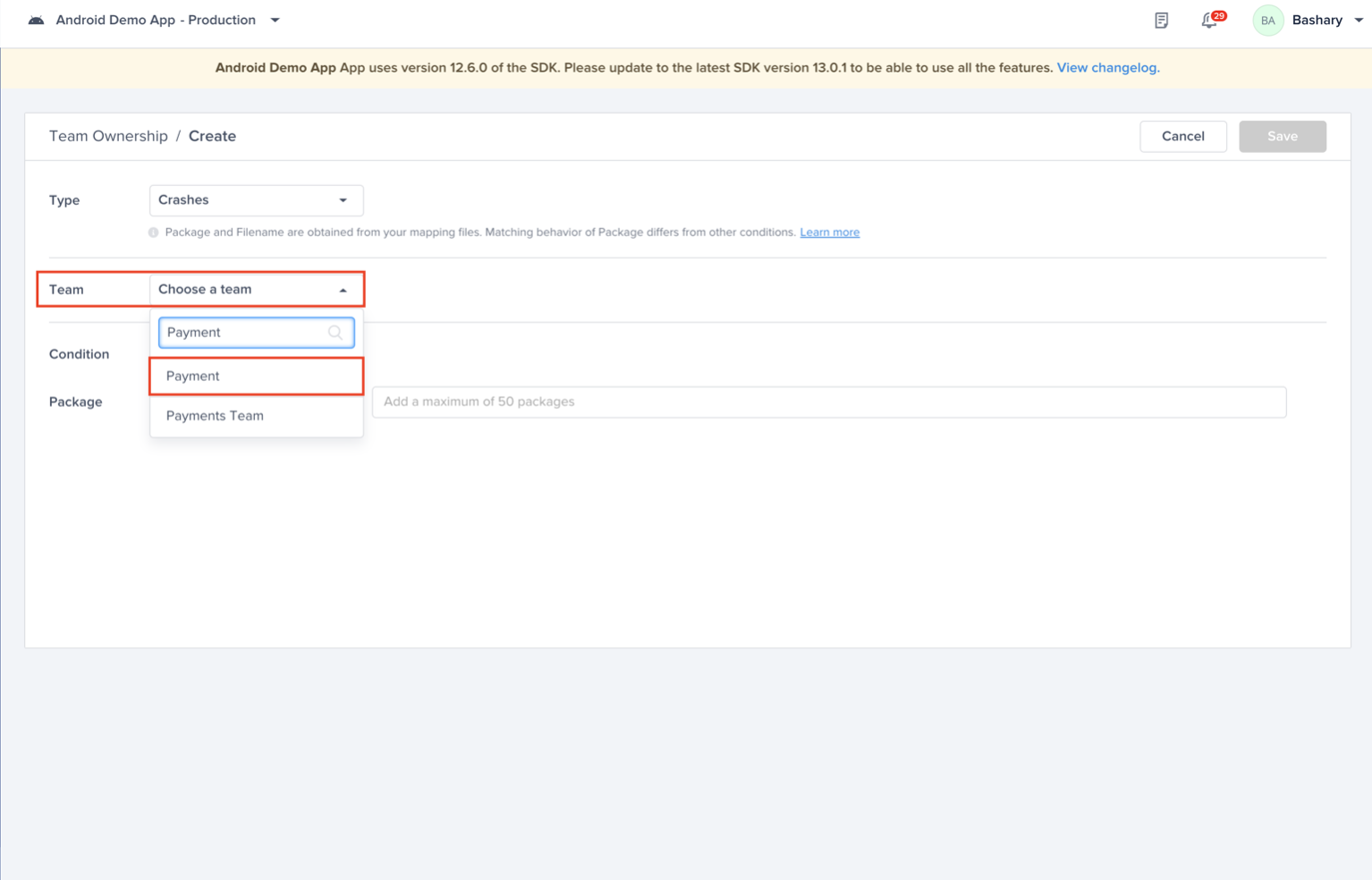
#### Automatically Assigning Crashes to the Corresponding Team
And now defining the **Payment** team that is responsible for Crashes
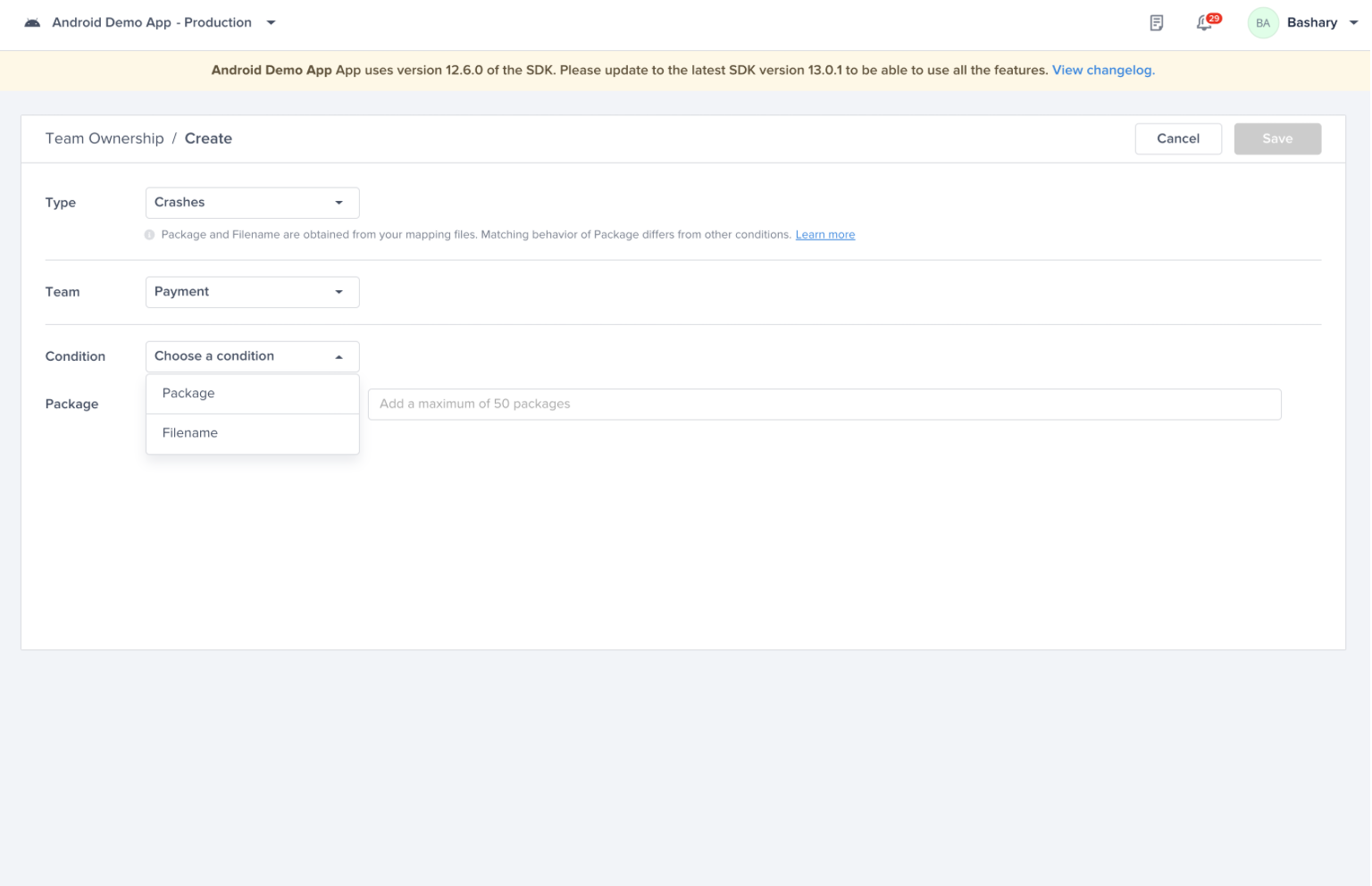
Start adding conditions to define the team by choosing from the following:
* Path (iOS)/Package (Android)
* Filename
{% hint style="info" %}
**Path/Package or Filename**
NOTE: Whenever you type the path/package you need to press Enter in order to lock it in
{% endhint %}
#### **Matching Paths/Packages**
**iOS**
When setting up the definition, Luciq supports partial matching of paths using the **match** condition (not case sensitive), let's take a look at some examples:
**Sample Crash**
Actual Crash Path: luciq/crashes/list/singleCrash
| Successful Match | Unsuccessful Match |
| --------------------------------------------------------------------------------------------------------------------------------------------------------------- | ---------------------------------------------------------------------------------------------------------------------------------------------------------------------------------------------- |
|
luciq
luciq/crashes
luciq/crashes/list/singleCrash
luciq/crashes/list
/crashes/list
/list/singleCrash
|
luciq//crashes
/luciq/crashes
/luciq/crashes/list/singleCrash/
luciq/crashes/list/singleCrash/Occurrence
luciq/cr/list
crashes/luciq
|
**Unsuccessful Matches:**
* luciq//crashes - *contains an extra slash in the middle*
* /luciq/crashes - *contains an extra slash before luciq*
* com/luciq/crashes/list/singleCrash/ - *contains an extra slash after singleCrash*
* luciq/crashes/list/singleCrash/Occurrence - *contains an extra sub-path*
* luciq/cr/list - *Luciq does not match partial words (cr and crashes in this case)*
* crashes/luciq - *path is written in a wrong order*
**Android**
When setting up the definition, Luciq supports partial matching of package names using the **match** condition (not case sensitive), let's take a look at some examples:
**Sample Crash**
Sample Package: com.luciq.crashes.list.singleCrash
| Successful Match | Unsuccessful Match |
| ---------------------------------------------------------------------------------------------------------------------------------------------------------- | --------------------------------------------------------------------------------------------------------------------------------------------------------------------------------------------------- |
|
luciq
com.luciq.crashes
com.luciq.crashes.list
luciq.crashes.list
.crashes.list
list.singleCrash
|
com..luciq.crashes
.com.luciq.crashes
com.luciq.crashes.list.singleCrash.
crashes.list.singleCrash.Occurrence
luciq.cr.list
crashes.luciq
|
**Unsuccessful Matches:**
* com..luciq.crashes - *contains an extra dot in the middle*
* .com.luciq.crashes - *contains an extra dot before com*
* com.luciq.crashes.list.singleCrash. - *contains an extra dot after singleCrash*
* crashes.list.singleCrash.Occurrence - *actual path does not contain 'Occurrence'*
* luciq.cr.list - *Luciq does not match partial words (cr and crashes in this case)*
#### Automatically Assigning Performance Metrics to the Corresponding Team
And now defining the **Screen loading, UI hangs, and App Launches** that the payments team is responsible for:
Choose the **“Screen loading, UI hangs, and App Launches”** type, then choose the payments team.
Start adding conditions by choosing the **Screen Names** your team is responsible for
{% hint style="info" %}
**Screen Name Assignment**
For **Screen loading, UI hangs, and App Launch**, the same team can be assigned to multiple screen names, but the same screen cannot be assigned to multiple teams.
{% endhint %}
### Manual Assignment to Corresponding Teams
#### Manually Assigning Bugs to the Corresponding Team
You can also assign the team manually from within the bug itself without defining it.
Go to bugs from the left sidebar of the dashboard and then click on the bug that you want to assign to a certain team
Navigate to the right sidebar “Actions” and change the Team to the corresponding team. For example, choosing the “Payment”
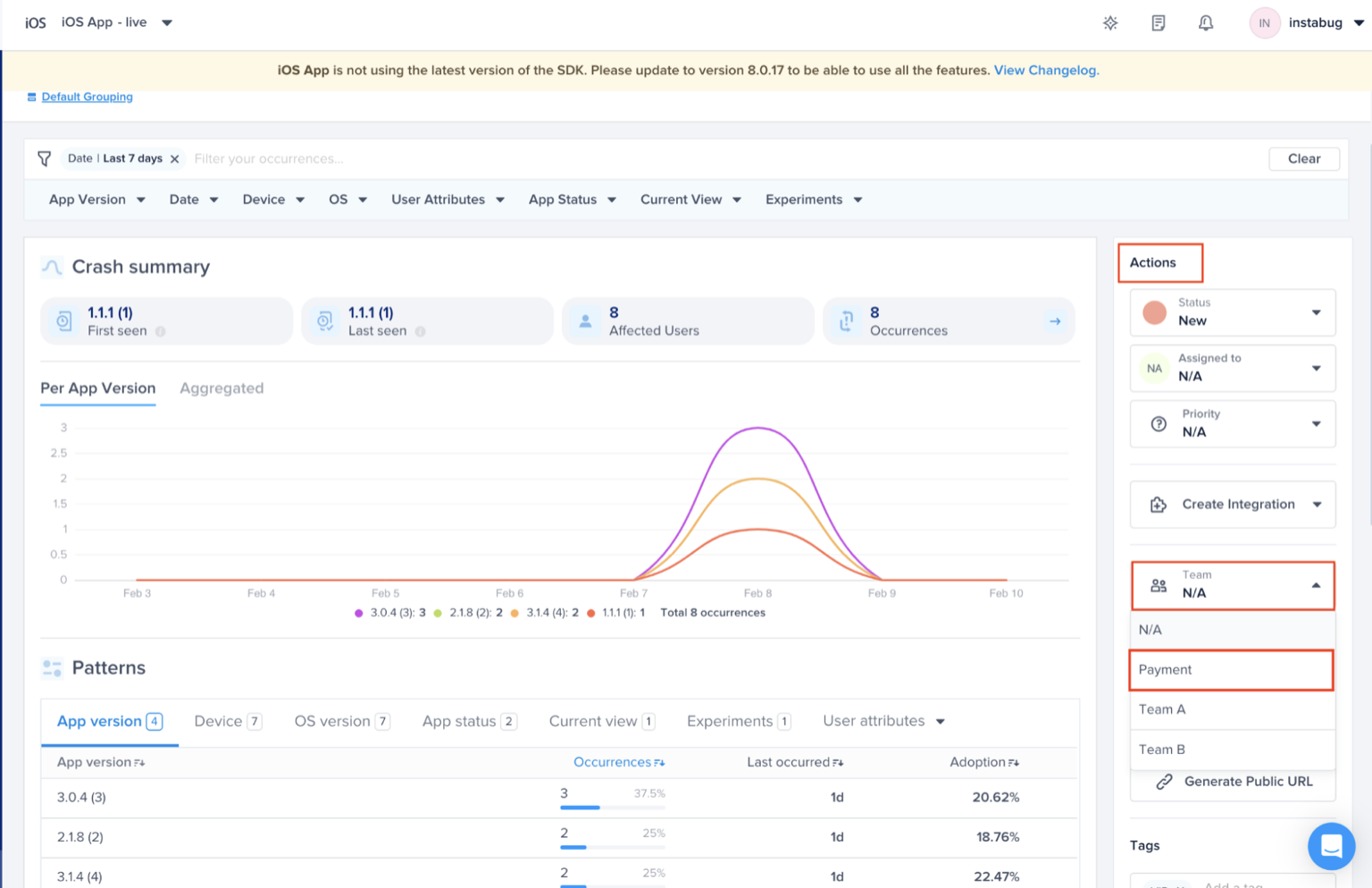
#### Manually Assigning Crashes to the Corresponding Team
You can also assign the team manually from within the crash itself without defining it.
Go to crashes from the left sidebar of the dashboard and then click on the crash that does not have a team assigned to it
Navigate to the right sidebar “Actions” and change the Team to the corresponding team. For example, choosing the “Payment”
### Prioritizing
#### Bugs Prioritization
Prioritizing bugs related to your team can be done through the Team filter at the top bar of the "Bugs" main page\
Select your team from the dropdown list, you can even search by the team’s name. For example, “Payment” Team
As you can see below, you can prioritize the bugs related to your team only and get more granular with the options to filter. For example, Payment team wants to focus on *bugs status' new or in-progress*. Also, you will be able to save those filters and you can access them from the right side of the filter bar.
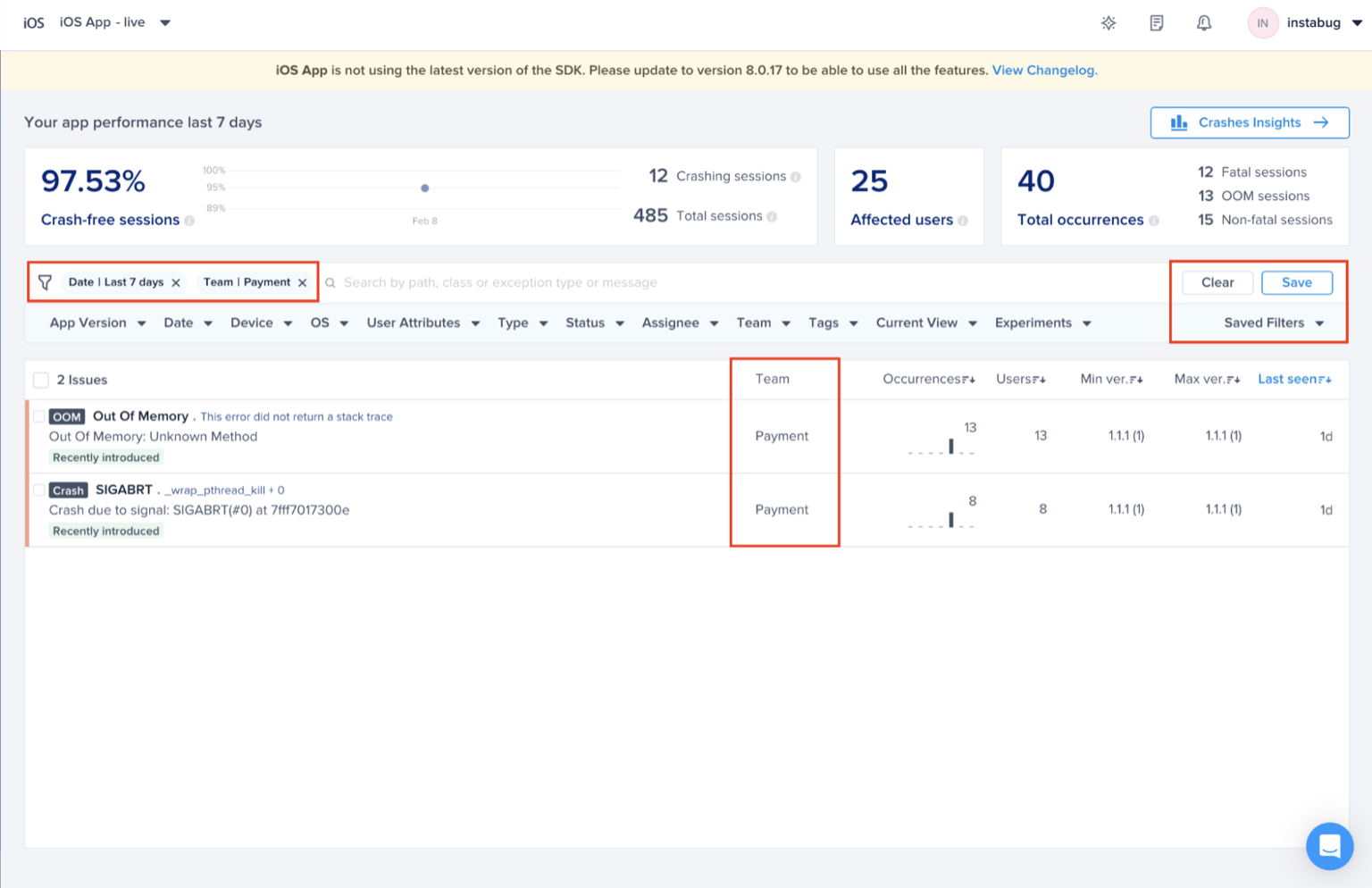
### Crash Prioritization
Prioritizing crashes related to your team can be done through the Team filter at the top bar of the "Crashes" main page.
Select your team from the dropdown list, you can even search by the team’s name.
For example, “Payment” Team
As you can see below, you can prioritize the crashes related to your team only and get more granular with the options to filter. For example, Payment Team wants to focus on *crashes seen in a certain app version*. Also, you will be able to save those filters and you can access them from the right side of the filter bar.
### Alerting
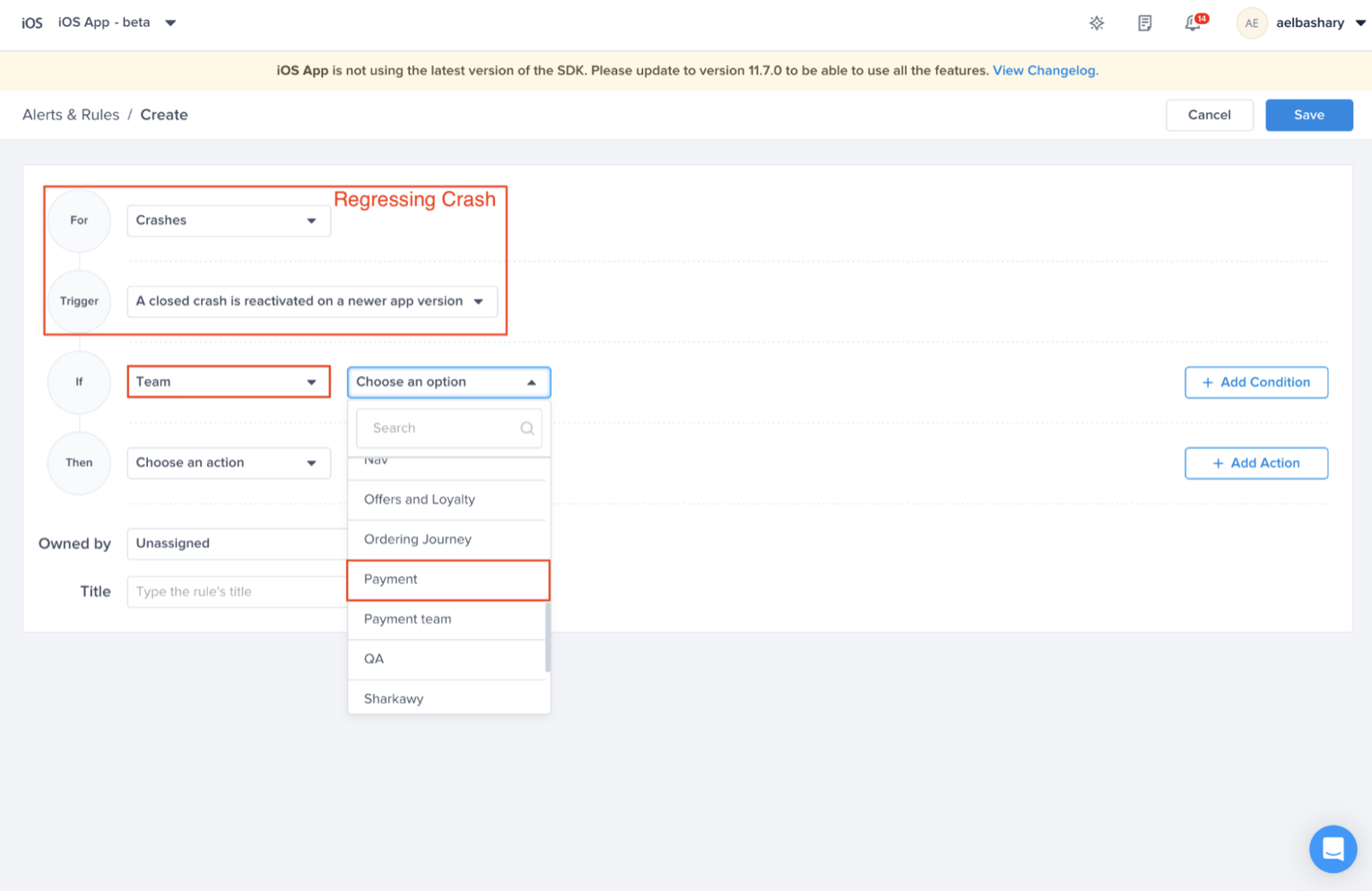
If you’d like to get alerted as soon as you receive any crash related to your Team, you will be able to do that through our “Alerts and Rules” engine.
Go to “Alerts and Rules” and "Create" a new Alert
**Use Case**:
* Regressing crash assigned to team “Payment”
* Choose the condition (Regression) you want to be alerted to whenever it is assigned to “Payment” team
**For more details on the different use cases of Alerting, please refer to** [**Alerts & Rules**](/product-guides-and-integrations/product-guides/automation-and-workflows/alerts-and-rules.md) **product guides.**
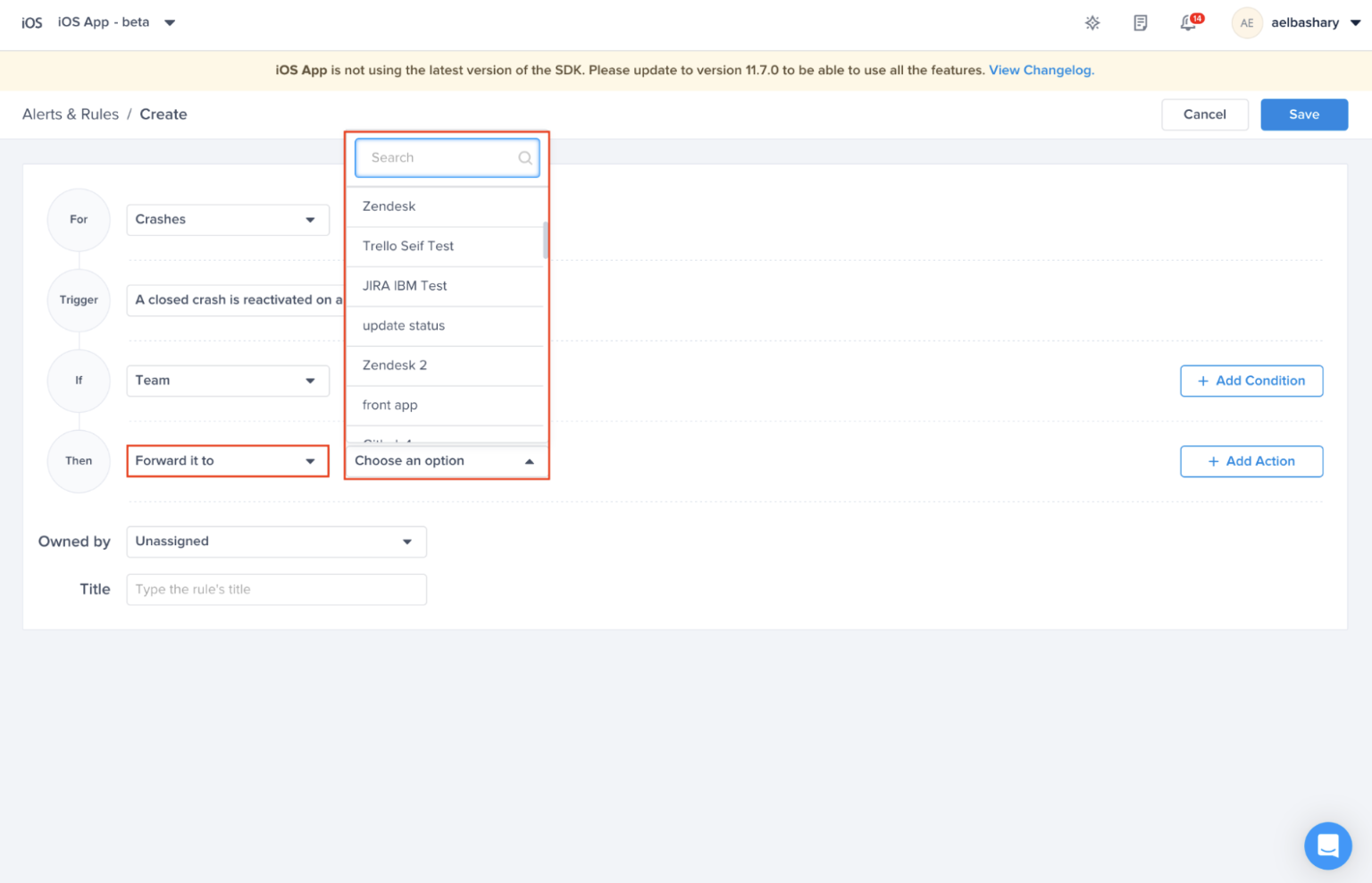
Then, Forward it to your favorite tool (Ex: Slack, MS Teams, PagerDuty, … etc). Thus, Payment Team will be notified about this regression through that tool.
**For more details on the different integrations that is supported, please refer to** [**Luciq's Integrations Docs**](/product-guides-and-integrations/integrations.md)
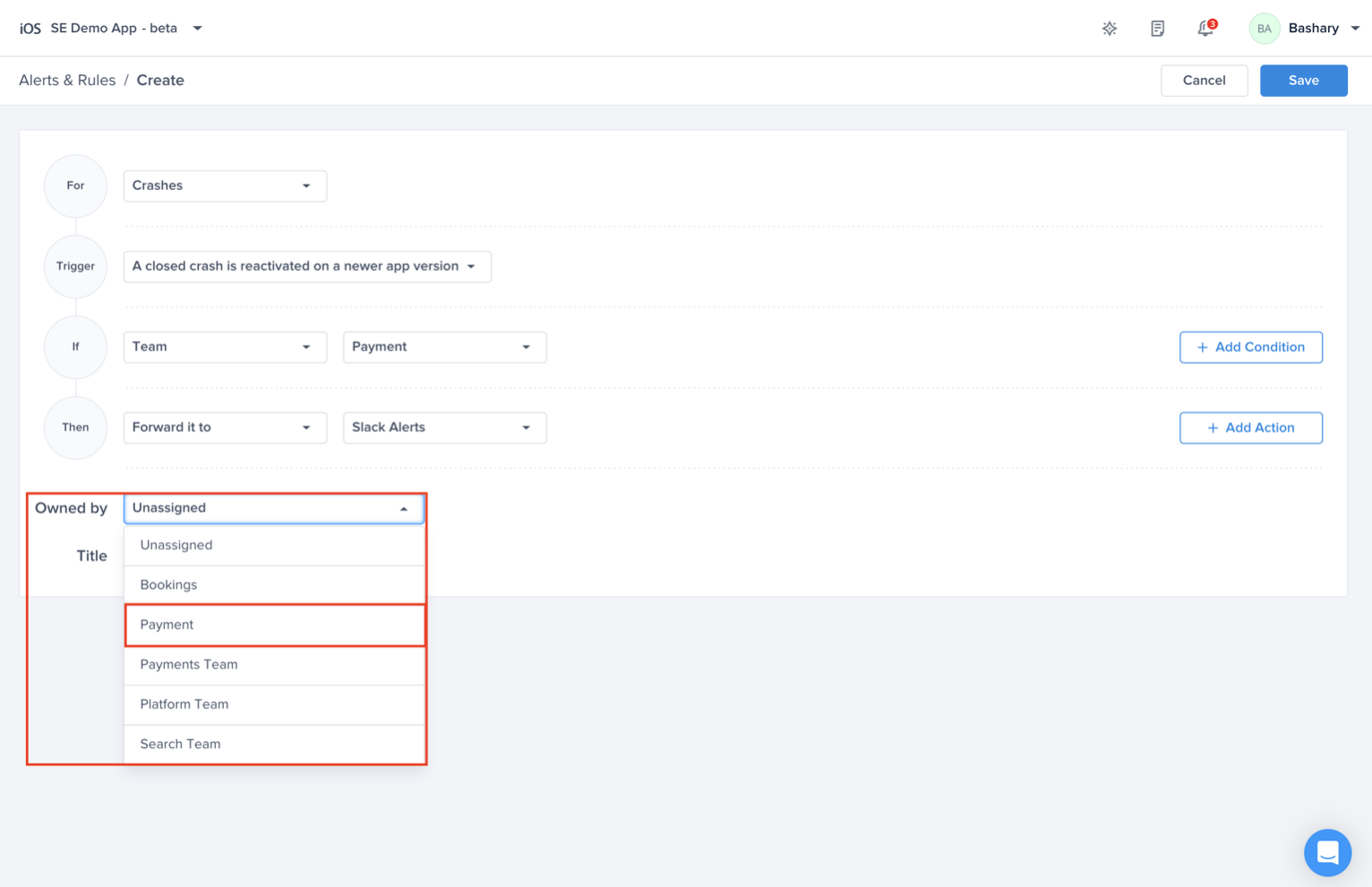
You can assign this Alert/Rule to a certain team through "Owned by" section at the bottom of the rule. This enables you to figure out who to contact if there was a problem with any of the Alerts/Rules
{% hint style="warning" %}
**Unassigned Rules**
If the Alert/Rule does not have a team assigned to it, then by default the value will be **Unassigned**
{% endhint %}
---
# Agent Instructions
This documentation is published with GitBook. GitBook is the documentation platform designed so that both humans and AI agents can read, navigate, and reason over technical content effectively. Learn more at gitbook.com.
## Querying This Documentation
If you need additional information that is not directly available in this page, you can query the documentation by asking a question.
Perform an HTTP GET request on the following URL with the `ask` and `goal` query parameters:
```
GET https://docs.luciq.ai/product-guides-and-integrations/product-guides/automation-and-workflows/team-ownership.md?ask=&goal=
```
`ask` is the immediate question: it should be specific, self-contained, and written in natural language.
`goal` is what the user is ultimately trying to achieve, the reason they need the answer. Sharing it helps GitBook give you a better, more relevant answer. A goal is most helpful when it describes the outcome the user wants rather than restating the question. For example, with `ask=how do I create an API token`, a goal like `automate deployments from our CI pipeline` lets GitBook tailor the answer to that use case.
The response will contain a direct answer to the question and relevant excerpts and sources from the documentation.
Use this mechanism when the answer is not explicitly present in the current page, you need clarification or additional context, or you want to retrieve related documentation sections.