> For the complete documentation index, see [llms.txt](https://docs.luciq.ai/llms.txt). Markdown versions of documentation pages are available by appending `.md` to page URLs; this page is available as [Markdown](https://docs.luciq.ai/product-guides-and-integrations/product-guides/automation-and-workflows/alerts-and-rules/network-failure-alerts.md).
# Network Failure Alerts
Alert on failed network requests by failure type, separating client-side errors from server-side ones so your team knows where to look.
Luciq now gives you more control and precision when setting up alerts for failed network requests. With our enhanced alerting capabilities, you can receive alerts tailored to specific types of failures, allowing your team to act faster and more efficiently.
### 🔍 Filter Alerts by Failure Type
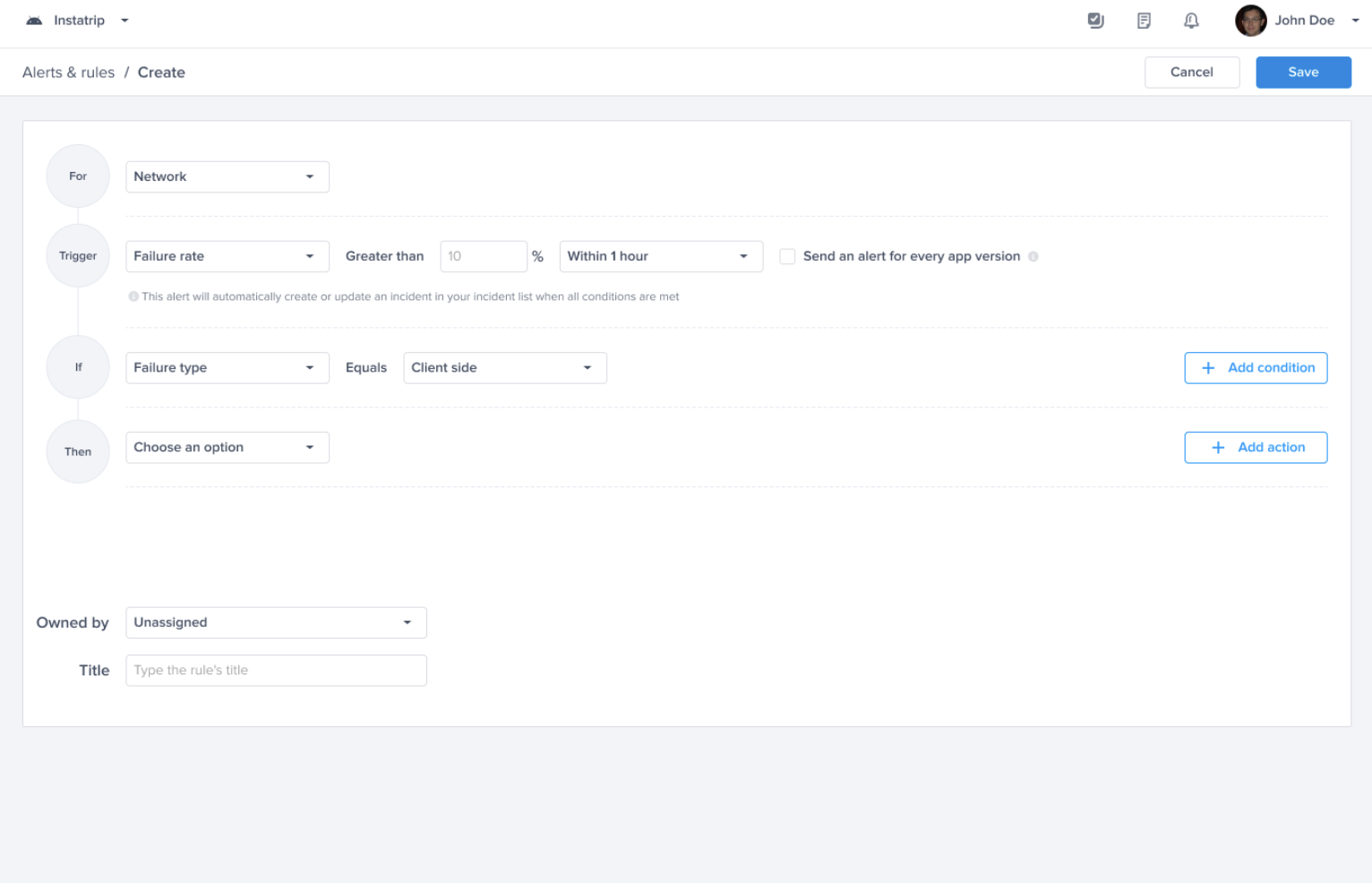
You can now specify whether the alert should trigger for:
* **Client-Side Failures:** Failures occurring on the user's device (e.g., timeout, no internet).
* **Server-Side Failures:** Failures returned from your backend (e.g., 500 Internal Server Error).
This gives you the ability to monitor the type of failures that matter most to your team.
### 🎯 Add Extra Filters for Granularity
In addition to filtering by failure type, you can further narrow down alerts using the following criteria:
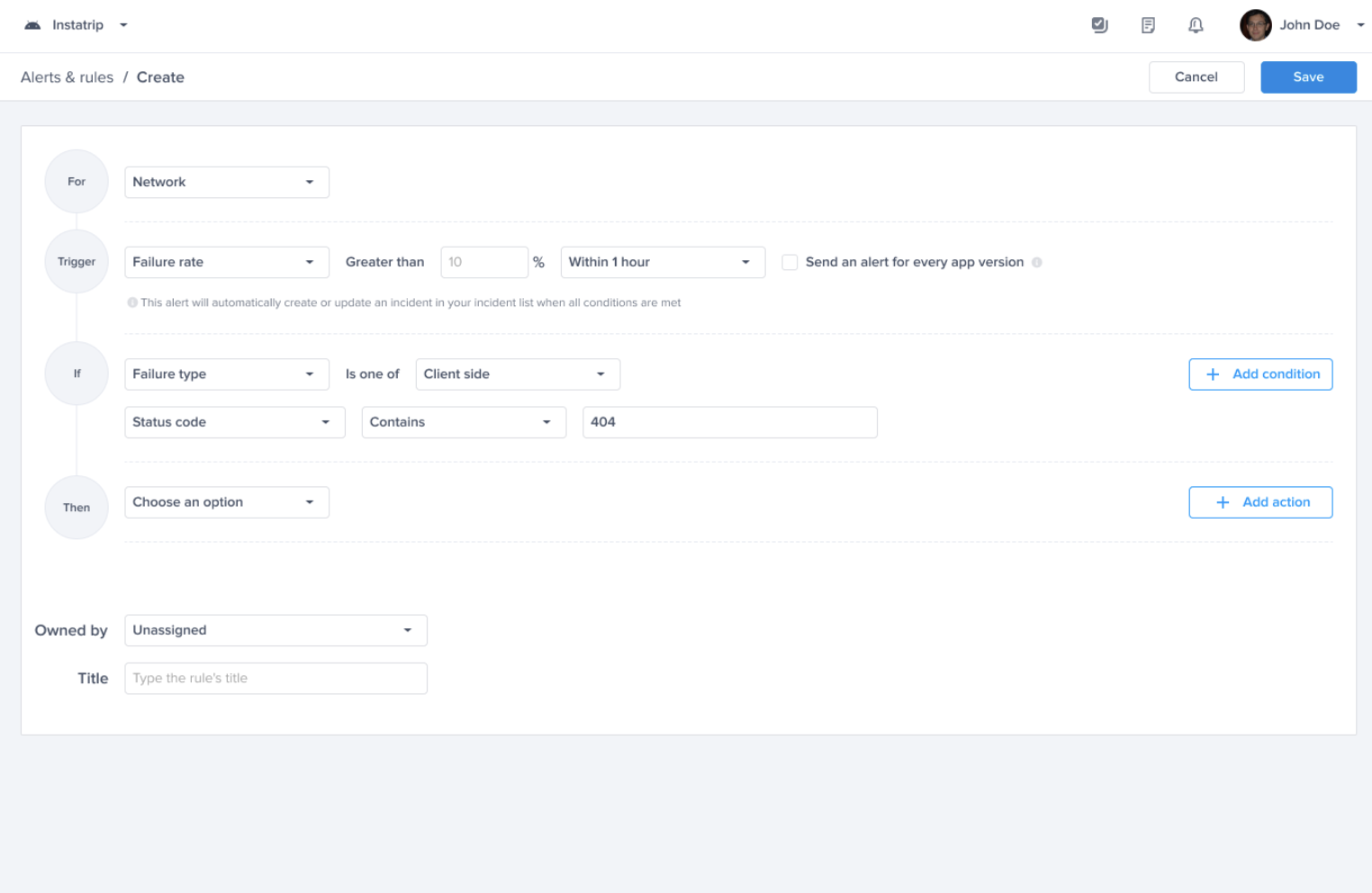
1. **HTTP Status Code**
Include/Exclude specific HTTP response codes in your alerts, such as:
* `500` for internal server errors
* `404` for not found
* `401` for unauthorized access
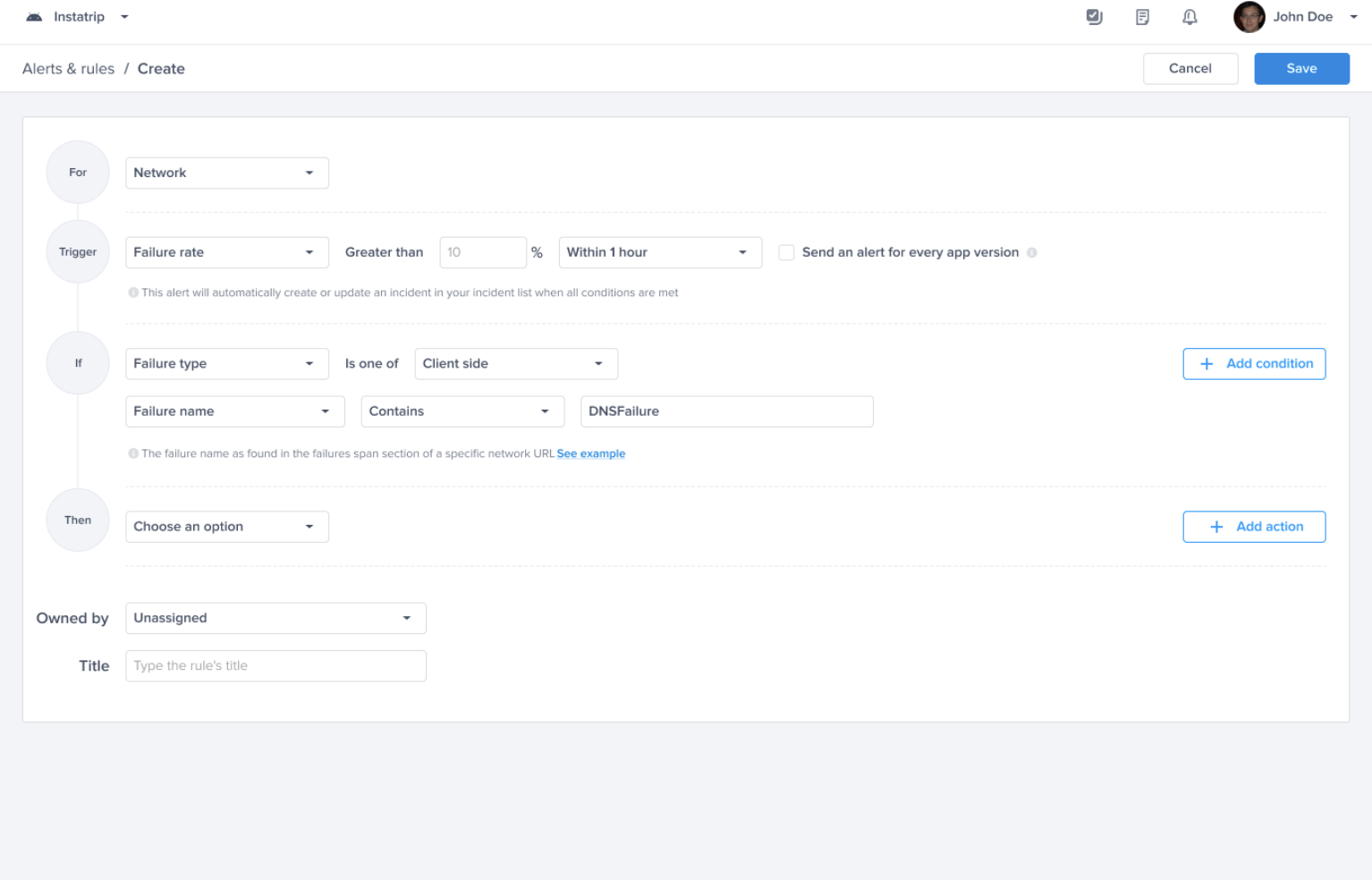
2. **Failure Name**
Use the failure name to detect specific issues, especially useful when failure codes are not available (as is often the case with client-side issues).
> **What is a Failure Name**?
>
> A failure name is the descriptive message sent alongside a failure event. You can view failure names by:
>
> * Navigating to the **Network tab** on your dashboard
> * Selecting the network request of interest
> * Scrolling to the **Failures** section
> * Checking the value under the **Name** column
This enables you to create highly targeted alerts—like catching `NoConnectionError` or `TimeoutException` events.
---
# Agent Instructions
This documentation is published with GitBook. GitBook is the documentation platform designed so that both humans and AI agents can read, navigate, and reason over technical content effectively. Learn more at gitbook.com.
## Querying This Documentation
If you need additional information that is not directly available in this page, you can query the documentation dynamically by asking a question.
Perform an HTTP GET request on the current page URL with the `ask` query parameter, and the optional `goal` query parameter:
```
GET https://docs.luciq.ai/product-guides-and-integrations/product-guides/automation-and-workflows/alerts-and-rules/network-failure-alerts.md?ask=&goal=
```
`ask` is the immediate question: it should be specific, self-contained, and written in natural language.
`goal` is optional and describes the broader end goal you are ultimately trying to accomplish on behalf of the user. GitBook uses it to tailor the answer towards what is most useful for that goal.
The response will contain a direct answer to the question and relevant excerpts and sources from the documentation.
Use this mechanism when the answer is not explicitly present in the current page, you need clarification or additional context, or you want to retrieve related documentation sections.