# Alerting for Performance Metrics

Luciq [App Performance Monitoring](https://www.luciq.ai/product/app-performance-monitoring) is continuously monitoring application performance on the client-side, giving you insights on the following metrics:

* App launch times
* Client-side network health & latency
* Screen loading time
* UI hangs
* Flows

These metrics directly impact the user experience, helping you identify performance issues before they affect more users. Instead of paying regular visits to the dashboard to check for any performance issues, you can set up alerts to immediately get notified on Slack or email about any performance drops.

### Alerts and Rules

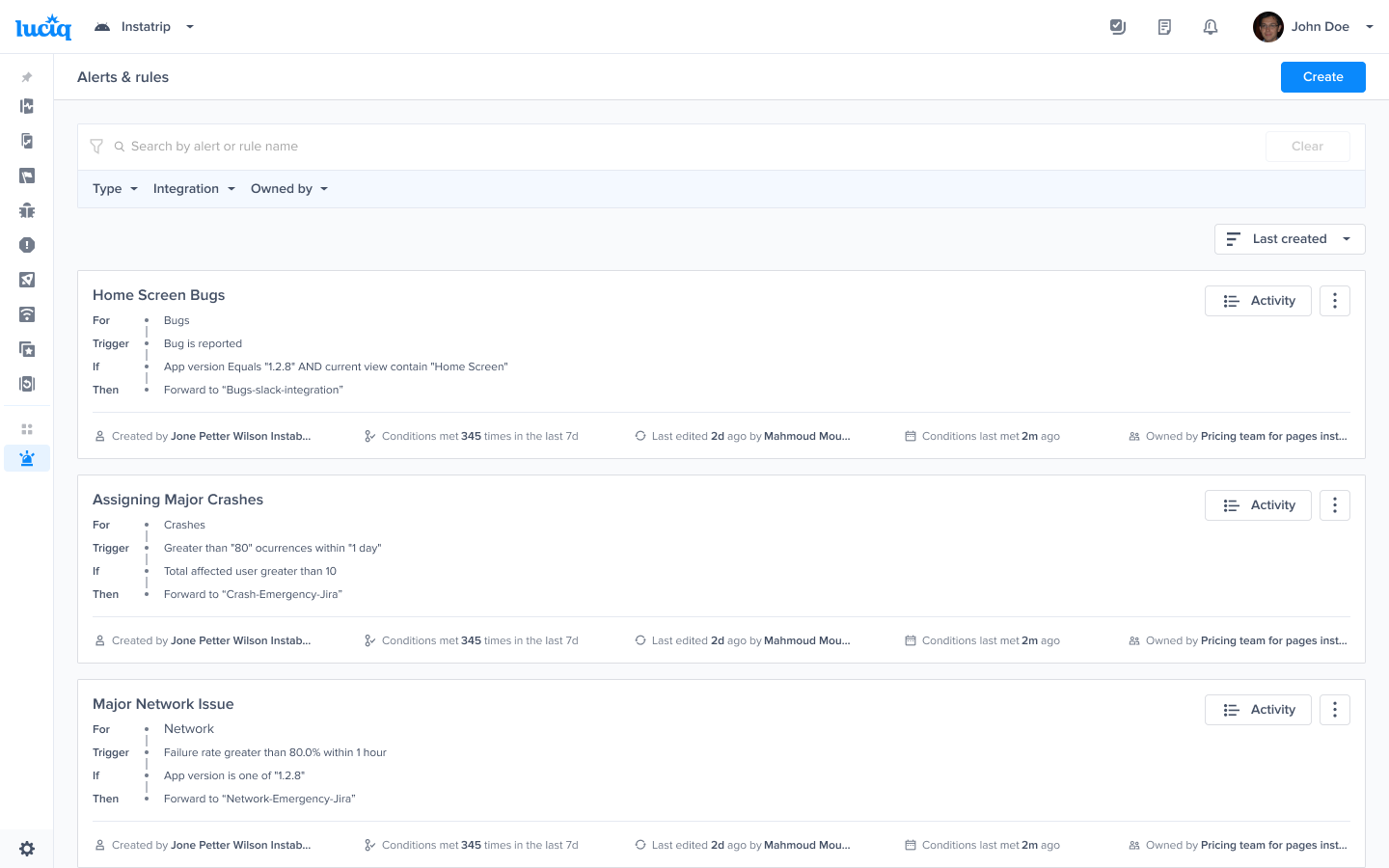
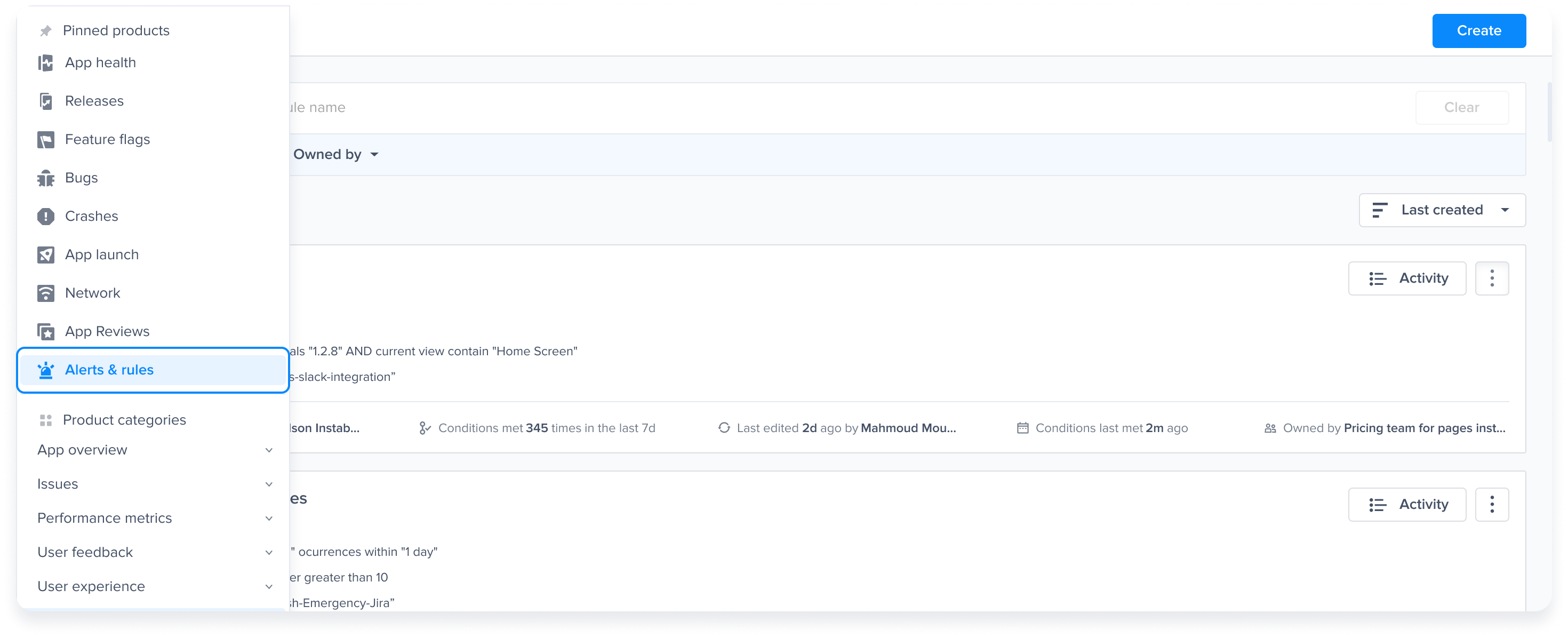
To get started with setting up performance alerts, hover over the left navigation pane and click on “Alerts & Rules”

<figure><img src="https://files.readme.io/9a598e833b2bf96afabb890c1f5a16f7a4c90beaebb68f293649631c7b138050-product-guides-alerting-for-performance-metrics-1.png" alt="2874"><figcaption><p><em>Alerts and rules from the Luciq menu</em></p></figcaption></figure>

Now you can see a full list of all alerts & rules that you previously set up (if any), get started and create a new rule/alert by clicking on the “Create” button

<figure><img src="https://files.readme.io/06ed9ac05b0042f9171a62ee4ef83b9ff17819fb50009c8a2eba730b4473e8e7-product-guides-alerting-for-performance-metrics-2.png" alt="2874"><figcaption><p><em>Click on "Create"</em></p></figcaption></figure>

#### Alert types

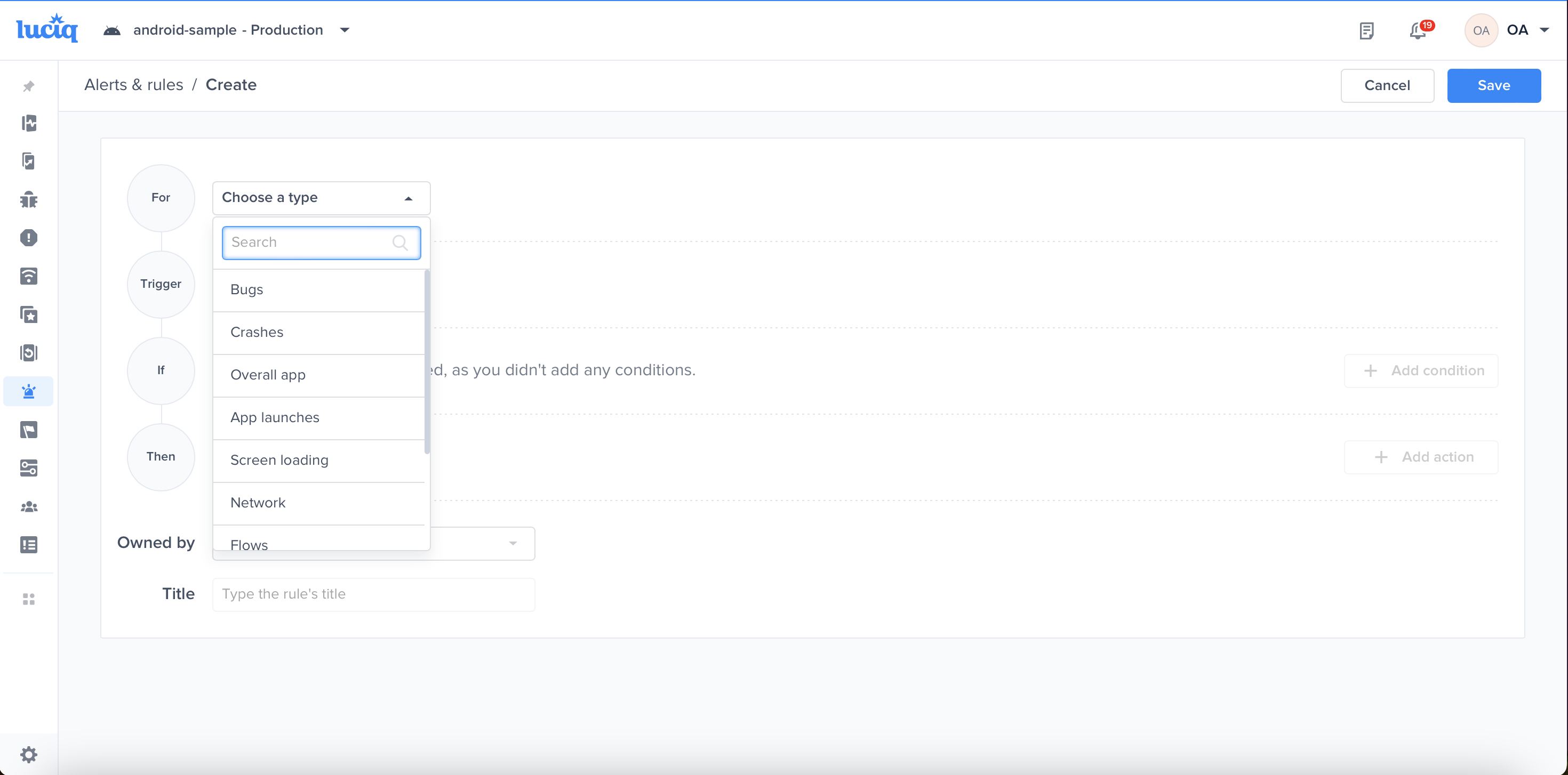
**Select the performance metric**:\
You can set up alerts for each of the performance metrics individually, under the “For” , select the performance metric of interest from the dropdown list

<figure><img src="https://files.readme.io/0c955e69c66e51eb00c11e008afb8a447eb925b53332abec40ab962f0dd8af49-product-guides-alerting-for-performance-metrics-3.png" alt="Choose the relevant performance metric for which you want to be alerted"><figcaption><p><em>Choose the relevant performance metric for which you want to be alerted</em></p></figcaption></figure>

Let’s choose “Network” as an example, then you need to select the trigger that you want to be notified for (triggers vary based on the selected performance metric\*)

#### Alert triggers

The alert trigger can be one of the following:

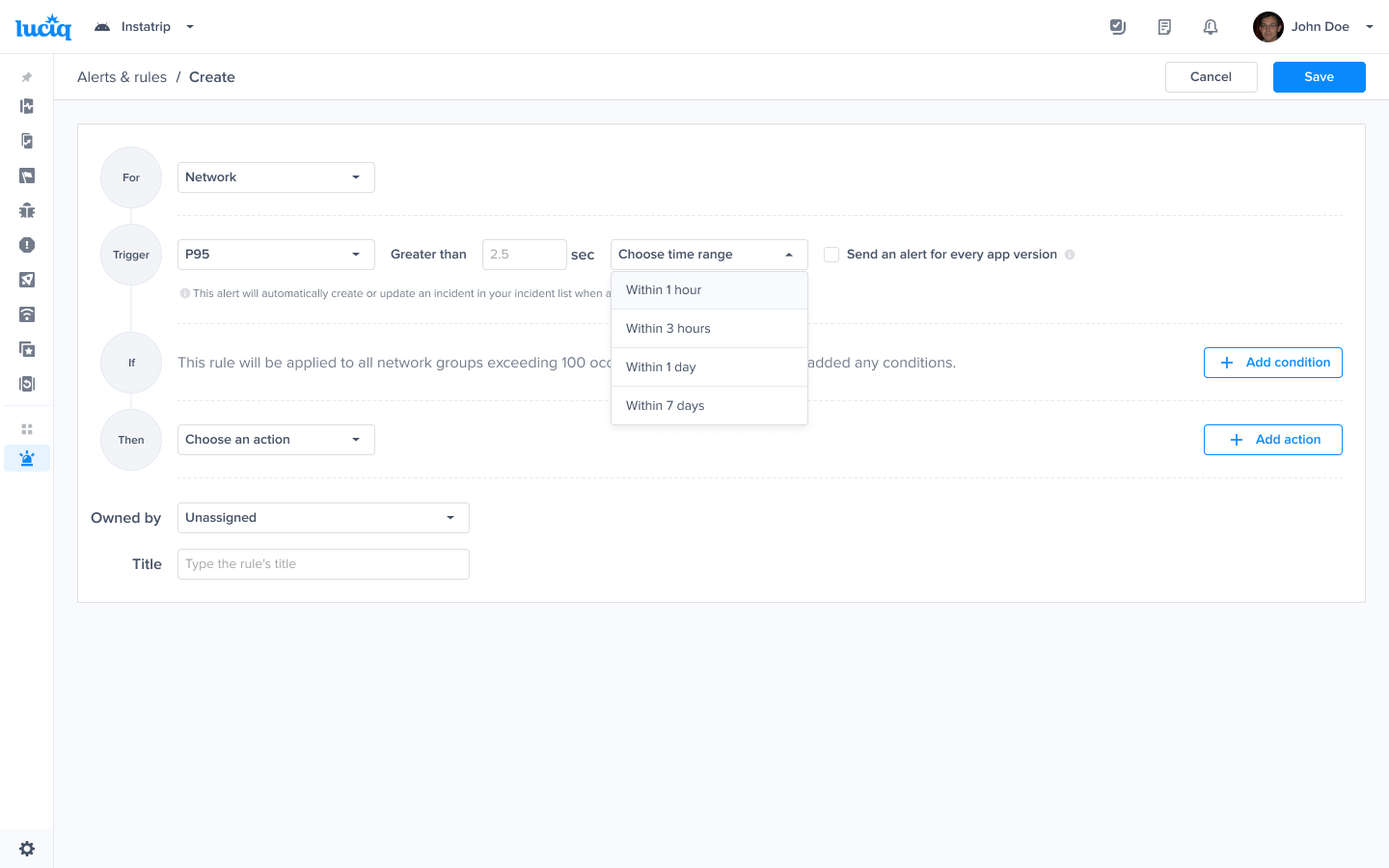
* **P95 (95th percentile)**: The maximum latency encountered by 95% of the users for the selected metric
* Insert the desired threshold that you want to get notified about if exceeded (3 sec for example)
* Select the time range that you want to be taken into account for this alert

<figure><img src="https://files.readme.io/60b684759dc868461435add0ae72fc560f57af6bef066d65e2b3060543742c1a-product-guides-alerting-for-performance-metrics-4.png" alt="2874"><figcaption><p><em>Choose the trigger and time range - Example P95</em></p></figcaption></figure>

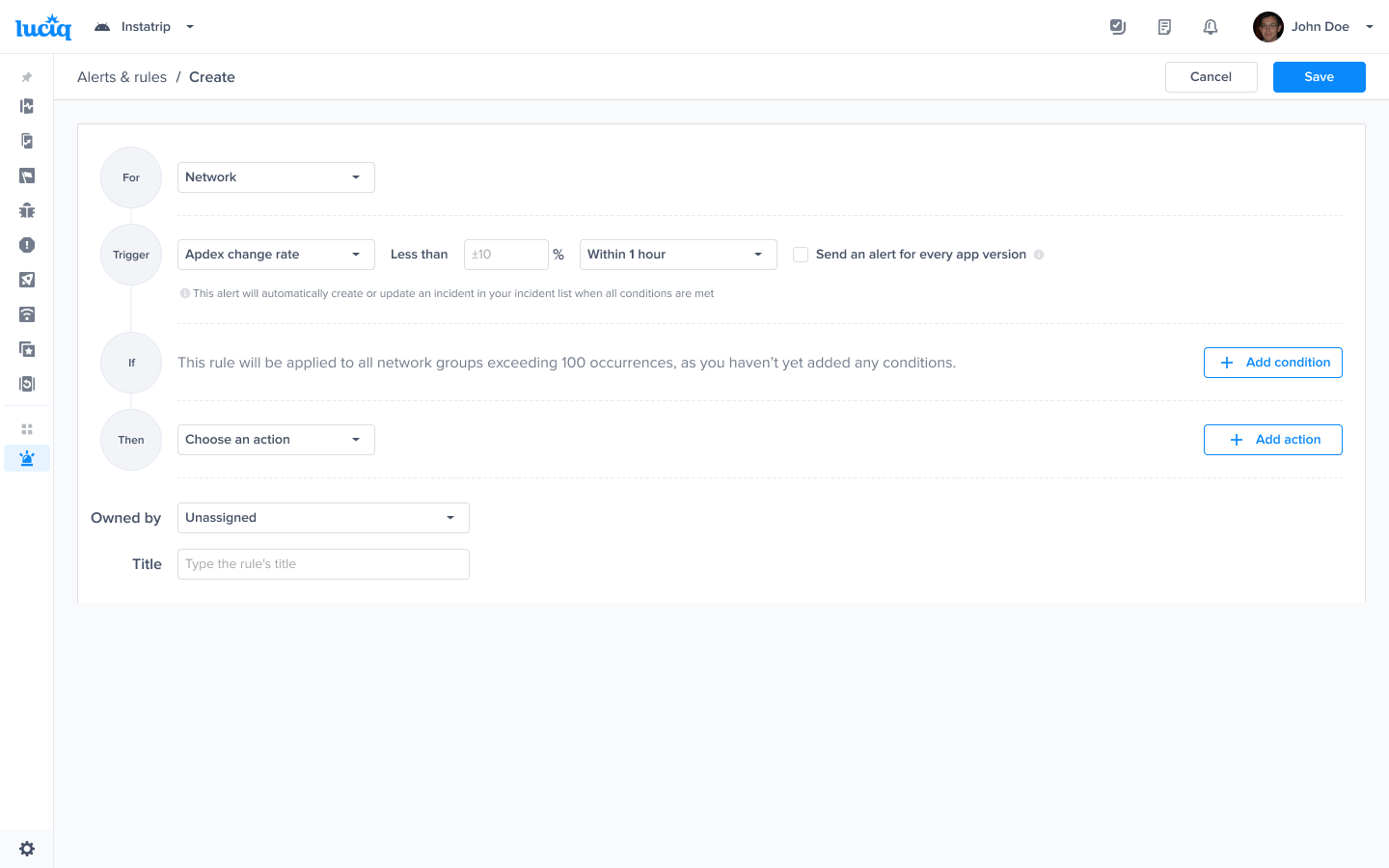
**Apdex change rate**: Get notified whenever your Apdex score changes by a certain percentage over a specific period of time.

* Insert the desired threshold for the Apdex change rate, the below example will notify you when the Apdex score drops by 10%
* Select the time range that you want to be taken into account for this alert

<figure><img src="https://files.readme.io/d9aa56aa8bba0848fe83616cafc71622fc25d7a361062435d19f7325bda35fc3-product-guides-alerting-for-performance-metrics-5.png" alt="2874"><figcaption><p><em>Choose the trigger and time range - Example Apdex change rate and time range</em></p></figcaption></figure>

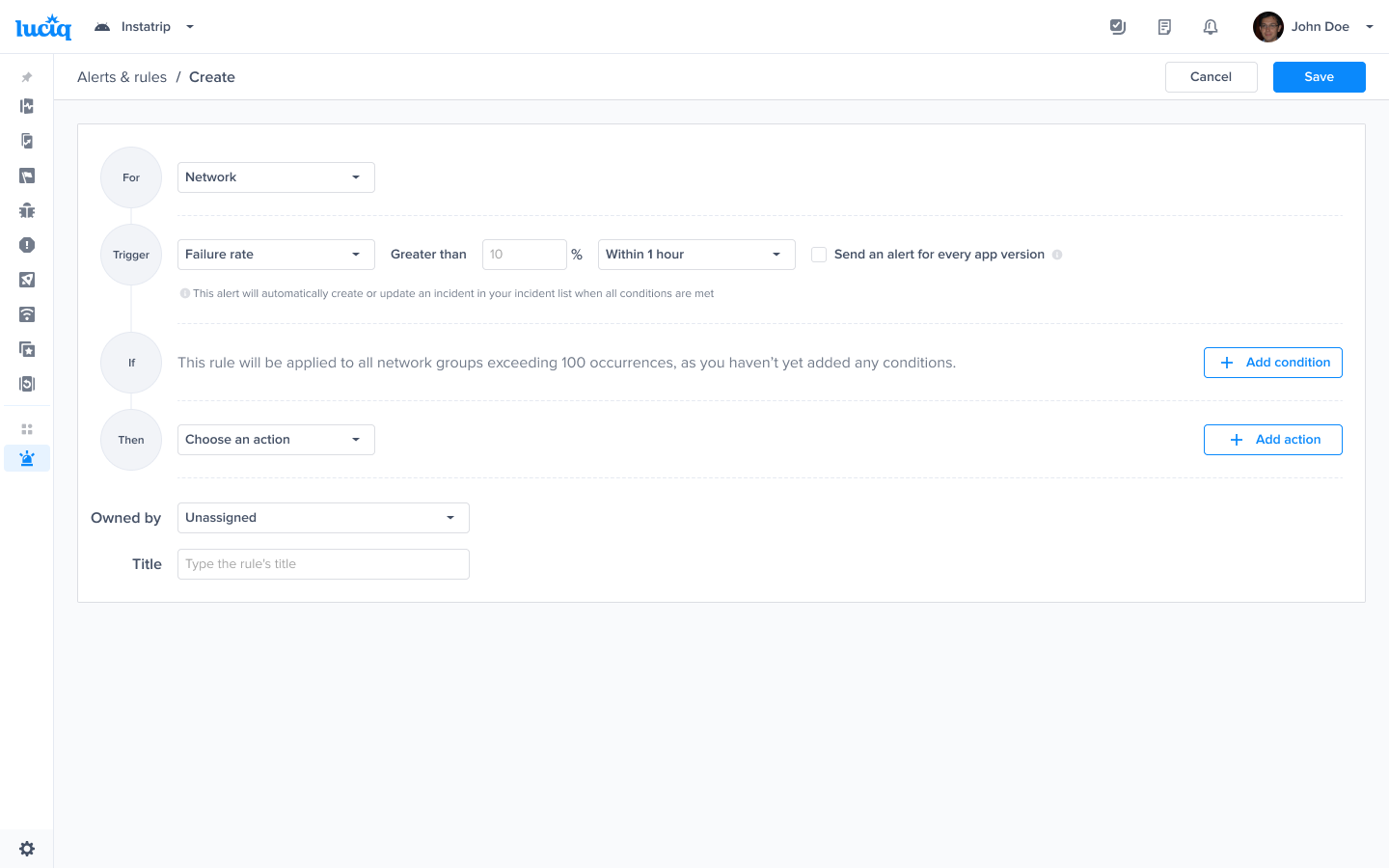
**Failure rate** (network only): Get notified whenever failure rate for network requests exceeds a certain threshold

* Insert the desired threshold for network failure rate, the below example will notify you when network failures exceeds 10%
* Select the time range that you want to be taken into account for this alert

<figure><img src="https://files.readme.io/06dfed92b3be4b6b7db66a6c4de546c2e59596c7348cd7345c2155d0921ee575-product-guides-alerting-for-performance-metrics-6.png" alt="2874"><figcaption><p><em>Choose the trigger and time range - Example Failure rate and time range</em></p></figcaption></figure>

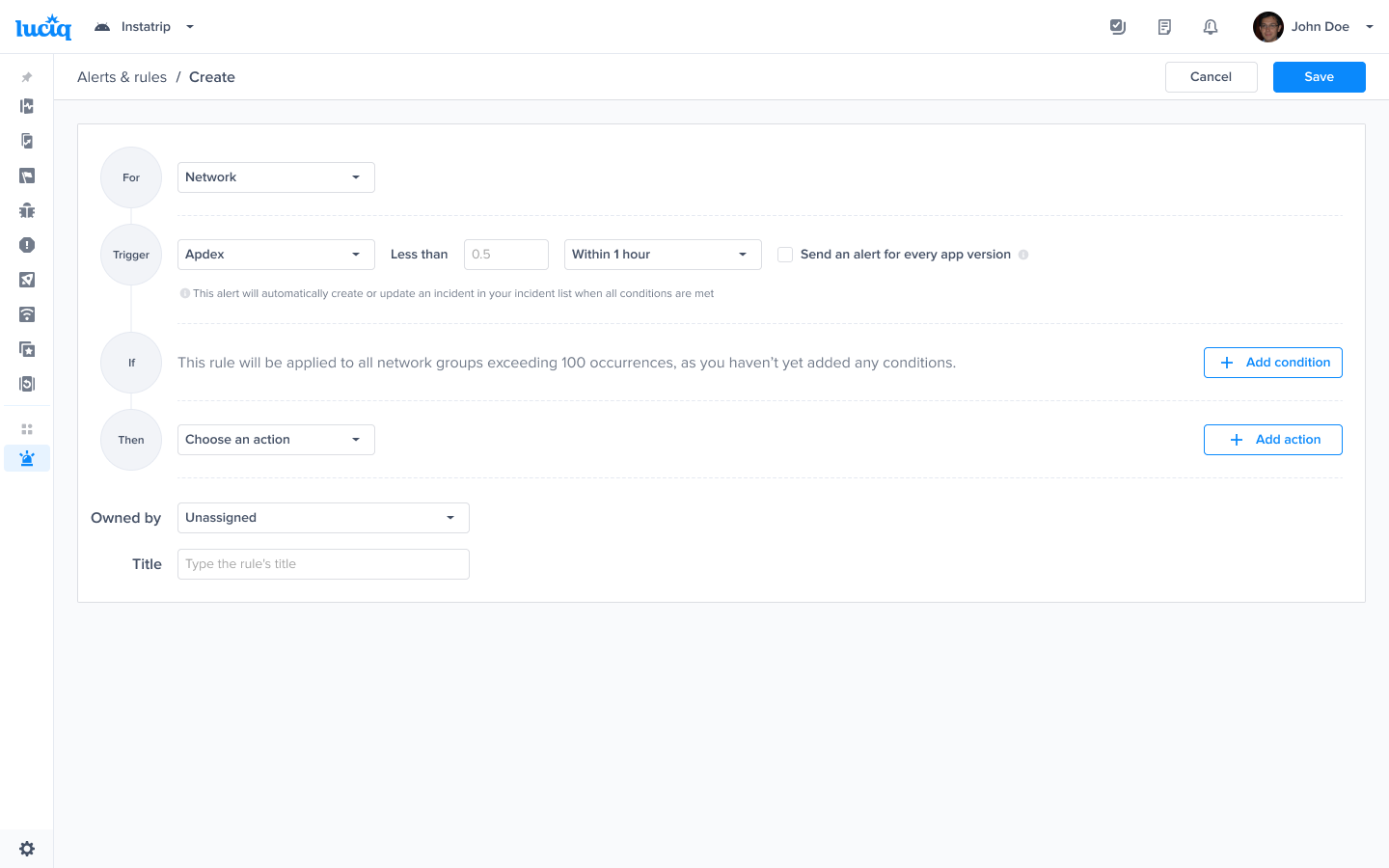
**Apdex**: Get notified whenever the Apdex score for the selected performance metric drops below a certain threshold

* Insert the desired threshold for the Apdex score, the below example will notify you if Apdex dropped below 0.7
* Select the time range that you want to be taken into account for this alert

For more information on Apdex definition and calculation, please check the docs [here](https://docs.luciq.ai/product-guides-and-integrations/product-guides/getting-started-with-luciq/frustration-free-sessions).

<figure><img src="https://files.readme.io/ce386d1cb4f92423275332f854c16a5bfb0e61cac67f337acb044ac414247dbd-product-guides-alerting-for-performance-metrics-7.png" alt="2874"><figcaption><p><em>Choose the trigger and time range - Example Apdex and time range</em></p></figcaption></figure>

#### Alerts conditions

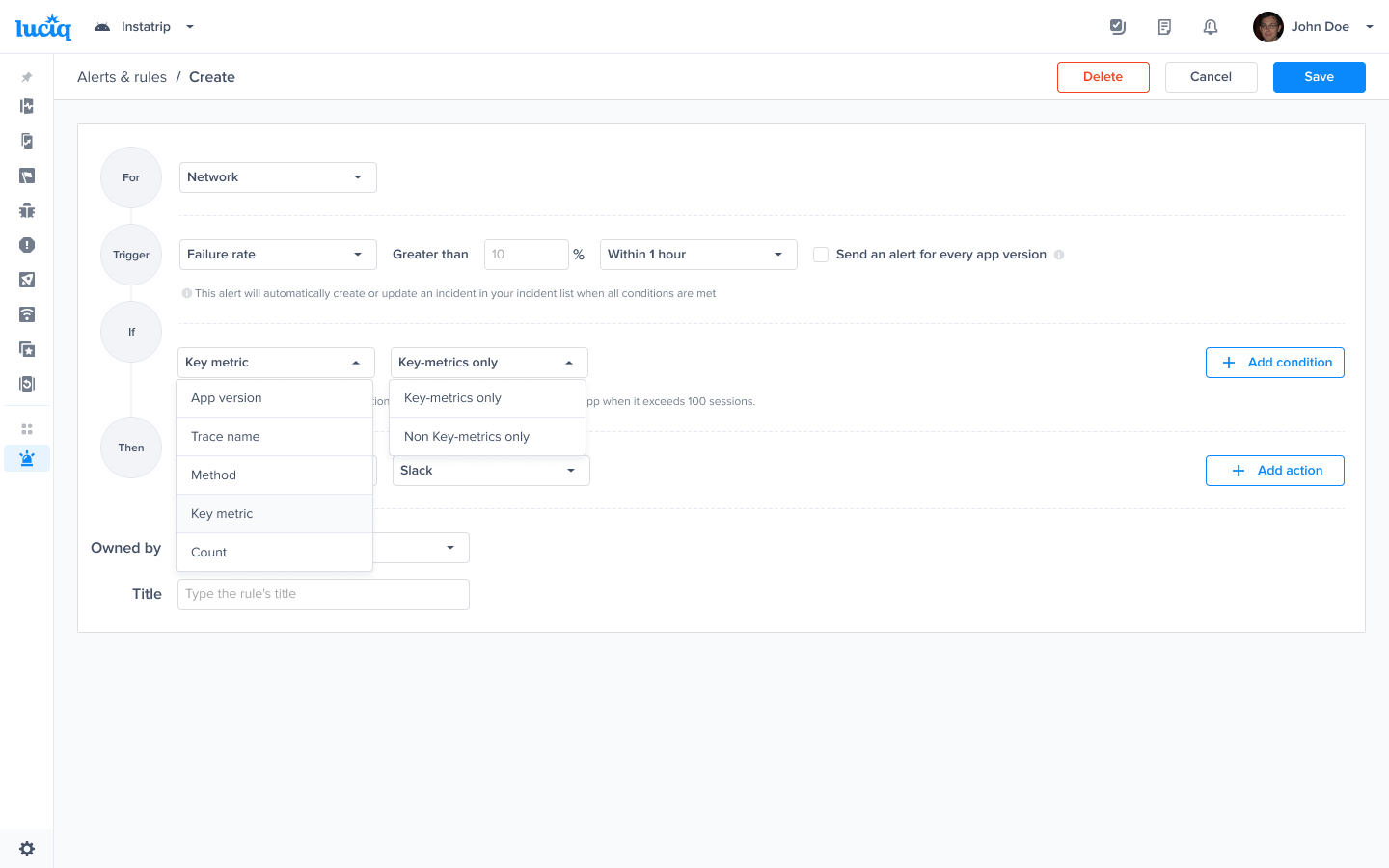
After setting the triggers for alerting, you can also add some conditions, these conditions need to be met in order to fire this alert (conditions vary based on the selected performance metric\*).

You can specify the desired conditions under the “If” section, click “Add Conditions” to select from the available conditions. You can add as many conditions to fulfill your use case.

{% hint style="warning" %}
Note: If you didn’t add any conditions, the rule will apply on the selected metric when the number of occurrences exceeds 100
{% endhint %}

Below is a list of available conditions:

* App version: If you are interested in monitoring a specific app version (e.g your latest release or top releases)
* Trace name: This can be a specific screen name, network URL or a flow that you want to monitor (e.g home screen, payment API or checkout flow)
* Key metric: Choose to get notified only on metrics that you define as “Key metrics”, or the ones that are not. See more info about key metrics [here](https://docs.luciq.ai/product-guides-and-integrations/product-guides/getting-started-with-luciq/frustration-free-sessions/how-to-configure-frustration-free-sessions#control-apm-traces-in-your-score)
* Count: Define a threshold for the occurrences count of the selected metric that needs to be met
* Method: This applies on network alerting only, you can select the network request method as a condition for the alert (GET, PUT, POST, PATCH, DELETE)
* Launch Type: This applies on app launch only, you can select between cold or hot app launches

Example: The below rule will fire an alert when the P95 exceeds 3 seconds within 1 day, the alert will be fired only when all the conditions are met

<figure><img src="https://files.readme.io/9bd9b889f939b104a1ca3f070acfd323822c60051fe0c10cc3dbbdb99e2f9610-product-guides-alerting-for-performance-metrics-8.png" alt="2876"><figcaption><p><em>Choose the condition that should be checked to get alerted</em></p></figcaption></figure>

#### Alerting channels

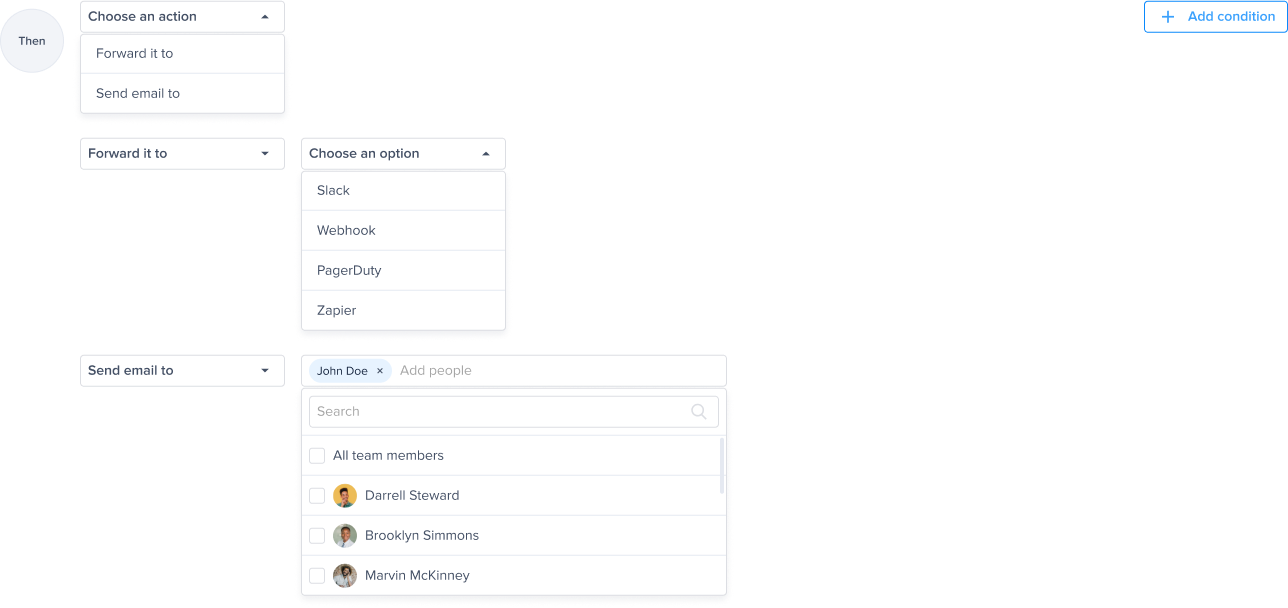
Alerting for performance events is currently supported through Slack, MS Teams and Emails. You can select multiple channels for a single rule

<figure><img src="https://files.readme.io/ac329461e1a8be4f36a5ab2c4dbc9f5fb75613be844e4ae9acb886a410b49942-product-guides-alerting-for-performance-metrics-9.png" alt="2876"><figcaption><p><em>Forward your alert to slack</em></p></figcaption></figure>

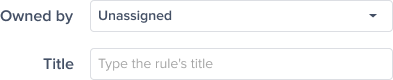
Finally, all you need to do is assign this rule to your team (optional for ownership), provide a title for the rule and click “Save”

<figure><img src="https://files.readme.io/6497f5341af1c1fc4886f48defe73464be0d87c40fe16ac2839dbf606ab86dcd-product-guides-alerting-for-performance-metrics-10.png" alt="2876"><figcaption><p><em>Optional - Choose the team that is responsible for this alert. And click "Save"</em></p></figcaption></figure>

The below matrix shows the different triggers & conditions for each metric

<figure><img src="/files/i97PRQeiQsviXtozdVqI" alt=""><figcaption><p><em>Triggers, conditions and Actions</em></p></figcaption></figure>


---

# Agent Instructions: Querying This Documentation

If you need additional information that is not directly available in this page, you can query the documentation dynamically by asking a question.

Perform an HTTP GET request on the current page URL with the `ask` query parameter:

```
GET https://docs.luciq.ai/product-guides-and-integrations/product-guides/automation-and-workflows/alerts-and-rules/alerting-for-performance-metrics.md?ask=<question>
```

The question should be specific, self-contained, and written in natural language.
The response will contain a direct answer to the question and relevant excerpts and sources from the documentation.

Use this mechanism when the answer is not explicitly present in the current page, you need clarification or additional context, or you want to retrieve related documentation sections.