> For the complete documentation index, see [llms.txt](https://docs.luciq.ai/llms.txt). Markdown versions of documentation pages are available by appending `.md` to page URLs; this page is available as [Markdown](https://docs.luciq.ai/product-guides-and-integrations/product-guides/automation-and-workflows/alerts-and-rules/alerting-and-automation-for-rollout-management.md).
# Alerting and Automation for Rollout Management
Automate a staged rollout with Luciq alerts and rules. Keep the team posted on release progress and triage regressions without checking.
Luciq helps you automate the entire rollout process, as well as extra automation capabilities that you can utilize to save time and eliminate a handful of manual tasks.
**Workflow Automation Examples**:
* Keep your team updated with the status of the rollout.
* Create alerts to get your team notified about any updates.
* Triage and manage your rollout without the need to use multiple tools.
### Create your rules
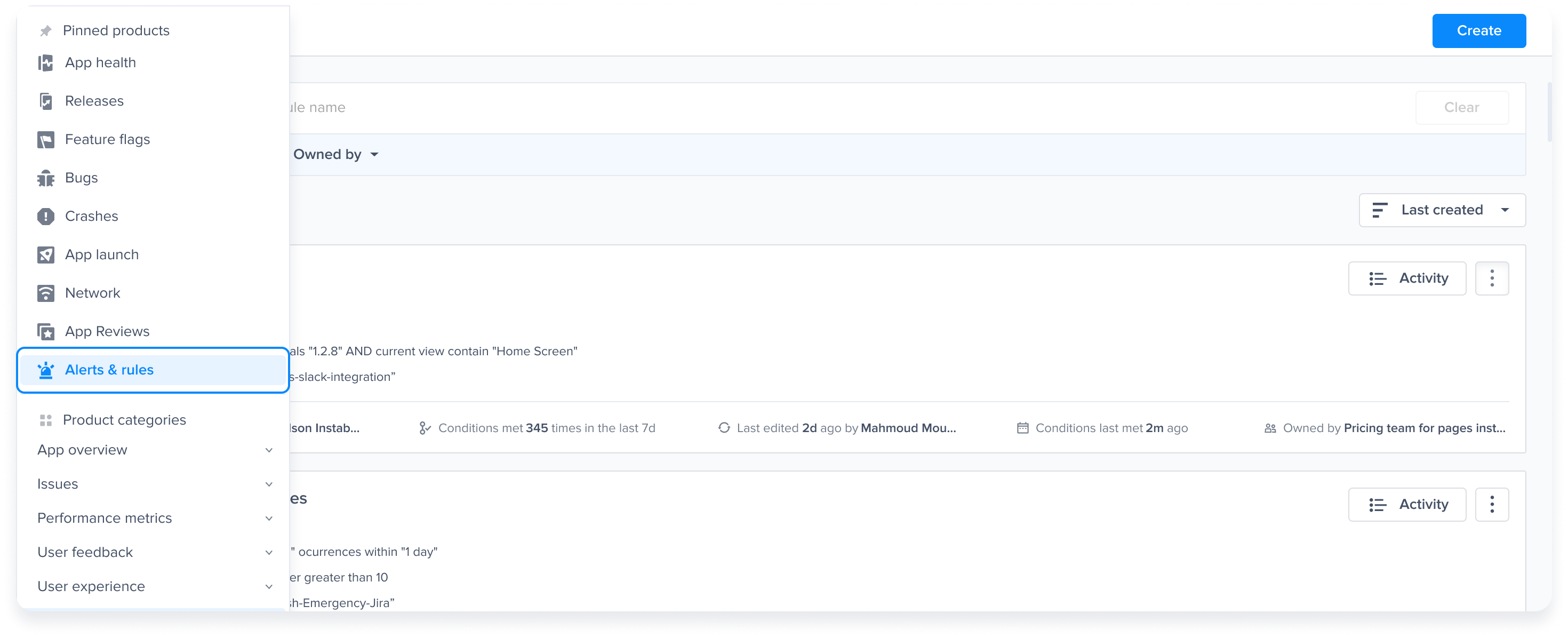
To get started with rollout management workflow automation, hover the the left navigation menu and click on “Alerts & Rules”
Go to the Alerts & Rules page from the Luciq menu
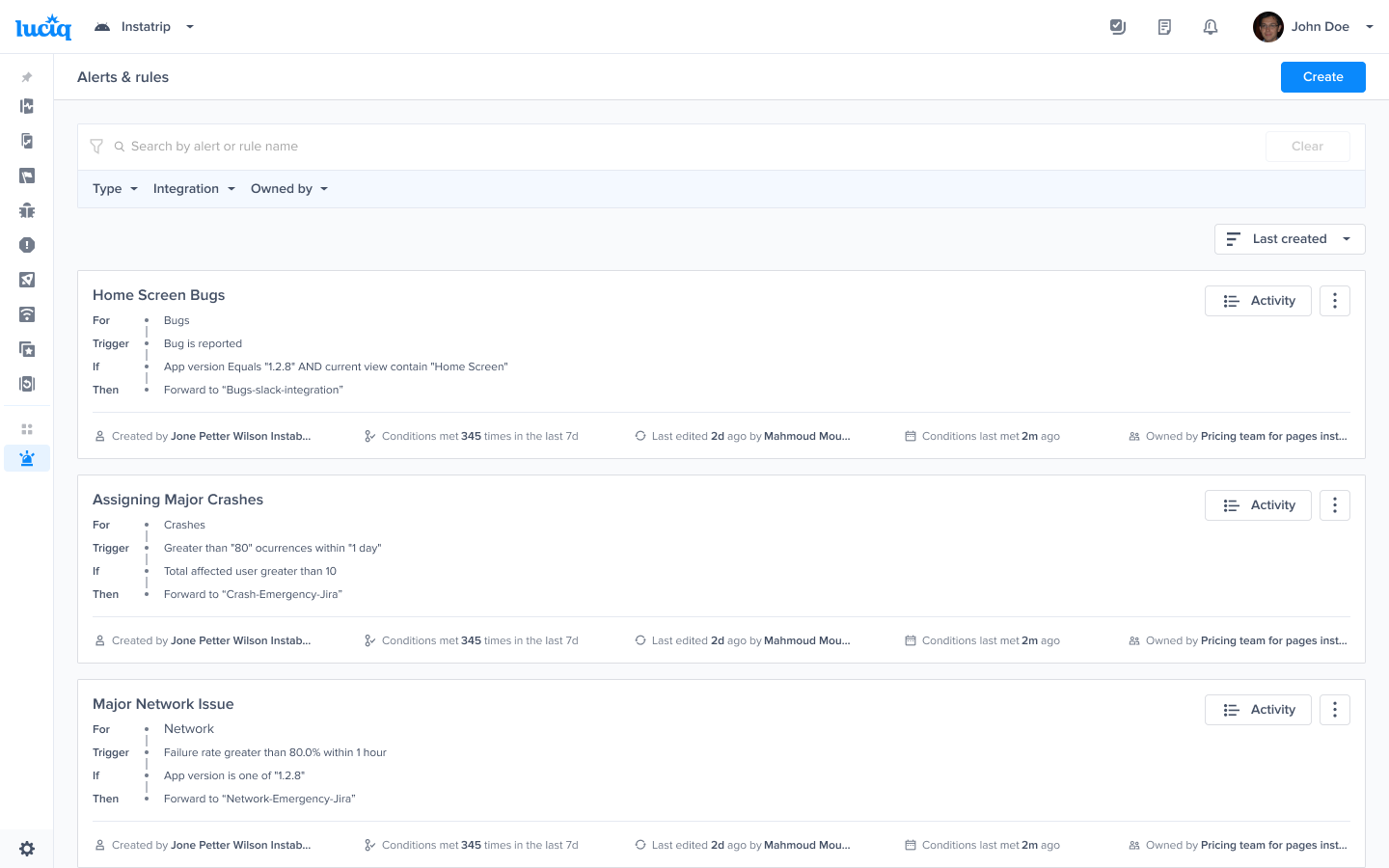
You can view a list of all created rules or performance metrics, use the filters to view only rules for bugs, crashes, performance metrics or release rollout, and click on “Create” to get started.
Click on "Create"
### Rollout Management Alert
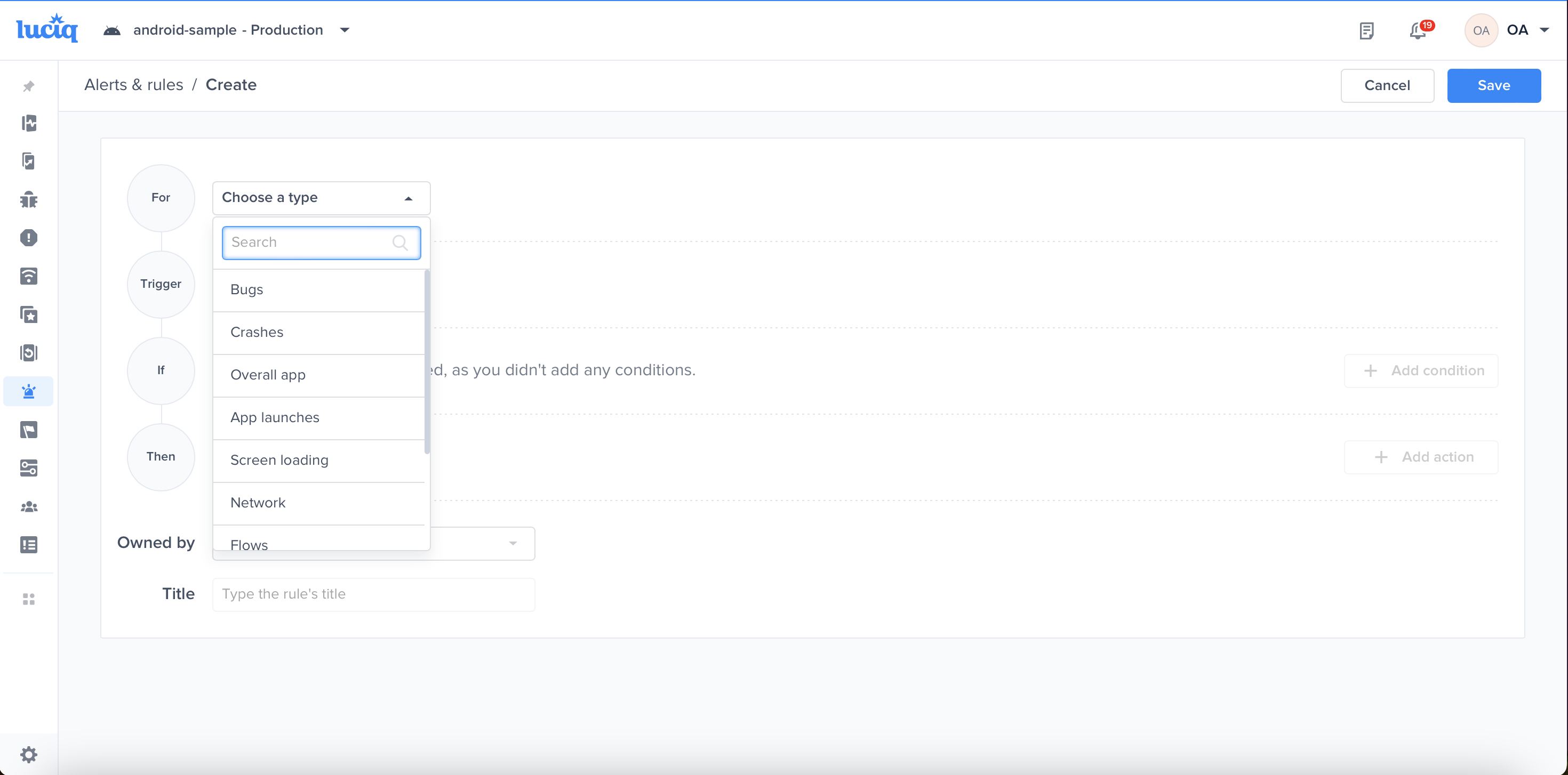
Select “Release Rollout” from the dropdown menu under the “For”.
Select "Crashes"
#### Triggers
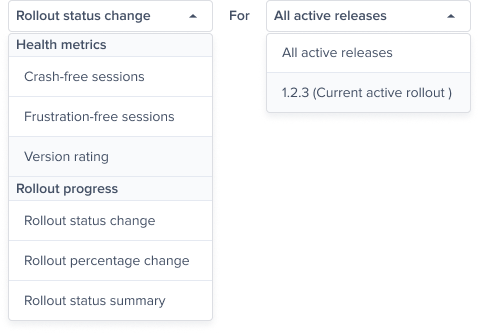
Then you need to select a trigger; below is a list of all available triggers:
* **Health Metrics**:
* ***Apdex***: Halt/Pause or Release the Rollout process based on your application's apdex score within a period of time for a specific or all app versions.
* ***Crash-Free Sessions***: Halt/Pause or Release the Rollout process based on the Crash-Free percentage within a period of time for a specific or all app versions.
* **Rollout Progress**:
* ***Rollout Status Change***: Get notified whenever the rollout status is changed for a specific or all app versions.
* ***Rollout Percentage Change***: Get notified whenever the rollout percentage is changed for a specific or all app versions.
* ***Daily Rollout Summary***: Get notified if the daily rollout summary is changed for a specific or all app versions.
Choose a Trigger
#### Conditions
After selecting the trigger, you can select a set of conditions that need to be met for the rule to be triggered.
**Below is a list of all available conditions**:
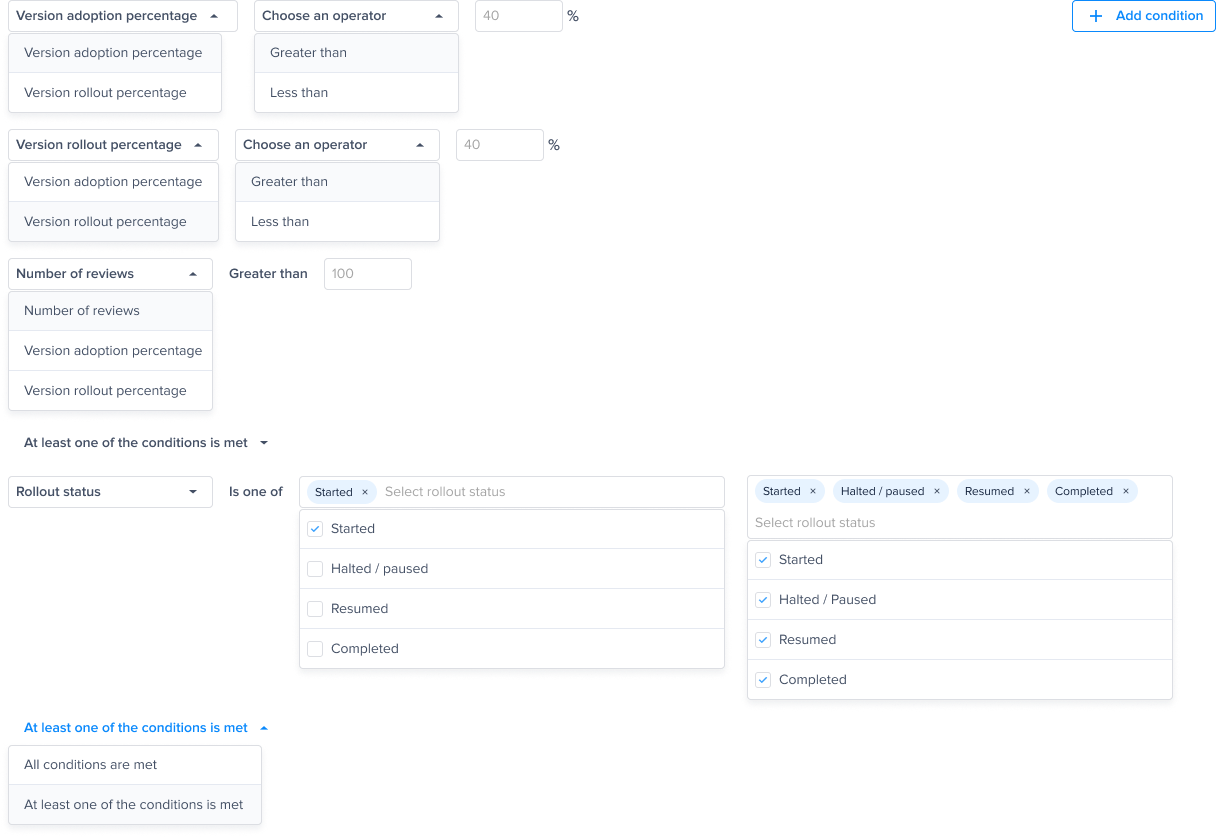
* ***Version Adoption Percentage***: Check if the version adoption percentage is greater or less than a specified percentage.
* ***Version Rollout Percentage***: Check if the version rollout percentage is greater or less than a specified percentage.
* ***Rollout Status***: The status of the rollout is one of the following: Started, Halted/Paused, Resumed, or Completed.
You can add as many conditions as you see fit. You can also choose to “AND” or “OR” the selected conditions.
Choose one of the conditions
#### Alerting channels
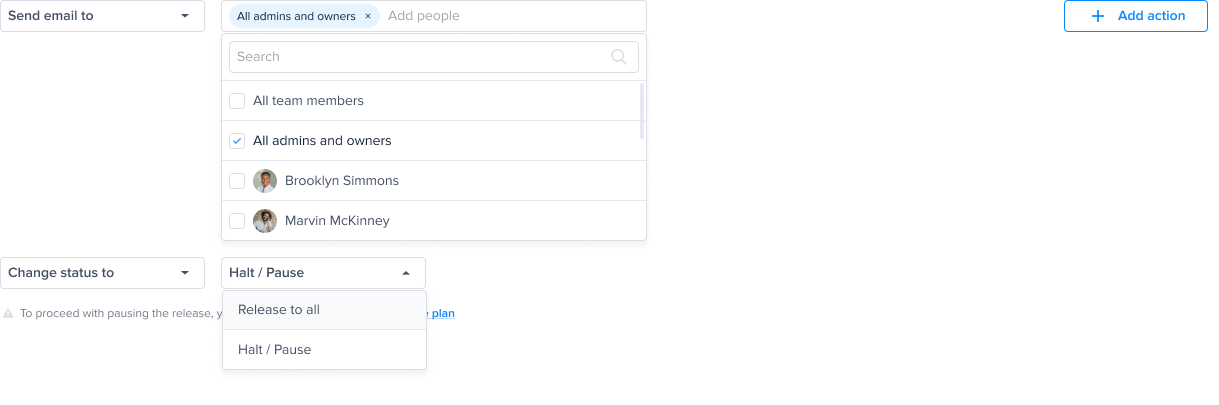
The last thing you need to do is specify the actions you want to automate using this rule. There are various actions available:
* ***Change status to***: Change the status of the rollout to one of Halt/Pause & Release to All.
* ***Send email to***: Send an email to a dashboard member(s).
* ***Forward it to***: Get notified on Slack if you have an integration set up on your dashboard.
Choose an action to be performed
### Use Cases
Now let's discover different scenarios for workflow automation that help track your app's health, like Apdex and Crash-Free Sessions, if they reach a specific threshold to get notified and how you can use the rules to achieve this:
***Scenario A***:
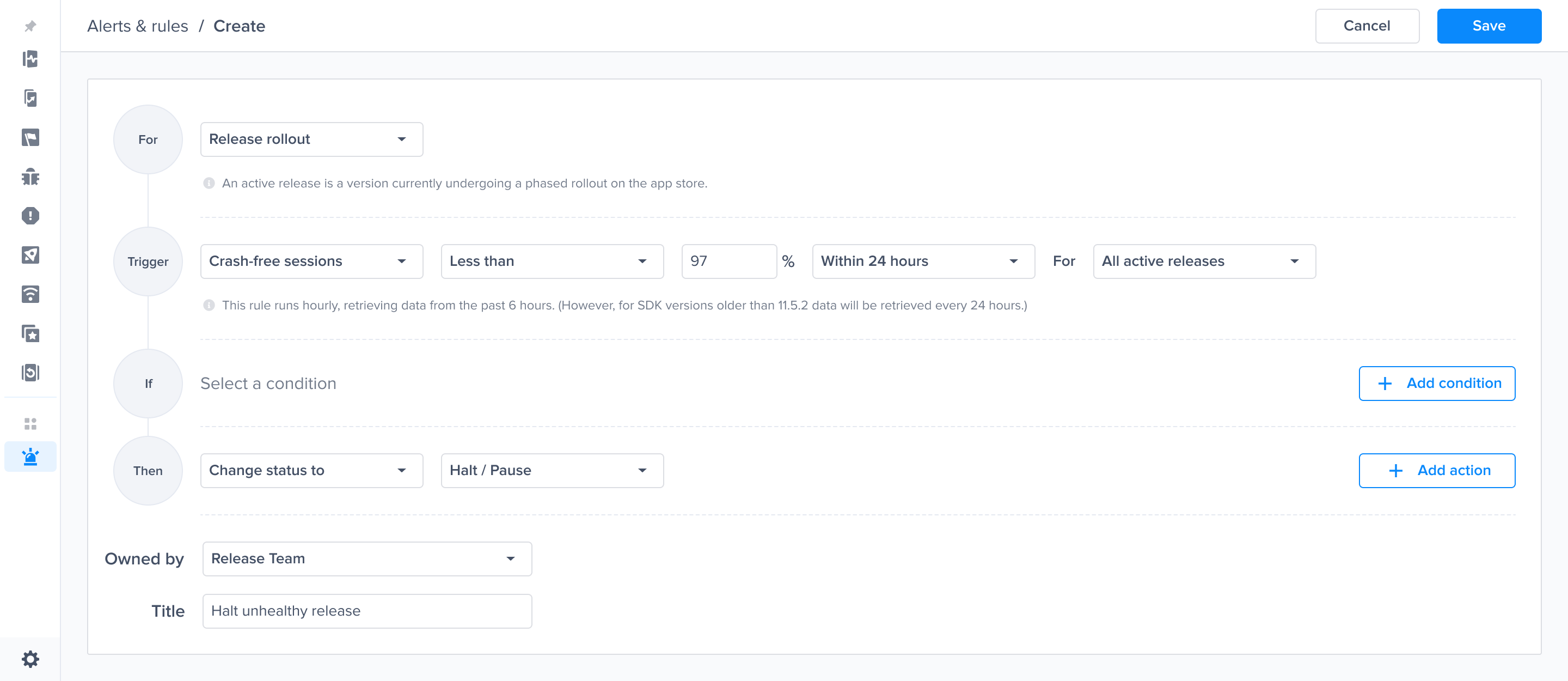
You have a version being rolled out to your users, and if you're worried it might cause crashes, you can set up an automation that would automatically pause the rollout if the crash-free sessions rate falls below 97% in a 24-hour window to stop the issue from affecting any other customers while you work on a fix.
***Scenario B***:\
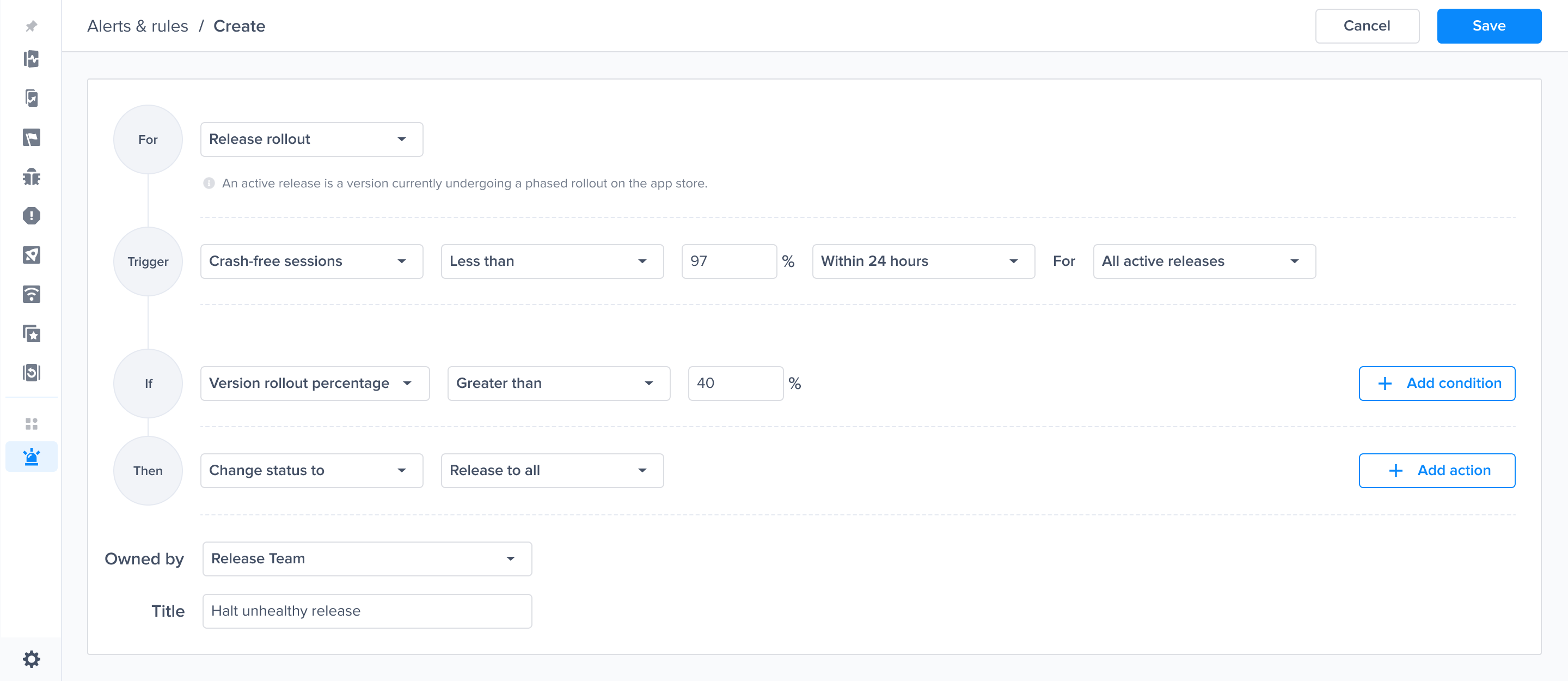
You can set an automation that keeps track of the crash-free sessions for your application, and if a release is performing as well as you expect (e.g., not facing any crashes), you can automatically have it released to all users to quickly increase its adoption.
***Scenario C***:
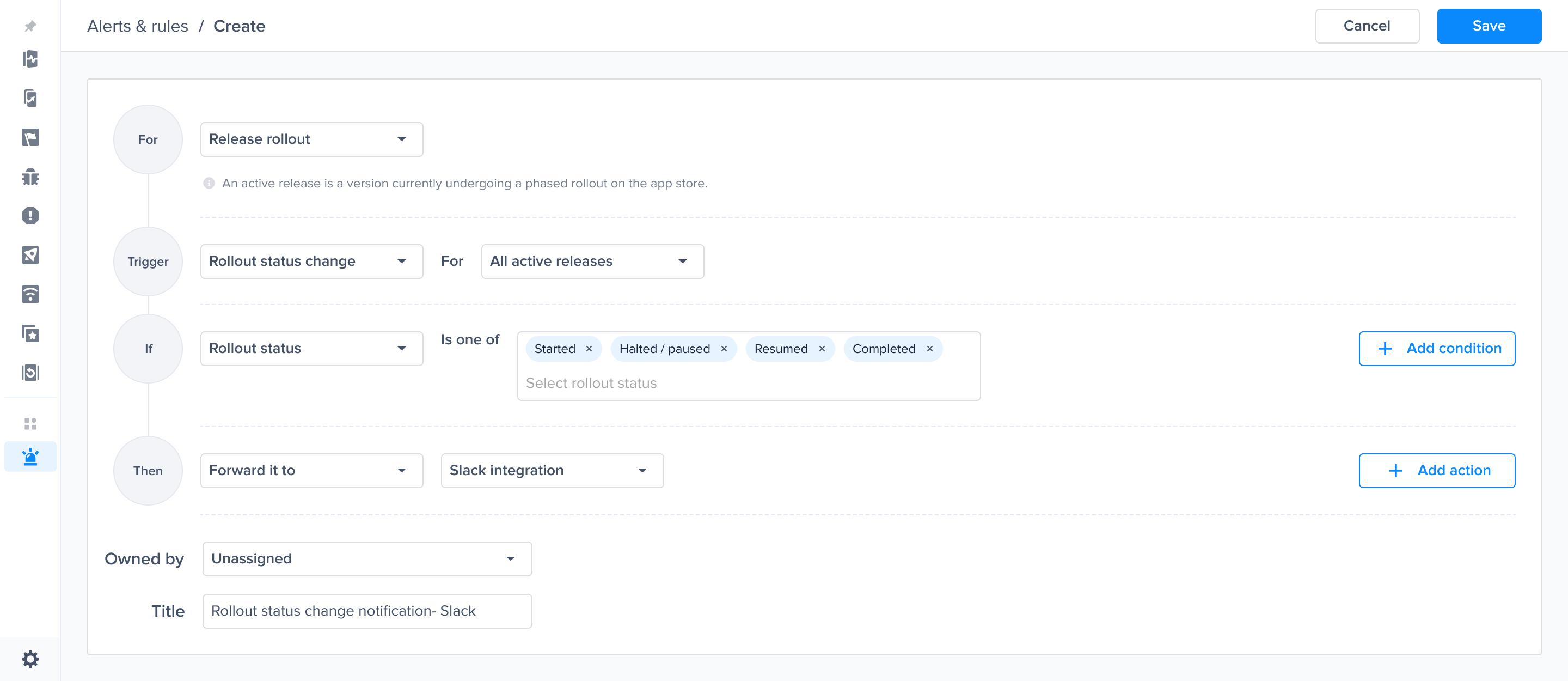
You can stay up to date whenever the rollout status changes to either Started, Halted / Paused, Resumed, or Completed. This can be done by setting up a Slack integration and getting notified on your preferred channel.
***Scenario D***:
You can get a daily update on your release rollout health and progress by sending an e-mail to all team members who are on the dashboard or a selection of them upon your preference.
If you need further assistance in setting up rules, please feel free to contact our support team.
---
# Agent Instructions
This documentation is published with GitBook. GitBook is the documentation platform designed so that both humans and AI agents can read, navigate, and reason over technical content effectively. Learn more at gitbook.com.
## Querying This Documentation
If you need additional information that is not directly available in this page, you can query the documentation by asking a question.
Perform an HTTP GET request on the following URL with the `ask` and `goal` query parameters:
```
GET https://docs.luciq.ai/product-guides-and-integrations/product-guides/automation-and-workflows/alerts-and-rules/alerting-and-automation-for-rollout-management.md?ask=&goal=
```
`ask` is the immediate question: it should be specific, self-contained, and written in natural language.
`goal` is what the user is ultimately trying to achieve, the reason they need the answer. Sharing it helps GitBook give you a better, more relevant answer. A goal is most helpful when it describes the outcome the user wants rather than restating the question. For example, with `ask=how do I create an API token`, a goal like `automate deployments from our CI pipeline` lets GitBook tailor the answer to that use case.
The response will contain a direct answer to the question and relevant excerpts and sources from the documentation.
Use this mechanism when the answer is not explicitly present in the current page, you need clarification or additional context, or you want to retrieve related documentation sections.