> For the complete documentation index, see [llms.txt](https://docs.luciq.ai/llms.txt). Markdown versions of documentation pages are available by appending `.md` to page URLs; this page is available as [Markdown](https://docs.luciq.ai/product-guides-and-integrations/product-guides/ai-features/resolve-agent/source-code-connection-github.md).
# Source Code Connection - GitHub
Connect your GitHub repository to Luciq's Resolve Agent. Enable AI source code analysis to get accurate root cause analysis and fix suggestions.
Resolve Agent is an AI-powered feature designed to help developers quickly resolve app crashes by automating root cause analysis, code fix generation, and pull request creation. To enable Resolve Agent, you need to connect your source code repository to Luciq using the **Luciq CodeLink** GitHub app. This guide walks you through the steps to complete the connection and start using Resolve Agent.
### Why Connect Your Codebase to Luciq?
Connecting your codebase enables Resolve Agent to:
* Analyze crash data and identify the root cause.
* Provide actionable code fix suggestions.
* Help generate pull requests with suggested fixes directly in your repository.
By linking your codebase, you’ll save time on diagnosing and resolving crashes, improve app stability, and reduce operational costs.
#### Step 1: Start the Connection Process
1. Navigate to **Settings → Source Code Management** in the Luciq dashboard.
2. Click on the **Connect** button, within **GitHub** connect widget.
#### Step 2: Authenticate with GitHub
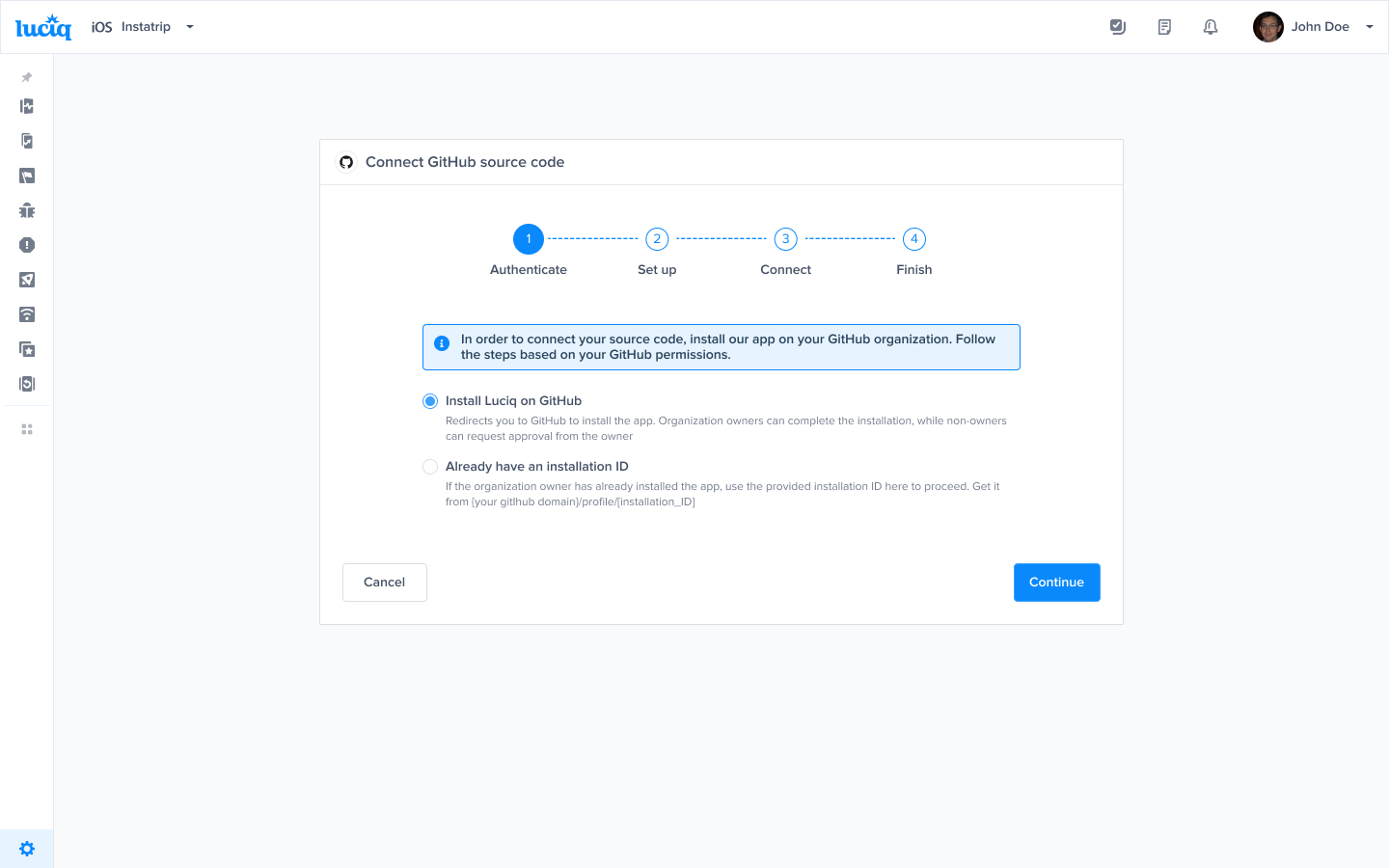
1. You’ll be redirected to the **Connect GitHub Source Code** setup screen.
2. Select "**Install Luciq on GitHub.**"
* This will redirect you to GitHub, where you need to approve the installation.
* If your organization owner has already installed the app, you can use the installation ID instead.
3. Click **Continue** once the installation is approved.
#### Step 3: Select Repository and Branch
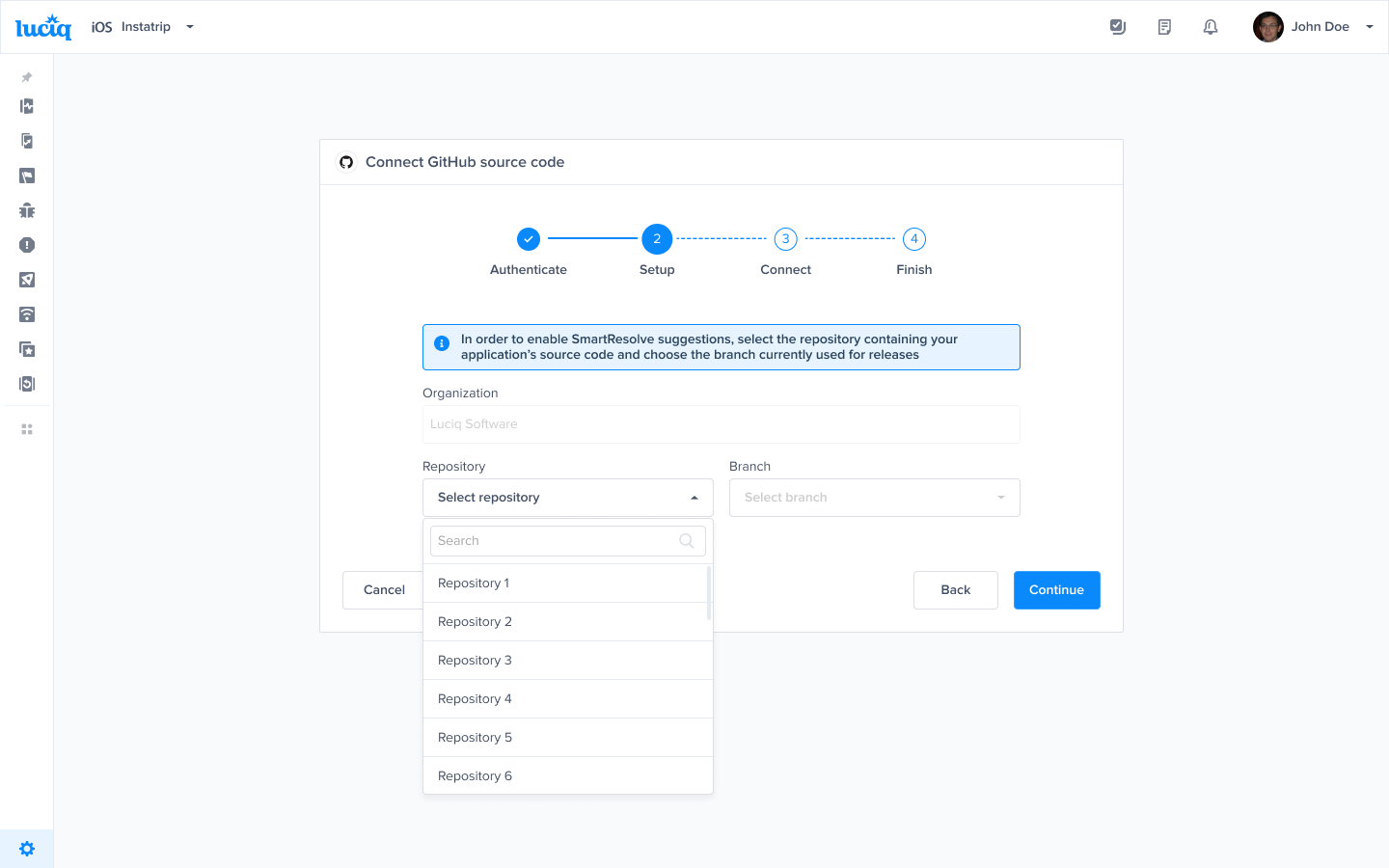
1. After authentication, you’ll be prompted to select the repository and branch where Luciq should analyze and generate code fixes.
2. Choose the correct repository and branch from the dropdown list.
3. Click **Continue** to proceed.
#### Step 4: Connect the Codebase
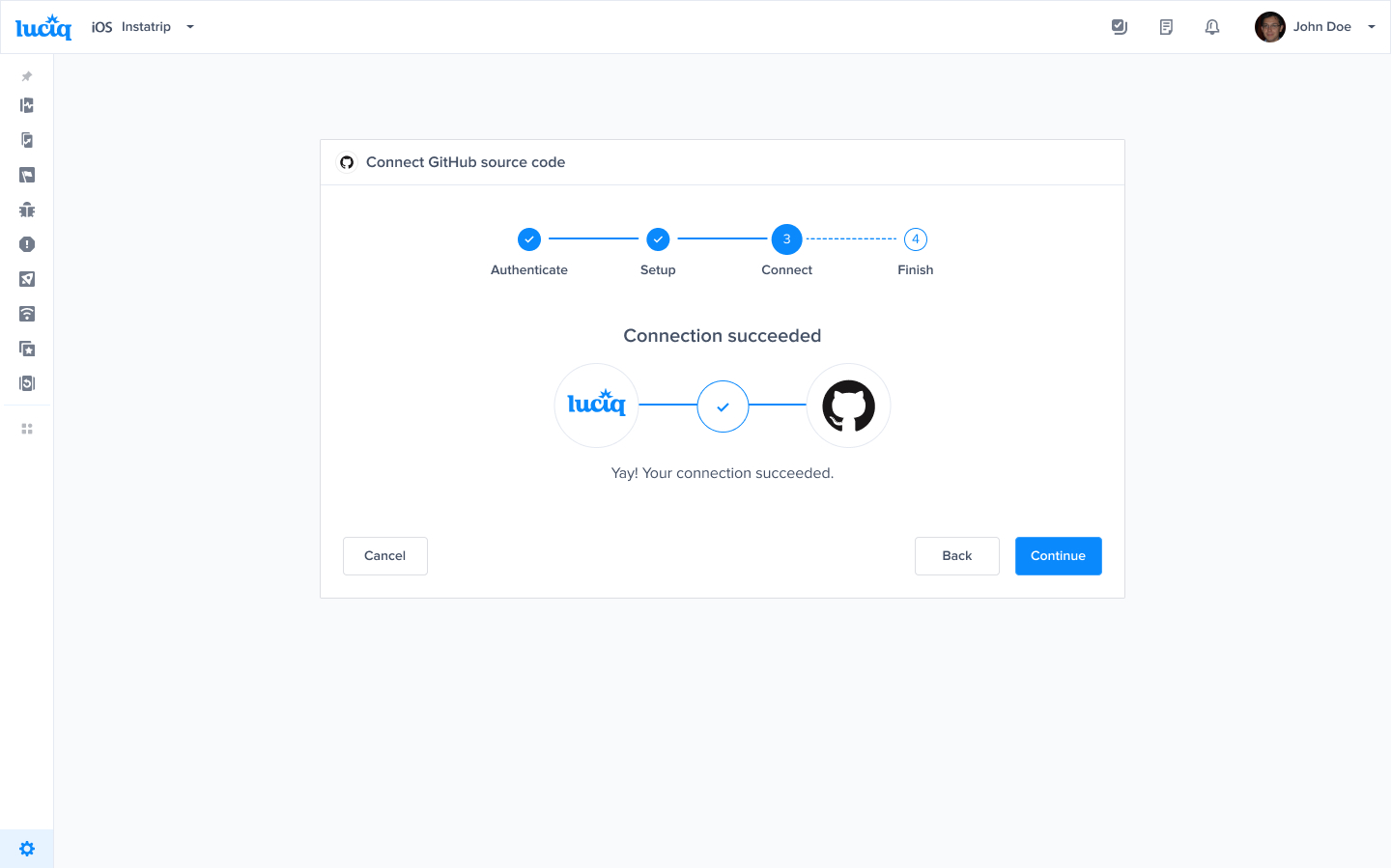
1. Luciq will begin connecting to your GitHub repository.
2. This process may take a few moments.
3. Once completed, you’ll see a success message confirming the connection.
#### Step 5: Verify Connection in Settings
1. Navigate to **Settings → Source Code Management** in the Luciq dashboard.
2. You should see a confirmation that GitHub Connect is set up successfully, showing the organization, repository, and branch.
3. You’re now ready to use Resolve Agent to fix crashes automatically!
#### Next Steps
* After connecting your codebase, you can use Resolve Agent to:
* Analyze crash details and identify root causes.
* Generate up to three suggested code fixes.
* Automatically create a pull request with the suggested fix.
* Review and merge the pull request directly in your repository.
### Troubleshooting
* **Permission Issues**: Make sure you have the necessary permissions to install the GitHub app or contact your organization owner.
* **Repository Not Showing**: Ensure the repository is under the connected GitHub organization and that you have access to it.
* **Connection Errors**: If the connection fails, try reconnecting by first deleting the existing connection and repeating the steps above or checking your GitHub permissions.
---
# Agent Instructions
This documentation is published with GitBook. GitBook is the documentation platform designed so that both humans and AI agents can read, navigate, and reason over technical content effectively. Learn more at gitbook.com.
## Querying This Documentation
If you need additional information that is not directly available in this page, you can query the documentation dynamically by asking a question.
Perform an HTTP GET request on the current page URL with the `ask` query parameter, and the optional `goal` query parameter:
```
GET https://docs.luciq.ai/product-guides-and-integrations/product-guides/ai-features/resolve-agent/source-code-connection-github.md?ask=&goal=
```
`ask` is the immediate question: it should be specific, self-contained, and written in natural language.
`goal` is optional and describes the broader end goal you are ultimately trying to accomplish on behalf of the user. GitBook uses it to tailor the answer towards what is most useful for that goal.
The response will contain a direct answer to the question and relevant excerpts and sources from the documentation.
Use this mechanism when the answer is not explicitly present in the current page, you need clarification or additional context, or you want to retrieve related documentation sections.
.png?alt=media)