> For the complete documentation index, see [llms.txt](https://docs.luciq.ai/llms.txt). Markdown versions of documentation pages are available by appending `.md` to page URLs; this page is available as [Markdown](https://docs.luciq.ai/product-guides-and-integrations/product-guides/ai-features/luciq-mcp-server/claude-connector.md).
# Set Up the Claude Connector
Set up the Claude AI connector for the Luciq MCP Server. Connect Claude to your mobile monitoring data to enable AI-powered debugging workflows.
Add Luciq to Claude as a custom connector and query your crash reports, bug reports, app hangs, and app store reviews in plain language, right inside Claude. Once connected, the Luciq connector is available wherever you use Claude.
{% hint style="info" %}
Custom connectors are available on Claude **Pro**, **Max**, **Team**, and **Enterprise** plans. For Anthropic's reference guide, see [Get started with custom connectors](https://support.claude.com/en/articles/11175166-get-started-with-custom-connectors-using-remote-mcp).
{% endhint %}
## Why connect Luciq to Claude?
* **Works alongside the rest of your stack.** Adding the connector makes Luciq part of your Claude workspace, so Claude can work across your Luciq data and your other connectors, like GitHub, Linear, and Slack, in one place.
* **Not just chat, automate it.** Once connected, anything running in your Claude workspace can query Luciq, including Claude routines and Managed Agents that run unattended. It pairs naturally with the [Anthropic Routine integration](https://docs.luciq.ai/product-guides-and-integrations/integrations/anthropic-routine): a Luciq event triggers your routine, and the routine can then pull live context straight from Luciq before it acts.
* **One setup for the whole team.** On Team and Enterprise plans, an admin adds the connector once and everyone in the organization gets it automatically.
* **Secure by design.** Connections use OAuth and respect your existing Luciq roles and permissions.
### Server URL
```
https://api.luciq.ai/api/mcp
```
That's the only value you need. Luciq signs you in through a secure browser authorization, so you can leave **Advanced settings** empty.
***
## Set it up for your whole team (Team & Enterprise)
An Owner or Primary Owner adds the connector once, and it becomes available to everyone in the organization automatically, like any other company-provided tool.
**Owner or Primary Owner:**
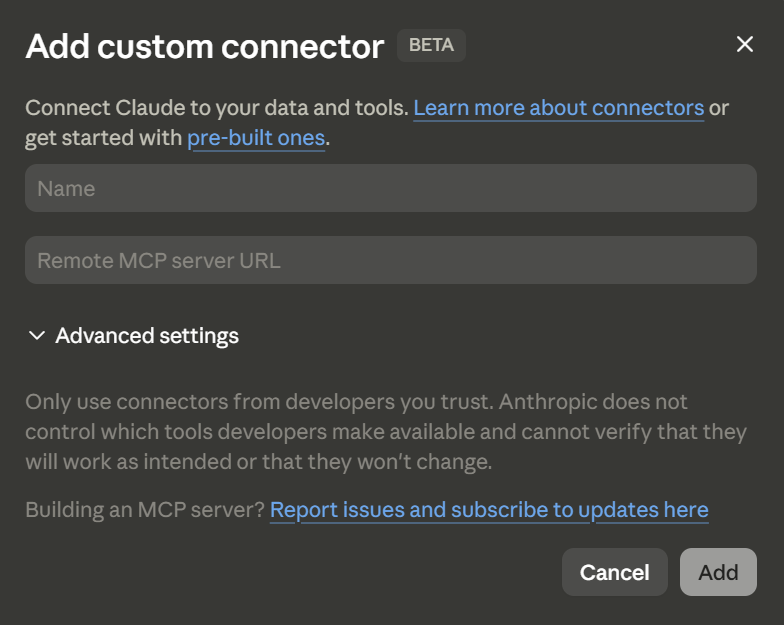
1. Go to **Settings > Organization settings > Connectors**.
2. Click **Add**, hover over **Custom**, and choose **Web**.
3. In **Remote MCP server URL**, paste:
```
https://api.luciq.ai/api/mcp
```
4. (Optional) Name it **Luciq**.
5. Click **Add**.
Adding Luciq as a custom connector in Claude
**Everyone else on the team:**
1. Go to **Customize > Connectors**.
2. Find the **Luciq** connector.
3. Click **Connect** and sign in with your Luciq account to authorize.
***
## Set it up for yourself (Pro & Max)
1. In Claude, open **Customize > Connectors**.
2. Click **+**, then select **Add custom connector**.
3. Enter a **Name** (for example, Luciq) and paste the **Remote MCP server URL**:
```
https://api.luciq.ai/api/mcp
```
4. Click **Add**, then sign in with your Luciq account to authorize.
***
## Use it in a conversation
1. In any chat, click the **+** in the message box.
2. Select **Add connectors** and toggle **Luciq** on.
Then try:
{% hint style="success" %}
"List my applications"
{% endhint %}
If you see your Luciq apps, you're connected and ready to go.
***
## Next steps
* [Use Cases & Workflows](/product-guides-and-integrations/product-guides/ai-features/luciq-mcp-server/use-cases-and-workflows.md) - real debugging workflows with prompt sequences
* [MCP Tools Reference](/product-guides-and-integrations/product-guides/ai-features/luciq-mcp-server/mcp-tools-reference.md) - every tool documented with parameters and examples
* [FAQ & Troubleshooting](/product-guides-and-integrations/product-guides/ai-features/luciq-mcp-server/faq-and-troubleshooting.md) - common issues and how to resolve them
---
# Agent Instructions
This documentation is published with GitBook. GitBook is the documentation platform designed so that both humans and AI agents can read, navigate, and reason over technical content effectively. Learn more at gitbook.com.
## Querying This Documentation
If you need additional information that is not directly available in this page, you can query the documentation dynamically by asking a question.
Perform an HTTP GET request on the current page URL with the `ask` query parameter, and the optional `goal` query parameter:
```
GET https://docs.luciq.ai/product-guides-and-integrations/product-guides/ai-features/luciq-mcp-server/claude-connector.md?ask=&goal=
```
`ask` is the immediate question: it should be specific, self-contained, and written in natural language.
`goal` is optional and describes the broader end goal you are ultimately trying to accomplish on behalf of the user. GitBook uses it to tailor the answer towards what is most useful for that goal.
The response will contain a direct answer to the question and relevant excerpts and sources from the documentation.
Use this mechanism when the answer is not explicitly present in the current page, you need clarification or additional context, or you want to retrieve related documentation sections.