> For the complete documentation index, see [llms.txt](https://docs.luciq.ai/llms.txt). Markdown versions of documentation pages are available by appending `.md` to page URLs; this page is available as [Markdown](https://docs.luciq.ai/product-guides-and-integrations/product-guides/ai-features/luciq-lens.md).
# Luciq Lens
Use Luciq Lens to get AI-powered visual analysis of your mobile app's UI. Detect layout problems and rendering glitches automatically with Detect Agent.
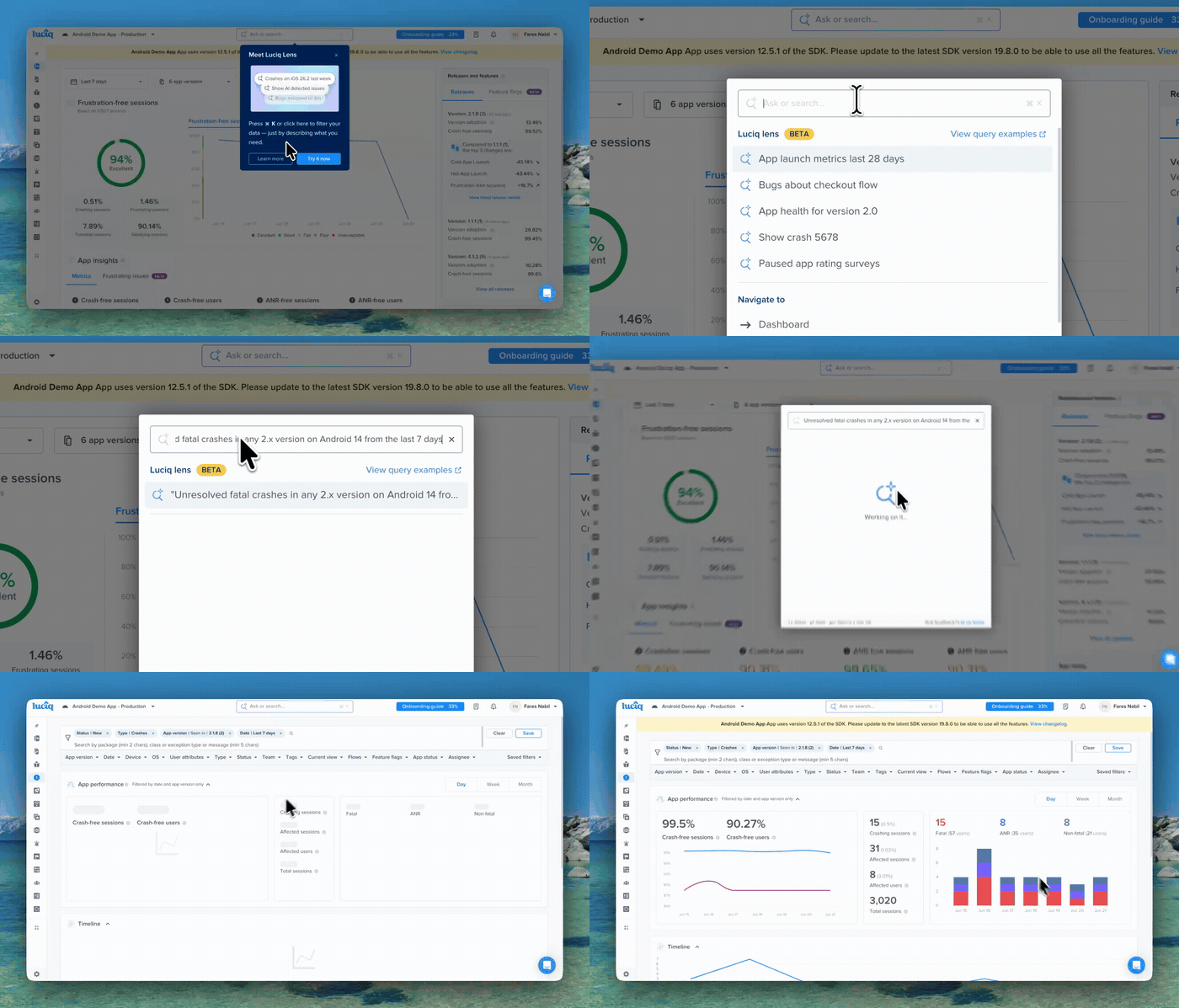
Luciq Lens is a natural-language search bar built into the dashboard. Instead of clicking through dropdowns to narrow down crashes by version, status, and device — or hunting for the right settings page — you describe what you want, and Lens navigates there with the filters already applied.
{% hint style="info" %}
**Available on all plans, in beta.** Luciq Lens is enabled by default for every Luciq account, with no setup required.
{% endhint %}
### Opening Lens
Lens lives at the top of every dashboard page.
There are two ways to open it:
* Press **⌘K** on macOS or **Ctrl+K** on Windows and Linux.
* Click the search icon in the dashboard header.
### Using Lens
#### 1. Ask a question
Type what you're looking for into the **Ask or search…** field and press Enter. Phrasing is flexible — Lens is built around natural language, not a query syntax.
* *"Open bugs assigned to me"*
* *"Fatal crashes today"*
* *"Frustrating sessions on iOS 17 last 7 days"*
* *"Take me to network URL patterns"*
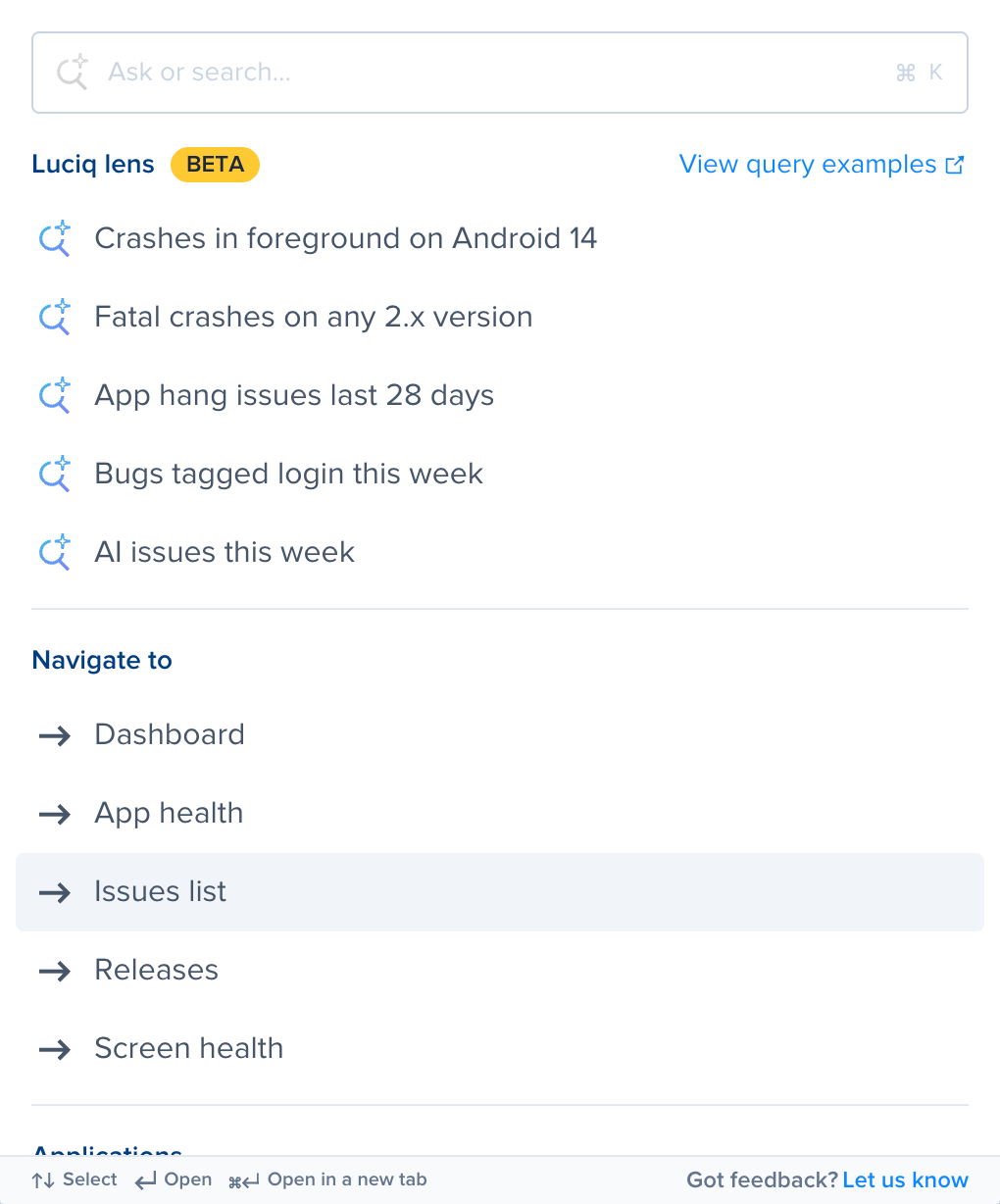
If you're not sure where to start, open Lens without typing anything — it surfaces a handful of clickable example queries to show you what it can do.
#### 2. Review and confirm
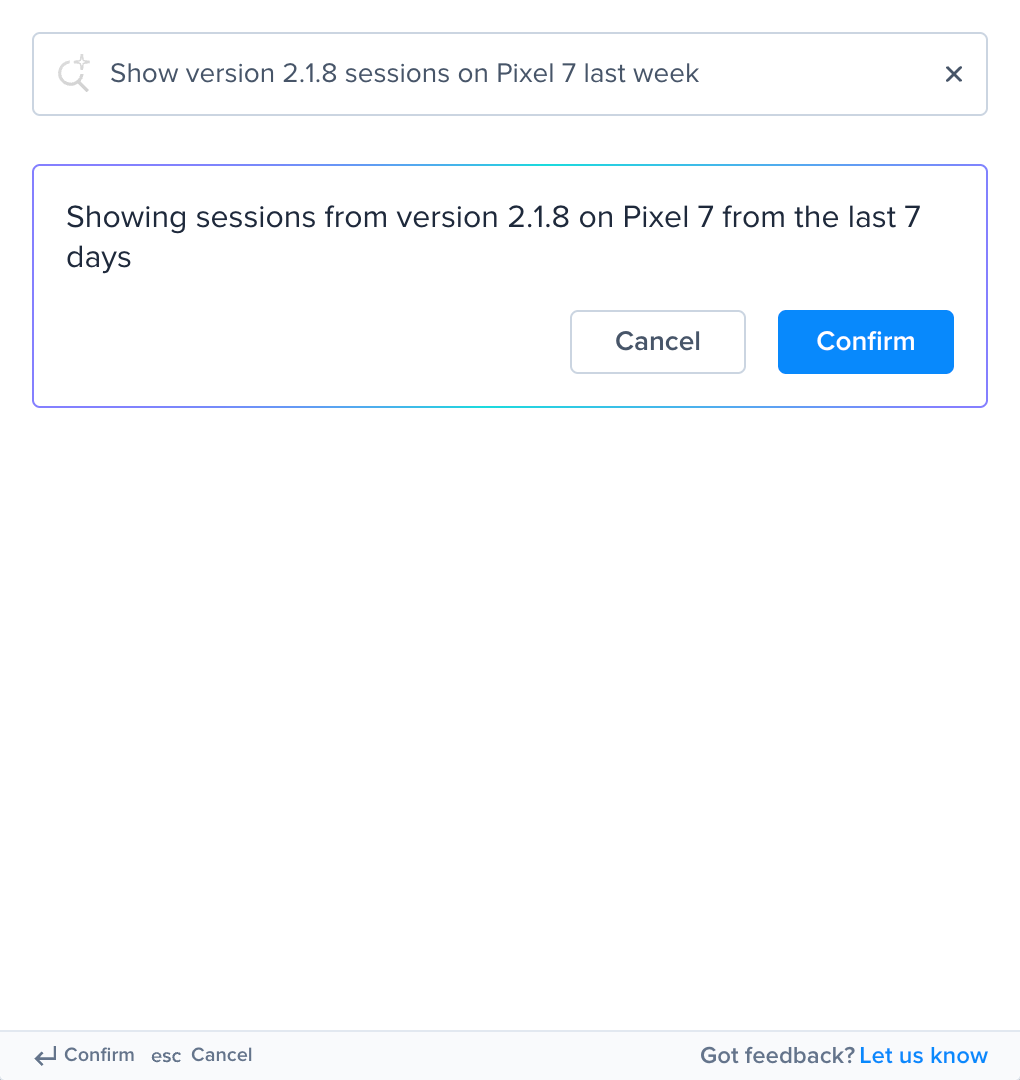
Lens shows a confirmation card describing what it's about to do — for example, *"Navigating to Crashes filtered by Status and App Version."* Click **Confirm** (or press Enter again) to navigate, or **Cancel** to refine your query without leaving the modal.
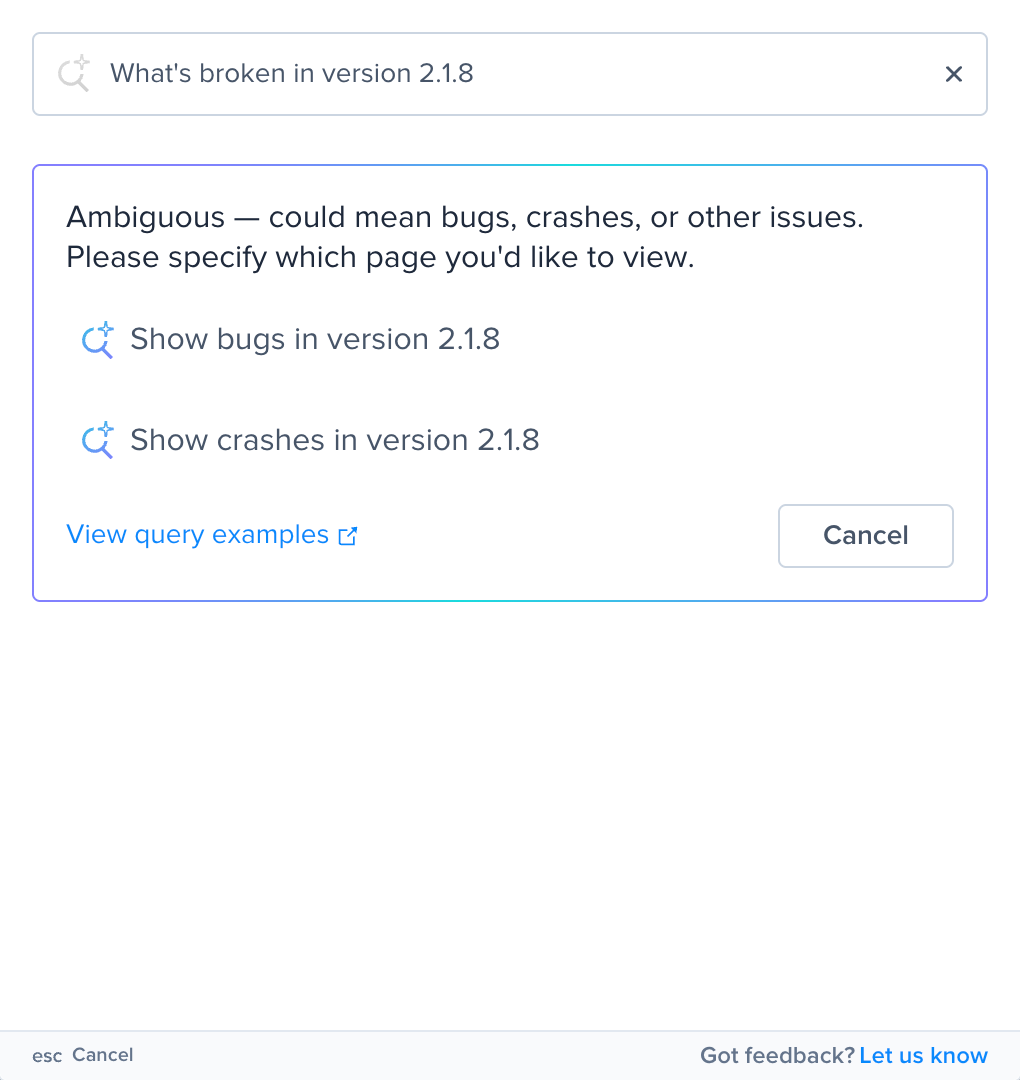
If Lens isn't sure what you meant, it tells you why and suggests a few clickable queries to try instead.
### What you can ask
Lens covers the main areas of the Luciq dashboard — Bugs, Crashes, Session Replay, APM, Releases, App Health, Issues, AI Issues, Surveys, and Settings. Inside each one, it understands the same filters you'd reach for by hand: app version, date range, status, assignee, OS, device, tags, and the rest. If you can filter to it from the UI, you can usually ask Lens for it in words — it's a navigation tool, not one that acts on records or answers analytical questions.
Lens also handles direct navigation to specific records — for example, *"Open bug 1234"* or *"Show crash 5678"*.
### Query examples
A few queries that show what Lens can do day to day:
**Triage your day**
* *"Open bugs assigned to me"*
* *"Fatal crashes since yesterday"*
* *"Bug reports tagged login this week"*
**Investigate a release**
* *"Fatal crashes in version 2.1"*
* *"ANRs in 3.0.4 last 24 hours"*
* *"Network failures since the 2.5 release"*
**Track customer impact**
* *"Frustrating sessions from Germany today"*
* *"Crashing sessions on iPhone 15"*
* *"Sessions with frustrating UI hangs on Android 14"*
**Spot patterns**
* *"Out of memory crashes last 7 days"*
* *"App hangs on Samsung devices"*
* *"NullPointerException crashes in foreground"*
* *"Crashes affecting more than 100 users this week"*
**Combine multiple filters**
Lens shines when you stack filters that would normally take several clicks to set up by hand.
* *"Critical open bugs assigned to me from this week"*
* *"Unresolved fatal crashes in version 2.1 from the last 24 hours"*
* *"Frustrating sessions from Germany on iPhone 15 this week"*
* *"ANRs in foreground on Android 14 since the 3.0 release"*
* *"Bugs tagged checkout, forwarded to Jira, in version 2.5"*
**Jump straight to a record or page**
* *"Open bug 4521"*
* *"Show crash 8821"*
* *"Take me to network URL patterns"*
* *"Open frustration impact settings"*
---
# Agent Instructions
This documentation is published with GitBook. GitBook is the documentation platform designed so that both humans and AI agents can read, navigate, and reason over technical content effectively. Learn more at gitbook.com.
## Querying This Documentation
If you need additional information that is not directly available in this page, you can query the documentation by asking a question.
Perform an HTTP GET request on the following URL with the `ask` and `goal` query parameters:
```
GET https://docs.luciq.ai/product-guides-and-integrations/product-guides/ai-features/luciq-lens.md?ask=&goal=
```
`ask` is the immediate question: it should be specific, self-contained, and written in natural language.
`goal` is what the user is ultimately trying to achieve, the reason they need the answer. Sharing it helps GitBook give you a better, more relevant answer. A goal is most helpful when it describes the outcome the user wants rather than restating the question. For example, with `ask=how do I create an API token`, a goal like `automate deployments from our CI pipeline` lets GitBook tailor the answer to that use case.
The response will contain a direct answer to the question and relevant excerpts and sources from the documentation.
Use this mechanism when the answer is not explicitly present in the current page, you need clarification or additional context, or you want to retrieve related documentation sections.