> For the complete documentation index, see [llms.txt](https://docs.luciq.ai/llms.txt). Markdown versions of documentation pages are available by appending `.md` to page URLs; this page is available as [Markdown](https://docs.luciq.ai/product-guides-and-integrations/product-guides/ai-features/detect-agent/broken-functionality.md).
# Broken Functionality
AI Broken Functionality builds on Session Replay to find dead buttons, forms that fail to submit, and flows that break mid-process.
### Overview
**AI Broken Functionality** is a feature built on top of Session Replay. Once enabled, it identifies issues in your app’s functionality that affect user experience, such as:
* Buttons or links that don’t respond
* Forms that fail to submit
* Flows that break mid-process
* Unexpected crashes or error messages
* Inconsistent app behavior compared to expected flows
Detected problems are surfaced as **Broken Functionality** events, which can be reviewed alongside normal session data.
### How to Use
You need to have the **Session Replay** product enabled to be able to enable the AI Broken Functionality feature. Once the feature is enabled, you follow these steps:
#### Step-by-Step
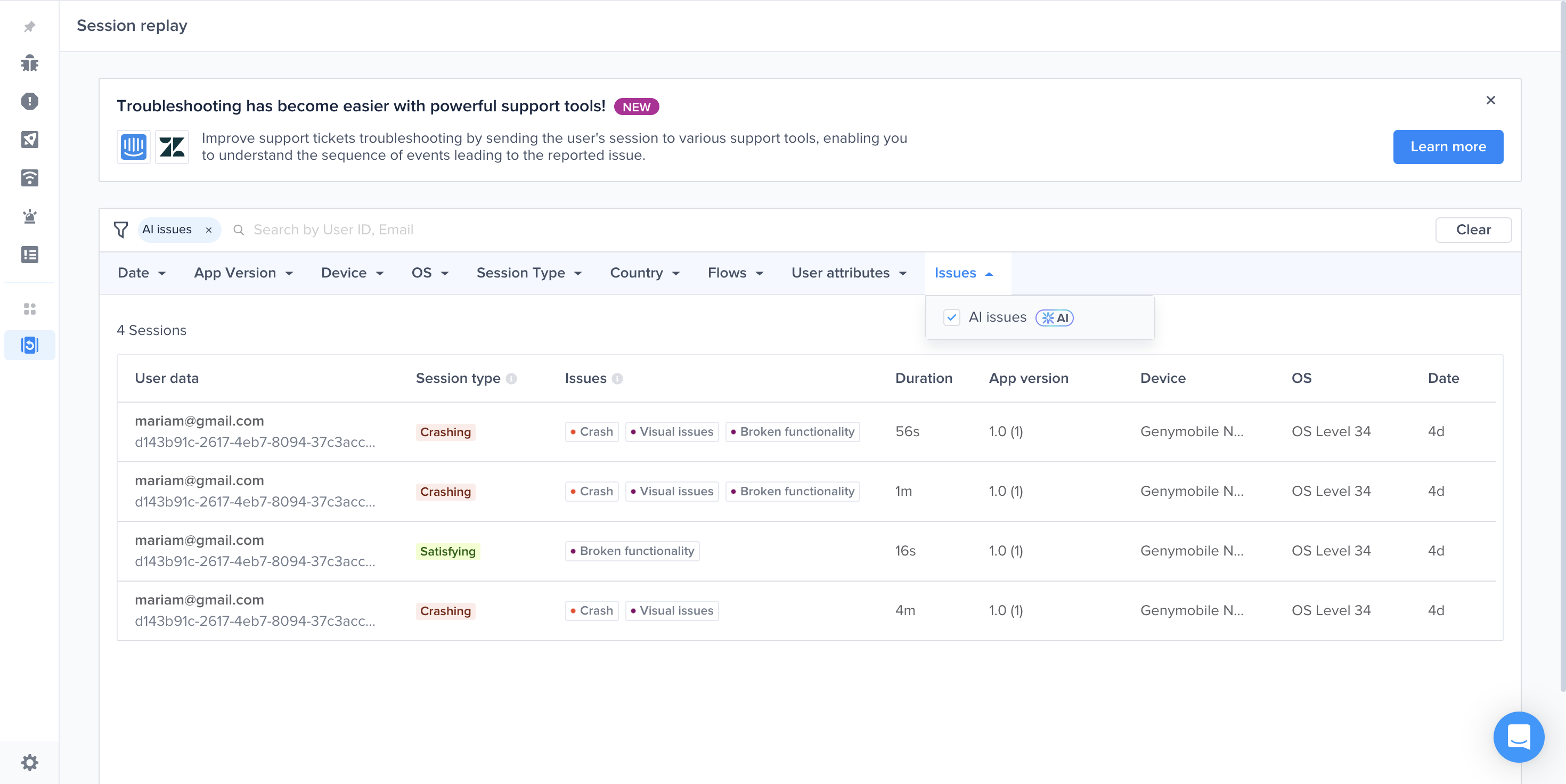
1. On the Session Replay list, use the new “AI Issues” filter to only show sessions flagged with AI issues including broken functionality.
2. Open a session with flagged issues. Two ways to navigate:
* Scroll through the event timeline to find the broken functionality event.
* Click the purple dot on the timeline to jump directly to the issue’s screenshot view.
* Use the new AI issues filter, you can select “Broken Functionality”
3. Viewing a Broken Functionality event shows:
* The exact screenshot where the issue was detected
* A descriptive summary of the issue (e.g. “Subtotal is miscalculated”)
### Grouping
Broken functionality issues that describe the same underlying breakdown are collected into a single group. A problem that shows up across many sessions appears once, with a count, instead of as a long run of near-identical entries.
#### What gets grouped
A new broken functionality issue is compared against the representative issue of each existing group, based on what the issue actually describes: the breakdown itself, its likely root cause, and the flow the user was in when it was captured. A close enough match joins that group. Anything else stays on its own as a single issue.
#### What you see
* On the AI Issues page, a group appears as one row carrying its shared description and the number of occurrences it holds. An issue that hasn't matched anything shows as **Single**.
* Sort by occurrences to bring the most widespread issues to the top.
* Open a group's occurrences drawer to see every occurrence it holds, then open any one of them for the exact screenshot and the session it came from. This is how you check what went wrong for one specific user without losing the grouped view.
* Broken functionality issues also appear in the [Issues List](/product-guides-and-integrations/product-guides/inbox/issues-list.md) on the Inbox page, where the row's **Type** reads either **Single** or **Group** with its occurrence count.
#### Ungrouping
If an occurrence doesn't belong in a group, select it in the occurrences drawer and choose **Ungroup**. You'll be asked why before the change is applied, with two options: **Issues are unrelated**, or **Duplicate of another group**.
{% hint style="info" %}
The reason you pick is used to improve grouping accuracy over time, so it's worth choosing the one that fits rather than the first one on the list.
{% endhint %}
The first occurrence in a group cannot be ungrouped.
### Feedback
Every broken functionality issue can be marked valid or not valid, and that feedback feeds back into detection accuracy.
* **Valid.** Marking an issue as valid gives you a **Report bug** link to turn the detection into a bug report, or **View bug** if a report already exists for it.
* **Not valid.** Marking an issue as not valid opens a short form: pick a reason (**Behavior was expected**, **User aborted the flow**, or **Evidence doesn't support it**), optionally add a comment, and submit. You then get a **Hide issue** link to take it off your list.
Feedback controls are available to members with permission to manage Detect Agent.
### How It Works
* No instrumentation changes required - once enabled, existing session screenshots, user flow and app behavior are routed to broken functionality analysis pipeline.
* Screenshots, user flow and app behavior data are passed through an AI model for analysis.
* When functional breakdowns that didn’t result in crashes or performance issues are detected, a Broken functionality event is emitted in the timeline at the same timestamp as the screenshot.
* The event payload includes descriptive text of the breakdown.
* On the front end, UI surfaces let you filter and inspect these events alongside other session data.
### Compatibility & Requirements
* Supported Platforms: All mobile platforms currently supported by Luciq (iOS, Android, React Native, etc.)
* Prerequisite: Session Replay must be enabled
* No SDK version upgrade needed (feature is server-side)
### Limits & Quotas
* Per-account monthly cap: Up to **1,000 analyzed sessions**
* Maximum broken functionality issues generated per month: 1,000
### Getting Access
* Beta / Invite-only: At present, the feature is available by invitation only.
* To request access:
* Submit a request via Intercom / support chat
* If you're an Enterprise customer, reach out to your customer success manager to be added to the waitlist.
* Once approved, the feature will be toggled on from the backend - no SDK changes are needed.
---
# Agent Instructions
This documentation is published with GitBook. GitBook is the documentation platform designed so that both humans and AI agents can read, navigate, and reason over technical content effectively. Learn more at gitbook.com.
## Querying This Documentation
If you need additional information that is not directly available in this page, you can query the documentation by asking a question.
Perform an HTTP GET request on the following URL with the `ask` and `goal` query parameters:
```
GET https://docs.luciq.ai/product-guides-and-integrations/product-guides/ai-features/detect-agent/broken-functionality.md?ask=&goal=
```
`ask` is the immediate question: it should be specific, self-contained, and written in natural language.
`goal` is what the user is ultimately trying to achieve, the reason they need the answer. Sharing it helps GitBook give you a better, more relevant answer. A goal is most helpful when it describes the outcome the user wants rather than restating the question. For example, with `ask=how do I create an API token`, a goal like `automate deployments from our CI pipeline` lets GitBook tailor the answer to that use case.
The response will contain a direct answer to the question and relevant excerpts and sources from the documentation.
Use this mechanism when the answer is not explicitly present in the current page, you need clarification or additional context, or you want to retrieve related documentation sections.