# Welcome to Luciq's Docs

{% columns %}
{% column valign="middle" %}

## What are you <mark style="color:$primary;">building</mark> today?&#x20;

Ask anything about integrating Luciq's SDKs and agents. From a one-line install to deep platform tuning.
{% endcolumn %}

{% column %}

<div align="right"><figure><img src="/files/lDWbQj0id918yVd3RjxC" alt=""><figcaption></figcaption></figure></div>
{% endcolumn %}
{% endcolumns %}

<button type="button" class="button primary" data-action="ask" data-icon="gitbook-assistant">Ask our docs AI</button>

***

{% hint style="warning" %}
As part of Instabug’s rebrand to Luciq, the Instabug APIs are being deprecated. For a limited time, the Instabug API documentation will remain available [here](https://instabug-docs.luciq.ai/).
{% endhint %}

### Jump right in

<table data-card-size="large" data-view="cards"><thead><tr><th></th><th data-hidden data-card-cover data-type="files"></th><th data-hidden></th><th data-hidden data-card-target data-type="content-ref"></th></tr></thead><tbody><tr><td><strong>iOS</strong></td><td><a href="/files/IzfxgtTwfQmb91bbaTIu">/files/IzfxgtTwfQmb91bbaTIu</a></td><td>Setup and Product Guides</td><td><a href="https://docs.luciq.ai/ios">https://docs.luciq.ai/ios</a></td></tr><tr><td><strong>Android</strong></td><td><a href="/files/aYaC8KxPwj4rh5LsKjFA">/files/aYaC8KxPwj4rh5LsKjFA</a></td><td></td><td><a href="https://docs.luciq.ai/android">https://docs.luciq.ai/android</a></td></tr><tr><td><strong>React Native</strong></td><td><a href="/files/3ubU12rtyQYsYwWmZ0iU">/files/3ubU12rtyQYsYwWmZ0iU</a></td><td></td><td><a href="https://docs.luciq.ai/react-native">https://docs.luciq.ai/react-native</a></td></tr><tr><td><strong>Flutter</strong></td><td><a href="/files/HJlFcwrKyU1a7pOlbEHt">/files/HJlFcwrKyU1a7pOlbEHt</a></td><td></td><td><a href="https://docs.luciq.ai/flutter">https://docs.luciq.ai/flutter</a></td></tr><tr><td>API Reference</td><td></td><td></td><td><a href="https://docs.luciq.ai/references">https://docs.luciq.ai/references</a></td></tr></tbody></table>


# Introduction

Welcome to the Luciq Docs, where you can find all the resources you need to start debugging faster and building better apps. Luciq includes capabilities for Bug Reporting, Crash Reporting, and App Performance Monitoring.

Navigate the docs using the sidebar on the left-hand side to jump to any functionality or specific API that you're looking for. All the API methods that can be used in the SDK can be found in these sections with explanations about what they do and how to use them.

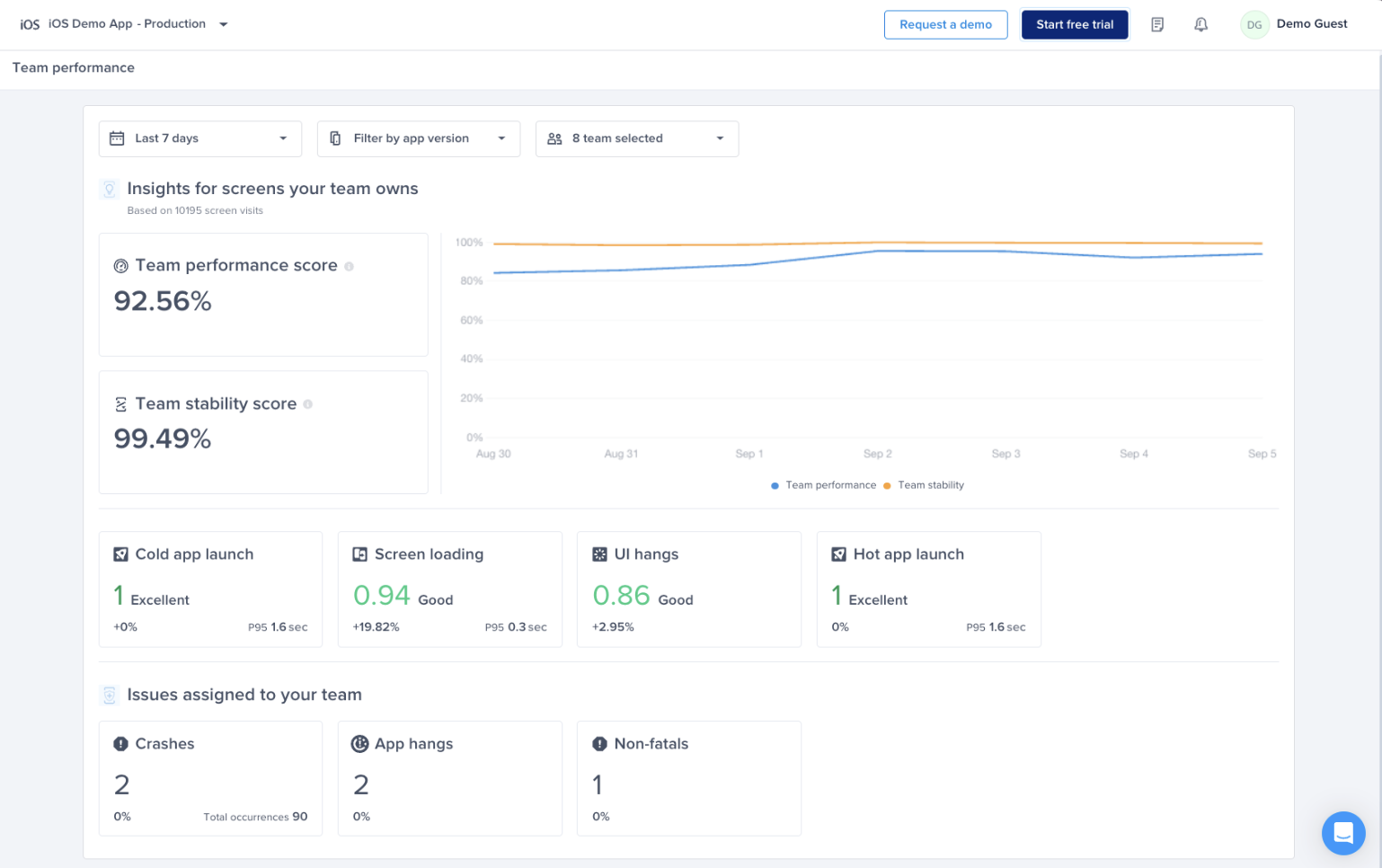
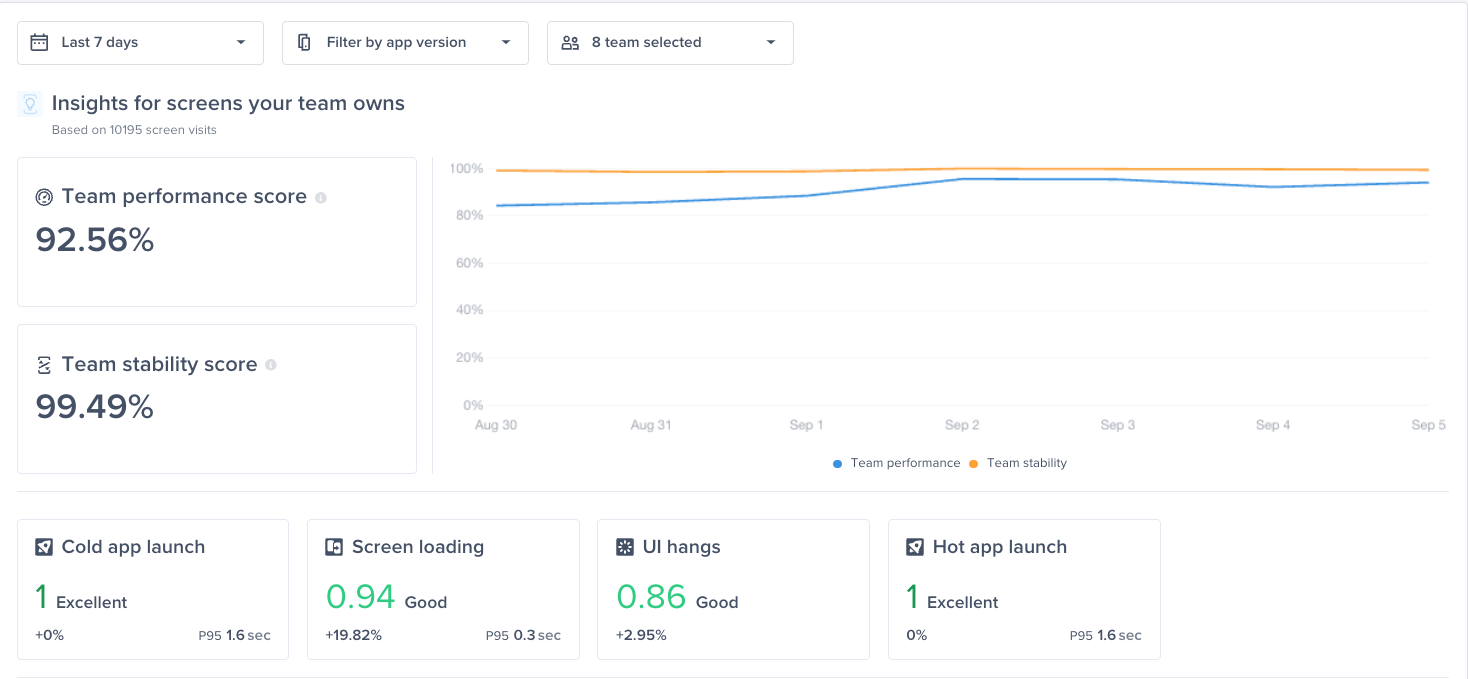
You can also find information in these docs about the data found in [your dashboard](https://demo-dashboard.luciq.ai/applications/ios-demo-app/production/app-health?filters=%7B%22date_ms%22:%7B%22gte%22:1758240000000,%22lte%22:1758844799999,%22shortcutLabel%22:%22Last%207%20days%22%7D,%22app_version%22:%22top_releases%22%7D).

**Supported Platforms**\
Luciq supports many different platforms. To get started with any of them, just click on one of the relevant links below:

1. [**iOS**](/ios/setup-luciq-for-ios)
2. [**Android**](/android/set-up-luciq-for-android)
3. [**React-Native**](/react-native/setup-luciq-for-react-native)
4. [**Flutter**](/flutter/setup-luciq-for-flutter)


# Migrate Instabug SDK To Luciq SDK

Welcome to the next chapter of our journey together. As you may know, Instabug is evolving. We are thrilled to introduce Luciq, our new identity as the Agentic Observability Platform for Mobile.

This is more than just a name change; it's a strategic evolution of our entire platform, designed to empower you to spend less time firefighting, and more time innovating the things that matter. To deliver on this new vision, our SDK has been completely rebranded. This guide will walk you through the simple, one-time process of migrating your application from the legacy Instabug SDK to the new Luciq SDK.

### Why Migrate to the Luciq SDK?

Upgrading ensures you stay on the edge of mobile observability and continue to receive the full value of our platform. By migrating, you will:

* **Stay Up-to-Date:** Starting today, the legacy Instabug SDK will no longer receive new features or product updates. Critical updates and hotfixes will continue but only until January 2026 - after which that ends. Beyond then, it will continue to work normally as is, but migrating ensures you are on the actively maintained and evolving platform.
* **Unlock New AI-Powered Features:** All future innovation, including our new assistive AI Agents and performance improvements, will be released exclusively on the Luciq SDK.
* **Align with Our Future Vision:** The Luciq SDK is the new foundation of our platform. Upgrading ensures your application is ready for the future of agentic observability and the powerful new workflows we're building.

***

### What to Expect During the Migration?

We have invested heavily in making this a low-effort, predictable process for your development team.

This is a one-time breaking change that involves updating your application's dependency from Instabug to Luciq, and renaming all API calls. For the vast majority of projects, the process is straightforward and can be completed quickly.

**The High-Level Steps:**

* **Update Your Dependency:** Change your project's configuration (e.g., Podfile, build.gradle) to point to the new Luciq SDK package.
* **Run the Automated Migration Script:** We've built a powerful script for each platform that handles roughly 90% of the required code changes automatically.
* **Review & Test:** Follow our platform-specific guide (guides linked below) to handle any edge cases, review the automated changes, and test your application.

For a medium-complexity project, we estimate the entire process, including running the script and testing, to be around **2-3 hours.**

***

### Your Platform-Specific Migration Path

To get started, please select the detailed, step-by-step guide for your specific platform.

**Safety First:** This is a one-time migration that will modify your source code. Before you begin, it is **critical** that you commit all your work to a version control system like Git. This ensures you have a safe backup and can easily review all changes before finalizing them.

Each platform guide begins with a preflight checklist, instructions for using the automated script, and full mapping tables for all API changes - should you proceed with a manual migration or need to fallback to it for overtly complex projects.

At a glance, here are the key areas that will be updated for each platform:

| **Platform**     | **Key Files & Areas Affected**                                     |
| ---------------- | ------------------------------------------------------------------ |
| **iOS**          | `Podfile, .swift/.m files, info.plist`                             |
| **Android**      | `build.gradle, .kt/.java files, AndroidManifest.xml`               |
| **React Native** | `package.json, .js/.ts files, plus all native iOS & Android files` |
| **Flutter**      | `pubspec.yaml, .dart files, plus all native iOS & Android files`   |

Below, you can find the detailed guide for each of our supported platforms:

1. [**iOS Migration Guide**](/ios/ios-luciq-migration)**:** Migrate your CocoaPods/SPM dependency and update your code from `Instabug.*` and the `IBG*` prefix to `Luciq.*` and the new `LCQ*` prefix.
2. [**Android Migration Guide**](/android/android-luciq-migration)**:** Migrate your Maven dependency and Gradle plugin, and update your code from `Instabug.*` and the `IBG*` prefix to `Luciq.*`.
3. [**React Native Migration Guide**](/react-native/react-native-luciq-migration)**:** Migrate your npm package from `instabug-reactnative` to `@luciq/react-native` and update your JavaScript and native code.
4. [**Flutter Migration Guide**](/flutter/flutter-luciq-migration)**:** Migrate your pub.dev package from `instabug_flutter` to `luciq_flutter` and update your Dart code.

<br>


# Integrate Luciq SDK Using AI Coding Agents

### Introduction

We now offer customers the ability to instrument the Luciq SDK using their favorite AI coding agents like Cursor or Claude. This is done through a guided, agent-driven workflow that fetches & integrates the latest Luciq SDK end-to-end, then wires mandatory & optional configurations to your application, all while asking for confirmation before altering your code.

### How It Works?

The workflow consists of `.md` instruction files for each platform, they can be found at:

* [Android AI Integration Guide](/android/set-up-luciq-for-android/integrate-luciq-on-android/luciq-ai-android-guide)
* [iOS AI Integration Guide](/ios/setup-luciq-for-ios/integrate-luciq-on-ios/luciq-ai-ios-guide)

These `.md` files can then be used to prompt the coding agent to explicitly follow them, for example, tell your agent something like:

integrate luciq ios sdk following the instructions at \[link to ios guide]

{% hint style="warning" %}
Although the more recommended and less hallucination-prone approach is to copy the `.md` contents of the two guides linked above into your agent conversation directly for it to follow.
{% endhint %}

Then ride the flow, answer the decision prompts, and verify your integration at the end.

### What It Does?

{% stepper %}
{% step %}
**Core workflow**

* Finds your app token
  * Reads from Luciq MCP when available, or
  * Prompts you to paste the token (with guidance on where to find it in the dashboard).
* Detects how your app is built
  * iOS: detects SPM / CocoaPods / Carthage / manual.
  * Android: detects Gradle.
  * If multiple/none, it asks you which one to use.
* Pins and installs the SDK
  * Fetches the latest released version from GitHub Releases.
  * Adds the Luciq dependency using that exact version.
* Initializes the SDK with your preferred invocation
  * Lets you choose from: shake, screenshot, floatingButton, or manual only.
  * Defaults to shake + screenshot if no selection is made.
    {% endstep %}

{% step %}
**Optional flow (user prompted)**

* Initializes the SDK with your preferred invocation
  * Lets you choose from: shake, screenshot, floatingButton, or manual only.
  * Defaults to shake + screenshot if no selection is made.
* Network logging & redaction
  * Turn automatic capture on/off.
  * Configure masking rules for headers (e.g. Authorization, Cookies) and body fields (e.g. password, token).
  * Installs the right interceptor/handler so those fields are redacted.
* Screenshot masking for ReproSteps
  * Configure which UI elements to blur in screenshots:
    * Text inputs
    * Labels/buttons
    * Images/media
    * Or a combination of the above.
* User identification
  * Helps the agent find login and logout flows.
  * Adds identifyUser(id, email, name) for these events so reports are tied back to your users.
* Wrap-up & validation
  * Runs the appropriate build command.
  * Prints a config summary and prompts you to:
    * Trigger Luciq in the app (shake/screenshot/floating button).
    * Submit a test report.
    * Verify it in the Luciq dashboard.
      {% endstep %}
      {% endstepper %}

Example on optional feature prompting:

![](/files/88ca84d3bd4ceccd50124f3e9b8c74268de931d9)

### Prerequisites

* You have a Luciq project & app token.
* You’re using a supported package manager:
  * Android: Gradle
  * iOS: SPM, CocoaPods, Carthage, or XCFramework manual integration
* (Optional but recommended): [Luciq MCP Server](broken://spaces/AM8wNfllcup3GnWJ1WtW/pages/T1gGOduIeI8YmOww0F1A) installed & configured (also helps the agent auto-discover app tokens).
* You’re running an AI coding agent that can read project files and .md instructions (e.g. Cursor, Claude Code).

### What's next

Once Luciq is integrated, the same AI coding agent can also debug crashes, hangs, and user-reported bugs end to end, pulling the production context from your Luciq workspace and proposing fixes grounded in real evidence.

That workflow is packaged as an [Agent Skill](/product-guides-and-integrations/product-guides/ai-features/agent-skills), a small set of curated instruction files that any agent supporting the [Agent Skills](https://agentskills.io) format can follow.

* [`luciq-debug`](/product-guides-and-integrations/product-guides/ai-features/agent-skills/luciq-debug). Investigate any production signal (crash, hang, bug) and propose a fix.
* [`luciq-migrate`](/product-guides-and-integrations/product-guides/ai-features/agent-skills/luciq-migrate). Move from the legacy Instabug SDK to Luciq, or upgrade between SDK versions.
* See the [Agent Skills index](/product-guides-and-integrations/product-guides/ai-features/agent-skills) for the full list.


# Product Guides


# Getting Started with Luciq


# App Health Dashboard

### Overview

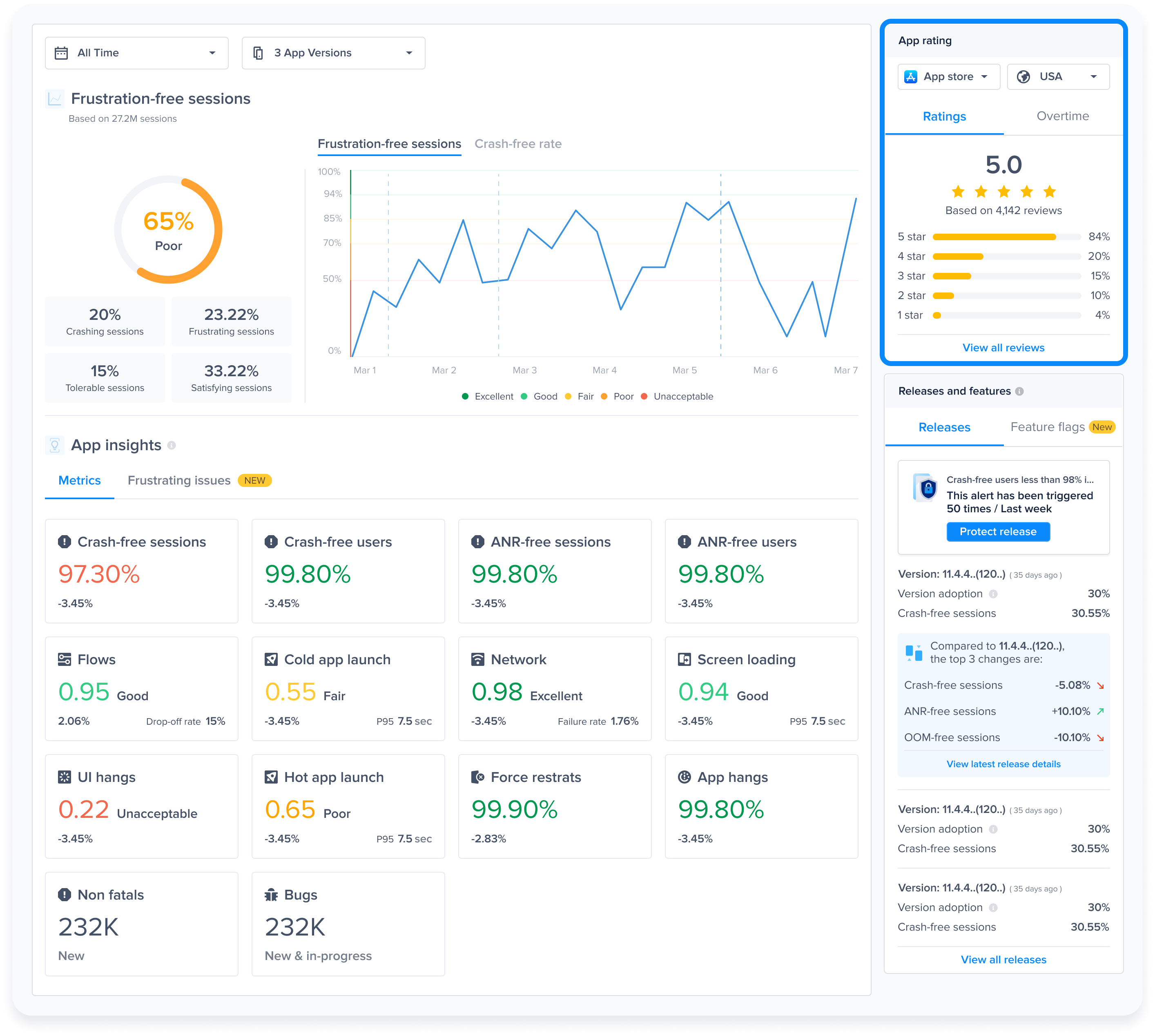
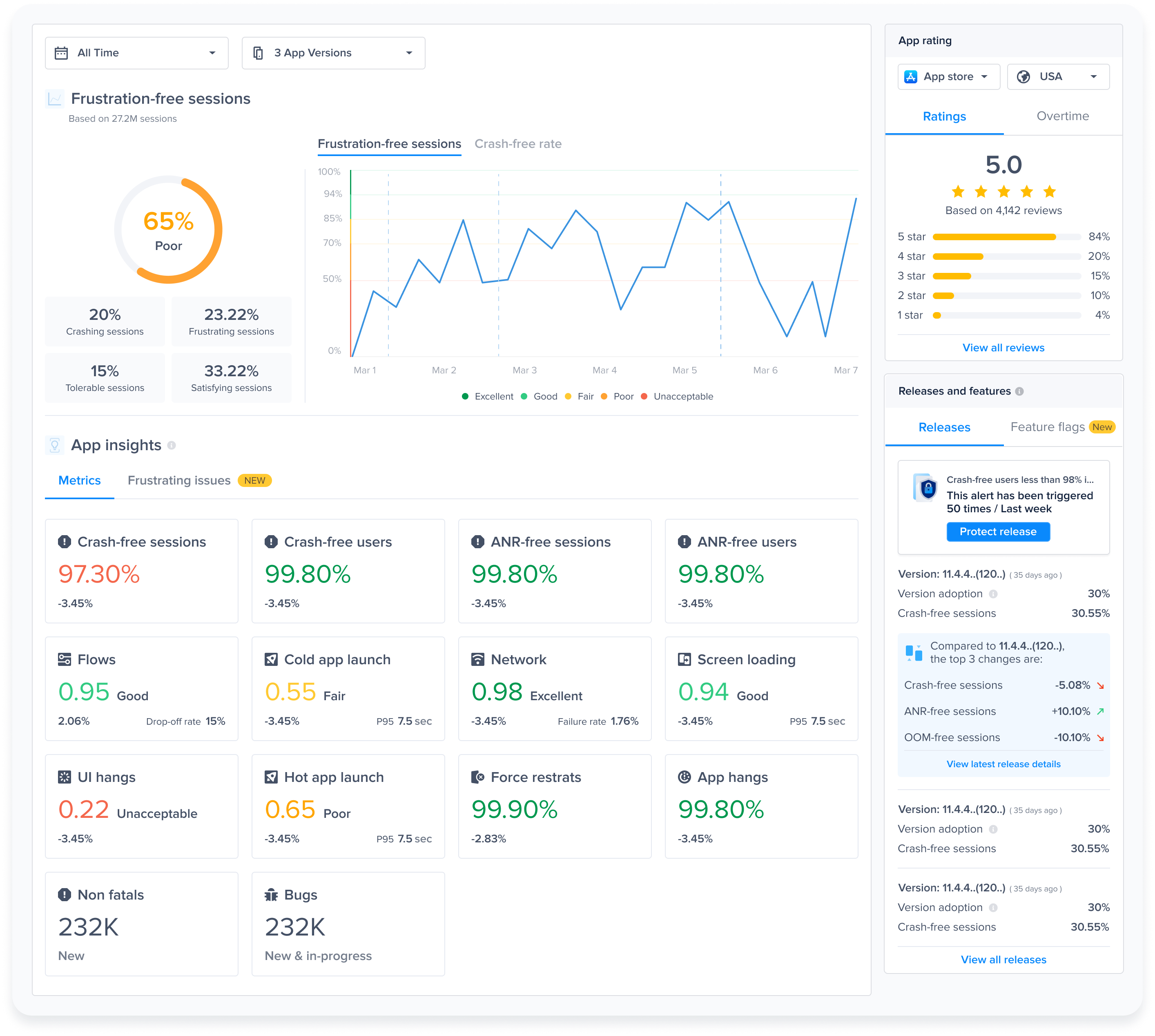
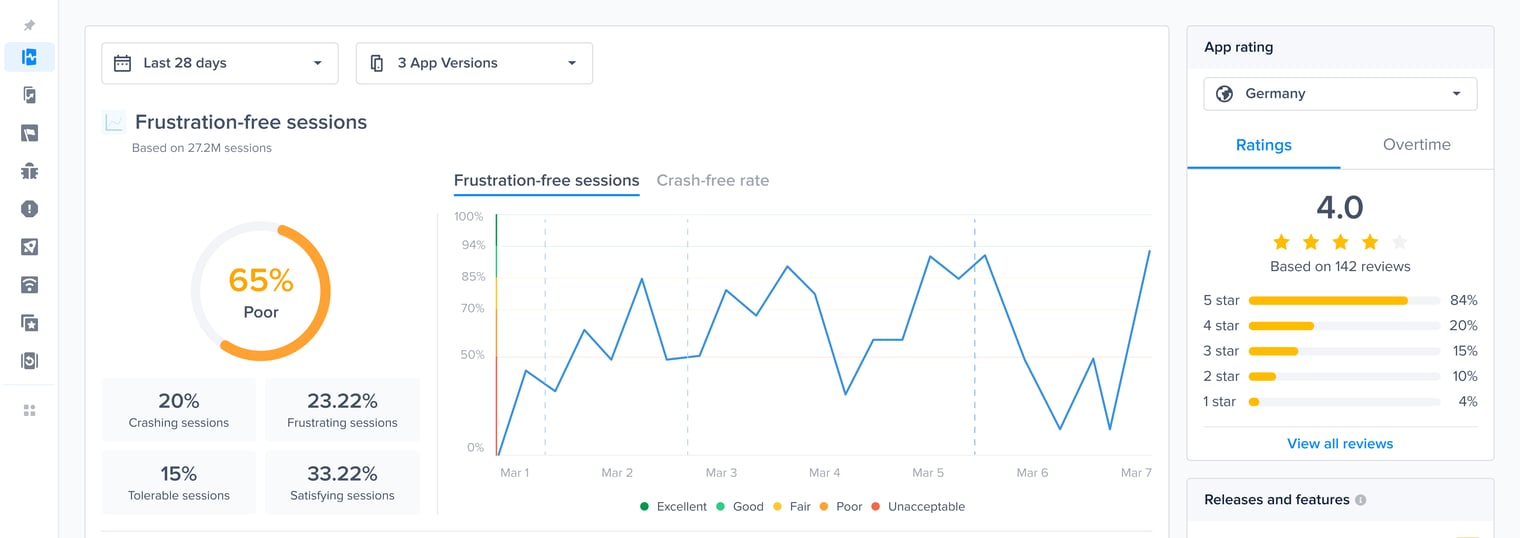
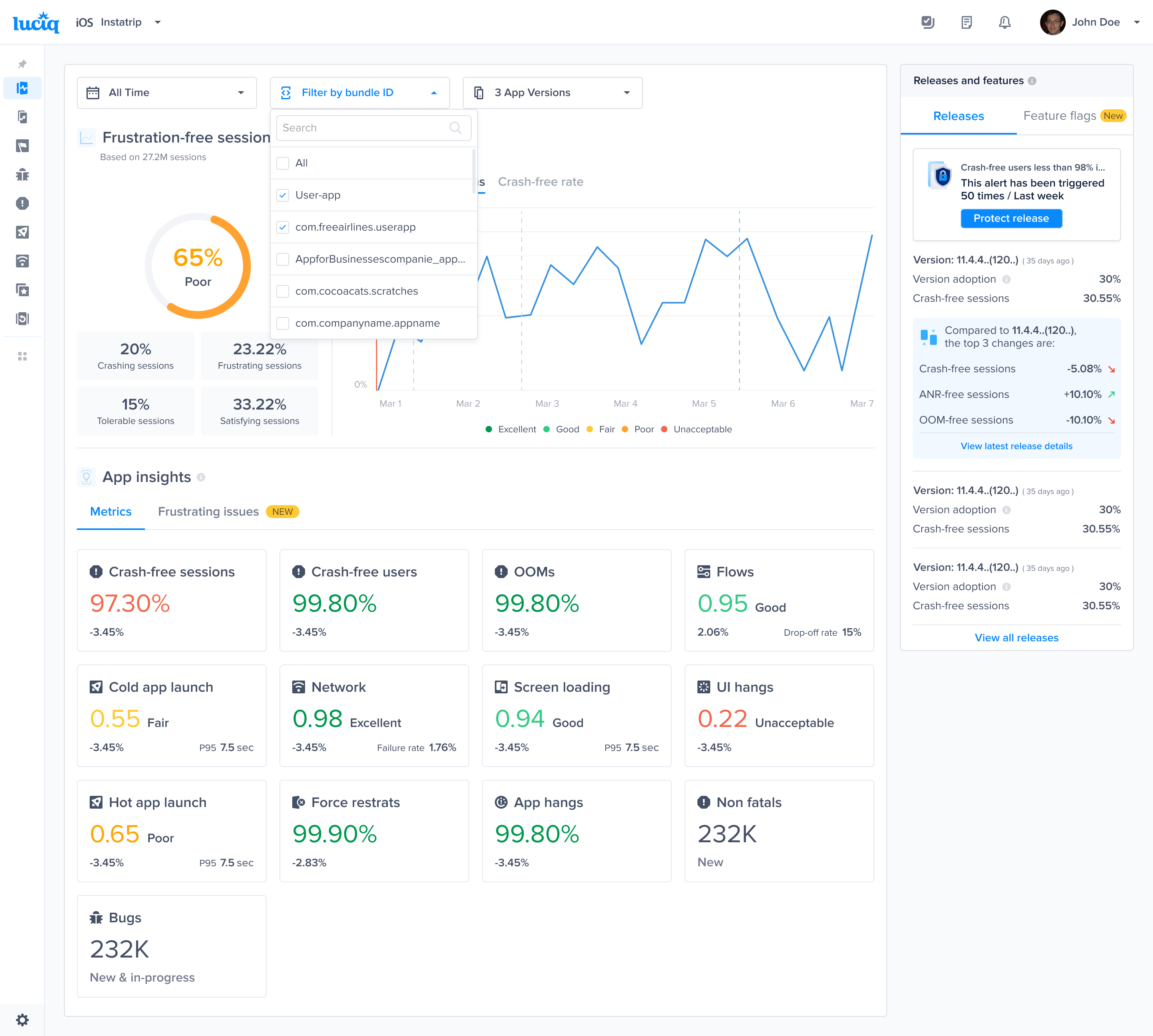
The App Health Dashboard provides a comprehensive overview of your application's performance, stability, and overall quality. With five key sections, this dashboard is designed to give you detailed insights into the state of your app, helping you to monitor and improve its quality and user satisfaction.

#### Benefits

* **Comprehensive Monitoring**: Get a holistic view of your app’s performance and user experience.
* **Performance Trends**: Track how your app's performance changes over time.
* **Detailed Insights**: Identify specific areas that need improvement, from crash rates to UI responsiveness.
* **User Feedback**: Understand user satisfaction through ratings and reviews.
* **Release Analysis**: Evaluate the impact of new releases on app performance and user experience.

#### Usage Tips

* Regularly monitor the **Frustration-Free Sessions** and **Crash-Free Sessions** to ensure high user satisfaction.
* Use the **App Insights** section to quickly identify and address performance issues by navigating to the worst performing metrics
* Zoom in on **Frustration-Free Sessions** drops to find the worst performing metics contributing to the drop in **App Insights**.
* Pay attention to **App Ratings** to gather qualitative feedback from users.
* Analyze the **Top Releases** section to understand the effects of recent updates and optimize future releases.

### Key Sections

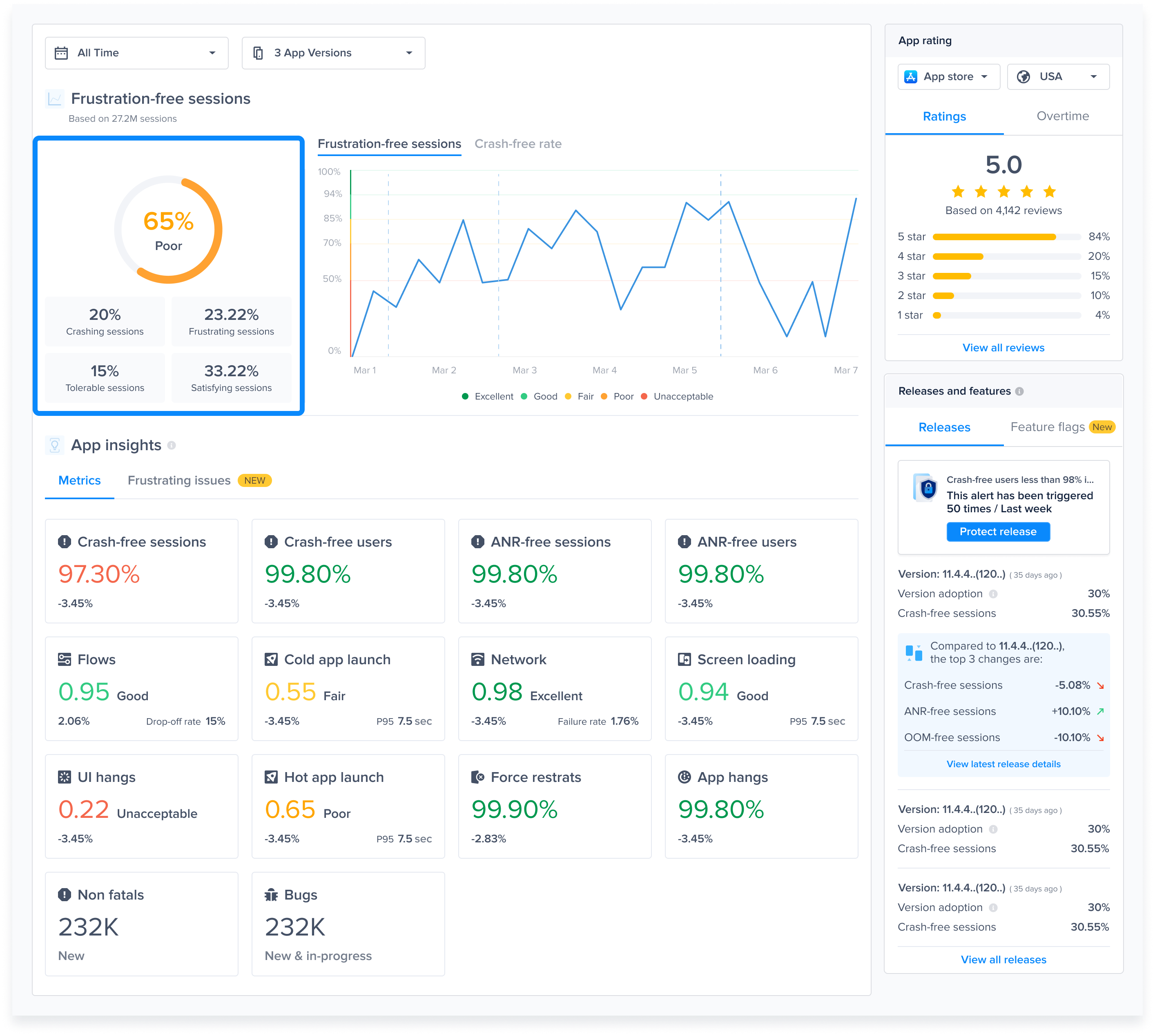
#### Overall Frustration-Free Sessions and Session Breakdown

1. **Frustration-Free Sessions**: The Frustration-Free Sessions metric is a numerical measure of user satisfaction with your app's performance.
2. **Session Breakdown**: This section categorizes user sessions into four types:
   1. **Crashing Sessions**: Sessions that ended due to app crashes.
   2. **Frustrating Sessions**: Sessions that were significantly impacted by performance issues.
   3. **Tolerable Sessions**: Sessions where users experienced minor performance issues.
   4. **Satisfying Sessions**: Sessions where users had a smooth experience.

<figure><img src="https://files.readme.io/74453cb21631f1daf164a6798bbc0369cb8f1469363b51579d483dae9eb27ef6-product-guides-app-health-1.png" alt=""><figcaption></figcaption></figure>

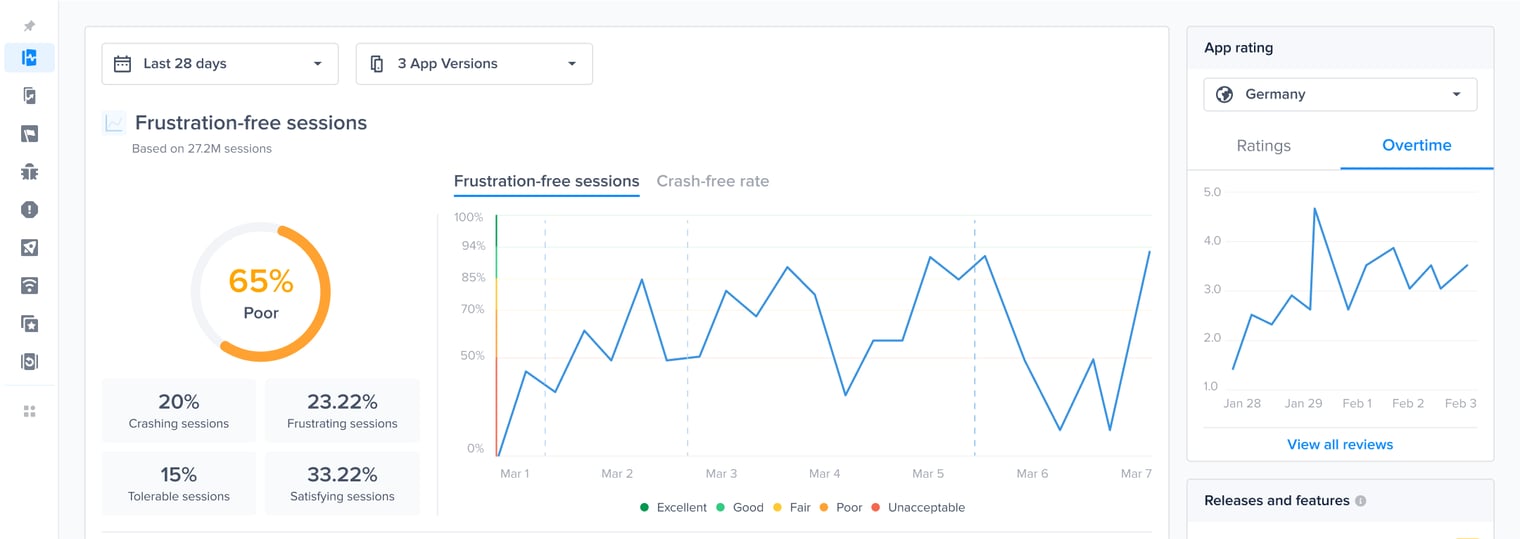
#### Frustration-Free Sessions and Crash-Free Sessions Over Time

This graph shows the trend of your app's frustration-free sessions and crash-free sessions over a selected period. The provided graph shows fluctuations in frustration-free sessions over a 28-day period, helping in identifying patterns and periods of performance degradation or improvement. You can click and drag on the graph to zoom in and the whole page will reflect the data of the new time range.

<figure><img src="https://files.readme.io/a6d3466df427e6ed52ad9bd2bd5f250f771a60ab274629498e562a3060352cdf-product-guides-app-health-2.png" alt=""><figcaption></figcaption></figure>

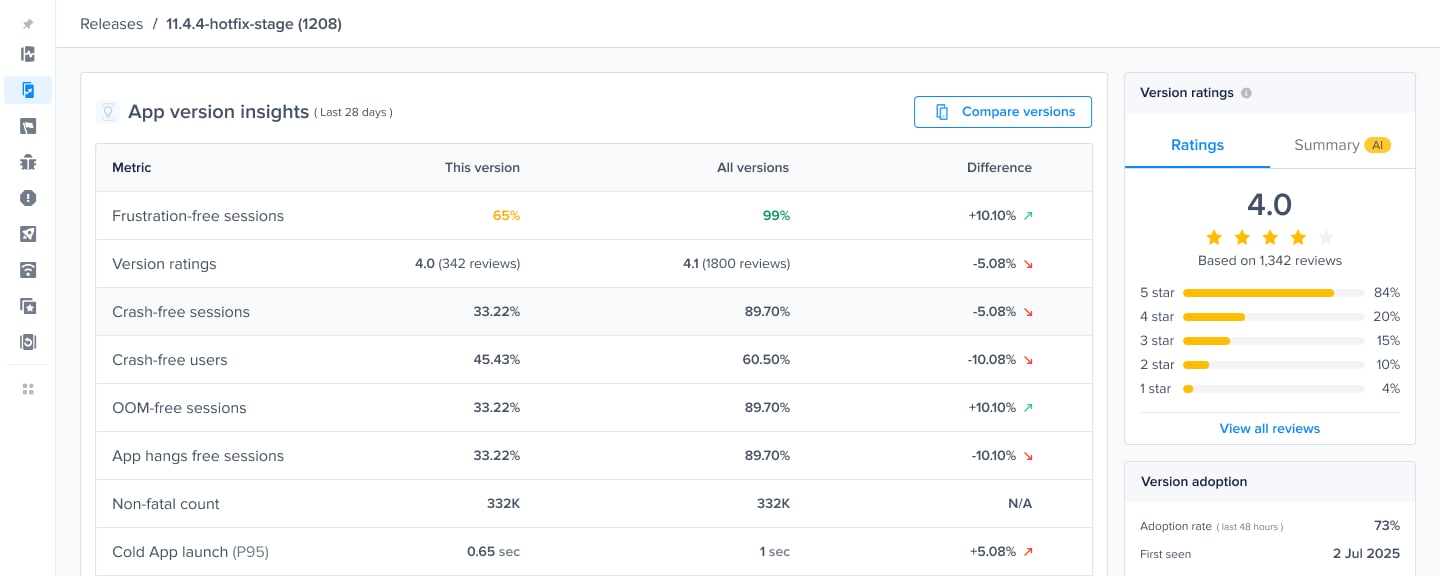
#### App Insights

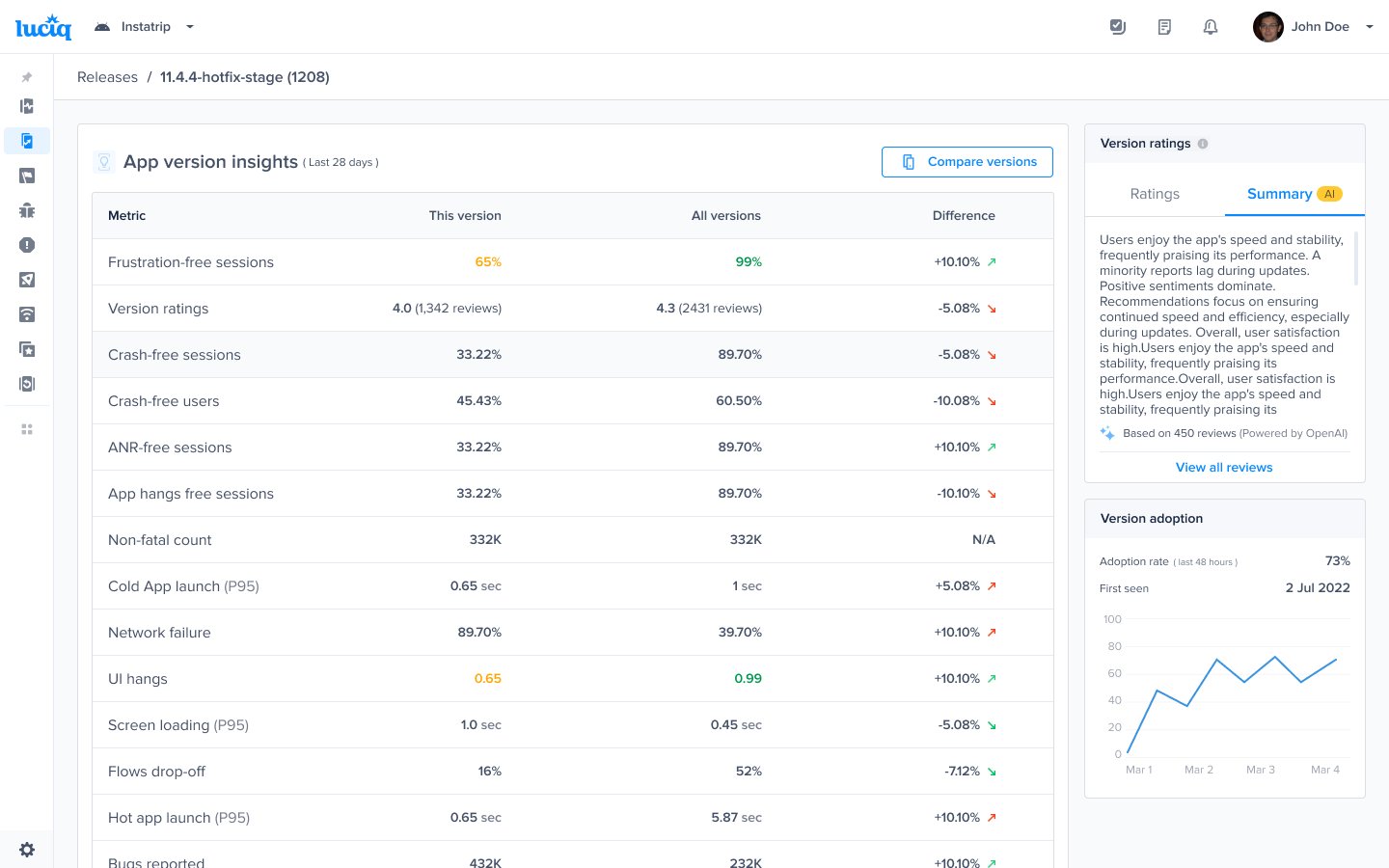
This section provides detailed metrics on various aspects of your app’s performance, highlighted with red, yellow, and green indicators to show their status as well as a change rate calculated by comparing the current time period to the previous time period. So for example if you’re seeing data for the past 28 days, the change is calculated by comparing to the 28 days before that.

* **Crash-Free Sessions**: Percentage of sessions without crashes.
* **Crash-Free Users**: Percentage of users who did not experience crashes.
* **OOMs**: Percentage of sessions without Out-Of-Memory errors.
* **ANRs**: Percentage of sessions without Application not Responding errors.
* **Cold App Launch**: Apdex score of the app when launched from a cold state based on its latency.
* **Network**: Network apdex score, calculated based on the performance of key network calls.
* **Screen Loading**: Apdex score of screen loading times.
* **UI Hangs**: Apdex score measuring the times your app faces UI hangs which is when the app isn't responding to the user's input for more than 250 ms.
* **App Hangs**: Percentage of sessions without App hangs which is when an app is unresponsive or more than 3 seconds.
* **Non-Fatals**: Number of non fatals reported.
* **Bugs**: Number of bugs reported.

<figure><img src="https://files.readme.io/e818184b92eb34b33cd05f39f04804c427ce8fe47f2046b5d0267353c5a11ca0-product-guides-app-health-3.png" alt=""><figcaption></figcaption></figure>

#### App Ratings

This section gives you insights on your app ratings and reviews. It is filtered by country to understand regional user satisfaction.

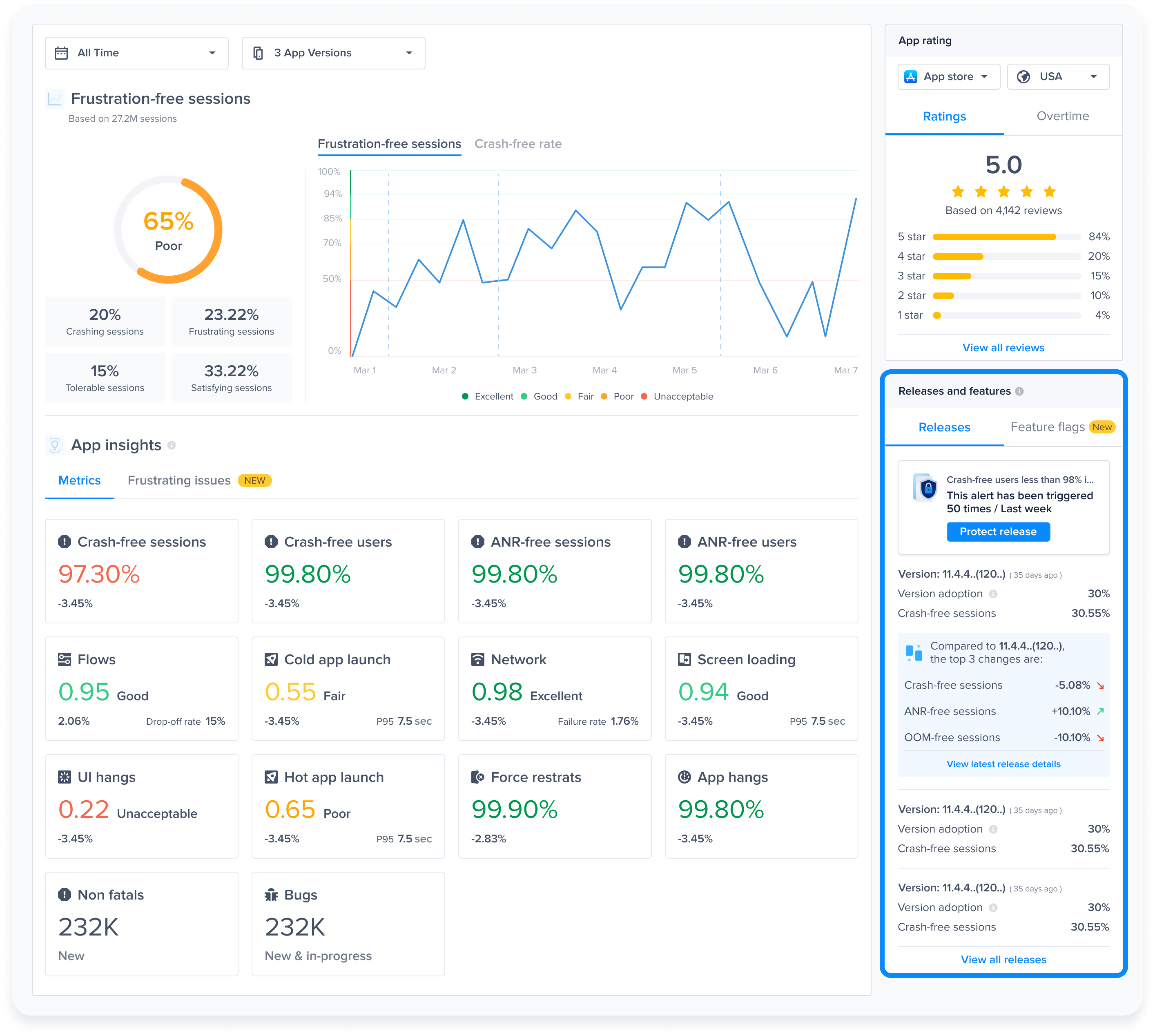
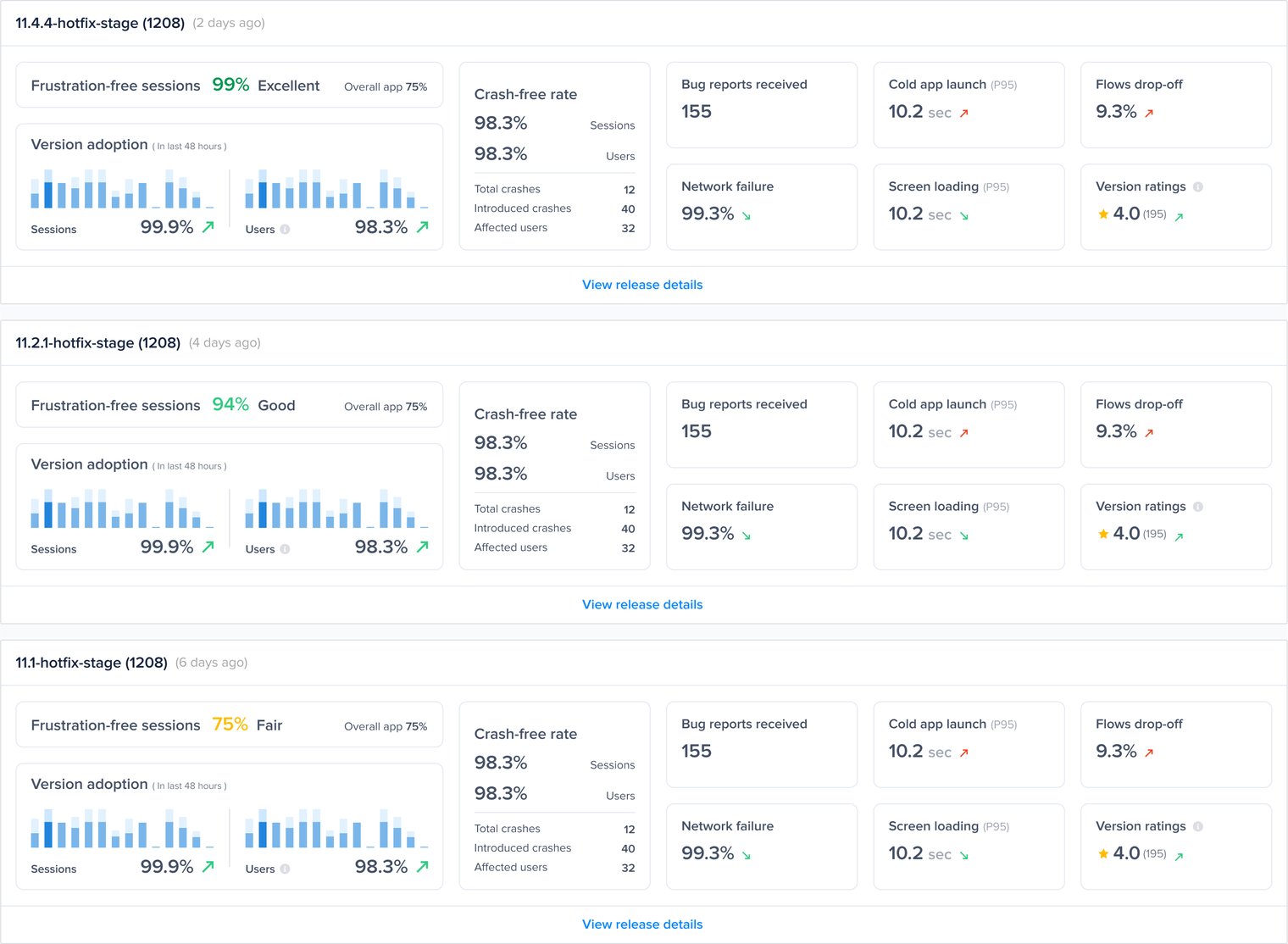
#### Top Releases

This section shows the latest most adopted app release and compares it with the previous versions. It includes:

* **Version Details**: Information about the latest version, such as version number and adoption rate.
* **Comparative Metrics**: Shows the top changes between the current most adopted version and the previous one.

<figure><img src="https://files.readme.io/a8c603f18bc746c8d1de55a00ac6888d5108f5eb4c85fe7a6642c638a38e79b8-product-guides-app-health-5.png" alt=""><figcaption></figcaption></figure>

{% hint style="success" %}
**Best Practices**

The App Health Dashboard is a powerful tool for developers to monitor, analyze, and improve the performance and user experience of their application. Here are the best practices for utilizing this dashboard effectively:

1. **Regular Monitoring**
   * **Daily Check-Ins**: Make it a habit to review the dashboard daily to quickly catch any emerging issues.
   * **Focus on Key Metrics**: Pay particular attention to the Overall Frustration-Free Sessions and the Crash-Free Sessions metrics to ensure your app is meeting performance standards.
2. **Analyzing Trends Over Time**
   * **Utilize the Graphs**: Use the "Frustration-Free Sessions and Crash-Free Sessions Over Time" graph to identify patterns or recurring issues. Look for dips in performance or spikes in crashes that correlate with specific timeframes or events (e.g., new releases).
   * **Historical Comparison**: Compare current performance metrics with historical data to understand how recent changes impact app stability and performance.
3. **Deep Dive into App Insights**
   * **Prioritize Red Metrics**: Focus on metrics highlighted in red in the "App Insights" section as they indicate critical issues needing immediate attention.
     * For example, if the “Cold App Launch” Apdex drops, click on it to navigate to the the “Cold App Launch” page to analyze it more.
   * **Continuous Improvement**: Aim to turn yellow metrics to green by systematically addressing the underlying issues.
     {% endhint %}


# Frustration-Free Sessions

### What is Frustration-Free Sessions?

Frustration-Free Sessions is a **north star KPI** that reflects user frustration. It helps you measure your app’s **stability and performance**, giving you a clear signal when users experience frustrating sessions.

The score ranges from **0% to 100%**, where a higher score means your users are facing fewer frustrating experiences.

### How Is Frustration-Free Sessions Calculated?

Luciq categorizes all user sessions into four types:

* **Crashing Sessions** → Sessions that end with a **fatal crash** or OOM.
* **Frustrating Sessions** → Sessions with major issues
* **Tolerable Sessions** → Sessions with minor issues
* **Satisfying Sessions** → Sessions with smooth performance

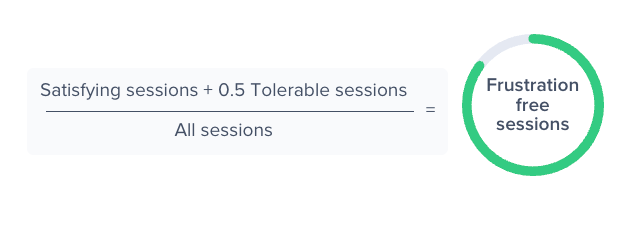
The Frustration-Free Sessions score is calculated as:

<figure><img src="https://files.readme.io/2ca89bda2f461864c261aac073a71ce3515e527bde6db164bb485e3feafa9899-664bf013-ae28-4ab2-a263-9dd29fe7f6f6.png" alt=""><figcaption></figcaption></figure>

### What Is a Session?

A session begins when a user **launches the app** or **brings it to the foreground**. It ends when the user **moves the app to the background** or when the app **exits** (either manually or due to a crash).

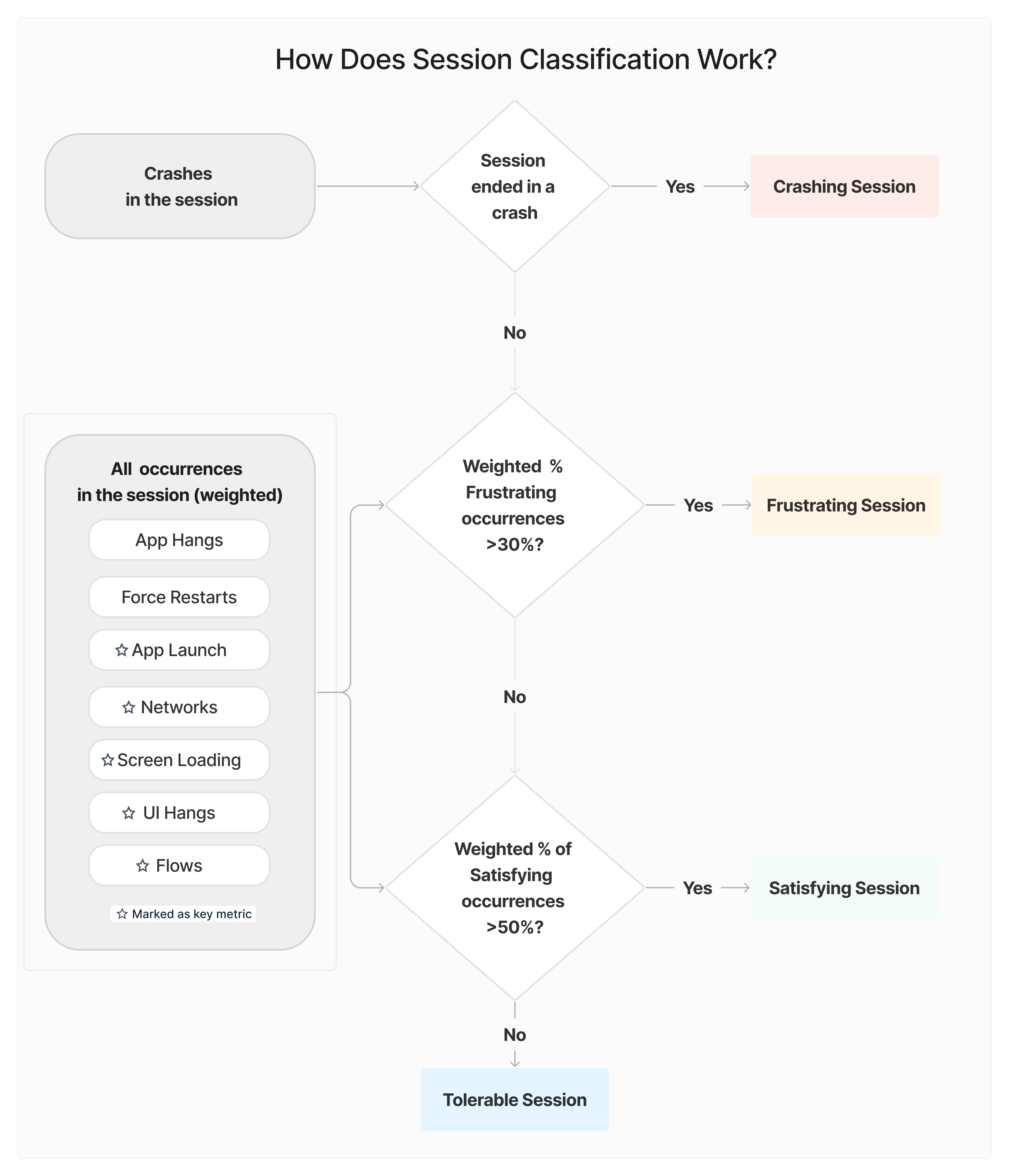
#### How Are Sessions Categorized?

**Crashing Session**: If a session ends with a crash or an OOM, it is classified as crashing.

**Other Sessions**: If a session does not crash, it is categorized as **Frustrating, Tolerable, or Satisfying** based on the issues that occurred during the session.

<figure><img src="https://files.readme.io/5579da2851ec779971771f7db68d9cbd88942b092d945fe0a0556aebf57f4817-image-20250316-221816.png" alt=""><figcaption></figcaption></figure>

#### Example of Session Classification

Let's break down a session with multiple issues:

<table><thead><tr><th width="159.265625">Issue Type</th><th width="286.8515625">Impact Level</th><th>Occurrences</th></tr></thead><tbody><tr><td>App Hangs</td><td>High (an occurrence has a weight of 10 occurrences)</td><td>1 (all app hang occurrences are considered frustrating)</td></tr><tr><td>Network Requests</td><td>Low (an occurrence has a weight of 0.3 occurrences)</td><td><p>- 2 Frustrating</p><p>- 2 Tolerable</p><p>- 1 Satisfying</p></td></tr><tr><td>App Launch</td><td>Medium (an occurrence has a weight of 1 occurrence)</td><td>- 3 Frustrating</td></tr><tr><td>Flows</td><td>Medium (an occurrence has a weight of 1 occurrence)</td><td>- 2 Satisfying</td></tr></tbody></table>

**Step 1: Calculate Weighted Counts**

* Frustrating Count = (10 × 1) + (0.3 × 2) + (1 × 3) = 13.6
* Tolerable Count = (0.3 × 2) = 0.6
* Satisfying Count = (0.3 × 1) + (1 × 2) = 2.3
* Total Count = 13.6 + 0.6 + 2.3 = 16.5

**Step 2: Calculate Weighted Percentages**

* Frustrating% = 13.6 / 16.5 = 82%
* Tolerable% = 0.6 / 16.5 = 4%
* Satisfying% = 2.3 / 16.5 = 14%

**Step 3: Classify the Session**

* Frustrating Session → If Frustrating% ≥ 30%
* Satisfying Session → If Satisfying% ≥ 50%
* Tolerable Session → Otherwise

Since the Frustrating% is 82% which is over 30%, this session is classified as **Frustrating**.

#### How Is the Score Graded and Color-Coded?

| Score Range | Performance Level      |
| ----------- | ---------------------- |
| ≥ 94%       | **Excellent** (Green)  |
| 85% - 93.9% | **Good** (Light Green) |
| 70% - 84.9% | **Fair** (Yellow)      |
| 50% - 69.9% | **Poor** (Orange)      |
| < 50%       | **Unacceptable** (Red) |

### Want More Control Over Frustration-Free Sessions?

You can customize how Frustration-Free Sessions is calculated to better reflect your app’s needs.

👉 [Learn how to configure Frustration-Free Sessions](/product-guides-and-integrations/product-guides/getting-started-with-luciq/frustration-free-sessions/how-to-configure-frustration-free-sessions)

<br>


# How to Configure Frustration-free Sessions

Configure Frustration-Free Sessions your way to ensure your score reflects your unique app needs and how you define user frustration for your end users. You have full control over how different issue types contribute to frustration-free sessions and issue prioritization in the issues list.

### Define How Issue Types Affect Your Score

To adjust your configuration:

1. **Go to: Settings → Frustration-Free Sessions Config.**
2. You will see the issue types that factor into your score, based on your plan and platform.
3. (For owners only) Adjust the crash configuration of ANRs and OOMs.
   1. This dictates if a session should be considered crashing or not if an ANR or OOM occurred.
   2. If an issue type is set as crashing, its impact is set to highest and cannot be edited.
4. Adjust the **impact level** of each issue type to control how it influences session classification in frustration-free sessions and issue prioritization.

{% hint style="warning" %}
Configuring frustration-free sessions only affects future sessions; your historical score will remain unaffected.
{% endhint %}

### Impact Levels

The impact level determines how much an issue type contributes to marking a session as frustrating:

* **Highest impact**: Has a critical effect on session quality. A single occurrence of this type, even if there are other less significant issues in the session, will mark the session as frustrating.
* **High impact**: Strongly affects the session quality. Just one or two occurrences, when paired with other issues in the session, will mark the session as frustrating.
* **Medium impact**: Moderately affects session quality. A few occurrences in combination with other issues could mark the session as frustrating.
* **Low impact**: Has a small effect on session quality. Many frustrating occurrences of this type are required to mark the session as frustrating.
* **No impact**: Has no effect on session quality. Occurrences of this type do not contribute to session classification or affect frustration-free sessions.

{% hint style="info" %}
Fatal crashes are not editable; they are always set to the highest impact.\* Non-fatals are not editable; they are always set to no impact.
{% endhint %}

***

### Recommended Configuration

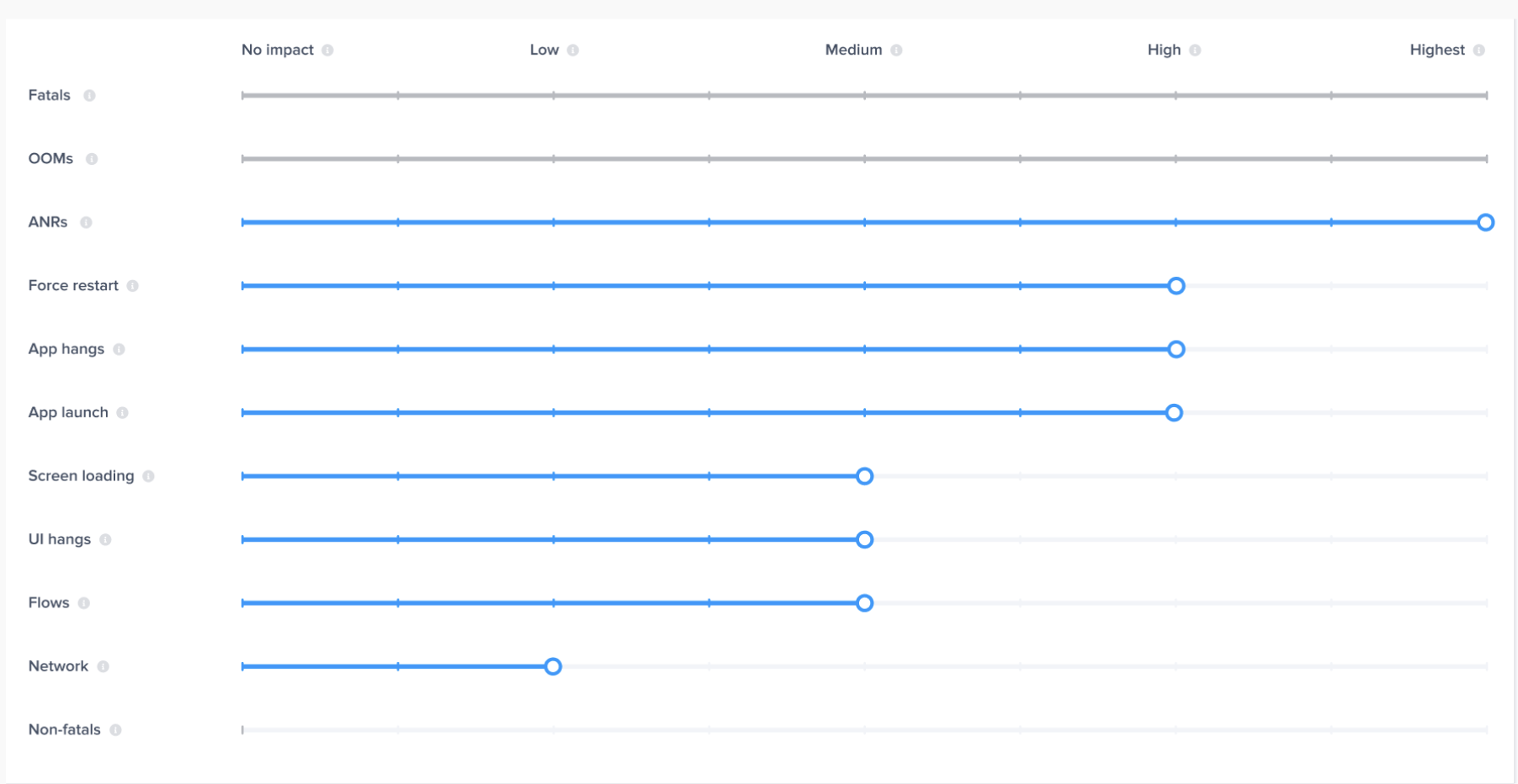
We recommend setting:

* **Fatals, OOMs, and ANRs** to highest impact since they completely disrupt the experience and should have the strongest influence on the score.
* **App hangs** to high impact, as they are highly noticeable and directly affect the user experience.
* **Force restarts** to high impact, as they are a strong signal of user frustration.
* **App launch** to high impact since it’s one of the most visible interactions, directly affecting user perception and app ratings.
* **Screen loading, UI hangs, and flows** to medium impact, as they moderately affect session quality.
* **Network issues** to low impact, as they occur very frequently in a session, and sometimes happen in the background. Keeping them at a low impact level ensures they don’t disproportionately affect the score.

<figure><img src="https://files.readme.io/436c8104ad7c434e0da5a05720c5e02beba5edf485d8c6de71d6a3282a74d390-Screenshot_2025-03-17_at_1.37.26_AM.png" alt=""><figcaption></figcaption></figure>

***

### Control APM Traces in Your Score

For **APM issues (App Launches, Flows, Networks, UI Hangs, Screen loading)**, which you can configure each trace as either a **Key Metric** or **Non-Key Metric**:

* **Key Metrics**: Affect your Frustration-Free Sessions score and issue prioritization.
* **Non-Key Metrics**: Do not contribute to session classification or affect the score.

By default, all traces are considered **Key Metrics**.

### Adjusting Key Metrics

You can exclude specific traces from your score in three ways:

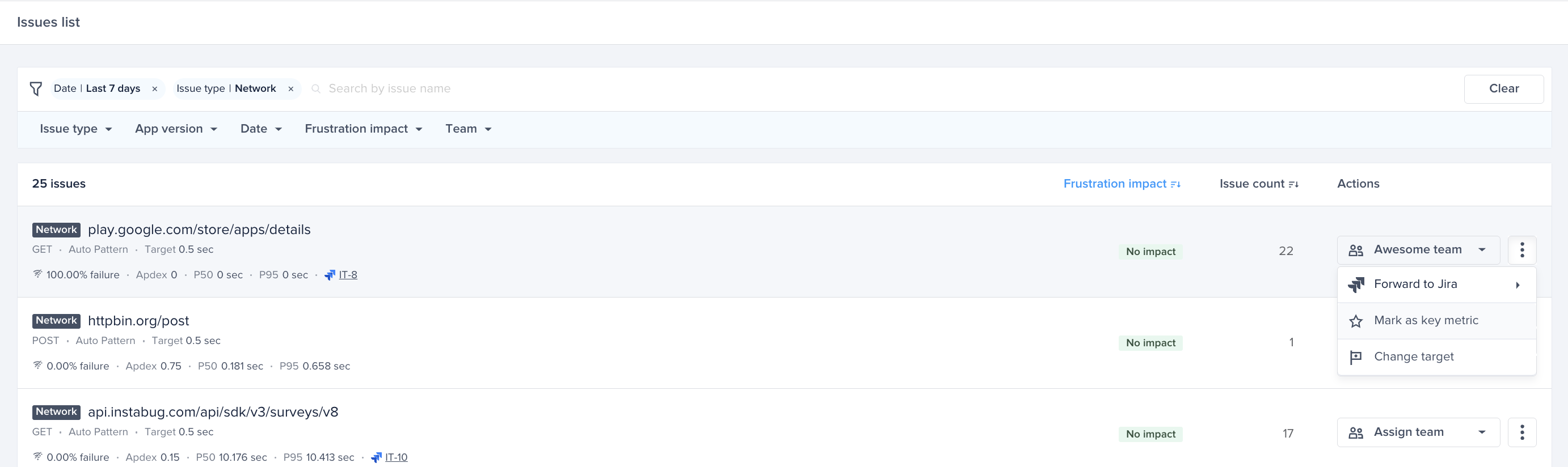
1. From the **Issues List**

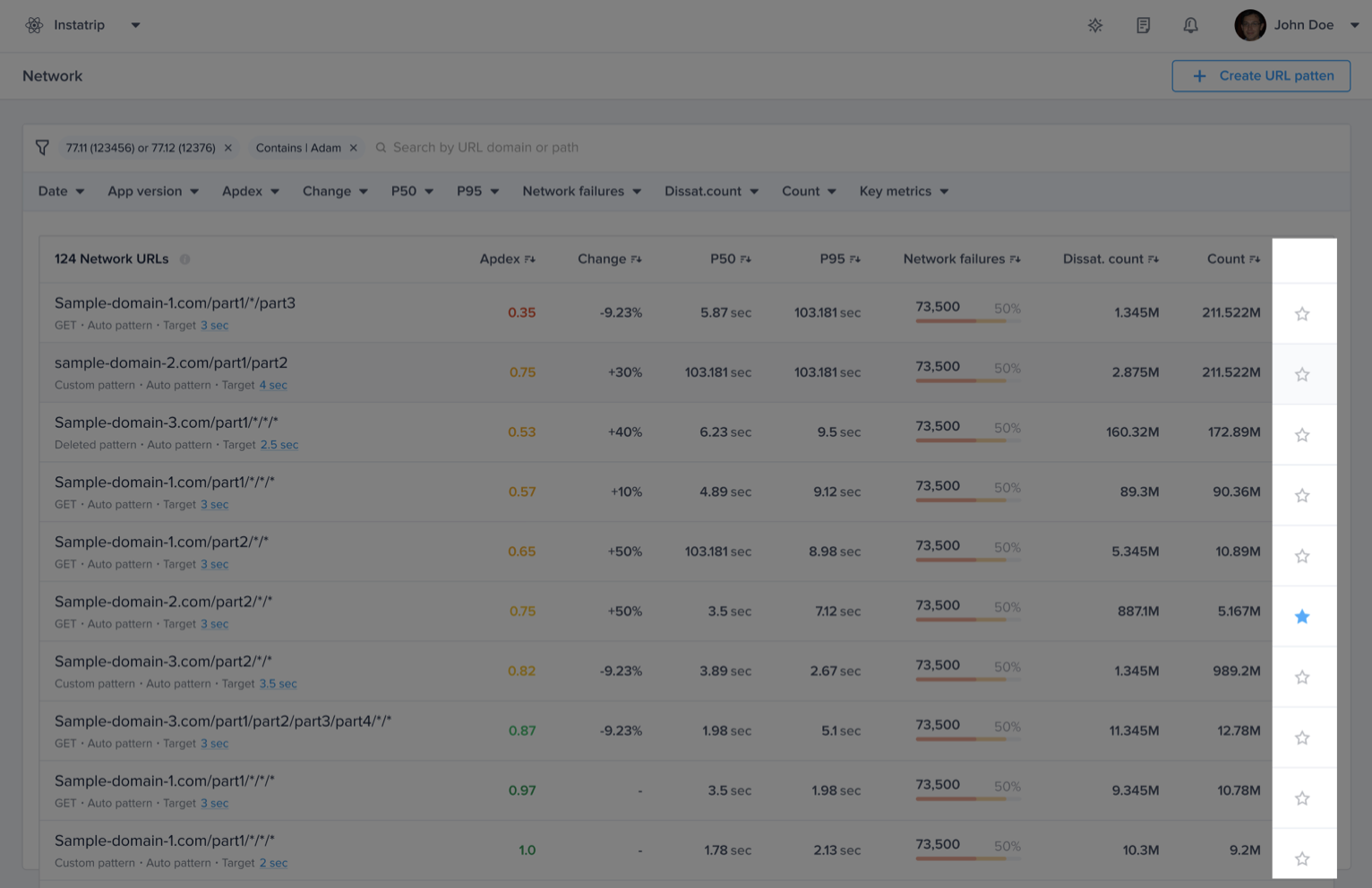
<figure><img src="https://files.readme.io/43b89150beb1ef899efecf64c4f326279ba2428caeed6f27fa6d13bdb84b6bce-Screenshot_2025-03-17_at_1.47.07_AM.png" alt=""><figcaption></figcaption></figure>

2. On the **List Page**

<figure><img src="https://files.readme.io/357910b534e44718c7d0d11c1354bf7aad1b28ee7024004c50d2441824635219-image.png" alt=""><figcaption></figcaption></figure>

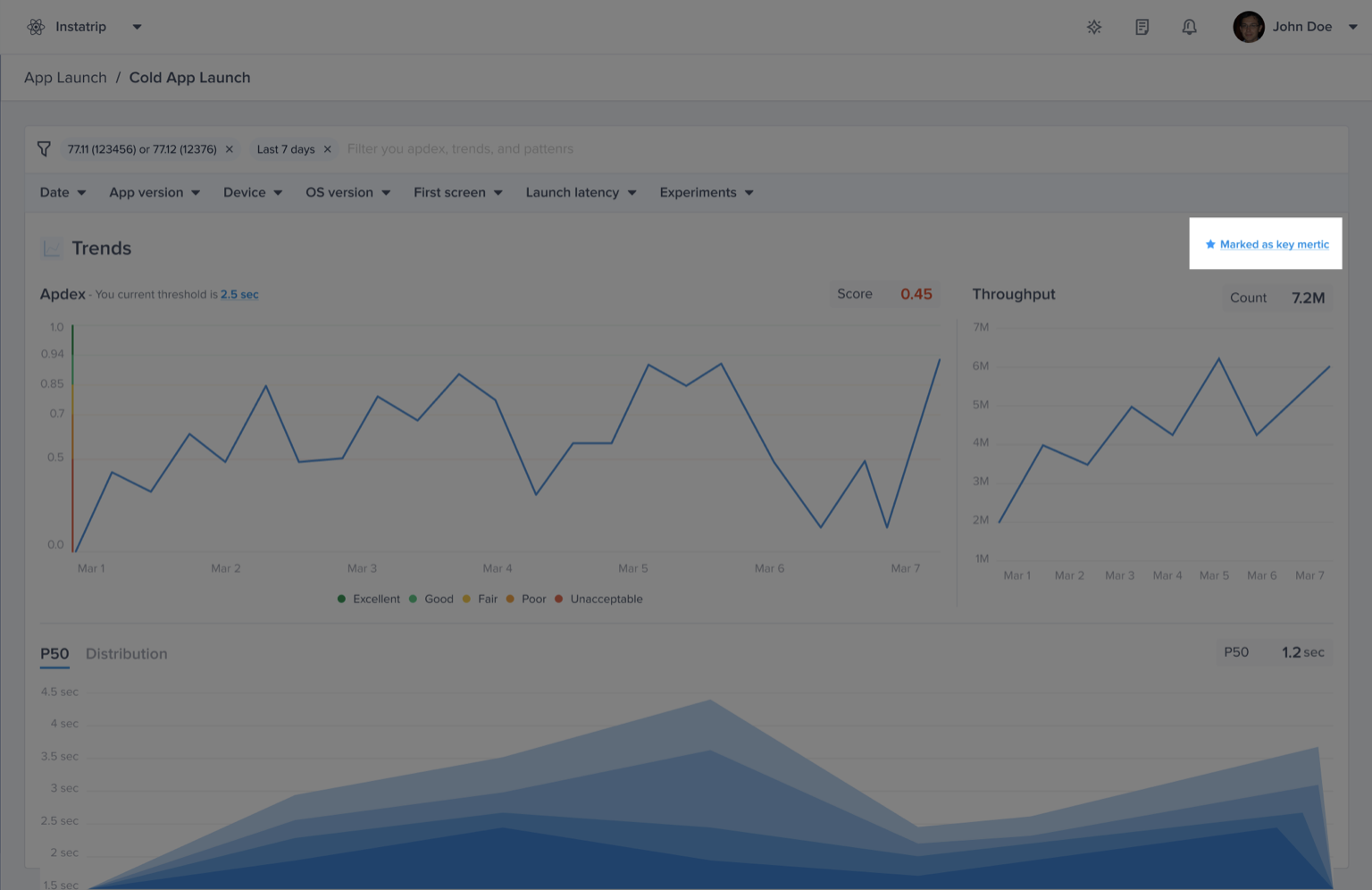
3. In the **Details Page** for the issue type

<figure><img src="https://files.readme.io/712b94c06c5a4b2b4905c37ca58f16ef7f0eaa9254f6fb1cbcd003fc2f2f9e1d-image.png" alt=""><figcaption></figcaption></figure>

{% hint style="warning" %}
Updating your key metrics doesn't affect the already calculated app apdex and will be applied moving forward.
{% endhint %}

Fine-tuning these settings ensures that your frustration-free session score reflects only the most relevant signals for your app.


# Issues List

***

### What Is the Issues List?

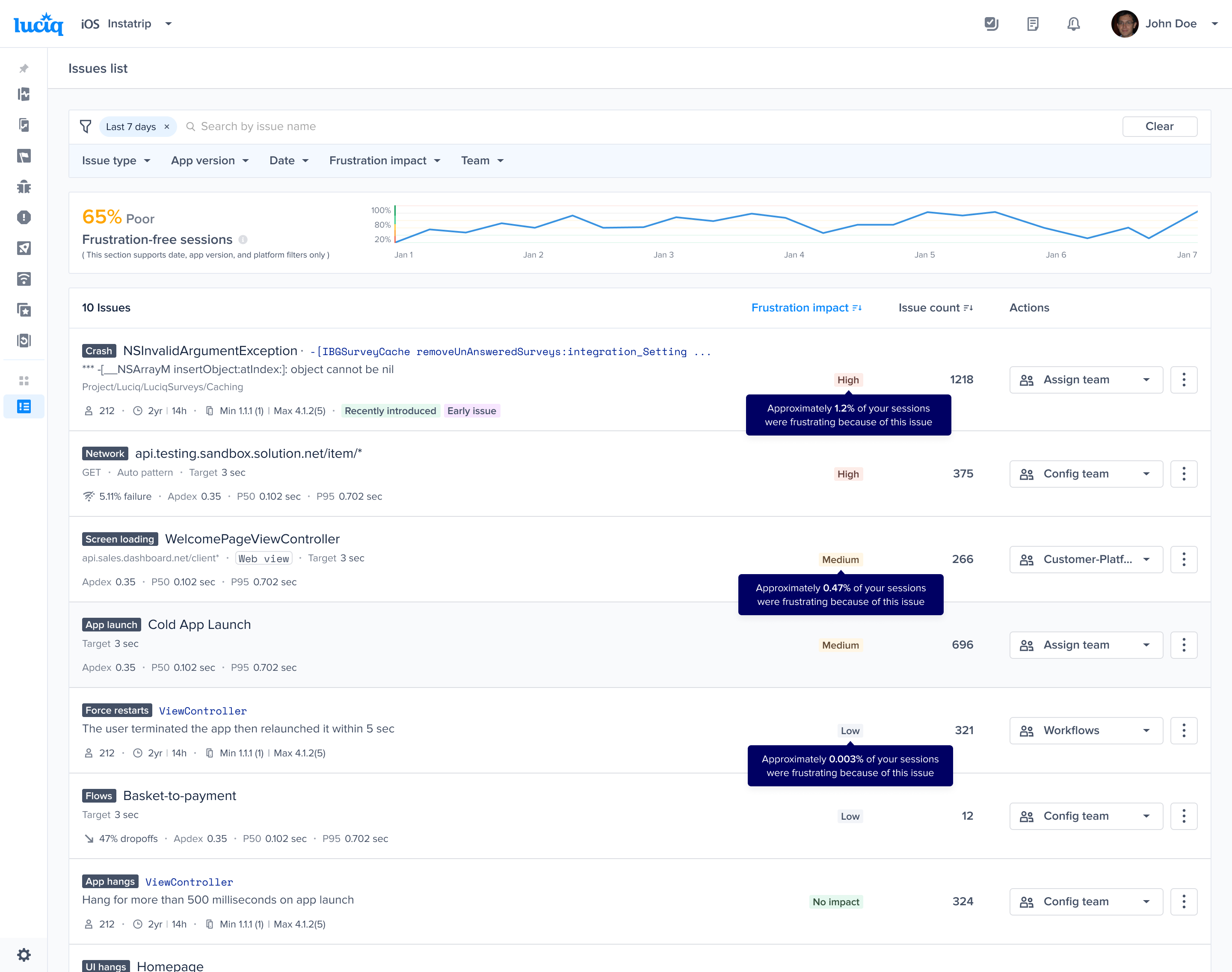
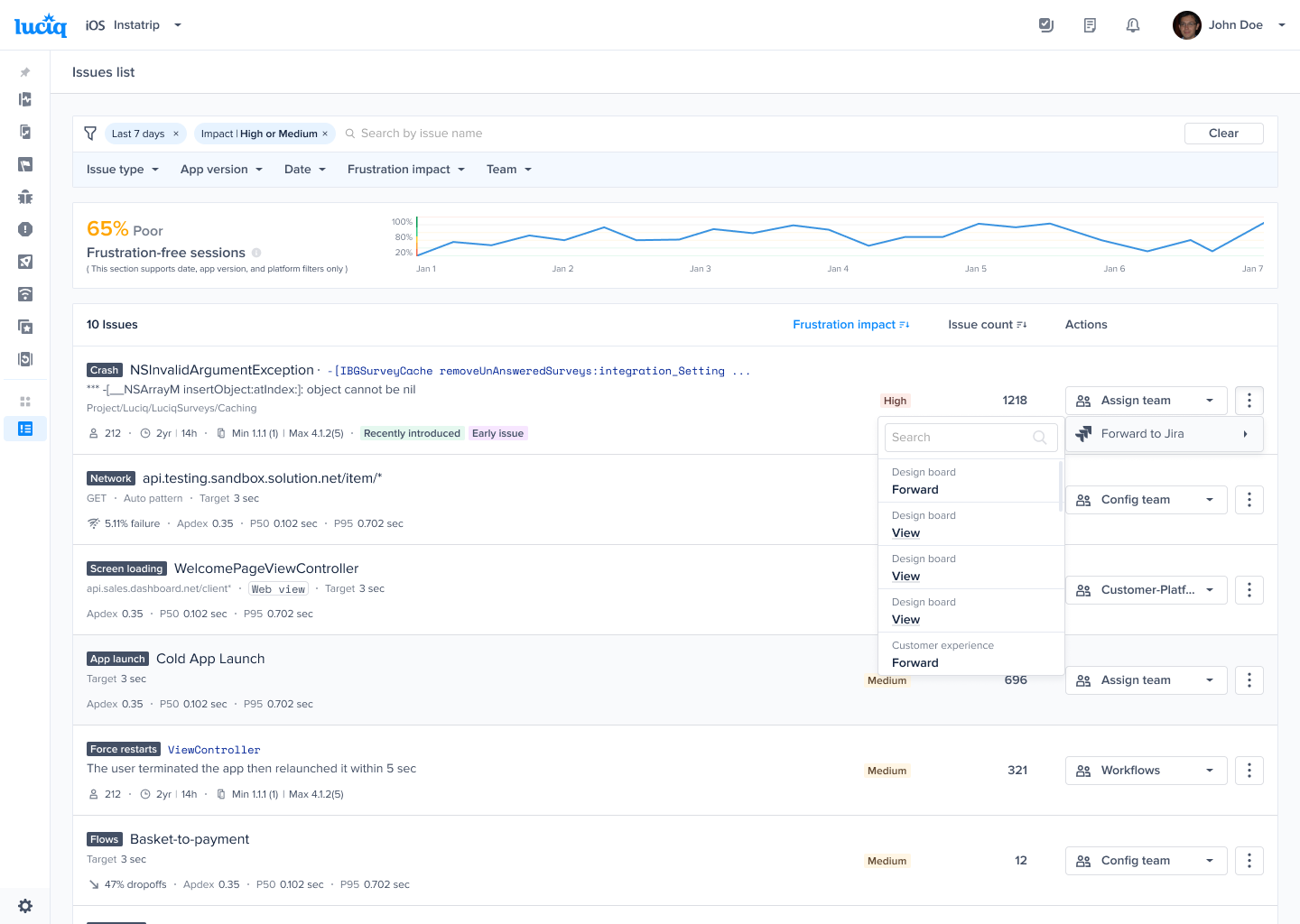
The Issues List is a centralized view that consolidates all your app's stability and performance issues into a single list. By combining issues like crashes, app hangs, force restarts, and performance metrics like app launches and screen loads, it provides a comprehensive understanding of the problems affecting your app’s quality.

<figure><img src="https://files.readme.io/2788e1fc681c1b5cde861adc0c782ff5666ae3d2c015ead70793c3308b18eb6b-product-guides-issues-list-1.png" alt=""><figcaption></figcaption></figure>

### How Does It Help?

The issues list is **automatically prioritized based on each issue's impact on your App Frustration-Free Sessions**, reflecting how much the issue contributes to frustrating user sessions. By addressing the highest-impact issues first, you can significantly improve your app's quality, reduce user frustration, and boost satisfaction.

Instead of sifting through raw data or dealing with scattered issues, you can now rely on this prioritized list to efficiently manage and resolve the most critical problems first.

***

### Using the Issues List: A Workflow for Improving App Stability and Performance

#### Step 1: Monitor Your App’s Frustration-Free Sessions

The **App Frustration-Free Sessions** is your most important metric for understanding your app’s overall stability and performance. It gives you a clear signal when users experience frustrating sessions, helping you take action before issues escalate.

If you want to improve your Frustration-Free Sessions, head to the **Issues List**, a prioritized view of every performance and stability issue contributing to the score. This leads us to step 2.

#### Step 2: Identify High-Impact Issues

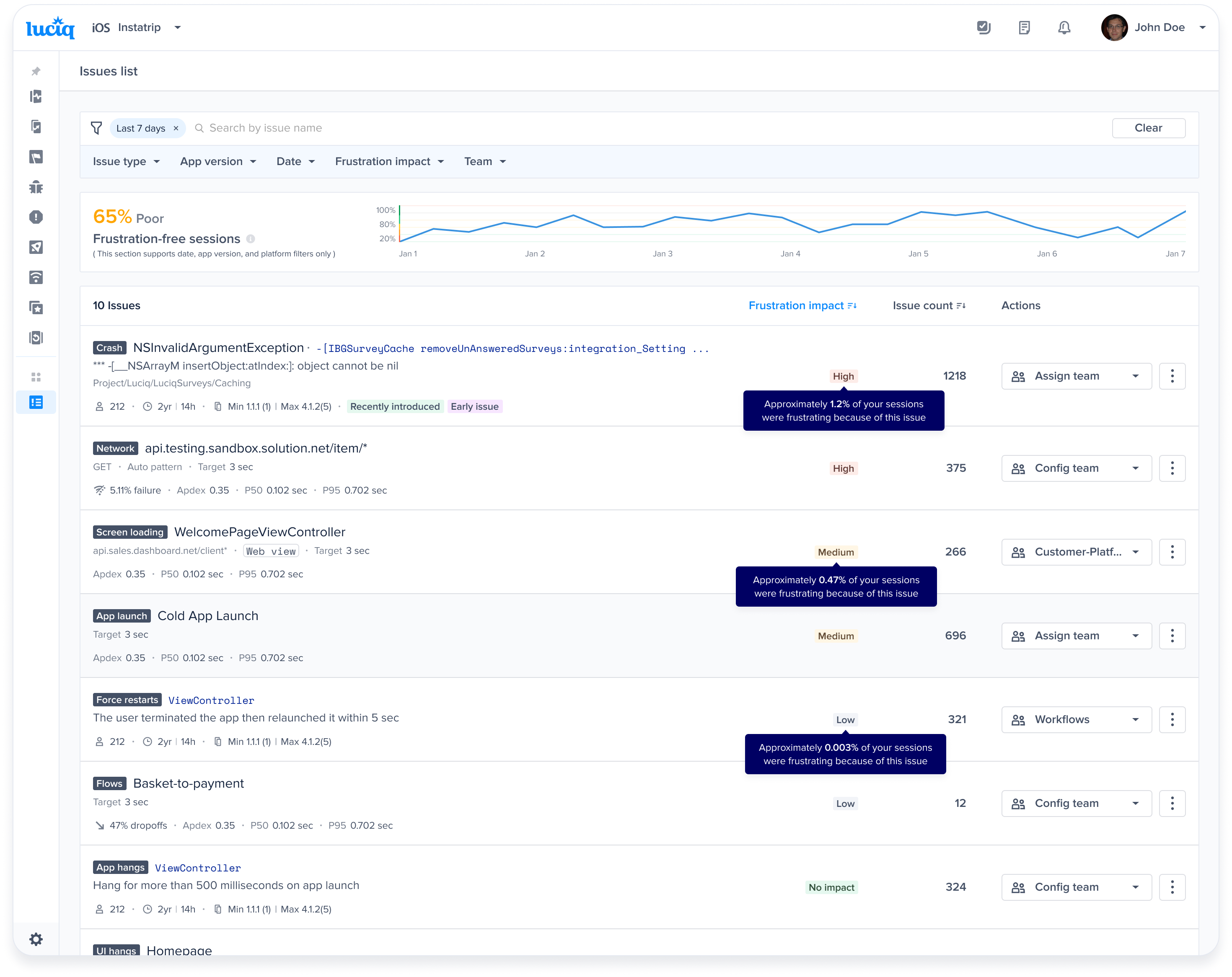
After monitoring your Frustration-Free Sessions, drill down into the Issues List to pinpoint the most critical problems affecting your app. The list ranks issues by their [**Apdex Impact**](/product-guides-and-integrations/product-guides/getting-started-with-luciq/issues-list/frustration-impact), a metric that approximates how much each issue contributes to frustrating user sessions. This is calculated by approximating the percentage:

`(Frustrating Sessions caused by this issue ÷ Total Sessions) × 100`

Issues are grouped into the following categories:

* **High Impact:** Issues affecting ≥0.5% of total sessions. These are critical and require immediate attention.
* **Medium Impact:** Issues affecting between 0.01% and 0.5% of sessions. These should be addressed after high-impact issues.
* **Low Impact:** Issues affecting <0.01% of sessions. These have minimal impact but may still need resolution over time.
* **No Impact:** Issues that don’t affect your Frustration-Free Sessions, including:
  * APM groups where all occurrences are satisfying (Apdex 1).
  * Metrics marked as non-key by your team.

For each issue, review:

* **Issue Count:** Represents the number of negative occurrences.
  * For crashes, app hangs, and force restarts: Total number of occurrences.
  * For APM metrics: Dissatisfying count, which is calculated as:\
    Frustrating Occurrences + (0.5 × Tolerable Occurrences)
* **Detailed Metrics:** Depending on the issue type, detailed metrics on the issue card provide insights into the issue’s scope and severity.

<figure><img src="https://files.readme.io/8e728143ad4373af7abf2065e65220d6b1783bc5f70287e001f30918ef361505-product-guides-issues-list-2.png" alt=""><figcaption></figcaption></figure>

Now that you've identified the issues that are impacting your users the most, the next step is to take action and address them effectively.

#### Step 3: Triage the Issue

Review the prioritized issues to determine the appropriate next steps:

**Forward to Jira**

For critical issues requiring immediate attention, forward them to Jira for tracking and resolution.

* The generated Jira ticket includes relevant context about the issue.
* Once forwarded, a shortcut to the Jira ticket will appear on the issue card for quick access.

<figure><img src="https://files.readme.io/b625cf310e912a0e677d39ad2171f4c14a2b922459f475e97607ffb18ae3c142-product-guides-issues-list-3.png" alt=""><figcaption></figcaption></figure>

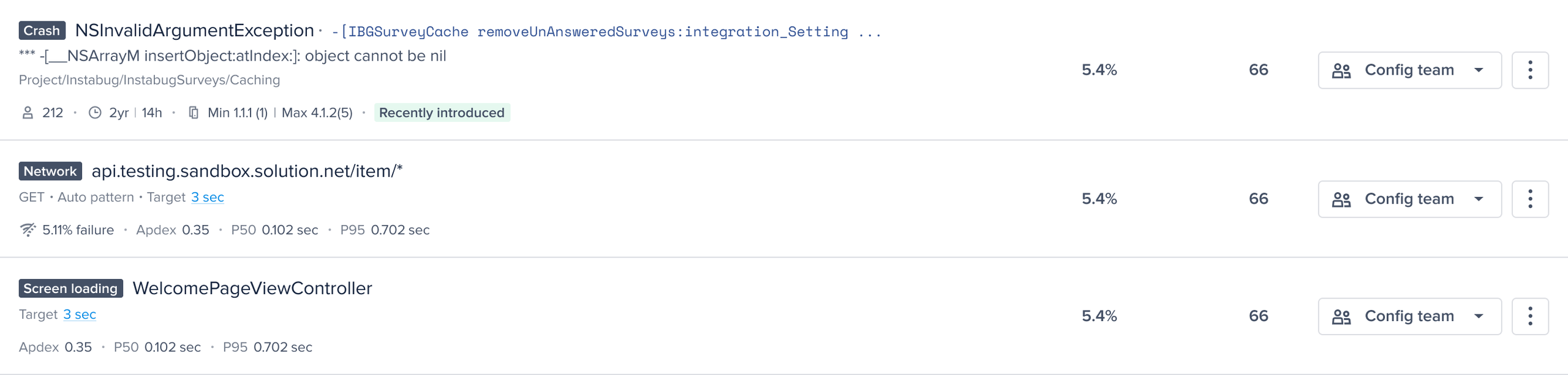
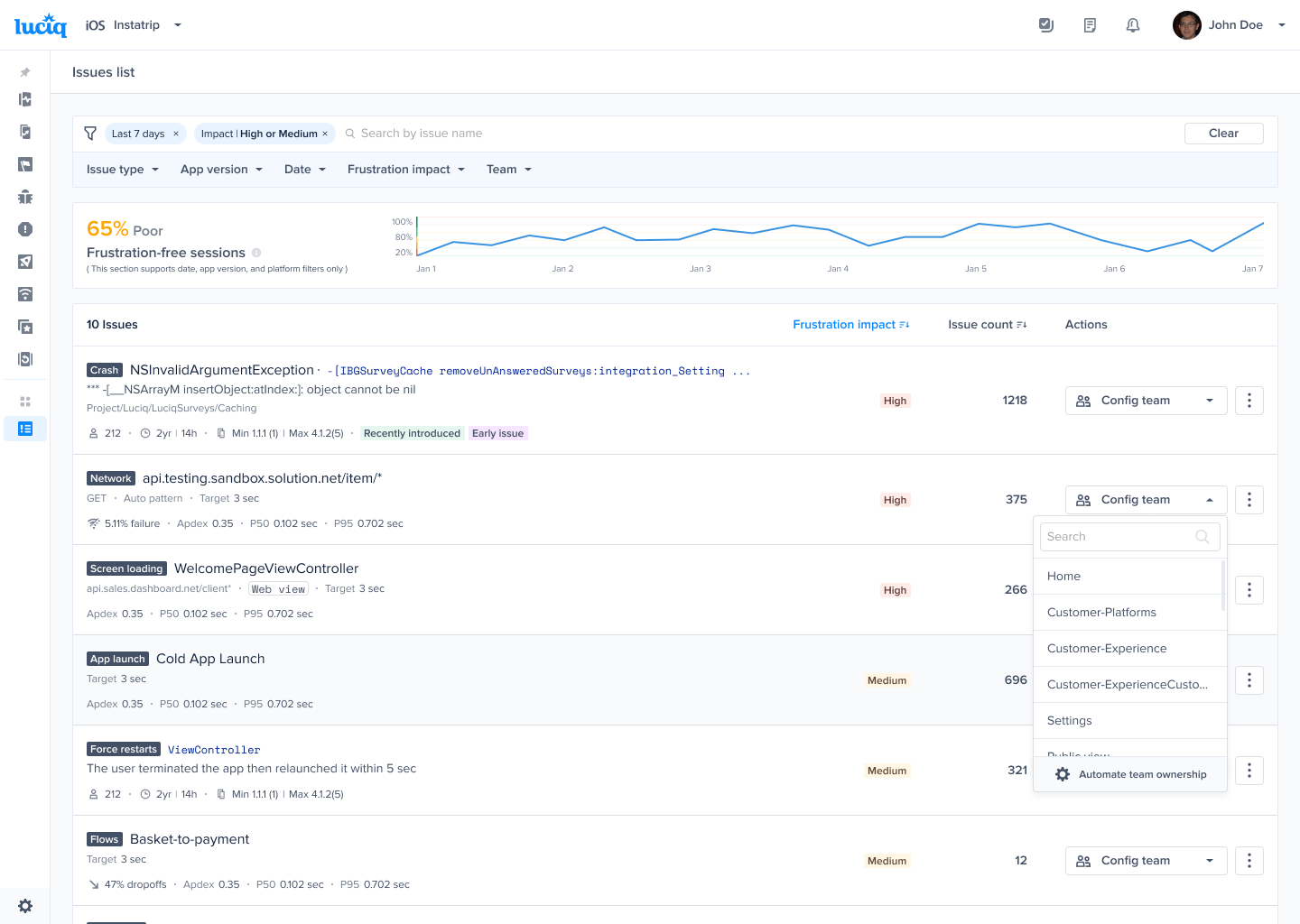
**Assign to Teams**

* Assigning ensures accountability and streamlines communication.
* Assigned issues will be reflected in the team’s dashboard for full visibility.

<figure><img src="https://files.readme.io/38b5947ea034dcc91991ce73f38b04db77123d0bdd4de0fe5572e2d3f098ca71-product-guides-issues-list-4.png" alt=""><figcaption></figcaption></figure>

#### Step 4: Fix the Issue

When you’re ready to fix an issue, click on it in the Issues List or open it through the link in your Jira ticket. You’ll be redirected to the issue’s **Details Page**, where you’ll find all the debugging data you need to resolve the problem efficiently.


# Frustration Impact

### What is Frustration Impact?

Frustration Impact helps you understand how much each issue in your app contributes to frustrating sessions, affecting both your **Frustration score** and **issue prioritization**. This calculation ensures that the issues causing the most user frustration are ranked higher in the **Issues List**, helping you focus on what matters most.

<figure><img src="https://files.readme.io/2b4eae230a41b811856f0492e32d0f7f99ee602655822f0ff0a16d99f063a59b-apdex-impact-1.png" alt=""><figcaption></figcaption></figure>

***

### Frustration Impact Levels

To better understand the significance of each issue based on its Frustration Impact, issues are classified into the following categories:

* **High Impact:** Issues affecting ≥0.5% of total sessions. These are critical and require immediate attention.
* **Medium Impact:** Issues affecting between 0.01% and 0.5% of sessions. These should be addressed after high-impact issues.
* **Low Impact:** Issues affecting <0.01% of sessions. These have minimal impact but may still need resolution over time.
* **No Impact:** Issues that don’t affect your frustration-free sessions score, including:
  * APM groups where all occurrences are satisfying (Frustration-Free Sessions 1).
  * Metrics marked as non-key by your team.

***

### How is Frustration Impact Calculated?

The Frustration Impact of an issue reflects its effect on your app's frustration-free sessions by estimating the **percentage of frustrating or tolerable sessions it causes.**

#### For performance issues:

**Example 1: Cold App Launch**

We approximate the percentage of sessions that were **frustrating** or **tolerable** due to the **cold app launch**. We calculate this by considering how bad the **cold app launch** is within all app launches, and **how much app launches contribute to frustrating and tolerable sessions** in total.

<figure><img src="https://files.readme.io/63c8179a4263bf091ea7ac67b7e812df9f0db74445e1cc8e85eb89b976f22b57-Screenshot_2025-03-25_at_4.40.26_PM.png" alt=""><figcaption></figcaption></figure>

Where:

<figure><img src="https://files.readme.io/efb66e00632dd6617410205e1ac77aa23ba24b91a810ac4aabddcdeb663c9752-image.png" alt=""><figcaption></figcaption></figure>

**Example 2: Network Requests**

We approximate the percentage of sessions that were **frustrating** or **tolerable** due to this particular **network request**. We calculate this by considering **how bad the network request is** within all networks, and **how much networks are contributing to frustrating and tolerable sessions** in total.

<figure><img src="https://files.readme.io/432fa737d1d79e8bff04ad4e247a076a2a7a002d7e420d8a74e24fc2461ae0c7-Screenshot_2025-03-25_at_4.38.48_PM.png" alt=""><figcaption></figcaption></figure>

Where:

<figure><img src="https://files.readme.io/513af81c9ca1957ab9f4272dc85af54bac0ce02531d95a1c8c8e5c8a395ad615-image.png" alt=""><figcaption></figcaption></figure>

**Example 3: App Hangs**

<figure><img src="https://files.readme.io/e9b552b3d649294f2033b56827a306f031792afae00785479f98a8b7770ab555-Screenshot_2025-04-14_at_4.00.14_PM_1.png" alt=""><figcaption></figcaption></figure>

Where:

<figure><img src="https://files.readme.io/4111cb3d88193e62c09b10e11a370b52bd2ec074fda01a30e30fe7be1a3b6edf-image.png" alt=""><figcaption></figcaption></figure>

**Notes:**

* This calculation applies to **app launch**, **networks**, **screen loading**, **flows**, **UI hangs**, **app hangs**, and **force restarts**.
* When calculating **Frustrating/Tolerable Sessions Caused by an issue, tolerable sessions** are given **half the weight** compared to **frustrating sessions**.
* **Dissat count** = (number of frustrating occurrences) + 0.5 \* (number of tolerable occurrences)

#### For Crashes:

A crash occurrence disrupts the user session completely. So we simply calculate the percentage of sessions this crash impacted.

<figure><img src="https://files.readme.io/5bb918a156bee2a5221f3ac794fef0a993367a8f0ed62137e971204837dda719-Screenshot_2025-03-25_at_4.38.59_PM.png" alt=""><figcaption></figcaption></figure>

**Notes:**

* This calculation applies to fatal crashes, ANRs for Android, and OOMs for iOS.

<br>


# Bug Reporting


# Bug Grouping

Reduces triage time by automatically detecting and grouping duplicate bug reports. You’ll get cleaner bug lists, clearer issue impact, and a single master report you can act on.

## Overview

Bug Grouping helps teams stay focused by:

* **Detecting duplicate reports automatically** -> Reduces manual triage and repetitive review
* **Reflecting the true magnitude of an issue** -> See how many duplicates belong to the same underlying problem
* **Letting you act once on the master report** -> Key actions propagate across duplicates

This feature works **side-by-side** with manual duplication. Manual grouping continues to work as-is.

<figure><img src="/files/T9JoFRxnHwyjeG9CGpks" alt="" width="563"><figcaption></figcaption></figure>

***

### How it works

When a new report is received, Luciq evaluates it against recent reports and determines whether it belongs to an existing group or should remain ungrouped.

* **Semantic matching**: Reports are compared based on the meaning of their content to find likely duplicates.
* **Group assignment**: If a match is found, the report joins that group as a duplicate. If not, it stays ungrouped/single.
* **Fast fallback**: The grouping logic is done on our backend, so if an automatic grouping can’t complete quickly (with in 30-secs), the report is shown normally (ungrouped) so your workflow is never blocked.

{% hint style="info" %}
**Grouping Logic**

The grouping logic focuses primarily on:

* **Report description semantic similarity**, plus
* **Report category/type match** (e.g., Bug vs Question)

Notably:

* **Subcategory is not used** in grouping.
* Additional attributes (screen name, app version, etc.) **are not** part of the current grouping logic as well.
  {% endhint %}

***

### What you’ll see in the dashboard

#### Group types

Bug reports are presented as one of the following:

* **Ungrouped report**: not part of any group AKA Single report.
* **Manual grouping**: created by your team.
* **Automatic grouping**: detected and grouped automatically.

Automatic group masters are visually distinguished so you can tell what was auto-grouped vs manually grouped.

{% hint style="info" %}
**Key concepts**

* **Master report**: the parent report representing the group’s “canonical” issue.
* **Duplicate report**: a report automatically or manually marked as duplicate of a master.
* **Ungrouped/Single report**: not part of any group.
  {% endhint %}

#### Automatic group master details

<figure><img src="/files/78oS6s5NuZ8Y9C5lWwzg" alt="" width="563"><figcaption></figcaption></figure>

Automatic group masters include an “Automatic group master” section that provides:

* **Group summary**: A short description of the shared issue across duplicates
* **Grouping confidence**: A confidence indicator for the grouping decision
* **Number of grouped reports**: Total duplicates in the group
* **Show duplicates**: View all duplicates in a dedicated list/drawer

{% hint style="info" %}
**What to expect**

* **Group summary**: A concise description of the shared issue across the group. It may take a short time to appear after grouping.
* **Confidence**: A confidence indicator for automatic grouping decisions. Group-level confidence is derived from the duplicates within the group. Manual duplicates do not contribute to the confidence calculation.
  {% endhint %}

#### Automatic duplicate details

Automatic duplicates show a banner indicating they were automatically marked as duplicates, and provide a shortcut to view the master report.

<figure><img src="/files/Lqz4ybb5SkqHrIcRmPqG" alt="" width="563"><figcaption></figcaption></figure>

#### Actions & workflows

Automatic groups follow the same core workflow as manual duplicates:

* **Master-first actions**: Update status/assignee/priority on the master report and duplicates follow.
* **Duplicates are restricted**: You can’t apply master-level actions directly from duplicate reports.
* **Change group master / mark as duplicate**:
  * For ungrouped/single reports, you can mark them as duplicates of an existing master.
  * For master reports, you can change with another ungrouped or master reports. **Note:** When changing a master with another master, you’ll simply merge the two groups together.
  * For duplicate reports, you can unmark them as duplicates (removing them from the group).

#### Filtering & bulk actions

When Bug Grouping is enabled, the dashboard exposes a **Report Groups** filter that lets you view:

* **Ungrouped reports**
* **Automatic** -> Masters / Duplicates
* **Manual** -> Masters / Duplicate

<figure><img src="/files/aUUkNFnfUsFNEZkZyRae" alt="" width="312"><figcaption></figcaption></figure>

Bulk actions are intentionally limited to prevent accidental changes across duplicates. If your current filter selection includes duplicates or doesn’t target masters appropriately, bulk actions will be disabled with an explanatory tooltip.

***

## Tags (master vs duplicate)

Luciq tags reports when they are created so you can distinguish master vs duplicate reports consistently.

* **Master reports**: Master\_report
* **Duplicate reports**: Duplicate\_report

**Note:** If Tags Sync is disabled in your 3rd party integration, master reports tag may not appear in certain tracking views when forwarding automatically.

<figure><img src="/files/QWG8S0OP3gBh6vrvRPq1" alt="" width="563"><figcaption></figcaption></figure>

***

## What to expect (and what not to expect)

**What to expect**

* Faster triage through automatic duplicate detection
* Clear distinction between manual and automatic groups
* Master-first workflow: one action on master updates the group

**What not to expect**

* New reports will not be automatically grouped into existing manual groups
* Perfect grouping in every case, yet. (you can always adjust groups manually)
* Duplicate grouping into closed/resolved issues (closed groups won’t continue collecting new duplicates)

***

## Enabling Bug Grouping

* Want to enable Bug Grouping? Please reach out to our support team or your Customer Success Manager.
* **Note:** After enabling the feature, **grouping will be applied only to reports that are received after the feature is enabled**; it won’t be applied retroactively to old bug reports.


# Bug Grouping | Alerts & Rules

This page provides alert and rule recommendations if you have Bug Grouping enabled.

## Overview

If you have Bug Grouping enabled, you can choose which report types to alert on or automate with rules. You can set alerts or rules for:

* **Master & Ungrouped reports**: the parent report and any report that is not part of any group.
* **Duplicate report**: a report automatically or manually marked as a duplicate of a master.

***

### How it works

#### Main Approach

Start by choosing a trigger. You can target either **Any report type** or **Master & Ungrouped reports**.

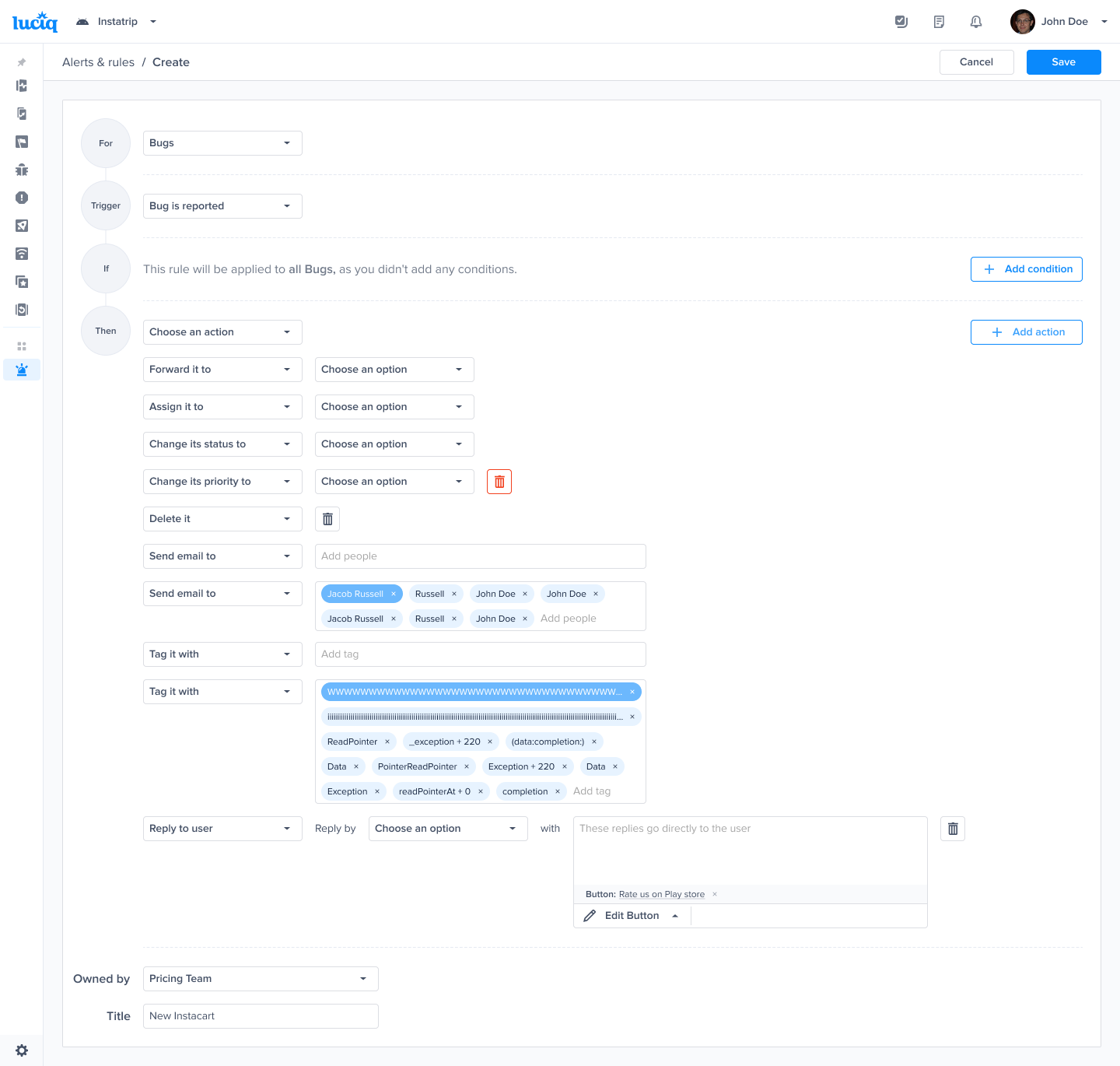
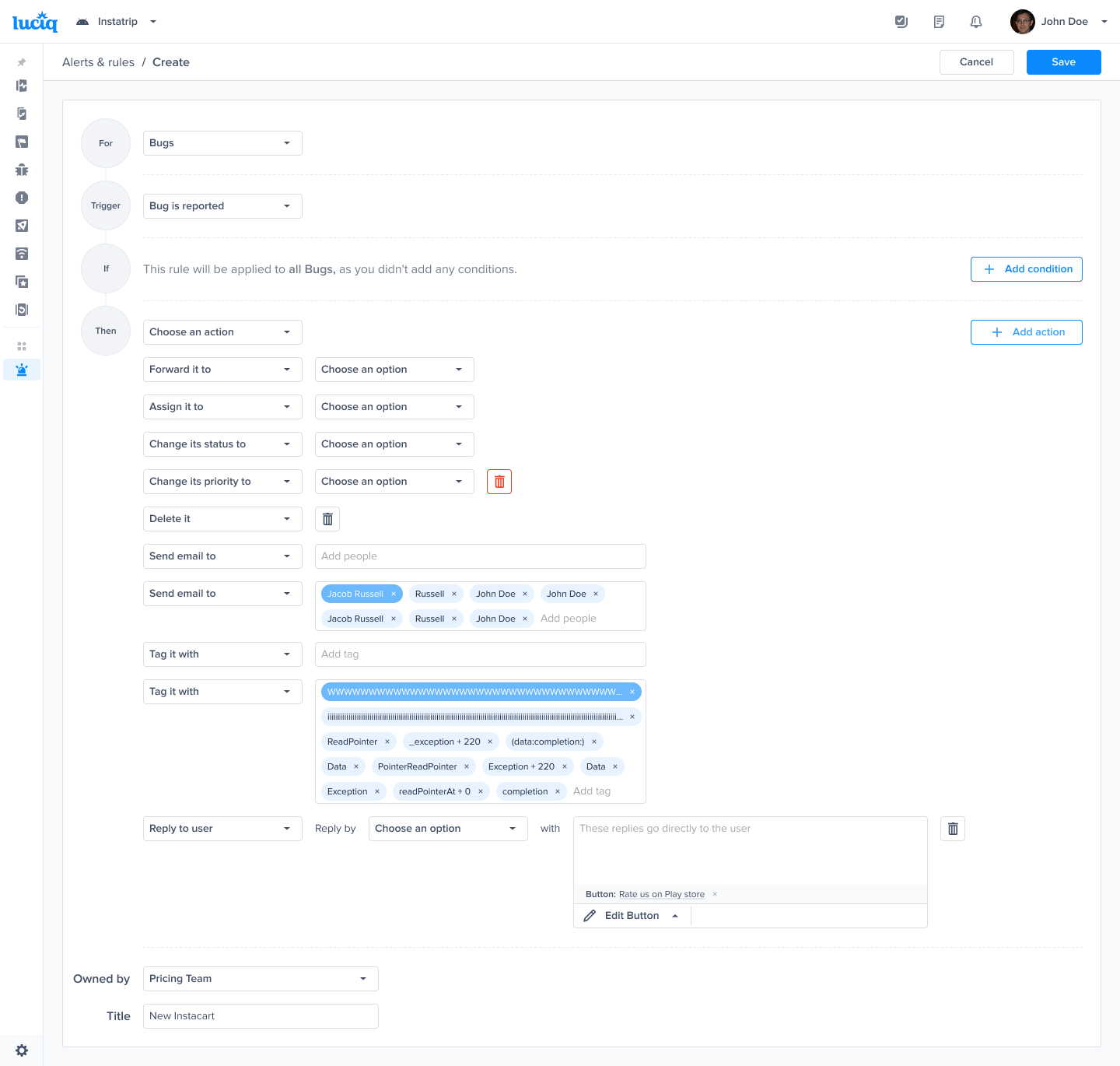
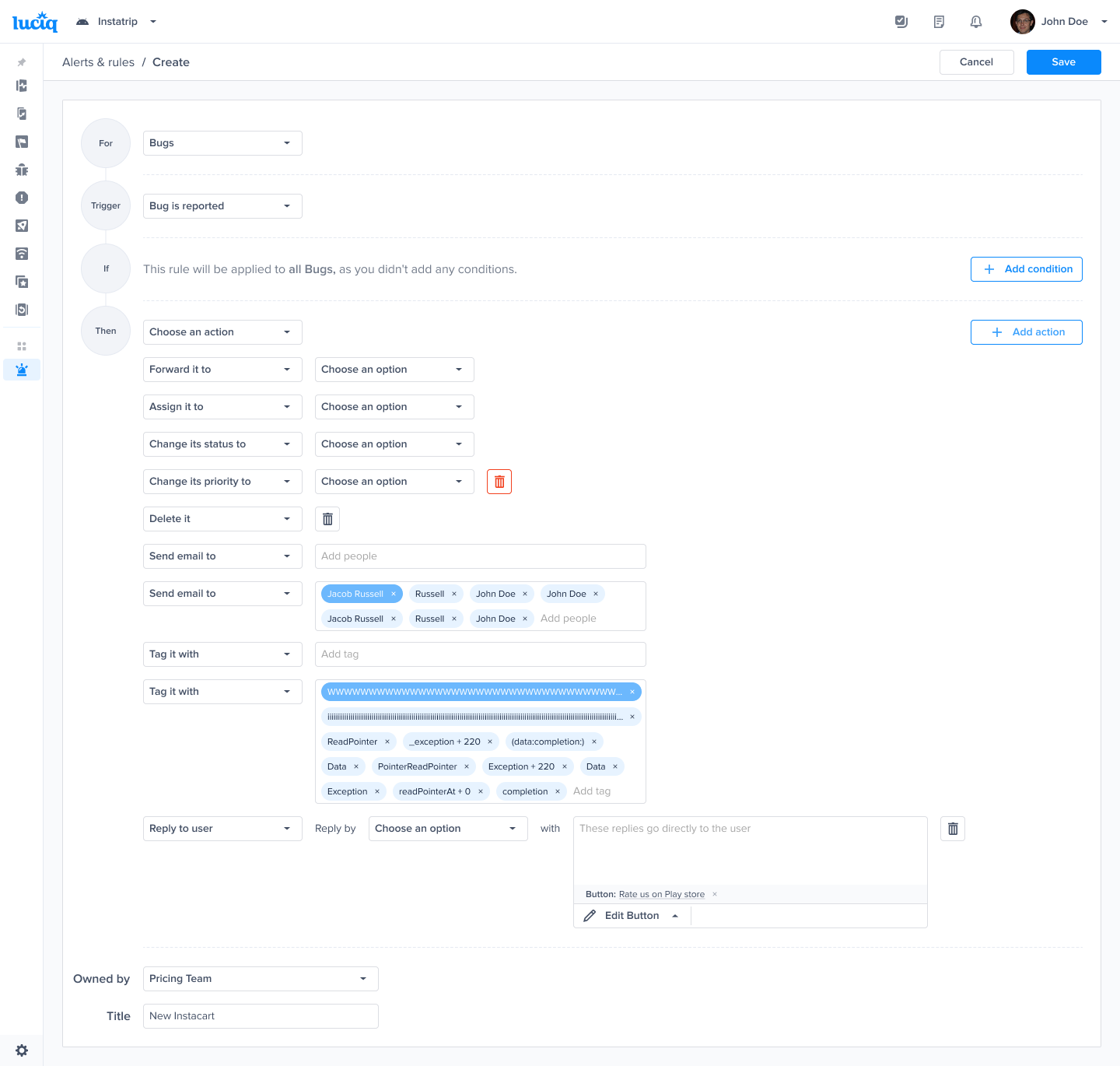
<figure><img src="/files/1BAQtG9911r6kdjJZ5eD" alt=""><figcaption></figcaption></figure>

To trigger on **all reports** (masters, singles, and duplicates), choose **Any bug is reported**. It triggers whenever you receive **any** bug report.

If you only want **Master & Ungrouped/Single** reports (**recommended**), choose **Not a duplicate bug is reported**. This reduces noise from alerts when a **duplicate report** is received.

#### Another Approach | Utilize report tags

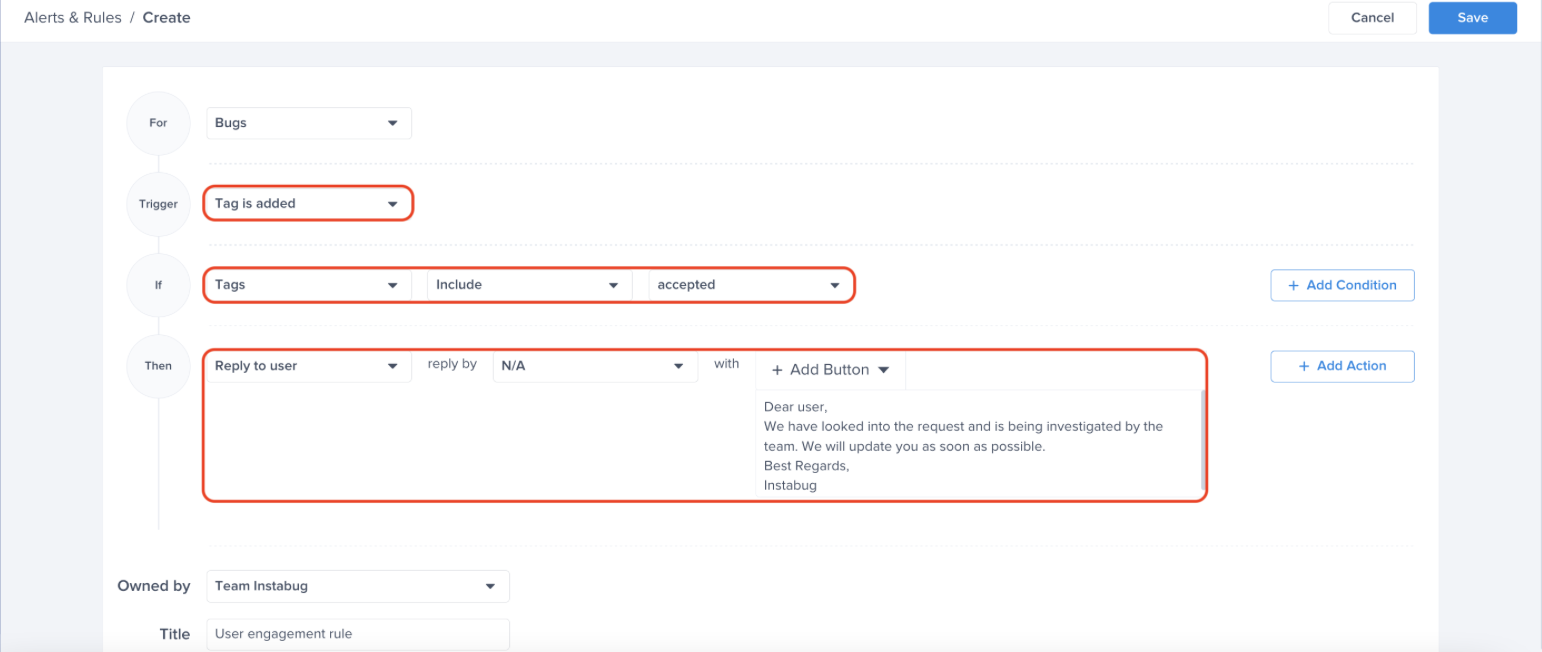
* By default, when a report becomes a **master report,** a new "Luciq\_Master\_report" tag is added to it.
* The same applies to **duplicate reports**. When a duplicate bug is reported, it gets a new "Luciq\_Duplicate\_report" tag.
* You can use these tags to trigger a rule when:
  * A bug report becomes a group master.
  * A bug report is marked as a duplicate of an existing report.

{% columns %}
{% column %}

<figure><img src="/files/ntknCHFkWXPYn9ioojQW" alt=""><figcaption><p>Setting a rule for master reports</p></figcaption></figure>
{% endcolumn %}

{% column %}

<figure><img src="/files/MEQr2ewFRXWzO4U8cFkq" alt=""><figcaption><p>Setting a rule for duplicate reports</p></figcaption></figure>
{% endcolumn %}
{% endcolumns %}

{% hint style="warning" %}
**Noise Alert**

Rules based on **tags** can get noisy if you rely heavily on tags in your workflow. This rule **triggers every time** a new tag is added to the report.
{% endhint %}

{% hint style="info" %}
**Why are Master & Duplicate reports tagged?**

For 3rd-party integration tools that support 2-way tag sync (for example, Jira), these tags can show up in those tools. They help you identify the report type outside the Luciq dashboard.

<img src="/files/NOr27CSTkRg65vqfhRG9" alt="" data-size="original">
{% endhint %}

***

## Good to know

* By default, our **Triage Agent** adds a comment in the Activity & Comments section when a new **duplicate report** is added to a **master report.**
* This comment is then be shown in **Jira** (or other integrations that support syncing of comments) to update you on the volume of duplicate reports received.

{% columns %}
{% column %}

<figure><img src="/files/XHHyZu7OrWHGK97ZqEy4" alt=""><figcaption><p>Triage Agent's comment on Luciq's dashboard</p></figcaption></figure>
{% endcolumn %}

{% column %}

<figure><img src="/files/MlJkLtIuF9qrzmSe81Af" alt=""><figcaption><p>Triage Agent's comment inside the Jira ticket</p></figcaption></figure>
{% endcolumn %}
{% endcolumns %}

{% hint style="info" %}
**Note on comments syncing**

Make sure you enable the Comment One-way Sync from Luciq to Jira for the comments to reflect on Jira.

<img src="/files/vn1gsxgqkYIyK1BEe2xA" alt="" data-size="original">
{% endhint %}


# Report Types & Content

This page covers the content found in the reports sent to the bugs page of your dashboard and relevant APIs for your iOS apps.

### Report Types

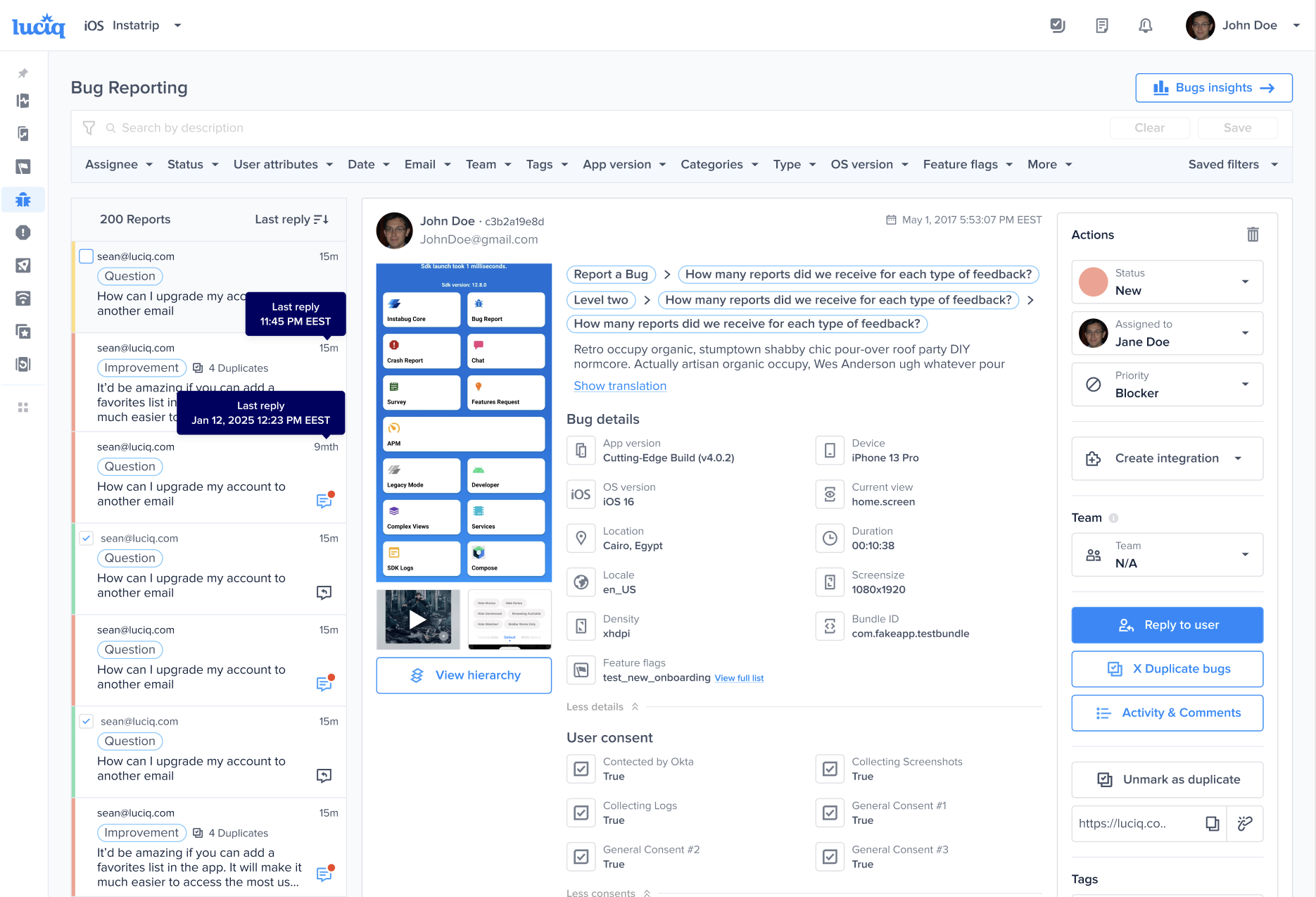
There are three different types of reports that, while function similarly for the end-user, appear with different types on the dashboard in order to easily separate between incoming issues. All three types will reach your dashboard with the same amount of information and can be filtered so that you can look at specific types only.

![](https://files.readme.io/22284fb638da33f2aa76fb1016bc0a270d3d3151bc25a41567187c29816caaaf-ios-bug-report-content-3.png) ![](https://files.readme.io/74bb70bbd5249226c4da54f0f64657be6ef551d2b01d64ea0682ef78482ca8a3-ios-bug-report-content-1.png)

#### Bug

When the user selects "Report a bug" from the prompt options, the sent report will appear with type Bug. This type of report is primarily meant for reporting bugs that were found in the application.

![](https://files.readme.io/77d63c1c3630513dd2235948e2d69663c62c28052b6138aec999eeb6186404cc-ios-bug-report-content-4.png)

#### Improvement

Selecting "Suggest an improvement" from the prompt options will open the improvement suggestion form that your user can use to give you feedback on how you can improve the application in certain areas. These reports are shown on the dashboard with type "Improvement".

![](https://files.readme.io/32bd146e55deab039e9b03a795a5254a59fbb6497be74025c8d7691ead88537c-ios-bug-report-content-2.png)

#### Question

The third option in the prompt options is "Ask a question". The purpose behind this option is for users that don't quite have a bug or an idea for an improvement, but rather a question they'd like to ask you. These show on your dashboard with type "Question".

![](https://files.readme.io/a473ffbf6dc6c7d369013ac65d364d77f63f8888cbebfe228d0116a4fcda9223-ios-bug-report-content-5.png)

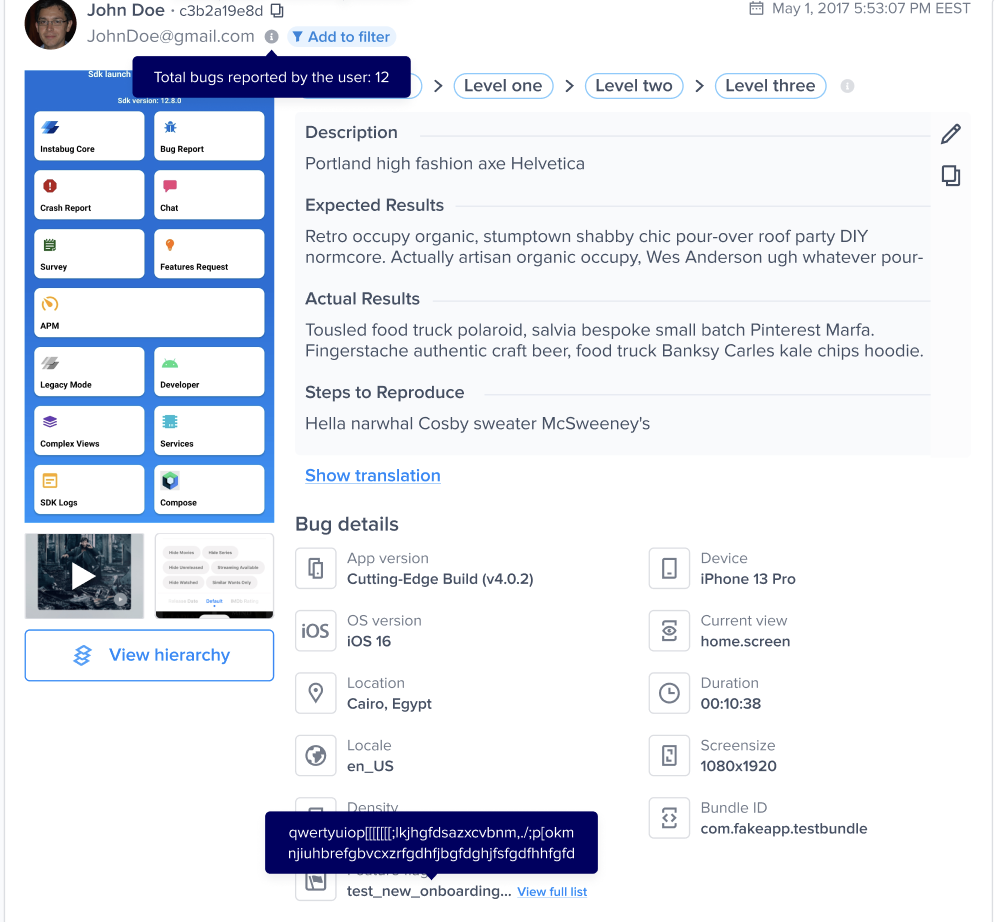
### Report Content

The reports (bugs, improvements, and questions) that your users submit from your app (from the Prompt Options) are sent to the bugs page of your dashboard.

With each report, you receive a plethora of details that will help you fix bugs and get more context about the comments you receive. Throughout this page, you will learn about all the information that comes in these reports, as well as any relevant APIs that you can use to customize the data that you receive, including:

* User Attributes
* Bug Report Fields
* Attachments
* Auto Screen Recording
* Logs
* Repro Steps
* Session Profiler
* View Hierarchy
* Tags

#### User Attributes

Default attributes as well as any custom user attributes that you set are automatically sent to your dashboard with all reports.

Default attributes listed in each report include:

* App version
* Device
* OS version
* App view
* Device location
* Session duration

More details about how to set custom user attributes can be found [here](/ios/setup-luciq-for-ios/custom-settings/user-identification/user-attributes).

#### Bug Report Fields

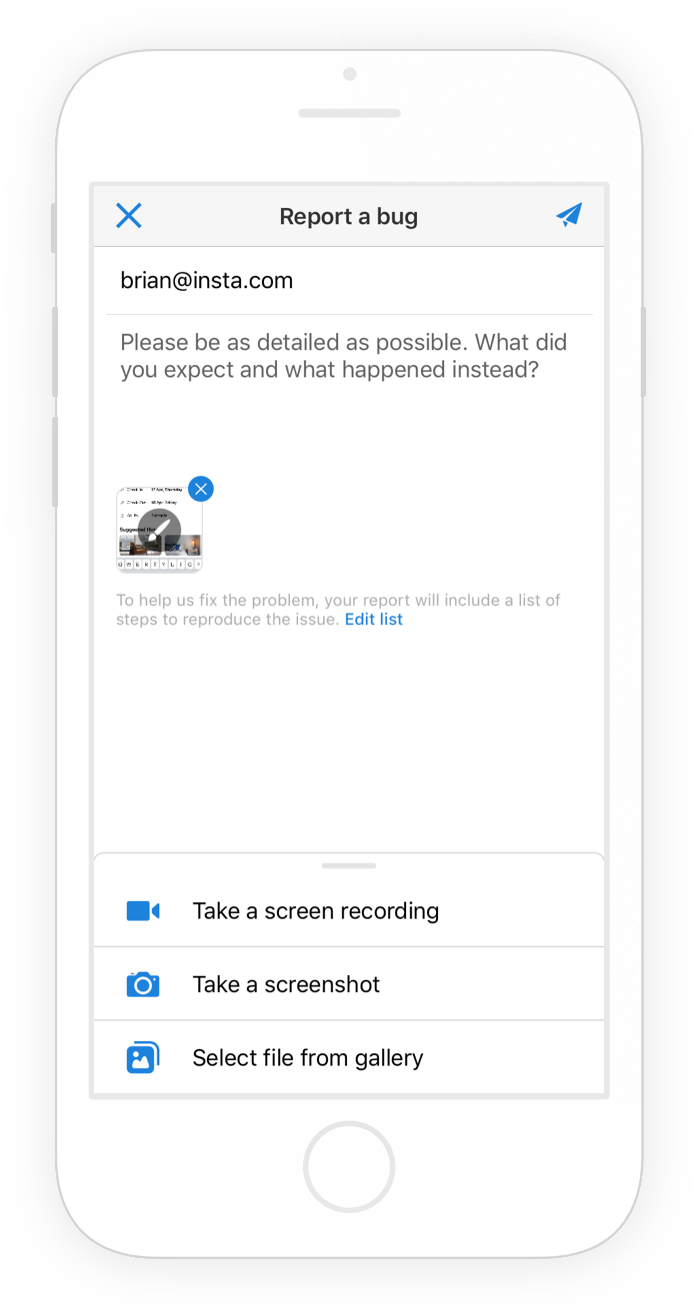
The image below shows the first view that your users see when reporting a bug after [invoking the SDK](/ios/setup-luciq-for-ios/setup-bug-reporting/showing-luciq).

<figure><img src="https://files.readme.io/d098bb0-3._MB_Compose_Report_Bug.png" alt="696"><figcaption><p><em>The first step of the bug reporting flow that your app users experience.</em></p></figcaption></figure>

#### Email Address

By default, your users are required to enter a valid email address to submit a bug or feedback, You can also remove the email field from the UI completely.

### Attachments

Your users can submit two types of attachments with any report: default Luciq attachments (files that they can select from their device) and custom extra attachments (additional files that you can attach using code).

#### Luciq Attachments

When your app users invoke Luciq, the SDK automatically captures a screenshot of their current view. This is the default attachment that is sent with any report. Your users can annotate this screenshot by drawing on, magnifying, or blurring specific parts.

In addition, there are other attachment types that your users can choose to send with each report. All attachment types can be enabled or disabled.

The attachment options are:

* Extra screenshots
* Images from photo library
* Screen recording

  <figure><img src="https://files.readme.io/8d0025ed8991d209f36a38ef8470795daa2ae0f7a4adea4de5207512898a87d1-image.png" alt=""><figcaption></figcaption></figure>

All attachment options are enabled by default if they are available in your current **plan**.

#### Auto Screen Recording \[Beta]

{% hint style="info" %}
**Used for Internal Testing**

The main purpose behind this feature is to specifically use it for internal testing rather than on production.
{% endhint %}

You can also automatically capture a screen recording of your app up to the last 30 seconds before a report is sent. **By default, this is disabled**. **Your users will also be prompted once the recording starts at the beginning of the session and will have the ability to remove the video from the attachments when sending the report.** The auto screen recording attachment counts towards the limit of 4 attachments in total.

<figure><img src="https://files.readme.io/8d0025ed8991d209f36a38ef8470795daa2ae0f7a4adea4de5207512898a87d1-image.png" alt=""><figcaption></figcaption></figure>

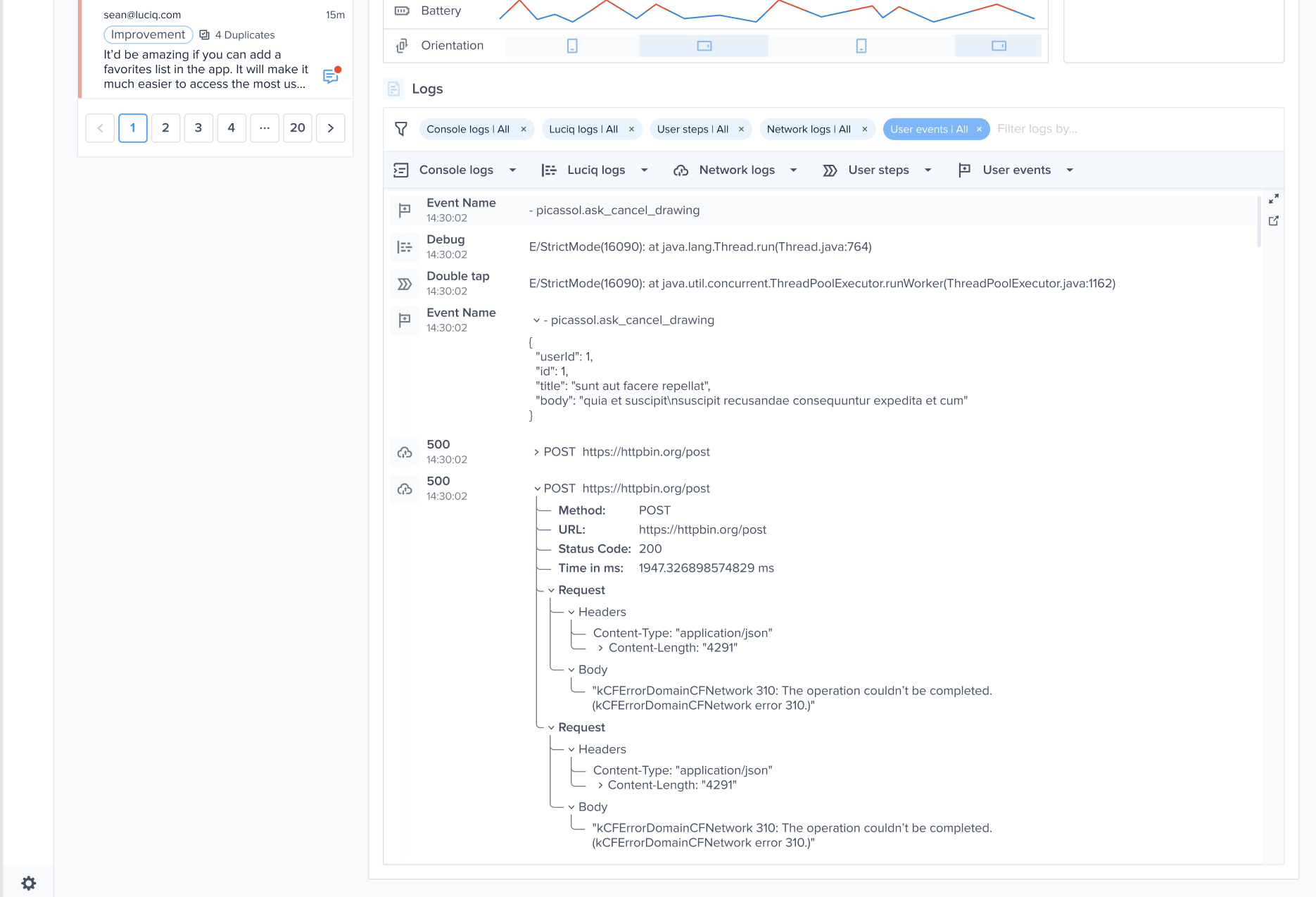
### Logs

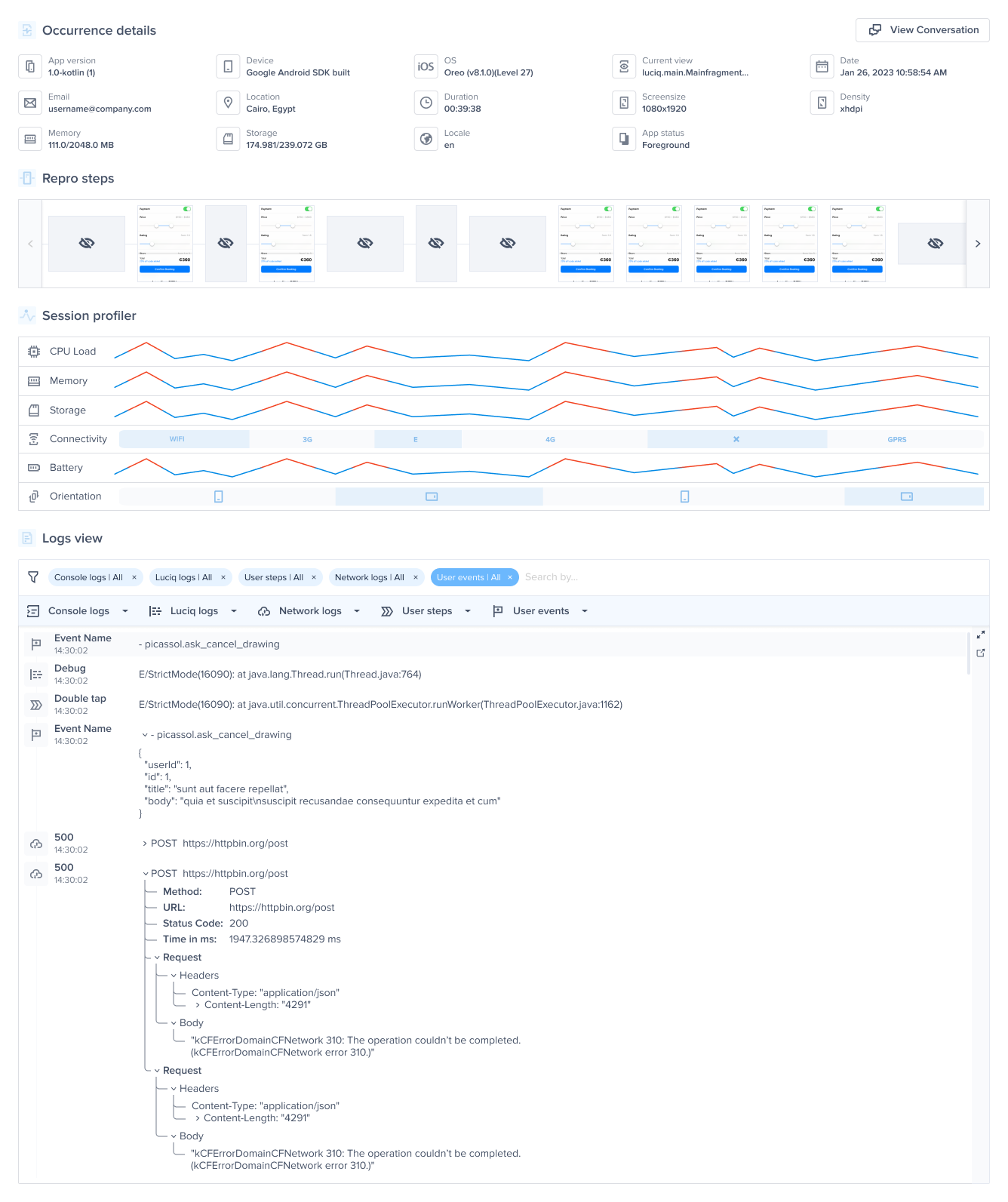
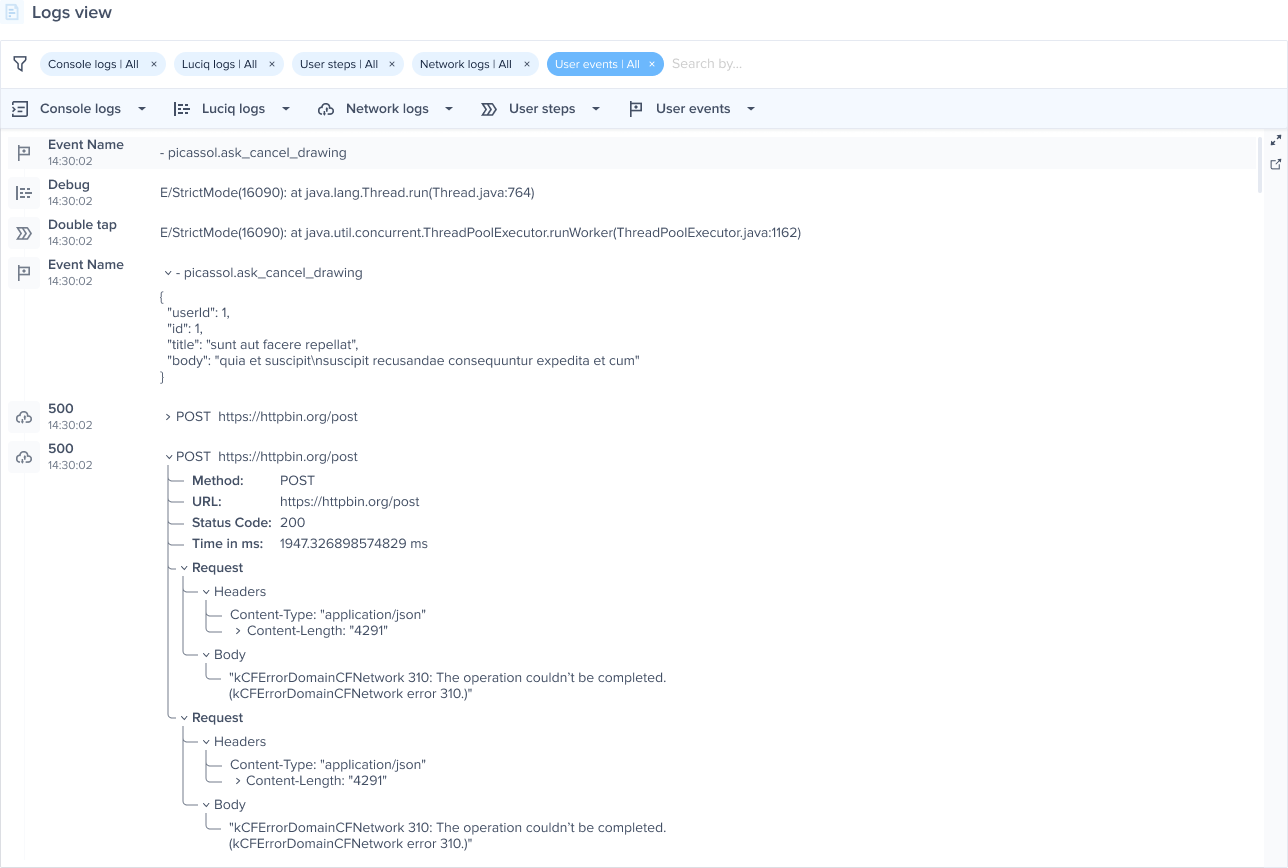
A whole host of logs are sent with every report. These logs include:

* **Console Logs:** Default logs that are printed to the console when the application is running.
* **Luciq Logs:** Logs with different verbosity levels that you can add manually.
* **User Steps:** Every step the user has taken in the form of log entries.
* **Repro Steps:** User steps prior to the bug report grouped by view.
* **Network Logs:** A log of each network request.
* **User Events:** A manual log of actions that a user has taken.

More details regarding logging can be found [here](/ios/setup-luciq-for-ios/custom-settings/logs-and-profiling/report-logs). Different log types are enabled depending on your plan.

<figure><img src="https://files.readme.io/0ed473dbae395f24482b2ab6a5236d0253b1b694577a531a43ee6f2d25ebb52e-image.png" alt="An example of the expanded logs view in your dashboard."><figcaption></figcaption></figure>

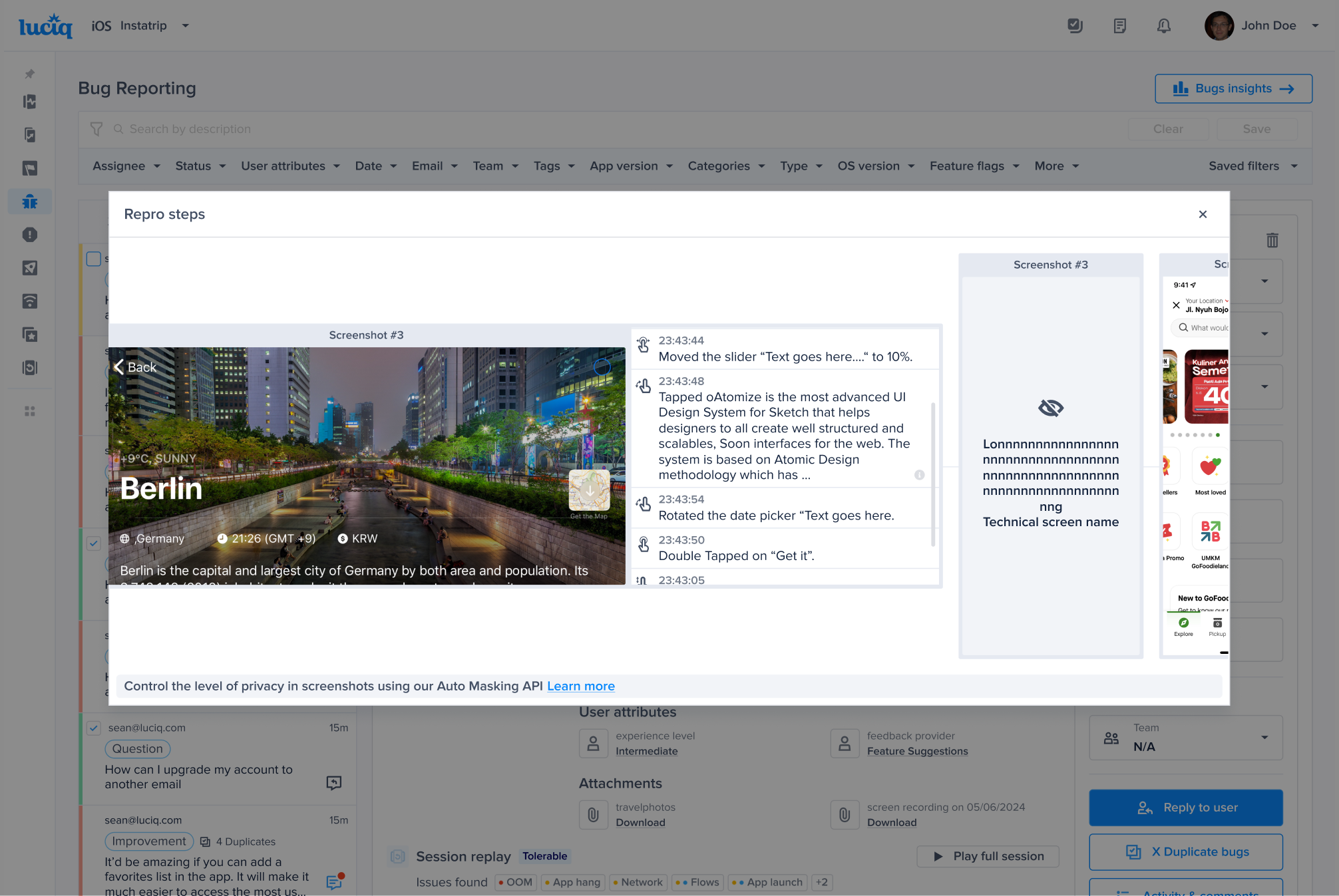
### Repro Steps

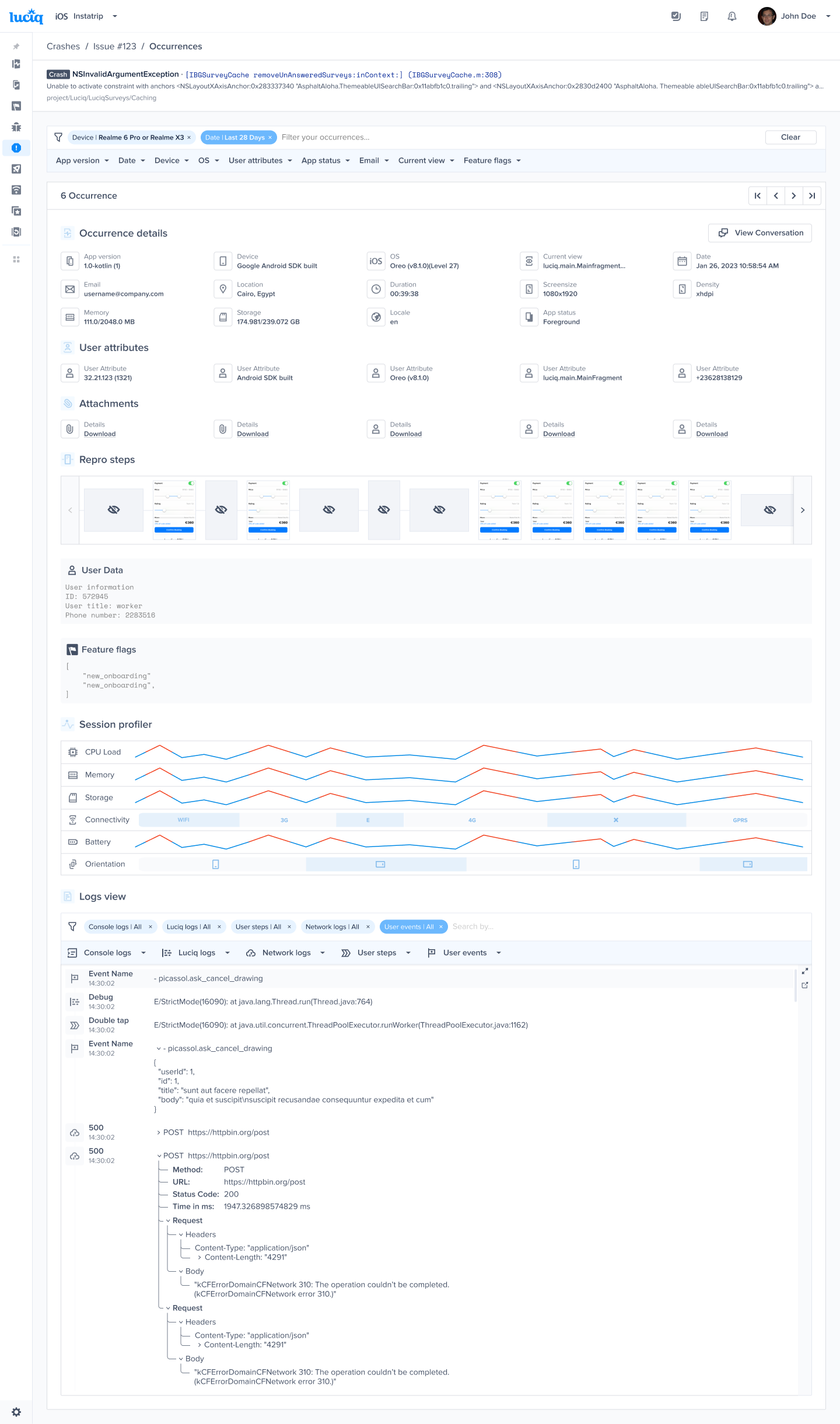
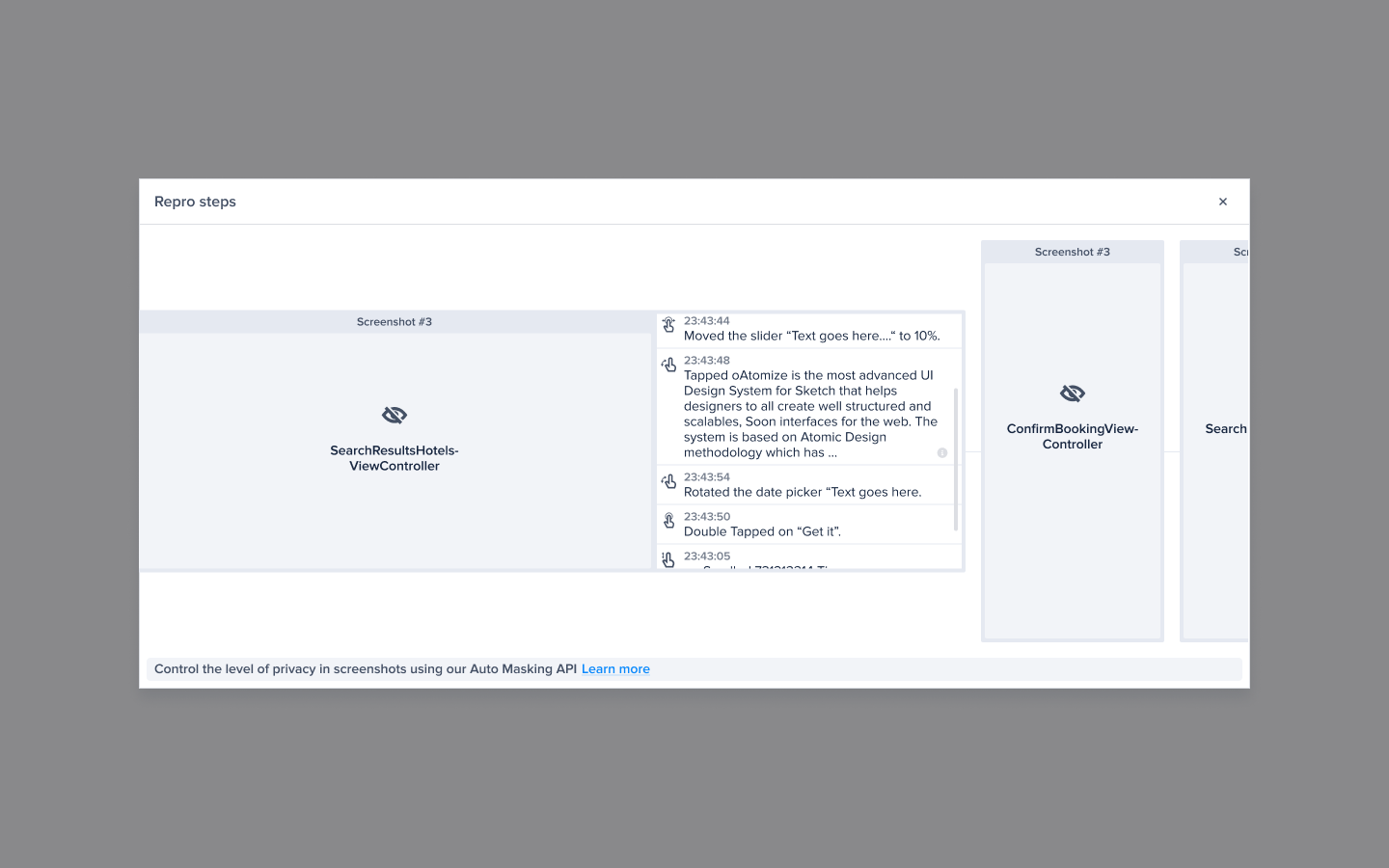
Repro Steps help you reproduce a bug by displaying your users' actions in each view of your app. With each view, you will find a list of actions that tell you exactly what the user did in that view. More details can be found [here](/ios/setup-luciq-for-ios/custom-settings/logs-and-profiling/repro-steps).

<figure><img src="https://files.readme.io/74bb70bbd5249226c4da54f0f64657be6ef551d2b01d64ea0682ef78482ca8a3-ios-bug-report-content-1.png" alt=""><figcaption></figcaption></figure>

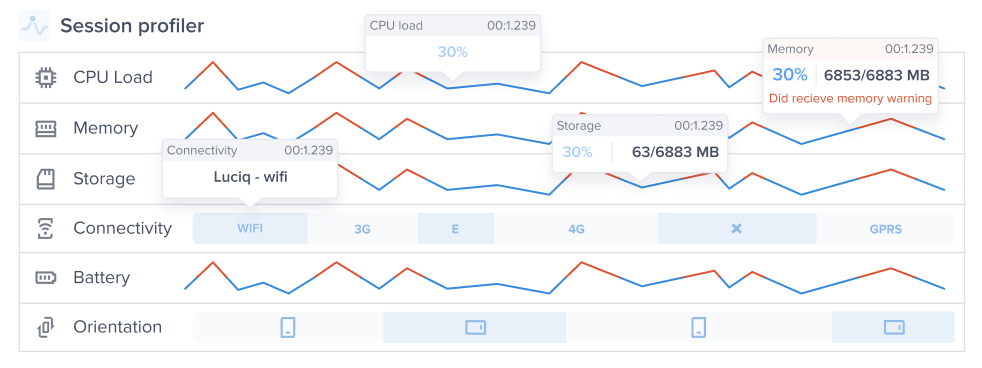
### Session Profiler

With each report, you'll receive a detailed environment profile covering the last 60 seconds before a bug or feedback was submitted. This Session Profiler includes device data like memory load and battery state. More details about the information contained in the Session Profiler can be found [here](/ios/setup-luciq-for-ios/custom-settings/logs-and-profiling/session-profiler).

<figure><img src="https://files.readme.io/173048747ef4f3084479afe370d4d120d9c7e8df9d5d0ec5becfae60f3d5197d-image.png" alt=""><figcaption></figcaption></figure>

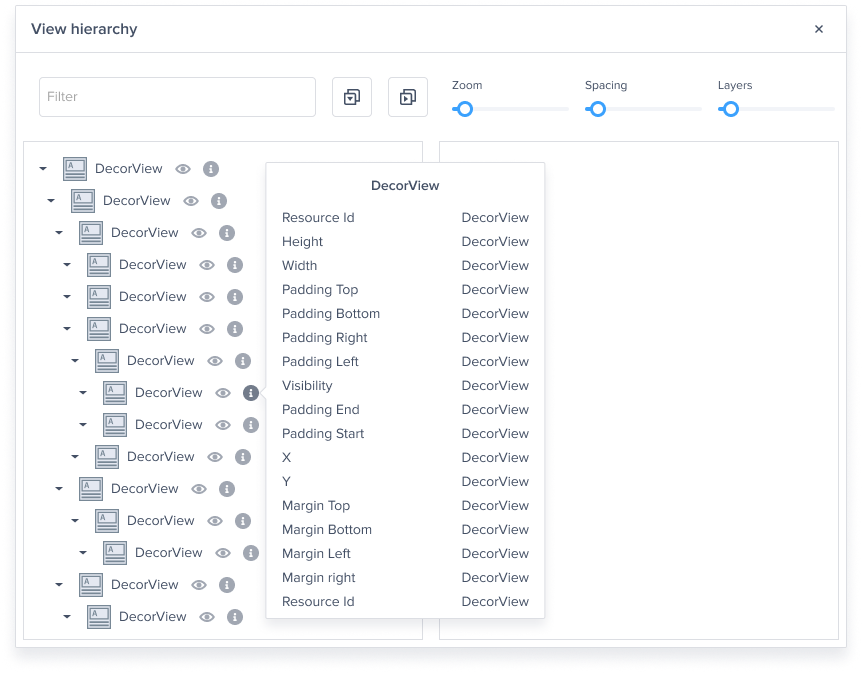
#### View Hierarchy

With the View Hierarchy feature, you can visually inspect each layer in your app and see all the properties and constraints of each subview so you can spot errors at a glance.

This feature is critical for investigating UI bugs as it makes the process of finding the problem and fixing it faster and simpler. For example, if you receive a report that a certain UI view is missing, you can use View Hierarchy to easily discover if the missing view is hidden behind a higher layer, out of the parent view's bounds, or missing from the window.

Any editable text or text fields will automatically be replaced with asterisks.

<figure><img src="https://files.readme.io/b53ae9ed108d457d6122c178839f8c520ae242351931fa52a44536c60c953299-image.png" alt=""><figcaption></figcaption></figure>

#### Tags

You can add tags to the reports you receive to help you filter and triage bugs in your dashboard. More details regarding tags can be found [here](/ios/setup-luciq-for-ios/custom-settings/user-identification/tags).

<figure><img src="https://files.readme.io/ae430d5077ce40cad8335f91b5f5252b1df2353eca4600a567e720acf57eff64-image.png" alt=""><figcaption></figcaption></figure>

<br>


# Reply to Reporters

This page shows you how to send an in-app chat to your users from your dashboard and explains the icons seen in the list of reports on your bugs page for your iOS apps.

{% hint style="info" %}
**Separate Conversations**

Each open conversation can only be viewed from its related issue. If you reply to a user who reported a specific bug, you can only access that conversation from that specific bug report. The same is true for crash report and survey response.
{% endhint %}

### Reply to User

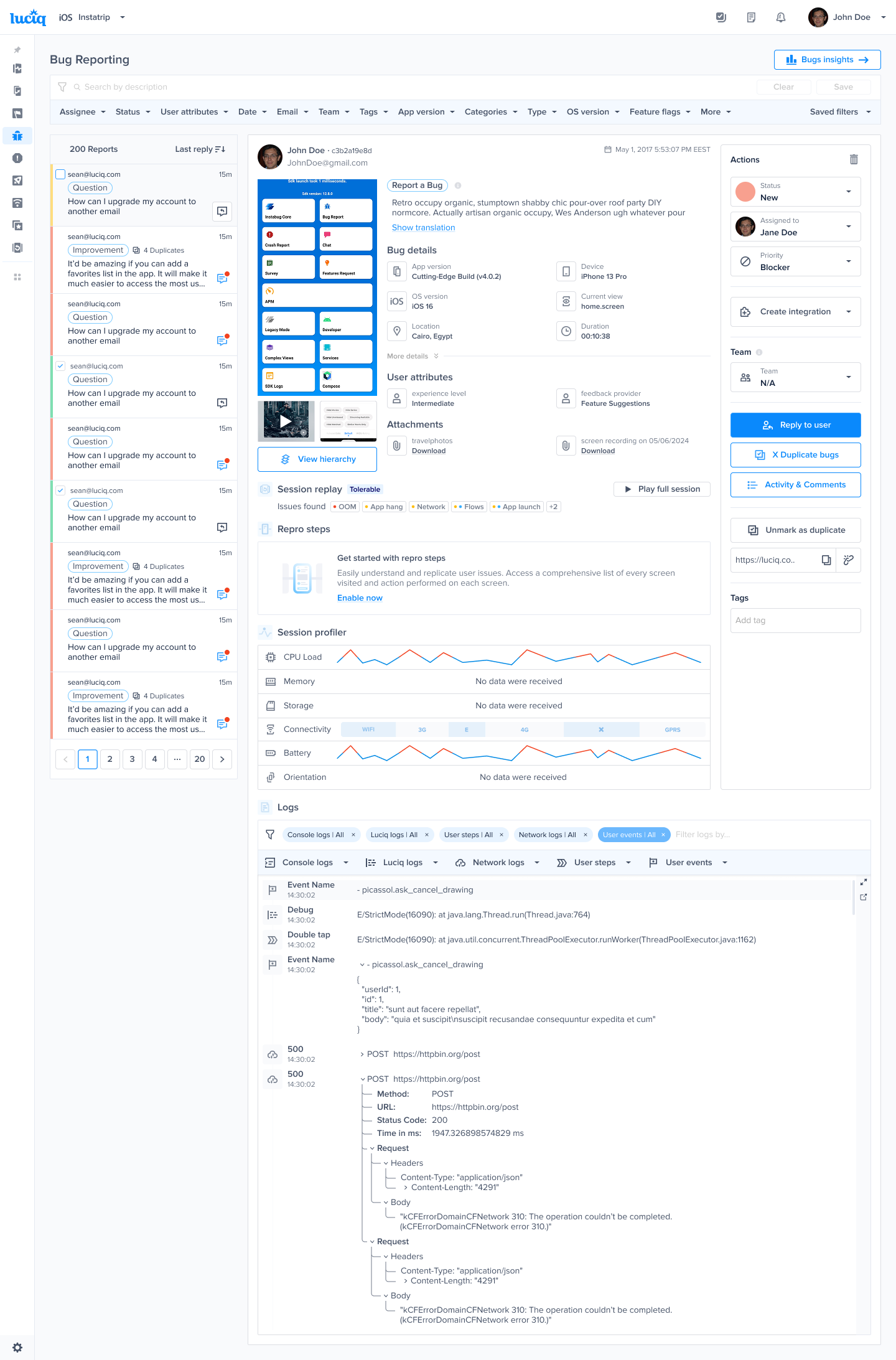
Let's say you receive a bug report from a user and you want to let them know that a fix is on the way or ask for more details. You can do this by reaching out to them directly from the bug report in your dashboard using the **Reply to User** button (or **View Conversation** if one already exists) as shown below.

By default, your users will receive an in-app notification, then an email if they miss the notification.

<figure><img src="https://files.readme.io/8d0025ed8991d209f36a38ef8470795daa2ae0f7a4adea4de5207512898a87d1-image.png" alt=""><figcaption></figcaption></figure>

You can have conversations with your app users without ever having to leave the bugs page.

{% hint style="info" %}
**Note**

To ensure chat privacy and prevent conversations from being mixed between different users, it is critical to use a unique ID for each user. For more details, please see our guide on [User Identification](/ios/setup-luciq-for-ios/custom-settings/user-identification).
{% endhint %}

#### Chat Icons

You can easily see if you have are any unread messages from users by checking the icons in your list of reports.

There are three different chat icons that indicate which reports contain conversations.

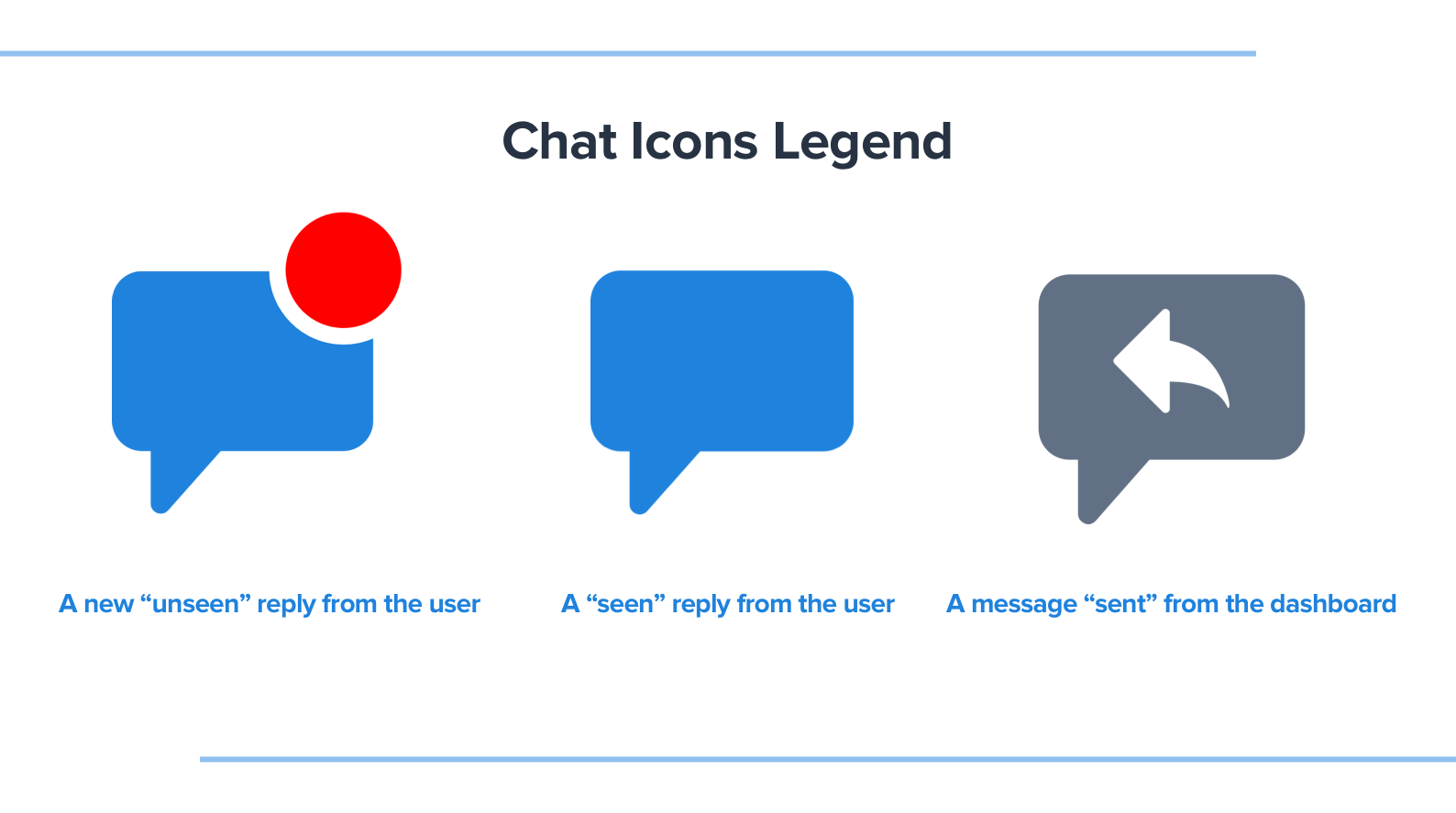
* **Blue chat icon with red dot:** You have a new unread message from the user.
* **Blue chat icon only:** You read the message but didn't reply (the user sent the last message in the conversation).
* **Grey chat icon with arrow:** You have replied to this user (you sent the last message in the conversation).
* **No icon:** There is no conversation in this report.

Your reports are also sorted so that the reports with the newest messages appear first instead of when the bug was first reported. This resurfaces the reports that require your attention instead of staying buried in your list.

"Closed" reports that receive new messages are automatically changed back to "In Progress" and will appear in your list.

<figure><img src="https://files.readme.io/55d06b7-Chats_Icons_Legends.png" alt="1588"><figcaption><p><em>The chat icons are visible in your list of reports on the lefthand side of the bugs page in your dashboard</em></p></figcaption></figure>


# Extended Bug Report

### What is an Extended Bug Report?

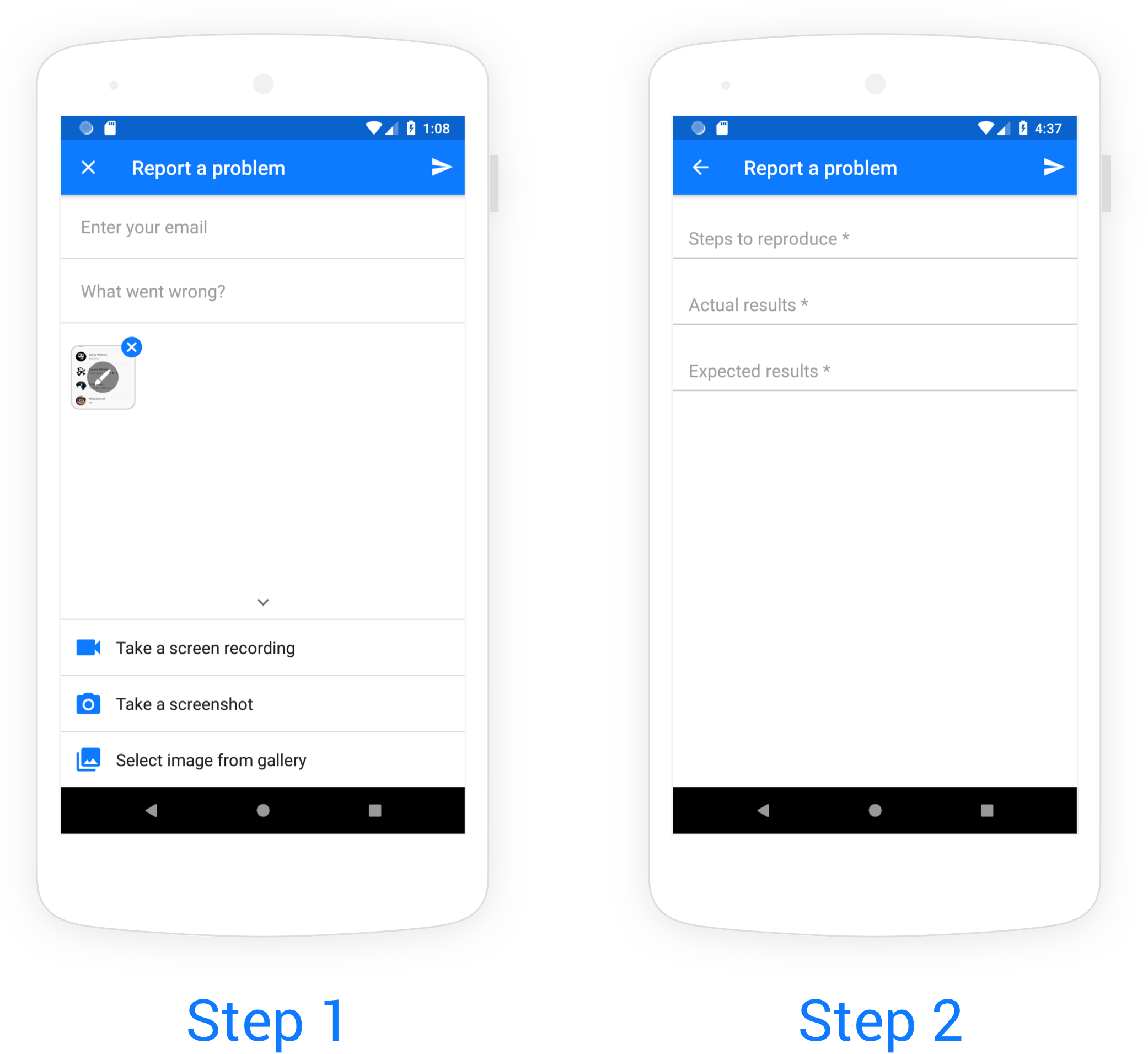
Free-form comments from reporters can be time-consuming to read through when triaging bugs. The Extended Bug Report standardizes all of your bug reports with additional fields that are commonly used by QA and technical beta testers: steps to reproduce the bug, actual results, and expected results.

<figure><img src="https://files.readme.io/be1fda00d2c01eb679298b1db96ff4606d469278569273f199861d24f1d43d87-ios-extended-bug-report-1.png" alt=""><figcaption></figcaption></figure>

If enabled, the Extended Bug Report adds a second step to the bug reporting flow that your testers experience in your app.

<figure><img src="https://files.readme.io/828b74a276d747107e40bc66b60044494876b597d7e378d61403d503ba360e47-ios-extended-bug-report-2.png" alt="6534"><figcaption><p><em>The Extended Bug Report includes additional fields for your testers to complete when sending reports.</em></p></figcaption></figure>


# Proactive Bug Reporting

This page covers how you can use Proactive Reporting to prompt users to submit feedback reports and how to configure it using APIs.

### What is Proactive Reporting?

Proactive Reporting is a feature that prompts end users to submit their feedback after our SDK automatically detects a frustrating experience.<br>

<figure><img src="https://files.readme.io/aae6c1770a4d42429856d92eb93248024babff70a66c3de6d9fe92e11603bb00-Bug_Reporting.gif" alt=""><figcaption></figcaption></figure>

The frustrating experience our SDK detects to trigger the feedback modal is [**Force Restart**](/product-guides-and-integrations/product-guides/crash-reporting/force-restarts).

If you have our **Force Restart** product enabled as part of your plan, users will be prompted to submit their feedback and explain what triggered them to force restart the app.

The details of the feature are as follows:

* You should have **Force Restart** as part of your plan.
* Enable the feature (Using the APIs in the upcoming section).
* Once the SDK captures a Force Restart occurrence, a modal will be triggered to ask your end-users if they want to share their feedback and experience.
* This feedback will reflect on your Bug Reporting page in the dashboard.

If enabled, users will first see a modal asking if they want to report this experience. If their answer is yes, they will see a **Feedback** description model that allows them to enter their email and describe their experience using their own words.

|                                                                                                                             |                                                                                                                             |
| --------------------------------------------------------------------------------------------------------------------------- | --------------------------------------------------------------------------------------------------------------------------- |
| ![](https://files.readme.io/ba2fb841c90a3ee873e13a59fa07c9c64fc7d3eb27379cd89e17d96b0e9422bd-ios-proactive-reporting-1.png) | ![](https://files.readme.io/96690010a0bb1031eaeba0c1a136279c9ff405974320fce53d4dbcec4134bec3-ios-proactive-reporting-2.png) |

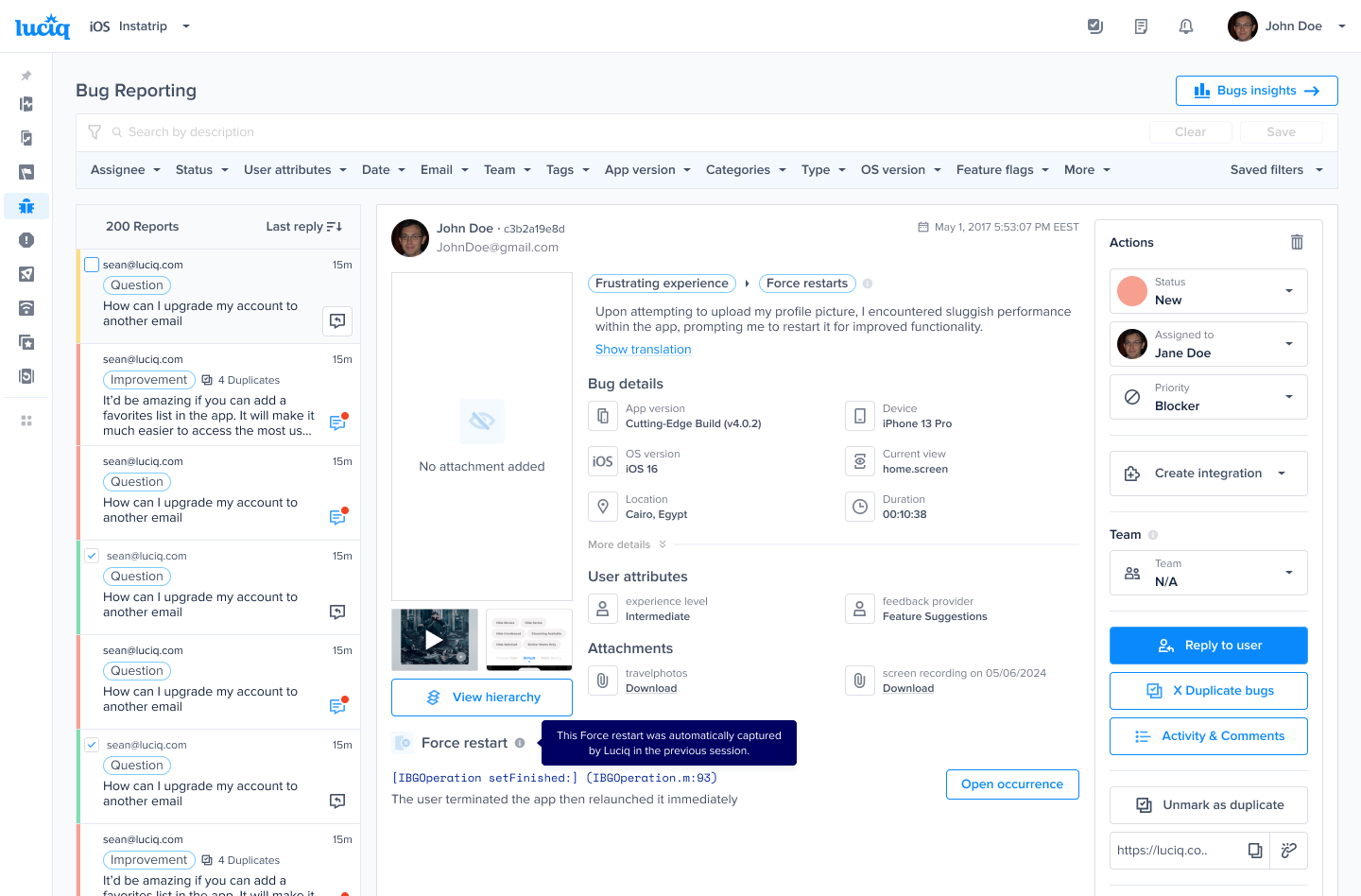
On the dashboard, your end-user's feedback will be reflected in the Bug Reporting page as a **Frustrating Experience** report type.

Clicking the **Open Occurrence** under the **Force Restart** section will take you to the occurrence where the end-user force closed the app in the Force Restart product.

<figure><img src="https://files.readme.io/72c393502da0f2ade0af17cb5ca540a6703f720c4061e20fc2415f37f2e0615b-ios-proactive-reporting-3.png" alt=""><figcaption></figcaption></figure>

{% hint style="info" %}
The report's details show the data from the session after the user force-closed the app, while the details you’ll see in the Force Restart occurrence are from the session in which they force-closed the app.
{% endhint %}

### Good to know about Proactive Reporting

The feature’s default behavior is as follows:

* Feature is disabled.
* If you don’t configure the gap between pop-ups, the default gap will be 24 hours.
* If you don’t configure the gap between the launch and the first pop-up, the default gap will be 2 seconds.
* If you have [Surveys](/product-guides-and-integrations/product-guides/in-app-surveys) enabled in your plan, please contact the support team to enable this feature for you from our backend. Remember to configure the surveys triggering differently from the proactive reporting modal to avoid overwhelming your users.
* To use this feature, [Force Restart](/product-guides-and-integrations/product-guides/crash-reporting/force-restarts) (part of Crash Reporting) has to be part of your plan.
* Proactive reports have the same data retention as Force Restart (part of Crash Reporting)
* If you use our Crash Consent feature, the pop-up won’t be displayed in the session in which the crash consent will appear.


# Report Categories

This page covers how you can set custom categories so that when a user tries to report a bug or suggest an improvement, they can select the category for the report.

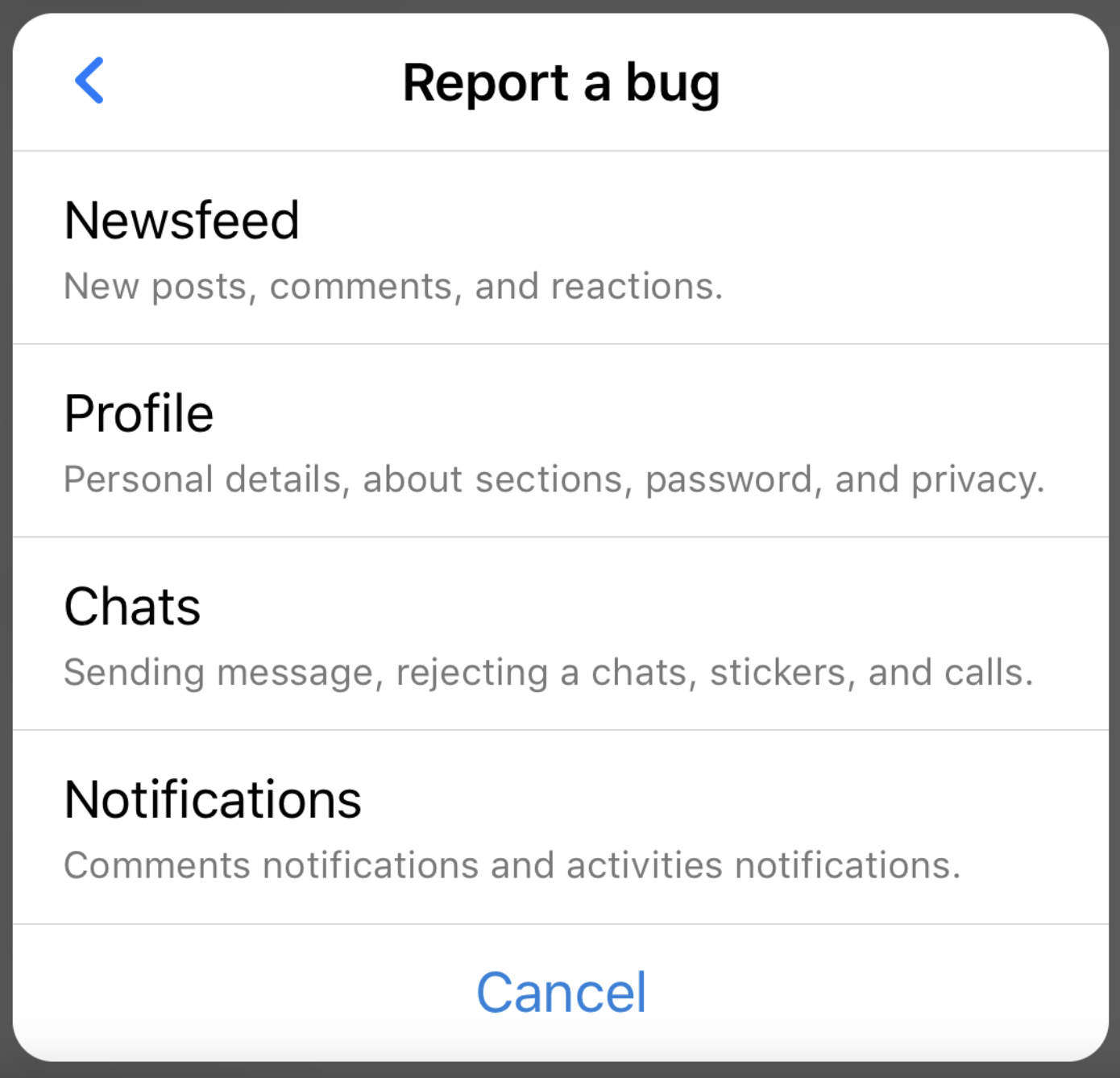
The **Report Categories** are built specifically to optimize triaging your bug reports on Luciq, help you take faster actions and make faster decisions. It's very easy to set them up, tweak them and change them. **Everything can be controlled from your Luciq dashboard without any code changes in your application.**

You give your users a list of categories to pick from before they send you a bug report. Then, based on the category each report belongs to, the magic will start to happen.

<figure><img src="https://files.readme.io/602a29af898b45ca1546c5cdd8eec37b2dcc6a973bef37d55472e073d440d9a6-image.png" alt=""><figcaption></figcaption></figure>

{% hint style="info" %}
Tip: Avoid naming categories with the same name as the main report types (Bug, Improvement, or Question) to avoid confusion.
{% endhint %}

### How Can I Benefit from the Report Categories?

#### Make Fast Decisions

With a glimpse of an eye, you can spot the categories each report belongs to. You can then start following the course of actions that you and your team agreed on following for each category.

#### Don't Let Your Users Wait

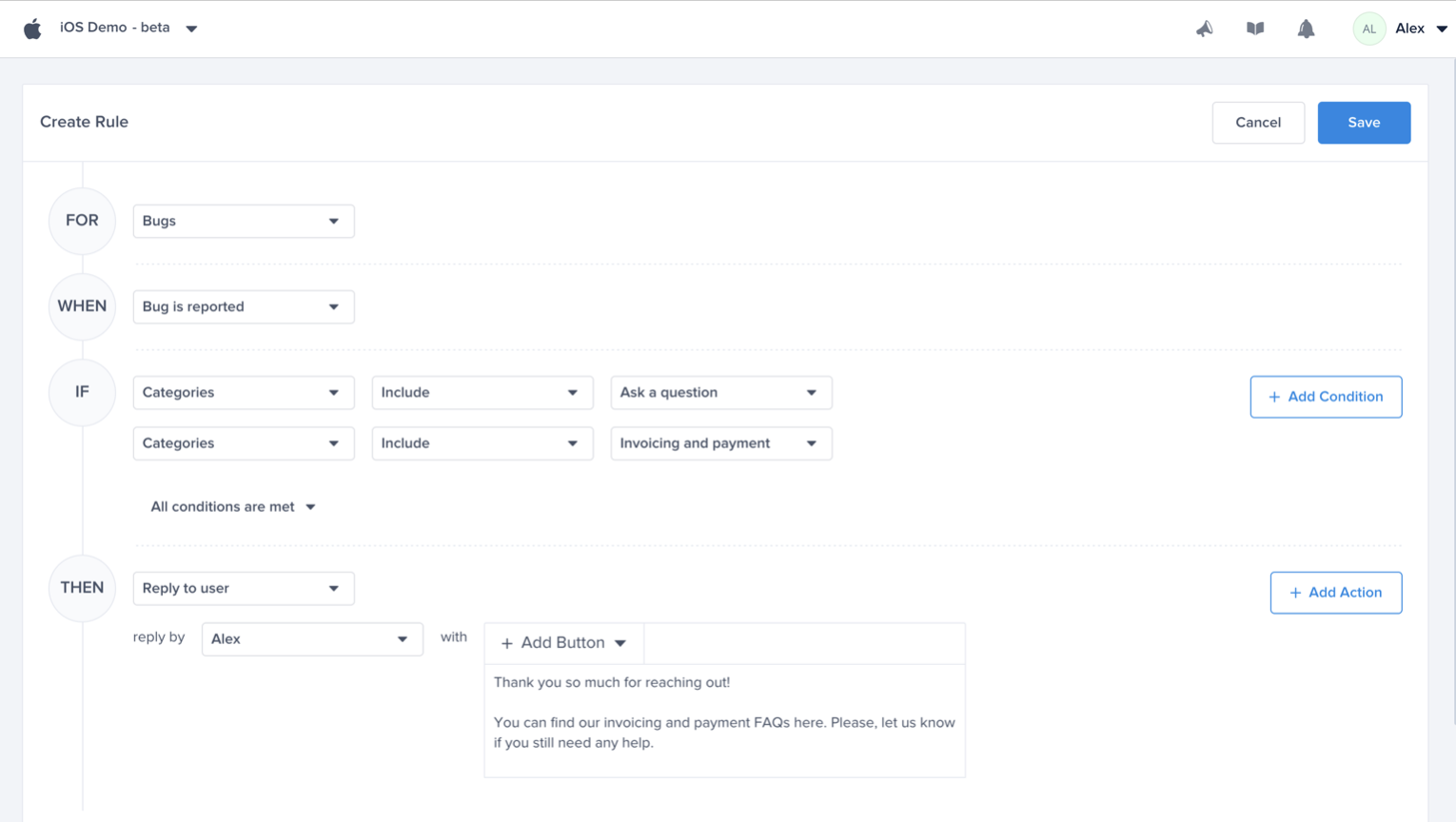
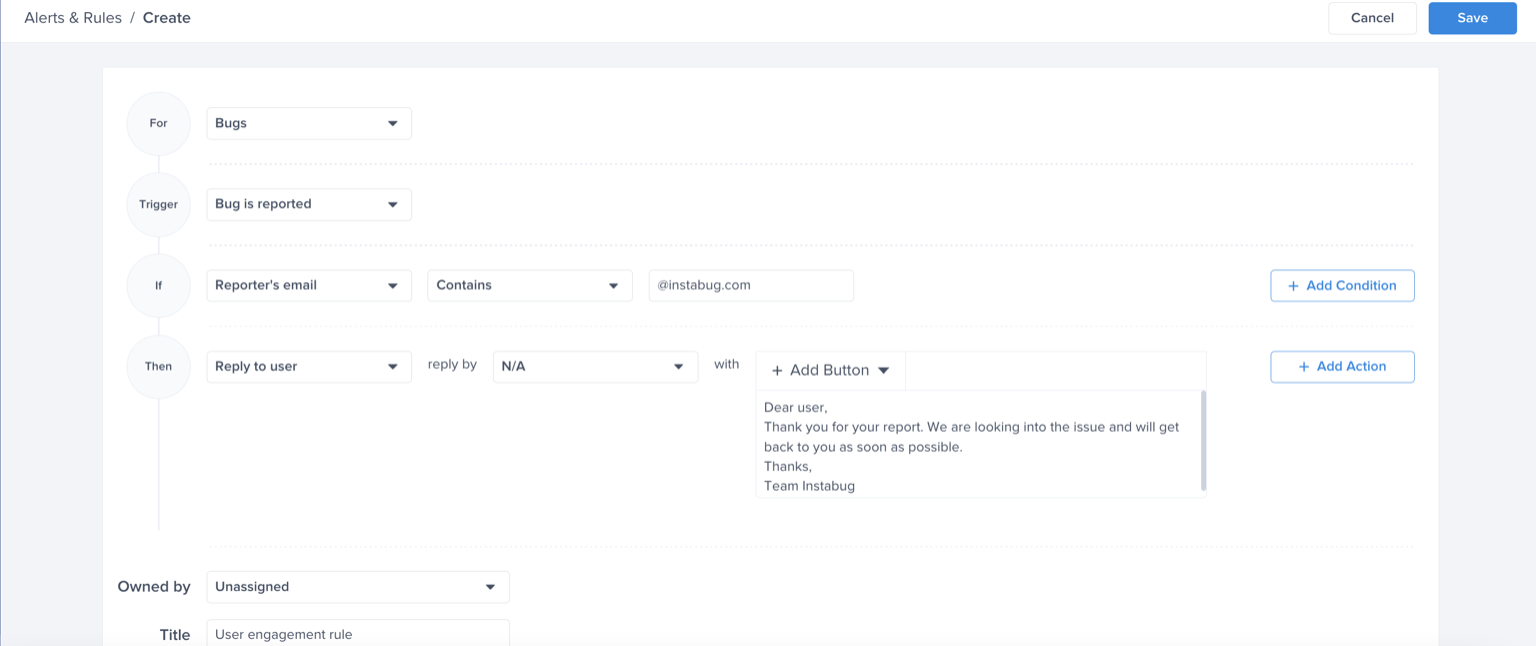
It's never guaranteed that your team will be able to reply back to all the users and their reports on the spot. Instead of making them wait, reply back to them with a content relevant to the problem or issue they reported. You can set an automatic reply and customize the content based on the category they picked before sending the report. This is easily done through the [alert & rules](/product-guides-and-integrations/product-guides/automation-and-workflows/alerts-and-rules/alerting-and-automation-for-bug-reporting).

<figure><img src="https://files.readme.io/d4da0dd3c95167f035c3fe9db230b894c463944f37a5888084a9351e81445451-image.png" alt=""><figcaption></figcaption></figure>

#### Auto-Forward to the Relevant Project

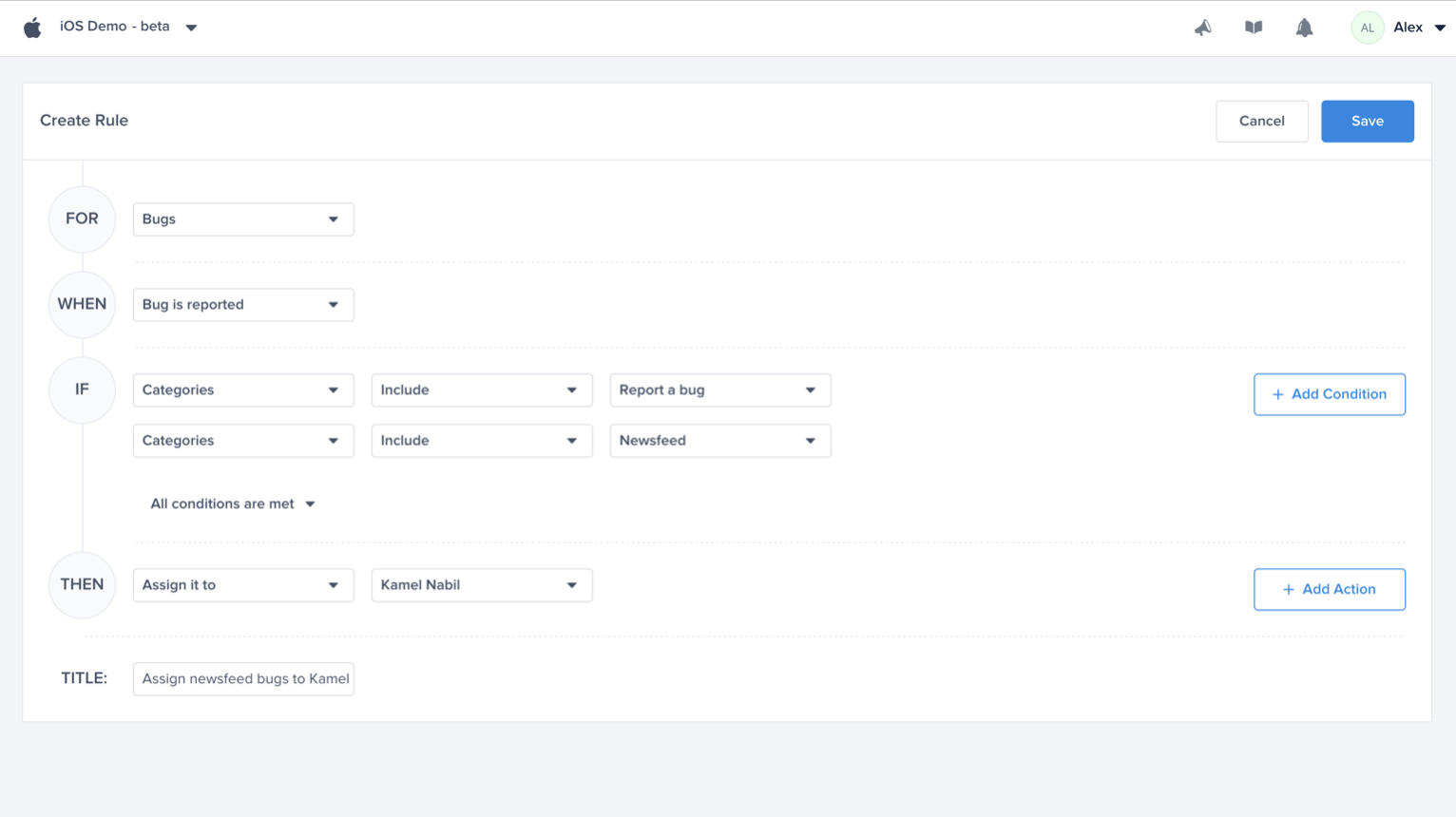
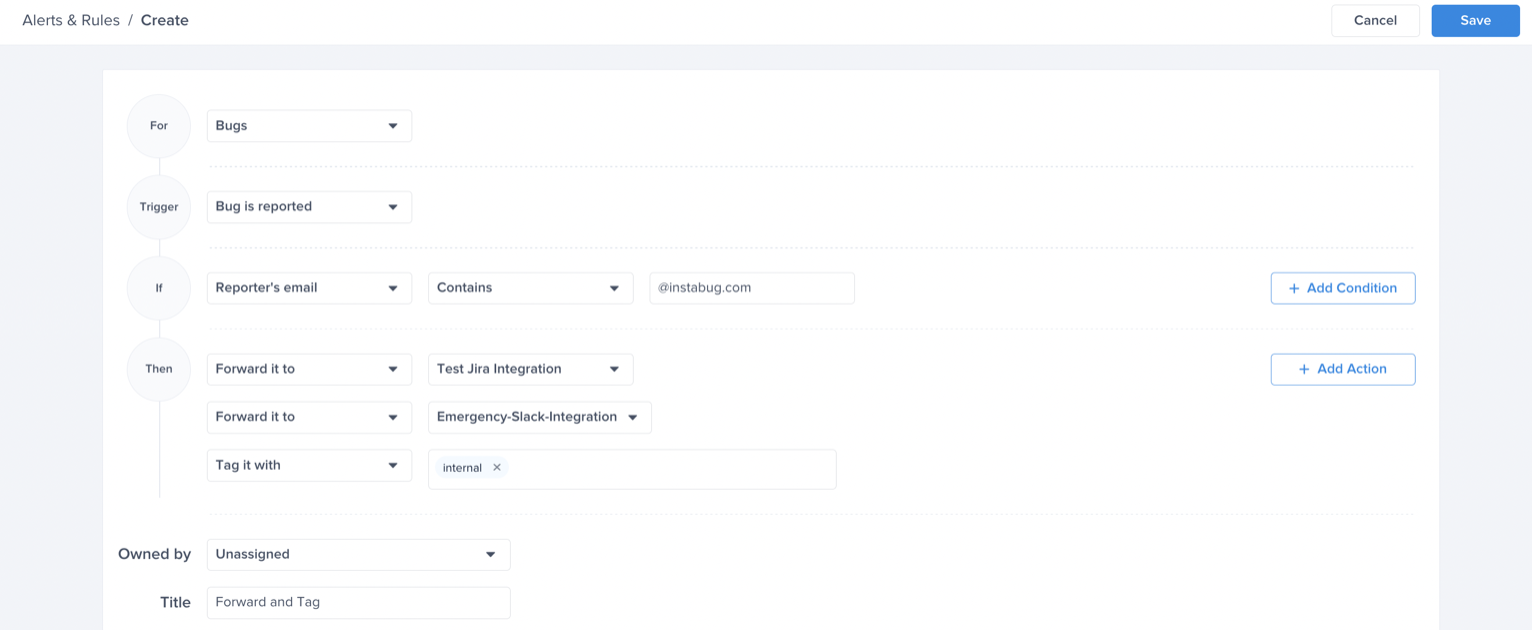
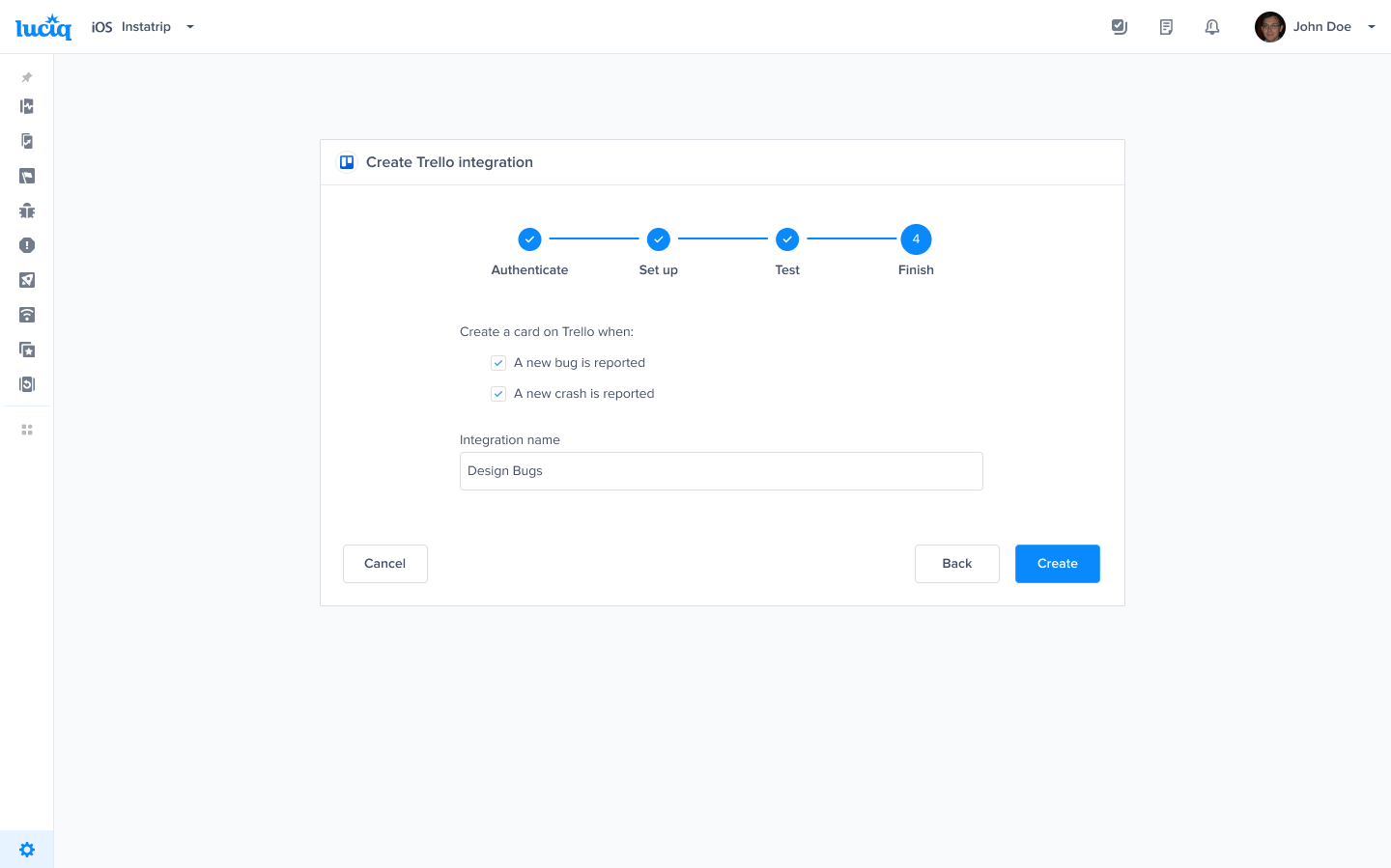
Is your team already used to a specific tracking tool (Jira, Trello, etc..)? You can auto-forward your bug reports to the relevant project depending on the selected category by the user. For example, if you're several teams and each team has an independent Jira project where they track their issues and cards, create a rule that will auto-forward all the reports relevant to each team to their Jira project.

<figure><img src="https://files.readme.io/d5e4456b03e64a4f4348dfcfc0d252f3d9d6a9c866a483de990d288a651f8018-image.png" alt=""><figcaption></figcaption></figure>

#### Auto-Assign the Reports to the Relevant Team Member

If each member of your team is responsible of handling specific types and categories of reports, auto-assign the report to them based on the selected category by the user.

<figure><img src="https://files.readme.io/cd47c1053620b4adc2ee259788187542663c4bbfc4c82a704b02752aebfdfd79-image.png" alt=""><figcaption></figcaption></figure>

### How Can I Create Categories?

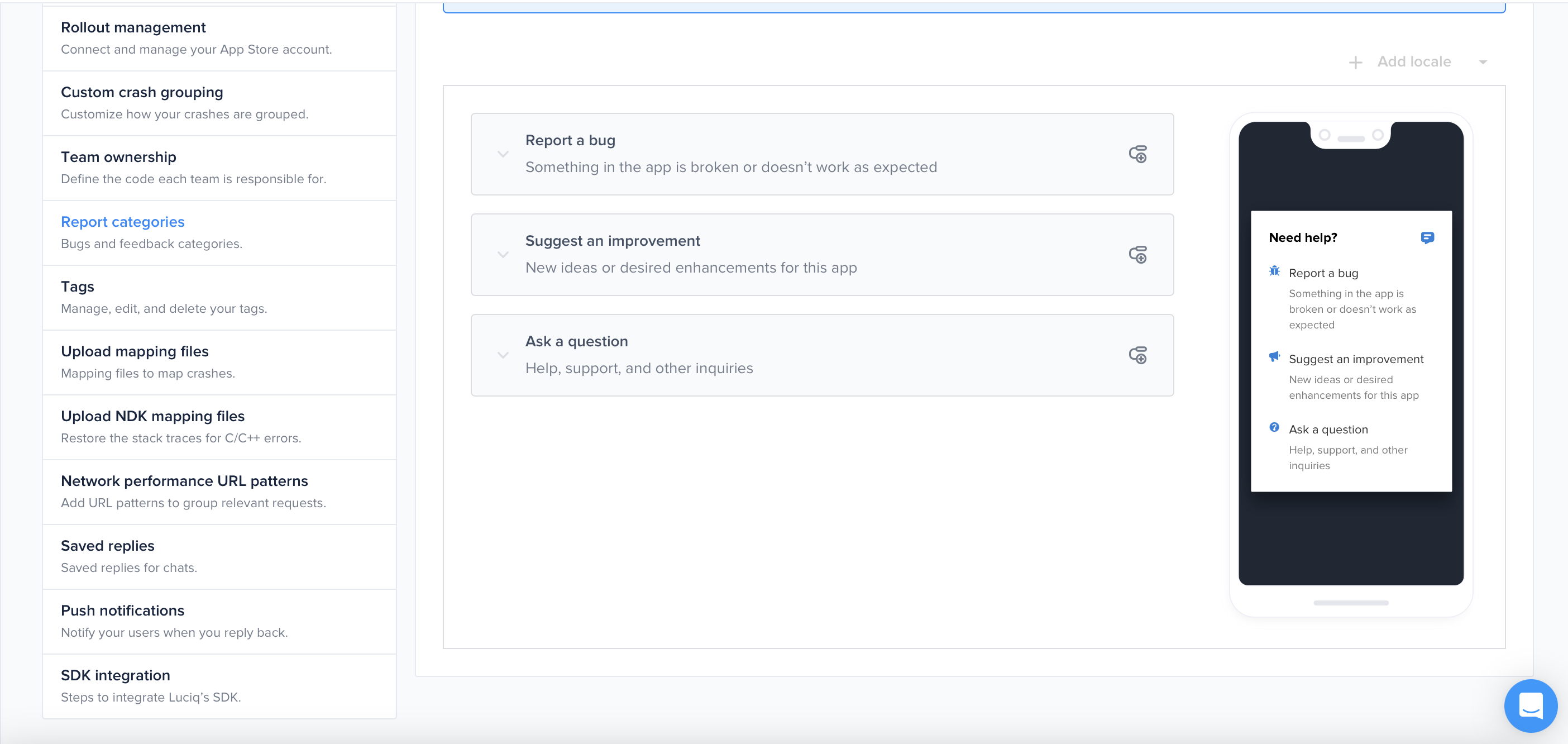
It's really simple. Click on the **Settings** button, Select **Report Categories**, then, start adding the categories you have in mind.

<figure><img src="https://files.readme.io/6da05f7fd4a7cb9c42c0fbf143848fa1a81e25273a52a7c525229825acf4275a-image.png" alt=""><figcaption></figcaption></figure>

{% hint style="info" %}
Avoid using commas to separate words within the same category, as our system will treat them as different categories when you filter by them on the Bug Reporting page.
{% endhint %}

#### Create Nested Categories

For more accurate and granular setup, you can add nested categories and build more detailed hierarchies. For example, the first level of categories can represent the main areas, features, products, or screens, in your app. Then, you may need to another level, to describe more details functionality within each one. Let's look at the following example:

* Report a bug
* Newsfeed
  * Writing a new post
  * Adding comments
  * Reactions
  * Unfollow a person or a page
* Friends requests
  * Approving a request
  * Rejecting a request
  * Sending a request
* Messages
* Privacy
* Suggest an improvement
  * Supporting more languages
  * Content improvements
  * Feature suggestion
    * Newsfeed
    * Friends requests
    * Messages
* Ask a question
* How can I join a group?
* How can I leave a group?
* How can I unfollow a person or a page?
* How can I delete my account?
* If your app for free?

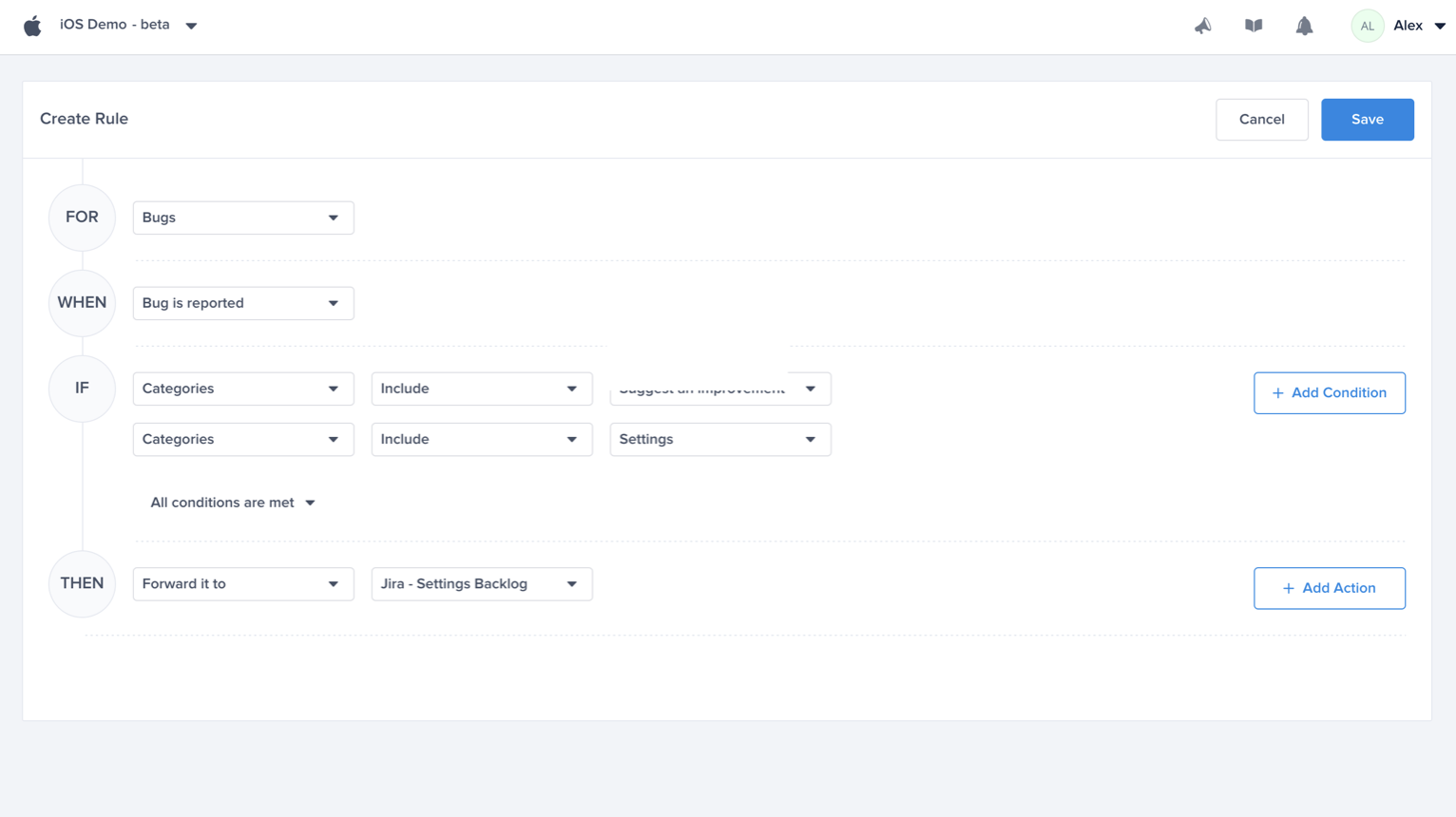
In your rules and filters, you can combine more than one condition together to make sure your logic applies to the reports coming from a specific path of selection. For example, you may want to forward the "Newsfeed bugs" to a different Jira project than the "Newsfeed improvements".

Whatever changes or additions you're making in your Report Categories setup might take up to 24 hours to be reflected in the already installed applications and will appear immediately in freshly installed​ applications. If you want to test how the categories look like in your application on the spot, make sure you uninstall the application from the device you're testing with and install it again.

Do you have any questions? Let us know, we would love to help!


# Crash Reporting


# Crash Reporting Types

{% hint style="warning" %}
**Privacy Policy**

It is highly recommended to mention in your privacy policy that you may be collecting logging data in order to assist with troubleshooting crashes.
{% endhint %}

### Crash Types

**Fatal Crash**: Fatal crashes refer to an error or issue that causes the app to terminate unexpectedly, meaning the app completely shuts down and is no longer usable until the user restarts it. These crashes interrupt the user experience, as the app cannot recover from the issue on its own and must be relaunched.\
\
Fatal crashes are the most severe type of crashes, and they generate crash reports that help developers investigate what caused the app to crash. Typically, they occur due to unhandled errors, system conflicts, or serious resource issues. Here are the types of fatal crashes

**Non-Fatals**: Non-fatal crashes refer to an error or issue that occurs in the app but doesn’t cause the app to completely shut down or crash. Instead, the app encounters a problem, such as an exception or unexpected behavior, but is able to continue running without quitting. Non-fatal crashes are useful for developers because they provide insights into bugs or problems that need fixing before they turn into full-blown crashes.

#### **iOS Specific Issues**

1. **Signal-based crashes**: These are crashes triggered by low-level system signals, typically due to issues like segmentation faults or accessing invalid memory. Common signals include SIGSEGV, SIGBUS, and SIGABRT.
2. **Exception-based crashes**: These occur when an unhandled exception (such as NSException) is thrown, causing the app to crash. This can result from incorrect logic in the app or unhandled edge cases.
3. **Objective-C runtime errors**: Crashes that occur due to issues with the Objective-C runtime, such as unrecognized selectors (when a message is sent to a nil object or invalid object). These crashes happen when the app is trying to follow instructions, but one is missing or wrong.
4. **OOM**: Out-of-memory crashes occur when the app uses more memory than the device can provide, causing the system to terminate the app to free up resources. Common causes of OOM crashes include: **Memory leaks, Heavy resource usage, and Retaining too many objects.**

#### **Android Specific Issues**

1. **Native crashes**: Caused by issues in the native layer of an app, often written in C or C++ (e.g., NDK crashes). These involve signals like SIGSEGV, SIGBUS, or SIGABRT, similar to iOS.
2. **Java exceptions**: Unhandled exceptions in the Java layer, such as NullPointerException, ArrayIndexOutOfBoundsException, or IllegalArgumentException, that cause the app to crash.
3. **ANR (Application Not Responding)**: When the main thread is blocked for too long, leading to an ANR error. This is an Android-specific type where the system prompts the user to either wait or force close the app.

#### **React Native specific Issues**

1. **JavaScript exceptions**: Crashes caused by unhandled exceptions in JavaScript, the main programming language for React Native apps. These include syntax errors, type errors, or issues like undefined is not an object.

#### **Flutter Specific Issues**

1. **Dart exceptions**: Crashes caused by unhandled exceptions in Dart code, which is the primary language used for Flutter development. Examples include NoSuchMethodError, StateError, or FormatException.<br>

With Luciq [Crash Reporting](https://www.luciq.ai/product/crash-reporting) there are two ways to have your application report a crash; either automatically or [manually](/ios/setup-luciq-for-ios/setup-crash-reporting/reporting-crashes#manual-crash-reporting). After the crash is sent to your dashboard, you can easily sort and filter for specific crashes.

***

### Reporting Crashes

#### Automatic Crash Reporting

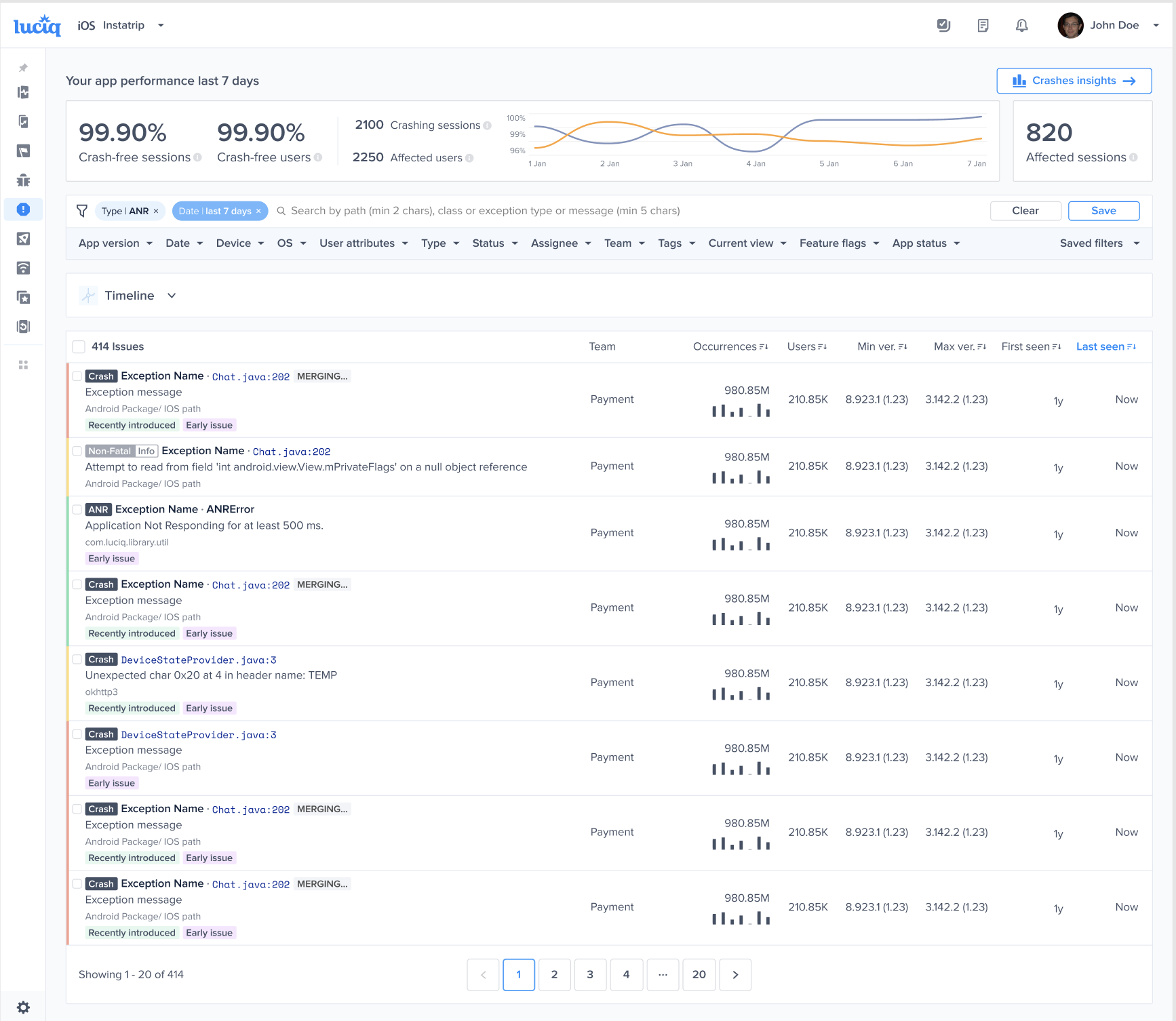
If you enable Crash Reporting, crashes will automatically be reported to and viewable from the crashes page of your Luciq dashboard.

You'll also see the trends covering the previous 7 days, including:

* Crash-free sessions: the percentage of sessions that ran and concluded without any fatal errors.
* Crash-free users: the percentage of users that haven't encountered any fatal errors.
* Crashing sessions: the number of sessions that ran and concluded with a fatal error.
* Affected users: the number of unique users who had one or more sessions that ended with a fatal error.
* Total number of occurrences: by hovering on it, you’ll get a breakdown of the total number of fatal sessions, the total number of OOM sessions, and the total number of non-fatal sessions.

If there is a sharp decline in the crash-free sessions rate, an email will be sent to notify you.

<figure><img src="https://files.readme.io/3a28f303923833c7c31e0e67e64b2d40321a4375300800630afd04343afcb5ce-image.png" alt=""><figcaption></figcaption></figure>

{% hint style="info" %}
**C++ Crashes**

The Luciq SDK also supports and captures C++ crashes.
{% endhint %}

#### Out of Memory Crashes

By default, if Crash Reporting is enabled, Luciq captures OOM crashes, however, the *crashes will not contain a stack trace and will only be captured if they happen while the app is in the foreground.*

#### Force Restarts

Starting from SDK version 11.1.0, Luciq automatically reports Force Restarts. A Force Restart is when a user force terminates your application and re-launches it within 5 seconds, which could indicate performance issues.

{% hint style="info" %}
Please note that Force Restart reports *will not contain a stack trace*.
{% endhint %}

#### App Hangs

Starting SDK version `10.13.0`, Luciq automatically reports App Hangs. An App Hang is captured when the main thread is blocked for more than 3 seconds. App Hangs that last more than 3 seconds are considered severe and are likely to cause user frustration. They are reported along with a stack trace for debugging.

{% hint style="warning" %}
**Warning**

Crash reporting will not function correctly if the device is connected to Xcode. When it is, Xcode catches all exceptions and they will not be sent to your dashboard.
{% endhint %}

### Grouping

When an already existing crash occurs once more for any user, that crash is reported as an occurrence in the original entry. However, in order to calculate whether a crash already exists and needs to be grouped, Luciq generates a fingerprint based on attributes used in the grouping logic.

The default Luciq grouping algorithm uses a mix of the exception and stack trace information. In some cases, you might want to change how the issues are grouped together using custom grouping or fingerprints.

#### Crash-to-Screen Assignment Logic

When a crash occurs during a screen transition, Luciq assigns the crash to a specific screen based on the timing of the `viewDidAppear` and `viewDidDisappear` lifecycle events. The crash will be attributed to the screen name that was last set by the SDK before the crash occurred.

### Crashes List

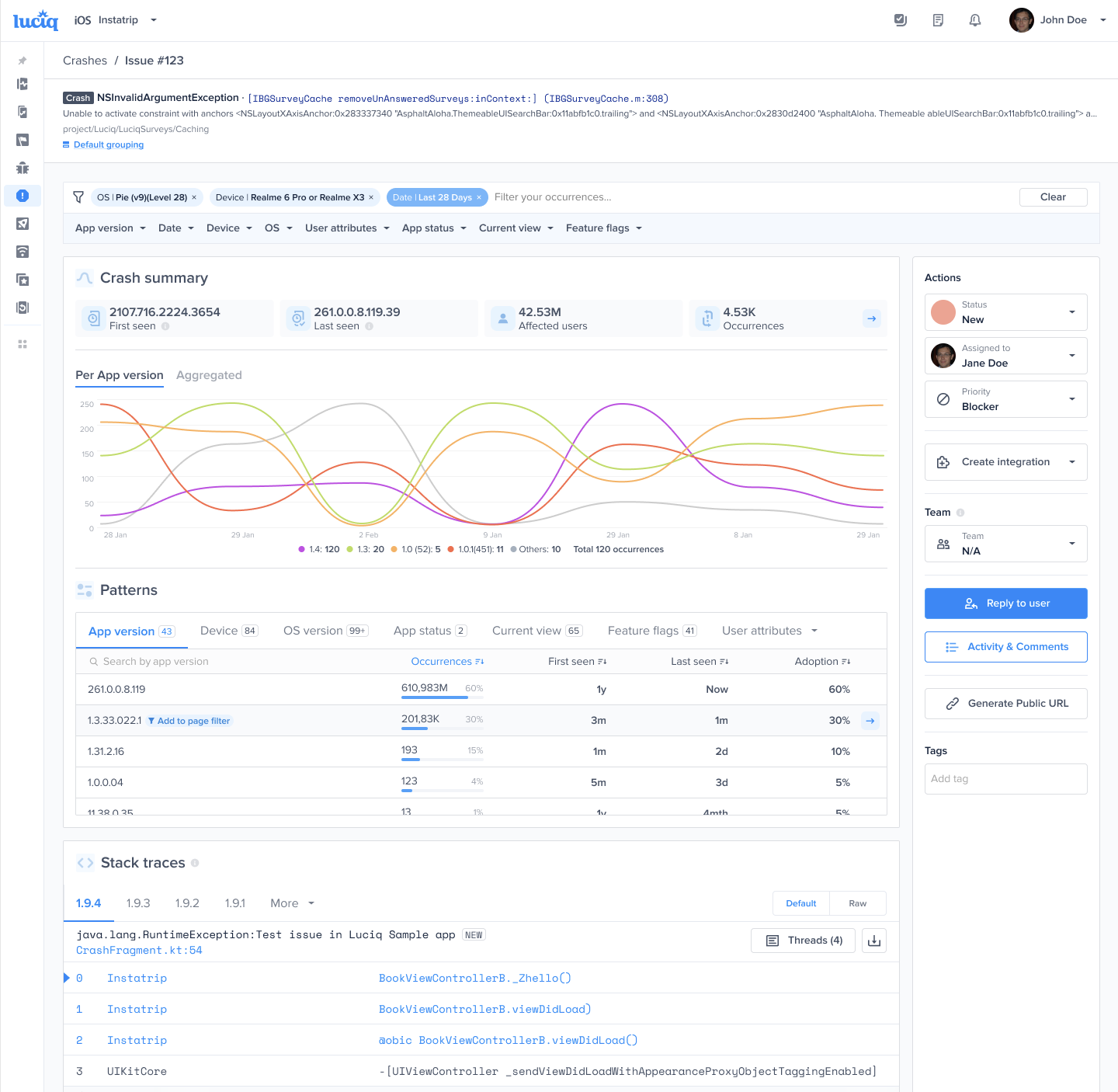
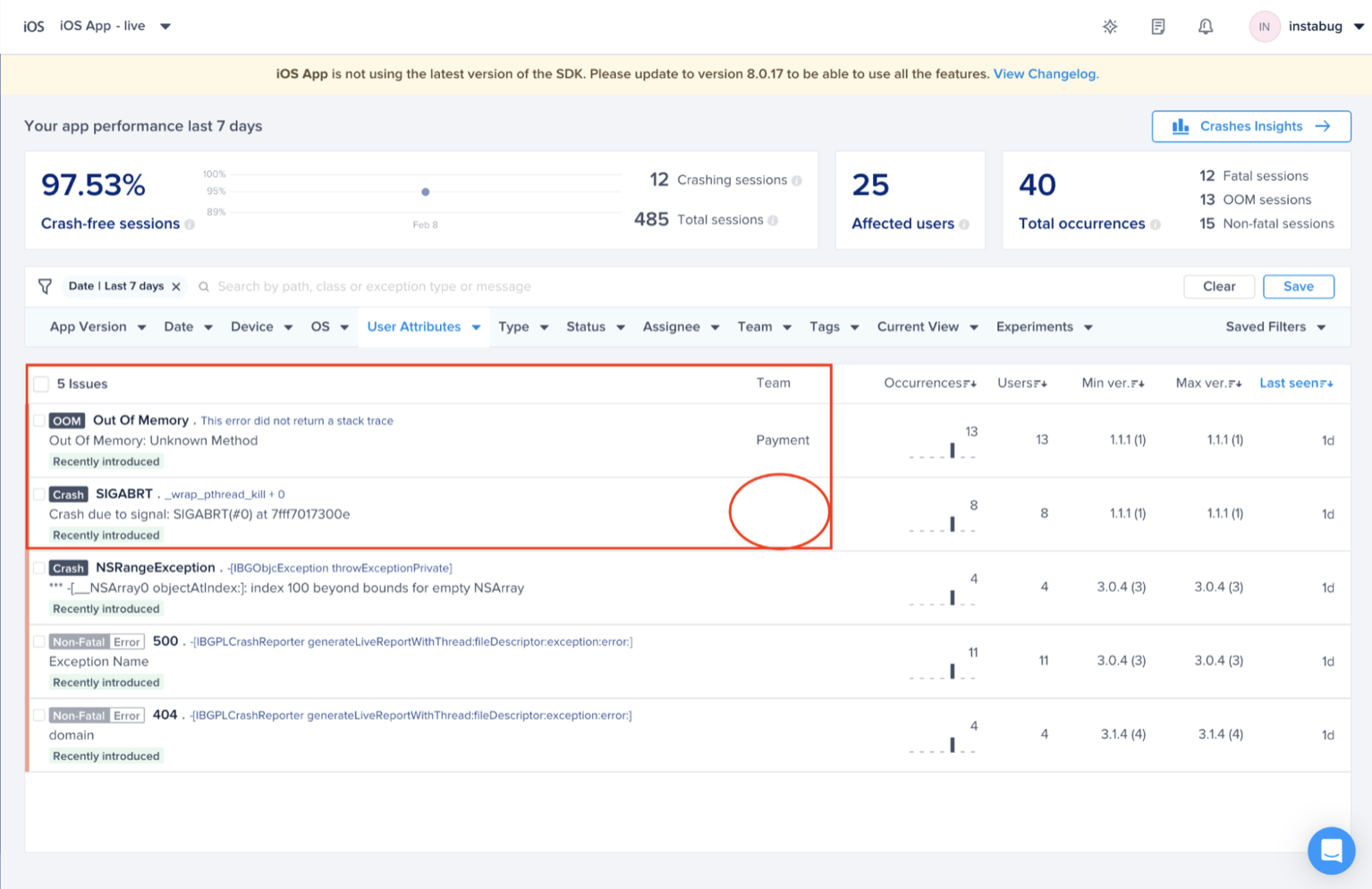
This section contains a list of all the crashes that have been reported by your application. The title of each crash is usually the most significant line in the stack trace.

<figure><img src="https://files.readme.io/3a28f303923833c7c31e0e67e64b2d40321a4375300800630afd04343afcb5ce-image.png" alt=""><figcaption></figcaption></figure>

Next to each crash in the list, you can find the following details, all of which can be used to sort the crashes:

* **Occurrences**: The number of times this crash has occurred and a bar graph representing its occurrences over the past seven days.
* **Users**: The number of users affected by this crash.
* **Min ver.**: The oldest app version that was affected by this crash.
* **Max ver.**: The latest app version that was affected by this crash.
* **Last seen**: The last time an occurrence of this crash was reported.

You can then filter for crashes that match any of the following criteria:

* App version
* Date
* Device
* OS
* User attributes
* Type
* Status
* Assignee
* Team
* Tags
* Current view
* Experiments<br>


# Crash Report Content

When using Luciq [Crash Reporting](https://www.luciq.ai/product/crash-reporting), each crash report reaches your dashboard with all the information you need to resolve it.

### Crash Overview

The crashes page in your dashboard lists all of your crash reports. When you select one, it opens the crash overview page where you can find more details about that crash.

<figure><img src="https://files.readme.io/f20e988eae17a929cb866dcf959a5411cd417c4704d9a32f33be55de983957ed-image.png" alt="An example of a crash report."><figcaption></figcaption></figure>

The graph above depicts the number of crashing sessions caused by this particular crash against the days of the previous month. Each line color represents a different app version.

Here are what the details in the crash page cover:

* **Exception & Crash Cause**: The main application frame that caused the crash.
* **Occurrences**: The number of times this crash occurred.
* **Affected Users**: The number of unique users that experienced this crash.
* **Occurrences over time**: Shows the number of occurrences over time for each app version.
* **Max App Version**: The highest version of the app this crash occurred on.
* **App Versions**: A breakdown of the crash occurrences by app version.
* **Devices**: A breakdown of the crash occurrences by device model.
* **OS version**: A breakdown of the crash occurrences by OS version.
* **App status**: A breakdown of the crash occurrences by background or foreground state.
* **Current view**: A breakdown of the crash occurrences by the app view they occurred on.
* **Experiments**: A breakdown of the crash occurrences by different feature flags (if any are specified).
* **User attributes**: A breakdown of the crash occurrences by custom user attributes (if any are specified).

#### Stack Trace

In each crash report, you can find the stack trace of the crash with the most important frames highlighted in blue. These highlighted frames are your application's frames. In order for these crashes to be readable, symbolication is required. More information on symbolication can be found [here](https://docs.luciq.ai/ios/setup-luciq-for-ios/setup-crash-reporting/symbolication). A stack trace is captured and shown per app version within the crash itself.

<figure><img src="https://files.readme.io/f20e988eae17a929cb866dcf959a5411cd417c4704d9a32f33be55de983957ed-image.png" alt="An example of a crash report."><figcaption></figcaption></figure>

### Code Ownership

Sometimes, different stack traces are related to different teams within your organization. In an effort to allow for a more efficient method of assigning crash reports to the related teams, you can set up code ownership rules that use paths and filenames as conditions to allow for a more automated workflow.

You can use code ownership to check for specific paths and filenames, these are then compared against the first non-system frame in the stack trace. For more details on how to set up ownership rules, please check: [Team Ownership](/product-guides-and-integrations/product-guides/automation-and-workflows/team-ownership)

### Crash Variants

**Crash Variants** highlight the different stacktrace paths within a single crash group. Instead of showing only one representative stacktrace per app version, Variants let you see all the distinct execution paths that can trigger the same crash. This helps your team uncover edge cases and debug faster.

Crash Variants are automatically grouped based on **stacktrace similarity.**

#### Where to Find Variants

On the **Crash List page**, you’ll see the number of variants created for each crash.

<figure><img src="https://files.readme.io/c72efb51394fb626cfa22764b16442ef656c9d06029382565dce17e39f86bbaa-image.png" alt=""><figcaption></figcaption></figure>

Selecting a specific variant from the details page will filter the entire page to show only that variant’s data.

1. Stacktrace for the variant
2. Percentage of occurrences for that variant
3. Variant Summary
4. Variant Patterns

<figure><img src="https://files.readme.io/44d3abe185f08c675eb5ef09147bb90fc2b28531f0c88177b1a2e7a93b54dc3e-ios-crash-report-content-2.png" alt=""><figcaption></figcaption></figure>

### Occurrences

Each crash has [occurrences](https://docs.luciq.ai/product-guides-and-integrations/product-guides/crash-reporting/occurrences-content), a unique instance of that crash. With each occurrence, you can find extra details about every instance, such as [Logs](https://docs.luciq.ai/ios/setup-luciq-for-ios/custom-settings/logs-and-profiling/report-logs), [Session Profiler](https://docs.luciq.ai/ios/setup-luciq-for-ios/custom-settings/logs-and-profiling/session-profiler), and [User Attributes](https://docs.luciq.ai/ios/setup-luciq-for-ios/custom-settings/user-identification/user-attributes). You can go through these unique occurrences by clicking on the **Occurrences** button.

<figure><img src="https://files.readme.io/f20e988eae17a929cb866dcf959a5411cd417c4704d9a32f33be55de983957ed-image.png" alt="An example of a crash report."><figcaption></figcaption></figure>

### Tags

You can add tags to crash reports for filtering and analysis. More details regarding these tags can be found [here](/ios/setup-luciq-for-ios/custom-settings/user-identification/tags).

<figure><img src="https://files.readme.io/dec0d638c3cc1f81eeaca204af2c22b80aa01b36ddcf3235ee7083ec80b06a4c-image.png" alt=""><figcaption></figcaption></figure>


# Occurrences Content

When using Luciq [Crash Reporting](https://www.luciq.ai/product/crash-reporting), each occurrence comes with user attributes, user data, and attachments if available.

#### User Attributes

Default attributes as well as any custom user attributes that you set are automatically sent to your dashboard with all crash occurrences.

Default attributes listed in each crash occurrence include:

* Date and time of crash occurrence in UTC
* App version
* Device
* OS version
* App view
* Device location
* Session duration
* Locale
* Screen resolution
* Screen density

More details about how to set custom user attributes can be found [here](/ios/setup-luciq-for-ios/custom-settings/user-identification/user-attributes).

<figure><img src="https://files.readme.io/6e6b41508f7679d50443a81b6e94b62e4c0f0aaf182e63617da83304838fe28f-ios-occurrences-content-1.png" alt="2161"><figcaption></figcaption></figure>

User attributes are listed in each occurrence page of all crash reports in your dashboard.

#### User Data

Custom data can be set and sent with each occurrence. To learn more about setting custom user data, check [here](/ios/setup-luciq-for-ios/custom-settings/user-identification).

#### Attachments

Any custom files added by you can be sent with each occurrence.

<figure><img src="https://files.readme.io/152b5d6058614e8679c03a50c918f3fe2f687431c5a2174f43cf5d8a4672c0fd-ios-occurrences-content-2.png" alt=""><figcaption></figcaption></figure>

### Repro Steps

Repro Steps help you reproduce a crash by displaying your users' actions in each view of your app. With each view, you will find a list of actions that tell you exactly what the user did in that view. More details can be found [here](/ios/setup-luciq-for-ios/custom-settings/privacy-settings/repro-steps).

This is enabled by default depending on your plan.

<figure><img src="https://files.readme.io/194e1be5f6df0bc862324148fa47998b618cde6f40b257c64afc8e4e658b8f11-ios-occurrences-content-3.png" alt=""><figcaption></figcaption></figure>

### Session Profiler

With each crash occurrence, you'll receive a detailed environment profile covering the last 60 seconds before the report was sent. This Session Profiler includes device data like memory load and battery state. This is enabled by default depending on your plan. More details about the information contained in the Session Profiler can be found [here](/ios/setup-luciq-for-ios/custom-settings/logs-and-profiling/session-profiler).

<figure><img src="https://files.readme.io/faa62b52223161f5ee3eda64204c9dabbcc5923c41108e15960fa9e3455ab9df-ios-occurrences-content-4.png" alt="2161"><figcaption></figcaption></figure>

This is where the Session Profiler is located in each crash occurrence page.

### Logs

A whole host of logs are sent with every crash occurrence. These logs include:

* **Console Logs:** Default logs that are printed to the console when the application is running.
* **Luciq Logs:** Logs with different verbosity levels that you can add manually.
* **User Steps:** Every step the user has taken in the form of log entries.
* **Repro Steps:** Visual user steps prior to the crash occurrence in the form of images and GIFs.
* **Network Logs:** A log of each network request.
* **User Events:** A manual log of actions that a user has taken.

More details regarding logging can be found [here](/ios/setup-luciq-for-ios/custom-settings/logs-and-profiling/report-logs). Different log types are enabled depending on your plan.

<figure><img src="https://files.readme.io/8e2a7424ee3aa2b95c319b7b5f65e4ef2fee57dbd44efd508b48d86b0c6832a8-ios-occurrences-content-5.png" alt="2161"><figcaption></figcaption></figure>

An example of the expanded logs view in the Luciq dashboard.


# App Hangs

When your app hangs it causes user frustration and can lead them to abandon your app altogether.

An App Hang occurs when the main thread of your app fails to respond within a reasonable timeframe. This can happen due to tasks that consume a lot of CPU resources or when blocking I/O operations are performed on the main thread.

If your app remains unresponsive for 3 seconds or more we capture it as an “App Hang”. We detect Hangs automatically out of the box.

### Here is how to view app hangs on the dashboard:

<figure><img src="https://files.readme.io/cb18349695bceda931cb83f70dfa6fe1388a6a66c8b51b3374a736d93b495252-image.png" alt="" width="188"><figcaption></figcaption></figure>

### How are occurrences of App Hangs grouped:

App Hangs are now grouped by the **first non-system frame** in the stack, what we call the **crash cause**. This brings more accuracy to how hangs are clustered and aligns with how Luciq already groups crashes.

Previously, grouping was based on the **top-most screen**, which offered helpful context. This new method focuses more on the underlying cause.

### What to Expect

* **New App Hangs** will follow the new crash cause-based grouping.
* **Existing App Hangs** will stay grouped by screen.
* **No data will be lost**. We’re simply improving how data is clustered to improve your workflow.
* You may see both grouping types side by side in your dashboard after the change.

### FAQ

**Can I re-group old hangs using the new logic?**

* **Not at this time.** We’re only applying the new grouping logic to data going forward to avoid disrupting historical reporting and analysis.

**Will this affect other issue types?**

* No, this change only affects **App Hangs**. Fatal crashes, ANRs, and other issue types already use stacktrace-based grouping.

### What information is available inside the app hang:

* Stack trace
* Flame graphs to help debug the root cause of the app hang
* Patterns to highlight which subset of users have experienced app hangs
* Occurrences view, where you can view every occurrence of the frustrating experience and what has led to it
* Occurrences include the following debugging data:
  * Metadata of the device
  * Session Profiler to know the state of the device for the last 60 seconds before the app hang occurred
  * Repro steps which is a visual step by step reproduction of the session of the user, screen by screen and interaction by interaction on the app up until the user triggered the termination
  * Logs section including console logs and network logs for all API calls that were made during the session

An app hang is a mobile specific metric that is being picked up by Luciq to give you visibility on the frustrating experiences that the users are going through while using the app.

The data included in app hang enables developers to proactively pick up the frustrating experiences and how it happened and what led up to it. This gives them a chance to resolve those issues early on and keep the standard of quality of the app as high as possible.


# Force Restarts

A Force Restart occurs when a user forcefully closes an app and immediately restarts it. The underlying frustration that prompts the user to restart the app often goes unnoticed by app developers, as it is not classified as a crash.

Luciq gives you visibility over Force Restarts, which are detected automatically. You can now detect these issues early on, and address them, so you can improve the app quality and retention.

### What does a Force Restart look like?

* User opened the App
* The App was very slow
* User closed the App and opened it again

### How can I see Force Restarts on the dashboard?

Force Restarts are captured by default. You can reach the Force Restarts section as shown in the screenshot below:

<figure><img src="https://files.readme.io/e2b3e20797f42269aa470059b8d2455c93865160a78f5676cf0f26eca2a83259-image.png" alt="" width="188"><figcaption></figcaption></figure>

Similar terminations are grouped together by screen, as shown in the below screenshot.

<figure><img src="https://files.readme.io/739b48c-Screen_Shot_2023-05-18_at_3.53.43_PM.png" alt="User Terminations grouped occurrences grouped together"><figcaption></figcaption></figure>

{% hint style="info" %}
Force Restarts are grouped by events that happened on the same screen.
{% endhint %}

### What data is available in a Force Restart:

* Patterns to highlight which subset of users has triggered the highest number of Force Restarts.
* Occurrences view, where you can view every occurrence of the frustrating experience and what has led to it.
* Occurrences include the following debugging data:
  * Metadata of the device
  * [Session Profiler ](/ios/setup-luciq-for-ios/custom-settings/logs-and-profiling/session-profiler)to know the state of the device for the last 60 seconds before the Force Restart was triggered.
  * [Repro steps](/ios/setup-luciq-for-ios/custom-settings/privacy-settings/repro-steps) which is a visual step by step reproduction of the session of the user, screen by screen and interaction by interaction on the app up until the user triggered the termination.
  * [Logs section ](/ios/setup-luciq-for-ios/custom-settings/logs-and-profiling/report-logs)including console logs and network logs for all API calls that were made during the session.

Luciq's Force Restarts feature can be a critical tool for developers seeking to enhance their app's user experience. By notifying you of user frustrations in real-time, it provides you with the opportunity to address issues promptly, maintaining user satisfaction and improving app performance.


# Flame Graphs

Flame graphs are visualization tools that help analyze and debug performance issues, such as Application Not Responding (ANR) errors and App Hangs. The display stack traces of an ANR or an App Hang, showing how many times each function appears in the occurrences of the issue. By identifying the functions that are called the most, developers can pinpoint bottlenecks and optimize performance to resolve ANR problems.To analyze a flame graph effectively, look for functions with wide boxes that consume a significant portion of the graph. The closer these boxes are to where the ANR happened, the more likely that these functions indicate potential performance bottlenecks or areas where optimization is needed. By focusing on optimizing these critical functions, you can address ANR issues and improve the overall performance of your applicationYou can [learn about Flame Graphs here.](https://www.brendangregg.com/flamegraphs.html)​

#### How can Flame Graphs help you?

Along with the available debugging data that comes with ANRs and [App Hangs](/product-guides-and-integrations/product-guides/crash-reporting/app-hangs), you can debug those frustrating experiences by seeing the visual aggregations of the stack traces. You can also find the code paths that are frequently associated with the hangs so you can debug them to improve your app’s performance and user experience.Example:Imagine you get a 100 occurrences of an app hang on a certain screen.

<figure><img src="https://images.gitbook.com/__img/dpr=2,width=760,onerror=redirect,format=auto,signature=-1754938049/https%3A%2F%2Ffiles.readme.io%2F68fede69b1cf11974ff06f9118b283151c65261dbc271dc0316085a1d16ad131-product-guides-flame-graphs-1.png" alt=""><figcaption></figcaption></figure>

* There are 100 stack traces associated with the occurrences (1 stack trace per occurrence).
* The goal of the flame graphs is to combine those 100 occurrences.
* The **width** of the bars for each frame would show the *frequency of the frame* to show up in the stack trace.
* The **depth** would show *the order* in which it appeared in the stack trace. (Refer to the below screenshot)

<figure><img src="https://images.gitbook.com/__img/dpr=2,width=760,onerror=redirect,format=auto,signature=1325516117/https%3A%2F%2Ffiles.readme.io%2F5679f6aec83674fdcf0ff0ff93dd7a01d52ff5c68151cf3873672ae0800eeef9-product-guides-flame-graphs-3.png" alt=""><figcaption></figcaption></figure>

{% hint style="warning" %}
The width of the stack trace does not show the latency of the frame, but the frequency.This is what the flame graph looks like on the Luciq Dashboard
{% endhint %}

This is what the flame graph looks like on the Luciq Dashboard

<figure><img src="https://images.gitbook.com/__img/dpr=2,width=760,onerror=redirect,format=auto,signature=-1901080956/https%3A%2F%2Ffiles.readme.io%2F671377cc119c800c9f73f7eda8b85ebca8fc089cee54595e02860b0bf04b0363-product-guides-flame-graphs-2.gif" alt=""><figcaption></figcaption></figure>


# Crashes For Agents

Structured crash context that your AI coding agent can actually consume — without blowing up the context window.

Crashes have thousands of occurrences. Reviewing them one by one is impossible, and feeding raw crash data into an AI agent burns tokens and hits context limits fast. Luciq's engine processes those occurrences and distills them into structured, AI-ready aggregations — the kind agents can consume, reason over, and act on.

**The result:** full crash context available in your IDE, with no dashboard context-switching required.

### How It Works

When you open a crash in the **AI debugging assistant**, you get two modes:

<table><thead><tr><th width="141.4296875">Mode</th><th>What it does</th></tr></thead><tbody><tr><td><strong>Debug mode</strong></td><td>Interactive AI analysis for investigating the crash with follow-up questions.</td></tr><tr><td><strong>Agent mode</strong></td><td>Structured crash aggregations formatted for your AI coding agent. Copy or export as Markdown, then paste directly into Cursor, Claude Code, Copilot, or any agent.</td></tr></tbody></table>

Agent mode is where Crashes for AI Agents lives. It gives your agent the distilled signal it needs — not the raw noise.

<figure><img src="/files/AfEMxpY6d01yPuzcF85Y" alt=""><figcaption></figcaption></figure>

### What's in an Aggregation

Each aggregation covers the full crash picture across all occurrences, structured into sections your agent can parse and act on:

**Crash overview** A top-level summary: total occurrences, affected users, first seen, and last seen — with app version pinpointed.

**Stacktrace** The full symbolicated stacktrace with app frames highlighted. Frames are labeled by origin (app code vs. system), so your agent knows exactly where to look.

**Environment** Distribution breakdowns across device model, OS version, app version, and app status (foreground/background). Your agent sees which configurations are hit hardest — e.g. "67% of occurrences on OS Level 35."

**Device health** Hardware metrics at crash time — memory usage, battery level, storage, and session duration — with mean, p50, and p90 distributions. Surfaces low-memory or long-session patterns that raw stacktraces miss.

**Screen flows** The navigation paths users took before crashing, ranked by frequency. Helps your agent understand the user journey and reproduce the conditions.

**Crash screens** The specific screens active at crash time, with occurrence counts and percentages. Narrows down which view or fragment is in the hot path.

### Privacy & AI Processing

> **No LLM calls are required.** Crashes for AI Agents runs entirely on Luciq's own data processing engine. No crash data is sent to an external model to generate the aggregations.
>
> The one exception is **Screen flows**: if screen flow summarization is enabled for your app, screen names are passed to an LLM to generate path labels. This involves no PII — only screen names (e.g. `MainActivity → ReadingStatsFragment`). This can be disabled per request if your organization has AI or LLM restrictions.

### Availability

Crashes for AI Agents is available across **all platforms** and requires only an **app token** to enable. Contact your success manager or reach out to the team to enable it.

### Related

* [Luciq MCP Server](https://docs.luciq.ai/product-guides-and-integrations/product-guides/ai-features/luciq-mcp-server) — Pull crash aggregations directly into your coding agent via MCP, no dashboard required.
* [Agent Skills](https://docs.luciq.ai/product-guides-and-integrations/product-guides/ai-features/agent-skills) — Methodology that turns crash data into a real fix, end-to-end.
* [AI Debugging Assistant ](https://docs.luciq.ai/product-guides-and-integrations/product-guides/ai-features/resolve-agent/ai-debugging-assistant)— Debug mode for interactive crash analysis.


# Application Performance Monitoring


# Instrumentation

### Spans

Spans allow you to better understand the root causes of the latencies that occur during your app’s launch and screen loading. This section provides a detailed breakdown of the duration of the platform life cycle stages, network calls, and more information during the app launch and screen loading.

<figure><img src="https://files.readme.io/b582643a66a8296181c6f6d61017c7c099bdb239a32c93efc0e4ddd173726700-ios-apm-instrumentation-1.png" alt=""><figcaption></figcaption></figure>

#### Spans Table Breakdown

|                  |                                                                                                                                                                                            |
| ---------------- | ------------------------------------------------------------------------------------------------------------------------------------------------------------------------------------------ |
| Span Name        | This shows the stage or request name to identify its source.                                                                                                                               |
| P50              | This is the 50th percentile, which is the maximum latency that 50% of all the occurrences have in the selected time period and is shown in ms.                                             |
| P95              | This is the 95th percentile, which is the maximum latency that 95% of all the occurrences have in the selected time period and is shown in ms.                                             |
| P50 & P95 Change | This shows the change rate of P50 & P95 durations in comparison to the last period based on the selected date filter.                                                                      |
| Average Calls    | This shows how many times the span happened per single occurrence to understand its redundancy better. To get the overall duration of this span, multiply the Average Call by the P50/P95. |
| Frequency        | This is how many times the span happened per all occurrences of the specified metric.                                                                                                      |

#### Supported Span Types

These are the currently supported Span Types:

* View Loading.
* Network.
* App Initialization.
* Database Queries.

#### Database Queries

You'll be able to see the Database queries that happen during your app launch or screen loading with all its details in the spans table and occurrences view.

<figure><img src="https://files.readme.io/828e441ec01ab724572ccb43c911fe593c4b6513be1bb0dc67b36f740150b008-ios-apm-instrumentation-3.png" alt=""><figcaption></figcaption></figure>

### Spans Table in Network Metric

To help you have a better understanding of what's causing the bulk delays inside your network calls, either from the Client, Server, or Network sides, you'll be able to see a detailed breakdown of the latencies caused by the stages/operations that were made to send the network request and receive its response from the server on aggregation and occurrence levels inside the network metric.

You can read more about the Spans table in Network Metric [here](https://docs.luciq.ai/product-guides-and-integrations/product-guides/application-performance-monitoring/instrumentation).

{% hint style="info" %}
If you are using the `EndAppLaunch` or `EndScreenLoading` APIs, Luciq captures the duration from the start of the app launch or screen loading up until the call of any of the APIs.
{% endhint %}


# Metrics & Dimensions

### Apdex

Apdex is an industry-standard metric used to track and measure user satisfaction based on trace latency/response times. This metric provides a standard for you to compare transactional performances, understand which ones may require additional optimization or investigation, and set targets or goals for performance. An Apdex score ranges between 0 and 1; the higher the value, the better:

* Apdex score ≥ of 0.94 equates to \_Excellent \_performance.
* Apdex score ≥ 0.85 and < 0.94 equates to \_Good \_performance.
* Apdex score ≥ 0.7 and < 0.85 equates to \_Fair \_performance.
* Apdex score ≥ 0.5 and < 0.7 equates to \_Poor \_performance.
* Apdex score < 0.5 is considered *Unacceptable* performance.

<figure><img src="https://files.readme.io/9af846b4bc33182f327d32e5f4971ed9bff9163c97c03ad9b8d9ec7f7a81c4bf-image-20250307-141305.png" alt=""><figcaption></figcaption></figure>

For crash-free metrics like Crash-free sessions rate, Crash-free users rate, OOM-free sessions rate, App hangs-free sessions rate & Forced restarts-free sessions rate - we use the following criteria and color coding:

1. **Green**: Indicates a number greater than or equal to 99.5.
2. **Yellow**: Indicates a number between 98 (inclusive) and less than 99.5.
3. **Red**: Indicates a number less than 98.

#### How Is the App Trace Apdex Calculated?

When a trace occurrence is collected, it's flagged based on a pre-defined target (T). An app trace occurrence is considered:

* **Satisfying**: if its duration ≤ T
* **Tolerable**: if its duration > T and ≤ 4T
* **Frustrating**: if its duration > 4T

Then, based on the bucketing explained above, the Apdex score is calculated as follows:

**Total occurrences** = Satisfying occurrences + Tolerable occurrences + Frustrating occurrences\
**Apdex score** = (Satisfying occurrences + 0.5 \* Tolerable occurrences) / Total occurrences

#### How Can You Control a Specific Trace's Target?

By default, the target is set to 2 seconds. However, you can easily change this number from your dashboard by clicking on the action highlighted in the screenshots below.

<figure><img src="https://files.readme.io/1b34a09f629f661d9466e17274670544eca472a7a0c1e4722694132f96d140a8-ios-apm-metrics-dimensions-1.png" alt=""><figcaption></figcaption></figure>

***

### P50

This is the 50th percentile, which is the maximum latency that 50% of all trace occurrences have in the selected time period.

***

### P95

This is the 95th percentile, which is the maximum latency that 95% of all trace occurrences have in the selected time period.

***

### Dissat. Count

The dissatisfied count is a frequency-weighted performance metric to assess the relative magnitude of your trace performance. While you can use Apdex to assess the performance of a trace compared to others, Dissat. Count takes into consideration how frequent/common this trace is and how frustrating it is to your users. This gives you one metric that you can sort your traces with to help you see the overall impact on your users.

#### How Is the Dissat. Count Calculated?

This Dissat. Count is calculated with the following formula:\
Dissat. Count = (1-apdex) \* total occurences = total number of frustrating occurrences + 1/2 tolerable occurrences

***

### Count

This is the total number of occurrences in the selected time period.


# SDK Debugging

### Debug Mode

In case you would like to view your data on the dashboard without having to wait for the SDK's default 6-hour batching period, you can simply bypass this by **running the app while attached to the debugger**.

Attaching the app to the debugger will sync the data captured by our SDK upon **closing a session and starting a new one**. This can be especially helpful if you are debugging an integration issue or simply trying out APM for the first time.

{% hint style="info" %}
Please note that rate limiting will apply if the number of sessions exceeds 50 per hour. Once this limit is reached, you will have to wait until a full hour has elapsed to be able to keep using Debug Mode. Data collected during this period will not show up on your Dashboard.
{% endhint %}

***

### Logging

APM SDK provides useful console logs in Xcode for you to be able to have visibility into significant events that might be of interest to you. Since not all events are equal in terms of importance or relevance, you can control the level of verbosity of those logs via the following API:

The available levels are:

* **`None`:** disables all APM SDK console logs.
* **`Error`:** prints errors only, we use this level to let you know if something goes wrong.
* **`Warning`:** displays warnings that will not necessarily lead to errors but should be addressed nonetheless.
* **`Info`This** is the default level, and it logs information that we think is useful without being too verbose.
* **`Debug`:** Use this in case you are debugging an issue. Not recommended for production use.
* **`Verbose`:** Use this only if `Debug` was not enough, and you need more visibility on what is going on under the hood. Similar to the `Debug` level, this is not meant to be used on production environments.

{% hint style="info" %}
Please note that each level displays the logs corresponding to its own level as well as all the levels above it. This means that `Info` also includes `Warning` and `Error` logs and so on.
{% endhint %}


# App Launch

{% hint style="warning" %}
Starting from **SDK 19.0.0**, we’ve refined how app launch duration is captured for improved accuracy.\
The duration is now measured **from app startup until** `UIApplication.didBecomeActiveNotification` **notification**, which marks the point when the app is fully active and ready to receive user interactions.
{% endhint %}

### Cold App Launch

Luciq automatically measures your **cold app launch** latency, which is the time between when your user launches the app from scratch and when it is responsive and accepting touch events.

It starts with the process start time and stops at the end of the first run loop. This interval accounts for any launch-blocking logic in your code, as well as the time before your app classes are loaded. It includes loading dynamic frameworks and resolving any dynamic references made in the binary.

***

### Hot App Launch

The Luciq SDK automatically measures the **hot app launch** latency, which is the time between the user launching the app from the background and it becoming responsive and accepting touch events.

Hot Launch is transitioning the app from the background to the foreground-active state. We capture the Hot Launch event by observing a `UIApplicationWillEnterForegroundNotification` notification, which is then followed by `UIApplicationDidBecomeActiveNotification`.

***

### End App Launch

In the event that you'd like to define a specific point in time where the app launch can be considered complete, such as when the app is actually interactable, you can use the end app launch API to set that point. You'll then be able to see this data alongside the automatic cold and hot app launches that were captured.

***

### App Launch Apdex

Luciq calculates an Apdex score for your app launch that reflects how satisfying your app launch time is. Your Apdex score ranges between 0 and 1; a higher value means better performance and, hence, a better user experience:

* Apdex score ≥ 0.94 equates to **Excellent** performance.
* Apdex score ≥ 0.85 and < 0.94 equates to **Good** performance.
* Apdex score ≥ 0.7 and < 0.85 equates to **Fair** performance.
* Apdex score ≥ 0.5 and < 0.7 equates to **Poor** performance.
* Apdex score < 0.5 is considered **Unacceptable**.

### How Is The App Launch Apdex Calculated?

When an app launch occurrence is collected, it is flagged based on a pre-defined target (T). An app launch occurrence is considered:

* **Satisfying:** if its duration ≤ T
* **Tolerable:** if its duration > T and ≤ 4T
* **Frustrating:** if its duration > 4T

Then, based on the bucketing explained above, the Apdex score is calculated as follows:

* Total occurrences = Satisfying occurrences + Tolerable occurrences + Frustrating occurrences
* Apdex score = (Satisfying occurrences + 0.5 \* Tolerable occurrences) / Total occurrences

### How Can You Control Your App Launch Target?

By default, the target is set to **0.5 seconds**; however, you can easily change this number from your dashboard by clicking on the action highlighted in the screenshots below.

<figure><img src="https://files.readme.io/9ce338e1c64c01dd74ae950402ba91e6081478cfc3dace12b405d3ff14aa1d09-image.png" alt=""><figcaption></figcaption></figure>

{% hint style="info" %}
Please note that updating your app launch target does **not** affect the already stored occurrences; only future occurrences will be flagged using the new target.
{% endhint %}


# Network

### Network Calls Apdex

Luciq calculates an Apdex score for every network request (URL pattern) in your app. Apdex score ranges between 0 and 1. The higher the value, the closer you are to satisfying a user experience:

* Apdex score ≥ 0.94 equates to **Excellent** performance.
* Apdex score ≥ 0.85 and < 0.94 equates to **Good** performance.
* Apdex score ≥ 0.7 and < 0.85 equates to **Fair** performance.
* Apdex score ≥ 0.5 and < 0.7 equates to **Poor** performance.
* Apdex score < 0.5 is considered **Unacceptable**.

#### How Is the Network Calls Apdex Calculated?

When a network call occurrence is collected, it is flagged based on a pre-defined target (T). A network call occurrence is considered:

* **Satisfying:** if its duration ≤ T
* **Tolerable:** if its duration > T and ≤ 4T
* **Frustrating:** if its duration > 4T or if it fails due to a server-side or client-side error.

Then, based on the bucketing explained above, the Apdex is calculated:

* `Total occurrences = Satisfying occurrences + Tolerable occurrences + Frustrating occurrences`
* `Apdex score = (Satisfying occurrences + 0.5 * Tolerable occurrences) / Total occurrences`

#### How Can You Control a Specific Network Call's Target?

By default, it is set to **0.5 seconds**; however, you can easily change this number from your dashboard by clicking on the action highlighted in the screenshots below.

<figure><img src="https://files.readme.io/e89764232733ce5387e6c323c6ac8f8a4f09027183a6a036bc8d23bf4a4092fe-image.png" alt=""><figcaption></figcaption></figure>

<figure><img src="https://files.readme.io/907d773144802847b60c2e99f48e4523a2a0483b0809cb8f62067b050dec7626-image.png" alt=""><figcaption></figcaption></figure>

{% hint style="info" %}
📘 Please note that updating your response time target does **not** affect the already stored occurrences; only future occurrences will be flagged using the new target.
{% endhint %}

### Network Latency Breakdown

You can see the P50s, P95s, and the frequency of each stage/operation that occurred inside a network group. These are the stages/operations that were made to send the network request and receive its response from the server.

The feature works out of the box without any instrumentation, and the stages are shown inside the Spans table inside the Network metric.

The spans table contains the following stages:

* DNS Lookup
* Connection Handshake
* TLS Connection
* Uploading Request
* Downloading Response
* Server Processing

<figure><img src="https://files.readme.io/17631abeb5264f4e35785b67fabcbee2814b85a1b2e6c71594e3fada1e02b7c8-ios-apm-network-1.png" alt=""><figcaption></figcaption></figure>

You can also see the breakdown and visualize the stages' timeline on an occurrence level inside the occurrences page.

<figure><img src="https://files.readme.io/ce4899c575bf561ff4ea8ea8c2543406c194852a263aea0715b7f3fc4cfca2aa-ios-apm-network-2.png" alt=""><figcaption></figcaption></figure>

{% hint style="warning" %}
**📘 Minimum SDK Version**

The minimum required SDK version for this feature is v12.1.0.
{% endhint %}

#### URL Patterns <a href="#url-patterns" id="url-patterns"></a>

URL patterns are used to group the relevant network call occurrences and aggregate their numbers. Let's take the following examples:

* `sample.com/list/3/item/1`
* `sample.com/list/3/item/2`
* `sample.com/profile/`

It looks like 1 and 2 are the same request, but asking for different resources. While 3 is an entirely different one. Those three examples result in the following 2 URL patterns:

* `sample.com/list/*/item/*`
* `sample.com/profile/`

**What Are the URL Pattern Components?**

* Plain text: works with exact string matching
* `*`: matches with any URL part. `*` matches with only one part at a time. For example if you are mapping `sample.com/part/variable1/variable2`, your pattern should be `sample.com/part/*/*` and **not** `sample.com/part/*`

**Does Luciq Detect Patterns Automatically?**

Luciq automatically detects numbers and hexadecimal tokens in your URLs and replaces them with `*`.

**Can You Create Custom Patterns?**

If you are using more complex URLs where variable parts may contain plain text and not only numbers and hexadecimal, we recommend defining your custom patterns. Just click on the **"Create URL pattern"** button in your network list.

<figure><img src="https://docs.luciq.ai/~gitbook/image?url=https%3A%2F%2Fcontent.gitbook.com%2Fcontent%2F6lIBifTCHAMDxXnztiBK%2Fblobs%2FwQIzgRFX4htQG4I6SNpY%2Fd9eb1ef6e8416c2b228f0100f427b61565180ac361b4fbf8a6e0234cbe28044a%2520react%2520native%2520apm%2520network%25201.png&#x26;width=768&#x26;dpr=3&#x26;quality=100&#x26;sign=759238a4&#x26;sv=2" alt=""><figcaption></figcaption></figure>

Click on the highlighted action to create new URL patterns. URL patterns are used to group relevant network calls.

Here are a few examples:

<table><thead><tr><th width="245.703125">URL pattern example</th><th width="220.30078125">Matches with</th><th>Doesn't match with</th></tr></thead><tbody><tr><td><code>sample.com/part1/part2</code></td><td><code>sample.com/part1/part2</code></td><td><code>sample.com/part1</code></td></tr><tr><td><code>sample.com/part1/*</code></td><td><code>sample.com/part1/part2</code></td><td><code>sample.com/part1/part2/part3</code></td></tr><tr><td><code>sample.com/part1/*/part3</code></td><td><code>sample.com/part1/part2/part3</code></td><td><code>sample.com/part1/part3/part4</code> <code>sample.com/part1/part2/part3/part4</code></td></tr><tr><td><code>sample.com/part1/*/*/part4</code></td><td><code>sample.com/part1/part2/part3/part4</code></td><td><code>sample.com/part1/part2/part4</code> <code>sample.com/part1/part2/part3/part4/part5</code></td></tr><tr><td><code>sample.com/part1/*/*/*</code></td><td><code>sample.com/part1/part2/part3/part4</code></td><td><code>sample.com/part1/part2/part3/part4/part5</code> <code>sample.com/part1/part2/part3</code></td></tr><tr><td><code>sample.com/part1/**/part5</code></td><td><code>sample.com/part1/part2/part3/part4/part5</code></td><td><code>sample.com/part1/part2/part3/part4/part8</code></td></tr></tbody></table>

Some notes to consider while creating your URL patterns:

* Custom URL patterns that you define have higher precedence than the auto-generated ones. If the same call matches with a custom and an auto pattern, it gets grouped with the custom.
* At any point, you can delete a pattern to prevent grouping new calls with it.
* URL patterns shouldn't overlap. Each incoming network call gets grouped with only one pattern. In case of conflict, it gets merged with the newest pattern.

Creating or deleting patterns doesn’t affect your old data that has already been grouped. It only affects the upcoming network requests.


# UI Hangs

Luciq automatically captures any UI hangs happening in your app. A hang is when the app isn't responding to the user's input for more than **250 ms**.

The SDK automatically groups and aggregates data based on the **screen name**, which is the name of your `UIViewController` class. A visit starts when your `viewDidAppear` is called and ends when `viewWillDisapear` is called. Screen visits are referred to as Auto UI Traces. You can create Custom UI Traces as explained [here](/ios/setup-luciq-for-ios/setup-application-performance-monitoring/setup-screen-rendering/custom-ui-traces).

For every screen visit, the SDK reports the duration percentage during which the user encountered UI hangs. Let's take an example:

* A user visits your home screen and stays there for 10000 ms.
* During this screen visit, they encountered three hang incidents. The first one lasted 250 ms, the second one lasted 300 ms, and the last one lasted 400 ms. The cumulative hang duration for this screen visit is `250+300+400=950 ms`. That means the hang % is `950 / 10000 = 9.5%`.

***

### Custom UI Traces

In case you are looking for more control over how occurrences are grouped, you can create your own groups with custom names by leveraging the relevant start and stop APIs. It is worth mentioning that:

* You can run only **one** custom UI trace at a given time; a trace must be ended before a new one can be started.
* The SDK will end any occurrence that wasn't explicitly ended via the end API.

***

### UI Hangs Apdex

Luciq calculates an apdex score for any UI trace in your app, whether it is an automatically detected screen or a custom UI trace that you defined. Apdex score ranges between 0 and 1. The higher the value, the closer you are to satisfying a user experience:

* Apdex score ≥ 0.94 equates to **Excellent** performance.
* Apdex score ≥ 0.85 and < 0.94 equates to **Good** performance.
* Apdex score ≥ 0.7 and < 0.85 equates to **Fair** performance.
* Apdex score ≥ 0.5 and < 0.7 equates to **Poor** performance.
* Apdex score < 0.5 is considered **Unacceptable**.

#### How Is the UI Trace Apdex Calculated?

When a screen visit or custom UI trace occurrence is collected, it is flagged as follows:

* **Satisfying:** if its hang% ≤ 2%
* **Tolerable:** if its hang% > 2 and ≤ 5%
* **Frustrating:** its hang% > 5%

Then, based on the bucketing explained above, the apdex is calculated:

* `Total occurrences = Satisfying occurrences + Tolerable occurrences + Frustrating occurrences`
* `Apdex score = (Satisfying occurrences + 0.5 * Tolerable occurrences) / Total occurrences`


# Screen Loading

{% hint style="info" %}
📘 The way Luciq captures the loading time of your screens depends on whether they are built using [UI Kit](https://docs.luciq.ai/product-guides-and-integrations/product-guides/application-performance-monitoring/screen-loading) or [SwiftUI](https://docs.luciq.ai/product-guides-and-integrations/product-guides/application-performance-monitoring/screen-loading).
{% endhint %}

### UI Kit

Luciq automatically captures the time it takes for any UI Kit screen to load. This covers the time for any View Controller between `viewDidLoad` and `viewDidAppear`, which includes the following lifecycle methods:

* `viewDidLoad`
* `viewWillAppear`
* `viewWillLayoutSubviews`
* `viewDidLayoutSubviews`
* `viewDidAppear`

#### Spans

Luciq will automatically show spans and operations that occurred during the View Controller loading; these include:

* Network Requests
* Database Queries
* UI Kit Lifecycle methods

#### End Screen Loading

You can also define custom points in each View Controller to manually inform the SDK that screen loading has ended.

***

### SwiftUI

{% hint style="warning" %}
**🚧 Minimum Required SDK Version**

SwiftUI Screen Loading is supported starting iOS SDK v14.0.0
{% endhint %}

To be able to measure the loading time of your SwiftUI views, you need to [instrument your views](https://docs.luciq.ai/ios/setup-luciq-for-ios/integrate-luciq-on-ios/integrate-swiftui) by wrapping them in our `LuciqTracedView` component:

#### Spans

Luciq will automatically show spans and operations that occurred during the SwiftUI view loading; these include:

* Network Requests
* Database Queries
* The `body` span, which represents how long the body object took to load

***

### Screen Loading Apdex

Luciq calculates an Apdex score for your app traces as a way of measuring their performance. An Apdex score ranges between 0 and 1; the higher the value, the better:

* Apdex score ≥ 0.94 equates to **Excellent** performance.
* Apdex score ≥ 0.85 and < 0.94 equates to **Good** performance.
* Apdex score ≥ 0.7 and < 0.85 equates to **Fair** performance.
* Apdex score ≥ 0.5 and < 0.7 equates to **Poor** performance.
* Apdex score < 0.5 is considered **Unacceptable**.

#### How Is the Screen Loading Apdex Calculated?

When an app trace occurrence is collected, it is flagged based on a pre-defined target (T). An app trace occurrence is considered:

* **Satisfying**: if its duration ≤ T
* **Tolerable**: if its duration > T and ≤ 4T
* **Frustrating**: if its duration > 4T

Then, based on the bucketing explained above, the Apdex score is calculated as follows:

* Total occurrences = Satisfying occurrences + Tolerable occurrences + Frustrating occurrences
* Apdex score = (Satisfying occurrences + 0.5 \* Tolerable occurrences) / Total occurrences

#### How Can You Control a Specific Screen's Target?

By default, the target is set to **0.1 seconds**; however, you can easily change this number from your dashboard by clicking on your current threshold in the Apdex section.


# WebViews Screen Loading

{% hint style="warning" %}
**🚧 Min Required SDK Version**

WebViews screen loading is supported starting iOS SDK version `12.9.2`
{% endhint %}

WebViews are components that embed web content within native mobile applications. They can be an easy and cost-effective alternative to redesigning some pages from scratch for your mobile app.

Luciq automatically captures the time it takes for your WebViews to load. This includes both the time to load the native screen that hosts the WebView and the time it takes the WebView itself to load, along with its content.

<figure><img src="https://files.readme.io/b410a92bcf6590c793bafd259abfdf5e42fbead244b6f53bbab3af03de03ff3d-image.png" alt=""><figcaption></figcaption></figure>

{% hint style="warning" %}
Luciq only detects WebViews that fill the **majority (<75%)** of the native screens they are hosted in. Smaller WebViews, such as banners or small ads will not be captured.
{% endhint %}

{% hint style="info" %}
Luciq only supports the `WKWebView` class of the `WebKit` framework.
{% endhint %}

### Web Vitals

Web Vitals are a suite of user-centric performance metrics developed by Google that measure the loading speed, interactivity, and visual stability of web pages. Google considers **Core Web Vitals** to be the most important of these metrics and should be “tracked by every developer for every website”, including **First Input Delay (FID)**.

**First Input Delay (FID)** measures interactivity or the time between the user first trying to interact with the page and the webpage starting to process that interaction. You can learn more about Web Vitals [here](https://web.dev/articles/vitals#core-web-vitals).

{% hint style="info" %}
For iOS applications, only First Input Delay (FID) Core Web Vital is supported by Apple.
{% endhint %}

Luciq automatically captures First Input Delay (FID) and displays it for all detected WebViews in your application. FID is benchmarked according to Google’s [recommendations](https://web.dev/articles/vitals#core_web_vitals).

<figure><img src="https://files.readme.io/c6f1995-image.png" alt="Times shown on the top of the Screen Loading pages are the P75 of each Core Web Vital"><figcaption></figcaption></figure>

Time shown on the top of the Screen Loading pages is the P75 of First Input Delay (FID)

### Spans

Because total Screen Loading time only tells half the story, you can see in the Spans breakdown how each span contributes to the total screen loading time. The WebViews Loading span shows the time it took to load the WebView and its content, along with the WebView URL for quick identification or debugging. You can also check all the other spans associated with the native components of the screen, such as native loading stages or network calls, so you can find the bottleneck wherever it may be.

<figure><img src="https://files.readme.io/211ea36-image.png" alt=""><figcaption></figcaption></figure>

{% hint style="warning" %}
Network calls originating from **within the WebView** will not be captured as they are invisible to the SDK. Only network calls originating from the native app itself will be shown.
{% endhint %}


# Flows

{% hint style="warning" %}
**🚧 Minimum Required SDK Version**

Flows are supported starting iOS SDK v13.0.0
{% endhint %}

Flows gives you a **consolidated view of the health and performance of your app's most important flows**. With simple instrumentation, you can measure the time it takes users to complete key user journeys, understand completion and drop-off rates as well as their root causes, learn what crashes are affecting your flows, and gain insight into the various spans and operations occurring within those flows and their performance.

### Features

#### Flow Summary

<figure><img src="https://files.readme.io/31231c03e8713d9131c4164251d60220ea9dec6d7c9a6b39d9f00b1edcab44f6-ios-app-flows-1.png" alt=""><figcaption></figcaption></figure>

Flows provides an “at a glance” summary of your flow’s performance and user behavior:

* **Count**: How many times did your users start this flow or user journey?
* **Completion Rate**: How often do your users complete this flow once they start it?
* **Drop-off Rate**: How often do your users abandon this flow mid-way without seeing it to completion? You can also see a breakdown of the drop-off cause, which could be due to:
  * **Crashes**: Your app crashed, preventing your user from completing this flow.
  * **Forced Restarts**: Your users closed the app only to reopen it within 5 seconds. This often indicates that the user faced a frustrating experience and was forced to restart the app to make it go away.
  * **Abandonments**: Users quitting this flow or your app entirely before reaching the end of the flow. An ongoing flow is considered abandoned if the app stays in the background for more than 60 seconds.
* **Time to completion**: Understand how long this flow usually takes your users to complete with P50 (median) and P95 (slowest occurrence that’s not an outlier) insights.

#### Trends

Understand how your flow’s performance changes over time.

* Track your flow’s **Apdex** and **P50** to detect performance regressions,
* Analyze **throughput** to understand user traffic on this flow, or
* View the **distribution** graph to get a wider view of this flow’s performance.

#### Spans

Learn what spans are **most impacting your flow’s** completion time or **introducing latency**.

{% hint style="info" %}
**📘 iOS supports the following span in Flows:**

* Network Requests
* Database Queries
  {% endhint %}

You can learn more about spans and how they can help you identify the root cause of performance issues [here](https://docs.luciq.ai/product-guides-and-integrations/product-guides/application-performance-monitoring/instrumentation).

#### Crashes

Identify the **top crashes affecting users on that flow** that might be causing them to drop off.

#### Patterns

**Understand how your flows are performing across different dimensions**: App versions, Devices, OS versions, etc., or custom flow attributes that you can set yourself, allowing you to **narrow down into segments of your user base** to identify and debug issues.

### Instrumentation

To create a flow, you just need to **define a start and an end for that flow** in your code. Luciq automatically captures data, health, and performance data between those two points. All instances of flows with the same name are aggregated on your dashboard.

{% hint style="info" %}
**🚧 Rules around creating Flows:**

* Flows are **uniquely identified by their name**.
* You **can** run several flows with **different names** in parallel.
* You **can’t** run different instances of the **same flow** in parallel.
* You **can start a flow** while your app is in the **background**.
* You **can’t end a flow** while your app is in the **background**.
* You can create **up to 10,000 unique Flows**.
  {% endhint %}

{% hint style="info" %}
**📘 Rules and Limitations for Custom Flow Attributes:**

* The attribute's **key** can be up to **30 characters**.
* The attribute's **value** can be up to **60 characters**.
* **Avoid** adding any of these **special characters** \[, (, ), =, {, }, <, >, /, , ] (commas not included) as they will be replaced with \_.
* You can add up to **5 unique custom attributes to each flow instance.**
* You can have up to **20 unique custom attribute keys across all instances of a flow.**
* The attribute's key **can't** be an **empty string** or **null**.
* The attribute's value **can't** be an **empty string**.
* You can call the API twice with the same key to override a previous value.
  {% endhint %}


# Flows Apdex

Luciq calculates an Apdex score that reflects the performance of your Flows. An Apdex score ranges between 0 and 1; the higher the value, the better the performance:

* Apdex score ≥ 0.94 equates to **Excellent** performance.
* Apdex score ≥ 0.85 and < 0.94 equates to **Good** performance.
* Apdex score ≥ 0.7 and < 0.85 equates to **Fair** performance.
* Apdex score ≥ 0.5 and < 0.7 equates to **Poor** performance.
* Apdex score < 0.5 is considered **Unacceptable**.

The following color-code criteria are also applied:![](https://images.gitbook.com/__img/dpr=2,width=760,onerror=redirect,format=auto,signature=-715995512/https%3A%2F%2Ffiles.readme.io%2F4759f658f2055665c9eed93fbd1bc9caedfb037ed6df00e89abf08daddbc3122-flows-apdex-1.png)

#### How is the Flow Apdex calculated?

There are two factors that affect the apdex of a Flow: flow latency and drop-offs.

**Flow Latency**

When a completed occurrence of a Flow is collected from the SDK, **it is flagged based on the target duration (T) for that Flow**. A Flow occurrence is considered:

* **Satisfying**: if its duration ≤ T
* **Tolerable**: if its duration > T and ≤ 4T
* **Frustrating**: if its duration > 4T

**Drop-Offs**

If the occurrences were a drop-off (and therefore don’t have a completion time), we then consider the reason for the drop-off. A Flow occurrence is considered:

* **Frustrating**: if the drop-off reason was a Crash, User Termination, Fatal ANR, or Fatal App Hang
* **Neutral**: if the drop-off was due to user abandonment or the flow timing out in the background.

📘 Neutral occurrences **don’t affect** the Apdex of a Flow in any way.

**Apdex Calculation**

The Apdex score for the entire flow is then calculated as follows:

* **Apdex score = (Satisfying occurrences + 0.5\* Tolerable occurrences) / Total occurrences**
  * Where: Total occurrences = Satisfying occurrences + Tolerable occurrences + Frustrating occurrences

For example, if a Flow had 5 satisfying occurrences, 3 tolerable occurrences, 2 frustrating occurrences, and 1 neutral occurrence, we discard the neutral occurrence and calculate the Apdex as follows:Apdex score = (5 satisfying occurrences + 0.5 \* 3 tolerable occurrences) / 10 total occurrences = 0.65

#### How to control a specific Flow's target?

By default, the target for all Flows is set to **0.5 seconds**; however, you can easily change this number from your dashboard by **clicking on the target highlighted next to each Flow or inside the flow details page**.![](https://images.gitbook.com/__img/dpr=2,width=760,onerror=redirect,format=auto,signature=1602412625/https%3A%2F%2Ffiles.readme.io%2F3e3bb91659776cc5d05ac698ad6726a2069baf301a6423be794144777610f149-image.png)![](https://images.gitbook.com/__img/dpr=2,width=760,onerror=redirect,format=auto,signature=-1825887851/https%3A%2F%2Ffiles.readme.io%2F2f9ec1ac1dbca4ab7850d5aebf65d6a74c00c5df6d78a71ec7b76bc0465452fe-image.png)


# Screen Rendering

Identify **spans that most commonly correlate** with Slow and Frozen Frames. These spans are likely root causes of rendering issues on this screen.

![](/files/d036066aa10e96f710cc316d13f966970babd95a)

The suspect spans table shows for every span captured on this screen:

* **Frozen Frames %:** What percentage of the occurrences of this span correlated with a frozen frame.
* **Slow Frames %:** What percentage of the occurrences of this span correlated with a slow frame.
* **Change:** How each of those percentages changed in the selected date period compared to the previous period of the same length.

Learn more about spans and how they can help you identify the root cause of performance issues in the documentation: <https://docs.luciq.ai/docs/android-apm-instrumentation>

#### Patterns

Understand your rendering performance across different dimensions: App versions, Devices, OS versions, etc., allowing you to narrow down into segments of your user base to identify and debug issues.

#### Occurrence View

Navigate to the occurrences page of any screen to view individual screen visit occurrences in full detail.

* View metadata about each occurrence, including frozen and slow frames %, device and app information, and other parameters.
* View a detailed span timeline of the complete screen visit, highlighting frozen frames (in red) and slow frames (in yellow).
* Hover over any frozen or slow frame to highlight that frame’s suspect spans, a likely root cause of this rendering delay.

![](/files/929bacbae8e96996a32f21cc5655dd7ce8e7eb19)

### Apdex Calculation

Luciq calculates an Apdex score that reflects the rendering performance of every screen or custom UI trace of your application. An Apdex score ranges between 0 and 1; the higher the value, the better the performance:

* Apdex score ≥ 0.94 — Excellent
* Apdex score ≥ 0.85 and < 0.94 — Good
* Apdex score ≥ 0.7 and < 0.85 — Fair
* Apdex score ≥ 0.5 and < 0.7 — Poor
* Apdex score < 0.5 — Unacceptable

The following color-code criteria is also applied:

![](/files/31afa14e74e5e1a1db702471cbf4f26ebac0dee3)

#### How is the Screen Rendering Apdex Calculated?

Every screen visit is categorized based on the frozen frames % and slow frames % of that occurrence using the logic shown below:

![](/files/79fa36fcf1efb37ebf35a045dec334a56d161447)

Following that logic, a Screen rendering occurrence is considered:

* **Satisfying:** if it has NO frozen frames & ≤ 10% Slow frames.
* **Tolerable:** if it has NO frozen frames & ≤ 50% Slow Frames.
* **Frustrating:** if it has ANY frozen frames & > 50% Slow Frames.

#### Screen Group Apdex Calculation

The Apdex score for the entire Screen Rendering group is then calculated as follows:

Apdex score = (Satisfying occurrences + 0.5 \* Tolerable occurrences) / Total occurrences

Where Total occurrences = Satisfying occurrences + Tolerable occurrences + Frustrating occurrences

Example occurrences:

{% stepper %}
{% step %}
**Occurrence A**

5% Frozen Frames, 0% Slow Frames → Frustrating
{% endstep %}

{% step %}
**Occurrence B**

0% Frozen Frames, 30% Slow Frames → Tolerable
{% endstep %}

{% step %}
**Occurrence C**

0% Frozen Frames, 6% Slow Frames → Satisfying
{% endstep %}
{% endstepper %}

Apdex for that screen = (Satisfying occurrences + 0.5 \* Tolerable occurrences) / Total occurrences\
\= (1 + 0.5 \* 1) / 3 = 0.5


# Session Replay

Session Replay records and visualizes user sessions, capturing screen changes, interactions, and logs to show exactly what users experienced.

### **Session Replay**

Allows you see your app through your users' eyes by recording and visualizing user sessions, capturing screen changes, interactions, logs, and stability and performance issues.

It provides full context of the user experience, enabling teams to debug issues faster, reduce support back-and-forth, and proactively identify user frustration. Whether you're reproducing bugs, investigating negative feedback, or responding to support tickets, Session Replay shows you exactly what users experienced with complete visual context.

<div data-with-frame="true"><figure><img src="/files/ED5brvXRU4Zp4gx2Luy5" alt=""><figcaption></figcaption></figure></div>

### Features

### Sessions List

Sessions are sorted chronologically by default. You’ll see the following information for each session:

1. **User Data:** The end-user's email/name and ID. By default, it shows Luciq's UUID, but you can override it with your internal IDs using the [User Identification API](/ios/setup-luciq-for-ios/custom-settings/user-identification).
2. **Session Type**: Any session that ends with a fatal crash or OOM is flagged as a crashing session. Any session that is affected by an App hang or a Force Restart is flagged as a frustrating session. Otherwise, a bucket is defined based on all the other metrics and occurrences (app launch, app traces, network, and UI hangs) that happened within the session. More examples can be found [here](/product-guides-and-integrations/product-guides/application-performance-monitoring/metrics-and-dimensions#apdex).
3. **Session Issues**: The issues that happened during the session. These include crashes, app hangs, slow app launches, screen loadings, or execution traces as well as Force Restarts. This can help you identify sessions that require your attention.
4. **Duration**: The length of the replay.
5. **App Version**: The app version the user was on during the session.
6. **OS**: The OS version the device was on during the session.
7. **Date**: of when the session has occurred.

### Session Details

With each session, Luciq captures detailed information about the session itself. Below is the list of session related details that Luciq captures:

1. User ID
2. Date
3. Session duration
4. App version
5. Device
6. OS version
7. User ID (if provided)
8. Username (if provided)
9. Locale
10. Bundle ID
11. Device location
12. User attributes
13. Feature flags

#### Timeline

A timeline from the beginning to the end of the session which visually highlights performance and stability issues that happen over the course of the replay. Users can easily move to the point on the timeline where they want to start debugging. It also visually shows the duration of the session.

#### Screenshots

Screenshots taken throughout the session whenever there is a change in the UI (The SDK captures a screenshot with every screen transition).

#### Logs

A whole host of logs are sent with every session. These logs include:

1. **Luciq Logs**: Logs with various verbosity levels that you can add manually.
2. **User Steps**: Log entries detailing each step the user has taken.
3. **Network Logs**: Records of all network requests.
4. **Crashes**: If Luciq’s Crash Reporting is enabled, you'll see all crash metrics within the session, including fatal crashes, app hangs, ANRs, and non-fatal errors.
5. **Performance**: If Luciq's APM is enabled, you'll see all APM metrics for the session, including app launches, screen loading, flows, and networks.

## Session Definition

A session starts when the app is brought into the foreground and ends when it moves to the background or when it's terminated either by the OS or the user.

{% hint style="info" %}
**Foreground Only**

We currently support session replay for foreground sessions only.
{% endhint %}

## User Identification

In order to find sessions by searching for specific users, make sure you use our user identification API. More details about the user identification API can be found [here](/ios/setup-luciq-for-ios/custom-settings/user-identification).

## Constrained Devices

On Android, the SDK automatically classifies devices into performance tiers based on hardware capabilities such as CPU, RAM, and memory class. On lower-tier devices, the SDK reduces data collection to protect app performance and prevent issues like ANRs or out-of-memory errors.

### Device Tiers

| Tier    | Dashboard Label | Data Collected |
| ------- | --------------- | -------------- |
| LOW     | Low-end         | \~30%          |
| AVERAGE | Mid-range       | \~60%          |
| HIGH    | High-end        | 100%           |

### What Gets Reduced

When the SDK reduces data collection on a constrained device, the following are affected:

| Data Type                | Low-end              | Mid-range            | High-end        |
| ------------------------ | -------------------- | -------------------- | --------------- |
| Session Replay           | Navigation mode only | Navigation mode only | Configured mode |
| Session Profiler         | \~18 seconds         | \~36 seconds         | Full duration   |
| Network and Console Logs | 30% retained         | 60% retained         | Full            |
| Repro Steps              | 30% retained         | 60% retained         | Full            |

### What You'll See on the Dashboard

When viewing a bug report, crash occurrence, or session from a constrained device:

* A **device classification badge** appears in the details panel showing the device tier and the percentage of data collected (e.g., "Low-end · 30% data collected").
* If session profiler data, repro steps, or screenshots are unavailable due to data reduction, the dashboard displays a message explaining that data collection was reduced on that device to protect app performance.

{% hint style="info" %}
Device classification is currently available on Android only. This behavior is automatic and does not require any configuration.
{% endhint %}


# Video-Like Replay

Enhance your Session Replay experience with video-like playback. Configure screenshot quality and capture frequency to see exactly what your users experienced during their sessions.

### Overview <a href="#overview" id="overview"></a>

Video-like Session Replay transforms your session recordings from simple screen-by-screen captures into smooth, video-like playback. This feature gives you complete visibility into user behavior by:

* **Capturing more frequent screenshots** -> See every interaction, not just screen transitions
* **Providing configurable quality profiles** -> Balance visual fidelity with storage efficiency
* **Supporting multiple capture modes** -> Choose the right approach for your debugging needs

{% hint style="info" %}
***Minimum SDK Version:** iOS SDK 19.2.0+*
{% endhint %}

### Capturing Modes <a href="#capturing-modes" id="capturing-modes"></a>

Control **when** screenshots are captured using the ***Capturing Mode*** API.

#### **1 - Navigation Mode (Default)**

Captures screenshots only when users navigate between screens. This is the default behavior, providing the lowest overhead.

**Best for:** Apps where screen transitions are the primary user flow

***

#### **2 - Interactions Mode**

Captures screenshots on screen navigation **and** user interactions. Includes debouncing to prevent excessive captures.

**Best for:** Debugging user interaction issues, understanding how users interact with complex screens

**Supported Interactions**

| **UIKit**   | **SwiftUI** |
| ----------- | ----------- |
| Tap         | Tap         |
| Double Tap  | Double Tap  |
| Long Press  | Long Press  |
| Force Touch | Force Touch |
| Swipe       | Swipe       |
| Pinch       | Pinch       |
| Scroll      | Scroll\*    |

***

#### **3 - Frequency Mode**

Captures screenshots at a fixed time interval for true video-like playback. Also captures on screen navigation.

**Best for:** Full video-like replay experience, debugging visual issues, understanding complete user journeys

***

### Screenshot Quality <a href="#screenshot-quality" id="screenshot-quality"></a>

Control the **visual quality** of captured screenshots. Higher quality provides better visuals but uses more storage.

#### **Quality Profiles**

| **Profile**          | **Compression**                | **Use Case**                                  |
| -------------------- | ------------------------------ | --------------------------------------------- |
| **High**             | 50% quality (WebP)             | Detailed debugging, visual regression testing |
| **Normal** (Default) | 25% quality (WebP)             | Balanced quality and storage                  |
| **Greyscale**        | 25% quality + grayscale (WebP) | Maximum storage efficiency, text-heavy apps   |

#### **Estimated Screenshots per Session**

Based on the default 1MB session screenshot limit:

| **Quality Profile** | **Approx. Screenshots per Session** |
| ------------------- | ----------------------------------- |
| High                | \~62 screenshots                    |
| Normal              | \~104 screenshots                   |
| Greyscale           | \~130 screenshots                   |

> ***Tip:** For video-like replay at 1 FPS with Normal quality, you can capture approximately 1-2 minutes of continuous session activity.*

***

### SwiftUI Considerations <a href="#swiftui-considerations" id="swiftui-considerations"></a>

For SwiftUI apps, most interactions are captured automatically. However, **scroll detection in SwiftUI requires manual gesture handling** if you want scroll events to trigger captures in Interactions mode.UIKit views embedded in SwiftUI work as expected with full interaction detection.

*→ Please refer to our SwiftUI integration docs for more details* [SwiftUI Integration for iOS](https://docs.luciq.ai/ios/setup-luciq-for-ios/integrate-luciq-on-ios/integrate-swiftui)*.*

***

### Privacy & Masking <a href="#privacy-and-masking" id="privacy-and-masking"></a>

Video-like Session Replay **respects all existing privacy** configurations:

* **Auto-masking** continues to work across all capturing modes
* **Private views** are masked in all captured screenshots

***

### Migration Guide <a href="#migration-guide" id="migration-guide"></a>

If you’re upgrading from a previous SDK version:

1. **No breaking changes** -> Default behavior remains Navigation mode with Normal quality
2. **Opt-in feature** -> Video-like replay must be explicitly configured
3. **Repro Steps unaffected** -> Bug and Crash report screenshots continue to use Navigation mode and Normal quality


# In-app Surveys

This page contains an overview of the content available in the In App Surveys sections of the Luciq Docs for iOS apps.

{% hint style="info" %}
**Integrating Luciq**

To be able to use Luciq's In-App Surveys product, you must first [integrate the SDK](/ios/setup-luciq-for-ios/integrate-luciq-on-ios).
{% endhint %}

The best and most effective way to collect data about your application and evaluate it is by directly asking the people who are using it. Feedback from your actual users will help answer a lot of questions and guide you to make decisions. The good thing is, setting up these in-app surveys from your dashboard, controlling them in your app, and accessing their results can be done easily.

Below is the breakdown of Luciq's Surveys & Announcements:

1. [**Creating Surveys**](/product-guides-and-integrations/product-guides/in-app-surveys/creating-in-app-surveys)\
   Learn how to create a new survey or announcement as well as what the different types of templates are from this section.
2. [**Targeting Surveys**](/product-guides-and-integrations/product-guides/in-app-surveys/targeting-surveys)\
   Different users need different surveys. Learn how to show specific surveys to specific users at just the right time in this section.


# Creating In-app Surveys

This page contains an overview of the content available in the In App Surveys sections of the Luciq Docs for iOS apps

You can create In-app surveys to collect feedback from your users. There are three different types of In app Surveys that you can create:

* [​Custom Survey](https://docs.luciq.ai/product-guides-and-integrations/product-guides/in-app-surveys/creating-in-app-surveys#custom-survey): create a set of customized questions using different question types
* [​NPS Survey](https://docs.luciq.ai/product-guides-and-integrations/product-guides/in-app-surveys/creating-in-app-surveys#nps-survey): find out whether your users would promote your application or not, then have them rate your application
* ​[App Rating](https://docs.luciq.ai/product-guides-and-integrations/product-guides/in-app-surveys/creating-in-app-surveys#app-rating): ask your users if they like your app. If they answer yes, they'll be prompted to rate your application

<figure><img src="/files/FvfN9iRqIoT9n7OngOc6" alt=""><figcaption></figcaption></figure>

### Surveys

You can choose between three types of surveys when creating a new one: **Custom Survey**, **NPS Survey**, and **App Rating**.

#### Custom Survey

Create your own custom surveys with any number of questions displayed to your user one by one, sequentially. You can select between three types of answers:

* **Text Field**: The user must answer the question by typing their response in a text field.
* **Multiple Choice**: The user must answer the question by choosing one of any number of answers you have defined in your dashboard.
* **Stars**: The user must answer the question with one to five stars.

This type of survey can use both manual and automatic [targeting](broken://spaces/AM8wNfllcup3GnWJ1WtW/pages/dWDflIEbr2RW8pw1AISZ).

<figure><img src="https://files.readme.io/db609f4c5a7480116b41aec7812089900e06b18a87cd09aa8f2bd789d3bb23ff-image.png" alt=""><figcaption></figcaption></figure>

#### NPS Survey

The default first question in an NPS Survey is "How likely are you to recommend `<Your App Name>` to a friend or colleague?" The user must reply on a scale of 1-10, least to most likely.

Depending on the rating given by the user, they will be shown one of three possible follow-up questions:

* **User rating is 9 or 10 (Promoter)**: The user will be asked for feedback about how to improve the app. You will also have the option to allow the users to rate the application while creating the survey. A link is then generated to your app on the App Store. The user will be asked to rate your app. If they accept, they will be redirected to the App Store link. If your app is in beta, or if your app is not available on the App Store, the user will instead be asked to submit their survey.
* **User rating is 7 or 8 (Passive)**: The user will be asked for feedback about how to improve the app. You will also have the option to allow the users to rate the application while creating the survey.
* **User rating is less than 7 (Detractor)**: The user will be asked for feedback about how to improve the app.

This type of survey can use both manual and automatic targeting.

From your dashboard, you can customize the text of any question in an NPS Survey.

<figure><img src="https://files.readme.io/e77ea6c576080d1cbfc8d44fd2b31f5faf2bf42e3aaa593d75d01ec956b54814-image.png" alt=""><figcaption></figcaption></figure>

#### App Rating

This template is used to identify happy users and ask them to rate your app.

First, your users will see an alert, native to the OS, which asks if they are satisfied with the application.

* If the user answers yes, they will be asked to rate the application on the App Store in another alert automatically. If the application is in beta mode, the user will not be asked to rate on the App Store.
* If the user answers no, they will be asked how the application can do better in a survey format similar to the one in the custom survey section.

This type of survey can use both manual and automatic targeting.

You can set the frequency for how often this message shows. By default, it is set to every 30 days.

{% hint style="info" %}
**Changing the Alert Text**

During the creation process, you can edit any of the text that will be in the alerts shown to the users.
{% endhint %}

<figure><img src="https://files.readme.io/b327d876d9c4ada50096a787014028731fcd26667d2c893e45c1ededa3cf5939-image.png" alt=""><figcaption></figcaption></figure>

### Survey Localization

You can display your surveys and announcements to your users in their language. To do this, you only need to add the locale when creating the survey, then add the questions in that language.

<figure><img src="https://files.readme.io/230fa410440ab9e8ab6519bf67bc85c7900bdd0cf547ea031f8e7458d2a07be5-image.png" alt=""><figcaption></figcaption></figure>

### Editing Survey Locales

There are some rules that should be adhered to when adding and editing locales and languages for surveys and announcements.

#### Default Language

Every survey and announcement you create must have a default language. This default language is used when no locale is set and you don't support the device's current locale, so make sure you set the right default language. By default, the default language is set to English.

For each locale you add, a new tab will be added in the dashboard from where you can modify the text that will be displayed for that locale. Other changes to the survey, like adding or removing questions, can only be done from the default locale tab.

<figure><img src="https://files.readme.io/c2d4703faae66b9a428d2eb04fb1e1aeaf913ac631494b81559d5c72e8071d6f-image.png" alt=""><figcaption></figcaption></figure>

#### Determining Shown Locale

The SDK determines which survey language is shown based on a few priorities. If you use the [set locale API](broken://pages/CME4Zg7eENYbPIVGmMAA), this locale will take precedence over the device locale so the survey will be shown in the locale you set through the API. Otherwise, surveys will be displayed in the language that matches the device locale. In case you don't support this locale, the survey will use the default language.

To summarize, in order of priority:\
1 - Locale set through API\
2 - The device locale\
3 - Default locale set through the dashboard (if device locale isn't supported)

#### Supported Locales

Currently, most locales supported by the SDK are supported in the survey localization, with more locales to be added soon. Below is the list for supported locales.

```
- English en
- Arabic ar
- Czech cs
- Danish da
- German de
- Spanish es
- French fr
- Italian it
- Japanese ja
- Korean ko
- Dutch nl
- Norwegian (no, nb) --> nb-NO
- Polish pl
- Portuguese Brazil pt-BR
- Portuguese Portugal pt-PT
- Russian ru
- Slovak sk
- Swedish sv
- Turkish tr
- Chinese Simplified (zh-hans, zh-CN) --> zh-CN
- Chinese Traditional (zh-TW,  zh-hant-TW, zh-Hant) --> zh-TW
- Hindi hi
- Greek el
- Finnish fi
- Estonian et
- Romanian ro
- Vietnamese vi
```

{% hint style="info" %}
**Backwards Compatibility**

Multiple locale surveys will appear starting from version 8.3. If you're targeting older SDKs, only the default survey locale will be shown. All surveys created before version 8.3 will continue to work with only a single locale.
{% endhint %}

#### Duplicating Surveys

If you need to create a copy of an already existing survey, you can duplicate it by opening the survey itself from the survey list, and clicking on the duplicate button in the survey results page. Please note that any duplicated survey is placed directly in a draft state, so you'll have to publish it manually once the duplication is complete.

<figure><img src="https://images.gitbook.com/__img/dpr=2,width=760,onerror=redirect,format=auto,signature=-1942622943/https%3A%2F%2Ffiles.readme.io%2Fad74d1fe3d698fb09765241dd6969d0536f43de644a75fdbbe6c6dd5c79a8b5b-ios-creating-surveys-1.png" alt=""><figcaption></figcaption></figure>


# Targeting Surveys

You can define criteria that your users have to meet in order for your surveys to appear in their app. This can be done through both automatic and manual targeting. The available targeting types vary based on the survey or announcement template you're using.

### Auto Targeting

After choosing the survey type you want to create, you can target specific audiences using custom conditions.When you select **Auto Targeting**, you can define criteria for who should receive the survey. Your users matching the conditions you set will automatically see the survey. In addition to default attributes like App Version, OS, Email, Sessions Count, Last Seen, Country, etc., you can set conditions for custom user attributes or user events that you have created. Multiple different criteria of any type can be added.

<figure><img src="https://images.gitbook.com/__img/dpr=2,width=760,onerror=redirect,format=auto,signature=-1352503449/https%3A%2F%2Ffiles.readme.io%2F1e828c5a46befda6b83022b3bc27e8842214040a743bbbbe97ef40c0ac8ae882-image.png" alt=""><figcaption></figcaption></figure>

You can specify the who, when, and frequency of the survey.

* **Who**: this is used to automatically target specific users. You can target users with specific attributes or users that have done specific events. Examples can be found in the screenshot below.
* **When**: specify when the survey should show to your users. By default, this is set to 10 seconds after the application launches. This can be set so that the survey shows the moment a specific event occurs.
* **Frequency**: the amount of times the user sees the survey within a certain period. By default, this is once every 30 days. The number of days can be edited and you can set it so that the survey only appears once and never again afterward.​

  <figure><img src="https://images.gitbook.com/__img/dpr=2,width=1168,onerror=redirect,format=auto,signature=-96283333/https%3A%2F%2Ffiles.readme.io%2F1c860858da95559637bf308a0d2287c67ee491af1f91da653b8af0afea820422-image.png" alt=""><figcaption></figcaption></figure>

Depending on the template you use, different options will be available to use for automatic targeting.

* Custom/NPS/App Rating: these three templates can automatically target using default attributes, custom attributes, and user events.

{% hint style="info" %}
**Targeting using App Version**

Starting from version 8.5.0, the accepted app versions can be any of the ones with the following formats:

* x.y.z (ex: 1.4.2)
* x.y.z.w (ex: 1.4.2.7)
* \[any string] (ex: 1.4.2april2016) *this format can only be used with equals/doesn't equal to and can't be set to greater or less than*
  {% endhint %}

#### Controlling Auto Targeting

You can have auto targeting surveys shown automatically at the start of a user's session or show it manually.

**Showing Automatically**

By default, a survey will automatically be presented to users who meet your conditions in their first session after you publish the survey within 10 seconds of opening your app. If you have multiple surveys running and a user meets the conditions for more than one survey, they will be shown each survey one by one.Auto-targeting surveys are shown once only, unless specified otherwise in the targeting section of the survey.

**Targeting Through CSV**

If you'd like to target a list of specific user emails, this is now possible by uploading a CSV in the targeting step. Each email should be in a separate row with no more than 100K entries. The file should also be less than 5MB in size. Once the file is uploaded, the dashboard will take care of the rest!

<figure><img src="https://images.gitbook.com/__img/dpr=2,width=760,onerror=redirect,format=auto,signature=2044603175/https%3A%2F%2Ffiles.readme.io%2Ff852076f971accde59a5a0e942f31136de9b08ce3cbaff28151aa55a7400b4c6-image.png" alt=""><figcaption></figcaption></figure>

### Manual Targeting

You can also use **Manual Targeting** to show your surveys to specific audiences, and these surveys can be re-shown any number of times.Each created survey has a unique token that you can refer to in your code, as explained in the following section. Please note that manual targeting can only be used with custom surveys, NPS surveys, and app ratings.

<figure><img src="https://images.gitbook.com/__img/dpr=2,width=760,onerror=redirect,format=auto,signature=-713341768/https%3A%2F%2Ffiles.readme.io%2F5bebe5873fcae4cd0803c1d4e2547ee94808d156334c3aae5685cd8401d54edf-image.png" alt=""><figcaption></figcaption></figure>


# Branching Logic

Create smarter, more personalized surveys by conditionally showing questions based on your users' previous answers.

### Overview

Branching Logic lets you define a dynamic path through a Custom Survey, where the next question shown to the end user depends on the answer they just gave. You can also use it to skip ahead, end the survey early, or jump straight to the thank-you message based on a specific response.

This helps you:

* Show only the questions that are relevant to each user, reducing survey fatigue and increasing completion rates
* Segment feedback during collection
* Run shorter, more intentional surveys without sacrificing depth

{% hint style="info" %}

#### Availability

* Available for **Custom Surveys** only
* Supported on:
  * **iOS SDK v19.6.0** and above
  * **Android SDK v19.5.0** and above
  * **React Native & Flutter** support coming soon
* Branching is **disabled by default** per survey and needs to be toggled on in the Content Builder
  {% endhint %}

{% hint style="warning" %}
**Note:** Surveys with branching enabled will only be **shown to end users who are on an SDK version that supports the feature**. Users on older SDK versions will not see the survey.
{% endhint %}

***

### Supported question types

Branching can be configured for the following Custom Survey question types:

#### #1 Single-select (Multiple Choice)

Branch based on the specific answer your user picks. A branching option is added next to each choice so you can map every answer to a different target question.

**Example:**

* Q1: *Did you find what you were looking for?*
  * "Yes" → go to Q3
  * "No" → go to Q2 (default path)

#### #2 Star rating

Branch based on the user's rating, grouped into three predefined buckets:

* 1 or 2 stars
* 3 stars
* 4 or 5 stars

Each bucket can be mapped to a different target question.

**Example:**

* 1-2 stars → go to Q4 (*What went wrong?*)
* 3 stars → go to Q5 (*What could be better?*)
* 4-5 stars → go to Q6 (*What did you love?*)

#### #3 Text field

Branching for text field questions happens at the **question level, not based on the answer content.** Once the user submits their response, the survey can jump to a designated question.

***

### Configuring branching

#### Step 1 — Enable branching

In the **Content Builder** step of a Custom Survey, toggle **Branching** on.

#### Step 2 — Set the path for each answer

For every supported question, you'll see a branching option next to each choice (or at the end of the question, for text fields). Choose one of:

* **Go to a specific question** — e.g., jump from Q1 to Q4
* **Next question** *(default)* — follow the linear order
* **Show the thank-you message** — end and display the thank-you screen

You can add as many branches as you want across different questions within the same survey (e.g., branch from Q1 and again from Q4).

#### Step 3 — Review & Publish

In the **Review & Publish** step:

* An expandable branching icon appears next to each question that has branching configured, so you can verify the full flow before publishing

***

### Viewing survey responses

On the **Survey Responses** page, only the questions each user actually answered are shown. There are no placeholders for questions that were skipped by the branching logic.

For example, if a user was routed through Q1 → Q3 → Q5, their response will display:

* Q1: *Answer*
* Q3: *Answer*
* Q5: *Answer*

***

### FAQs

**Q: What happens to users on older SDK versions that don't support branching?** A: They will not see the survey. This ensures every respondent has the same branching experience.

**Q: What about surveys that were already published before my app upgraded to a branching-supported SDK?** A: Cached surveys from older SDK versions continue to behave normally. Backward compatibility is preserved.

**Q: Can I add branching to NPS, App Rating, What's New, or Version Update surveys?** A: Not in this iteration. Branching is currently supported for Custom Surveys only.

**Q: Does branching affect targeting?** A: No — targeting (Auto, Manual, Email Lists) works the same way. Branching only affects the flow of questions within the survey itself.


# App Ratings & Reviews

To start using App Ratings and Reviews, navigate to the App Reviews page on your dashboard from the side navigation bar and choose your app's bundle ID or package name. Luciq will then automatically fetch your existing app store reviews and detect new reviews your app receives.

{% hint style="info" %}
**Min Required SDK Version**

App Ratings & Reviews is supported starting iOS SDK version 12.0.
{% endhint %}

Once you confirm your bundle ID, you’ll be able to track, monitor, and debug App Reviews and Ratings.

<figure><img src="https://images.gitbook.com/__img/dpr=2,width=760,onerror=redirect,format=auto,signature=1425383440/https%3A%2F%2Ffiles.readme.io%2F2622632fd34677d07ff628f3acbff0c3f60477366b0d2382c898a7ae33f6c82d-ios-app-reviews-2.png" alt=""><figcaption></figcaption></figure>

### Track App Reviews <a href="#track-app-reviews" id="track-app-reviews"></a>

In the App Reviews page in the side navigation bar, you’ll find a list of all reviews your app received, where you'll be able to view the following metadata:

* Rating
* Title
* Review
* Date
* App Version
* Country​<br>

  <figure><img src="https://images.gitbook.com/__img/dpr=2,width=1168,onerror=redirect,format=auto,signature=1509673054/https%3A%2F%2Ffiles.readme.io%2F6db75c0518bbd4869e2146b9c4beaae81da2f8cca5977391be308bd591b9eaa3-ios-app-reviews-5.png" alt=""><figcaption></figcaption></figure>

### Monitor App Ratings <a href="#monitor-app-ratings" id="monitor-app-ratings"></a>

From the App Overview page, you’ll be able to monitor your overall app rating per country to see how your ratings are distributed and see a chart for the Rating over time.By clicking on view all reviews button, you’ll be redirected to the App Reviews page to see a list of all your reviews.

<figure><img src="https://images.gitbook.com/__img/dpr=2,width=760,onerror=redirect,format=auto,signature=-797350245/https%3A%2F%2Ffiles.readme.io%2F75ea3a504ff6f6503124c5e968297140a02ba1aa3cb1c0901ea8b3958bb2199c-ios-app-reviews-7.png" alt=""><figcaption></figcaption></figure>

<figure><img src="https://images.gitbook.com/__img/dpr=2,width=760,onerror=redirect,format=auto,signature=1934462360/https%3A%2F%2Ffiles.readme.io%2F2eaaed0ec2b3e3afeeb90add2c85b321fd3fe2b00dac826d841b7bf062632509-ios-app-reviews-4.png" alt=""><figcaption></figcaption></figure>

### Monitor App Ratings and Reviews for each Release <a href="#monitor-app-ratings-and-reviews-for-each-release" id="monitor-app-ratings-and-reviews-for-each-release"></a>

From the releases page, you'll be able to see the Average Rating for each release. This average rating is calculated based on the star rating associated with each review the user wrote on the store for this app version.

<figure><img src="https://images.gitbook.com/__img/dpr=2,width=760,onerror=redirect,format=auto,signature=1527531422/https%3A%2F%2Ffiles.readme.io%2F69a7f4484ad8e36d495da2b87aeb77bbf2cbb381ce400cc4bb812659330e465b-ios-app-reviews-9.png" alt=""><figcaption></figcaption></figure>

From the release details page, you'll be able to see a breakdown of your App Rating based on the number of stars. In the comparison table, you’ll be able to see the current version rating and compare it across different releases.

<figure><img src="https://images.gitbook.com/__img/dpr=2,width=760,onerror=redirect,format=auto,signature=-2136095986/https%3A%2F%2Ffiles.readme.io%2F2b70360f2eb43a534ead2beea6b12a34f2a293e9666699c091b47fdf173adfe9-ios-app-reviews-10.png" alt=""><figcaption></figcaption></figure>

Once you navigate to the summary tab, you'll be able to see an AI-generated summary of the reviews for this release to get an idea about the end user sentiment.

<figure><img src="https://images.gitbook.com/__img/dpr=2,width=760,onerror=redirect,format=auto,signature=-1846657529/https%3A%2F%2Ffiles.readme.io%2Ff468891c6b22a01a7fc4e503db32855a8398d3ff6338d9e1da90ef71117cc5dc-ios-app-reviews-7.png" alt=""><figcaption></figcaption></figure>

### Debug App Reviews <a href="#debug-app-reviews" id="debug-app-reviews"></a>

Tracking your app’s ratings and reviews is only the first step. Combining Ratings and Reviews with Luciq’s Session Replay allows you to view a list of the sessions related to a specific review and replay them to understand the experience that led to that review.

#### How It Works <a href="#how-it-works" id="how-it-works"></a>

**Native In-App Prompt**

If you’re using the native in-app rating API, Our SDK will automatically detect the suspected sessions that are related to the reviews you receive on the dashboard.

<figure><img src="https://images.gitbook.com/__img/dpr=2,width=760,onerror=redirect,format=auto,signature=669359351/https%3A%2F%2Ffiles.readme.io%2Fb8b0aa13f6f4dc02a0835514fb7489232d1ffea0ebc2070f87252808b7d402b3-ios-app-reviews-3.png" alt=""><figcaption></figcaption></figure>

Once you click on **“View Session“** CTA, you’ll be redirected to the list of suspected sessions we matched for this review.

<figure><img src="https://images.gitbook.com/__img/dpr=2,width=760,onerror=redirect,format=auto,signature=658194379/https%3A%2F%2Ffiles.readme.io%2F99701393b960e6c28d6136874c7f036d56c4465e974e470232b12c3a30df6951-ios-app-reviews-1.png" alt=""><figcaption></figcaption></figure>

Now when you click on session details, you will be able to replay the session associated with that review and see all the needed debugging data that would help you resolve the issue.

<figure><img src="https://images.gitbook.com/__img/dpr=2,width=760,onerror=redirect,format=auto,signature=-586801711/https%3A%2F%2Ffiles.readme.io%2F578ee15f5579fe453a62f6ca671d05e30c5aa50b4344a6013be4c9a25e7dbae1-ios-app-reviews-8.png" alt=""><figcaption></figcaption></figure>


# Rollout Management

This feature allows you to monitor release rollout progress & manage it during the staged rollout phase. Integrating your application with the App Store is a prerequisite to rollout management with its guide [here](/product-guides-and-integrations/integrations/store-integrations).

### Overview

With the App Store integrated with the dashboard, you can view the In-Progress/Paused releases highlighted with progress percentage on your Releases page.

<figure><img src="https://files.readme.io/a4840959686931eb0be01bba1c732f281effde2f6b4defb0ec25c22dadf259c1-ios-rollout-management-1.png" alt=""><figcaption></figcaption></figure>

#### Rollout Progress

On the Releases details page, you'll be able to view the progress of the rollout in addition to the rollout start date. This phased release allows you to release the app version over seven days to users who have enabled automatic updates.

<figure><img src="https://files.readme.io/1351bdd57ad6e61f7c6d7907ef236aee4de571b238d788d3a2dda23e084e1015-image.png" alt=""><figcaption></figcaption></figure>

#### Pause Rollout

You'll be able to pause/halt the rollout process at any point in time.

<figure><img src="https://files.readme.io/b65f0c8c6ee015cebcb90ed7d4990fdb293b8a9a8400c080c518a617fdaac60e-image.png" alt=""><figcaption></figcaption></figure>

#### Complete Rollout

Once the rollout is complete, you'll be able to find the number of days it took to complete the process and the number of days paused.

<figure><img src="https://files.readme.io/69a3b024e348edff80564a06e0d52831736f9b3486b08c62af7b451c8ca3d0d8-image.png" alt=""><figcaption></figcaption></figure>

### Roles and Permissions

#### Admin and Owner Roles

Admin and Owner roles in your organization have full access to the Rollout Management feature. This means they can view and manage all aspects of your rollouts, including pausing, resuming, and releasing to all users.

<figure><img src="https://files.readme.io/7b67d3e-image.png" alt="Admin and Owner Roles"><figcaption><p>Admin and Owner Roles</p></figcaption></figure>

#### Member and Viewer Roles

Members and viewers in your organization have limited access to the Rollout Management feature. They can view the rollout progress and gain insights into the process. However, they cannot take any actions or make changes to the rollout.

<figure><img src="/files/lkkkwY9TXLT49GIOcIKw" alt=""><figcaption><p>Member and Viewer Roles</p></figcaption></figure>


# Feature Flags

Find out the best and worst performing features in your apps.

There are different cases where you end up having different feature flags or experiments for different users. For example, if you are:

* Controlling your rollout by enabling features to a % of your users to monitor Performance and Stability.
* Creating and testing different mobile onboarding experiences concurrently.
* Testing different landing pages for your mobile app.
* Implementing new features with different UI.

Through the “Feature Flags” API you can keep track of your feature flags and its impact on [Bug Reports](https://www.luciq.ai/product/bug-reporting), [Crash Reports](https://www.luciq.ai/product/crash-reporting) and [App Performance](https://www.luciq.ai/product/app-performance-monitoring) for each user and even filter by them. This can help you in:

* Detecting if the the potential source of any latency or issues in the app is introduced by different variants of the experiment or new features.
* Having visibility for the latencies of your variants over different metrics.
* Filtering by your experimental variants to analyze if they impact your performance or cause crashes.
* Debugging issues faster by understanding if the experimental values contributed in a issue.

### Set-up Features & Experiments

#### Adding Feature Flags

**Notes:**

1. Feature Flag Naming: Each feature flag name should not exceed 70 characters and each variant name should not exceed 70 characters. Otherwise, they will get ignored by the SDK. Note that feature flag names are case-insensitive.
2. Feature Flag Persistence: Feature flag persist beyond individual sessions and are not automatically removed at the end of a session. Additionally, calling the logOut function does not impact the existence of the feature flag. The feature flag is only removed when you call the removing method or the clearing method.
3. The amount of feature flags sent in a session is 200 with maximum of 1 variant per a multivariate feature flag. For example, a feature flag that has 3 variants sent within 1 session will only be sent to our backend as the last variant, and not all 3.

#### Boolean Feature Flags - Example Usage

Below is an example of where in your code you would use feature flag. In this example, you are experimenting with feature logic that controls whether or not the user has a Dark Mode toggle available.

{% tabs fullWidth="true" %}
{% tab title="iOS-Swift" %}

```swift
let flag = FeatureFlag(name: "flag")
Luciq.add(featureFlag: flag)
```

{% endtab %}

{% tab title="iOS-ObjC" %}
{% code overflow="wrap" %}

```objective-c
[Luciq addFeatureFlag: [[LCQFeatureFlag alloc] initWithName:@"boolFeatureFlag"]];
```

{% endcode %}
{% endtab %}

{% tab title="Android-Java" %}
{% code overflow="wrap" %}

```java
Luciq.addFeatureFlag(new LCQFeatureFlag("boolFeatureFlag"));
```

{% endcode %}
{% endtab %}

{% tab title="Android-Kotlin" %}

```kotlin
Luciq.addFeatureFlag(LCQFeatureFlag("Flag X"))
```

{% endtab %}

{% tab title="JavaScript" %}

```javascript
Luciq.addFeatureFlag({ name: "flag_name" });
```

{% endtab %}

{% tab title="Dart" %}

```dart
Luciq.addFeatureFlags([FeatureFlag(name: "name")]);
```

{% endtab %}

{% tab title="Flutter" %}

```
Luciq.addFeatureFlags([FeatureFlag(name: 'Boolean Feature Flag')]);
```

{% endtab %}

{% tab title="React-Native" %}

```
const boolFeatureFlag: FeatureFlag = {name: 'Boolean Feature Flag'}
Luciq.addFeatureFlags([boolFeatureFlag]);
```

{% endtab %}
{% endtabs %}

#### Multivariant Feature Flags - Example Usage

Below is an example of where in your code you would use feature flag with multiple variants. In this example, you are experimenting with feature logic that controls multiple versions of a specific feature.

{% tabs fullWidth="true" %}
{% tab title="iOS-Swift" %}

```swift
let flagWithVariant = FeatureFlag(name: "flag", variant: "variant")
Luciq.add(featureFlag: flagWithVariant)
```

{% endtab %}

{% tab title="iOS-ObjC" %}
{% code overflow="wrap" %}

```objective-c
[Luciq addFeatureFlag: [[LCQFeatureFlag alloc] initWithName:@"stringFeatureFlag" variant:@"Value1"]];
```

{% endcode %}
{% endtab %}

{% tab title="Android-Java" %}
{% code overflow="wrap" %}

```java
Luciq.addFeatureFlag(new LCQFeatureFlag("StringFeatureFlag", "Value"));
```

{% endcode %}
{% endtab %}

{% tab title="Android-Kotlin" %}

```kotlin
Luciq.addFeatureFlag(LCQFeatureFlag("Flag X", "Value"))
```

{% endtab %}

{% tab title="JavaScript" %}

```javascript
Luciq.addFeatureFlag({ name: "flag_name", variant: "variant" });
```

{% endtab %}

{% tab title="Dart" %}

```dart
Luciq.addFeatureFlags([FeatureFlag(name: "name", variant: "variant")]);
```

{% endtab %}

{% tab title="Flutter" %}

```
Luciq.addFeatureFlags([FeatureFlag(name: 'Feature Flag', variant: 'Value')]);
```

{% endtab %}

{% tab title="React-Native" %}

```
const featureFlag: FeatureFlag = {name: 'Boolean Feature Flag'}
Luciq.addFeatureFlags([featureFlag]);
```

{% endtab %}
{% endtabs %}

If you have a team who is responsible for a specific feature flag or an experiment, you can automatically assign them the relevant issues and forward them to their favorite tool. You'll find more information on Team Ownership [here](broken://pages/HHjt4ehvmdpx796CKZnr).

In the screenshot below, we wanted to assign crashes relevant to the feature flag Recommendations\_enabled to the team responsible for this feature and auto-forward it to their Jira board.

#### Feature Flags & Team Ownership

If you have a team who is responsible for a specific feature flag or an experiment, you can automatically assign them the relevant issues and forward them to their favorite tool. For more details on Team Ownership, click here

In the screenshot below, we wanted to assign crashes relevant to the experiment Recommendations\_enabled to the team responsible for this feature and auto-forward it to their Jira board

<figure><img src="https://files.readme.io/d781f48-image.png" alt=""><figcaption></figcaption></figure>

#### Removing Feature Flags

If your feature flag is concluded or you would like to simply remove it, you can use this method:

{% tabs fullWidth="true" %}
{% tab title="iOS-Swift" %}

```swift
Luciq.removeFeatureFlag("stringFeatureFlag")
```

{% endtab %}

{% tab title="iOS-ObjC" %}
{% code overflow="wrap" %}

```objective-c
[Luciq removeFeatureFlag:@"boolFeatureFlag"];
[Luciq removeFeatureFlags:@[flag1]];
```

{% endcode %}
{% endtab %}

{% tab title="Android-Java" %}
{% code overflow="wrap" %}

```java
Luciq.removeFeatureFlag("Flag key");
```

{% endcode %}
{% endtab %}

{% tab title="Android-Kotlin" %}

```kotlin
Luciq.removeFeatureFlag("boolFeatureFlag")
```

{% endtab %}

{% tab title="JavaScript" %}

```javascript
Luciq.removeFeatureFlag('flag_name');
```

{% endtab %}

{% tab title="Dart" %}

```dart
Luciq.removeFeatureFlags(["name"]);
```

{% endtab %}

{% tab title="Flutter" %}

```
Luciq.removeFeatureFlags(['feature flag']);
```

{% endtab %}

{% tab title="React-Native" %}

```
Luciq.removeFeatureFLag('FeatureFlag'); // remove single key
Luciq.removeFeatureFlags(['featureFlagA', 'featureFlagB']); // remove multiple feature flags at once
```

{% endtab %}
{% endtabs %}

#### Clearing Feature Flags

You can use the below method to clear all the Feature Flags from your reports

{% tabs fullWidth="true" %}
{% tab title="iOS-Swift" %}

```swift
Luciq.removeAllFeatureFlags()
```

{% endtab %}

{% tab title="iOS-ObjC" %}
{% code overflow="wrap" %}

```objective-c
[Luciq removeFeatureFlag:@"boolFeatureFlag"];
[Luciq removeFeatureFlags:@[flag1]];
```

{% endcode %}
{% endtab %}

{% tab title="Android-Java" %}
{% code overflow="wrap" %}

```java
Luciq.removeAllFeatureFlags();
```

{% endcode %}
{% endtab %}

{% tab title="Android-Kotlin" %}

```kotlin
Luciq.removeAllFeatureFlags()
```

{% endtab %}

{% tab title="JavaScript" %}

```javascript
Luciq.removeAllFeatureFlags();
```

{% endtab %}

{% tab title="Dart" %}

```dart
Luciq.clearAllFeatureFlags();
```

{% endtab %}

{% tab title="Flutter" %}

```
Luciq.clearAllFeatureFlags();
```

{% endtab %}

{% tab title="React-Native" %}

```
Luciq.removeAllFeatureFlags();
```

{% endtab %}
{% endtabs %}

## Features Flags Dashboard

Explore the Feature Flags Dashboard for a detailed look into the performance metrics of your feature flags and all of their variants.

<img src="https://files.readme.io/7b445f95eb0b4546c99df4c10c01b3eb0f84a6c30117ec23b9cb88599ce7d4ed-image.png" alt="" data-size="original">

#### Types of Feature Flags

There are two types of feature flags:

* **Boolean**: a feature flag that has no variants. Usually used in kill switch feature flags.
* **Multivariant**: a feature flag with multiple variants.

#### Gain key insights

You are able to view different metrics within the page that allow you to gain more key insights like:

* **Apdex Score:** An overall Apdex score is calculated based on Crashes, App Hangs, and Force Restarts occurring in sessions with this feature.
* **Crash-Free Users Rate:** The percentage of users experiencing this feature without any crashes, relative to the total number of users using this feature.
* **Crash-Free Sessions Rate:** The percentage of sessions with this feature that are crash-free out of the total sessions involving this feature.
* **Total Sessions:** View the total number of sessions where this feature flag was detected, providing an overview of its usage.
* **First Seen**: Sort by and view the dates of the release of your feature flags.
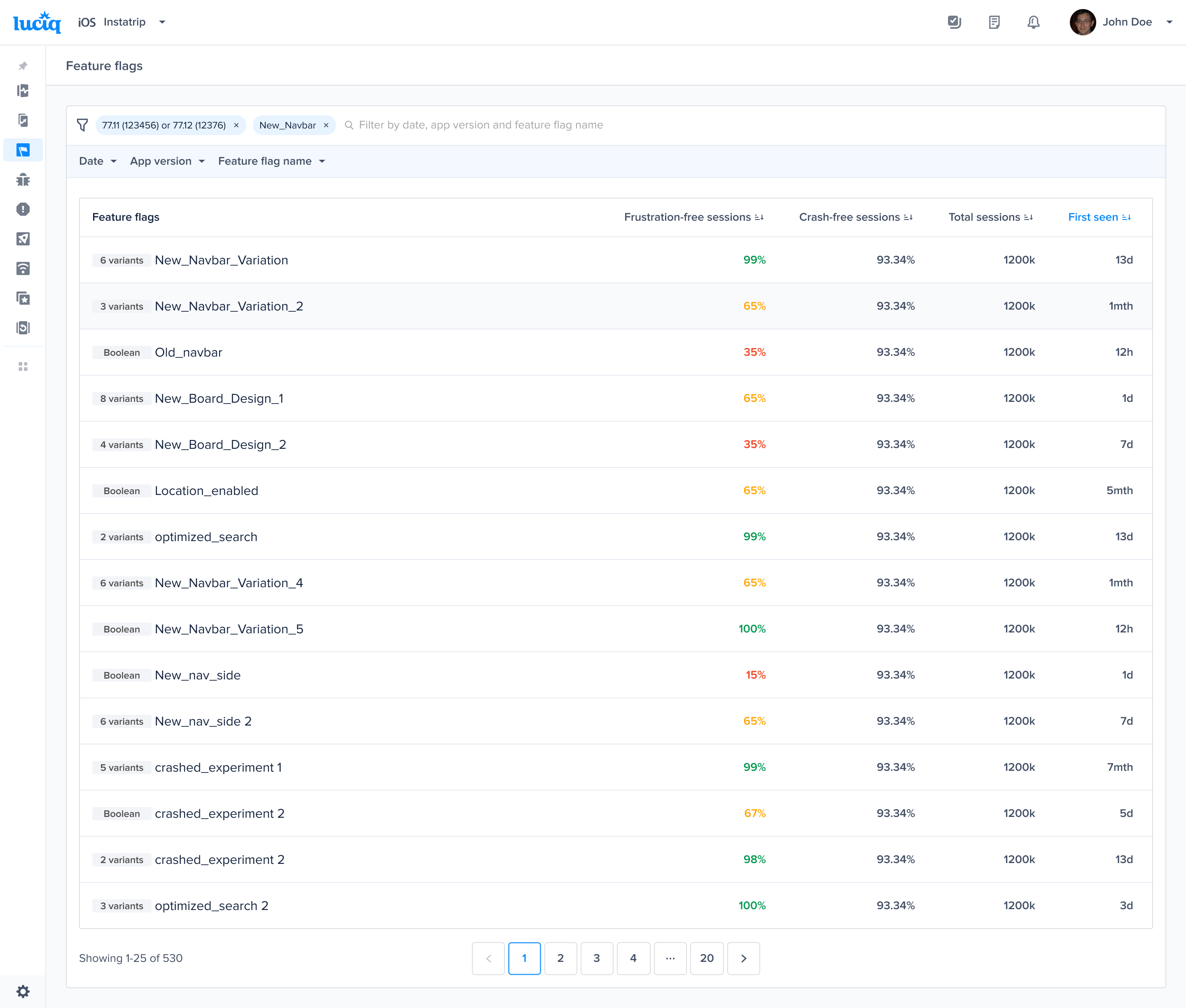
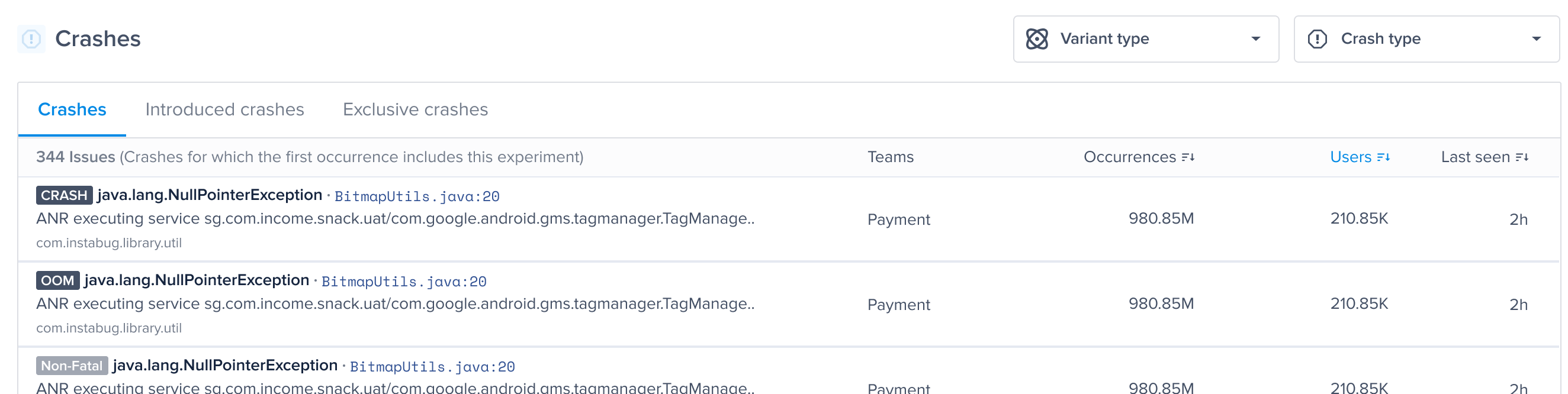
  <figure><img src="https://files.readme.io/a50c5f81df42e2f79f16ff1dc64cc2d02b4ebfdee30109d2f16959e2ebdc5d0f-product-guides-feature-flags-3.png" alt=""><figcaption></figcaption></figure>

#### Details Page: Drill Down

1. Insights Table:
   * Explore a detailed breakdown of your feature othrough the Insights Table, providing a nuanced understanding of its performance. Here's a comprehensive overview of each metric:
     * **Apdex**: combining Crashes, App Hangs, and Force Restarts within sessions featuring this specific feature, gives you an overall performance indicator.
     * **Crash-Free Users Rate**: The percentage of users experiencing this feature without any crashes, relative to the total number of users using this feature.
     * **Crash-Free Sessions Rate**: The percentage of sessions with this feature that are crash-free, out of the total sessions involving this feature.
     * **Total Sessions**: View the total number of sessions where this feature flag was detected, providing an overview of its usage.
     * **App Hang-Free Sessions**: The percentage of sessions without any App hangs, out of the total sessions involving this feature.
     * **Force-Restart Free Sessions**: Understand the percentage of sessions that ended in a force restart of the app, out of the total sessions involving this feature.
   * If you click on any of the metrics, you’ll be redirected into the list issues where filtered by this feature.
   * Compare this feature flag against all users across all metrics to identify potential issues or improvements compared to your baseline.<br>

     <figure><img src="https://files.readme.io/a50c5f81df42e2f79f16ff1dc64cc2d02b4ebfdee30109d2f16959e2ebdc5d0f-product-guides-feature-flags-3.png" alt=""><figcaption></figcaption></figure>
2. Crashes Section:
   * **Crashes Tab**: This section provides details on any crash that occurred at least once with this feature.
   * **Introduced Crashes Tab**: Crashes for which the first occurrence includes this feature. This can help you understand the impact of the feature on the introduction of new crashes.
   * **Exclusive Crashes Tab**: Crashes that exclusively happened in sessions containing this feature and never occurred without it. This can help **identify the issues associated specifically with this feature**.

     <figure><img src="https://files.readme.io/60e3934-image.png" alt=""><figcaption></figcaption></figure>

By examining both the Insights Table and the Crashes Section, you gain a comprehensive understanding of your feature , enabling you to find out the best and worst performing features.

### Feature Flags in Performance Monitoring

Once you add the API to your code, you will be able to view the experiments in the patterns section of Cold App Launch, Screen Loading, and UI Hangs.

<figure><img src="https://files.readme.io/a7a75f8293cf96ec0ae381f40e43d2d1a0515804cd0c83d7d96efd59c9d6dee5-product-guides-feature-flags-5.png" alt=""><figcaption></figcaption></figure>

You can see the different latencies of your metric in correlation with the experimental variant. For example, in the previous screenshot, users who had *guest\_mode* enabled had a very different Apdex score, p50 and p95 latencies.

You can also isolate your feature flags by filtering with a specific flag value for further analysis to understand if they are impacting the latency of App launch, Screen Loading or UI hangs.

If you filter by *guest\_mode* and *No experiments* as shown on the following screenshot, the *No Experiments* presents occurrences without any experiments applied. You can also filter by one or more experimental values.

<figure><img src="https://files.readme.io/570c862-2.png" alt=""><figcaption></figcaption></figure>

The *No Experiments* selection will help you spot and compare any difference in performance in each metric.

<figure><img src="https://files.readme.io/f223108ac25c67028dba3813c54c10d831537ef83928ede43f222c7db90701d6-image.png" alt=""><figcaption></figcaption></figure>

### Feature Flags in Crash Reporting

Rolling out new features or doing modifications in your code can increase the number of errors you are seeing. By analyzing how different feature flag variants are contributing to your crashes, you can minimize the debugging efforts and team members can save time.

For example, if you just rolled out a new recommendation feature for a subset of your users, you can view all the crashes that occurred to the users who had this feature enabled by using the filters.

In the screenshot below, we filtered by feature flag *Recommendations\_enabled*, to view the relevant crashes

<figure><img src="https://files.readme.io/0c6fb07-4.png" alt=""><figcaption></figcaption></figure>

You can also view the feature flag variants attached to each crash report on your dashboard in the patterns section of a crash.

<figure><img src="https://files.readme.io/bdff9bc-5.png" alt=""><figcaption></figcaption></figure>

#### Feature Flags in Bug Reporting

Introducing new features or making changes to existing ones can sometimes lead to an increase in Bugs. By leveraging feature flags, you can isolate and analyze issues related to specific features, making it easier to identify and resolve bugs. This approach helps in reducing the debugging time and effort for your team. This should also help you collect actionable data on the next actions for any experiment you are holding

In the screenshot below, you can easily view which feature flag a bug is associated with in each bug report

<figure><img src="https://files.readme.io/88a291c0195590730bdeb31fc3d621c51f8449a3c7635d747ddaf5bdce1d1997-image.png" alt=""><figcaption></figcaption></figure>

You can also easily navigate and filter by a specific feature flag to focus on the bugs you need to prioritize and it would reflect on the reports column on the left

<figure><img src="/files/u8rSgYUR07WhHAaADSui" alt=""><figcaption></figcaption></figure>


# AI Features


# Detect Agent


# Visual Issues

### Overview

**AI Visual Issues** is a feature built on top of Session Replay. Once enabled, it uses AI to scan screenshots captured during user sessions and flag visual defects such as:

* Misaligned elements or overlapping UI
* Color variations that don’t match design spec
* Unexpected layout shifts or gaps
* Text overflow, clipping, or truncation
* Visual artifacts, noise, or anomalies

These issues get surfaced as **Visual Issue events**, which you can filter and inspect alongside normal session data.

### How to Use

You need to have the **Session Replay** product enabled to be able to enable the AI Visual Issues feature. Once the feature is enabled, you follow these steps:

#### Step-by-Step

1. On the Session Replay list, use the new “AI Issues” filter to only show sessions flagged with AI issues including visual issues.

   <div align="left"><figure><img src="https://files.readme.io/e5631b68409cf7f0e1d02e5b35c2dbc7febec9cefffd16b551c23ed2ec1f6de4-image.png" alt="" width="563"><figcaption></figcaption></figure></div>
2. Open a session with flagged issues. Two ways to navigate:
   * Scroll through the event timeline to find the visual issue event.
   * Click the purple dot on the timeline to jump directly to the issue’s screenshot view.
   * Use the new AI issues filter, you can select “Visual Issues”
3. Viewing a Visual Issue event shows:
   * The exact screenshot where the issue was detected
   * A descriptive summary of the issue (e.g. “element misaligned by 4px”)

### How It Works

* No instrumentation changes required - once enabled, existing session screenshots are routed to the visual analysis pipeline.
* Screenshots are passed through an AI model for analysis.
* When anomalies are detected, a Visual Issue event is emitted in the timeline at the same timestamp as the screenshot.
* The event payload includes descriptive text of the anomaly
* On the front end, UI surfaces let you filter and inspect these events alongside other session data.

### Compatibility & Requirements

* Supported Platforms: All mobile platforms currently supported by Luciq (iOS, Android, React Native, etc.)
* Prerequisite: Session Replay must be enabled
* No SDK version upgrade needed (feature is server-side)

### Limits & Quotas

* Per-account monthly cap: Up to **1,000 analyzed sessions**
* Maximum visual issues generated per month: 1,000

### Getting Access

* Beta / Invite-only: At present, the feature is available by invitation only.
* To request access:
  * Submit a request via Intercom / support chat
  * If you're an Enterprise customer, reach out to your customer success manager to be added to the waitlist.
* Once approved, the feature will be toggled on from the backend - no SDK changes are needed.


# Broken Functionality

### Overview

**AI Broken Functionality** is a feature built on top of Session Replay. Once enabled, it identifies issues in your app’s functionality that affect user experience, such as:

* Buttons or links that don’t respond
* Forms that fail to submit
* Flows that break mid-process
* Unexpected crashes or error messages
* Inconsistent app behavior compared to expected flows

Detected problems are surfaced as **Broken Functionality** events, which can be reviewed alongside normal session data.

### How to Use

You need to have the **Session Replay** product enabled to be able to enable the AI Broken Functionality feature. Once the feature is enabled, you follow these steps:

#### Step-by-Step

1. On the Session Replay list, use the new “AI Issues” filter to only show sessions flagged with AI issues including broken functionality.

   <div align="left"><figure><img src="https://files.readme.io/c3f5042fc7e4f2bce5e584b78972073d9361e2dd076c15ffac309dc2be6e99ae-image.png" alt="" width="563"><figcaption></figcaption></figure></div>
2. Open a session with flagged issues. Two ways to navigate:
   * Scroll through the event timeline to find the broken functionality event.
   * Click the purple dot on the timeline to jump directly to the issue’s screenshot view.
   * Use the new AI issues filter, you can select “Broken Functionality”
3. Viewing a Broken Functionality event shows:
   * The exact screenshot where the issue was detected
   * A descriptive summary of the issue (e.g. “Subtotal is miscalculated”)

### How It Works

* No instrumentation changes required - once enabled, existing session screenshots, user flow and app behavior are routed to broken functionality analysis pipeline.
* Screenshots, user flow and app behavior data are passed through an AI model for analysis.
* When functional breakdowns that didn’t result in crashes or performance issues are detected, a Broken functionality event is emitted in the timeline at the same timestamp as the screenshot.
* The event payload includes descriptive text of the breakdown.
* On the front end, UI surfaces let you filter and inspect these events alongside other session data.

### Compatibility & Requirements

* Supported Platforms: All mobile platforms currently supported by Luciq (iOS, Android, React Native, etc.)
* Prerequisite: Session Replay must be enabled
* No SDK version upgrade needed (feature is server-side)

### Limits & Quotas

* Per-account monthly cap: Up to **1,000 analyzed sessions**
* Maximum broken functionality issues generated per month: 1,000

### Getting Access

* Beta / Invite-only: At present, the feature is available by invitation only.
* To request access:
  * Submit a request via Intercom / support chat
  * If you're an Enterprise customer, reach out to your customer success manager to be added to the waitlist.
* Once approved, the feature will be toggled on from the backend - no SDK changes are needed.


# Resolve Agent

Resolve Agent is an AI agent that helps developers fix mobile app crashes directly from the Luciq dashboard. It analyzes crash data alongside your application source code, identifies the root cause, generates a code fix, and can open a pull request in your repository, all within minutes.

### Prerequisites

Resolve Agent requires a connected GitHub repository to access your source code. To get started:

{% hint style="info" %}
**Enablement:** Resolve Agent is enabled on a per-account basis. Contact your Customer Success Manager or reach out to Luciq Support to enable it.

**Source Code:** Connect your GitHub repository via [Source Code Connection - GitHub](/product-guides-and-integrations/product-guides/ai-features/resolve-agent/source-code-connection-github) before using Resolve Agent.
{% endhint %}

### Using Resolve Agent

Once enabled, the Resolve Agent widget appears at the top of each crash details page.

#### 1. Launch the agent

Click **"Launch Resolve Agent"** on any crash to start the analysis and fix generation process.

<figure><img src="/files/aeoK9uNGegW0uUH6Pqe2" alt=""><figcaption></figcaption></figure>

#### 2. Watch it work

The agent begins by checking the crash's stack trace for readability, then moves into fix generation. As it works, you'll see real-time progress messages describing what the agent is doing: reading specific files, tracing the crash origin, and building the fix. This typically takes one to two minutes depending on the complexity of the crash and the size of your codebase.

<figure><img src="/files/3MDc2CXQFBjevbXidci2" alt=""><figcaption></figcaption></figure>

#### 3. Review the fix

Once complete, you'll see a root cause analysis explaining why the crash happened and a suggested code fix displayed as a diff, directly in the dashboard.

<figure><img src="/files/KFePBpeDM4663WzqO9jH" alt=""><figcaption></figcaption></figure>

#### 4. Provide feedback (optional)

If the fix doesn't fully address the issue, you can provide feedback describing what's missing or what should change. The agent will use your input to generate an improved fix. You can iterate up to 5 times per crash.

<figure><img src="/files/nCsdh5C3Zc6BPHOYSBQA" alt=""><figcaption></figcaption></figure>

#### 5. Create a pull request

When you're satisfied with a fix, click **"Create pull request"** to open a PR directly in your GitHub repository. Your team can review the changes, run CI checks, and merge when ready.

<figure><img src="/files/0oHio0lYtTMwvIV6wDiq" alt=""><figcaption></figcaption></figure>

### Additional actions

* **View previous fixes:** All generated fixes are saved and accessible to your team.
* **Generate another fix:** Submit feedback to generate an additional fix suggestion.
* **Start over:** Delete all previous fixes and restart the analysis, useful when a new app version is available.

***

### How it works

#### Source code integration

Resolve Agent connects to your GitHub repository through the Luciq CodeLink GitHub App. This gives the agent read access to your source code so it can trace crash stack frames back to specific files and functions in your codebase.

#### Crash analysis

When you launch Resolve Agent on a crash, the agent analyzes the crash's stack trace and cross-references it with your source code to identify the root cause. It traces the execution path, examines the relevant code context, and determines what went wrong.

#### Fix generation

Based on the root cause analysis, the agent generates a code fix. You'll see the agent's progress in real time as it works through your codebase, with status messages describing each step it takes. The resulting fix is presented as a code diff with an explanation of the changes.

#### Feedback loop

If the initial fix isn't right, your feedback guides the next iteration. The agent incorporates your input and generates a new fix that addresses your specific concerns. Each crash supports up to 5 fix attempts.

#### Pull request creation

Resolve Agent uses your source code connection to create a pull request in your repository. The PR contains the fix changes and can go through your normal review and CI/CD pipeline before merging.

### Compatibility

|                           | Supported                                    |
| ------------------------- | -------------------------------------------- |
| **Platforms**             | iOS (Native), Android (Native), React Native |
| **Source code providers** | GitHub                                       |

### Enablement and consent

Resolve Agent is enabled on a per-account basis. By requesting enablement, you grant Luciq permission to process crash data and application source code through its AI models in compliance with our [privacy policy](https://www.luciq.ai/privacy). Processing only occurs when you actively use the feature, and you can request to disable it at any time.

Only account admins or owners can request enablement. Once enabled, all team members with appropriate permissions can use the feature.


# Source Code Connection - GitHub

Resolve Agent is an AI-powered feature designed to help developers quickly resolve app crashes by automating root cause analysis, code fix generation, and pull request creation. To enable Resolve Agent, you need to connect your source code repository to Luciq using the **Luciq CodeLink** GitHub app. This guide walks you through the steps to complete the connection and start using Resolve Agent.

### Why Connect Your Codebase to Luciq?

Connecting your codebase enables Resolve Agent to:

* Analyze crash data and identify the root cause.
* Provide actionable code fix suggestions.
* Help generate pull requests with suggested fixes directly in your repository.

By linking your codebase, you’ll save time on diagnosing and resolving crashes, improve app stability, and reduce operational costs.

#### Step 1: Start the Connection Process

1. Navigate to **Settings → Source Code Management** in the Luciq dashboard.
2. Click on the **Connect** button, within **GitHub** connect widget.

<figure><img src="/files/seyY8sokLc3F6B3rzvj6" alt=""><figcaption></figcaption></figure>

#### Step 2: Authenticate with GitHub

1. You’ll be redirected to the **Connect GitHub Source Code** setup screen.
2. Select "**Install Luciq on GitHub.**"
   * This will redirect you to GitHub, where you need to approve the installation.
   * If your organization owner has already installed the app, you can use the installation ID instead.
3. Click **Continue** once the installation is approved.<br>

   <div align="left"><figure><img src="https://files.readme.io/6258363af862d61b0d4dbb3ab722595c90d722ae23fa9d43de0f026f53312548-product-guides-connect-github-1.png" alt="" width="563"><figcaption></figcaption></figure></div>

#### Step 3: Select Repository and Branch

1. After authentication, you’ll be prompted to select the repository and branch where Luciq should analyze and generate code fixes.
2. Choose the correct repository and branch from the dropdown list.
3. Click **Continue** to proceed.<br>

   <div align="left"><figure><img src="https://files.readme.io/9a76506f763debc21b19927a80e3b732e4ce7c33979b1afa4d7f2e5ac5ae5fca-product-guides-connect-github-6.png" alt="" width="563"><figcaption></figcaption></figure></div>

#### Step 4: Connect the Codebase

1. Luciq will begin connecting to your GitHub repository.
2. This process may take a few moments.
3. Once completed, you’ll see a success message confirming the connection.

   <div align="left"><figure><img src="https://files.readme.io/1d9fbd62f6ea12a0cdb215cae52d0e99d97b0626e76f983b20c8839ba946b888-product-guides-connect-github-3.jpg" alt="" width="563"><figcaption></figcaption></figure></div>

#### Step 5: Verify Connection in Settings

1. Navigate to **Settings → Source Code Management** in the Luciq dashboard.
2. You should see a confirmation that GitHub Connect is set up successfully, showing the organization, repository, and branch.
3. You’re now ready to use Resolve Agent to fix crashes automatically!

<figure><img src="/files/vA3apS4tFrEgGumtXd3n" alt=""><figcaption></figcaption></figure>

#### Next Steps

* After connecting your codebase, you can use Resolve Agent to:
  * Analyze crash details and identify root causes.
  * Generate up to three suggested code fixes.
  * Automatically create a pull request with the suggested fix.
  * Review and merge the pull request directly in your repository.

### Troubleshooting

* **Permission Issues**: Make sure you have the necessary permissions to install the GitHub app or contact your organization owner.
* **Repository Not Showing**: Ensure the repository is under the connected GitHub organization and that you have access to it.
* **Connection Errors**: If the connection fails, try reconnecting by first deleting the existing connection and repeating the steps above or checking your GitHub permissions.


# Configure GitHub Webhooks to Track CI & Merge Status

To track the full journey from crash to fix to validation, Resolve Agent integrates with your CI system by listening to GitHub events through a webhook. This guide walks you through setting up a repository-level GitHub webhook to track CI build status and pull request merges, enabling automated validation inside the Luciq dashboard.

{% hint style="info" %}
Before continuing, make sure you’ve [connected your GitHub repository to Luciq](/product-guides-and-integrations/product-guides/ai-features/resolve-agent/source-code-connection-github) using the CodeLink GitHub app.
{% endhint %}

### Why Connect Your CI to Luciq?

Once your repository is connected, setting up a webhook allows Resolve Agent to:

* Monitor whether AI-generated fixes pass your test suite.
* Display CI status and merge results directly in your Resolve Agent workflow.
* Block unvalidated or failing fixes from progressing to release.
* Streamline your crash resolution lifecycle with minimal manual effort.

{% hint style="warning" %}
**Security and Privacy**<br>

Luciq listens only to metadata events (`status`, `check_run`, and `pull_request`). Webhook communication is encrypted and authenticated using a shared secret provided by Luciq Support.
{% endhint %}

### What This Webhook Tracks?

The GitHub webhook enables Resolve Agent to track:

* **CI Status**
  * `status`: External CI tools (e.g. CircleCI, Jenkins, Bitrise)
  * `check_run`: GitHub Actions workflows
* **Merge Status**
  * `pull_request`: Detects when pull requests are merged into target branches

#### Prerequisites

* Your GitHub repo is connected to Luciq via CodeLink ([set it up here](https://docs.luciq.ai/product-guides-and-integrations/product-guides/ai-features/resolve-agent/source-code-connection-github)).
* **Admin access** to the GitHub repository
* Your **Luciq Application Token**
* A **Webhook Secret**, you can get it by reaching out to Luciq Support

#### Step 1: Get Your Webhook Secret

1. Open a **GetHelp ticket** by contacting Luciq Support or reaching out to your designated customer success manager.
2. Request a **GitHub Webhook Secret** tied to your application
3. Save this token securely — it will be used to validate incoming webhook events and other integrations.

#### Step 2: Open GitHub Webhook Settings

1. On GitHub, navigate to the main page of the repository.
2. Under your repository name, click **Settings → Webhooks → Add webhook.**

#### Step 3: Configure the Webhook

| Field        | Value                                                                                                                                                                                                     |
| ------------ | --------------------------------------------------------------------------------------------------------------------------------------------------------------------------------------------------------- |
| Payload URL  | <p><code><https://api.instabug.com/api/web/public/agent_webhooks/github?application_token=YOUR_APP_TOKEN></code></p><p>Replace <code>YOUR\_APP\_TOKEN</code> with your actual Luciq Application Token</p> |
| Content type | `application/json`                                                                                                                                                                                        |
| Secret       | The Webhook Secret you obtained from Luciq Support                                                                                                                                                        |

#### Step 4: Select Events

Under "**Which events would you like to trigger this webhook?**", choose:

* Status – Tracks CI status from external CI tools.
* Check run – Tracks CI status from GitHub Actions workflows.
* Pull request – Tracks PR merge status.

{% hint style="warning" %}
**Do not select “Send me everything”**
{% endhint %}

#### Step 5: Save and Test

1. Click **Add webhook**
2. GitHub will automatically send a ping event to test delivery
3. In **Recent Deliveries**, verify a successful response (green checkmark)

### Troubleshooting

If your webhook doesn’t appear to be working as expected:

* **No events showing in Luciq dashboard**
  * Make sure the correct events (`status`, `check_run`, `pull_request`) are selected
  * Confirm that the repo is connected to Luciq
* **Webhook returns 401 (Unauthorized)**
  * Double-check that you’re using the correct webhook secret provided by Luciq
  * Ensure the secret hasn’t expired or been changed
* **CI status not updating**
  * For GitHub Actions, confirm that your workflow triggers a `check_run` event
  * For external CI tools, make sure they emit GitHub `status` events
* **Merge not detected**
  * Verify that the pull request is merged into the same branch Resolve Agent is tracking (e.g. `main` or `master`)
  * Ensure the `pull_request` event is enabled in webhook settings

If the issue persists, contact our Support team with a screenshot of your webhook settings and recent deliveries.


# AI Debugging Assistant

## Overview

The AI Debugging Assistant is an intelligent analysis tool, one of the Resolve Agent capabilities. It transforms mobile crash debugging from a manual process into a structured path to resolution.

Rather than requiring developers to sift through opaque stack traces and fragmented logs, the Assistant consolidates telemetry data and applies AI-driven analysis to surface the root cause, reproduction steps, and pattern insights for every mobile crash.

### Key Capabilities

**Root Cause Analysis :** Plain-English explanations of failures with evidence-based context linking to specific code and network calls.

**Common Reproduction Steps :** Sequential user-action reconstructions that eliminate the “cannot reproduce” loop.

**Pattern Insights :** Multi-factor correlation analysis that identifies whether a crash is a global issue or a localized edge case.

### Where to Find It

When viewing any crash report, the Assistant panel is available in the right sidebar. All three capabilities (Root Cause, Reproduction, Patterns) are accessible from a single interface with no context-switching required.

<figure><img src="/files/JPmK58fDYaqOTKSaAvC0" alt="" width="375"><figcaption></figcaption></figure>

## Root Cause Analysis

Root Cause Analysis goes beyond the stack trace to provide a complete understanding of why a crash occurred. It is especially useful for opaque crashes such as OOMs or ANR crashes that lack a clear trail.

**Executive Summary :** A plain-English explanation of the failure written for quick comprehension. The summary describes what happened, what component was affected, and the likely trigger.

**Evidence-Based Context :** Direct links to the specific lines of code or network calls that were active at the moment of impact.

**Contributing Factors:** Supplementary insights into conditions that may have contributed to the crash. These can include memory pressure or leaks, elevated backend latency, specific OS or device configurations, and thread contention or deadlocks.

<div align="center"><figure><img src="/files/kcD9pmI6tqH5D7Ykeb8a" alt="" width="375"><figcaption></figcaption></figure></div>

## Common Reproduction Steps

The most time-consuming part of fixing a bug is proving it exists on your own machine. The Automated Reproduction Steps feature reconstructs the sequential user actions leading to a crash, eliminating guesswork and reducing the “cannot reproduce” cycle.

#### How It Works

The Assistant analyzes session telemetry, including screen navigation events and user interactions (taps, scrolls, input) to build a chronological timeline of what the user did before the crash.

<figure><img src="/files/5fRh7qX4ERvoP8ZCNTpo" alt="" width="375"><figcaption></figcaption></figure>

{% hint style="info" %}
You need to enable the user repro steps feature to be able to get this capability.
{% endhint %}

## Pattern Insights

Pattern Insights answer the critical triage question: is this a global catastrophe or a localized edge case? The feature correlates data points across your entire crash footprint to surface the common thread behind an issue.

#### Multi-Factor Correlations

Pattern Insights can identify compound conditions where a crash requires two or more factors to occur simultaneously. For example, the Assistant might report that a crash happens specifically when the Login V2 feature flag is enabled on iOS 26, combining both a feature flag and an OS version dimension into a single insight.

\
Workflow Guide: Choose Your Own Flow

The AI Debugging Assistant is designed around flexibility. While we recommend a default sequence, every developer has a different mental model for solving problems. The interface supports starting from any capability.

<figure><img src="/files/FWd4LSVmxmUpbadPa0LD" alt="" width="375"><figcaption></figcaption></figure>

## Recommended Flow

| Step | Capability          | Purpose                                     |
| ---- | ------------------- | ------------------------------------------- |
| 1    | Root Cause Analysis | Understand what happened and why            |
| 2    | Reproduction Steps  | Confirm how to trigger the issue locally    |
| 3    | Pattern Insights    | Determine the scope and impact of the issue |

## Alternative Flows

**Suspect a feature flag issue?** Start with Pattern Insights to quickly confirm whether a specific flag correlates with the crash, then move to Root Cause for the technical details.

**Visual learner?** Start with Reproduction Steps to see the user journey, then review Root Cause for the underlying technical explanation.

**Triaging for severity?** Start with Pattern Insights to assess scope (global vs. localized), then use Root Cause only if the issue warrants deeper investigation.


# Release Agent


# PR Review

### Overview

AI PR Review helps engineering teams ship higher-quality code by analyzing pull requests using Luciq’s agents.\
It detects bugs, flags anti-patterns, identifies performance and security risks, and summarizes the PR - before your team spends time reviewing.

The result: fewer regressions, fewer production crashes and bugs, and faster review cycles.

### How It Works

Each PR triggers Luciq’s multi-stage review pipeline:

1. GitHub event received via the Luciq GitHub App
2. Luciq agent start analyse the PR
3. The agent generates summary & explanations
4. Results posted back to GitHub as review comments + PR summary

This creates a review experience that is fast, actionable, and grounded in real production intelligence.

<figure><img src="/files/5QkaTkUgVzxNxgys2oqC" alt=""><figcaption></figcaption></figure>

### Installation

#### 1. Install the Luciq GitHub App

Navigate to:\
**Settings** → **Source Code Management** → I**nstall GitHub App**

Grant repository access to the repos you want reviewed.

<figure><img src="/files/incR7I0zirpLWMXpmXki" alt=""><figcaption></figcaption></figure>

#### 2. Enable AI PR Review

Once the GitHub App is connected, you can enable or disable AI PR Review per application from the Settings page.

#### 3. Create or update a Pull Request

Mention Luciq inside the PR by commenting:

```
@luciq review
```

Luciq will immediately react to your comment with a thumbs up :thumbsup: to confirm that the review has started.\
Once the analysis is complete, Luciq will post the PR summary and risk assessment as a new comment.

{% hint style="info" %}
The thumbs up :thumbsup: reaction helps your team know that the AI review is in progress.
{% endhint %}

<figure><img src="/files/ig7GLjg90l7ChHPWRucX" alt=""><figcaption></figcaption></figure>

### Security & Permissions

All AI processing happens within secure, isolated environments deployed inside Luciq’s infrastructure.\
Luciq only requests the minimum GitHub permissions required to:

* Read pull requests and diffs
* Write review comments
* Access relevant repository metadata

No code is stored, and no data leaves Luciq’s secure environment.

### Best Practices

* Enable Luciq PR Review on your core repositories first
* Use AI findings as a first pass before the developer do a deeper review
* Pay attention to high-risk flags - they often correlate with production issues

### FAQ

**Does Luciq modify my code?**\
No. Luciq only comments and recommends improvements.

**Can I disable the AI reviewer on certain repos?**\
Yes - permissions and enablement are per-application, also review added only when you mention luciq reviewer.


# Luciq MCP Server

### Your production data, in your IDE, in seconds.

The **Luciq MCP Server** gives your AI coding assistant direct access to your mobile app's crash data, bug reports, app hangs, and user reviews. Query your production data using natural language, without leaving your editor.

{% hint style="success" %}
**Available on all plans.** MCP is enabled for every Luciq customer - no extra setup, no feature flags, no waiting. Just connect your IDE and start querying.
{% endhint %}

**10 tools across 5 domains.** Crashes, occurrences, app hangs, bug reports, and app store reviews - all accessible through natural language prompts:

> "Show me the top crashes in production this week"\
> "Get details for crash #42 - what's the stack trace?"\
> "Are there app hangs on Samsung devices?"\
> "Show me 1-star reviews for the latest release"

**Works with your IDE.** Cursor, Claude Code, Claude Desktop, VS Code / GitHub Copilot, Windsurf, JetBrains, and any MCP-compatible client.

***

### Demo

{% embed url="<https://streamable.com/ekvoh8>" %}

***

### What is MCP?

[Model Context Protocol](https://modelcontextprotocol.io/) (MCP) is an open standard for connecting AI tools to external data sources. It lets your IDE's AI assistant fetch real data from services like Luciq using structured, secure API calls.

Luciq's MCP Server is the **first and only MCP integration purpose-built for mobile observability**. While general-purpose observability tools retrofit MCP support for web and backend data, Luciq's server is designed from the ground up for mobile: crash frames, device state, session context, app hangs, and app store reviews.

### Why Luciq MCP?

* **Mobile-native.** 10 tools designed for how mobile developers actually debug
* **Standardized.** Works across all MCP-compatible IDEs with zero custom SDKs
* **Secure.** OAuth 2.0, RBAC, audit logging, read-only access, no source code required
* **Simple.** One URL, one-click OAuth, done

***

### Tools at a Glance

| Domain           | Tool                     | What It Does                                                     |
| ---------------- | ------------------------ | ---------------------------------------------------------------- |
| **Applications** | `list_applications`      | List all apps in your workspace                                  |
| **Crashes**      | `list_crashes`           | Query crash reports with filters (time, version, device, status) |
| **Crashes**      | `crash_details`          | Full crash info with stack trace and metadata                    |
| **Crashes**      | `crash_patterns`         | Crash distribution by device, OS, app version                    |
| **Occurrences**  | `list_occurrence_tokens` | List individual crash instances                                  |
| **Occurrences**  | `get_occurrence_details` | Deep-dive into a single crash session                            |
| **App Hangs**    | `list_application_hangs` | UI freeze and hang reports                                       |
| **Bugs**         | `list_bugs`              | User-reported bug reports via the Luciq SDK                      |
| **Bugs**         | `bug_details`            | Full bug detail with logs and device context                     |
| **Reviews**      | `list_reviews`           | App store reviews and ratings                                    |

***

### Get Started

**New to MCP?** Start with the [Getting Started](/product-guides-and-integrations/product-guides/ai-features/luciq-mcp-server/getting-started) guide - you'll be connected in under two minutes.

**Ready to connect your IDE?** Jump straight to [Setup by IDE](/product-guides-and-integrations/product-guides/ai-features/luciq-mcp-server/setup-by-ide) for Cursor, Claude Code, VS Code, and more.

***

### Explore

* [**Getting Started**](/product-guides-and-integrations/product-guides/ai-features/luciq-mcp-server/getting-started) - Connect in under 2 minutes
* [**Setup by IDE**](/product-guides-and-integrations/product-guides/ai-features/luciq-mcp-server/setup-by-ide) - Cursor, Claude Code, VS Code, Claude Desktop, Windsurf, JetBrains
* [**Authentication & Security**](/product-guides-and-integrations/product-guides/ai-features/luciq-mcp-server/authentication-and-security) - OAuth, tokens, permissions, and security details
* [**Tools Reference**](/product-guides-and-integrations/product-guides/ai-features/luciq-mcp-server/mcp-tools-reference) - All 10 tools with parameters, prompts, and response fields
* [**Use Cases & Workflows**](/product-guides-and-integrations/product-guides/ai-features/luciq-mcp-server/use-cases-and-workflows) - Real-world debugging workflows with prompt sequences
* [**FAQ & Troubleshooting**](/product-guides-and-integrations/product-guides/ai-features/luciq-mcp-server/faq-and-troubleshooting) - Common issues and how to resolve them


# Getting Started

Get your first MCP response in under two minutes.

***

## Prerequisites

* A Luciq account (MCP is available on **all plans**, no extra setup required)
* An MCP-compatible IDE: Cursor, Claude Code, Claude Desktop, VS Code, or any MCP client

***

## Step 1: Find Your MCP Settings

MCP server settings live in your Luciq dashboard under **Account Management**.

1. Log in to your [Luciq dashboard](https://dashboard.luciq.ai)
2. Click your **profile avatar** (top-right corner)
3. Select **Account Management**
4. In the left sidebar, click **Luciq MCP**

![Navigate to Account Management > Luciq MCP](/files/1tvuZ24C02KrId2cidZf)

From this page you can:

* View integration settings for each supported MCP client
* Generate a personal access token (for token-based auth)
* See your current token and authentication status

***

## Step 2: Connect Your IDE

The **Luciq MCP** page in your dashboard shows setup instructions tailored to each supported client. Select your IDE there to get the exact configuration for your account.

You can also use the server URL directly:

```
https://api.luciq.ai/api/mcp
```

{% tabs %}
{% tab title="Cursor" %}
Create or edit `~/.cursor/mcp.json` with the following configuration:

```json
{
  "mcpServers": {
    "luciq": {
      "url": "https://api.luciq.ai/api/mcp"
    }
  }
}
```

{% endtab %}

{% tab title="Claude Code" %}
Run the following command in your terminal:

```bash
claude mcp add --transport http luciq https://api.luciq.ai/api/mcp
```

{% endtab %}

{% tab title="VS Code" %}
Open Command Palette (**Cmd+Shift+P**) > **MCP: Add Server** > select **HTTP** > paste the server URL:

```
https://api.luciq.ai/api/mcp
```

{% endtab %}

{% tab title="Claude Desktop" %}
Copy the configuration below and paste it into your `claude_desktop_config.json` file:

```json
{
  "mcpServers": {
    "luciq": {
      "url": "https://api.luciq.ai/api/mcp"
    }
  }
}
```

{% endtab %}

{% tab title="Other clients" %}
Copy the server URL below and add it to your MCP client settings as a remote MCP server:

```
https://api.luciq.ai/api/mcp
```

Your client will initiate a connection and open an OAuth authorization in your browser. Log in via your Luciq account and grant access.
{% endtab %}
{% endtabs %}

For detailed setup instructions, visit the [Setup by IDE](/product-guides-and-integrations/product-guides/ai-features/luciq-mcp-server/setup-by-ide) page or check the setup guide on your dashboard's **Luciq MCP** page.

***

## Step 3: Try Your First Query

Once connected, try one of these prompts in your IDE:

{% hint style="success" %}
"List my applications"\
"Show me the top crashes in production this week"\
"What are the most common app hangs?"
{% endhint %}

![MCP connection test in Claude Code](/files/VCkisGDV1ANJhDzLT5q2)

If you see your apps or crash data, you're connected and ready to go.

***

## What's Next?

* [**Setup by IDE**](/product-guides-and-integrations/product-guides/ai-features/luciq-mcp-server/setup-by-ide) - Detailed guides for every supported IDE
* [**Use Cases & Workflows**](/product-guides-and-integrations/product-guides/ai-features/luciq-mcp-server/use-cases-and-workflows) - Real-world debugging workflows with prompt sequences
* [**Tools Reference**](/product-guides-and-integrations/product-guides/ai-features/luciq-mcp-server/mcp-tools-reference) - All 10 tools documented with parameters and examples
* [**Authentication & Security**](/product-guides-and-integrations/product-guides/ai-features/luciq-mcp-server/authentication-and-security) - OAuth, tokens, permissions, and security details
* [**FAQ & Troubleshooting**](/product-guides-and-integrations/product-guides/ai-features/luciq-mcp-server/faq-and-troubleshooting) - Common issues and how to resolve them


# Setup by IDE

Connect Luciq MCP to your IDE. OAuth handles authentication automatically - just add the server URL and approve access in your browser.

{% hint style="info" %}
**Your dashboard has the latest setup instructions.** Go to **Account Management > Luciq MCP** in your Luciq dashboard for per-client setup guides tailored to your account, including a one-click Connect option for Cursor.
{% endhint %}

### Server URL

```
https://api.luciq.ai/api/mcp
```

***

## Cursor

Create or edit `~/.cursor/mcp.json` with the following configuration:

```json
{
  "mcpServers": {
    "luciq": {
      "url": "https://api.luciq.ai/api/mcp"
    }
  }
}
```

Or use the **Connect** button on your dashboard's Luciq MCP settings page to open Cursor and install the Luciq MCP server directly.

![Cursor Connect button on the Luciq MCP dashboard](/files/K5HknuFr0gjBeNV6hSIO)

***

## Claude Code

Run the following command in your terminal:

```bash
claude mcp add --transport http luciq https://api.luciq.ai/api/mcp
```

The OAuth flow will open your browser automatically for authorization.

***

## VS Code / GitHub Copilot

Open Command Palette (**Cmd+Shift+P**) > **MCP: Add Server** > select **HTTP** > paste the server URL:

```
https://api.luciq.ai/api/mcp
```

***

## Claude Desktop

Copy the configuration below into your `claude_desktop_config.json` file:

```json
{
  "mcpServers": {
    "luciq": {
      "url": "https://api.luciq.ai/api/mcp"
    }
  }
}
```

**Config file location:**

| Platform | Path                                                              |
| -------- | ----------------------------------------------------------------- |
| macOS    | `~/Library/Application Support/Claude/claude_desktop_config.json` |
| Windows  | `%APPDATA%\Claude\claude_desktop_config.json`                     |

***

## Other MCP Clients

Any client that supports the [MCP standard](https://modelcontextprotocol.io/) can connect to Luciq. Add the server URL as a remote MCP server in your client's settings:

```
https://api.luciq.ai/api/mcp
```

Your client will initiate a connection and open an OAuth authorization in your browser. Log in with your Luciq account and grant access.

***

## Verifying Your Connection

After setup, try this prompt in your IDE:

{% hint style="success" %}
"List my applications"
{% endhint %}

If you see your Luciq apps listed, you're connected and ready to go.

If the connection isn't working, check the [FAQ & Troubleshooting](/product-guides-and-integrations/product-guides/ai-features/luciq-mcp-server/faq-and-troubleshooting) page for common issues and IDE-specific fixes.

***

## Using Token-Based Auth Instead of OAuth

If you're in an environment where interactive OAuth isn't practical (CI/CD pipelines, remote terminals over SSH, automated workflows), you can use token-based authentication. See [Authentication & Security](/product-guides-and-integrations/product-guides/ai-features/luciq-mcp-server/authentication-and-security#token-based-authentication) for setup instructions.


# Authentication & Security

Luciq MCP supports two authentication methods. **OAuth is recommended** for interactive use; token-based auth is available for automation and CI/CD.

***

## OAuth 2.0 (Recommended)

When you connect your IDE to Luciq MCP, OAuth handles everything automatically:

1. Your IDE sends a request to the Luciq MCP server
2. Your browser opens to the Luciq authorization page
3. Log in with your Luciq account and approve access
4. Your IDE stores the credentials - this is a one-time step

OAuth uses **Dynamic Client Registration** (DCR), so no pre-configuration or API keys are needed. Your IDE registers itself automatically during the authorization flow.

### Revoking OAuth Access

When you authenticate via OAuth, a token is generated automatically. To revoke access:

1. Go to **Account Management > Luciq MCP** in your dashboard
2. Switch to the **Token** tab
3. Delete the active token

Deleting the token cancels all credentials associated with your account, including those generated through the OAuth flow. The next time your IDE tries to connect, it will prompt you to re-authorize.

***

## Token-Based Authentication

For environments where interactive OAuth isn't practical - CI/CD pipelines, remote terminals, automated agent workflows, or programmatic integrations.

### Getting a Token

1. Go to **Account Management > Luciq MCP** in your Luciq dashboard
2. Switch to the **Token** tab
3. Click **Generate authentication token**
4. Copy the token immediately (it's shown once for security)

![Token generation on the Luciq MCP settings page](/files/v2ESfYtcJGnhiYj7OHkI)

### Using the Token

Add the `Email` and `Token` headers to your MCP server configuration:

```json
"luciq": {
  "url": "https://api.luciq.ai/api/mcp",
  "headers": {
    "Email": "your-email@company.com",
    "Token": "your-authentication-token"
  }
}
```

{% hint style="warning" %}
**Keep your tokens safe.** Never commit tokens to version control, share them in Slack or email, or include them in public documentation. If a token is compromised, revoke it immediately from your MCP settings.
{% endhint %}

### Rotating Tokens

Generate a new token from the MCP settings page at any time. Previous tokens can be revoked from the same page.

***

## Permissions & RBAC

MCP access respects your existing Luciq role-based access controls:

* **App-level access:** You can only query data for apps your Luciq account has permissions for
* **Environment-level access:** Production, beta, staging, and other environments follow your existing permission model
* **Role inheritance:** MCP tools inherit the same permissions as the Luciq dashboard - no separate MCP-specific roles
* **Admin control:** Workspace admins manage access through standard Luciq team settings

If you're seeing "App not found" or missing data, check with your workspace admin to verify your permissions.

***

## Security Overview

| Aspect             | Detail                                                                  |
| ------------------ | ----------------------------------------------------------------------- |
| **Transport**      | HTTPS (TLS 1.2+), Streamable HTTP protocol                              |
| **Authentication** | OAuth 2.0 with Dynamic Client Registration (recommended) or token-based |
| **Authorization**  | RBAC - inherits your Luciq workspace permissions                        |
| **Data access**    | **Read-only** - all current tools are read-only                         |
| **Source code**    | No source code is accessed, transmitted, or stored                      |
| **Audit logging**  | All MCP tool calls are logged for compliance and auditing               |
| **Data residency** | Data stays within your Luciq workspace region                           |

### What Data Does MCP Access?

MCP tools query the same observability data available in your Luciq dashboard:

* Crash reports, stack traces, and occurrence data
* App hang / freeze reports
* User-reported bug reports (submitted via the Luciq SDK)
* App store reviews and ratings
* Application metadata (names, platforms, environments)

MCP does **not** access:

* Source code or repository contents
* User PII beyond what's already in crash/bug reports (email, device info)
* SDK configuration or integration settings
* Billing or account information

***

## Clustered Tenants

If your organization uses a dedicated Luciq cluster, your MCP endpoint URL may differ from the default. Contact your Luciq admin or reach out to <support@luciq.ai> for your cluster-specific endpoint.

***

## Enterprise & Compliance

For enterprise security reviews, compliance questionnaires, or custom deployment requirements, contact <support@luciq.ai>.


# MCP Tools Reference

Luciq MCP provides **10 read-only tools** across 5 domains. All tools use JSON-RPC 2.0 over Streamable HTTP.

| **Area**                                 | **Tools**                                           | **What they cover**                         |
| ---------------------------------------- | --------------------------------------------------- | ------------------------------------------- |
| **App Context**                          | `list_applications`                                 | Which apps you can work with                |
| **Crash-Level Debugging**                | `list_crashes`, `crash_details`, `crash_patterns`   | Crash groups & their details                |
| **Occurrences Deep-dive**                | `list_occurrences_tokens`, `get_occurrence_details` | Single crash instances (per device/session) |
| **Stability Beyond Crashes (App Hangs)** | `list_app_hangs`                                    | App freezes / UI hangs                      |
| **User Reported Issues (Bugs)**          | `list_bugs`, `bug_details`                          | User-reported issues via Luciq SDK          |
| **User Sentiment & Store Ratings**       | `list_reviews`                                      | User reviews and ratings                    |

The details and context for each tool are detailed below.

### **1. App Context**

***

### `1.1 list_applications`

#### What it does

Returns all applications accessible to your account.

#### Use this when

* Setting up your MCP config and not sure which `slug` / `mode` to use.
* You work across multiple apps and want a quick list in the IDE.

#### Parameters

**None required.**

Optional:

* `platform`: `ios`, `android`, `react_native`, `flutter`
* `limit`, `offset`

#### Key Fields

* **slug** — Identifier used in most tools
* **name** — Display name
* **token** — Needed for the Reviews tool
* **platform** — App platform
* **mode** — App environment
* **created\_at** — Timestamp

#### Usage Examples

* “List all my applications.”
* “Show only iOS applications.”
* “Which apps do I have access to?”

### **2. Crash-Level Debugging**

***

### `2.1 list_crashes`

#### What it does

Shows crash groups for an app: how often they happen, how many users they affect, and basic cause.

#### Use this when

* You want to know “what should we fix first?”
* You’re scanning production for new, recent, or high-impact crashes.

#### Required

* `slug` application slug
* `mode` beta, production, staging, alpha, qa, development

#### Useful Filters

* `date_ms` (time window)
* `status_id` (open, closed, in progress)
* `devices`, `os_versions`
* `app_versions`
* `current_views`, `teams`, `platform`

#### Key Fields

* **number** — Crash ID
* **exception** — Main exception message
* **crash\_cause** — File/function of failure
* **crash\_type** — Fatal or non-fatal
* **occurrences\_counter** — Total occurrences
* **affected\_users\_counter** — Unique users affected
* **app\_version** — Version where it occurred
* **last\_occurred\_at** — Latest timestamp
* **severity / level** — Severity indicators

#### Usage Examples

* “Show production crashes for the last 7 days.”
* “List crashes for version 3.0.1.”
* “Show open crashes only.”
* “What are the top Android crashes?”

### `2.2 crash_details`

#### What it does

Shows everything we know about a single crash (stack, versions, status, severity).

#### Use this when

You need to investigate or reproduce the crash.

#### Required

* `slug` application slug
* `mode` beta, production, staging, alpha, qa, development
* `number` crash number

#### Key Fields

* **exception** — Full exception
* **exception\_name** — Exception class/type
* **crash\_cause** — Main file/line
* **stack\_frames\[]** — Parsed stack trace
* **min\_app\_version**, **max\_app\_version** — Affected versions
* **crash\_type** — Fatal/non-fatal
* **status\_id** — Current status
* **team** — Assigned team
* **sdk\_version** — SDK version
* **package / ndk\_info / path** — Platform extra fields

#### Usage Examples

* “Show details for crash #12.”
* “Explain the stack trace for crash 45.”
* “Which file caused crash #17?”
* “What versions are affected by crash 5?”

### `2.3 crash_patterns`

#### What it does

Groups a crash’s occurrences by **device**, **app version**, **OS**, **view**, etc. to show where it clusters.

#### Use this when

* You want to understand where a crash is concentrated.
* You want to answer: “Is this crash mostly on Pixel 8? On Android 14? On version 3.0.4?”

#### Required

* `slug` application slug
* `mode` beta, production, staging, alpha, qa, development
* `number` crash number
* `pattern_key`: `devices`, `oses`, `app_versions`, `current_views`, `app_status`, `experiments`

#### Key Fields

* **value** — Group label (device, OS, version, etc.)
* **occurrences\_count** — Occurrences in that bucket
* **first\_seen**, **last\_seen** — Timestamp range

#### Usage Examples

* “Break down crash #20 by device.”
* “Show OS patterns for crash #12.”
* “Which views are tied to crash #3?”
* “Group crash #5 by app versions.”

### **3. Occurrences Deep Dive**

***

### `3.1 list_occurrence_tokens`

#### What it does

Lists individual **occurrences** of a crash as ULID tokens, so you can pick specific ones to inspect.

#### Use this when

* You want to inspect or debug specific sessions.
* You want to drill down from a crash group to specific user/device sessions.

#### Required

* `slug` application slug
* `mode` beta, production, staging, alpha, qa, development
* `number` crash number

#### Useful Filters

* `Foreground/background`
* `Device model`
* `OS version`
* `App version`
* `Experiments`
* `View/screen`
* `Date range`

#### Key Fields

* **states\_tokens\[]** — ULIDs for occurrences
* **total\_occurrences** — Count of matches

#### Usage Examples

* “List all occurrences for crash #28.”
* “Show only foreground occurrences.”
* “Which iOS 17 devices experienced crash 5?”
* “List occurrences from Pixel devices.”

### `3.2 get_occurrence_details`

#### What it does

Shows the **exact context** of one crash occurrence: device, OS, memory, storage, app status, user, and log URLs.

#### Use this when

You need to reproduce or understand a single session.

#### Required

* `slug` application slug
* `mode` beta, production, staging, alpha, qa, development
* `number` crash number
* `ulid` state/occurrence ULID token (obtained from `list_occurrences_tokens`)

#### Key Fields

**state.fields:**

* **app\_version** — Version at crash moment
* **device**, **os** — Device info
* **current\_view** — Active screen
* **app\_status** — Foreground/background
* **memory**, **storage** — Resource usage
* **country**, **city** — Location
* **screen\_size**, **density** — Display metrics
* **reported\_at** — Timestamp
* **email**, **user\_name** — User identity

**logs:**

* Downloadable compressed logs
* Experiment logs

**user:**

* Email, UUID, name

**exception\_message:**

* Exception for this specific occurrence

#### Usage Examples

* “Show occurrence details for token X.”
* “Which device caused this occurrence?”
* “Show logs for the earliest occurrence of crash #8.”
* “What view was active during this crash?”

### **4. Stability Beyond Crashes (App Hangs)**

***

### `4.1 list_app_hangs`

#### What it does

Shows grouped **hang** events (UI freezes) for your application.

The server automatically chooses:

* `FATAL_UI_HANG` for iOS
* `ANDROID_FATAL_HANG` for Android
* Both for cross-platform apps

#### Use this when

You want to find “the app froze for me” issues, not just crashes.

#### Required

* `slug` application slug
* `mode` beta, production, staging, alpha, qa, development

#### Useful Filters

Same as crashes: `filters.date_ms`, `status_id`, `app_versions`, `devices`, `os_versions`, `platform`, `current_views`

#### Key Fields

* **number** — Hang ID
* **crash\_type** — Hang classification
* **exception** — Hang summary
* **crash\_cause** — Where it froze
* **occurrences\_counter** — Total hangs
* **affected\_users\_counter** — Unique impacted users
* **platform**, **app\_version**
* **last\_occurred\_at** — Recent hang timestamp

#### Usage Examples

* “Show hangs in production for the last 14 days.”
* “List iOS hangs only.”
* “Which hangs are still open?”
* “What views cause most UI hangs?”

### **5. User-Reported Issues**

***

### `5.1 list_bugs`

#### What it does

Shows **user-reported bugs** (reported via Luciq’s SDK), with simple filtering.

#### Use this when

* You want to see user-submitted issues.
* You’re scanning for new or high-priority bugs in a release.

#### Required

* `slug` application slug
* `mode` beta, production, staging, alpha, qa, development

#### Useful Filters

* Status: new, closed, in-progress
* Priority: trivial → blocker
* App version

#### Key Fields

* **number** — Bug ID
* **title** — User-entered title
* **email** — Reporter
* **priority\_id**, **status\_id**
* **reported\_at**, **last\_activity**
* **categories**
* **duplicated\_bugs\_count**

#### Usage Examples

* “Show new bugs for version 3.3.”
* “List all open bugs.”
* “Show bugs reported today.”
* “Which bugs are highest priority?”

### `5.2 bug_details`

#### What it does

Returns detailed bug information including logs, user data, and device metadata.

#### Use this when

You need full context to reproduce the bug.

#### Required

* `slug` application slug
* `mode` beta, production, staging, alpha, qa, development
* `number` bug number

#### Key Fields

**Top-level:**

* **title**, **type** — Bug title & type
* **priority\_id**, **status\_id** — Bug priority & status
* **reported\_at**, **last\_activity** — When it was reported, last update time
* **email**, **tags** — Reporter’s email, tags
* **categories**, **team** — Assigned categories, team

**state.fields (context):**

* os, device, country, city
* app\_version, sdk\_version
* current\_view
* screen\_size, density
* bundle\_id
* user\_attributes
* duration (session length)

**state.logs:**

* user\_steps, network\_log, sessions\_profiler, etc. with url and is\_empty\_array.

#### Usage Examples

* “Show details for bug #468.”
* “What steps did the user take?”
* “Which device was used?”
* “Show the network log for this bug.”

### **6. User Sentiment & Store Ratings**

***

### `6.1 list_reviews`

#### What it does

Lists app reviews (e.g., from store/native/custom prompts) with filters for rating, version, country, etc.

#### Use this when

* You want to correlate user feedback with app stability.
* You want to see 1–2 star reviews for a release.
* You’re checking if a performance or crash issue shows up in user feedback.

{% hint style="info" %}
**Different identifier:** Unlike other tools that use `slug` and `mode`, this tool uses `application_token`. This is because reviews are fetched from app store integrations which use a different identifier. Get the `application_token` from the `list_applications` response - it's returned alongside the `slug` for each app.
{% endhint %}

#### Required

* `application_token` - App Token (from `list_applications` response)

#### Useful Filters

* `date_ms.gte` / `lte`
* `app_version`
* `rating` – array of star ratings `[1–5]`
* `country`
* `device`
* `prompt_type` – `custom`, `native`, `app_store`
* `os` (for cross-platform)

#### Key Fields

* **title**, **body** — Review content
* **star\_rating** — 1–5 stars
* **username**, **country**
* **app\_version**, **device**
* **date**
* **has\_suspected\_sessions** — Linked to stability issues
* **has\_custom\_suspected\_sessions**

#### Usage Examples

* “Show 1-star reviews for version 3.0.”
* “List negative reviews from the US.”
* “Show native prompt reviews only.”
* “What are the most recent app store reviews?”

***

## Common Parameters

Most tools share these parameters:

| Parameter             | Type    | Description                                                                |
| --------------------- | ------- | -------------------------------------------------------------------------- |
| `slug`                | string  | Application slug (from `list_applications`)                                |
| `mode`                | string  | Environment: `production`, `beta`, `staging`, `alpha`, `qa`, `development` |
| `limit`               | integer | Results per page (default: 20, max: 100)                                   |
| `offset`              | integer | Pagination offset                                                          |
| `filters.date_ms.gte` | integer | Start timestamp in milliseconds                                            |
| `filters.date_ms.lte` | integer | End timestamp in milliseconds                                              |

***

## Pagination

Tools that return lists support `limit` and `offset` parameters for pagination:

* **Default page size:** 20 results
* **Maximum page size:** 100 results
* Use `offset` to fetch subsequent pages (e.g., `offset: 20` for the second page)

Your AI assistant handles pagination automatically when you ask for more results. For example:

> “Show me the next 20 crashes”

***

## Error Handling

| Error Code | Meaning          | Common Cause                                       |
| ---------- | ---------------- | -------------------------------------------------- |
| `-32600`   | Invalid request  | Malformed parameters or missing required fields    |
| `-32601`   | Method not found | Incorrect tool name (remember: snake\_case)        |
| `-32603`   | Internal error   | Server-side issue - retry or contact support       |
| `401`      | Unauthorized     | Token expired, invalid, or OAuth session revoked   |
| `403`      | Forbidden        | No permission for the requested app or environment |
| `429`      | Rate limited     | Exceeded 60 requests/minute - wait and retry       |

***

## Rate Limits

* **60 requests per minute** per developer
* Rate limits are per-user, not per-workspace
* If you hit the limit, wait briefly and retry
* Rate limit headers are included in responses

For more details, see [Authentication & Security](/product-guides-and-integrations/product-guides/ai-features/luciq-mcp-server/authentication-and-security#rate-limits).


# Use Cases & Workflows

Real-world workflows for mobile debugging with Luciq MCP. Each workflow is a sequence of natural language prompts you can use directly in your IDE.

***

## Investigate a Production Crash

When a crash spikes in production, go from alert to root cause without leaving your editor.

**Prompt sequence:**

1. "Show me the top 5 crashes in production this week"
2. "Get details for crash #\[number] - show me the stack trace"
3. "Show crash patterns by device for this crash"
4. "List the most recent occurrences"
5. "Show occurrence details for \[token] - what device and OS?"

{% embed url="<https://streamable.com/ekvoh8>" %}

**Tools used:** `list_crashes` > `crash_details` > `crash_patterns` > `list_occurrence_tokens` > `get_occurrence_details`

**What you get:** The full picture - from which crashes matter most, to the exact stack trace, to which devices and OS versions are affected, down to the specific session that triggered it.

***

## Daily App Health Check

Start your morning with a quick stability check across all your apps.

**Prompt sequence:**

1. "List my applications"
2. "Show production crashes from the last 24 hours for \[app name]"
3. "Are there any new app hangs this week?"
4. "Show me recent 1-star reviews"

**Tools used:** `list_applications` > `list_crashes` > `list_application_hangs` > `list_reviews`

**What you get:** A fast overview of crashes, hangs, and user sentiment - all without opening the dashboard.

***

## Regression Check After a Release

Just shipped a new version? Verify nothing broke.

**Prompt sequence:**

1. "Show crashes for version \[X.Y.Z] in production"
2. "Are any of these crashes new to this version?"
3. "Show crash patterns by app version for crash #\[number]"
4. "Are there any app hangs specific to version \[X.Y.Z]?"
5. "Show 1-2 star reviews for version \[X.Y.Z]"

**Tools used:** `list_crashes` (with version filter) > `crash_patterns` > `list_application_hangs` > `list_reviews`

**What you get:** A release-specific stability report showing whether your new version introduced regressions or new crash patterns.

***

## Triage User-Reported Bugs

Review and prioritize bug reports submitted by your users through the Luciq SDK.

**Prompt sequence:**

1. "Show me open bugs for \[app name] sorted by priority"
2. "Get details for bug #\[number]"
3. "What device and OS was the user on?"
4. "Are there any crashes related to the same screen or view?"

**Tools used:** `list_bugs` > `bug_details` > `list_crashes` (cross-reference by view)

**What you get:** Full bug context including device info, user steps, and whether the bug correlates with known crashes.

***

## Analyze App Store Sentiment

Monitor what users are saying about your app and correlate feedback with stability data.

**Prompt sequence:**

1. "Show me recent app store reviews"
2. "Filter to 1-2 star reviews from the last month"
3. "Are there any crashes that could explain the negative reviews?"
4. "Show me reviews for version \[X.Y.Z] specifically"

**Tools used:** `list_reviews` > `list_crashes` (cross-reference)

**What you get:** User sentiment tied to app versions, with the ability to cross-reference negative reviews against crash data.

***

## Device-Specific Investigation

A QA engineer reports issues on a specific device model. Investigate with MCP.

**Prompt sequence:**

1. "Show crashes on Samsung Galaxy S24 in production"
2. "Break down crash #\[number] by OS version"
3. "Show occurrence details for a Galaxy S24 occurrence"
4. "Are there app hangs on this device?"

**Tools used:** `list_crashes` (with device filter) > `crash_patterns` > `get_occurrence_details` > `list_application_hangs`

**What you get:** A device-specific stability profile showing which crashes and hangs concentrate on that hardware.

***

## Pre-Release QA Check

Before pushing to production, check the stability of your beta or staging builds.

**Prompt sequence:**

1. "Show crashes in the beta environment for the last 7 days"
2. "Are there any app hangs in staging?"
3. "Show me bug reports from beta testers this week"
4. "What are the top crashes by occurrence count in beta?"

**Tools used:** `list_crashes` (beta/staging mode) > `list_application_hangs` > `list_bugs`

**What you get:** A pre-release stability snapshot so you can catch issues before they reach production.

***

## Tips for Better Results

{% hint style="info" %}
**Be specific about time ranges.** "Last 7 days" or "since March 1" gives more targeted results than "recent."

**Specify the environment.** "Production" vs "beta" vs "staging" helps target the right data.

**Use app names.** If you have multiple apps, mention which one by name or slug.

**Chain your queries.** Start broad (`list_crashes`) then narrow (`crash_details` > `crash_patterns` > occurrence). Each answer gives you context for the next question.

**Ask follow-up questions.** MCP tools work well in conversation. Your AI assistant retains context from previous queries in the same session.
{% endhint %}

***

## What's Next?

* [**Tools Reference**](/product-guides-and-integrations/product-guides/ai-features/luciq-mcp-server/mcp-tools-reference) - Full documentation for all 10 tools with parameters and response fields
* [**FAQ & Troubleshooting**](/product-guides-and-integrations/product-guides/ai-features/luciq-mcp-server/faq-and-troubleshooting) - Common issues and how to resolve them


# FAQ & Troubleshooting

***

## What does the MCP server do vs. what does the AI do?

The Luciq MCP server is a **data bridge** - it fetches structured data from your Luciq workspace (crashes, bugs, hangs, reviews) and hands it to your AI assistant. The MCP server doesn't analyze, summarize, or interpret anything.

Everything else - natural language understanding, pattern recognition, summarization, suggestions - comes from the AI model in your IDE. If a response feels inaccurate or speculative, that's the AI reasoning over the data, not the MCP returning bad data. Being more specific in your prompts (exact app names, time ranges, environments) gives the AI better data to work with.

***

## Connection Problems

**Can't connect to the MCP server**

* Verify the server URL: `https://api.luciq.ai/api/mcp`
* Restart your IDE after adding or changing the MCP configuration
* If using a VPN or corporate proxy, ensure `api.luciq.ai` is allowed through your firewall
* If your organization uses a dedicated Luciq cluster, your endpoint URL may differ - contact your Luciq admin

**OAuth isn't opening in my browser**

* Make sure your default browser allows pop-ups from your IDE
* Try the connection again - some clients need a retry on first attempt
* If using Claude Code over SSH or a remote terminal, interactive OAuth won't work. Use [token-based authentication](/product-guides-and-integrations/product-guides/ai-features/luciq-mcp-server/authentication-and-security#token-based-authentication) instead

**Authorized OAuth but still can't connect**

* Restart your IDE after completing authorization
* Verify your Luciq account is active and has the necessary permissions

***

## "Tool not found" or "Method not found" Errors

Luciq MCP uses **snake\_case** tool names: `list_crashes`, not `listCrashes`. If your AI is calling tools with the wrong naming convention, correct it in your prompt or verify the connection is active by asking: "List my applications."

***

## Permissions and App Visibility

MCP respects your workspace's RBAC settings. If you're seeing "App not found" or not seeing all your apps, your account may not have permissions for those apps or environments. Check with your workspace admin.

***

## Can MCP Modify or Write Data?

All current tools are **read-only**. MCP cannot create, update, or delete any data in your Luciq workspace.

***

## Slow Responses or Timeouts

If queries are taking unusually long or timing out:

* Try narrower queries - add time ranges, specify the app, filter by environment
* Avoid asking for very large result sets in a single query
* Check your network connection to `api.luciq.ai`

***

## Rate Limits

MCP allows **60 requests per minute** per developer. Rate limits are per-user, not per-workspace - your usage doesn't affect teammates. If you hit the limit, wait briefly and retry.

***

## IDE-Specific Issues

**Cursor: server shows as disconnected**

* Check `~/.cursor/mcp.json` for valid JSON syntax (a missing comma or bracket will break it)
* Restart Cursor after any configuration changes
* Try removing and re-adding the Luciq server entry

**Claude Code: "Transport error"**

* Ensure you used `--transport http` when adding the server
* Try removing and re-adding: `claude mcp remove luciq` then add again

**Claude Desktop: connection hangs or fails silently**

* Double-check the JSON syntax in your config file
* Make sure the entry is inside the `mcpServers` object, not at the root level
* Restart Claude Desktop completely (quit and reopen)

**VS Code: tools not appearing in Copilot**

* Verify `.vscode/mcp.json` exists in your workspace root
* Reload the window: `Cmd/Ctrl + Shift + P` > "Developer: Reload Window"

***

Still need help? Contact <support@luciq.ai>.


# Agent Skills

Curated skills that teach AI coding agents how to use Luciq the way an experienced mobile engineer would.

Skills are instruction sets your agent can follow when you ask it to set up, debug, or migrate Luciq in your project. They live alongside your project rules (in Cursor, Claude Code, Codex, or any agent that supports the [Agent Skills](https://agentskills.io) format) and activate automatically when the conversation matches.

## Skills vs MCP Server vs AI Coding Agent Integration

These three pieces work together but solve different problems:

| Surface                                                                                              | What it gives the agent                                                                                            | When to use                                                                                               |
| ---------------------------------------------------------------------------------------------------- | ------------------------------------------------------------------------------------------------------------------ | --------------------------------------------------------------------------------------------------------- |
| [**Luciq MCP Server**](/product-guides-and-integrations/product-guides/ai-features/luciq-mcp-server) | **Tools.** Read access to your crashes, hangs, bugs, occurrences, and reviews.                                     | The agent needs production data to investigate issues or answer questions.                                |
| [**AI Coding Agent Integration**](/getting-started/luciq-ai-integration)                             | **End-to-end SDK setup workflow.** Pinned dependency, init, invocation, masking, MCP wiring, smoke build.          | The user is integrating Luciq for the first time, or onboarding a new platform.                           |
| **Agent Skills** *(this page)*                                                                       | **Methodology.** The investigation patterns, decision points, and pitfalls that turn raw MCP data into a real fix. | The agent has tools and data but you want it to investigate the way an experienced mobile engineer would. |

Tools without methodology produces drive-by API calls. Methodology without tools is theory. You want all three.

## Available Skills

| Skill                                                                                                         | Use it when                                                                                                                                                                     |
| ------------------------------------------------------------------------------------------------------------- | ------------------------------------------------------------------------------------------------------------------------------------------------------------------------------- |
| [**`luciq-debug`**](/product-guides-and-integrations/product-guides/ai-features/agent-skills/luciq-debug)     | Investigating a Luciq crash, hang, or user-reported bug end to end. The agent pulls the right MCP context, maps it to your local code, and proposes a fix grounded in evidence. |
| [**`luciq-setup`**](/product-guides-and-integrations/product-guides/ai-features/agent-skills/luciq-setup)     | Adding Luciq to a new project for the first time. *(Wraps the existing AI Coding Agent integration flow.)*                                                                      |
| [**`luciq-migrate`**](/product-guides-and-integrations/product-guides/ai-features/agent-skills/luciq-migrate) | Moving a project from the legacy Instabug SDK to Luciq, or upgrading between Luciq SDK versions. *(Wraps the existing migration hub.)*                                          |

## Install

Add the Luciq marketplace and install all three skills in one step:

```
/plugin marketplace add git@github.com:luciqai/agent-skills.git
/plugin install luciq-skills@luciq.ai
```

Works in **Claude Code** and **Cursor**. The plugin install also wires up the [Luciq MCP server](/product-guides-and-integrations/product-guides/ai-features/luciq-mcp-server), so the skills have production data from day one.

After install, the skills become available as `/luciq-skills:luciq-setup`, `/luciq-skills:luciq-debug`, and `/luciq-skills:luciq-migrate`.

For other agents, install via npm:

```bash
npx luciq-skills install            # project-local (.claude/skills/)
npx luciq-skills install --global   # all projects (~/.claude/skills/)
```

Or copy the [`SKILL.md` files](https://github.com/luciqai/agent-skills/tree/main/plugins/luciq-skills/skills) directly from the public repo. The full SKILL.md is also reproduced on each skill page below.

## Prerequisites

* A Luciq account and at least one app token.&#x20;
* An AI coding agent that supports the [Agent Skills](https://agentskills.io) format. Claude Code, Cursor, Codex, or any other compatible client.
* For `luciq-debug`: the [Luciq MCP Server](/product-guides-and-integrations/product-guides/ai-features/luciq-mcp-server) configured and authenticated. The `luciq-setup` skill wires this for you.

## How a skill activates

Skills declare *when* they apply via their description and triggering phrases. You don't `/run` them; you describe what you want, and the agent picks the right skill on its own.

For example, asking the agent *"why is this iOS crash happening, Luciq says it's only on iOS 18"* activates `luciq-debug`. Asking *"add Luciq to this project"* activates `luciq-setup`. The agent reads the skill, follows its methodology, and pulls in MCP data when the skill calls for it.

## Contributing & feedback

The skills are maintained in the public [`luciqai/agent-skills`](https://github.com/luciqai/agent-skills) repo and reviewed by our SDK leads before they ship. Spotted something inaccurate, or have a workflow you'd like a skill for? Open an issue on the repo or reach out to your Luciq contact.

We're shipping skills as we validate them. The bar is high on purpose: skills feed into agents that write code in your repo, so accuracy beats coverage.


# luciq-debug

Investigate a Luciq production signal end to end (crash, hang, or user-reported bug) using the [Luciq MCP server](/product-guides-and-integrations/product-guides/ai-features/luciq-mcp-server) for context and the user's local repository for the code mapping. Form a hypothesis, propose a fix, cite the evidence.

This is the customer-asked-for skill: when an engineer types *"why is this crashing on iOS 18?"* or *"investigate bug #4821"* in their IDE, they don't want a list of API calls. They want the agent to debug like an experienced mobile engineer would, with Luciq's data as backing.

## Use this skill when

* The user describes a crash, hang, or bug. *"Why is this happening", "investigate this", "what broke"*.
* The user pastes a stack trace, exception, or fingerprint and asks for a diagnosis.
* The user references a specific Luciq crash ID, bug ID, or hang ID.
* The user asks *"what's regressing in version X"* or *"compare crashes between versions"*.

## What the agent learns

`luciq-debug` turns the agent into an evidence-based debugger:

* **Signal-typed methodology.** Different decision trees for crashes, hangs, and bug reports, each weighted by the evidence that matters for that signal.
* **MCP tool sequencing.** Which Luciq MCP tool to call when, in the right order, with the right filters, without over-fetching.
* **Local code mapping.** Translating a top stack frame from production into a `Read` + `Grep` against the user's repo so the fix lands in real code, not pseudo-code.
* **Evidence-cited hypotheses.** Every claim the agent makes about the cause cites the MCP tool result that produced it. No fabrication, no guessing.
* **Pattern library.** Known mobile failure modes (Swift Concurrency races, Android ANRs, OOMs, network failures) the agent recognizes and reaches for the right Luciq context to confirm.

## Install

The fastest path is the plugin install. Add the marketplace and install:

```
/plugin marketplace add github.com/luciqai/agent-skills
/plugin install luciq-skills@luciq.ai
```

Works in **Claude Code** and **Cursor**. The plugin install also wires up the [Luciq MCP server](https://github.com/luciqai/luciq-docs/blob/main/home/product-guides-and-integrations/product-guides/luciq-mcp-server/README.md) in one step (this skill needs it).

After install, the skill is available as `/luciq-skills:luciq-debug`.

For other agents, install via npm:

```bash
npx luciq-skills install            # project-local
npx luciq-skills install --global   # all projects
```

Or copy [`SKILL.md`](https://github.com/luciqai/agent-skills/blob/main/plugins/luciq-skills/skills/luciq-debug/SKILL.md) from the public repo to `~/.claude/skills/luciq-debug/SKILL.md` (user-global) or `.claude/skills/luciq-debug/SKILL.md` (project-local). The full SKILL.md is reproduced in the expandable below.

<details>

<summary>📋 Click to expand the full SKILL.md</summary>

````markdown
---
name: luciq-debug
description: Use when the user wants to investigate a Luciq production signal end to end, propose a code fix, or answer "why is this happening". Triggers include pasting a crash ID, fingerprint, or stack trace; mentioning a Luciq bug number, hang, or ANR; asking "what broke since version X"; flagging a rating drop or review spike; or asking why a session crashed, hung, or terminated. Pulls evidence via the Luciq MCP server, maps it to local source, forms an evidence-cited hypothesis.
---

# Luciq Production Debugging

Investigate a Luciq production signal end to end. Default to evidence-based reasoning. Cite the MCP tool result that supports each claim. If a query returns nothing, surface that fact instead of filling in plausible-looking guesses.

## When NOT to use this skill

- First-time SDK install or wiring `Luciq.start(...)`, use `luciq-setup`.
- Renaming Instabug symbols to Luciq, or upgrading between Luciq SDK versions, use `luciq-migrate`.
- General mobile debugging where Luciq is not the data source. This skill is grounded in what the Luciq MCP exposes; without that, do not pretend to use it.

If the user's request fits any of the above, STOP and route them to the right skill rather than running this one.

## Prerequisites

The Luciq MCP server must be configured and authenticated. If MCP tools are not available, STOP and direct the user to https://docs.luciq.ai/product-guides-and-integrations/product-guides/ai-features/luciq-mcp-server/setup-by-ide for setup, or run `luciq-setup` to wire it.

The MCP exposes (verbatim names):

| Tool | Purpose |
| --- | --- |
| `list_applications` | List apps and their tokens for the authenticated user. |
| `list_crashes` | List crash groups with filters (version, OS, date range). |
| `crash_details` | Full details for a crash group: top frames, occurrence sample, distributions. |
| `crash_patterns` | Distribution by `pattern_key` (e.g. `oses`, `app_versions`, `devices`). |
| `list_occurrences_tokens` | Occurrence ULIDs for a crash group, paginated. |
| `get_occurrence_details` | Per-occurrence detail: session profiler, logs URLs, device state. |
| `list_app_hangs` | Hang and ANR groups. iOS surface as `FATAL_UI_HANG`, Android as `ANDROID_FATAL_HANG`. |
| `list_bugs` | User-reported bugs. |
| `bug_details` | Full bug detail including compressed log archive URLs. |
| `list_reviews` | App Store / Play Store reviews filtered by `rating` and `app_version`. |

YOU MUST cite which of these produced any piece of evidence in your hypothesis. Do not invent capabilities the MCP does not expose. See "Out of scope" below for what the MCP deliberately does not return.

## Workflow

Run the following loop. Every step is gated on evidence.

### Step 1. Identify the entry point

Determine the kind of signal being debugged. If the user has not specified, ask. Do not pick at random.

| Entry point | Required input | First MCP tool to call |
| --- | --- | --- |
| Crash group | Crash number, fingerprint, or pasted stack trace | `crash_details` (or `list_crashes` to find it first) |
| Specific occurrence of a crash | Crash number plus ULID | `get_occurrence_details` |
| App hang or ANR | Hang number, or "recent UI hangs" | `list_app_hangs` |
| User-reported bug | Bug number | `bug_details` |
| Regression between versions | Two version numbers | `list_crashes` filtered by version, then `crash_patterns` with `pattern_key: app_versions` |
| Review or rating signal | Date range and version | `list_reviews` filtered by `rating` and `app_version` |

### Step 2. Pull MCP context

Sequence the available Luciq MCP tools deliberately for the entry point:

- Crashes: `list_crashes`, `crash_details`, `crash_patterns`, then `list_occurrences_tokens` and `get_occurrence_details` for one or more sessions.
- Hangs: `list_app_hangs` filtered to the recent window. iOS hangs surface as `FATAL_UI_HANG`, Android as `ANDROID_FATAL_HANG`.
- Bug reports: `list_bugs` then `bug_details`. The response includes URLs to compressed logs (network, console, session profiler) when available.
- Regressions: filter `list_crashes` by the two versions, diff the result, then call `crash_patterns` with `pattern_key: app_versions` for the highest-impact new groups.
- Review signals: `list_reviews` filtered to low ratings, then correlate with crash and hang activity in the same window.

### Step 3. Symbolicate if obfuscated

If the top frame is a hex address, an obfuscated symbol, or `<unknown>`, the build is missing its symbol artifact (dSYM for iOS, R8/ProGuard mapping for Android, split-debug-info for Flutter, source map for React Native). STOP and direct the user to upload symbols before continuing. Do not reason over hex addresses.

### Step 4. Map the top frame to local source

For the symbolicated top frame:

- `Grep` the symbol (class plus method) across the project.
- `Read` the matched file with a small window around the offending line (10 lines above and below).
- For multi-platform projects (KMP, RN, Flutter), prefer the platform-specific source set first (`iosMain/`, `androidMain/`).

If the symbol does not exist locally, the project is at a different commit than the build the crash came from. Surface that fact rather than guessing at a fix.

### Step 5. Form a hypothesis

Use this structure exactly. Cite each piece of evidence to the MCP tool that produced it.

```
HYPOTHESIS: <one sentence>
CONFIDENCE: <low / medium / high>

EVIDENCE:
- Top frame: <file>:<line> - <symbol>     [from: crash_details]
- Distribution: <e.g. only iOS 18.0+>     [from: crash_patterns]
- Repro context: <e.g. backgrounded for ~5s>  [from: get_occurrence_details]
- Correlated signal: <e.g. matching review text>  [from: list_reviews]

ROOT CAUSE: <the specific defect>
```

Confidence is honest. Three corroborating MCP sources is high. Reasoning from the top frame alone is low.

### Step 6. Propose a fix

Show a diff. Explain how the fix addresses the root cause. Flag any side effects. Optionally write a failing test that reproduces the issue before applying. Do not apply the diff without user confirmation.

## Pattern library

Carry these patterns. Reach for them when the corresponding signature appears in the MCP data.

### Swift Concurrency (iOS)

When the top frame involves `async`, `await`, an actor, or a `Sendable` violation:

- Check whether the crash is `Swift runtime: Fatal error: ...` rather than a typical exception. That is a concurrency-safety check firing.
- Confirm OS distribution via `crash_patterns` with `pattern_key: oses`. Swift 6 strict-concurrency checks behave differently across iOS versions.
- Look at the session profiler from `get_occurrence_details` for hop-to-`@MainActor` patterns near the crash time.
- Do not recommend slapping `@MainActor` on a class to silence the error. Treat that as a smell, not a fix.

### Android ANRs (`ANDROID_FATAL_HANG`)

When `list_app_hangs` returns an Android hang:

- The `crash_cause` field tells you where the main thread was blocked, but not always what blocked it. Pull a few `get_occurrence_details` to see recent main-thread activity and pending I/O.
- Check `pattern_key: app_versions` to see whether the ANR is a regression or a long-tail issue.
- Common offenders: synchronous network calls on the main thread, large `SharedPreferences.commit()` writes, blocking `Lock` acquisitions, work scheduled on the wrong dispatcher.

### iOS UI hangs (`FATAL_UI_HANG`)

- The hang `exception` summary indicates duration class.
- Pull the occurrence to confirm what the user was doing. The `current_view` and `app_status` (foreground / background) fields disambiguate.
- Common offenders: synchronous Core Data on `NSManagedObjectContext.viewContext`, file I/O on the main queue, expensive layout work in `viewDidLayoutSubviews`.

### Out-of-memory crashes

- OOMs surface as terminations. Check `crash_type` and the exception name.
- Pull the occurrence's `state.memory` and `state.storage` fields from `get_occurrence_details` for resource state at termination.
- Look at `pattern_key: devices`. OOMs concentrate on lower-RAM devices and surface a device-tier story the agent should call out.

### Network failure correlated crashes

- For crashes with a stack frame in networking code, pull the occurrence's logs URL from `get_occurrence_details` (compressed log archive).
- Cross-reference with bug reports in the same window via `bug_details`. The `state.logs.network_log` URL often shows the failed request that preceded the crash.
- Do not assume timeout vs DNS failure vs server error without log evidence. The categories matter for the fix.

## Out of scope

The skill is grounded in what the Luciq MCP exposes today. It deliberately does not:

- Compute crash-free session rate or any aggregate metric the MCP does not return.
- Reason about App Store rating drops as a primary investigation entry point. `list_reviews` is correlation, not causation.
- Propose APM regression analysis from MCP data. The MCP does not expose APM span aggregates yet.

When new MCP tools land (release comparison, APM aggregates, session replay), this skill grows with them. Until then, if the user asks for one of those, say so plainly.

## Style

- Do not fabricate stack traces, line numbers, or counts.
- Do not propose a fix without naming the root cause.
- Do not apply edits without showing a diff and getting confirmation.
- If MCP returns nothing for a query, surface that. Do not fill in plausible-looking data.

## Red Flags - STOP and surface to the user

If you catch yourself thinking any of these, you are about to ship a fabricated investigation. STOP, surface to the user, do not proceed:

- "MCP returned nothing, but the user clearly wants an answer, so I'll reason from the symbol name." That is a guess, not a hypothesis. Surface the empty result.
- "The top frame is a hex address but I can probably figure it out from context." Do not. Stop and ask the user to upload symbols.
- "The local symbol doesn't exist but the file looks similar enough." It isn't. The repo is at a different commit; surface that.
- "I'll quote a crash-free session rate from memory." The MCP does not expose that metric. Saying you computed it from MCP data is a fabrication.
- "Confidence is high because the top frame matches my prior." One source is not three. Lower confidence to low or medium.
- "I'll apply the fix without a diff because it's obviously right." Show the diff. Get confirmation. Always.
- "The hypothesis cites the symbol but not which MCP tool produced it." Add the citation, or weaken the hypothesis.

The pattern: every shortcut here trades "sounds confident" for "actually true." The skill's job is to be true.
````

</details>

## Prerequisites

* The [Luciq MCP server](/product-guides-and-integrations/product-guides/ai-features/luciq-mcp-server) is configured and authenticated. The [`luciq-setup`](/product-guides-and-integrations/product-guides/ai-features/agent-skills/luciq-setup) skill wires this for first-time projects.
* The user has access to the Luciq application and environment they want to investigate.
* The agent is running inside a project repository so it can map stack frames to local source.

{% hint style="info" %}
If the MCP server isn't connected, the skill stops and points the user to [Setup by IDE](/product-guides-and-integrations/product-guides/ai-features/luciq-mcp-server/setup-by-ide) before continuing.
{% endhint %}

## How the agent investigates

The skill runs the agent through a small, predictable loop. Every step is gated on evidence. If a step doesn't return data, the agent says so rather than filling in plausible-looking guesses.

### Step 1. Identify the entry point

What kind of signal are we debugging?

| Entry point                    | Required input                                   | First MCP tool call                                                                        |
| ------------------------------ | ------------------------------------------------ | ------------------------------------------------------------------------------------------ |
| Crash group                    | Crash number, fingerprint, or pasted stack trace | `crash_details` (or `list_crashes` to find it)                                             |
| Specific occurrence of a crash | Crash number + ULID                              | `get_occurrence_details`                                                                   |
| App hang / ANR                 | Hang number, or *"recent UI hangs"*              | `list_app_hangs`                                                                           |
| User-reported bug              | Bug number                                       | `bug_details`                                                                              |
| Regression between versions    | Two version numbers                              | `list_crashes` filtered by version, then `crash_patterns` with `pattern_key: app_versions` |
| Review / rating signal         | Date range + version                             | `list_reviews` filtered by `rating` + `app_version`                                        |

If the user doesn't specify, the agent asks. It doesn't pick one at random.

### Step 2. Pull MCP context

Once the entry point is known, the agent calls Luciq MCP tools in a deliberate order. The full tool reference lives in [MCP Tools Reference](/product-guides-and-integrations/product-guides/ai-features/luciq-mcp-server/mcp-tools-reference); this skill teaches sequencing on top of that reference.

For each entry point, the skill weights data sources differently:

| Signal            | Primary                                                       | Secondary                                                            | Tertiary                                                                |
| ----------------- | ------------------------------------------------------------- | -------------------------------------------------------------------- | ----------------------------------------------------------------------- |
| Crash             | `crash_details` (stack, exception, versions)                  | `crash_patterns` by `devices` / `oses` / `app_versions`              | `list_occurrences_tokens` then `get_occurrence_details` for one session |
| App hang          | `list_app_hangs` filtered to the recent window                | Hang patterns by view / OS                                           | One occurrence's session profiler if exposed                            |
| User-reported bug | `bug_details` (steps, screenshots, network logs, device)      | The session's logs from the URLs in the response                     | n/a                                                                     |
| Regression        | `list_crashes` filtered by both versions, diffed              | `crash_patterns` by `app_versions` for the new top issues            | Per-occurrence detail for the highest-impact regression                 |
| Review signal     | `list_reviews` filtered by `rating: [1, 2]` and `app_version` | `list_crashes` / `list_app_hangs` in the same window for correlation | n/a                                                                     |

**The agent does not invent metrics that Luciq MCP doesn't expose.** Cross-version aggregates beyond what `crash_patterns` returns, custom percentiles on hang duration, or computed crash-free session rates are out of scope until the MCP server exposes them.

### Step 3. Symbolicate if the trace is obfuscated

If the top frame is a hex address, an obfuscated symbol, or a `<unknown>` marker:

* iOS: dSYM upload check.
* Android: R8 / ProGuard mapping check.
* Flutter: split-debug-info check.
* React Native: source map check.

The agent points the user at Luciq's symbol upload flow rather than reasoning over hex. (A dedicated `luciq-symbolicate` skill is in development; until it ships, the agent links to the public symbol upload docs and stops.)

### Step 4. Map the top frame to local source

For the symbolicated top frame:

* `Grep` the symbol (class + method) across the project.
* `Read` the matched file with a small window around the offending line.
* For multi-platform projects (KMP, RN, Flutter), prefer the platform-specific source set first (`iosMain/`, `androidMain/`).

If the symbol doesn't exist locally, that's evidence the project is at a different commit than the build the crash came from. The agent surfaces that rather than guessing.

### Step 5. Form a hypothesis

The agent assembles the evidence into a structured hypothesis. Format:

```
HYPOTHESIS: <one sentence>
CONFIDENCE: <low / medium / high>

EVIDENCE:
- Top frame: <file>:<line> - <symbol>     [from: crash_details]
- Distribution: <e.g. only iOS 18.0+>     [from: crash_patterns]
- Repro context: <e.g. backgrounded for ~5s>  [from: get_occurrence_details]
- Correlated signal: <e.g. matching review text>  [from: list_reviews]

ROOT CAUSE: <the specific defect>
```

Confidence is honest, not optimistic. If three sources agree, that's high. If the agent is reasoning from the top frame alone, that's low.

### Step 6. Propose a fix

The agent shows a diff. Explains how the fix addresses the root cause. Flags side effects. Optionally writes a failing test that reproduces the issue before applying the fix.

The agent does not apply the diff without confirmation.

## Pattern library

The skill carries a small, focused library of mobile failure patterns. Each pattern is a short reference the agent reaches for when it sees the corresponding signature in the MCP data.

### Swift Concurrency issues (iOS)

When the top frame involves `async`, `await`, an actor, or a `Sendable` violation:

* Check whether the crash is a `Swift runtime: Fatal error: ...` rather than a typical exception. That's a concurrency-safety check firing.
* Confirm the OS distribution from `crash_patterns` with `pattern_key: oses`. Swift 6 strict-concurrency checks behave differently across iOS versions.
* Look at the session profiler from `get_occurrence_details` for hop-to-`@MainActor` patterns near the crash time.
* Don't recommend slapping `@MainActor` on a class to silence the error. Treat that as a smell, not a fix.

### Android ANRs (`ANDROID_FATAL_HANG`)

When `list_app_hangs` returns an Android hang:

* The `crash_cause` field tells you where the main thread was blocked, but not always what blocked it. Pull a few `get_occurrence_details` to see the recent main-thread activity and any pending I/O.
* Check `pattern_key: app_versions` to see whether the ANR is a regression or a long-tail issue.
* Common offenders the agent should look for in local code: synchronous network calls on the main thread, large `SharedPreferences.commit()` writes, blocking `Lock` acquisitions, work being scheduled on the wrong dispatcher.

### iOS UI hangs (`FATAL_UI_HANG`)

* The hang `exception` summary indicates duration class.
* Pull the occurrence to confirm what the user was doing. The `current_view` and `app_status` (foreground / background) fields disambiguate.
* Common offenders: synchronous Core Data on `NSManagedObjectContext.viewContext`, file I/O on the main queue, expensive layout work in `viewDidLayoutSubviews`.

### Out-of-memory crashes

* OOMs surface as terminations, not classic crashes. Check `crash_type` and the exception name.
* Pull the occurrence's `state.memory` and `state.storage` fields from `get_occurrence_details` for the resource state at termination.
* Look at `pattern_key: devices`. OOMs concentrate on lower-RAM devices and surface a device-tier story the agent should call out.

### Network failure correlated crashes

* For crashes with a stack frame in networking code, pull the occurrence's logs URL from `get_occurrence_details` (compressed log archive).
* Cross-reference with bug reports in the same window via `bug_details`. The `state.logs.network_log` URL often shows the failed request that preceded the crash.
* Don't assume timeout vs DNS failure vs server error without the log evidence. The categories matter for the fix.

## Honest about what's out of scope

The skill is grounded in what Luciq MCP exposes today. It deliberately does not:

* Compute crash-free session rate or any metric the MCP doesn't return.
* Reason about App Store rating drops as a primary investigation entry point. `list_reviews` is correlation, not causation.
* Propose APM regression analysis from MCP data. The MCP doesn't expose APM span aggregates yet.
* Pretend to have data it doesn't have. If a query returns nothing, the agent surfaces that fact and stops.

When Luciq MCP grows new tools (release comparison, APM aggregates, session replay context), this skill grows with them.

## Customize for your team

The skill ships with the patterns above, but every team has its own recurring failure modes. You can extend it with team-specific knowledge by adding files in your project's skills directory:

* `kb/patterns.md`. Failure patterns the agent should recognize for your codebase.
* `kb/integrations.md`. Your custom networking, database, or analytics layers the agent should inspect when their stack frames appear.
* `kb/ownership.md`. Who owns which subsystem so the agent can route a triaged crash to the right person.

Tell the agent *"remember that for this codebase, X"* and it will append to the right knowledge base file. The skill picks the additions up on the next invocation.

## When to reach for it

* A new crash spikes in production and you want a triage and a candidate fix without leaving your IDE.
* A user-reported bug has reproduction steps but you don't know which screen they were on or what network call failed. The agent pulls that from `bug_details` and points you at the file.
* You're cutting a release and want a quick diff of new crashes between versions. The agent runs the comparison via `list_crashes` and `crash_patterns` and tells you what's changed.
* You're handed a crash by a teammate with just a number. The agent investigates from the number alone.

This is the skill that makes the time-from-crash-report-to-fix short, *and* the resulting fix grounded in real production evidence.


# luciq-setup

Set up the Luciq SDK in any iOS, Android, React Native, Flutter, or Kotlin Multiplatform project from a single agent prompt.

## Use this skill when

* The user asks to *"add Luciq"*, *"install the Luciq SDK"*, *"set up Luciq for this project"*, or *"initialize Luciq"*.
* The user is onboarding a new platform inside an existing Luciq workspace.
* The user wants the Luciq MCP server wired into the same setup pass.

## What it does

`luciq-setup` is the agent-driven version of Luciq's published integration flow. The agent:

* Detects the platform (iOS / Android / RN / Flutter / KMP) and the user's package manager.
* Finds the app token (from Luciq MCP if available, otherwise prompts).
* Pins and installs the latest released SDK.
* Initializes Luciq with the user's preferred invocation event (shake, screenshot, floating button, or manual).
* Optionally configures network logging masking, screenshot masking, and user identification.
* Wires up the Luciq MCP server so the same project gets agent-driven debugging from day one.
* Runs the platform's build command and prints a verification checklist.

The agent confirms before applying any code change.

## Install

The fastest path is the plugin install. Add the marketplace and install:

```
/plugin marketplace add github.com/luciqai/agent-skills
/plugin install luciq-skills@luciq.ai
```

Works in **Claude Code** and **Cursor**. The plugin install also wires up the [Luciq MCP server](https://github.com/luciqai/luciq-docs/blob/main/home/product-guides-and-integrations/product-guides/luciq-mcp-server/README.md) in one step.

After install, the skill is available as `/luciq-skills:luciq-setup`.

For other agents, install via npm:

```bash
npx luciq-skills install            # project-local
npx luciq-skills install --global   # all projects
```

Or copy [`SKILL.md`](https://github.com/luciqai/agent-skills/blob/main/plugins/luciq-skills/skills/luciq-setup/SKILL.md) from the public repo to `~/.claude/skills/luciq-setup/SKILL.md` (user-global) or `.claude/skills/luciq-setup/SKILL.md` (project-local). The full SKILL.md is reproduced in the expandable below.

<details>

<summary>📋 Click to expand the full SKILL.md</summary>

````markdown
---
name: luciq-setup
description: Use when the user asks to add, install, set up, integrate, or initialize the Luciq mobile observability SDK in an iOS, Android, Flutter, React Native, or Kotlin Multiplatform project. Triggers include phrases like "add Luciq", "install Luciq SDK", "set up Luciq", "initialize Luciq", or pasting an empty mobile project and asking to wire Luciq. First-time integration only — for SDK upgrades or migration from the legacy Instabug SDK use luciq-migrate.
---

# Luciq SDK Installation

End-to-end first-time integration of the Luciq mobile observability SDK in a mobile project. Drive every API decision off the canonical platform integration guides linked below. The SDK evolved through the Instabug-to-Luciq rebrand, so any signature memorized in this skill may be stale; always verify against the live guide before applying edits.

## When NOT to use this skill

This skill is for first-time SDK integration. Hand off to a sibling skill for any of the following:

- Upgrading an already-integrated Luciq SDK between versions, or migrating from the legacy Instabug SDK, use `luciq-migrate`.
- Investigating a crash, hang, regression, user-reported bug, or rating drop, use `luciq-debug`.
- Looking up an API signature without installing anything, navigate the live integration guides directly (URLs in the workflow below).

If the user's request fits any of the above, STOP and route them to the right skill rather than running this one.

## Canonical sources of truth

YOU MUST verify SDK API signatures, package names, and MCP transport URLs against these live guides before applying edits. Hardcoded values in this file are illustrative and may be stale.

| Concern | Source |
| --- | --- |
| iOS install + init | https://docs.luciq.ai/ios/setup-luciq-for-ios/integrate-luciq-on-ios/luciq-ai-ios-guide |
| Android install + init | https://docs.luciq.ai/android/set-up-luciq-for-android/integrate-luciq-on-android/luciq-ai-android-guide |
| Flutter, React Native, KMP | the platform's setup space at https://docs.luciq.ai |
| MCP server config | https://docs.luciq.ai/product-guides-and-integrations/product-guides/ai-features/luciq-mcp-server/setup-by-ide |
| App tokens (when authenticated) | Luciq MCP `list_applications` |

## Workflow checklist

Track every step. STOP on any failed step. Do not continue past a broken state.

```
Setup Progress:
- [ ] 1. Detect platform
- [ ] 2. Acquire app token
- [ ] 3. Run per-platform recipe (deps + init)
- [ ] 4. Configure invocation
- [ ] 5. Configure auto-masking
- [ ] 6. Wire user identification
- [ ] 7. Bootstrap Luciq MCP server
- [ ] 8. Bootstrap Luciq CLI (optional, for symbol upload)
- [ ] 9. Smoke build
- [ ] 10. Hand off summary
```

## 1. Detect platform

Run a single non-recursive Glob at workspace root: `{pubspec.yaml,package.json,*.xcodeproj,*.xcworkspace,build.gradle,build.gradle.kts,shared/build.gradle.kts}`.

Apply the rules below in this exact order. First match wins. Cross-platform projects contain native subfolders (`ios/Runner.xcodeproj`, `android/build.gradle`), so root-level markers MUST take priority over those.

1. Root has `pubspec.yaml` -> Flutter (skip iOS/Android subdirs even if present).
2. Root has `package.json` containing `"react-native"` in `dependencies` -> React Native.
3. Root has `shared/build.gradle.kts` with `kotlin("multiplatform")` -> KMP.
4. Root has `*.xcworkspace` or `*.xcodeproj` (and none of the above) -> iOS.
5. Root has `build.gradle` or `build.gradle.kts` (and none of the above) -> Android.

If two or more rules match unexpectedly (for example, both `pubspec.yaml` and a top-level `*.xcodeproj` outside `ios/`), STOP and ask the user to disambiguate. Do not guess.

If no rule matches (empty repo, unusual layout, or a project where the entry point lives in a non-standard subdirectory), STOP and ask the user which platform they're targeting and where the project root lives. Do not assume — silently picking a platform here corrupts every downstream step.

## 2. Acquire app token

Resolve the token in this order:

1. Try the Luciq MCP server: `list_applications` returns tokens for apps the authenticated user can see. This works only if Luciq MCP is already authenticated in the user's agent from a previous `luciq-setup` run on another project — for genuine first-time setups, this call will fail with a tool-not-found error and you should fall through to step 2 below. Do not attempt to bootstrap MCP here; that is step 7.
2. Read from environment (`LUCIQ_APP_TOKEN`).
3. Prompt the user.

NEVER commit the token inline. Use a build-time injection, an env var, or a gitignored secrets file. Tokens leak via git history, which is irreversible.

## 3. Per-platform recipe

YOU MUST verify the exact init signature, package name, and Gradle plugin name for the detected platform against the live integration guide above before applying. APIs evolved through the Instabug-to-Luciq rebrand. The recipes below name the files to edit, not authoritative signatures.

### iOS
1. Edit `Podfile`: add the Luciq pod to the main target.
2. Run `pod install` after user confirmation.
3. Edit `AppDelegate.swift` (or `.m`): import Luciq and call the start API in `application(_:didFinishLaunchingWithOptions:)`.

### Android
1. Edit `app/build.gradle(.kts)`: add the Luciq dependency. Apply the Luciq Gradle plugin if the live guide says so.
2. Sync Gradle.
3. Edit the `Application` subclass `onCreate` to construct and start Luciq.

### Flutter
1. Edit `pubspec.yaml`: add the `luciq_flutter` package per the live guide.
2. Run `flutter pub get`.
3. Edit `lib/main.dart`: call `Luciq.start(...)` before `runApp(...)`.

### React Native
1. Verify the exact package name on the live guide, then `npm install` or `yarn add` it.
2. iOS host app: `cd ios && pod install`.
3. Android host app: verify autolinking.
4. Edit the JS entry to call the start method early in app lifecycle.

### KMP
1. Edit `shared/build.gradle.kts` for shared deps per the live guide.
2. Run the iOS recipe for the iOS app target.
3. Run the Android recipe for the Android app target.

## 4. Configure invocation

Default to shake gesture plus screenshot. Offer alternatives: floating button, two-finger swipe, or programmatic-only. Apply the user's choice.

## 5. Configure auto-masking

Goal: identify likely-sensitive UI views and configure SDK-side masking. A naive substring grep produces false positives (validators, comments, test fixtures), so the search must be narrowly scoped and every match must be user-confirmed.

1. Grep the platform's UI source files only (`*.swift`, `*.kt`, `*.dart`, `*.tsx`, `*.jsx`) for these identifier-shaped strings: `password`, `email`, `cardNumber`, `ssn`, `cvv`, `pin`, `dob`, `iban`.
2. Filter out matches in `*test*`, `*spec*`, `*mock*`, `*fixture*` paths, validator/regex utilities, and anything under `node_modules`, `Pods/`, or `build/`.
3. Show the filtered match list with `file:line` for each. Get per-match confirmation. Do not apply masking rules in bulk.
4. Verify the masking API signature for the detected platform on the live guide. The masking API has differed across platforms and changed across SDK versions; do not hardcode it.
5. Apply masking config only for confirmed matches.

Also configure network-log redaction: sensitive headers (Authorization, Cookies) and body fields (password, token).

## 6. Wire user identification

If the app has authentication, find login and logout flows. Add `identifyUser(...)` and the corresponding sign-out call so reports tie back to your users. Verify the exact identification API on the live guide.

If the app is anonymous-first (no login surface — typical for many B2C utilities, content readers, and games with guest play), skip this step entirely. Do not synthesize a fake user identity, do not insert `identifyUser` at app launch with placeholder values, and do not block the workflow waiting for a login flow that doesn't exist. Note the skip in the hand-off summary so the user can wire identification later if they add auth.

## 7. Bootstrap Luciq MCP server

Add the Luciq MCP server to `~/.claude.json` (user-global) or `.mcp.json` (project). Confirm with the user where to write.

```json
{
  "mcpServers": {
    "luciq": {
      "type": "http",
      "url": "https://api.luciq.ai/api/mcp"
    }
  }
}
```

YOU MUST verify the MCP server URL and transport type against https://docs.luciq.ai/product-guides-and-integrations/product-guides/ai-features/luciq-mcp-server/setup-by-ide before writing the config. Both have evolved across releases.

After writing, prompt the user to restart their agent (Claude Code, Cursor, Codex, or other supported client) and complete the OAuth flow. Once authenticated, Luciq MCP tools become available qualified as `luciq:<tool_name>` (for example, `luciq:list_crashes`).

## 8. Bootstrap the Luciq CLI (optional)

If the project will upload symbol artifacts (dSYMs, ProGuard or R8 mapping files, source maps, or split-debug-info) to Luciq for symbolication of obfuscated frames, install the Luciq CLI.

YOU MUST verify the install command, supported platforms, and exact upload subcommand on the live integration guide for the user's platform. The CLI's distribution channel and command surface have changed across releases; do not hardcode an install command here.

Store credentials via environment variables (`LUCIQ_APP_TOKEN` plus any per-platform secrets the live guide names). NEVER commit credentials inline.

## 9. Smoke build

| Platform | Command |
| --- | --- |
| iOS | `xcodebuild -workspace <Workspace>.xcworkspace -scheme <Scheme> build` |
| Android | `./gradlew :app:assembleDebug` |
| Flutter | `flutter build apk --debug` |
| React Native (Android) | `npx react-native run-android` |
| React Native (iOS) | `npx react-native run-ios` |
| KMP | run both Android and iOS builds |

Deriving `<Workspace>` and `<Scheme>` for iOS and RN-iOS:

- `<Workspace>`: the `.xcworkspace` filename (without extension) in the project's `ios/` directory (or repo root for native iOS). If only an `.xcodeproj` exists, use `-project Foo.xcodeproj` instead of `-workspace`.
- `<Scheme>`: derive by running `xcodebuild -list -workspace <Workspace>.xcworkspace` and picking the app scheme. Usually matches the workspace name. For RN, the scheme typically matches the app's display name in `app.json`.
- If multiple workspaces or schemes exist, STOP and ask the user which to build. Do not guess.

STOP on build failure. NEVER claim success on a broken build.

## 10. Hand off

Print:
- File where init was added.
- Invocation event configured.
- Masking rules applied (with file:line for each).
- User identification call sites.
- MCP / CLI wired status.
- A test command (for example, "shake the device or simulator to invoke Luciq").
- Pointers: `luciq-debug` for crash investigation, `luciq-migrate` for moving off the legacy Instabug SDK or upgrading between Luciq versions.

## Style

- ALWAYS show diffs before applying code edits.
- ALWAYS confirm before running `pod install`, gradle syncs, or build commands.
- Verify SDK API signatures from the live integration guide. Do not hardcode them in this skill.

## Red Flags - STOP and surface to the user

If you catch yourself thinking any of these, you are about to ship a broken integration. STOP, surface to the user, do not proceed:

- "The build failed but the SDK is installed, so it's probably fine." It isn't. A failing build means a broken integration. Report the failure verbatim.
- "I skipped checking the live guide because the docs probably haven't changed." That's how you ship a stale signature. Always verify.
- "I hardcoded the init signature from this file, it looked right." This file is illustrative, not authoritative. The live guide is the source of truth.
- "I committed the app token inline because it's just for local testing." Tokens leak via git history. Use env injection or a gitignored secrets file.
- "I auto-applied the masking rules without showing the user the matches." False positives are likely. Per-match confirmation is mandatory.
- "`pod install` or `gradle sync` had warnings but the build went green." Warnings about Luciq specifically are not cosmetic. Read them, surface them.
- "Two platform markers matched but I picked the obvious one." If the workspace is ambiguous, ask. Cross-platform projects break this assumption routinely.

The pattern: every shortcut here trades "looks done" for "actually works." The skill's job is to actually work.
````

</details>

## Where the methodology lives

The skill follows Luciq's published [AI Coding Agent integration flow](/getting-started/luciq-ai-integration), which is the canonical source for the setup steps and is already used by customers in production today. The skill packages that flow as a SKILL.md so any agent that supports the [Agent Skills](https://agentskills.io) format can follow it without the user pasting the guide manually.

For platform-specific details, the skill reads the corresponding integration guide:

* [iOS AI integration guide](/ios/setup-luciq-for-ios/integrate-luciq-on-ios/luciq-ai-ios-guide)
* [Android AI integration guide](/android/set-up-luciq-for-android/integrate-luciq-on-android/luciq-ai-android-guide)
* React Native, Flutter, and KMP guides ship from their respective setup spaces.

## Prerequisites

* A Luciq account and an app token.
* A supported package manager: SPM, CocoaPods, Carthage, or XCFramework (iOS); Gradle (Android); npm/yarn (RN); pub (Flutter).
* An AI coding agent that supports the [Agent Skills](https://agentskills.io) format, or that can read `.md` instruction files.

## Hand-off when setup completes

Once Luciq is installed, the agent surfaces:

* Which file the init call was added to.
* The invocation event configured.
* Whether MCP was wired and where its config lives.
* A test command to verify (e.g. *"shake the simulator to trigger Luciq, then check the dashboard"*).
* Pointers to next steps, usually [`luciq-debug`](/product-guides-and-integrations/product-guides/ai-features/agent-skills/luciq-debug) for crash investigation.


# luciq-migrate

Migrate a mobile codebase from the legacy Instabug SDK to Luciq, or upgrade between Luciq SDK versions, with an automated codemod and a manual review pass.

## Use this skill when

* The user asks to *"migrate from Instabug to Luciq"*, *"move us off Instabug"*, or *"rebrand the SDK"*.
* The user wants to bump a major Luciq SDK version that includes breaking changes.
* The user wants to clean up deprecated Luciq APIs in a repo.

## What it does

`luciq-migrate` runs Luciq's published migration tooling and walks the user through the review.

* Detects whether the project is on legacy Instabug SDK or already on Luciq, and on which version.
* Reads the dependency manifests (`Podfile`, `build.gradle`, `pubspec.yaml`, `package.json`) to scope the work.
* Runs the platform-specific automated migration script that ships with Luciq. Handles roughly 90% of the rename and API replacement work.
* Surfaces the remaining 10% as a manual-review checklist with file and line references.
* Runs the platform's build to verify nothing regressed.

The agent shows three sample diffs from the auto-migration before applying the bulk transform. Bulk renames without preview corrupt repos.

## Install

The fastest path is the plugin install. Add the marketplace and install:

```
/plugin marketplace add github.com/luciqai/agent-skills
/plugin install luciq-skills@luciq.ai
```

Works in **Claude Code** and **Cursor**. The plugin install also wires up the [Luciq MCP server](https://github.com/luciqai/luciq-docs/blob/main/home/product-guides-and-integrations/product-guides/luciq-mcp-server/README.md) in one step.

After install, the skill is available as `/luciq-skills:luciq-migrate`.

For other agents, install via npm:

```bash
npx luciq-skills install            # project-local
npx luciq-skills install --global   # all projects
```

Or copy [`SKILL.md`](https://github.com/luciqai/agent-skills/blob/main/plugins/luciq-skills/skills/luciq-migrate/SKILL.md) from the public repo to `~/.claude/skills/luciq-migrate/SKILL.md` (user-global) or `.claude/skills/luciq-migrate/SKILL.md` (project-local). The full SKILL.md is reproduced in the expandable below.

<details>

<summary>📋 Click to expand the full SKILL.md</summary>

````markdown
---
name: luciq-migrate
description: Use when the user asks to migrate a mobile codebase from the legacy Instabug SDK to Luciq, upgrade between Luciq SDK versions, or replace deprecated Luciq APIs. Triggers include phrases like "migrate from Instabug to Luciq", "move us off Instabug", "upgrade Luciq SDK to vX", "Phoenix migration", or "replace deprecated Luciq APIs". Covers iOS, Android, Flutter, React Native, KMP. First-time SDK installs go to luciq-setup.
---

# Luciq SDK Migration

Apply code transforms to migrate or upgrade the Luciq SDK. Drive the workflow off the canonical Migration Hub, not memorized rename tables. Bulk transforms without preview corrupt repos. YOU MUST show three sample diffs before bulk-applying.

## When NOT to use this skill

- First-time integration of Luciq into a project that has never used Luciq or Instabug, use `luciq-setup`.
- Investigating a crash, hang, or production signal, use `luciq-debug`.

If the user's request fits any of the above, STOP and route them to the right skill rather than running this one.

## Canonical source of truth

YOU MUST fetch the current rename and deprecation tables from the live Migration Hub before applying any transform. Do not hardcode them in this skill. They go stale every release.

| Concern | Source |
| --- | --- |
| Instabug-to-Luciq renames, vN-to-vN+1 deprecations, v1-to-v2 ("Phoenix") API changes | https://docs.luciq.ai/getting-started/luciq-migration-hub |

## Workflow

### 1. Refuse to start on a dirty working tree

Migrations modify source in place. Source must be committed. If `git status` shows uncommitted changes, STOP and ask the user to commit, stash, or explicitly override. No exceptions for "small changes".

### 2. Detect platform and current SDK + version

Apply the rules below. First match wins.

| Platform | Source of truth | What to look for |
| --- | --- | --- |
| iOS | `Podfile.lock` | `Instabug` or `Luciq` pod |
| Android | `app/build.gradle*` plus `gradle.lockfile` | `com.instabug.*` or `ai.luciq.library.*` |
| Flutter | `pubspec.lock` | `instabug_flutter` or `luciq_flutter` |
| React Native | `package-lock.json` or `yarn.lock` | the relevant Instabug or Luciq package |
| KMP | both Android and iOS sources | as above for each side |

Report: SDK name, current version, count of call sites. The call-site count comes from `Grep` of the old symbol root (for example, `Instabug` for iOS, `com.instabug` for Android).

### 3. Pick the transform set

| Intent | Transform set |
| --- | --- |
| Instabug to Luciq | Rename `Instabug*` symbols, imports, packages, dependency entries. |
| vN to vN+1 | Apply known deprecations between those versions. |
| v1 to v2 / "Phoenix" | v1 to v2 API surface. Fetch the canonical mapping from the Migration Hub. |

Always look up the current rename and deprecation tables from the Migration Hub above. Do not invent renames.

### 4. Show three sample diffs before bulk-applying

This is a hard gate. Do not skip it.

1. Use `Grep` to find the first three call sites of the old symbol.
2. Generate the diff for each call site.
3. Show all three to the user.
4. Wait for explicit sign-off.

If the three samples reveal an ambiguity (for example, a renamed method has different parameters in different call sites), STOP, surface the ambiguity, and ask. Do not bulk-apply across an ambiguity.

### 5. Apply in waves on confirmation

Apply transforms in this order so the project remains parseable after each wave:

1. Dependency manifest: `Podfile`, `build.gradle`, `pubspec.yaml`, `package.json`.
2. Imports: every file referencing the old symbol.
3. Type names: class refs, method calls.
4. Project metadata: group names, build phases.

After each wave, sanity check by opening one sample file and confirming the transform applied cleanly.

### 6. Run the build to verify

| Platform | Command |
| --- | --- |
| iOS | `pod install && xcodebuild -workspace <Workspace>.xcworkspace -scheme <Scheme> build` |
| Android | `./gradlew :app:assembleDebug` |
| Flutter | `flutter pub get && flutter analyze && flutter build apk --debug` |
| React Native | `npm install && npx react-native run-android` (or `run-ios`) |
| KMP | both Android and iOS builds |

Derive `<Workspace>` and `<Scheme>` for iOS as in `luciq-setup`: `xcodebuild -list` to enumerate, ask the user if multiple options exist.

STOP and surface errors. NEVER claim "done" if the build is broken.

### 7. Print the manual-review checklist

For any APIs whose semantics changed beyond a rename (different parameters, callback shapes, default behavior), source the list from the Migration Hub and emit:

```
MANUAL REVIEW REQUIRED:
- [ ] <api>: <what changed>  [<file>:<line>]
```

These are not auto-applied. The user owns the semantic decision.

## Style

- ALWAYS show three sample diffs before bulk-apply.
- ALWAYS verify against the Migration Hub before applying a rename.
- Do not claim "done" if the build is broken.
- Always flag ambiguous renames for manual review.

## Red Flags - STOP and surface to the user

If you catch yourself thinking any of these, you are about to corrupt the repo. STOP, surface to the user, do not proceed:

- "I skipped the three-diff sample because the rename is obvious." It isn't. One ambiguity buried in 200 call sites is a multi-hour cleanup. Show the samples.
- "The working tree was dirty but I figured the changes were unrelated." Migrations interleave with uncommitted work and become impossible to roll back. Refuse and ask.
- "I hardcoded the rename mapping from this file because it looked right." This file is illustrative. The Migration Hub is the source of truth.
- "The build had errors but the rename succeeded, so it's mostly done." It isn't done. Surface the errors verbatim.
- "An ambiguous rename came up but I picked the more common variant." Ambiguity is a stop condition, not a tiebreaker.
- "I bulk-applied across waves without a sanity-check read." Each wave can break parsing for the next. Sanity-check.
- "The manual-review list is long, so I trimmed the low-priority items." The user owns that decision, not the agent. Print the full list.

The pattern: every shortcut here trades "looks done" for "actually correct." The skill's job is to be correct.
````

</details>

## Where the methodology lives

The skill follows Luciq's published [Migration Hub](/getting-started/luciq-migration-hub) and the platform-specific migration guides. Those pages are the canonical source for the rename tables, the script invocation, and the safety checklist (commit before you start, etc.). The skill packages those steps as a SKILL.md so the agent can drive the migration end to end.

Platform guides referenced by the skill:

* iOS migration guide
* Android migration guide
* React Native migration guide
* Flutter migration guide

(Each linked from the [Migration Hub](/getting-started/luciq-migration-hub).)

## Prerequisites

* A clean working tree. Migrations modify source files in place; the agent will refuse to start on a dirty branch unless explicitly overridden.
* Source code committed to version control.
* For ambiguous renames, the user available to review and confirm. The skill flags any API whose semantics changed (not just the name).

## After the migration

The agent prints:

* The number of files modified.
* The list of API changes flagged for manual review (semantic differences beyond renames).
* The build status.
* A pointer to test the integration end to end before merging.

For projects with non-trivial complexity, the published Migration Hub estimates the total work at around 2 to 3 hours including testing.


# Automation & Workflows


# Alerts & Rules


# Alerting for App Stability - Crash Free Rates

Crash-Free Rates are one of the most important metrics for any mobile app. Setting up these alerts allows you to proactively detect and address stability issues, ensuring a smoother user experience. They provide quick insights into problematic app versions, enabling faster resolution and better decision-making.

## Setting Up Alerts

1. **Go to the Alerts and Rules page**:

   <figure><img src="https://files.readme.io/a212f99777f0870d960ff23eafe29fedee0752ce692aa824b9c89544e877f44d-alerting-for-app-stability-crash-free-sessions-11.png" alt=""><figcaption></figcaption></figure>
2. **Create a new Rule**:

   <figure><img src="https://files.readme.io/ada4309aba5a80da71289be45cfe2fb33c596443514eb19bc0a3dbf70f986f1f-alerting-for-app-stability-crash-free-sessions-6.png" alt=""><figcaption></figcaption></figure>
3. **Select "Overall App" to set up the rule**:

   <figure><img src="https://files.readme.io/0034b9c3814522743440ee24927b697a1c8b7b972b1e3b22ee4db65be3a25753-alerting-for-app-stability-crash-free-sessions-7.png" alt=""><figcaption></figcaption></figure>

### Crash-Free Sessions

Set a threshold and get alerted whenever the application’s crash-free sessions rate drops below the specified threshold.

1. **Trigger**:
   * Select "Crash-free sessions in the last 24 hours".<br>

     <figure><img src="https://files.readme.io/f0835ff-image.png" alt=""><figcaption></figcaption></figure>
2. **Select the Threshold for Crash-Free Sessions**: Any drop below this point will trigger an alert.<br>

   <figure><img src="https://files.readme.io/9496a34-image.png" alt=""><figcaption></figcaption></figure>
3. **Breakout by App Version**: (Optional)
   * By toggling "Send an alert for every app version," you will get alerted for every app version that has its crash-free sessions rate drop below the threshold.
4. **Conditions**:
   * If no condition is added, the rule will be applied to the app/app version if it exceeds 100 sessions.
   * You have 2 conditions you can choose from:

     <figure><img src="https://files.readme.io/4a5bcc5-image.png" alt=""><figcaption></figcaption></figure>

     * **App Version**: Select "Top Releases" or "Latest Releases", or specify app versions.<br>

       <figure><img src="https://files.readme.io/565c942-image.png" alt=""><figcaption></figcaption></figure>

       <br>
     * **Session count**: The minimum number of sessions the app (or selected versions) has to have for the alert to trigger. Specify "Greater than" or "Less than" to set a number of sessions and reduce the noise.

       <figure><img src="https://files.readme.io/8098b92-image.png" alt=""><figcaption></figcaption></figure>
5. **Forward Alert**:
   * Set the option to forward the alert to your favorite integrated tool.<br>

     <figure><img src="https://files.readme.io/404f973-image.png" alt=""><figcaption></figcaption></figure>

### Crash-Free Users

{% hint style="info" %}
Note: Crash-free users data will only be retrieved for SDK versions newer than v11.12.0 for iOS and v11.5.2 for Android
{% endhint %}

Set a threshold and get alerted whenever the application’s crash-free user rate drops below the specified threshold.

1. **Trigger**:
   * Select "Crash-free users in the last 24 hours".<br>

     <figure><img src="https://files.readme.io/c4ee329-image.png" alt=""><figcaption></figcaption></figure>
2. **Select the Threshold for Crash-Free Users**: Any drop below this point will trigger an alert.<br>

   <figure><img src="https://files.readme.io/ae22313-image.png" alt=""><figcaption></figcaption></figure>
3. **Breakout by App Version**: (Optional)
   * By toggling "Send an alert for every app version," you will get alerted for every app version that has its crash-free user rate drop below the threshold.
4. **Conditions**:
   * If no condition is added, the rule will be applied to the app/app version if it exceeds 100 sessions.
   * You have 3 conditions you can choose from:

     <figure><img src="https://files.readme.io/dbc3e0f-image.png" alt=""><figcaption></figcaption></figure>

     * **App Version**: Select "Top Releases" or "Latest Releases", or specify app versions.

       <figure><img src="https://files.readme.io/554acfe-image.png" alt=""><figcaption></figcaption></figure>
     * **User Count**: minimum number of users the app (or selected versions) has to have for the alert to trigger. Specify "Greater than" or "Less than" to set a number of users and reduce the noise.<br>

       <figure><img src="https://files.readme.io/76472b6-image.png" alt=""><figcaption></figcaption></figure>
     * **Session Count**: The minimum number of sessions the app (or selected versions) has to have for the alert to trigger. Specify "Greater than" or "Less than" to set a number of sessions and reduce the noise.

       <figure><img src="https://files.readme.io/896c89a-image.png" alt=""><figcaption></figcaption></figure>
5. **Forward Alert**:
   * Set the option to forward the alert to your favorite integrated tool.<br>

     <figure><img src="https://files.readme.io/b6b18b5-image.png" alt=""><figcaption></figcaption></figure>
6.

```
<figure><img src="../../../../.gitbook/assets/image (18).png" alt=""><figcaption></figcaption></figure>
```


# Alerting & Automation for Bug Reporting

coThe testing process can be a lengthy manual process where the tester/user has to do several actions to submit thorough feedback including:

* Include all relevant screenshots.
* Pull all logs from the device
* Explain how to reproduce the bug
* Manually submit a ticket to the tracking system

Luciq helps you automate this entire process, as well as extra automation capabilities that you can utilize to save time and eliminate a handful of manual tasks.

### Set up your integrations

Luciq natively integrates with plenty of workflow management and messaging tools (Jira, Slack, MS Teams, PagerDuty, ServiceNow, and more), you can easily create an integration from the dashboard by navigating to the setting from the left menu

<figure><img src="https://files.readme.io/0281e99640ff02701316224b5859fe1c23d993d638d21d89695c14fa4ef297d2-product-guides-br-workflow-automation-1.png" alt="2876"><figcaption><p>Settings Menu - Bottom left of the dashboard</p></figcaption></figure>

On this menu you will see a list of all configured integrations, get started by integrating with your current workflow tools. If your tool is not listed here, you can use “Zapier” or “Webhooks” integrations if that tool is compatible with any of those integrations.\
Read more about our integrations [here](https://docs.luciq.ai/product-guides-and-integrations/integrations).

<figure><img src="https://files.readme.io/b9703d0-Bug_Reporting_Workflow_2.png" alt="862"><figcaption><p>Integrations hub</p></figcaption></figure>

After creating your integrations, you shall now start creating rules and alerts, In this section we will cover the possible workflow automation options for bug reporting.

**Workflow Automation Examples**:

* Keep your users updated with the status of their reports.
* Create alerts to get your team notified about any updates.
* Assign issues to the right team members
* Triage and manage issues from your preferred system, no need to manage tickets on multiple tools

### Create your rules

To get started with bug reporting workflow automation, hover the the left navigation menu and click on “Alerts & Rules”

<figure><img src="https://files.readme.io/c5d5cb102c737d0fda99b97bd9a0d2602a7be21b4e8aa797a9a499d37794a515-product-guides-br-workflow-automation-3.png" alt="2874"><figcaption><p>Alerts and Rules page from the Luciq menu</p></figcaption></figure>

You can view a list of all created rules, you can also use the filters to view only rules for bugs, crashes or performance metrics, click on “Create” to get started.

<figure><img src="https://files.readme.io/236c5dea069b0fca154434f9c2d563c023aadabf27b33fde4bf0aa8f12a978d9-product-guides-br-workflow-automation-4.png" alt="2874"><figcaption><p>Use this filter to view previously created rules</p></figcaption></figure>

### Bug Reporting Alert

Select “Bugs” from the dropdown menu under the “For”

<figure><img src="https://files.readme.io/63dce70ac9024ab1edefe7364c15283084c6535fc6561c9f1f4055a448869072-product-guides-br-workflow-automation-5.png" alt="2874"><figcaption><p>Choose a type - "For" - "Bugs"</p></figcaption></figure>

### Triggers

Then you need to select a trigger, below is a list of all available triggers:

* ***Bug is reported***: Get notified or apply several actions when a bug is reported, like forwarding to your ticketing tools, replying to the user and more.
* ***Bug is forwarded***: Get notified or apply other actions whenever a bug is forwarded to any integration
* ***Status changes***: Stay updated whenever the status of a bug report is changed
* ***Assignee changes***: Stay updated whenever the assignee for a bug report is changed
* ***Priority changes***: Stay updated whenever the priority of a bug report is changed
* ***Tag is added***: Apply several actions whenever a tag is added to the bug report. This can be used as a quick and easy way to automate any workflow simply by adding a tag to the bug report

<figure><img src="https://files.readme.io/9affe4b94f075aa246db12b02b1b49e205f1ac6385dc1e6451d269753d64710b-product-guides-br-workflow-automation-6.png" alt="2874"><figcaption><p>Choose a trigger</p></figcaption></figure>

### Conditions

After selecting the trigger, you can select a set of conditions that need to be met for the rule to be triggered.

{% hint style="warning" %}
**Make sure you set the condition**

If you do not select any conditions, the rule will be applied to any reported bug.
{% endhint %}

**Below is a list of all available conditions**:

* ***Title***: Specify if the bug description should include any keywords for the rule to be triggered.
* ***Reporter’s email***: Can be used if you want to focus on reports coming from internal testers.
* ***App version***
* ***Current View***: The screen used right before reporting the bug (screen affected by the bug).
* ***Categories***: These can be the main categories (Report a bug, Suggest an improvement, Ask a question) or one of the custom report categories you use.
* ***Tags***: Tags can be added manually to a bug report, or [automatically added through code](https://docs.luciq.ai/references/report-data/tags/add-tags).
* ***Device***: Device type/name used to report the bug.
* ***Status***: The status of the bug report on the dashboard.
* ***Priority***: The priority of the bug report on the dashboard.
* ***Assignee***: The team member assigned to the bug report on the dashboard.
* ***OS***: OS type/name used to report the bug.
* ***Location (City/Country)***: Specify the location of the reporter as a condition.
* ***User attributes***: Specify conditions for the user attributes (e.g login status, paying status, user ID and more). Know how to add user attributes [here](https://docs.luciq.ai/ios/setup-luciq-for-ios/custom-settings/user-identification/user-attributes).

You can add as many conditions as you see fit, you can also choose to “AND” or “OR” the selected conditions.

<figure><img src="https://files.readme.io/8b518b7b746709d6be65a483fbd1c0f2b228807f082cc74cb9518de7b1d5f465-product-guides-br-workflow-automation-7.png" alt="2874"><figcaption><p>Choose one of the conditions</p></figcaption></figure>

### Alerting channels

The last thing you need to do is specify the actions you want to automate using this rule. There are various actions available:

* ***Forward it to***: Forward the bug report to any of the setup integrations (Slack, Jira, Zendesk, Github and more). See more info about available integrations and how to set up here
* ***Reply to user***: Send an in-app message to the reporter to update them on the status of the report, ask them further questions and more. This is a 2-way conversation
* ***Assign to member***: Automatically assign bugs to the right team member
* ***Change its status to***: Change the status of the report to one of: New, In-progress & Closed. This can be used to close reports coming from very old app versions
* ***Change its priority to***: Change the priority of the report (Trivial, Minor, Major, Blocker)
* ***Tag it with***: Automatically add tags to a report
* ***Delete it***: Automatically delete a report, can be used to delete reports coming from very old app versions
* ***Send email to***: Send an email to a dashboard member(s)

You can add as many actions as you see fit, helping you eliminate several manual tasks using a single rule.

The below rule example is going to evaluate each bug report against the specified conditions, if they’re met then the bug will be forwarded to the Jira project, change the report status to in-progress and send an automated reply to the user.

<figure><img src="https://files.readme.io/4010aa0717884b9212ff38b95274d21612cbcbba645d1ec724a8627eacd1c54c-product-guides-br-workflow-automation-8.png" alt="2874"><figcaption><p>Choose one of the actions, for example: forward to the relevant Jira project</p></figcaption></figure>

Finally you need to provide a title to the rule and click “Save”, you can also assign this rule to a team for ownership and to easily find rules related to your team. [You can create teams on the dashboard here](https://dashboard.luciq.ai/company/teams).

<figure><img src="https://files.readme.io/a70dbb7ff74e659b8c83d73816bc4868a931d185d1bba11a15adf55caf551192-product-guides-br-workflow-automation-9.png" alt="2876"><figcaption><p>Choose the team that owns this rule</p></figcaption></figure>

Now let’s discover different scenarios for workflow automations, and how you can use the rules to achieve this:

***Scenario A***:\
You have an internal testing program and you’re using Luciq to streamline the feedback process, and you want to forward all bugs reported by the company members to the designated Jira project, receive Slack notifications and add the appropriate tag(s) to the report

<figure><img src="https://files.readme.io/179f7eedb8e6936024ab6e5a7192908374799c5b521ea8d247ed3ab60eef1842-image.png" alt=""><figcaption></figcaption></figure>

***Scenario B***:

You want to be connected to your users as much as possible, you want to send an auto reply to them once they report an issue, and also keep them posted with any updates that happen on the report.

The below rule will send an auto reply to the reporter

<figure><img src="https://files.readme.io/b69d3171de419bd438dfe167a55f41015dbc38eb766dd885abbac935c92ed975-image.png" alt=""><figcaption></figcaption></figure>

You can also leverage the report tags, which can be used as a quick way to apply several actions, like updating the user once any action is taken on the bug report.

Below are a couple of examples on how to utilize tags, the relevant actions will be applied once you add the appropriate tag to the bug report.\
The below two examples will send a different message to the user based on the added tag

<figure><img src="https://files.readme.io/7f32bb1b1f2413dd5c81d25014b8e691ab185320d50d84b47dfa5e9ec0df5c88-image.png" alt=""><figcaption></figcaption></figure>

If you need further assistance on setting up rules, please feel free to contact our [support team](mailto:contactus@luciq.ai).


# Alerting For Crash Reporting

Customize your alerts on your favorite tools.\
You can set up your alerts based on your own thresholds and control which crashes to get notified on.Luciq enables you to customize your alerts to cover your use cases of when you’d like to get alerted and where to get alerted.

### Alerts and Rules

If you’d like to get alerted as soon as you receive any crash, you will be able to do that through our “Alerts and Rules” engine.

Go to “Alerts and Rules”

<figure><img src="https://files.readme.io/4cc11d6cf4d272bf6d5300eb2f60c45c362cdd1828b315b2c14a73550db12432-product-guides-crash-reporting-alerts-1.png" alt="2874"><figcaption><p><em>Go to the Alerts &#x26; Rules page from the Luciq menu</em></p></figcaption></figure>

That will redirect you to our Alerts and Rules engine, now you can click on Create to start creating a new rule:

<figure><img src="https://files.readme.io/5ab761f026721fafe636b69905bafb8a7ecc5cddbcb457979c07f330773feea4-product-guides-crash-reporting-alerts-2.png" alt="2874"><figcaption><p><em>Click on "Create"</em></p></figcaption></figure>

That will take you to the Rules engine where you can control the conditions for which you’d like to be alerted, and the integrations where you’re alerted.

#### Alert type

Since we’re talking about Crash Reporting use cases, select “Crashes” from the first drop down list and then you have several use cases you can apply.

<figure><img src="https://files.readme.io/3797a44dcb8dcd5690e953d8872f4666820a3a34a43f4a8978208c2e77d736f0-product-guides-crash-reporting-alerts-3.png" alt="2874"><figcaption><p><em>Select "Crashes"</em></p></figcaption></figure>

#### Alert Triggers

The covered use cases to be alerted for crashes are:

* When a crash is first seen
* When a new occurrence of an existing crash is seen
* When regression is detected: when a closed crash is reactivated on a newer app version
* When a spike is detected:\
  \- Number of occurrences within time exceeds a certain threshold\
  \- Number of affected users within time exceeds a certain threshold\
  \- Number of occurrences and affected users within time exceeds a certain threshold (a combination of the\
  above 2 spikes is detected)
* When 1% of the sessions of the app crash in the last 24 hours

<figure><img src="https://files.readme.io/61092b5ec3d55792a58167256263c30c023e79a463995c1bd98d7e4d809117ba-product-guides-crash-reporting-alerts-4.png" alt="2874"><figcaption></figcaption></figure>

All Crash Reporting triggers

Now let’s take an example for each one of the use cases and walk you through how to set it up:

### Use Cases for Crash Alerts

#### A crash is first seen

You’d like to be alerted whenever a crash is first seen. An example how this can be used:\
As soon as you release a new version, you can get notified the moment a crash appears on the app.

You would be able to satisfy this use case by setting a rule as shown on the following screenshot:

<figure><img src="https://files.readme.io/c92584fef21c138ea729f887c67afd8e03e37dbc89c7596cc90ae88f6d77e83d-product-guides-crash-reporting-alerts-5.png" alt="2874"><figcaption><p><em>Choose this trigger if you want to be notified as soon as a crash is detected</em></p></figcaption></figure>

To create teams and specify Team Ownership, please refer to our [Team Ownership Product Guide](/product-guides-and-integrations/product-guides/automation-and-workflows/team-ownership).

#### When a new occurrence of an existing crash is seen

You can get alerted whenever a new occurrence of an existing crash is seen. If a crash is persistent and affects more than a single user, this may need your attention. You can set that up by changing the trigger to “A new occurrence of an existing crash is seen”

<figure><img src="https://files.readme.io/7775d4f0fc46c19e714c74c0c7b7cb87a130eb551982ff1a8b94043af1899a01-product-guides-crash-reporting-alerts-6.png" alt="2874"><figcaption><p><em>Choose this trigger if you want to be notified as soon as a new occurrence on an existing crash is seen</em></p></figcaption></figure>

#### Regression detection - when a closed crash is reactivated on a newer app version

This makes sure that you can see regression as soon as it happens. If you had resolved a crash on a previous app version and it reappears on a newer version, you can set up that alert. From your triggers list, select: "A closed crash is reactivated on a newer app version”

<figure><img src="https://files.readme.io/7130ffe8af92d6340d89f69836faaeb0f0aef1916e607907c796ff56c3c5f4cf-product-guides-crash-reporting-alerts-7.png" alt="2874"><figcaption><p><em>Choose this trigger if you want to be notified as soon as a regression is detected</em></p></figcaption></figure>

#### Spike detection - by number of occurrences or by number of affected users, or both

Often, if a spike in the number of occurrences happens, you'd like to get alerted. Whether that spike is in the number of occurrences or the number of users affected by those crashes, you have control over that threshold.\
\&#xNAN;*Number of occurrences within time*\
You can control this by choosing the trigger to be “Number of occurrences within {time}” so you would control the time frame for which this becomes alarming and the number of occurrences that would be worth an alert.\
The following screenshot describes what it would look like.

<figure><img src="https://files.readme.io/a54f672a4b8ca12186840428c26c86b042059fa58b724c10b9bcd722edd0e617-product-guides-crash-reporting-alerts-8.png" alt="2874"><figcaption><p><em>Choose this trigger if you want to be notified as soon as the number of occurrences exceeds a threshold</em></p></figcaption></figure>

#### Number of affected users within time

When the number of users concern you and you’d like to get alerted whenever a threshold is surpassed, you can choose the trigger to be “Number of users with {time}”

<figure><img src="https://files.readme.io/d06150ae5b612e14aeef5327c5df3a14920201b54b27e28938f80c18dc87db73-product-guides-crash-reporting-alerts-9.png" alt="2874"><figcaption><p><em>Choose this trigger if you want to be notified as soon as the number of affected users exceeds a threshold</em></p></figcaption></figure>

#### Number of occurrences and affected users within time

You can have a combination of both Number of occurrences and Number of affected users as your threshold.

<figure><img src="https://files.readme.io/4a13c7af8c56fbae69c3c6640bf554e6a9fb8bb8935da9b5cfaa58a75955b6a8-product-guides-crash-reporting-alerts-10.png" alt="2874"><figcaption><p><em>Choose this trigger if you want to be notified as soon as the number of occurrences and the number of effected users exceed a threshold</em></p></figcaption></figure>

#### When a crash affects 1% of your current app version’s sessions in the last 24 hours

According to our user’s research, a lot of the developers will only start worrying about a crash if it has affected more than 1% of the sessions on a specified day. Luciq also covers this use case by giving you the option to be notified if that condition is satisfied.

<figure><img src="https://files.readme.io/6bda148c14b0e574e0944e8a94415bc51e8be4352fffe99cfd25f98d961b797a-product-guides-crash-reporting-alerts-11.png" alt="2874"><figcaption><p><em>Choose this trigger if you want to be notified as soon as a crash affects at least 1% of an app version's sessions in the last 24 hours</em></p></figcaption></figure>

### Alert conditions

Along with the use cases mentioned above, you can control the way your team is being alerted by targeting specific parts of the app, specific teams, versions, tags, priorities, types of crashes or even experiments running on the app.\
Below is a list of the attributes that you can use within your rule to satisfy that, you can also use more than a single attribute on the same rule, (for example, if you’d like to be alerted regarding Out Of Memory crashes on a specific app version).

Attributes:

* App version
* Exception Message
* Team
* Path
* Filename
* Crash type
* Tags
* Status
* Assignee
* Priority
* Total affected users
* Total occurrences count
* Experiments
* App status

<figure><img src="/files/odebcagKXmrqgEl4ZwAN" alt=""><figcaption><p><em>A list of conditions that you can choose from to have finer control over your alerts</em></p></figcaption></figure>


# Automatic Detection for Accelerating Crashes

### Overview

Luciq's new automatic detection of accelerating crashes alert type allows you to safely ignore non-critical crashes by notifying you only when a crash starts accelerating. This feature ensures that you can focus on significant crashes that require immediate attention without being overwhelmed by sporadic, non-critical crashes.

#### Use Case

Consider the scenario where a crash occurs intermittently. Initially, this crash might not warrant immediate action. However, if the frequency of this crash begins to increase rapidly, it could indicate a growing problem that needs addressing. With automatic detection of accelerating crashes, Luciq monitors the rate of a crash’s occurrences and alerts you when there is a notable acceleration.

**Examples:**

1. **Sudden Spike in Crash Occurrences**:
   * In this graph, you can see a crash occurrence that suddenly spikes. Luciq detects this rapid increase and triggers the accelerating crash alert.<br>

     <figure><img src="https://files.readme.io/6c19ec6-image.png" alt=""><figcaption></figcaption></figure>
2. **Stable Crash starting to accelerate**:
   * This graph shows a crash that was stable for a while, started to accelerate, stabilized again, and then accelerated once more. We identify both acceleration patterns and notify you accordingly.<br>

     <figure><img src="https://files.readme.io/b7d0e17-image.png" alt=""><figcaption></figcaption></figure>

#### Technical Details

We run an algorithm on incoming crashes to analyze crash patterns and identify accelerations. We do so by comparing the occurrence of each particular crash against its historical average, determining whether there is a significant increase. The decision-making process is outlined in the flow chart below:

<figure><img src="https://files.readme.io/6fdfd8b-image.png" alt=""><figcaption></figcaption></figure>

{% hint style="info" %}
The default values used in this flow chart are configurable to fit your company's specific needs. Please contact our customer support team ([support@luciq.com](mailto:support@instabug.com)) for any customization requests, and we will adjust these settings accordingly.
{% endhint %}

### Alert Creation

You can create a new alert for detecting accelerating crashes by following these steps:

1. Go to the Alerts & Rules section in your Luciq dashboard.
2. Select **“For → Crashes”**.
3. Choose **“Trigger → A crash is accelerating”**.

<figure><img src="https://files.readme.io/ba6302f1520d5821fc28462967b30ab8b41d27e765854ccffeedbe21e6c75195-image.png" alt=""><figcaption></figcaption></figure>

#### Available Alert Conditions

To provide you with precise control over which accelerating crashes trigger alerts, we've included several customizable conditions:

* **Exception Message**: Specify the exception message text of crashes you want to be alerted on.
* **Path (Package)**: Get alerted on crashes occurring within specific packages or paths.
* **Filename**: Focus on crashes originating from particular files.
* **Crash Type**: Differentiate between various crash types (e.g., OOMs, ANRs).
* **Tags**: Filter crashes based on assigned tags.
* **Priority**: Restrict alerts to crashes with a specific priority.
* **Team**: Restrict alerts to crashes owned by specific teams.
* **Assignee**: Restrict alerts to crashes owned by specific team members.
* **Total Occurrences Count Greater Than X**: Only evaluate crashes with a total occurrence count above a set threshold.
* **Total Affected Users Greater Than X**: Only evaluate crashes impacting more than a specified number of users.

#### Available Actions

Once an accelerating crash is detected, you can choose from a variety of actions to ensure prompt resolution:

* **Forwarding**:
  * **Jira**: Automatically create and assign Jira issues.
  * **Slack**: Send notifications to specific Slack channels.
  * **PagerDuty**: Trigger incidents in PagerDuty.
  * **Webhook**: Integrate with custom webhooks.
  * **MS Teams**: Notify teams via Microsoft Teams.
* **Email**: Send detailed crash reports via email to designated recipients.
* **Assigning to Team/Member**: Automatically assign the crash to the relevant team or team member.
* **Changing Status/Priority**: Update the status or priority of the crash for better tracking.
* **Adding a Tag**: Tag the crash for easier identification and filtering.

By leveraging these alert conditions and actions, you can efficiently manage and resolve accelerating crashes.

### Tracking the Accelerating Crash

Once an accelerating crash is detected and the alert is triggered, it will be reflected on the **Triggered Alerts** page in your Luciq dashboard. You can track and manage all triggered alerts from this page, ensuring that you stay informed about any accelerating crashes and take appropriate action in a timely manner.


# Alerting and Automation for Rollout Management

Luciq helps you automate the entire rollout process, as well as extra automation capabilities that you can utilize to save time and eliminate a handful of manual tasks.

**Workflow Automation Examples**:

* Keep your team updated with the status of the rollout.
* Create alerts to get your team notified about any updates.
* Triage and manage your rollout without the need to use multiple tools.

### Create your rules

To get started with rollout management workflow automation, hover the the left navigation menu and click on “Alerts & Rules”

<figure><img src="https://files.readme.io/4cc11d6cf4d272bf6d5300eb2f60c45c362cdd1828b315b2c14a73550db12432-product-guides-crash-reporting-alerts-1.png" alt="2874"><figcaption><p><em>Go to the Alerts &#x26; Rules page from the Luciq menu</em></p></figcaption></figure>

You can view a list of all created rules or performance metrics, use the filters to view only rules for bugs, crashes, performance metrics or release rollout, and click on “Create” to get started.

<figure><img src="https://files.readme.io/5ab761f026721fafe636b69905bafb8a7ecc5cddbcb457979c07f330773feea4-product-guides-crash-reporting-alerts-2.png" alt="2874"><figcaption><p><em>Click on "Create"</em></p></figcaption></figure>

### Rollout Management Alert

Select “Release Rollout” from the dropdown menu under the “For”.

<figure><img src="https://files.readme.io/3797a44dcb8dcd5690e953d8872f4666820a3a34a43f4a8978208c2e77d736f0-product-guides-crash-reporting-alerts-3.png" alt="2874"><figcaption><p><em>Select "Crashes"</em></p></figcaption></figure>

#### Triggers

Then you need to select a trigger; below is a list of all available triggers:

* **Health Metrics**:
  * ***Apdex***: Halt/Pause or Release the Rollout process based on your application's apdex score within a period of time for a specific or all app versions.
  * ***Crash-Free Sessions***: Halt/Pause or Release the Rollout process based on the Crash-Free percentage within a period of time for a specific or all app versions.
* **Rollout Progress**:
  * ***Rollout Status Change***: Get notified whenever the rollout status is changed for a specific or all app versions.
  * ***Rollout Percentage Change***: Get notified whenever the rollout percentage is changed for a specific or all app versions.
  * ***Daily Rollout Summary***: Get notified if the daily rollout summary is changed for a specific or all app versions.

<figure><img src="https://files.readme.io/c2da648ac7e464b8b81957bd69d7b742eb01dbb07d3b6e98246f5524ad3df3f2-product-guides-alerting-and-automation-for-rollout-management-4.png" alt="Choose a Trigger"><figcaption><p><em>Choose a Trigger</em></p></figcaption></figure>

#### Conditions

After selecting the trigger, you can select a set of conditions that need to be met for the rule to be triggered.

**Below is a list of all available conditions**:

* ***Version Adoption Percentage***: Check if the version adoption percentage is greater or less than a specified percentage.
* ***Version Rollout Percentage***: Check if the version rollout percentage is greater or less than a specified percentage.
* ***Rollout Status***: The status of the rollout is one of the following: Started, Halted/Paused, Resumed, or Completed.

You can add as many conditions as you see fit. You can also choose to “AND” or “OR” the selected conditions.

<figure><img src="https://files.readme.io/d387df3f520adb726c2ab7959e89879327e9eab7d5bdfde3c35792ab078bd283-product-guides-alerting-and-automation-for-rollout-management-5.png" alt="Choose one of the conditions"><figcaption><p><em>Choose one of the conditions</em></p></figcaption></figure>

#### Alerting channels

The last thing you need to do is specify the actions you want to automate using this rule. There are various actions available:

* ***Change status to***: Change the status of the rollout to one of Halt/Pause & Release to All.
* ***Send email to***: Send an email to a dashboard member(s).
* ***Forward it to***: Get notified on Slack if you have an integration set up on your dashboard.

<figure><img src="https://files.readme.io/5813222806c6e5c276456fdf0cd4490df1ce1309a40b4791682277d77afae04f-product-guides-alerting-and-automation-for-rollout-management-6.png" alt="Choose an action to be performed"><figcaption><p><em>Choose an action to be performed</em></p></figcaption></figure>

### Use Cases

Now let's discover different scenarios for workflow automation that help track your app's health, like Apdex and Crash-Free Sessions, if they reach a specific threshold to get notified and how you can use the rules to achieve this:

***Scenario A***:

You have a version being rolled out to your users, and if you're worried it might cause crashes, you can set up an automation that would automatically pause the rollout if the crash-free sessions rate falls below 97% in a 24-hour window to stop the issue from affecting any other customers while you work on a fix.

<figure><img src="https://files.readme.io/dffe46f18968a8774ed84209c59ec8ac897a3c7eefe3c5b1e4bf9659075f5463-product-guides-alerting-and-automation-for-rollout-management-1.png" alt=""><figcaption></figcaption></figure>

***Scenario B***:\
You can set an automation that keeps track of the crash-free sessions for your application, and if a release is performing as well as you expect (e.g., not facing any crashes), you can automatically have it released to all users to quickly increase its adoption.

<figure><img src="https://files.readme.io/4e9295cd41719642ee2caef1cf684f691585874b256946e904a3d1a8b45a78c0-product-guides-alerting-and-automation-for-rollout-management-4.png" alt=""><figcaption></figcaption></figure>

***Scenario C***:

You can stay up to date whenever the rollout status changes to either Started, Halted / Paused, Resumed, or Completed. This can be done by setting up a Slack integration and getting notified on your preferred channel.

<figure><img src="https://files.readme.io/1ad18c065c7305658dd2ffb938274581d1266be9c83f3291fded70083b9df945-product-guides-alerting-and-automation-for-rollout-management-2.png" alt=""><figcaption></figcaption></figure>

***Scenario D***:

You can get a daily update on your release rollout health and progress by sending an e-mail to all team members who are on the dashboard or a selection of them upon your preference.

<figure><img src="https://files.readme.io/12ab02a3b96335cea5a066bb1ad4c970908be6c781b517458680989db1a08f01-product-guides-alerting-and-automation-for-rollout-management-3.png" alt=""><figcaption></figcaption></figure>

If you need further assistance in setting up rules, please feel free to contact our support team.


# Alerting for Performance Metrics

Luciq [App Performance Monitoring](https://www.luciq.ai/product/app-performance-monitoring) is continuously monitoring application performance on the client-side, giving you insights on the following metrics:

* App launch times
* Client-side network health & latency
* Screen loading time
* UI hangs
* Flows

These metrics directly impact the user experience, helping you identify performance issues before they affect more users. Instead of paying regular visits to the dashboard to check for any performance issues, you can set up alerts to immediately get notified on Slack or email about any performance drops.

### Alerts and Rules

To get started with setting up performance alerts, hover over the left navigation pane and click on “Alerts & Rules”

<figure><img src="https://files.readme.io/9a598e833b2bf96afabb890c1f5a16f7a4c90beaebb68f293649631c7b138050-product-guides-alerting-for-performance-metrics-1.png" alt="2874"><figcaption><p><em>Alerts and rules from the Luciq menu</em></p></figcaption></figure>

Now you can see a full list of all alerts & rules that you previously set up (if any), get started and create a new rule/alert by clicking on the “Create” button

<figure><img src="https://files.readme.io/06ed9ac05b0042f9171a62ee4ef83b9ff17819fb50009c8a2eba730b4473e8e7-product-guides-alerting-for-performance-metrics-2.png" alt="2874"><figcaption><p><em>Click on "Create"</em></p></figcaption></figure>

#### Alert types

**Select the performance metric**:\
You can set up alerts for each of the performance metrics individually, under the “For” , select the performance metric of interest from the dropdown list

<figure><img src="https://files.readme.io/0c955e69c66e51eb00c11e008afb8a447eb925b53332abec40ab962f0dd8af49-product-guides-alerting-for-performance-metrics-3.png" alt="Choose the relevant performance metric for which you want to be alerted"><figcaption><p><em>Choose the relevant performance metric for which you want to be alerted</em></p></figcaption></figure>

Let’s choose “Network” as an example, then you need to select the trigger that you want to be notified for (triggers vary based on the selected performance metric\*)

#### Alert triggers

The alert trigger can be one of the following:

* **P95 (95th percentile)**: The maximum latency encountered by 95% of the users for the selected metric
* Insert the desired threshold that you want to get notified about if exceeded (3 sec for example)
* Select the time range that you want to be taken into account for this alert

<figure><img src="https://files.readme.io/60b684759dc868461435add0ae72fc560f57af6bef066d65e2b3060543742c1a-product-guides-alerting-for-performance-metrics-4.png" alt="2874"><figcaption><p><em>Choose the trigger and time range - Example P95</em></p></figcaption></figure>

**Apdex change rate**: Get notified whenever your Apdex score changes by a certain percentage over a specific period of time.

* Insert the desired threshold for the Apdex change rate, the below example will notify you when the Apdex score drops by 10%
* Select the time range that you want to be taken into account for this alert

<figure><img src="https://files.readme.io/d9aa56aa8bba0848fe83616cafc71622fc25d7a361062435d19f7325bda35fc3-product-guides-alerting-for-performance-metrics-5.png" alt="2874"><figcaption><p><em>Choose the trigger and time range - Example Apdex change rate and time range</em></p></figcaption></figure>

**Failure rate** (network only): Get notified whenever failure rate for network requests exceeds a certain threshold

* Insert the desired threshold for network failure rate, the below example will notify you when network failures exceeds 10%
* Select the time range that you want to be taken into account for this alert

<figure><img src="https://files.readme.io/06dfed92b3be4b6b7db66a6c4de546c2e59596c7348cd7345c2155d0921ee575-product-guides-alerting-for-performance-metrics-6.png" alt="2874"><figcaption><p><em>Choose the trigger and time range - Example Failure rate and time range</em></p></figcaption></figure>

**Apdex**: Get notified whenever the Apdex score for the selected performance metric drops below a certain threshold

* Insert the desired threshold for the Apdex score, the below example will notify you if Apdex dropped below 0.7
* Select the time range that you want to be taken into account for this alert

For more information on Apdex definition and calculation, please check the docs [here](https://docs.luciq.ai/product-guides-and-integrations/product-guides/getting-started-with-luciq/frustration-free-sessions).

<figure><img src="https://files.readme.io/ce386d1cb4f92423275332f854c16a5bfb0e61cac67f337acb044ac414247dbd-product-guides-alerting-for-performance-metrics-7.png" alt="2874"><figcaption><p><em>Choose the trigger and time range - Example Apdex and time range</em></p></figcaption></figure>

#### Alerts conditions

After setting the triggers for alerting, you can also add some conditions, these conditions need to be met in order to fire this alert (conditions vary based on the selected performance metric\*).

You can specify the desired conditions under the “If” section, click “Add Conditions” to select from the available conditions. You can add as many conditions to fulfill your use case.

{% hint style="warning" %}
Note: If you didn’t add any conditions, the rule will apply on the selected metric when the number of occurrences exceeds 100
{% endhint %}

Below is a list of available conditions:

* App version: If you are interested in monitoring a specific app version (e.g your latest release or top releases)
* Trace name: This can be a specific screen name, network URL or a flow that you want to monitor (e.g home screen, payment API or checkout flow)
* Key metric: Choose to get notified only on metrics that you define as “Key metrics”, or the ones that are not. See more info about key metrics [here](https://docs.luciq.ai/product-guides-and-integrations/product-guides/getting-started-with-luciq/frustration-free-sessions/how-to-configure-frustration-free-sessions#control-apm-traces-in-your-score)
* Count: Define a threshold for the occurrences count of the selected metric that needs to be met
* Method: This applies on network alerting only, you can select the network request method as a condition for the alert (GET, PUT, POST, PATCH, DELETE)
* Launch Type: This applies on app launch only, you can select between cold or hot app launches

Example: The below rule will fire an alert when the P95 exceeds 3 seconds within 1 day, the alert will be fired only when all the conditions are met

<figure><img src="https://files.readme.io/9bd9b889f939b104a1ca3f070acfd323822c60051fe0c10cc3dbbdb99e2f9610-product-guides-alerting-for-performance-metrics-8.png" alt="2876"><figcaption><p><em>Choose the condition that should be checked to get alerted</em></p></figcaption></figure>

#### Alerting channels

Alerting for performance events is currently supported through Slack, MS Teams and Emails. You can select multiple channels for a single rule

<figure><img src="https://files.readme.io/ac329461e1a8be4f36a5ab2c4dbc9f5fb75613be844e4ae9acb886a410b49942-product-guides-alerting-for-performance-metrics-9.png" alt="2876"><figcaption><p><em>Forward your alert to slack</em></p></figcaption></figure>

Finally, all you need to do is assign this rule to your team (optional for ownership), provide a title for the rule and click “Save”

<figure><img src="https://files.readme.io/6497f5341af1c1fc4886f48defe73464be0d87c40fe16ac2839dbf606ab86dcd-product-guides-alerting-for-performance-metrics-10.png" alt="2876"><figcaption><p><em>Optional - Choose the team that is responsible for this alert. And click "Save"</em></p></figcaption></figure>

The below matrix shows the different triggers & conditions for each metric

<figure><img src="/files/i97PRQeiQsviXtozdVqI" alt=""><figcaption><p><em>Triggers, conditions and Actions</em></p></figcaption></figure>


# Network Failure Alerts

Luciq now gives you more control and precision when setting up alerts for failed network requests. With our enhanced alerting capabilities, you can receive alerts tailored to specific types of failures, allowing your team to act faster and more efficiently.

### 🔍 Filter Alerts by Failure Type

You can now specify whether the alert should trigger for:

* **Client-Side Failures:** Failures occurring on the user's device (e.g., timeout, no internet).
* **Server-Side Failures:** Failures returned from your backend (e.g., 500 Internal Server Error).

This gives you the ability to monitor the type of failures that matter most to your team.

<figure><img src="https://files.readme.io/b97abb5a6918a1ba0f2deff95ab68af06ea9b89415eb0fce53e2f775a9f347c2-image.png" alt=""><figcaption></figcaption></figure>

### 🎯 Add Extra Filters for Granularity

In addition to filtering by failure type, you can further narrow down alerts using the following criteria:

1. **HTTP Status Code**

Include/Exclude specific HTTP response codes in your alerts, such as:

* `500` for internal server errors
* `404` for not found
* `401` for unauthorized access<br>

  <figure><img src="https://files.readme.io/6319ea0f31ee4ade9d6b7818a997ee69bb3dee2b3ac257337c160c1dfd858326-image.png" alt=""><figcaption></figcaption></figure>

2. **Failure Name**

Use the failure name to detect specific issues, especially useful when failure codes are not available (as is often the case with client-side issues).

> **What is a Failure Name**?
>
> A failure name is the descriptive message sent alongside a failure event. You can view failure names by:
>
> * Navigating to the **Network tab** on your dashboard
> * Selecting the network request of interest
> * Scrolling to the **Failures** section
> * Checking the value under the **Name** column

This enables you to create highly targeted alerts—like catching `NoConnectionError` or `TimeoutException` events.

<figure><img src="https://files.readme.io/a7fc972a59271fc122cb837fd0ceaedd0fca610cd8277e93b29b0447cdb7e01c-image.png" alt=""><figcaption></figcaption></figure>


# Predefined Alerts

Luciq creates predefined alerts for a few of the metrics that the SDK measures. These alerts are automatically enabled upon creating a new app environment and aim to give you a head start to creating your own. By default, notifications for these alerts are sent via email but this can be customizable to your preferred alerting channel like Slack or Microsoft Teams.

### Crash Free Rates

Predefined alerts are set for both the crash-free sessions and crash-free users metrics. These alerts notify you when either the crash-free sessions or crash-free users percentages drop below 99. Notifications for those alerts will be sent via email to all users on the dashboard. The alerts are refined to only the latest and top releases of your app to avoid spamming.

<figure><img src="https://files.readme.io/e8393f6-CFS2.png" alt="Crash-free sessions predefined alert"><figcaption><p><em>Crash-free sessions predefined alert</em></p></figcaption></figure>

### Crash Reporting

A default crash reporting alert is created that checks if a crash is affecting 1% of total sessions in the last 24 hours for any of the latest or top releases. When triggered, an email is sent to all users on the dashboard.

<figure><img src="https://files.readme.io/f73dafa-1percent2.png" alt="Predefined alert for a crash affecting 1% of sessions"><figcaption><p><em>Predefined alert for a crash affecting 1% of sessions</em></p></figcaption></figure>
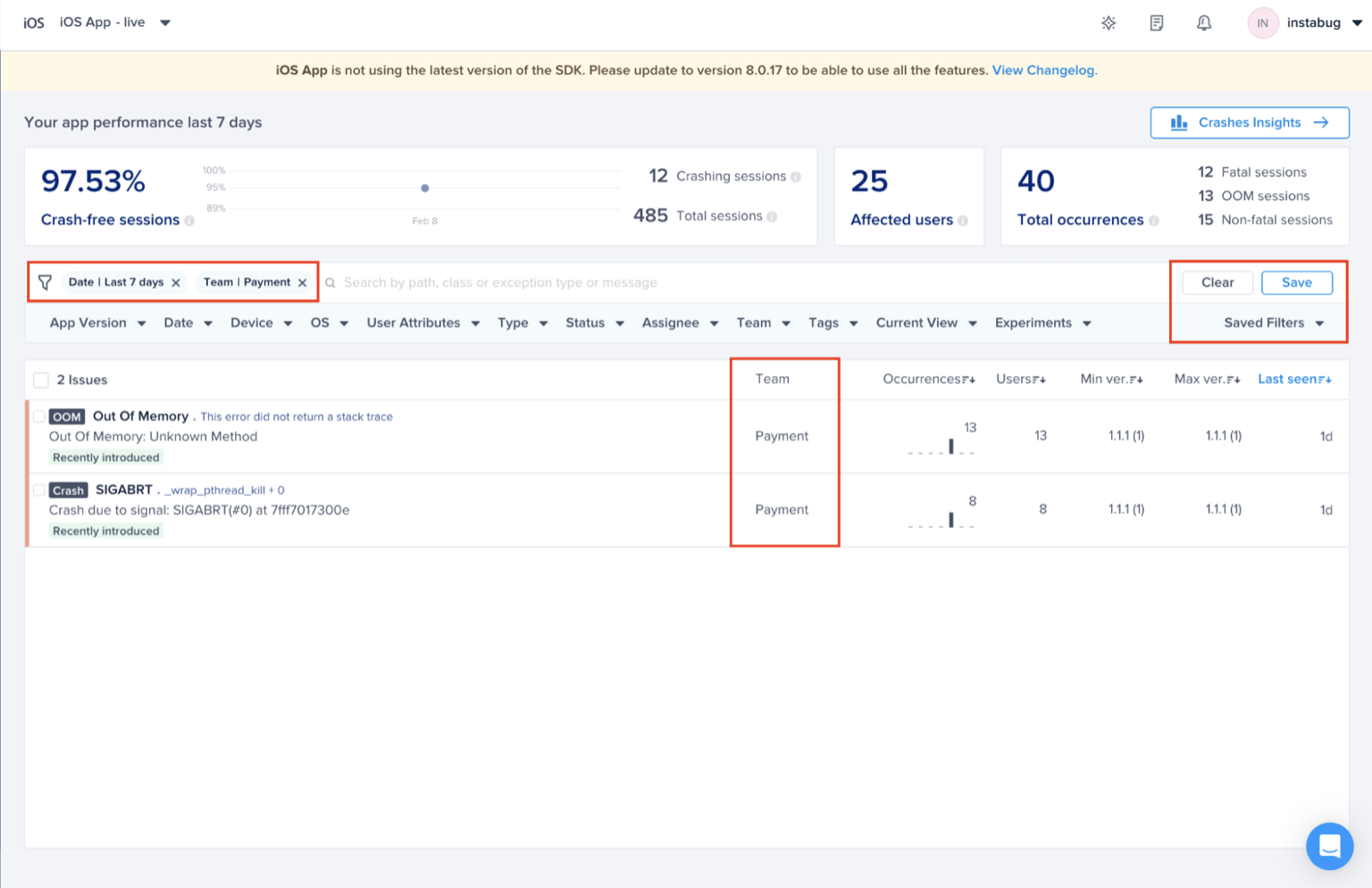
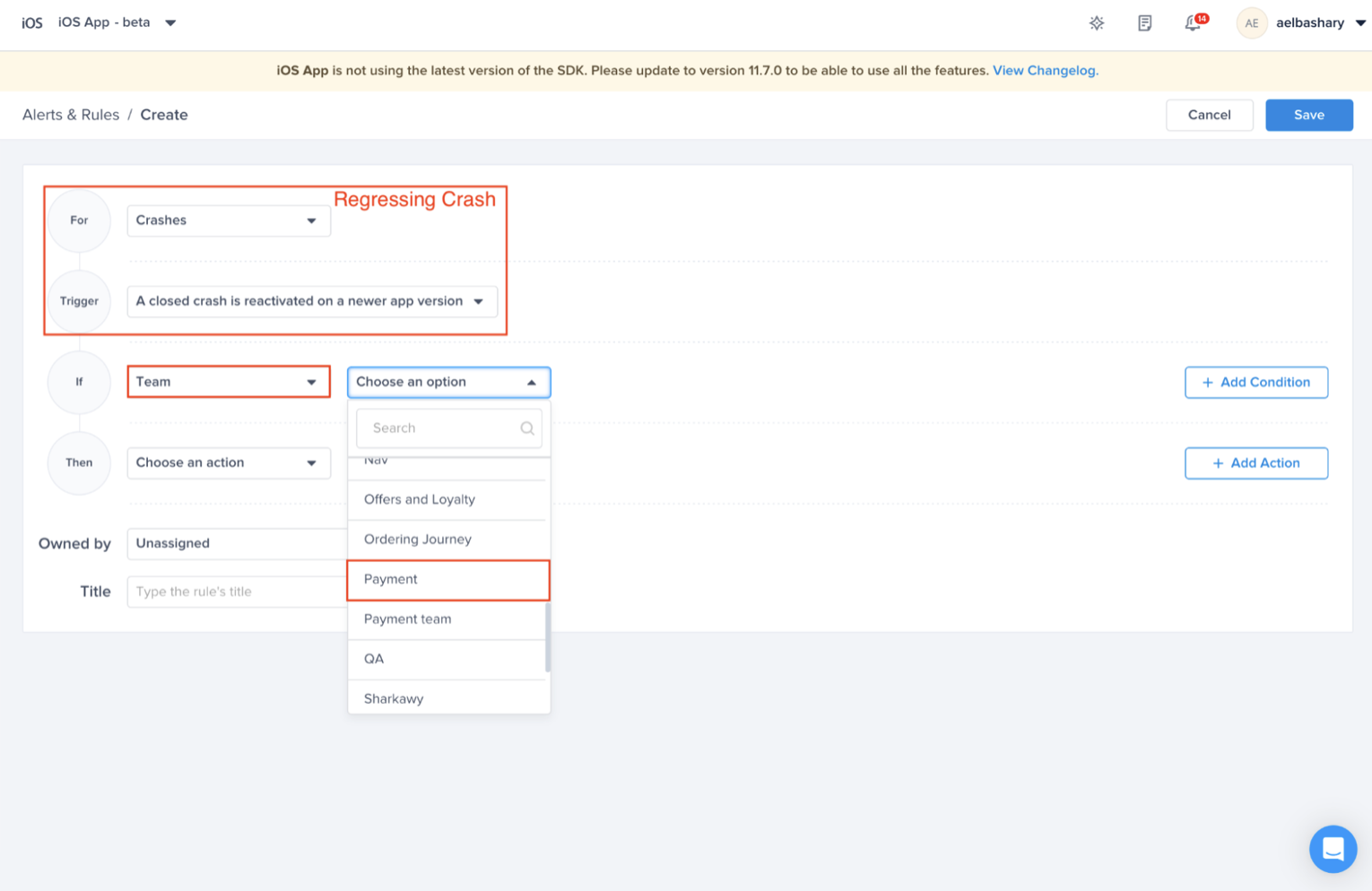
Setting a dynamic threshold using a percentage rather than an absolute session count accounts for variations in different app sizes and user traffic fluctuations.

### Rollout Management

Luciq creates an alert to keep your dashboard admins and owners up to date on any changes that happen to the rollout status of active releases.

<figure><img src="https://files.readme.io/4cd2a65-rollout2.png" alt="Rollout status change predefined alert"><figcaption><p><em>Rollout status change predefined alert</em></p></figcaption></figure>

### Performance Metrics

Recommended alerts for performance metrics are available out of the box, so you can get started immediately after you finish integrating the Luciq SDK.

**Network Apdex**: Get notified when the network Apdex is **less than 0.7** within 1 day.

* The alert is refined to only key metrics and for APIs with a count greater than 1000.

**Network Failure Rate**: Get notified when the failure rate for a network API is **more than 10%** within 3 hours.

* The alert is refined to only key metrics and for APIs with a count greater than 1000.

**Screen Loading Apdex**: Get notified when the screen loading Apdex is **less than 0.7** within 1 day.

* The alert is refined to only key metrics and a default occurrences count greater than 100.

**UI Hangs Apdex**: Get notified when the UI hangs Apdex is **less than 0.7** within 1 day.

* The alert is refined to only key metrics and a default occurrences count greater than 100.

**App Launch Apdex**: Get notified when the app launch Apdex is **less than 0.85** within 1 day.

* The alert is refined to only key metrics and a default occurrences count greater than 100.

These alerts act as built-in examples which then can be disabled, deleted or customized to match your application performance requirements.


# Triggered Alerts

Luciq [Crash Reporting](https://www.luciq.ai/product/crash-reporting) and [App Performance Monitoring](https://www.luciq.ai/product/app-performance-monitoring) automatically create a triggered alert report whenever any of your alerts generated from Luciq for overall app, crashes, app launch, screen loading, network, execution traces, or UI hangs are triggered.

### Triggered Alerts List

The alert list displays all performance alerts that have been triggered, along with their type and other relevant details.
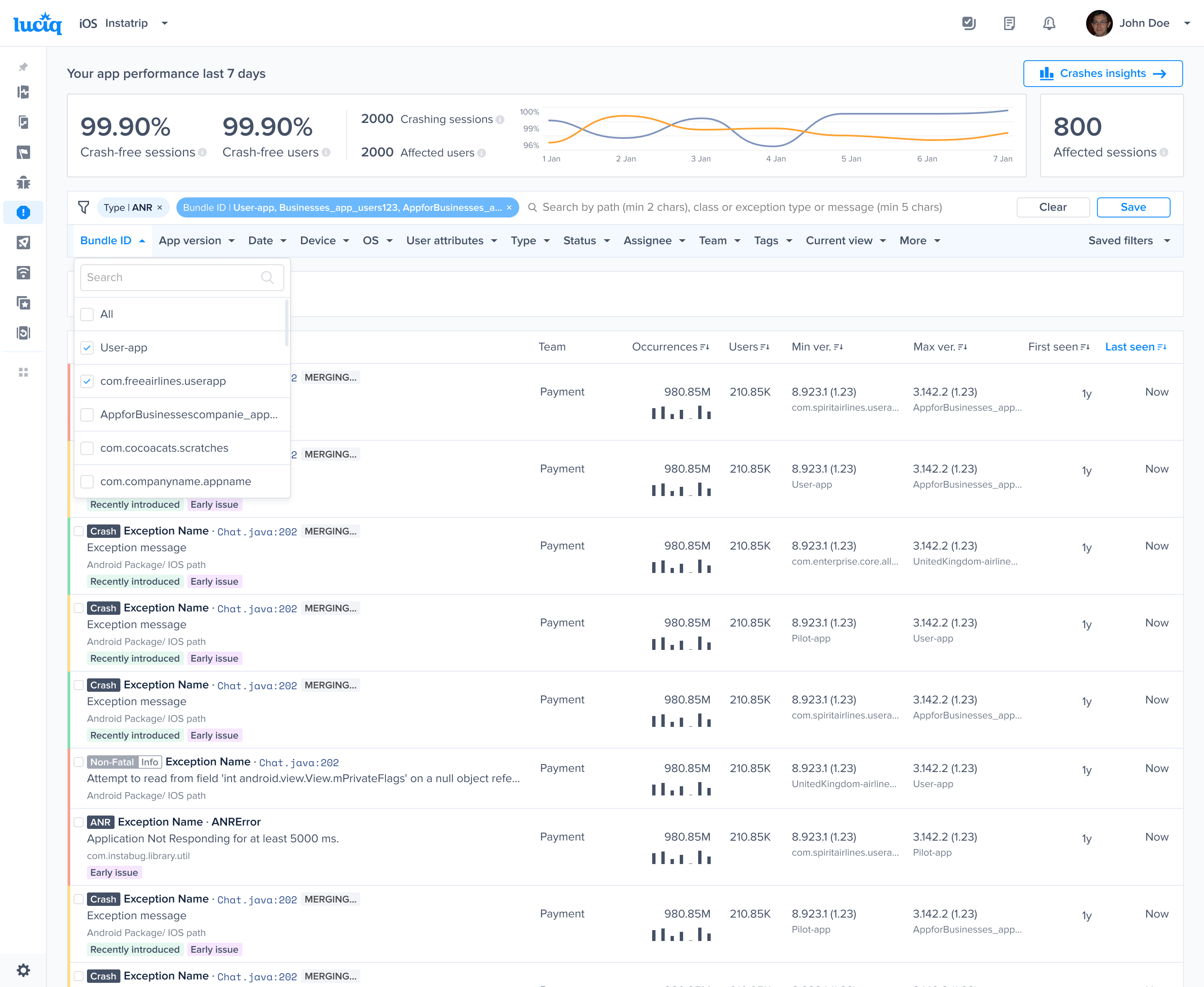
Open alerts are highlighted in red, while resolved ones are highlighted in green.

<figure><img src="https://files.readme.io/1cdca5518c243d7a1722427a5deb6a3fba632b2ec00488002397bcdde8dbb0d4-product-guides-incidents-1.png" alt=""><figcaption></figcaption></figure>

### Alert details

Selecting any alert from the list will take you to its details page, where you can view more details about the event, its occurrence over time, and the conditions that triggered it.
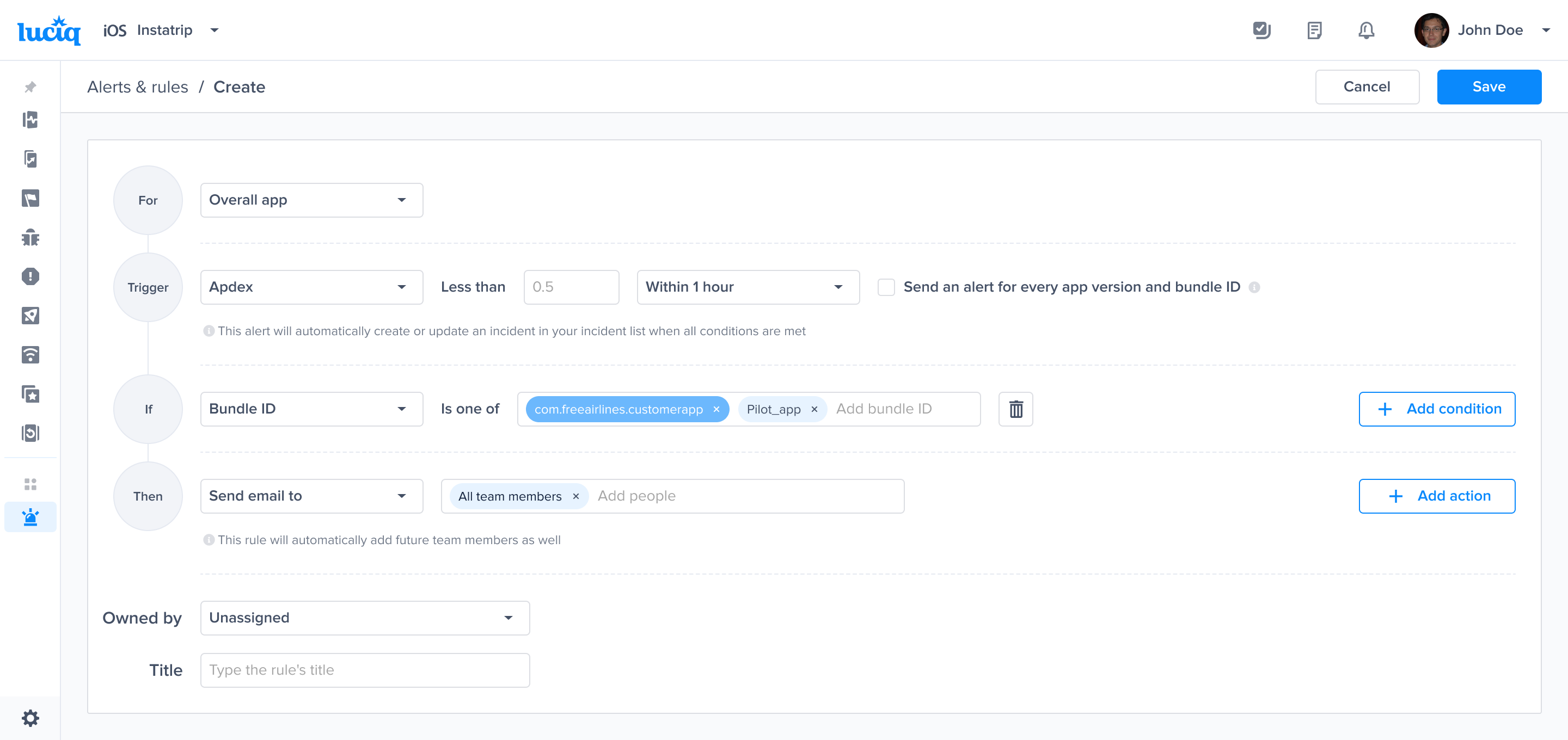
Triggered alerts are automatically resolved when the triggering conditions are no longer being met and automatically reopened when they are met again.

You can also manually resolve alerts. Alerts that were manually resolved can be manually reopened but will not be automatically reopened when the triggering conditions are met again.

<figure><img src="https://files.readme.io/4f8ff0c41f93302cdf2435cfc6c7934d089dcca32271656e60cbb7a5db970d0a-product-guides-incidents-2.png" alt=""><figcaption></figcaption></figure>


# Copying Alerts & Rules

Luciq enables you to seamlessly reuse existing alerts and rules across your applications and environments on Luciq. This feature helps you:

* Reduce setup time for new apps or environments
* Preserve consistent alerts & rules across your applications

Instead of manually recreating conditions, triggers, and actions, you can import and adapt rules with just a few clicks.

### When to Use This Feature?

Use import when:

* Launching a new app or environment (e.g., staging → production)
* Scaling your mobile stack across multiple platforms (iOS ↔ Android)
* Standardizing alerting across development squads

### How to Import Alerts & Rules

#### 1) Open Alerts & Rules

* Navigate to your app → **Alerts & rules** page
* Select **Import alerts & rules**

  <figure><img src="https://files.readme.io/0bc8a1bde63dc0187906bddc2b12ddc54601e0aa6e286ae68d4802d78a81b3b5-image.png" alt=""><figcaption></figcaption></figure>

#### 2) Select Source App and Environment

{% hint style="info" %}
You can only import user defined alerts created by your team members, not the predefined alerts created by Luciq
{% endhint %}

You will see your available apps and environments, each showing the number of alerts available to import.

* Search by app or environment name
* Select the application environment you want to import alerts from
* Environments with **0 user-defined alerts** appear disabled

  <figure><img src="https://files.readme.io/a3226330af97a6f1c67094e6883a7639aff7b407dec190c76aa0d58add0a45e2-image.png" alt=""><figcaption></figcaption></figure>

#### 3) Choose Alerts & Rules to Import

{% hint style="info" %}
Some alerts and rules could have some application or environment specific configuration, These alerts would have a tag “Needs update” to highlight that you need to update the configuration of the alert post importing to match it with your current application or environment attributes.
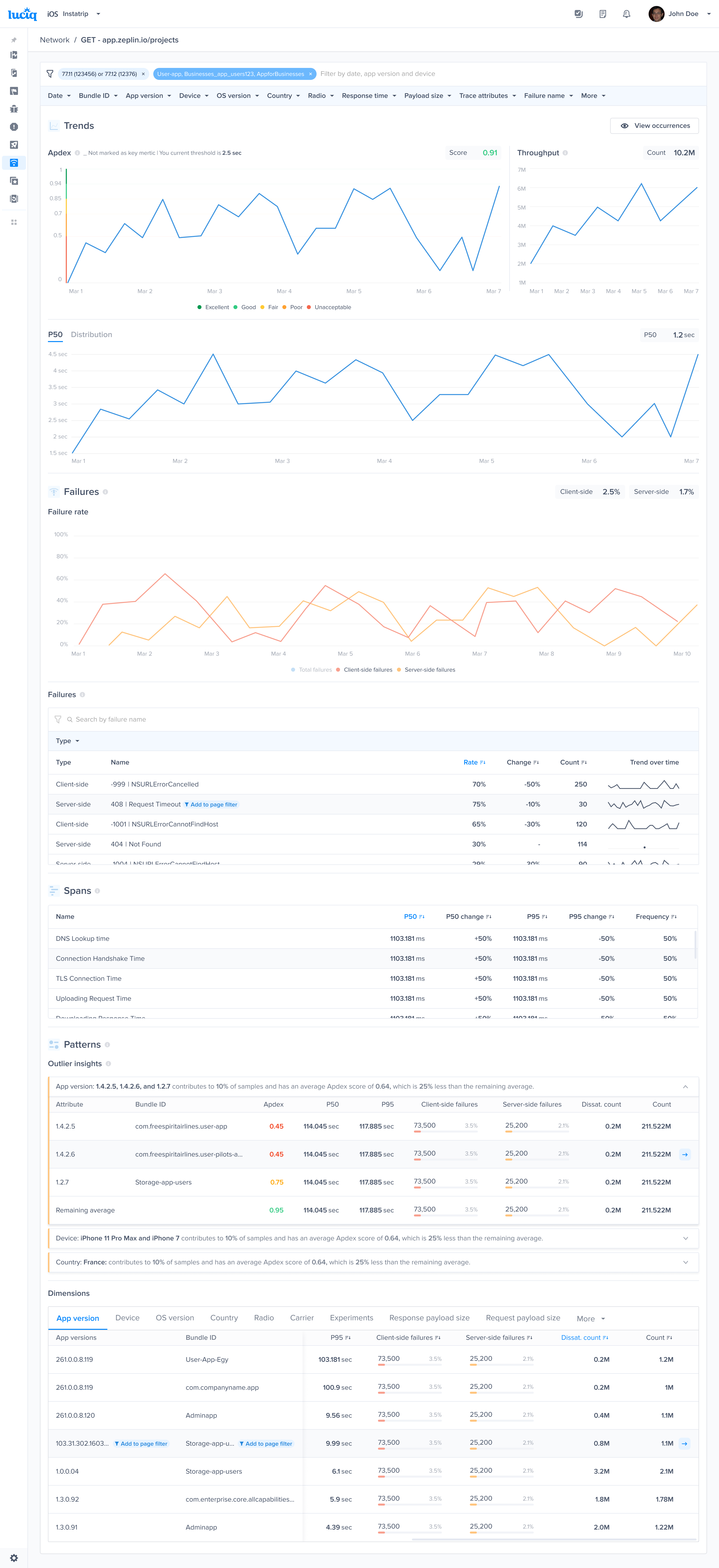
{% endhint %}

On the selection screen:

* Select specific alerts, or choose **All alerts & rules**
* Alerts with missing or app-specific fields display a **Needs update** label
* Click **Import alerts & rules** to complete the import.

  <figure><img src="https://files.readme.io/e8eae752b35994450d227887018617fcb16715e9dbf956cf0941a752eb621b5b-image.png" alt=""><figcaption></figcaption></figure>

{% hint style="warning" %}
Some rules may include app-specific logic. These are still imported but require updates to activate.
{% endhint %}

#### Unsupported Import Cases

Rules marked **Not supported** cannot be imported due to incompatible configuration types. These remain visible during import with an explanation tooltip.

Example: You cannot import an OOM Alert to an Android app because OOMs are not supported on Android.
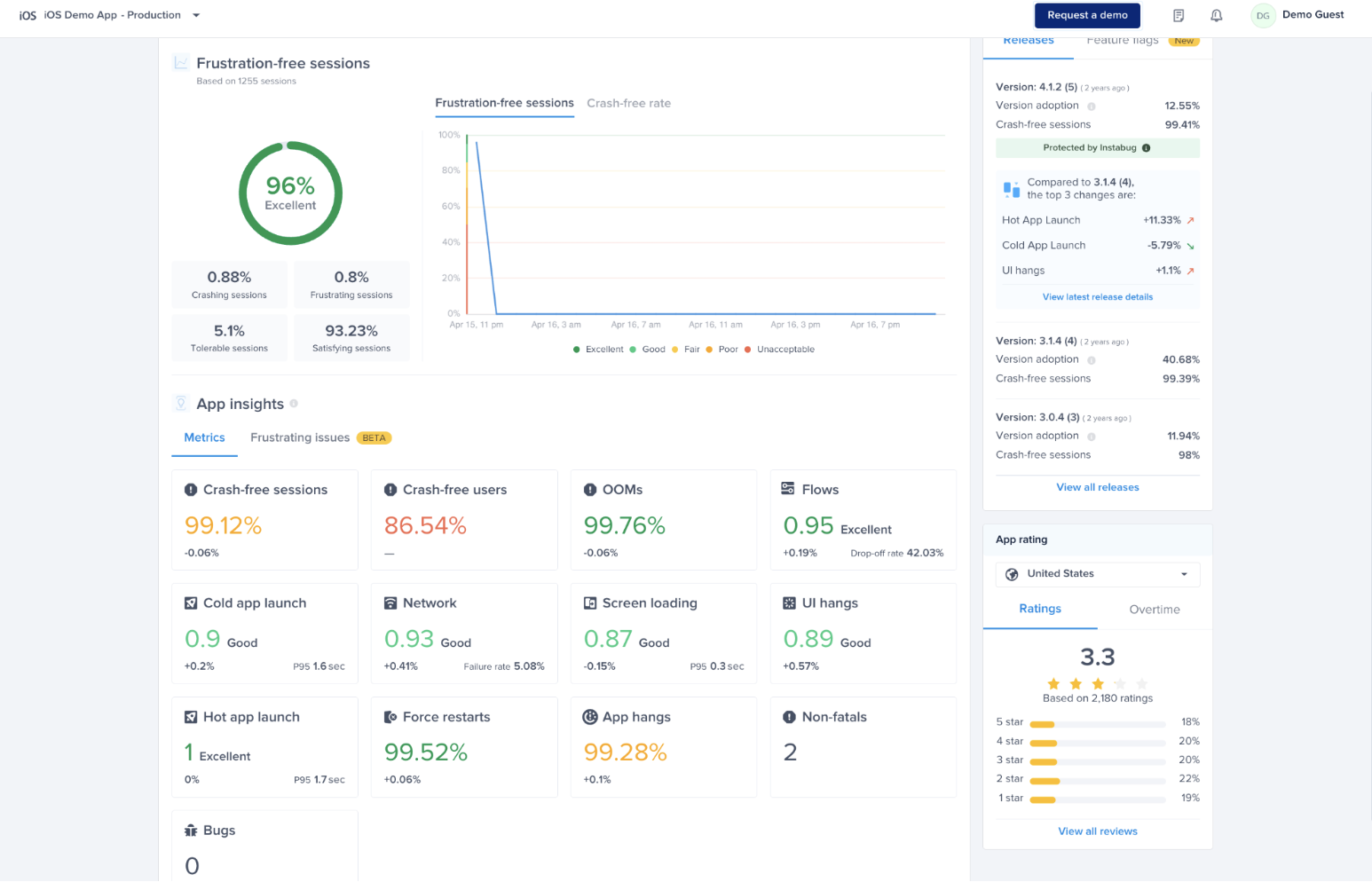
<figure><img src="https://files.readme.io/36bb7f627d4eaeffcad6c7bcee3bb4f63348d8f9962837ed7795eee87e88b560-image.png" alt=""><figcaption></figcaption></figure>

#### After Import: Activation & Updating Settings

Imported alerts that need updates will remain inactive until configured.

You'll see:

* A banner: *“You have inactive alerts & rules that require configuration updates…”*
* A **Review alerts & rules** button
* Each alert marked as `Needs update`

<figure><img src="https://files.readme.io/9bf0901b655bcc4d768344bd059f2d31c62b03d75748ebe1ff8a17570d4b15c7-image.png" alt=""><figcaption></figcaption></figure>

#### Application specific configurations

If any of the following conditions exist in the alert you are importing, the alert would always require an update of these fields after import to activate the alert.
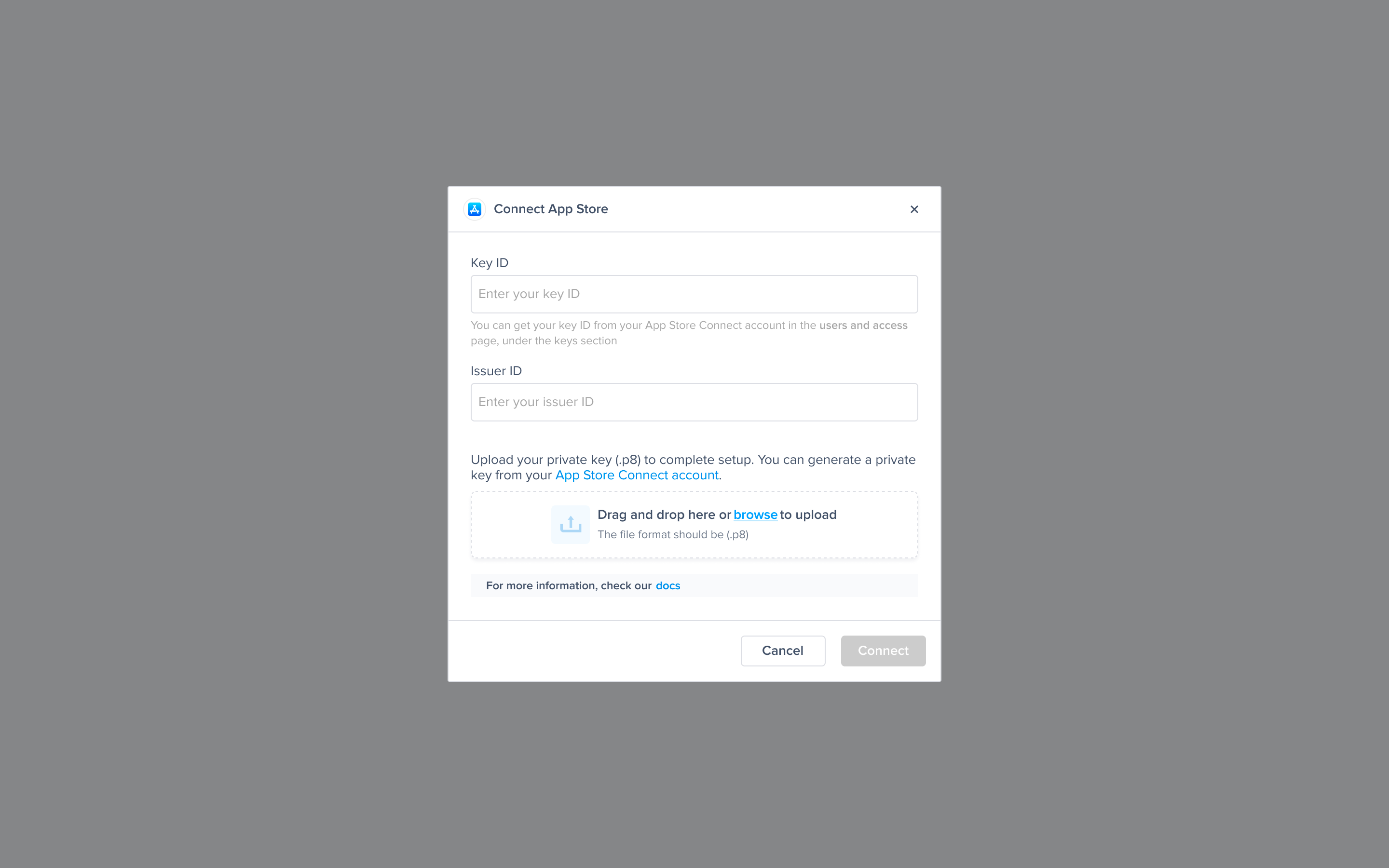
* Integrations
* Teams
* Members
* App version
* Path/Package
* Filename
* Trace name
* Current view
* Assignee
* User attributes
* Feature flags
* Flow name

#### Updating Alerts

Click **Review alerts & rules** → a right-side drawer opens showing each alert needing attention.

For each alert, select **Update** to open the editing screen. Fix highlighted fields, then click **Save**. Once the configuration is valid, the alert becomes active.

Common updates include:

* Adding an integration or selecting one that exists in the new environment
* Selecting an app version or adjusting version logic
* Selecting recipients or teams
* Replacing invalid fields or actions that no longer apply

{% hint style="info" %}
Alerts cannot be saved until all required fields are complete. This prevents accidental activation with incomplete settings.
{% endhint %}

![](https://files.readme.io/65150b7b2dcc1244aef13b02dbbf91f92e14c103859a75c3e5f8e74d396b1529-image.png)![](https://files.readme.io/2814e2300a76c2fe0867a52d2a295a9d5f930e9011833a9539d56cd5fc163479-image.png)<br>


# Team ownership

To set up team ownership in the Luciq dashboard, you will need to go through a couple of steps. Team ownership will help ensure every crash and bug gets assigned to the corresponding team. Assignment can be done either manually or automatically. These steps will ensure you create the best possible team definitions. It will enable you to then prioritize issues related to your team and get alerted about them. These are the quick few steps needed to complete team ownership on the dashboard

1. Team Creation
2. Team Assignment
   * Automatic Approach which is done through Team Definition
   * Manual Approach
3. Prioritization
4. Alerting
5. Team Performance Dashboard

### Team Creation

The first step of team ownership is creating the team using the following steps.

To create a team, you will go through “Account management” (on the organizational level) at the top right corner of the dashboard

<figure><img src="https://files.readme.io/65962bdeb9b45d0869e2c4515251227cc2e221e31aeb6910f85258de7ac2ff31-image.png" alt=""><figcaption></figcaption></figure>

Then, from the left list choose “Teams”, then “Create a team”

<figure><img src="https://files.readme.io/00c6b4eccb5e9a92734804a0b18b65d014a1926e496fa1935a78e4a4d8978384-image.png" alt=""><figcaption></figcaption></figure>

Choose the most suitable Team name, example "Payment"

<figure><img src="https://files.readme.io/9127128f62c57540755e4ae8f4ad5047af6756ac4d46dca9392373dfdcae346c-image.png" alt=""><figcaption></figcaption></figure>

### Team Assignment <a href="#team-assignment" id="team-assignment"></a>

#### Automatic Assignment to Corresponding Teams

* **Assign Ownership Type:**
  * **Bugs**: Define teams based on categories, user attributes, and current view (screen name).
  * **Crashes**: Use path/package or filename to assign ownership.
  * **Screen loading, UI hangs, App Launch**: Assign teams based on screen names.
  * **Networks**: Assign teams based on the URL.

To define the team, you will need to go to “Settings” (on the app level) from the bottom of the sidebar (on the left)

Then, choose “Team ownership”, then "Create Definition"

<figure><img src="https://files.readme.io/9047758885c456eaf691736f09c2c68c4d973a452e8f0f9f78dc07d0545a4106-image.png" alt=""><figcaption></figcaption></figure>

Choose the **Type** that you want to define team ownership for.

<figure><img src="https://files.readme.io/7f9c3bbb77124ddf759405382d8b296a1fd3e965178e41bce08d83dba6b5979b-image.png" alt=""><figcaption></figcaption></figure>

#### Automatically Assigning Bugs to the Corresponding Team

Choose the team that you created. For example, “Payment” Team

<figure><img src="https://files.readme.io/58afa7575d95dcc5674eecb898dc5669f407adcbdbcf8a798d2efd103657d736-image.png" alt=""><figcaption></figcaption></figure>

Start adding conditions to define the team by choosing from the following:

* Categories
* User Attributes
* Current View

<figure><img src="https://files.readme.io/b9f36e25f58be04b618bb061bc8170e98ef141ae943fe9075a60abb9ed5e04b7-image.png" alt=""><figcaption></figcaption></figure>

#### Automatically Assigning Crashes to the Corresponding Team

And now defining the **Payment** team that is responsible for Crashes

<figure><img src="https://files.readme.io/6d92fadc473de9403f2a0efae4a2df4e45f9a5b947e1cf9fcd8b835851ba6838-image.png" alt=""><figcaption></figcaption></figure>

Start adding conditions to define the team by choosing from the following:

* Path (iOS)/Package (Android)
* Filename

<figure><img src="https://files.readme.io/cd711115ad791248e68f9b83f40fbcb64090d1e5e35b3ecfd610bd8e1e20c21c-image.png" alt=""><figcaption></figcaption></figure>

{% hint style="info" %}
**Path/Package or Filename**

NOTE: Whenever you type the path/package you need to press Enter in order to lock it in
{% endhint %}

#### **Matching Paths/Packages**

**iOS**

When setting up the definition, Luciq supports partial matching of paths using the **match** condition (not case sensitive), let's take a look at some examples:

**Sample Crash**

Actual Crash Path: luciq/crashes/list/singleCrash

| Successful Match                                                                                                                                                | Unsuccessful Match                                                                                                                                                                             |
| --------------------------------------------------------------------------------------------------------------------------------------------------------------- | ---------------------------------------------------------------------------------------------------------------------------------------------------------------------------------------------- |
| <ul><li>luciq</li><li>luciq/crashes</li><li>luciq/crashes/list/singleCrash</li><li>luciq/crashes/list</li><li>/crashes/list</li><li>/list/singleCrash</li></ul> | <ul><li>luciq//crashes</li><li>/luciq/crashes</li><li>/luciq/crashes/list/singleCrash/</li><li>luciq/crashes/list/singleCrash/Occurrence</li><li>luciq/cr/list</li><li>crashes/luciq</li></ul> |

**Unsuccessful Matches:**

* luciq//crashes - *contains an extra slash in the middle*
* /luciq/crashes - *contains an extra slash before luciq*
* com/luciq/crashes/list/singleCrash/ - *contains an extra slash after singleCrash*
* luciq/crashes/list/singleCrash/Occurrence - *contains an extra sub-path*
* luciq/cr/list - *Luciq does not match partial words (cr and crashes in this case)*
* crashes/luciq - *path is written in a wrong order*

**Android**

When setting up the definition, Luciq supports partial matching of package names using the **match** condition (not case sensitive), let's take a look at some examples:

**Sample Crash**

Sample Package: com.luciq.crashes.list.singleCrash

| Successful Match                                                                                                                                           | Unsuccessful Match                                                                                                                                                                                  |
| ---------------------------------------------------------------------------------------------------------------------------------------------------------- | --------------------------------------------------------------------------------------------------------------------------------------------------------------------------------------------------- |
| <ul><li>luciq</li><li>com.luciq.crashes</li><li>com.luciq.crashes.list</li><li>luciq.crashes.list</li><li>.crashes.list</li><li>list.singleCrash</li></ul> | <ul><li>com..luciq.crashes</li><li>.com.luciq.crashes</li><li>com.luciq.crashes.list.singleCrash.</li><li>crashes.list.singleCrash.Occurrence</li><li>luciq.cr.list</li><li>crashes.luciq</li></ul> |

**Unsuccessful Matches:**

* com..luciq.crashes - *contains an extra dot in the middle*
* .com.luciq.crashes - *contains an extra dot before com*
* com.luciq.crashes.list.singleCrash. - *contains an extra dot after singleCrash*
* crashes.list.singleCrash.Occurrence - *actual path does not contain 'Occurrence'*
* luciq.cr.list - *Luciq does not match partial words (cr and crashes in this case)*

#### Automatically Assigning Performance Metrics to the Corresponding Team

And now defining the **Screen loading, UI hangs, and App Launches** that the payments team is responsible for:

Choose the **“Screen loading, UI hangs, and App Launches”** type, then choose the payments team.

<figure><img src="https://files.readme.io/a6258c8f5a60a971ea1cec8316188153e3d52180a91cc60fa7be3b8146dac806-image.png" alt=""><figcaption></figcaption></figure>

Start adding conditions by choosing the **Screen Names** your team is responsible for

<figure><img src="https://files.readme.io/b12a15d2857cad767599a79687576c852d167158f21c9f34ad178733d427a25a-image.png" alt=""><figcaption></figcaption></figure>

{% hint style="info" %}
**Screen Name Assignment**

For **Screen loading, UI hangs, and App Launch**, the same team can be assigned to multiple screen names, but the same screen cannot be assigned to multiple teams.
{% endhint %}

### Manual Assignment to Corresponding Teams

#### Manually Assigning Bugs to the Corresponding Team

You can also assign the team manually from within the bug itself without defining it.

Go to bugs from the left sidebar of the dashboard and then click on the bug that you want to assign to a certain team

Navigate to the right sidebar “Actions” and change the Team to the corresponding team. For example, choosing the “Payment”

<figure><img src="https://files.readme.io/4fbc7441352fa9bd244c41d0366828213b0e714716134976a7780feff14c30f0-image.png" alt=""><figcaption></figcaption></figure>

#### Manually Assigning Crashes to the Corresponding Team

You can also assign the team manually from within the crash itself without defining it.

Go to crashes from the left sidebar of the dashboard and then click on the crash that does not have a team assigned to it

<figure><img src="https://files.readme.io/990830d38a82c672bc6dff92a182e573c415cb317d6876d2d050b8140d92db9f-image.png" alt=""><figcaption></figcaption></figure>

Navigate to the right sidebar “Actions” and change the Team to the corresponding team. For example, choosing the “Payment”

<figure><img src="https://files.readme.io/45395cfde156d667fe6f198e99d83aa8924843cfb326807c385860471557f939-image.png" alt=""><figcaption></figcaption></figure>

### Prioritizing

#### Bugs Prioritization

Prioritizing bugs related to your team can be done through the Team filter at the top bar of the "Bugs" main page\
Select your team from the dropdown list, you can even search by the team’s name. For example, “Payment” Team

<figure><img src="https://files.readme.io/250e776e003c784bbd7575f2de96a61424abea01f9624e59ba0e0376f17df746-image.png" alt=""><figcaption></figcaption></figure>

As you can see below, you can prioritize the bugs related to your team only and get more granular with the options to filter. For example, Payment team wants to focus on *bugs status' new or in-progress*. Also, you will be able to save those filters and you can access them from the right side of the filter bar.

<figure><img src="https://files.readme.io/b7155213f66caee1d302e5b14e6460eb2219f06bfc39bbfc36e55ee20fc7304a-image.png" alt=""><figcaption></figcaption></figure>

### Crash Prioritization

Prioritizing crashes related to your team can be done through the Team filter at the top bar of the "Crashes" main page.

Select your team from the dropdown list, you can even search by the team’s name.

For example, “Payment” Team

<figure><img src="https://files.readme.io/b6a8d985c5167edca38397d25a4acfe58cebe5765aaddb4d4f4f2e1f1d93b6a1-image.png" alt=""><figcaption></figcaption></figure>

As you can see below, you can prioritize the crashes related to your team only and get more granular with the options to filter. For example, Payment Team wants to focus on *crashes seen in a certain app version*. Also, you will be able to save those filters and you can access them from the right side of the filter bar.

<figure><img src="https://files.readme.io/c1eca471c1bc86298c4004b44e8a8536a2f00426cea9751f9503f1f302ac6516-image.png" alt=""><figcaption></figcaption></figure>

### Alerting

If you’d like to get alerted as soon as you receive any crash related to your Team, you will be able to do that through our “Alerts and Rules” engine.

Go to “Alerts and Rules” and "Create" a new Alert

**Use Case**:

* Regressing crash assigned to team “Payment”
* Choose the condition (Regression) you want to be alerted to whenever it is assigned to “Payment” team

<figure><img src="https://files.readme.io/aabe857ec8bfabcff2a30d605e14e0d449a43e12c91cb44aa0fdb6102a0444c8-image.png" alt=""><figcaption></figcaption></figure>

**For more details on the different use cases of Alerting, please refer to** [**Alerts & Rules**](/product-guides-and-integrations/product-guides/automation-and-workflows/alerts-and-rules) **product guides.**

Then, Forward it to your favorite tool (Ex: Slack, MS Teams, PagerDuty, … etc). Thus, Payment Team will be notified about this regression through that tool.

<figure><img src="https://files.readme.io/93ebb2ddbc9cca6c6da2d60403e45fa9a61d62976695a6a86d55986d7e393be0-image.png" alt=""><figcaption></figcaption></figure>

**For more details on the different integrations that is supported, please refer to** [**Luciq's Integrations Docs**](/product-guides-and-integrations/integrations)

You can assign this Alert/Rule to a certain team through "Owned by" section at the bottom of the rule. This enables you to figure out who to contact if there was a problem with any of the Alerts/Rules

<figure><img src="https://files.readme.io/b22edd50bed7165186cb1ec14e093364f8e6e1dc0172bd0f38e6de978ce43f65-image.png" alt=""><figcaption></figcaption></figure>

{% hint style="warning" %}
**Unassigned Rules**

If the Alert/Rule does not have a team assigned to it, then by default the value will be **Unassigned**
{% endhint %}


# GitHub Integration For Team Ownership

The GitHub CODEOWNERS integration allows Luciq to automatically generate and maintain Crashes team ownership rules based on the `CODEOWNERS` file in your GitHub repository.

Instead of manually configuring file paths and assigning them to teams, Luciq fetches and syncs your CODEOWNERS file to ensure accurate, up-to-date ownership rules at scale.

### How It Works?

{% stepper %}
{% step %}
Once connected, Luciq fetches your `CODEOWNERS` file from your GitHub repository.
{% endstep %}

{% step %}
Parses all ownership patterns (paths, filenames).
{% endstep %}

{% step %}
Extracts teams (GitHub teams).
{% endstep %}

{% step %}
Lets you map teams to Luciq teams in a simple UI.
{% endstep %}

{% step %}
Generates crash ownership rules automatically based on this mapping.
{% endstep %}

{% step %}
Keeps rules in sync whenever your `CODEOWNERS` file changes on GitHub.
{% endstep %}
{% endstepper %}

This automation ensures that crash reports are always routed to the correct team without manual updates.

### Prerequisites

Before you begin:

* You must be an **Owner** or **Admin** or have permissions to manage Team Ownership.
* Your GitHub organization must allow installing GitHub apps.
* Your repository must contain a valid `CODEOWNERS` file.

***

#### How to Set it up?

{% stepper %}
{% step %}
**Connect Luciq to GitHub**

1. Go to **Settings → Source Code Management** in the Luciq dashboard.<br>

   <figure><img src="/files/bbE2Rq1vcDlLGT6mDdkn" alt=""><figcaption></figcaption></figure>
2. Click **Connect with GitHub**.
3. Install Luciq App on GitHub or use the Installation ID if you already installed the App<br>

   <figure><img src="/files/xXHVnumoTetRGcVvXAQo" alt=""><figcaption></figcaption></figure>
4. On GitHub; choose the repository you want Luciq to access.
5. Confirm permissions and return to Luciq.
   {% endstep %}

{% step %}
**Select Repository, Branch, and Features**

After connecting:

1. Choose the **repository** that contains your `CODEOWNERS` file.
2. Select the **branch** (e.g., `main`, `master`) where `CODEOWNERS` lives.
3. Select which features should access the integration:
   * `CODEOWNERS` file: allows you to define crashes team ownership by fetching and processing GitHub `CODEONWERS` file.
   * Resolve Agent: An AI-powered feature designed to automate the process of resolving mobile app crashes, enabling developers to resolve issues within minutes. [Learn more](https://docs.luciq.ai/product-guides-and-integrations/product-guides/ai-features/resolve-agent)
4. Click Continue<br>

   <figure><img src="/files/mWoHMWuc8Trl7HpAUdsv" alt=""><figcaption></figcaption></figure>

{% hint style="warning" %}
**Important Note**

CODEOWNERS file feature requires only read-access to the `CODEOWNERS` file. It doesn't access your code or make any changes to your Repository.
{% endhint %}
{% endstep %}

{% step %}
**Review and confirm configuration**

Luciq will let you review all the configuration settings including:

* Organization
* Repository
* Branch
* Enabled features

Then you can select whether you want to enable auto-sync for `CODEOWNERS` file or not. The auto-sync will automatically update team ownership rules once the `CODEOWNERS` file is updated on GitHub.

Finally once you confirm all settings and click **Connect**, Luciq will fetch and process the `CODEOWNERS` file

<figure><img src="/files/ZA1rGvjuOTJvHuTSRlRr" alt=""><figcaption></figcaption></figure>
{% endstep %}

{% step %}
**Map `CODEOWNERS` to Luciq Teams**

Luciq will extract all teams from your `CODEOWNERS` file (GitHub teams), then try to match the team names to Luciq teams. If matching is not successful then you will see a list of teams that need to be mapped to Luciq teams.

For each team:

1. Select a **Luciq team** that represents their ownership.
2. Save the mapping.
3. You can revisit and update this mapping anytime.

This mapping allows Luciq to convert `CODEOWNERS` rules into crash ownership rules.

<figure><img src="/files/bSYN5lz8h2mPXnXnTwwz" alt=""><figcaption></figcaption></figure>

{% hint style="warning" %}
Ownership rules are defined for mapped teams only. For Unmapped teams, their rules are defined once the mapping is complete.
{% endhint %}
{% endstep %}

{% step %}
**Automatic Rule Generation**

Once mapping is complete:

* Luciq automatically generates **Team Ownership Rules** based on the parsed `CODEOWNERS` patterns.
* These rules appear on the **Team Ownership** page in your dashboard.
* Each rule references the associated Luciq team.

<figure><img src="/files/MJytJt8gEjyr5sSfkwt1" alt=""><figcaption></figcaption></figure>
{% endstep %}
{% endstepper %}

### Automatic Syncing For `CODEOWNERS` File

Luciq keeps your rules in sync by:

* Monitoring your GitHub repository for any updates to `CODEOWNERS`.
* Re-processing the file when changes are detected.
* Updating ownership rules automatically.
* Sending email notifications to admins when:
  * Code ownership changes
  * New owners appear that need mapping
  * Rules are updated

<figure><img src="/files/WGnSeJNoCz59colzkQcE" alt=""><figcaption></figcaption></figure>

{% hint style="warning" %}
**Important Notes**

* **The `CODEOWNERS` file sync process runs once per day at 00:00 UTC.**
* When automatic syncing is enabled, team ownership rules created by `CODEOWNERS` file cannot be edited. The only way to edit these rules is by updating the `CODEOWNERS` file on GitHub.
  {% endhint %}

{% hint style="success" %}
If Automatic syncing is disabled, you will see a banner in the team ownership page to notify you that the `CODEOWNERS` file has changed on GitHub.

You can manually update ownership rules directly from the banner.
{% endhint %}

***

### Processing `CODEOWNERS` File

#### Sample of CODEOWNERS file

`CODEOWNERS` file is a text file that contains paths and/or filenames assigned to certain teams in the following format:

{% code title="CODEOWNERS" %}

```
## App folders
/apps/web/ @frontend-team
/apps/mobile/ @mobile-team @qa-team

## Library and shared folders
/libs/api/ @backend-team
/libs/shared/ @platform-team

## Specific files
/README.md @documentation-team
/scripts/deploy.sh @devops-team

## Wildcard (valid pattern)
*/src/payment @payments-team
/src/checkout/* @checkout-team

## Specific file inside a path
/src/payments/invoice_service.py @payments-team
```

{% endcode %}

#### iOS

Refer to [Matching iOS paths](/product-guides-and-integrations/product-guides/automation-and-workflows/team-ownership#matching-paths-packages) for more information.

{% hint style="info" %}
Flutter and React-Native uses the same matching logic for iOS.
{% endhint %}

#### Android

Unlike other platforms Android relies on packages (not paths) to assign crashes to teams. Hence, the paths in the `CODEOWNERS` file should include the package.

For example:

Assume the package is named: com.luciq.crashes; Then the path in the `CODEOWNERS` file should be: `/src/main/git/com/luciq/crashes`

#### Supported Wildcard Patterns

On GitHub, you can use wildcards to assign certain patterns to teams but Luciq supports only the following wildcard patterns:

{% hint style="success" %}
**Example**

**\*/src/payments**

**/src/payments/\***
{% endhint %}

{% hint style="danger" %}
**Examples of unsupported wildcard patterns**

* ***/src/\******/payment/**
* *\***.rb***
* **src/**\*\***/test/**
* **src/action**\*\* /test
  {% endhint %}

#### Team Selection Logic

If multiple teams are assigned to the same path, only the first team on the line will be used.

Example:

```
/src/payment/file1.txt @teamA @teamB
```

@teamA will be assigned to this path


# CODEOWNERS-Based Team Assignment

Automatically assign crashes to the right team using your repository's CODEOWNERS file.

## How It Works

When you upload a CODEOWNERS file, Luciq maps your crash reports to the right team automatically based on where the crash happened in your code.

Here's what happens under the hood:

1. **Team Mapping**: Team names from your CODEOWNERS file are matched to your existing teams on the Luciq dashboard. This matching is flexible since it's case-insensitive and treats hyphens, underscores, and spaces as the same thing. So `@org/my-team` will match a team called "My Team" without any extra configuration.
2. **Frame Selection**: When a crash comes in, Luciq looks at the crashed thread and picks the **top application frame** (the first frame that belongs to your code, not system libraries). The file path from that frame is what gets used for team matching.
3. **Path Matching**: That file path is compared against the paths in your CODEOWNERS rules. The matching works on path segments (split by `/`), so a rule for `LibraryA` will match any crash in `LibraryA/SomeFile.swift`, `LibraryA/SubDir/AnotherFile.swift`, etc.
4. **Specificity-Based Resolution**: When multiple rules match the same crash, Luciq picks the **most specific** one. Specificity is determined by the number of path segments in the matching rule — more segments means a more specific match. See [Specificity-Based Matching](#specificity-based-matching) below for details.

## CODEOWNERS File Example

A CODEOWNERS file lives in your repository and defines which team owns which part of the codebase. Here's what a typical one looks like:

```
# Each line maps a path pattern to a team
# The format is: <path>    <team>

# Networking layer owned by the platform team
/Sources/Networking/                    @org/platform-team

# Authentication module owned by the identity team
/Sources/Auth/                          @org/identity-team

# Checkout and payments owned by the commerce team
/Sources/Checkout/                      @org/commerce-team
/Sources/Payments/                      @org/commerce-team

# Everything under the analytics module
/Sources/Analytics/                     @org/data-team
```

With this file uploaded, if a crash happens in `Sources/Checkout/CartViewController.swift`, Luciq will automatically assign it to **Commerce Team**. A crash in `Sources/Auth/LoginManager.swift` goes to **Identity Team**, and so on.

A team can own multiple paths (like the commerce team above owning both Checkout and Payments), and paths can be as broad as a top-level directory or as specific as a single file.

{% hint style="warning" %}
**Don't Mix Files and Directories for the Same Team**

When defining ownership rules for the same team, avoid mixing file paths and directory paths. If a team has both file-level and directory-level rules, only the file-level rules will be used for assignment.

**Workaround**: Use only directories or only files for the same team — don't mix both.
{% endhint %}

## Specificity-Based Matching

When multiple ownership rules match the same crash, Luciq uses **specificity** to determine which team gets assigned. The rule with the most path segments wins.

### How Specificity Is Calculated

Specificity is based on the number of segments in the matching path token, where segments are separated by `/` (for file paths) or `.` (for Android packages).

| Rule token                     | Segments | Specificity |
| ------------------------------ | -------- | ----------- |
| `Sources`                      | 1        | 1           |
| `Sources/Networking`           | 2        | 2           |
| `Sources/Networking/WebSocket` | 3        | 3           |

### Example

Consider the following ownership definitions:

| Team           | Rule                                        |
| -------------- | ------------------------------------------- |
| Platform Team  | Path matches `Sources/Networking`           |
| Real-Time Team | Path matches `Sources/Networking/WebSocket` |

If a crash occurs in `Sources/Networking/WebSocket/ConnectionManager.swift`:

* **Platform Team** matches with specificity **2** (`Sources/Networking` has 2 segments)
* **Real-Time Team** matches with specificity **3** (`Sources/Networking/WebSocket` has 3 segments)

**Result**: The crash is assigned to **Real-Time Team** because it has the more specific rule.

### Tie-Breaking

When two rules have the **same specificity** (same number of path segments), the rule that was **most recently updated** wins. This ensures that if you update a definition, it takes priority over older definitions with the same level of specificity.

### How It Works Across Platforms

Specificity-based matching applies across all platforms:

| Platform         | Field             | Separator | Example                             |
| ---------------- | ----------------- | --------- | ----------------------------------- |
| **iOS**          | Path              | `/`       | `Controllers/Auth` → 2 segments     |
| **Android**      | Package           | `.`       | `com.example.app.auth` → 4 segments |
| **Flutter**      | Flutter Path      | `/`       | `lib/features/auth` → 3 segments    |
| **React Native** | React Native Path | `/`       | `src/screens/Auth` → 3 segments     |

For **filename-based** rules (as opposed to path/package), the specificity is always **1** regardless of the filename. This means path-based rules will generally take precedence over filename-based rules when both match.

## How to Test

To verify that team assignment is working correctly for your CODEOWNERS setup, keep in mind that Luciq needs **server-side symbolication** to extract file paths from crash frames, and that only happens when dSYMs are available.

Here's what you need to do:

1. **Build in Release mode**: Debug builds don't generate dSYM files. You need to archive or build your app in Release configuration for Xcode to produce them.
2. **Upload your dSYMs**: Once you have the dSYM files, upload them to Luciq (either manually through the dashboard or via your CI/CD pipeline). Without dSYMs, Luciq can't resolve the file paths needed for team matching.
3. **Trigger a crash**: Run the Release build, trigger a crash, and relaunch the app so the crash report gets sent.

{% hint style="warning" %}
**SDK-Side Symbolication**

If the SDK sends crashes that are already symbolicated (i.e., the stack frames already contain file paths and line numbers from the SDK side), server-side symbolication is skipped, and team assignment will not happen. This is why testing with a proper Release build and uploaded dSYMs is the correct flow.
{% endhint %}

Once the crash appears on your dashboard, you should see it assigned to the expected team based on your CODEOWNERS rules.


# Business Impact

### What is the Business Impact page?

Business Impact dashboard allows you to tie app quality with business metrics such as the retention rate and monthly active users (MAU). We help show you your apps retention rate and MAU, along with breaking them down into buckets of good experience and bad experience users to understand how app quality impacts those numbers. It is currently a beta product, learn more about our beta programs [here](broken://spaces/AM8wNfllcup3GnWJ1WtW/pages/MyiEvnFATkNfd2BKzoxm).

<figure><img src="https://files.readme.io/f306b54cefceff51824e34f6554b036a7b2c0eb2f74c012294224f9a362f3f71-business-impact-for-flutter-beta-1.png" alt=""><figcaption></figcaption></figure>

**Prerequisites to see meaningful insights:**

1. Available for apps using SDK versions starting 12.0.0
2. You will need to have APM enabled
3. Your app needs to have at least 10k users in the past month to be able to see the retention rate

#### How do we calculate the retention rate?

We calculate the retention rate based on a full month’s data. Meaning - If you’re in February, the page will be showing you the retention rate for the month of January, until the full month of February is over then it will be showing you the retention rate for February.

We check to see how many users had users had sessions two months ago, that returned to have sessions in the past month. We use the following formula:

`Retention rate = intersection / last months total number of users`

**Let’s walk through an example:**

* January: You had 10 monthly active users
* February: You had 15 monthly active users. 8 of them were the same users that had sessions in January

The page during march will show you the following values:

* MAU: 15
* Retention Rate: 53%
  * Intersection: 8 users that had sessions in both months
  * Total users: 15 total users for the month of February
  * Retention rate: 8/15 \* 100 = 53%

#### How do we calculate the number of Monthly Active Users (MAU)?

We use a cardinality estimating algorithm HyperLogLog to estimate the number of unique users having sessions. This calculated after the month is over.

For example:

* During March, you will be seeing the number of MAU you had in February
* Once March is over and we’re in April, you will get to see the number of MAU you had in March

Some useful resources about HyperLogLog:

* [Building a Real Time Metrics Database at Datadog | Datadog](https://www.datadoghq.com/videos/real-time-metrics-database/)
* [HyperLogLog in Presto: A significantly faster way to handle cardinality estimation](https://engineering.fb.com/2018/12/13/data-infrastructure/hyperloglog/https://engineering.fb.com/2018/12/13/data-infrastructure/hyperloglog/)

***

#### Overtime Chart

Use the overtime chart to visually monitor the performance of these key metrics overtime, and easily spot any correlations between them.

You can select/unselect which metrics to visualize from the legend at the bottom:

#### Summary section

We help highlight any correlations for you by showcasing the likelihood of:

* Retaining users with good experiences vs users with bad experiences
  * percentage of users with good experiences retained / percentage of users with bad experiences retained
* Users being active
  * percentage of active users with good experiences / percentage of active users with bad experiences


# Team Dashboard

The Team Dashboard page helps track and improve your team’s ownership of screens by monitoring performance and stability metrics like app launch time, loading speed, UI hangs, and crashes. It allows leaders to identify and address issues affecting their team's areas, ensuring alignment with overall app performance goals.

<figure><img src="https://files.readme.io/221692d3fb8985968c8b5b2ddbaebe4e847303f000997ce84a68bd786432f3ed-flutter-team-dashboard-1.png" alt=""><figcaption></figcaption></figure>

You can find the page under the “App Overview” section in the Navbar

### Metrics Supported

#### **Performance Metrics Supported:**

* Cold app launch
* Hot app launch
* Screen loading
* UI hangs

#### **Issues you can assign to your team:**

* Fatal crashes
* App hangs
* Non-fatal crashes

#### **Team Dashboard Score Calculation**

Here’s the breakdown of the weighted average we use across the performance metrics supported to come up with your team’s dashboard score:

* Cold app launches weight: 24%
* Screen loading weight: 36%
* UI hangs weight: 40%

#### **Team Stability Score Calculation**

Here’s how we calculate your team's overall stability:

* Team stability = Number of screen visits of the screens assigned to your team that didn't end in a crash / Total number of screen visits of the screens assigned to your team.

### Setup Guide

To start using the Team Dashboard page, you need to follow these simple steps:

#### **Step 1: Create A Team**

If you don’t already have teams defined on your Luciq dashboard, you can do so by:

1. Click on your name at the top right corner
2. Choose Account Management
3. Choose teams
4. Click on Create your first team
5. Name your team and assign team members to it

#### **Step 2: Define Performance Metrics Ownership**

In order to see your team’s dashboard score, stability score, cold app launch apdex, screen loading apdex and UI hangs apdex, you need to define ownership for performance metrics.

<figure><img src="https://files.readme.io/dd4f20c3808e750b46aa4ccaf9b0cbb2d2670b1d88ee1f893c13f135e20bc258-flutter-team-dashboard-3.png" alt=""><figcaption></figcaption></figure>

1. Go to the settings page at the bottom left of the navbar
2. Choose Team Ownership
3. Click Define ownership
4. Choose Type “Performance metrics”
5. Choose the team you’d like to assign screens to
6. Choose condition Screens
7. For Screen name, you can search and select all screens you’d like to assign to that team

#### **Step 3: Define Crash Ownership**

In order to automatically assign fatal crashes, app hangs and non fatal crashes to your team, you need to define the ownership of crashes

<figure><img src="https://files.readme.io/b0b02c6e32cf19b0c1b3789e59350064e47bb2000518e8e77aefe3b54e0d6038-flutter-team-dashboard-5.png" alt=""><figcaption></figcaption></figure>

1. Go to the settings page at the bottom left of the navbar
2. Choose Team Ownership
3. Click Define ownership
4. Choose Type “Crashes”
5. Define the path, package, or file you’d like to assign crashes happening on to your team
6. You can also assign a specific crash to a team from the specific crash’s page


# One Code Apps

## Overview

The **One Code Apps** feature enables teams with **shared code base applications** to integrate multiple app variants under a single Luciq app token. This is ideal for organizations that release the same app to different brands, markets, or regions but want to consolidate stability and performance monitoring.

Instead of creating a separate Luciq application for each variant, you integrate all variants using **one Luciq app token** and identify each variant via the **bundle-id using the App variant API**.

{% hint style="info" %}
To enable One code apps, please reach out to our [support team](mailto:contactus@luciq.ai).
{% endhint %}

{% hint style="success" %}
Supported Metrics

* Bug Reporting
* Crash Reportin
* Application Performance Monitoring
* Session Replay
* Issues list
* Alerting
* In-App Surveys
  {% endhint %}

## How it works?

{% hint style="warning" %}
You need to configure One Code Apps by configuring the App variant API.
{% endhint %}

Once the SDK is integrated with the variant set:

You can use the **bundle-id filter** on the dashboard to:

* View **aggregated data** across all variants (default view).
* Filter by a specific variant to investigate brand- or region-specific issues within the supported products:
  * App health
  * Bug reporting
  * Crash reporting
  * APM
  * Alerting
  * Releases

#### Filtering by a specific variant

You will see a new filter called Bundle-id which enables you to filter by a certain app variant.

<figure><img src="https://files.readme.io/b4c08652c6b06be11b834bf50d4b850e46e0b2dc264c0d45544e043d849305dc-ios-one-code-apps-1.png" alt=""><figcaption></figcaption></figure>

<figure><img src="https://files.readme.io/5531b6c30ae155cb37218eb256e202a6daedc1f3248a6efdfb321fbc570c89d7-ios-one-code-apps-3.png" alt=""><figcaption></figcaption></figure>

#### Alerting on specific variant

You will see a new condition called bundle-id which enables you to set up alerts on a certain app variant.

<figure><img src="https://files.readme.io/9796a51d24edf2406abb1dee2ddc58a5133ac68c25c95a8d2d8df90bc7707656-ios-one-code-apps-2.png" alt=""><figcaption></figcaption></figure>

#### Presentation in Metrics & Reports

In various dashboard views, bundle IDs (variants) are displayed alongside relevant metrics. In Patterns and dimensions, Variants appear next to the app version so you can spot variant-specific trends.

<figure><img src="https://files.readme.io/434563b1a4aede24bbefd10dfde67ecf77646b1f59a6a8cd939f5124cd67c1ff-ios-one-code-apps-4.png" alt=""><figcaption></figcaption></figure>


# Export APIs

### Exporting App Health Metrics via API

To help teams unify their observability and performance workflows, Luciq offers API access to export app health metrics—including crash-free sessions, cold and hot app launches, OOMs, ANRs, and more. This enables you to integrate Luciq insights into your preferred monitoring tools such as **Grafana**, **Datadog**, or internal dashboards.

<figure><img src="https://files.readme.io/0fc30b21f5248f0b76a271173cdade5b103c42adfc12ddcbeb3ad83f92b6f2d4-image.png" alt=""><figcaption></figcaption></figure>

#### Who Can Access These APIs?

Access to the App Health Metrics Export API is **exclusive to Enterprise plans**.

#### How to Get Started

If you are on an Enterprise plan and would like to enable this integration:

* Please contact your **Customer Success Manager** or reach out to our **Support team** at <support@luciq.ai>.
* A team member will assist you with authentication and provide access to the detailed API reference, including available endpoints, supported metrics, and sample payloads.

{% hint style="info" %}
**Authentication is required to access the export API. Your CSM or Support contact will guide you through obtaining the necessary credentials.**
{% endhint %}


# How to compare Luciq's Crash Reporter with your current vendor

Comparing two crash reporters can be challenging due to the variability in data collection and reporting. **It's crucial to understand that discrepancies of plus or minus 5-10% are normal and acceptable when analyzing crash reports.**

This variance occurs because crash reporters capture crashes at different points in the application lifecycle, use different symbolication methods, and employ varying network retry logic. Additionally, factors like battery level, network connectivity, and whether the app is restarted can all affect whether a crash is successfully reported.

{% hint style="info" %}
This comparison is more straightforward on Android, where both crash reporters can run simultaneously. On iOS, running multiple crash reporters concurrently can lead to conflicts and unreliable data.
{% endhint %}

### The Goal of the Comparison

It's important to stress that exact matches in numbers between crash reporters are not the goal. The primary objective is to ensure that the types of crashes captured by your current vendor are also identified by Luciq.

A successful comparison has two objectives:

1. **Total captured occurrences are similar but not exact:** Within the comparison criteria mentioned below, crash counts should align within ±10%.
2. **All crash types are detected:** The top crashes and all types of crashes captured by your current vendor should also be identified by Luciq.

Due to the nature of crash reporting, the numbers may not align perfectly, and this is expected. Here's why:

* **Crashes are unpredictable events.** They occur in varying network and device conditions. Sometimes with connectivity, sometimes without; sometimes with low memory, sometimes under extreme resource constraints.
* **Crash capture can be interrupted** by system limitations or immediate app termination
* **SDKs operate with different priorities.** Different crash reporting SDKs hook into the system's crash handler at slightly different priority levels.
* **Network transmission varies** based on connectivity, battery level, and each SDK's retry logic

### Steps for Effective Comparison

1. **Select a Consistent Basis for Comparison:**
   1. Choose one app version.
   2. Pick a specific date range for the comparison. (absolute date range and not last x days)
   3. Focus on fatal crashes that affected your app, excluding system crashes.
2. **Ensure Deobfuscation:**
   1. Make sure that both crash reports are deobfuscated. Grouping accuracy is significantly improved when crashes are deobfuscated.
3. **Sort and Compare:**
   1. Sort your vendor's crash reports by top crashes based on occurrences.
   2. Compare this sorted list with Luciq’s crash reports.
   3. Each vendore groups in a way, combine similar crashes to make the comparison better.

### Limited Rollout vs. Full User Base

Comparing the performance of Luciq rolled out to a limited percentage of users with 100% of the user base isn't an apples-to-apples comparison. Here's why:

1. **Smaller Sample Size:**\
   With only a low percentage of users, you have a smaller data set to analyze. This can lead to statistically insignificant results, making it difficult to draw accurate conclusions about the application's overall performance.
2. **Self-Selection Bias:**\
   In a limited rollout, the percentage of users who receive the new version might not be representative of the entire user base. Early adopters or those with specific interests may be more likely to be included, skewing the performance data. Early adopters often have newer devices, more updated operating systems, and different usage patterns than the general user base—they may encounter fewer compatibility issues but stress-test new features more heavily, potentially experiencing crashes that wouldn't affect typical users, or vice versa.
3. **Unforeseen Issues:**\
   Limited rollouts are often used to identify and fix bugs or compatibility issues before a wider release. Issues encountered by the rolled-out population might not be representative of what the entire user base would experience.

By following these steps, focusing on the types of crashes, and understanding the limitations of limited rollouts, you'll be able to make a more meaningful and accurate comparison between Luciq’s crash reporter and your current vendor.


# Integrations


# Store Integrations

To integrate your App Store or Play Store account, you'll need to navigate to the settings page in the side navigation bar.

Depending on the OS of the current application, you'll find the relevant store integration.

<figure><img src="https://files.readme.io/5f1777e7b51546c14a971a906401ef4a182eff5a99560b337a5120817be0e0c5-store-integration-5.png" alt=""><figcaption></figcaption></figure>

### iOS - App Store

#### Create Integration

1. To integrate with the App Store, first generate an API Key with “App Manager“ access.\
   After generating the key, enter your Key ID and Issuer ID, then upload your .p8 file.

<figure><img src="https://files.readme.io/b1eaf73-image.png" alt=""><figcaption></figcaption></figure>

2. **Choose Bundle ID:** We'll fetch all bundle IDs associated with the created Key ID.

<figure><img src="https://files.readme.io/2653c5eaca2febb020c1edfe4c7323ec92553cdab03e8ee4d271bfb72b1eb245-store-integration-15.png" alt=""><figcaption></figcaption></figure>

3. You now have a successful connection.

<figure><img src="https://files.readme.io/5735241fbcebea23666b7c75bc2540113f53911d527075e6e866c1a896bc73ed-store-integration-10.png" alt=""><figcaption></figcaption></figure>

#### How to generate an API Key for App Store Connect?

1. Log in to [App Store Connect](https://appstoreconnect.apple.com/).
2. Select Users and Access, and then select the Integrations tab.
3. Click Generate API Key or the Add (+) button.
4. Enter a name for the key. The name is for your reference only and is not part of the key itself.
5. Under Access, select the **App Manager or Admin** role for the key
6. Click Generate.

The new key's name, key ID, download link, and other information will appear on the page. The private key is available for download a single time. You can check Apple's documentation for it [here](https://developer.apple.com/documentation/appstoreconnectapi/creating_api_keys_for_app_store_connect_api).

<figure><img src="https://files.readme.io/ad8ab12-image.png" alt="App Store Connect Dashboard"><figcaption><p><em>App Store Connect Dashboard</em></p></figcaption></figure>

{% hint style="info" %}
**How we prioritize the security of your integration?**

* **API Key Management**: We follow best practices for safeguarding API keys, including secure storage by encrypting your key and only decrypting it at runtime.
* **Data Encryption**: We use industry-standard encryption for data transmitted between Luciq and App Store Connect to keep your information secure during transit.
  {% endhint %}

#### Edit Integration

1. After creating the integration successfully, you can edit the integration by choosing another bundle ID associated with the Key ID by clicking on the pencil icon.

<figure><img src="https://files.readme.io/5735241fbcebea23666b7c75bc2540113f53911d527075e6e866c1a896bc73ed-store-integration-10.png" alt=""><figcaption></figcaption></figure>

2. Choose the new Bundle ID.

<figure><img src="https://files.readme.io/0997453bc17d28684d6b2539c3cd326d6152eb3b005ef9b77e26d53c89c15552-store-integration-11.png" alt=""><figcaption></figcaption></figure>

{% hint style="warning" %}
You will not be able to edit the key details.
{% endhint %}

#### Delete Integration

You can delete the Bundle ID associated with our dashboard and we won’t be able to fetch any details from the store for this Bundle ID.

<figure><img src="https://files.readme.io/fb4ae63bc0695156013b47683094eef8919725333acd9ed7fd3eed544654affc-store-integration-4.png" alt=""><figcaption></figcaption></figure>

{% hint style="warning" %}
Deleting this integration will not delete the key from the dashboard. The key will be permanently deleted once all integrations using this key are deleted.
{% endhint %}

### Android - Google Play

{% hint style="info" %}
**You can refer to Google’s guide on getting started with Google Play Developer** [**API**](https://developers.google.com/android-publisher/getting_started)
{% endhint %}

#### Create Integration

1. **Create a Google Cloud Project**. You can skip this step if you already have a Google Cloud Project you want to use.\
   Otherwise, you can create a project in the [Google Cloud Console](https://console.cloud.google.com/projectcreate).<br>

   <figure><img src="https://files.readme.io/793574d-image.png" alt=""><figcaption></figcaption></figure>
2. **Enable the Google Play Developer API for your Google Cloud Project**
   1. Go to the Google Play Developer API [page](https://console.developers.google.com/apis/api/androidpublisher.googleapis.com/) in Google Cloud Console.
   2. Click **Enable**<br>

      <figure><img src="https://files.readme.io/2326a42-image.png" alt=""><figcaption></figcaption></figure>
3. **Set up a service account** with appropriate Google Play Console permissions to access the Google Play Developer API. You can create a [service account](https://developers.google.com/accounts/docs/OAuth2ServiceAccount) from the Google Play Console.
   1. In the Google Cloud Console, go to [Service Accounts](https://console.cloud.google.com/iam-admin/serviceaccounts)
   2. Click "Create service account" and follow the steps.

      <figure><img src="https://files.readme.io/0502be0cc085827f85be4b5a190edf487b7f5f46b4ec3b5be2741227da914ab1-image.png" alt=""><figcaption></figcaption></figure>

      <figure><img src="https://files.readme.io/83cd9b1523b9cd83cb65dd351791bc073a8269c881f886a516e8891a117e8c38-image.png" alt=""><figcaption></figcaption></figure>
   3. Go to the [Users & Permissions](https://play.google.com/console/users-and-permissions) page on the Google Play Console.
   4. Click "Invite new users".

      <figure><img src="https://files.readme.io/55590269ac082cad2a88b2e3291892ba15d15c296f7606e8e2c6a0cc3954b40e-image.png" alt=""><figcaption></figcaption></figure>
   5. Put an email address for your service account in the email address field and grant the necessary rights to perform actions.
   6. You'll need to allow the Release to production, exclude devices, and use Play App Signing permission to be able to use rollout management .
   7. Click "Invite user".
4. **Generate a key**
   1. **Create a new key**: After you've granted permissions, click on the service account name and then select the "Keys" tab. Click the "Create new key" button.

      <figure><img src="https://files.readme.io/f5edb60c7f5d4119596056657ea337d34fbd8ffc7f3da8c093bc413cf6a3a1fc-image.png" alt=""><figcaption></figcaption></figure>
   2. Select "JSON" as the key type and click "Create".

      <figure><img src="https://files.readme.io/fbe83858e125fc43a52c980c0237e6c16d0b55fbd4c98f3e89c88073b091c4bb-image.png" alt=""><figcaption></figcaption></figure>
   3. Download Service account key file: Your service account key file should start downloading; you’ll need to upload that key on our dashboard.
5. **Upload key to Luciq**.
   1. To integrate a Play Store account with Luciq, you'll need to navigate to the settings page in the side navigation bar.
   2. Click on "Connect app".

      <figure><img src="https://files.readme.io/26d0307240413d3901c7ab6e28b6347fb90c4704cb0562ff3055a4c5cdfd594d-store-integration-3.png" alt=""><figcaption></figcaption></figure>
   3. You’ll need to upload the Package name and Key in the Luciq dashboard.

      <figure><img src="https://files.readme.io/a94418b-image.png" alt=""><figcaption></figcaption></figure>
6. Now you have a successful connection!

   <figure><img src="https://files.readme.io/a1e14f1df032da2f2357f2a068bb8a6e47536aff0f5a5184acb8fd1fa9a07ede-store-integration-6.png" alt=""><figcaption></figcaption></figure>

{% hint style="info" %}
**How we prioritize the security of your integration**

* **API Key Management**: We follow best practices for safeguarding API keys, including secure storage by encrypting your key and only decrypting it at runtime
* **Data Encryption**: We use industry-standard encryption for data transmitted between Luciq and the Play Store Console to keep your information secure during transit.
  {% endhint %}

#### Edit Integration

1. After creating the integration successfully, you can edit the integration by entering another package name associated with the Key ID by clicking on the pencil icon.

<figure><img src="https://files.readme.io/a1e14f1df032da2f2357f2a068bb8a6e47536aff0f5a5184acb8fd1fa9a07ede-store-integration-6.png" alt=""><figcaption></figcaption></figure>

2. Enter the other package name.

<figure><img src="https://files.readme.io/aafccee-image.png" alt=""><figcaption></figcaption></figure>

{% hint style="warning" %}
You will not be able to edit the key details.
{% endhint %}

#### Delete Integration

You can also delete the package name associated with the Luciq dashboard, and we won’t be able to fetch any details from the store for this package name.

<figure><img src="https://files.readme.io/78b4d7d-image.png" alt=""><figcaption></figcaption></figure>

{% hint style="warning" %}
Deleting this integration will not delete the key from the dashboard. The key will be permanently deleted once all integrations using this key are deleted.
{% endhint %}


# Jira Cloud

[Jira Cloud](https://www.luciq.ai/integrations/jira)

Allow your users and beta testers to report bugs and send feedback directly from your app and have them automatically logged into your Jira project. Luciq offers a **two-way integration** when the integration is done through Jira, meaning that the status and comments on the Jira ticket will also be reflected on the bug report on your Luciq dashboard.

***

Luciq supports five ways to authenticate with Jira Cloud. For most users, we recommend **OAuth 2.0**.

When you create the integration, the wizard's **Authenticate** step shows an **Authentication type** dropdown with five options, listed below in the same order as the dropdown:

* **OAuth 2.0 (Recommended)** — one-click sign-in with your Atlassian account; tokens refresh automatically; no admin setup required in most orgs.
* **OAuth service accounts** — programmatic integration tied to a service account; no browser flow; scopes are controlled centrally on the Atlassian admin dashboard.
* **Service accounts with scoped API Tokens** — also tied to a service account with no browser flow; a single non-rotating token whose scopes are baked in at creation time.
* **Basic Authentication** — your Atlassian email and a classic API token. Still supported, but Atlassian now enforces a maximum 1-year expiration on every token, so you'll need to rotate it annually.
* **Luciq Add-on (Legacy)** — our Atlassian Marketplace Connect app. No longer receiving updates; see the dedicated section below.

After picking an authentication type, the rest of the wizard (Set up → Test → Finish) is the same across all options — see [Set up, test, and finish](#set-up-test-and-finish) at the bottom of this page.

#### OAuth 2.0 (Recommended)

Best for most users — one-click browser sign-in, tokens refresh automatically, no admin setup required in most Atlassian organizations.

{% hint style="warning" %}
Some Atlassian organizations require an admin to approve new OAuth apps before non-admins can connect. If you see *"Your site admin must authorize this app"*, ask your Atlassian admin to approve `luciq-jira-oauth-integration` in **admin.atlassian.com → Apps → User requests**, or switch to one of the service-account options below (which don't go through OAuth approval).
{% endhint %}

{% stepper %}
{% step %}
**Start the OAuth flow**

In your Luciq dashboard, go to **Settings → Integrations → Jira Cloud**, pick **OAuth 2.0 (Recommended)** from the **Authentication type** dropdown, then click **Authenticate**.
{% endstep %}

{% step %}
**Sign in to Atlassian**

You'll be redirected to Atlassian. Sign in as the user you want forwarding to run as, then approve the requested permissions.

{% hint style="info" %}
If you're already signed in to Atlassian in your browser, that session is used automatically — Atlassian won't show a sign-in screen. To connect with a different account, sign out of Atlassian first ([id.atlassian.com](https://id.atlassian.com) → your avatar → **Log out**), then restart the OAuth flow.
{% endhint %}
{% endstep %}

{% step %}
**Pick a Jira site**

If you have access to multiple Atlassian sites, pick the one you want forwarding to go to.
{% endstep %}
{% endstepper %}

Continue with [Set up, test, and finish](#set-up-test-and-finish).

#### OAuth service accounts

For teams that want a programmatic integration tied to a service account rather than to an individual user. Like OAuth 2.0, this method uses OAuth under the hood — but with Atlassian's `client_credentials` grant (no browser dance) and a service-account-owned OAuth client whose **scopes are managed centrally on the Atlassian admin dashboard**. Changing scopes doesn't require rotating the Client ID or Client Secret.

{% stepper %}
{% step %}
**Create a service account in Atlassian (one-time, by your org admin)**

In [admin.atlassian.com](https://admin.atlassian.com), go to **Directory → Service accounts → Create service account**, grant it product access to Jira, then add it to a group with **Create Issues** and **Browse Projects** permission on your target project(s).
{% endstep %}

{% step %}
**Generate OAuth credentials**

From the service account's credentials page, create an OAuth 2.0 client. Atlassian returns a **Client ID** and **Client Secret**. Grant the client these scopes (manageable later from the same page):

* `read:jira-work`
* `write:jira-work`
* `read:jira-user`
* `manage:jira-webhook`
* `read:field:jira`
  {% endstep %}

{% step %}
**Connect in Luciq**

In your Luciq dashboard, go to **Settings → Integrations → Jira Cloud**, pick **OAuth service accounts** from the **Authentication type** dropdown, then paste the **Client ID** and **Client Secret**.
{% endstep %}

{% step %}
**Pick a Jira site**

If the service account has access to multiple Atlassian sites, pick the one you want forwarding to go to.
{% endstep %}
{% endstepper %}

Continue with [Set up, test, and finish](#set-up-test-and-finish).

#### Service accounts with scoped API Tokens

Same idea as **OAuth service accounts** — credentials are tied to a service account and there's no browser flow — but instead of an OAuth client, you paste a single non-rotating **scoped API token**. **The token's scopes are fixed at creation time**: changing them requires creating a new token. Choose this option if you'd rather hold a single secret than manage an OAuth client.

{% stepper %}
{% step %}
**Create a service account in Atlassian (one-time, by your org admin)**

In [admin.atlassian.com](https://admin.atlassian.com), go to **Directory → Service accounts → Create service account**. Add the new account to a Jira group that has **Create Issues** and **Browse Projects** permission on your target project(s).
{% endstep %}

{% step %}
**Create a scoped API token for the service account**

From the service account's credentials page, click **Create scoped API token** and grant these scopes:

* `read:jira-work`
* `write:jira-work`
* `read:jira-user`
* `manage:jira-webhook`
* `read:field:jira`

Atlassian only shows the token once — copy it immediately.
{% endstep %}

{% step %}
**Connect in Luciq**

In your Luciq dashboard, go to **Settings → Integrations → Jira Cloud**, pick **Service accounts with scoped API Tokens** from the **Authentication type** dropdown, then paste the token and your site URL (e.g. `https://yourcompany.atlassian.net`).
{% endstep %}
{% endstepper %}

Continue with [Set up, test, and finish](#set-up-test-and-finish).

#### Basic Authentication

Authenticate with your Atlassian email and a classic API token.

{% hint style="warning" %}
Atlassian now enforces a maximum 1-year expiration on every API token. Tokens created before **December 15, 2024** are being retroactively expired between **March 14 – May 12, 2026**. If you use this method, plan for annual token rotation — or pick **OAuth 2.0 (Recommended)** above to avoid manual rotation entirely. If your forwarding has already stopped, contact Luciq support.
{% endhint %}

{% stepper %}
{% step %}
**Enter Jira credentials**

Pick **Basic Authentication** from the **Authentication type** dropdown, then insert your **Jira Email**, **API Token** (which can be retrieved from [here](https://id.atlassian.com/manage/api-tokens)), and **URL**.
{% endstep %}
{% endstepper %}

Continue with [Set up, test, and finish](#set-up-test-and-finish).

#### Luciq Add-on (Legacy)

{% hint style="danger" %}
This option is legacy — it relies on our Atlassian Marketplace **Connect** app, which we're no longer pushing updates to. Existing integrations continue to work, but for new setups please pick one of the four authentication methods above.
{% endhint %}

The Luciq Add-on integration is installed from the Atlassian Marketplace and configured from the Jira side rather than from Luciq. End-to-end setup steps are documented in the [Through Jira Add-On](#through-jira-add-on) section at the top of this page — picking **Luciq Add-on (Legacy)** from the **Authentication type** dropdown is the Luciq-side counterpart.

{% stepper %}
{% step %}
**Add your Jira board link**

To set up your Jira Cloud integration, simply add the link to your Jira board, where you will see your incoming reports.
{% endstep %}

{% step %}
**Explore apps on your Jira board**

On your Jira board, from the Apps section, click on "Explore more apps".
{% endstep %}

{% step %}
**Search for Luciq**

Search "Luciq" from the search window and click on the add-on.
{% endstep %}

{% step %}
**Install the Add-On**

After selecting our Add-On app, click on the Get App button.
{% endstep %}

{% step %}
**Configure the Add-On**

Click on "Configure" which is found within the prompt after installing the add-on from Jira's side.
{% endstep %}

{% step %}
**Login to Luciq**

Login using your Luciq dashboard credentials in order to have it synced with your dashboard.
{% endstep %}

{% step %}
**Select project settings**

Select the project, issue type, assignee, and any custom fields you have setup.
{% endstep %}

{% step %}
**Test the integration**

At this point, we just need to test your integration so that we're sure everything is working smoothly.
{% endstep %}

{% step %}
**Finish setup**

All done! Your integration is now set up and ready to go. From this final page, you can allow automatic forwarding (this can be reconfigured at any time) as well as synced status.
{% endstep %}
{% endstepper %}

#### Set up, test, and finish

After authenticating with any of the four methods above, the wizard takes you through the same final steps:

{% stepper %}
{% step %}
**Pick project and map fields**

Pick the **project** you want to forward to, the **issue type**, and the **assignee**. You can map Luciq fields to Jira custom fields and choose which information is forwarded from your Luciq dashboard to Jira.
{% endstep %}

{% step %}
**Test the integration**

Click **Test** to confirm Luciq can create an issue in your target project. This validates that the credentials, project, issue type, and any required custom field mappings are correct.
{% endstep %}

{% step %}
**Finish setup and enable two-way sync**

All done! From this final page, you can allow two-way integration (if Luciq is already installed on your Jira dashboard via the Atlassian Marketplace add-on) and allow for automatic forwarding. These can be reconfigured at any time.
{% endstep %}

{% step %}
**Start receiving issues**

Start receiving issues on the spot on your Jira dashboard.

With this integration, bugs and feedback can be converted manually into issues on Jira with just a click.
{% endstep %}
{% endstepper %}

***

### Mapping Custom Fields

This section covers how to map Jira custom fields to fields from the Luciq dashboard.

{% stepper %}
{% step %}
**Create the custom field in Jira**
{% endstep %}

{% step %}
**Choose a type**

Choose a type for the field you've created in the previous step.
{% endstep %}

{% step %}
**Reconfigure the Jira integration**

Reconfigure your Jira integration.
{% endstep %}

{% step %}
**Map fields**

Map the Jira custom fields to the corresponding Luciq fields (make sure they have the same type).
{% endstep %}

{% step %}
**Test your integration**

Test your integration.
{% endstep %}

{% step %}
**Finish**

All done!
{% endstep %}

{% step %}
**Forwarded bug appearance**

This is how the forwarded bug report should look on Jira.
{% endstep %}
{% endstepper %}

***

### Priority Sync

Once you enable two-way sync for the priority, any change done to the priority field in our dashboard will be reflected in Jira and vice versa.

Two-way sync for the priority will only work if you are using the default priorities in Jira. If you are using custom priorities, the bug will be forwarded to Jira successfully, but the priority will not be synced.

### **Priority Mapping**

| Luciq Priorities | Jira Priorities |
| ---------------- | --------------- |
| NA               | Medium          |
| Trivial          | Lowest          |
| Minor            | Low             |
| Major            | High            |
| Blocker          | Highest         |


# Jira Server

{% stepper %}
{% step %}
Insert your **username**, **password**, and **URL**.
{% endstep %}

{% step %}
Pick the **project** you want to forward to as well as the **assignee**. Fields can be mapped from Luciq to Jira fields. You can also choose which information is forwarded from your Luciq dashboard to Jira.
{% endstep %}

{% step %}
At this point, we just need to test your integration so that we're sure everything is working smoothly.
{% endstep %}

{% step %}
All done! Your integration is now set up and ready to go. From this final page, you can allow automatic forwarding (don't worry, though, these can be reconfigured at any time!)
{% endstep %}

{% step %}
Start receiving issues on the spot on your Jira dashboard.

With this integration, bugs and feedback can be converted manually into issues on Jira with just a click.
{% endstep %}
{% endstepper %}

### Mapping Custom Fields

This section covers how to map Jira custom fields to fields from the Luciq dashboard.

{% stepper %}
{% step %}
Create the custom field on Jira
{% endstep %}

{% step %}
Choose a type for the field you've created in the previous step.
{% endstep %}

{% step %}
Reconfigure your Jira integration
{% endstep %}

{% step %}
Map the Jira custom fields to the corresponding Luciq fields (make sure they have the same type).
{% endstep %}

{% step %}
Test your integration
{% endstep %}

{% step %}
Finished — All done!
{% endstep %}
{% endstepper %}

### PAT Tokens

PAT stands for Personal Access Token. Use the PAT token, generated from Jira Server, to add a layer of authentication on Luciq ↔︎ Jira Server integration.

Using a PAT token is more secure than authenticating an integration with a username and password.

Setup steps

{% stepper %}
{% step %}
Navigate to your Luciq dashboard.
{% endstep %}

{% step %}
Navigate to your app’s Settings page.
{% endstep %}

{% step %}
Navigate to the Integrations tab.
{% endstep %}

{% step %}
Launch a new Jira Server integration wizard.
{% endstep %}

{% step %}
Toggle from Basic Authentication to PAT Token
{% endstep %}

{% step %}
Enter your PAT Token and Jira Site URL.
{% endstep %}

{% step %}
Navigate to [this link](https://confluence.atlassian.com/enterprise/using-personal-access-tokens-1026032365.html) to create a PAT Token on Jira.
{% endstep %}

{% step %}
Copy the created PAT Token to the PAT Token field on Luciq’s wizard.
{% endstep %}

{% step %}
Continue setting up the integration normally.
{% endstep %}
{% endstepper %}

{% hint style="warning" %}
**Limitations**

* Token Expiry:
  * The token expiry date is controlled from the Jira side, not from Luciq.
  * If a token is created with a specific expiry date, it must be updated on Luciq’s dashboard before expiry, otherwise, there is a risk of not forwarding some data between Luciq and Jira during the period of non-validity of the PAT Token provided until it’s updated.
    {% endhint %}

### Editing Current Integrations

Currently, editing already existing integrations is not supported so a new one will need to be created.


# Slack

### [Slack](https://www.luciq.ai/integrations/slack)

Integrating Luciq with Slack is really simple. With a few clicks, you can be notified on Slack whenever you receive a new bug, feedback, crash or user reply.

{% stepper %}
{% step %}
**Click Authorize Slack**

Click on *Authorize Slack* to allow the integration between both Slack and Luciq. You will be redirected to Slack's authentication page.
{% endstep %}

{% step %}
**Sign in and choose a channel**

Enter your Slack credentials, then choose where to post to. When you're all done with the permissions, hit *Authorize*.
{% endstep %}

{% step %}
**Test the integration**

At this point, we just need to test your integration so that we're sure everything is working smoothly.
{% endstep %}

{% step %}
**Finish setup**

All done! Your integration is now set-up and ready to go. From this final page, you can allow automatic forwarding (don't worry though, this can be reconfigured at any time!)
{% endstep %}
{% endstepper %}

### Privacy

To learn more about our privacy policy, please visit the following link: [Privacy Policy](https://www.luciq.ai/privacy).


# Microsoft Teams

You can integrate Luciq with Microsoft Teams and forward any bugs you receive to a channel or team of your choice. Here are the steps you need to follow to set up the integration.

1. Open Microsoft Teams and select the channel you would like to receive an Luciq notification on. From the three-dot menu on the top right, select Workflows.

<figure><img src="https://files.readme.io/66597b6-1.png" alt=""><figcaption></figcaption></figure>

2. Select “Post to a channel when a webhook request is received”.

<figure><img src="https://files.readme.io/17fa25f-2.png" alt=""><figcaption></figcaption></figure>

3. Name your workflow.

<figure><img src="https://files.readme.io/a15237f-3.png" alt=""><figcaption></figcaption></figure>

4. Copy the generated URL to your clipboard.

<figure><img src="https://files.readme.io/d27928a-4.png" alt=""><figcaption></figcaption></figure>

5. Select the team and channel, then confirm by clicking “Add workflow”.

<figure><img src="https://files.readme.io/604b32f-5.png" alt=""><figcaption></figcaption></figure>

6. Go to the integrations page on your Luciq dashboard and select 'Microsoft Teams' to set up the integration. You will be prompted for the webhook URL we generated in Microsoft Teams.

<figure><img src="https://files.readme.io/21d7ab031db6a923da662aec78b74f2067da7457ccd55d0bf1575b904803be3a-integrations-microsoft-teams-4.png" alt=""><figcaption></figcaption></figure>

7. To customize the information you would like to be forwarded, select 'Edit' and choose the details you want to include. When you're done, select 'Save' and continue to the next step.

<figure><img src="https://files.readme.io/c034796f08751df09f336f6ce8a0df59023a661374f925e7293b9b407995f67f-integrations-microsoft-teams-2.png" alt=""><figcaption></figcaption></figure>

8. At this point, we need to test the integration with a sample notification to make sure everything is working as expected.

<figure><img src="https://files.readme.io/8ab3ac8cdd91bc5421fcb2b0f941e0761aebee0ab03c28e1d5c470e573916521-integrations-microsoft-teams-1.png" alt=""><figcaption></figcaption></figure>

9. In the final step, you need to choose a name for this integration and whether you want to be notified of every new bug. You can also configure a rule to only forward specific bugs to this channel or team, depending on the conditions you set.

<figure><img src="https://files.readme.io/12657fad59472e399df5518504722c4c1b3245a3ae9bd29fc6c91c1ac70aa064-integrations-microsoft-teams-3.png" alt=""><figcaption></figcaption></figure>


# Trello

### [Trello](https://www.luciq.ai/integrations/trello)

If your team is used to Trello, no worries. You can integrate Luciq with your Trello account as explained below.

1. Click on *Authenticate Trello* to be redirected to the Trello website in order to allow the Integration.

<figure><img src="https://files.readme.io/b7aea3b342461f7ca430820d564417aa113c1feb042a488c2ccfb24edfaed011-integrations-trello-1.png" alt=""><figcaption></figcaption></figure>

2. Allow Luciq to access your Trello Account.

<figure><img src="https://files.readme.io/11db6c0-Trello_-_Sample_Account_Logged_In.png" alt=""><figcaption></figcaption></figure>

3. Select the **Board**, **List**, and **Assignee** you'd like the reports to be forwarded to. You can also choose which details get forwarded as well.

<figure><img src="https://files.readme.io/c6b38e1cefd79d019a74d5641465c3c54fde0594ce3de2e8684187d798a3ad2b-integrations-trello-3.png" alt=""><figcaption></figcaption></figure>

4. At this point, we just need to test your integration so that we're sure everything is working smoothly.

<figure><img src="https://files.readme.io/0921302f7bf662e5c12112058f465ab28350045c875205767858f475eef431ef-integrations-trello-4.png" alt=""><figcaption></figcaption></figure>

5. All done! Your integration is now set up and ready to go. From this final page, you can allow automatic forwarding (don't worry though, this can be reconfigured at any time!)

<figure><img src="https://files.readme.io/6c4bf64ed8905dc449472ceb17a9bf3ca57bffd72180b69feafec877ccb1125f-integrations-trello-5.png" alt=""><figcaption></figcaption></figure>


# Zendesk

### [Zendesk](https://www.luciq.ai/integrations/zendesk)

We know that you care about your customers' engagement a lot. If you are using Zendesk to handle the process, you can forward all your crash reports, bug reports and chats to your Zendesk account.

Normally when you reply to your users through Zendesk, they receive your replies as emails. The best thing about linking your Luciq account with your Zendesk account is that your **users will receive your replies as emails and in-app as well**.\
You can reply to your users either from your Luciq dashboard or your Zendesk account and in both cases, they will see your replies within your application.

{% stepper %}
{% step %}
**Enter your Zendesk host URL and authenticate**

First, enter the host URL of your Zendesk dashboard then select *Authenticate Zendesk*.
{% endstep %}

{% step %}
**Approve the integration in Zendesk**

Once redirected to Zendesk, click *Allow* to approve the integration.
{% endstep %}

{% step %}
**Configure Organization and Assignee**

Set up the **Organization** and **Assignee** to forward to. You can also choose which details get forwarded as well.
{% endstep %}

{% step %}
**Test the integration**

At this point, we just need to test your integration so that we're sure everything is working smoothly.
{% endstep %}

{% step %}
**Finalize setup and options**

All done! Your integration is now set-up and ready to go. From this final page, you can allow automatic forwarding (don't worry though, this can be reconfigured at any time!) as well as synced replies.
{% endstep %}

{% step %}
**Example of forwarded issue in Zendesk**

Issues forwarded to Zendesk should look something like this.
{% endstep %}
{% endstepper %}


# GitHub

### [GitHub](https://www.luciq.ai/integrations/github)

Manage your projects and issues right inside GitHub by following these simple steps.

{% stepper %}
{% step %}
**Select the Organization**

Select the Organization you would like to forward to. If it's not in the drop-down list, you can select *Add more organizations* to open GitHub and add your Organization.
{% endstep %}

{% step %}
**Pick an organization in GitHub**

When adding an Organization, you will be redirected to **GitHub** to pick an organization to Install Luciq in.
{% endstep %}

{% step %}
**Grant repository access**

You will be asked to grant Luciq access to some or all repositories that belong to the organization. Select the repositories and click *Install*.
{% endstep %}

{% step %}
**Choose repository and assignee**

You will be redirected back to Luciq to complete the setup. Now you only have to choose the repository and assignee for the forwarded issues. You can also choose which details get forwarded as well.
{% endstep %}

{% step %}
**Test the integration**

At this point, we just need to test your integration so that we're sure everything is working smoothly.
{% endstep %}

{% step %}
**Complete setup**

All done! Your integration is now set up and ready to go. From this final page, you can allow automatic forwarding (don't worry though, this can be reconfigured at any time!)
{% endstep %}

{% step %}
**Sample forwarded issue**

Issues forwarded to Github should look something like this.
{% endstep %}
{% endstepper %}


# Clickup

Allow Luciq to send notifications to your ClickUp workspace

![](/files/71813685d3edc6da39b9f0b078b4fef92dd346d1)

Choose the ClickUp workspace to connect

You will be redirected to ClickUp to choose the workspace you want to connect.

![](/files/d2a6abd08789f9438401ddb5d3f387dbaca061c6)

Set up the integration

Choose the ClickUp workspace you connected in the previous step. Select a space, a list, and an assignee for the integration. You can also choose which information is forwarded to ClickUp.

![](/files/8a23b78fecbf77491214f429ab21048f027dca32)

![](/files/1c4cdb324bdeb85eb323617f7645ab4454c11db1)

Test the integration

Run a test so everything is working smoothly.

![](/files/479e02ecd2a00707eec4dfb650e1abe1a62070bc)

Finish setup

Your integration is now set up and ready. From this page you can enable automatic forwarding (this can be reconfigured at any time).

![](/files/15eaa810dbb18212312d7c17cd996f6464150427)

Example: reports in ClickUp

Reports sent to ClickUp should look something like this.

![](/files/621fdb0d4c0526976f0040228b40bf4dea32bf30) ![](/files/d4af03094b73520c3efdc60824fb41cfcaa1422a)


# Instana

Integrating Luciq with Instana is really simple, with only a few steps. You will be able to view a distributed trace for every request by simply clicking a button.

{% stepper %}
{% step %}
**Set up your Instana integration**

To set up your Instana integration, simply add the link to your Instana dashboard, where you will be seeing your incoming requests.
{% endstep %}

{% step %}
**Test the integration**

At this point, we just need to test your integration so that we're sure everything is working smoothly.
{% endstep %}

{% step %}
**Finish setup**

All done! Your integration is now set up and ready to go. From this final page, you can select which product you'd like to be synced with Instana, and add a name to your integration.
{% endstep %}

{% step %}
**View a request in Instana**

Go to a new report's network requests, then simply click on Instana's redirection button to view it on its dashboard.
{% endstep %}

{% step %}
**Sample network logs**

Network logs should appear on Instana something like this.
{% endstep %}
{% endstepper %}


---

[Next Page](/llms-full.txt/1)