> For the complete documentation index, see [llms.txt](https://docs.luciq.ai/llms.txt). Markdown versions of documentation pages are available by appending `.md` to page URLs; this page is available as [Markdown](https://docs.luciq.ai/ios/setup-luciq-for-ios/setup-bug-reporting/showing-luciq.md).
# Showing Luciq
This section covers how to set the user action that shows Luciq, as well as how to customize what appears to your app users after the SDK is shown for iOS apps.
By default, Luciq is shown when the device is shaken. This can be changed to several other events that can show the SDK. You can also show the SDK manually from a custom gesture or a button you add to your app.
## Invocation Events
You can set the SDK to be invoked when your users do one or more of the following actions:
* Shake device
* Take a screenshot
* Tap on a floating button shown above your app's UI
* Pan to the left from the right edge of the screen (one-finger swipe left)
* Swipe with two fingers from right to left
* None (manual showing)
{% hint style="warning" %}
### Screenshot Gesture Recommendation
We recommend using the screenshot gesture to show Luciq only in your **internal** and **beta** builds. The screenshot gesture is already utilized by the OS to show the edit view of the captured screenshot. Hence, while using Luciq in your live app on the App Store, we recommend using the other gestures: shake, pan, two fingers swipe or manually through the app's UI.
{% endhint %}
You have the option to set one or multiple invocation events. To customize the invocation events, pass the values of the `LCQInvocationEvent` enum when starting the SDK.
{% tabs %}
{% tab title="Swift" %}
```
Luciq.start(withToken: "YOUR-TOKEN-HERE", invocationEvents: [.shake, .screenshot])
```
{% endtab %}
{% tab title="Objective-C" %}
```
[Luciq startWithToken:@"YOUR-TOKEN-HERE" invocationEvents: LCQInvocationEventShake | LCQInvocationEventScreenshot];
```
{% endtab %}
{% endtabs %}
The possible invocation events are below.
{% tabs %}
{% tab title="Swift" %}
{% code overflow="wrap" %}
```swift
.none
.shake
.screenshot
.twoFingersSwipeLeft
.rightEdgePan
.floatingButton
```
{% endcode %}
{% endtab %}
{% tab title="Objective-C" %}
{% code overflow="wrap" %}
```objectivec
LCQInvocationEventNone
LCQInvocationEventShake
LCQInvocationEventScreenshot
LCQInvocationEventTwoFingersSwipeLeft
LCQInvocationEventRightEdgePan
LCQInvocationEventFloatingButton
```
{% endcode %}
{% endtab %}
{% endtabs %}
### None
Use the "none" event if you want to show the SDK manually in order to prevent the SDK from being shown through the other events.
{% hint style="success" %}
### Recommendation
If you set the event to "none" and you're showing Luciq manually from your app's UI, we recommend that you set up [custom categories](https://docs.luciq.ai/product-guides-and-integrations/product-guides/bug-reporting/report-categories). Typically, while using the other gestures, the user can invoke Luciq from any screen in the app once they spot an issue which allows the SDK to capture the current screen and attach it to the report. However, when you limit invoking Luciq to a specific screen (help or settings for example), the current screen that the SDK captures won't necessarily be relevant to the issue. The recommended alternative is that you set up a list of custom categories that match the main features or views in your app and let the user choose one of them.
{% endhint %}
### Floating Button
If you are using the floating button, you can set its default position as explained here.
### Shaking Threshold
If you are using the shaking gesture as your invocation event, you can set how sensitive the device should be to the shaking. The thresholds in the example below are the default values. The higher the value, the less sensitive the device will be to shaking.
{% tabs %}
{% tab title="Swift" %}
```swift
BugReporting.shakingThresholdForiPhone = 3.0
BugReporting.shakingThresholdForiPad = 1.0
```
{% endtab %}
{% tab title="Objective-C" %}
```objective-c
LCQBugReporting.shakingThresholdForiPhone = 3.0;
LCQBugReporting.shakingThresholdForiPad = 1.0;
```
{% endtab %}
{% endtabs %}
## Changing the Invocation Event
If you want to change the invocation event to any of the other supported events, you can do so at runtime as shown below.
{% tabs %}
{% tab title="Swift" %}
```swift
BugReporting.invocationEvents = [.shake, .screenshot]
```
{% endtab %}
{% tab title="Objective-C" %}
```objective-c
[LCQBugReporting setInvocationEvents:LCQInvocationEventShake | LCQInvocationEventScreenshot];
```
{% endtab %}
{% endtabs %}
## Manual Showing
If you want to show the SDK manually, use the `show` method.
{% tabs %}
{% tab title="Swift" %}
{% code overflow="wrap" %}
```swift
Luciq.show()
```
{% endcode %}
{% endtab %}
{% tab title="Objective-C" %}
{% code overflow="wrap" %}
```objectivec
[Luciq show];
```
{% endcode %}
{% endtab %}
{% endtabs %}
{% hint style="success" %}
### Recommendation
When you limit invoking Luciq to a specific screen (help or settings for example), the current screen that the SDK captures won't necessarily be relevant to the issue. To help you gain more context, it is recommended that you set up a list of custom categories that match the main features or views in your app and let the user choose one of them. You can find more details [here](https://docs.luciq.ai/product-guides-and-integrations/product-guides/bug-reporting/report-types-and-content).
{% endhint %}
## Showing Specific Modes
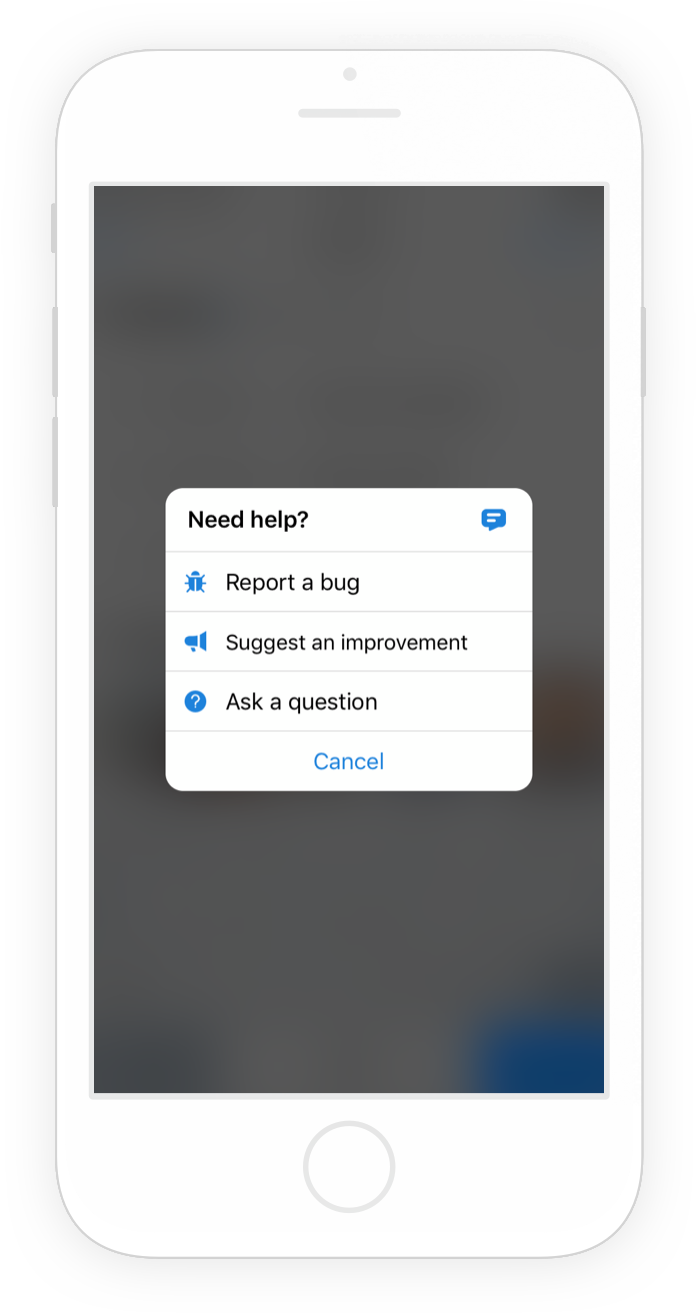
By default, when the Luciq SDK is shown, a popup appears to your app users with options for them to report a bug ("Report a bug"), share feedback ("Suggest an improvement"), or ask you a question ("Ask a question").
Instead of showing this Prompt Options menu that lets your users choose what they want to do, you can skip this step and take users directly to the bug, feedback, or question reporting flow.
For bug, feedback, and questions, you can also specify invocation options as described here.
### Show Bug Form
This API will show users a form they can use to submit new bug reports.
{% tabs %}
{% tab title="Swift" %}
{% code overflow="wrap" %}
```swift
BugReporting.show(with: .bug, options: [])
```
{% endcode %}
{% endtab %}
{% tab title="Objective-C" %}
{% code overflow="wrap" %}
```objectivec
[LCQBugReporting showWithReportType:LCQBugReportingReportTypeBug options:0];
```
{% endcode %}
{% endtab %}
{% endtabs %}
### Show Feedback Form
This API will show users a form they can use to submit new feedback and suggestions.
{% tabs %}
{% tab title="Swift" %}
{% code overflow="wrap" %}
```swift
BugReporting.show(with: .feedback, options: [])
```
{% endcode %}
{% endtab %}
{% tab title="Objective-C" %}
{% code overflow="wrap" %}
```objectivec
[LCQBugReporting showWithReportType:LCQBugReportingReportTypeFeedback options:0];
```
{% endcode %}
{% endtab %}
{% endtabs %}
### Show Question Form
This API will show users a form they can use to submit a new question.
{% tabs %}
{% tab title="Swift" %}
{% code overflow="wrap" %}
```swift
BugReporting.show(with: .question, options: [])
```
{% endcode %}
{% endtab %}
{% tab title="Objective-C" %}
{% code overflow="wrap" %}
```objectivec
[LCQBugReporting showWithReportType:LCQBugReportingReportTypeQuestion options:0];
```
{% endcode %}
{% endtab %}
{% endtabs %}
### Show Replies Page
This API will show users a page where they can see all their ongoing chats. If the user has no ongoing chats, this API won't have an effect.
{% tabs %}
{% tab title="Swift" %}
{% code overflow="wrap" %}
```swift
Replies.show()
```
{% endcode %}
{% endtab %}
{% tab title="Objective-C" %}
{% code overflow="wrap" %}
```objectivec
[LCQReplies show];
```
{% endcode %}
{% endtab %}
{% endtabs %}
---
# Agent Instructions
This documentation is published with GitBook. GitBook is the documentation platform designed so that both humans and AI agents can read, navigate, and reason over technical content effectively. Learn more at gitbook.com.
## Querying This Documentation
If you need additional information that is not directly available in this page, you can query the documentation by asking a question.
Perform an HTTP GET request on the following URL with the `ask` and `goal` query parameters:
```
GET https://docs.luciq.ai/ios/setup-luciq-for-ios/setup-bug-reporting/showing-luciq.md?ask=&goal=
```
`ask` is the immediate question: it should be specific, self-contained, and written in natural language.
`goal` is what the user is ultimately trying to achieve, the reason they need the answer. Sharing it helps GitBook give you a better, more relevant answer. A goal is most helpful when it describes the outcome the user wants rather than restating the question. For example, with `ask=how do I create an API token`, a goal like `automate deployments from our CI pipeline` lets GitBook tailor the answer to that use case.
The response will contain a direct answer to the question and relevant excerpts and sources from the documentation.
Use this mechanism when the answer is not explicitly present in the current page, you need clarification or additional context, or you want to retrieve related documentation sections.