> For the complete documentation index, see [llms.txt](https://docs.luciq.ai/llms.txt). Markdown versions of documentation pages are available by appending `.md` to page URLs; this page is available as [Markdown](https://docs.luciq.ai/android/set-up-luciq-for-android/set-up-application-performance-monitoring/set-up-screen-loading/webviews-screen-loading.md).

# WebViews Screen Loading

{% hint style="warning" %}
**Min Required SDK Version**

WebViews screen loading is supported starting Android SDK version `12.7.0`
{% endhint %}

WebViews are components that embed web content within native mobile applications. They can be an easy and cost-effective alternative to redesigning some pages from scratch for your mobile app.

> **Looking for more WebView features?** Starting from SDK version **19.2.0**, Luciq supports capturing user interactions and network logs from WebViews. See [WebView Support for Android](https://docs.luciq.ai/android/set-up-luciq-for-android/integrate-luciq-on-android) for the complete guide.

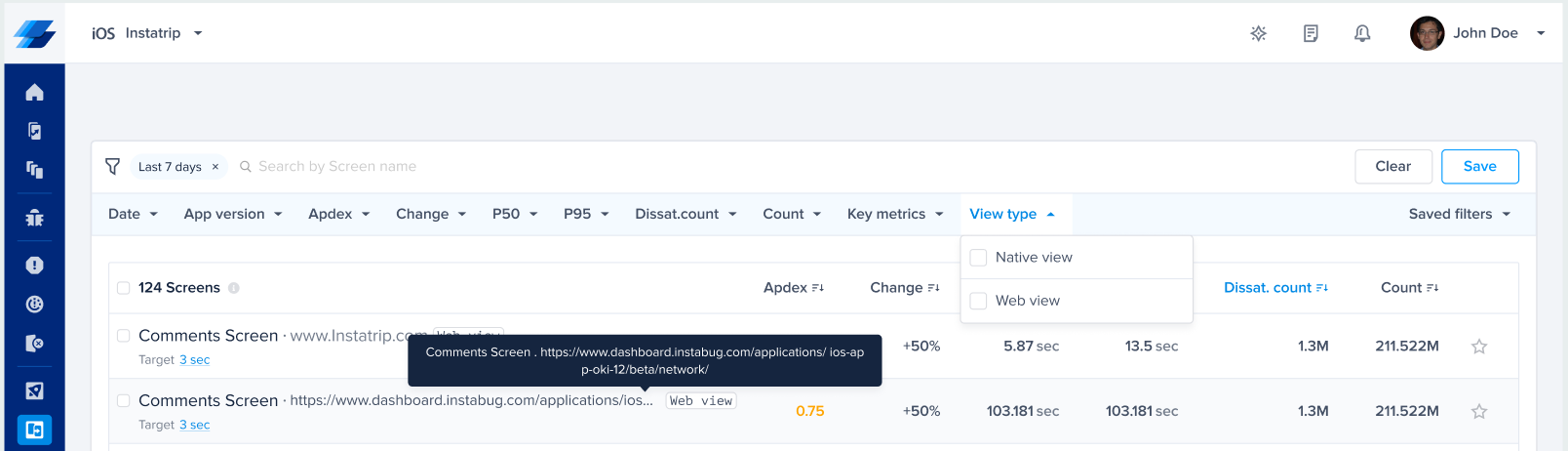
Luciq automatically captures the time it takes for your WebViews to load. This includes both the time to load the native screen that hosts the WebView and the time it takes the WebView itself to load along with its content.

<figure><img src="/files/RrgH7TrC0RyAPKw4YijG" alt=""><figcaption><p><br><em>WebViews are clearly tagged, along with their URL, for easy identification. You can also use filters to only see native views or WebViews.</em></p></figcaption></figure>

{% hint style="warning" %}
Luciq only detects WebViews that fill the **majority (<75%)** of the native screens they are hosted in. Smaller WebViews such as banners or small ads will not be captured.
{% endhint %}

{% hint style="info" %}
Luciq only supports the `WebView` Android Class. No other libraries or methods of serving web content is supported.
{% endhint %}

### Web Vitals

Web Vitals are a suite of user-centric performance metrics developed by Google that measure the loading speed, interactivity, and visual stability of web pages. Google considers **Core Web Vitals** to be the most important of these metrics and should be “tracked by every developer for every website”, these include:

* **Largest Contentful Paint (LCP)**: measures loading performance. The time it takes to render the largest image or text block visible within the webpage.
* **First Input Delay (FID)**: measures interactivity. The time between the user first trying to interact with the page and the webpage starting to process that interaction.
* **Cumulative Layout Shift (CLS)**: measures visual stability. A measure of how much visible elements on a page shift unexpectedly during the page’s lifespan.

You can learn more about Web Vitals [here](https://web.dev/articles/vitals#core-web-vitals).

Luciq automatically captures Core Web Vitals and displays them for all detected WebViews in in your application. These vitals are benchmarked according to Google’s [recommendations](https://web.dev/articles/vitals#core_web_vitals).

<figure><img src="/files/zXRp2s9MPMgx3j7ZvZmH" alt=""><figcaption><p><br><em>Times shown on the top of the Screen Loading pages are the P75 of each Core Web Vital</em></p></figcaption></figure>

#### Spans

Because total Screen Loading time only tells half the story, you can see in the Spans breakdown how each span contributes to the total screen loading time. The WebViews Loading span shows the time it took to load the WebView and its content, along with the WebView URL for quick identification or debugging. You can also check all the other spans associated with the native components of the screen, such as native loading stages or network calls, so you can find the bottleneck wherever it may be.

![](https://files.readme.io/211ea36-image.png)

{% hint style="warning" %}
Network calls originating from **within the WebView** will not be captured as they are invisible to the SDK. Only network calls originating from the native app itself will be shown.
{% endhint %}

### Disabling/Enabling WebViews Tracking

If APM and Screen Loading are enabled, the SDK will be able to collect data about your WebViews loading time.

To be able to track WebViews, you need to add the below plugin in your application's build.gradle

{% tabs %}
{% tab title="Groovy / Kotlin DSL" %}
{% code overflow="wrap" %}

```groovy
luciq {
    webViewsTrackingEnabled = true
}
```

{% endcode %}
{% endtab %}
{% endtabs %}

{% hint style="info" %}
**Migration from older versions:** If you are upgrading from a version before v19.2.0, note that `webViewsTrackingEnabled` has moved from `luciq { apm { } }` to the root `luciq { }` block.
{% endhint %}

If needed, you can always toggle this on and off by updating the relevant flag after the SDK is initialized.

{% tabs %}
{% tab title="Kotlin" %}
{% code overflow="wrap" %}

```kotlin
//Disable WebViews Tracking
APM.setWebViewsTrackingEnabled(false)
//Enable WebViews Tracking
APM.setWebViewsTrackingEnabled(true)
```

{% endcode %}
{% endtab %}

{% tab title="Java" %}
{% code overflow="wrap" %}

```java
//Disable WebViews Tracking
APM.setWebViewsTrackingEnabled(false);
//Enable WebViews Tracking
APM.setWebViewsTrackingEnabled(true);
```

{% endcode %}
{% endtab %}
{% endtabs %}


---

# Agent Instructions
This documentation is published with GitBook. GitBook is the documentation platform designed so that both humans and AI agents can read, navigate, and reason over technical content effectively. Learn more at gitbook.com.

## Querying This Documentation
If you need additional information that is not directly available in this page, you can query the documentation dynamically by asking a question.

Perform an HTTP GET request on the current page URL with the `ask` query parameter, and the optional `goal` query parameter:

```
GET https://docs.luciq.ai/android/set-up-luciq-for-android/set-up-application-performance-monitoring/set-up-screen-loading/webviews-screen-loading.md?ask=<question>&goal=<endgoal>
```

`ask` is the immediate question: it should be specific, self-contained, and written in natural language.
`goal` is optional and describes the broader end goal you are ultimately trying to accomplish on behalf of the user. GitBook uses it to tailor the answer towards what is most useful for that goal.

The response will contain a direct answer to the question and relevant excerpts and sources from the documentation.

Use this mechanism when the answer is not explicitly present in the current page, you need clarification or additional context, or you want to retrieve related documentation sections.
